> ## Documentation Index
> Fetch the complete documentation index at: https://docs.hiveku.com/llms.txt
> Use this file to discover all available pages before exploring further.
# The Inbox
> Every conversation from every channel in one list, sorted by who has waited longest
**Helpdesk → Inbox** is where your team works. Website chats, emails, phone conversations and text messages all appear here as conversations (also called tickets).
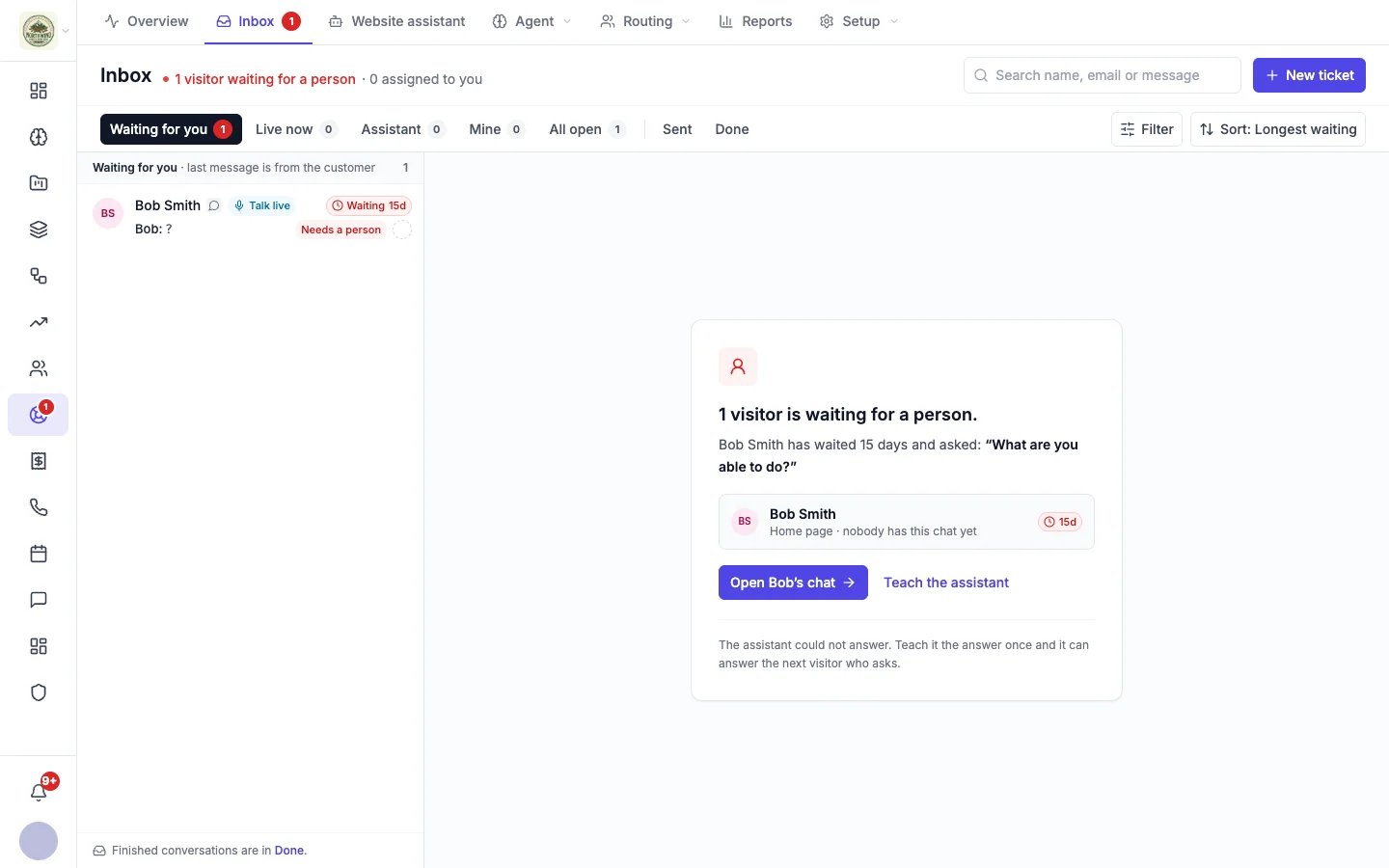 The line under the title tells you what needs you right now, for example "1 visitor waiting for a person · 0 assigned to you". The same red count shows on the Helpdesk icon in the app's side bar, so you can see it from anywhere in Hiveku.
## Views
The tabs across the top split your conversations into views:
| View | What is in it |
| - | - |
| **Waiting for you** | Conversations where the customer wrote last and a person needs to reply, including visitors the assistant passed to your team. The red count. |
| **Live now** | Visitors who are on your website right now, including chats the assistant is answering. This section is also pinned to the top of every open view. |
| **Assistant** | Chats your website assistant is answering on its own. |
| **Mine** | Conversations assigned to you. |
| **All open** | Every conversation that is not finished, except chats the assistant is answering after the visitor left your site (those are under **Assistant**). |
| **Sent** | Conversations where your team replied last and you are waiting on the customer. |
| **Done** | Resolved and closed conversations. |
When there is not room for all the tabs, they collapse into a view menu. On a phone, Filter and Sort become icon buttons.
## Find a conversation
* **Search** by name, email address or message text.
* **Filter** by channel (website chat, email, text message, phone), priority, tag, or whether it is assigned to you or to nobody.
* **Sort** by **Longest waiting** (the default) or **Newest activity**.
The list refreshes by itself every few seconds, so new conversations and replies appear without reloading the page.
## Open a conversation
Click a row to open it beside the list. The middle pane shows the whole conversation; the right pane shows the customer's details and why the conversation came to you. When nothing is open, the inbox shows a short summary of who is waiting and a button to open the longest-waiting conversation.
See [Working a conversation](/helpdesk/conversations) for replying, taking over a chat, assigning, and resolving.
## Act on several at once
Tick the box on a row (or several) to bring up the bulk bar. You can:
* **Assign to me**, or **Unassign** to leave them with nobody. To give one to a teammate, open it on its full page (see [Assign, prioritize and tag](/helpdesk/conversations#assign-prioritize-and-tag)).
* Change their **status**, for example resolve them.
* Change their **priority**.
* **Add tags**.
If the selection includes chats your website assistant is answering, Hiveku asks first. Assigning them to you takes them over and tells each visitor a teammate joined, and marking one done while the visitor is still on your site ends their chat.
Resolving a group of conversations at once does not send each customer a satisfaction survey. See [Satisfaction surveys](/helpdesk/satisfaction-surveys).
## Create a ticket yourself
Click **New ticket** to log a conversation that started somewhere else, such as a phone call or an email to a personal address.
The line under the title tells you what needs you right now, for example "1 visitor waiting for a person · 0 assigned to you". The same red count shows on the Helpdesk icon in the app's side bar, so you can see it from anywhere in Hiveku.
## Views
The tabs across the top split your conversations into views:
| View | What is in it |
| - | - |
| **Waiting for you** | Conversations where the customer wrote last and a person needs to reply, including visitors the assistant passed to your team. The red count. |
| **Live now** | Visitors who are on your website right now, including chats the assistant is answering. This section is also pinned to the top of every open view. |
| **Assistant** | Chats your website assistant is answering on its own. |
| **Mine** | Conversations assigned to you. |
| **All open** | Every conversation that is not finished, except chats the assistant is answering after the visitor left your site (those are under **Assistant**). |
| **Sent** | Conversations where your team replied last and you are waiting on the customer. |
| **Done** | Resolved and closed conversations. |
When there is not room for all the tabs, they collapse into a view menu. On a phone, Filter and Sort become icon buttons.
## Find a conversation
* **Search** by name, email address or message text.
* **Filter** by channel (website chat, email, text message, phone), priority, tag, or whether it is assigned to you or to nobody.
* **Sort** by **Longest waiting** (the default) or **Newest activity**.
The list refreshes by itself every few seconds, so new conversations and replies appear without reloading the page.
## Open a conversation
Click a row to open it beside the list. The middle pane shows the whole conversation; the right pane shows the customer's details and why the conversation came to you. When nothing is open, the inbox shows a short summary of who is waiting and a button to open the longest-waiting conversation.
See [Working a conversation](/helpdesk/conversations) for replying, taking over a chat, assigning, and resolving.
## Act on several at once
Tick the box on a row (or several) to bring up the bulk bar. You can:
* **Assign to me**, or **Unassign** to leave them with nobody. To give one to a teammate, open it on its full page (see [Assign, prioritize and tag](/helpdesk/conversations#assign-prioritize-and-tag)).
* Change their **status**, for example resolve them.
* Change their **priority**.
* **Add tags**.
If the selection includes chats your website assistant is answering, Hiveku asks first. Assigning them to you takes them over and tells each visitor a teammate joined, and marking one done while the visitor is still on your site ends their chat.
Resolving a group of conversations at once does not send each customer a satisfaction survey. See [Satisfaction surveys](/helpdesk/satisfaction-surveys).
## Create a ticket yourself
Click **New ticket** to log a conversation that started somewhere else, such as a phone call or an email to a personal address.
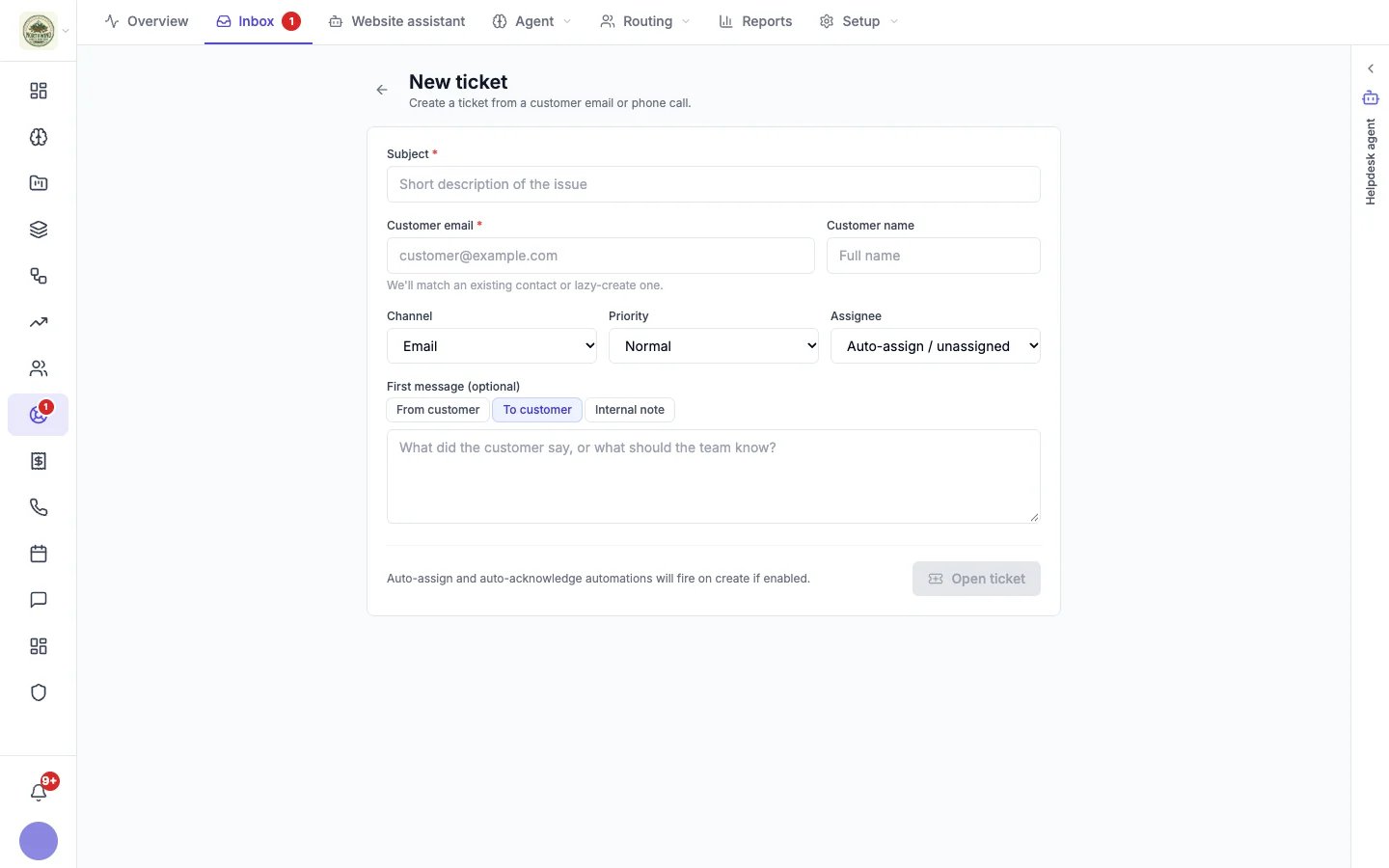 1. Enter a **Subject** and the **Customer email**. Hiveku matches an existing contact or creates one.
2. Choose the **Channel** and **Priority**, and an **Assignee** (or leave it to automatic assignment).
3. Optionally add the **First message**, as from the customer, to the customer, or as an internal note.
4. Click **Open ticket**.
Your automatic assignment and confirmation email run on the new ticket if you have turned them on in [Helpdesk settings](/helpdesk/settings).
This documentation is built and hosted on [Mintlify](https://mintlify.com), a developer documentation platform.
1. Enter a **Subject** and the **Customer email**. Hiveku matches an existing contact or creates one.
2. Choose the **Channel** and **Priority**, and an **Assignee** (or leave it to automatic assignment).
3. Optionally add the **First message**, as from the customer, to the customer, or as an internal note.
4. Click **Open ticket**.
Your automatic assignment and confirmation email run on the new ticket if you have turned them on in [Helpdesk settings](/helpdesk/settings).
This documentation is built and hosted on [Mintlify](https://mintlify.com), a developer documentation platform.