> ## Documentation Index
> Fetch the complete documentation index at: https://docs.hiveku.com/llms.txt
> Use this file to discover all available pages before exploring further.
# Satisfaction Surveys
> Ask customers how it went after a conversation is resolved, and see the answers in Reports
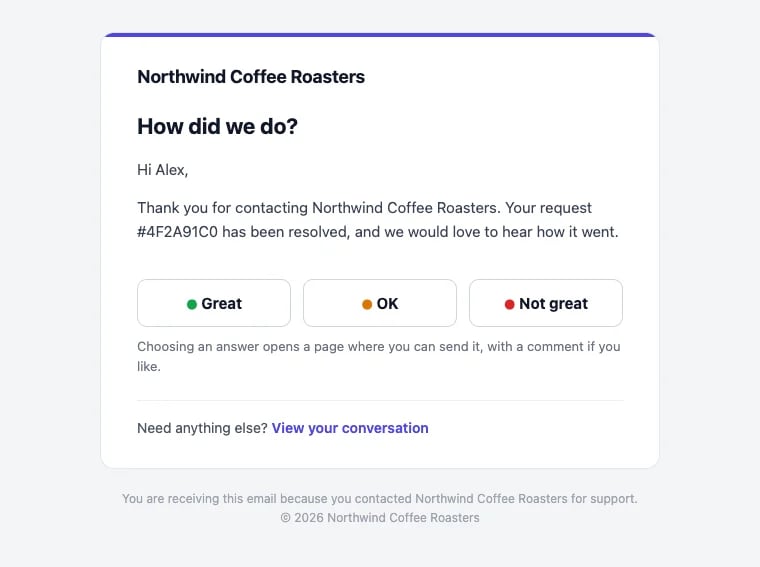
A satisfaction survey (CSAT, for customer satisfaction) asks the customer one question after their conversation is resolved: how did we do? They answer **Great**, **OK** or **Not great**, and can add a comment.
 ## Turn it on
1. Open **Helpdesk → Setup → Settings** and turn on **CSAT survey**.
2. Set the **Delay** in minutes after a conversation is resolved (60 by default), so a quick reopen doesn't trigger a survey.
3. Edit the **Subject template** ("How was our support?" by default) and the **Message** if you want your own words. The email adds the Great, OK and Not great buttons for you.
4. Click **Preview the email** to see it as your customers will. **Use the default message** brings back the default wording.
The survey is sent from your verified email domain, so you need one set up. See [Email](/helpdesk/email#your-sending-domain).
## How customers answer
1. The customer clicks **Great**, **OK** or **Not great** in the email.
2. Their help page opens on that conversation with their answer already chosen.
3. They tap **Send rating**, and can add a comment.
The answer is saved only when the customer taps **Send rating**. Many company mail systems open every link in an email to check it for safety, and an answer saved by simply opening the link would be the scanner's, not your customer's. A customer can change their answer later from the same page.
A customer who replies to the survey email with their answer ("1", "2" or "3", or Great, OK or Not great) has it recorded too, unless they already answered on their help page. They can add a comment after the answer, as in "Not great. The order was late." A reply that isn't an answer, such as a question or a reply to a later message from your team, is not counted as a rating: it reopens the conversation for your team.
## Who gets a survey
Hiveku sends at most one survey per conversation, and skips:
* your own team: anyone on your account is never surveyed;
* conversations resolved in bulk, for example when you resolve a batch of old conversations at once;
* customers who already got a survey in the last 7 days, so someone with several conversations gets one survey, not one per conversation;
* conversations resolved more than 14 days ago;
* customers with no email address, or whose address bounced or complained before.
## See the results
* **On the conversation**: a note shows the customer's answer and comment, and the assigned teammate is told.
* **In Reports**: the **CSAT — Great** share, the **CSAT trend** over time, the latest **CSAT responses** (up to 50), and each teammate's score under **Top agents**. See [Reports](/helpdesk/reports).
Read the "Not great" comments every week. They are the fastest way to find what to fix, and a quick personal reply often turns a bad experience around.
This documentation is built and hosted on [Mintlify](https://mintlify.com), a developer documentation platform.
## Turn it on
1. Open **Helpdesk → Setup → Settings** and turn on **CSAT survey**.
2. Set the **Delay** in minutes after a conversation is resolved (60 by default), so a quick reopen doesn't trigger a survey.
3. Edit the **Subject template** ("How was our support?" by default) and the **Message** if you want your own words. The email adds the Great, OK and Not great buttons for you.
4. Click **Preview the email** to see it as your customers will. **Use the default message** brings back the default wording.
The survey is sent from your verified email domain, so you need one set up. See [Email](/helpdesk/email#your-sending-domain).
## How customers answer
1. The customer clicks **Great**, **OK** or **Not great** in the email.
2. Their help page opens on that conversation with their answer already chosen.
3. They tap **Send rating**, and can add a comment.
The answer is saved only when the customer taps **Send rating**. Many company mail systems open every link in an email to check it for safety, and an answer saved by simply opening the link would be the scanner's, not your customer's. A customer can change their answer later from the same page.
A customer who replies to the survey email with their answer ("1", "2" or "3", or Great, OK or Not great) has it recorded too, unless they already answered on their help page. They can add a comment after the answer, as in "Not great. The order was late." A reply that isn't an answer, such as a question or a reply to a later message from your team, is not counted as a rating: it reopens the conversation for your team.
## Who gets a survey
Hiveku sends at most one survey per conversation, and skips:
* your own team: anyone on your account is never surveyed;
* conversations resolved in bulk, for example when you resolve a batch of old conversations at once;
* customers who already got a survey in the last 7 days, so someone with several conversations gets one survey, not one per conversation;
* conversations resolved more than 14 days ago;
* customers with no email address, or whose address bounced or complained before.
## See the results
* **On the conversation**: a note shows the customer's answer and comment, and the assigned teammate is told.
* **In Reports**: the **CSAT — Great** share, the **CSAT trend** over time, the latest **CSAT responses** (up to 50), and each teammate's score under **Top agents**. See [Reports](/helpdesk/reports).
Read the "Not great" comments every week. They are the fastest way to find what to fix, and a quick personal reply often turns a bad experience around.
This documentation is built and hosted on [Mintlify](https://mintlify.com), a developer documentation platform.