> ## Documentation Index
> Fetch the complete documentation index at: https://docs.hiveku.com/llms.txt
> Use this file to discover all available pages before exploring further.
# Saved Replies and Saved Answers
> Reusable replies your team inserts in one click, and answers your website assistant may use
Saved replies (called **Macros** in the menu) are reply snippets your team drops into a conversation with one click. Some of them can also be **saved answers** that your website assistant may use with visitors.
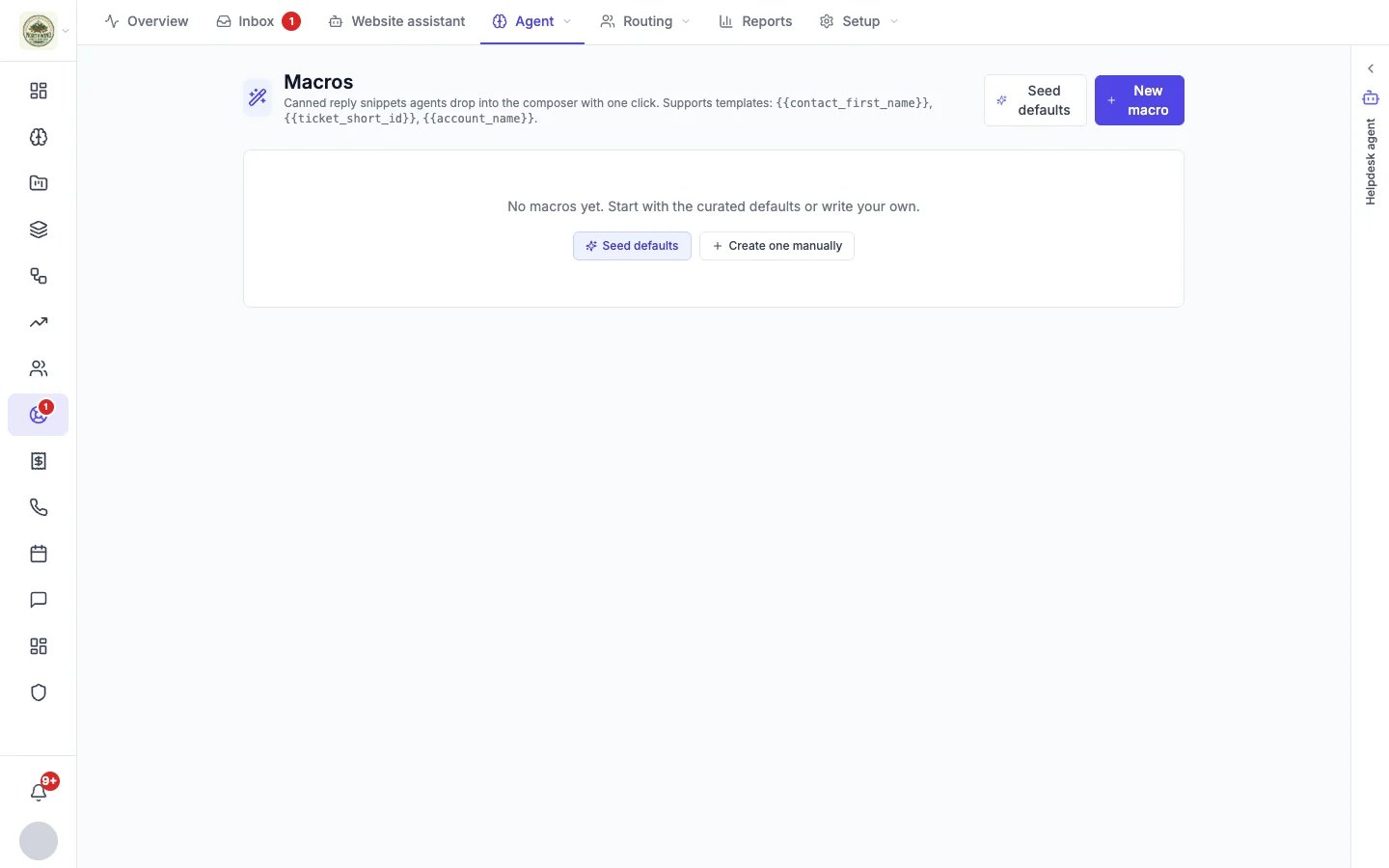
Open **Helpdesk → Agent → Macros**.
 ## Create a saved reply
1. Click **New macro**, or **Seed defaults** to start from a curated set you can edit.
2. Give it a **Title** (for example "Refund acknowledgment") and a one-line **Description** of when to use it.
3. Write the **Body**. You can use these placeholders, filled in when you insert the reply:
* `{{contact_first_name}}`: the customer's first name
* `{{ticket_short_id}}`: the conversation's reference number
* `{{ticket_subject}}`: the conversation's subject
* `{{account_name}}`: your business name
4. Add **Tags** to group it, then save.
## Use a saved reply
In any conversation, click **Saved replies** under the reply box (on the full page of an email, text or phone conversation the button is **Macros**) and pick one. It is inserted into the box with the placeholders filled in, so you can edit it before you send. See [Working a conversation](/helpdesk/conversations).
## Saved answers for the assistant
A saved answer is a short answer you write once, such as your return policy or delivery times, that your website assistant may give visitors.
There are three ways to add one:
* On **Helpdesk → Website assistant**, under **Unanswered questions**, click **Write an answer** next to a question visitors asked.
* On the chat widget's **Assistant** tab, click **Answer it** next to a question it could not answer.
* On the Macros page, add the tag `ai-answer` to an existing macro.
A saved answer is live as soon as you save it.
The assistant skips a saved answer that still contains an unfilled placeholder in square brackets, such as "We cover \[your area]", until you fill it in. Starter kits on the chat widget's Templates tab suggest saved answers like this for you to complete.
Saved answers rank alongside your [help articles](/helpdesk/knowledge-base), and the assistant reads them first because you wrote them for exactly this.
This documentation is built and hosted on [Mintlify](https://mintlify.com), a developer documentation platform.
## Create a saved reply
1. Click **New macro**, or **Seed defaults** to start from a curated set you can edit.
2. Give it a **Title** (for example "Refund acknowledgment") and a one-line **Description** of when to use it.
3. Write the **Body**. You can use these placeholders, filled in when you insert the reply:
* `{{contact_first_name}}`: the customer's first name
* `{{ticket_short_id}}`: the conversation's reference number
* `{{ticket_subject}}`: the conversation's subject
* `{{account_name}}`: your business name
4. Add **Tags** to group it, then save.
## Use a saved reply
In any conversation, click **Saved replies** under the reply box (on the full page of an email, text or phone conversation the button is **Macros**) and pick one. It is inserted into the box with the placeholders filled in, so you can edit it before you send. See [Working a conversation](/helpdesk/conversations).
## Saved answers for the assistant
A saved answer is a short answer you write once, such as your return policy or delivery times, that your website assistant may give visitors.
There are three ways to add one:
* On **Helpdesk → Website assistant**, under **Unanswered questions**, click **Write an answer** next to a question visitors asked.
* On the chat widget's **Assistant** tab, click **Answer it** next to a question it could not answer.
* On the Macros page, add the tag `ai-answer` to an existing macro.
A saved answer is live as soon as you save it.
The assistant skips a saved answer that still contains an unfilled placeholder in square brackets, such as "We cover \[your area]", until you fill it in. Starter kits on the chat widget's Templates tab suggest saved answers like this for you to complete.
Saved answers rank alongside your [help articles](/helpdesk/knowledge-base), and the assistant reads them first because you wrote them for exactly this.
This documentation is built and hosted on [Mintlify](https://mintlify.com), a developer documentation platform.