> ## Documentation Index
> Fetch the complete documentation index at: https://docs.hiveku.com/llms.txt
> Use this file to discover all available pages before exploring further.
# Helpdesk Settings
> Automations, alerts, sending domain, blocked senders and chat history
**Helpdesk → Setup → Settings** holds the automations that run on every conversation without building a workflow, plus your sending domain, blocked senders and how long chats are kept. Switch each automation on or off and tune it; for rules these don't cover, build a [workflow](/integrations/workflows) with the helpdesk triggers and actions.
## Reply channel
How your replies are sent by default: through your connected Gmail or Outlook inbox, or from your verified domain with the Hiveku email service. See [Email](/helpdesk/email#choose-how-replies-are-sent).
## Auto-acknowledge new tickets
On by default. As soon as a conversation opens, the customer gets a confirmation email with their reference number and a **View your request** button, and the confirmation is added to the conversation. It needs a verified sending domain, and text and phone conversations don't get one.
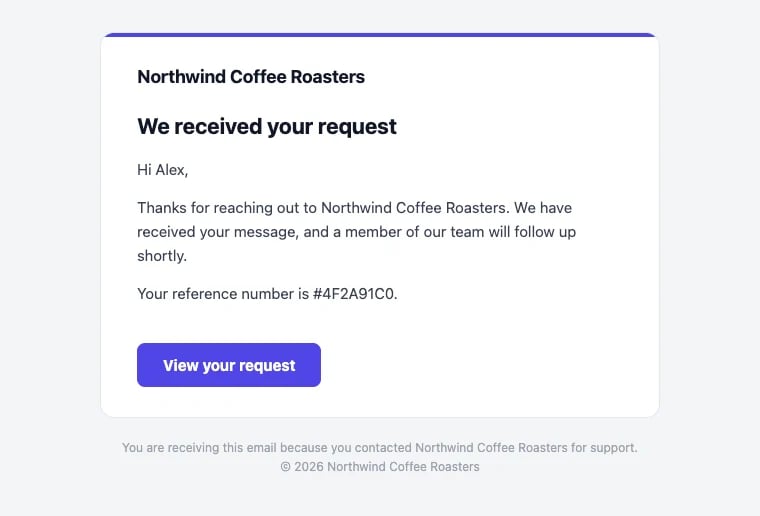 * Edit the **Subject template** and the **Message**. You can use `{{contact_first_name}}`, `{{ticket_subject}}`, `{{ticket_short_id}}` and `{{account_name}}`.
* **Preview the email** shows exactly what customers get: your business name, and the main color from your [chat widget's](/helpdesk/chat-widget#appearance) appearance settings.
* **Use the default message** brings back the default wording.
The confirmation is not sent to automatic mail (such as an auto-reply from another helpdesk), or when the website assistant hands a chat to your team (the assistant already told the visitor what happens next). It does not count as your first response for response time targets.
## Auto-assign tickets
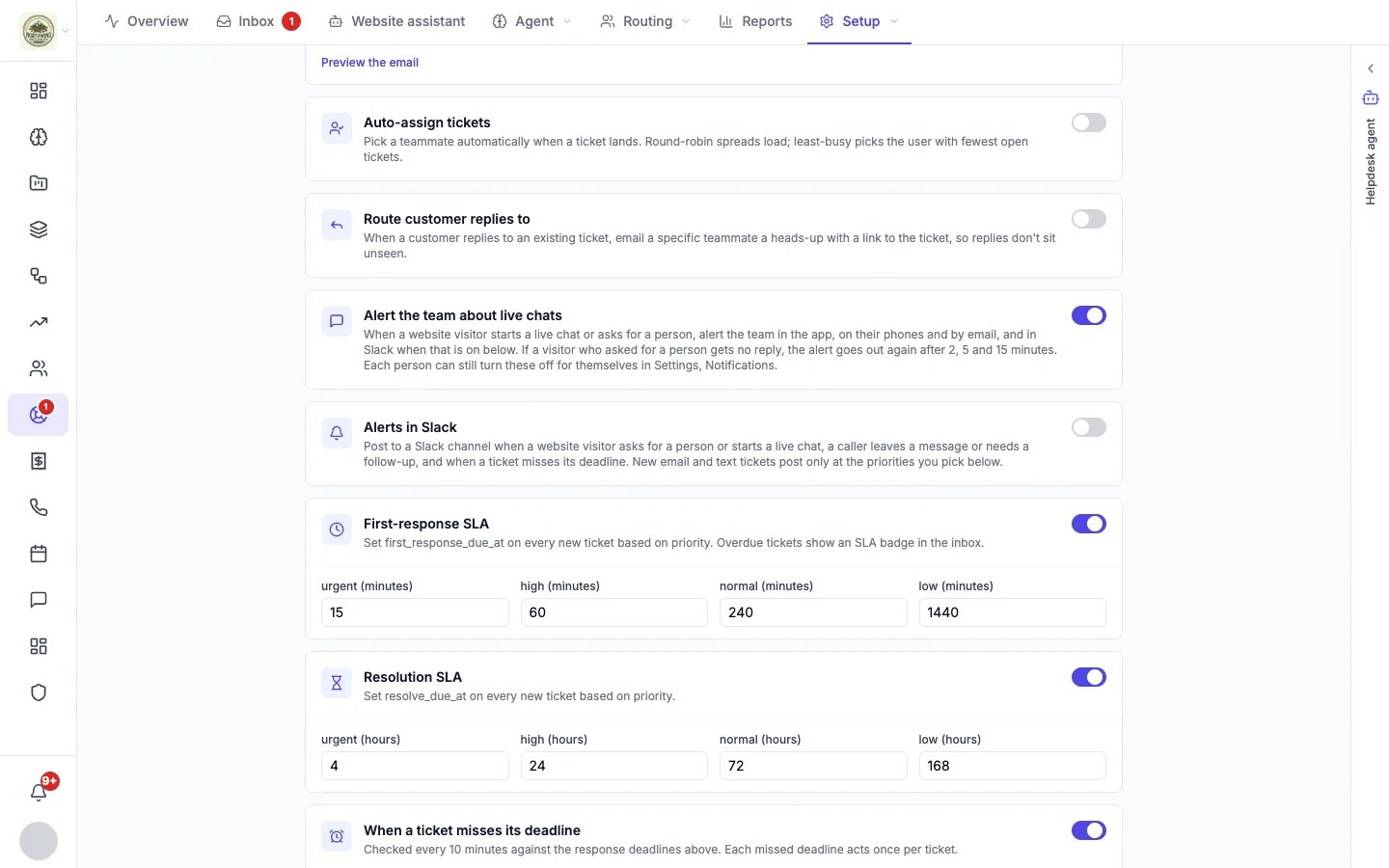
Pick a teammate automatically when a conversation lands: round-robin, least busy, or always the same person. See [Routing](/helpdesk/routing#automatic-assignment).
* Edit the **Subject template** and the **Message**. You can use `{{contact_first_name}}`, `{{ticket_subject}}`, `{{ticket_short_id}}` and `{{account_name}}`.
* **Preview the email** shows exactly what customers get: your business name, and the main color from your [chat widget's](/helpdesk/chat-widget#appearance) appearance settings.
* **Use the default message** brings back the default wording.
The confirmation is not sent to automatic mail (such as an auto-reply from another helpdesk), or when the website assistant hands a chat to your team (the assistant already told the visitor what happens next). It does not count as your first response for response time targets.
## Auto-assign tickets
Pick a teammate automatically when a conversation lands: round-robin, least busy, or always the same person. See [Routing](/helpdesk/routing#automatic-assignment).
 ## Route customer replies to
When a customer replies to an existing conversation by email, email a chosen teammate a heads-up with a link to it, so replies don't sit unseen.
## Alerts
**Alert the team about live chats** decides whether your team hears about a visitor who wants a person. **Alerts in Slack** also posts callers' messages and late conversations to Slack. Bells and emails for late conversations are set under **When a ticket misses its deadline**. See [Alerts](/helpdesk/alerts).
## Response time targets
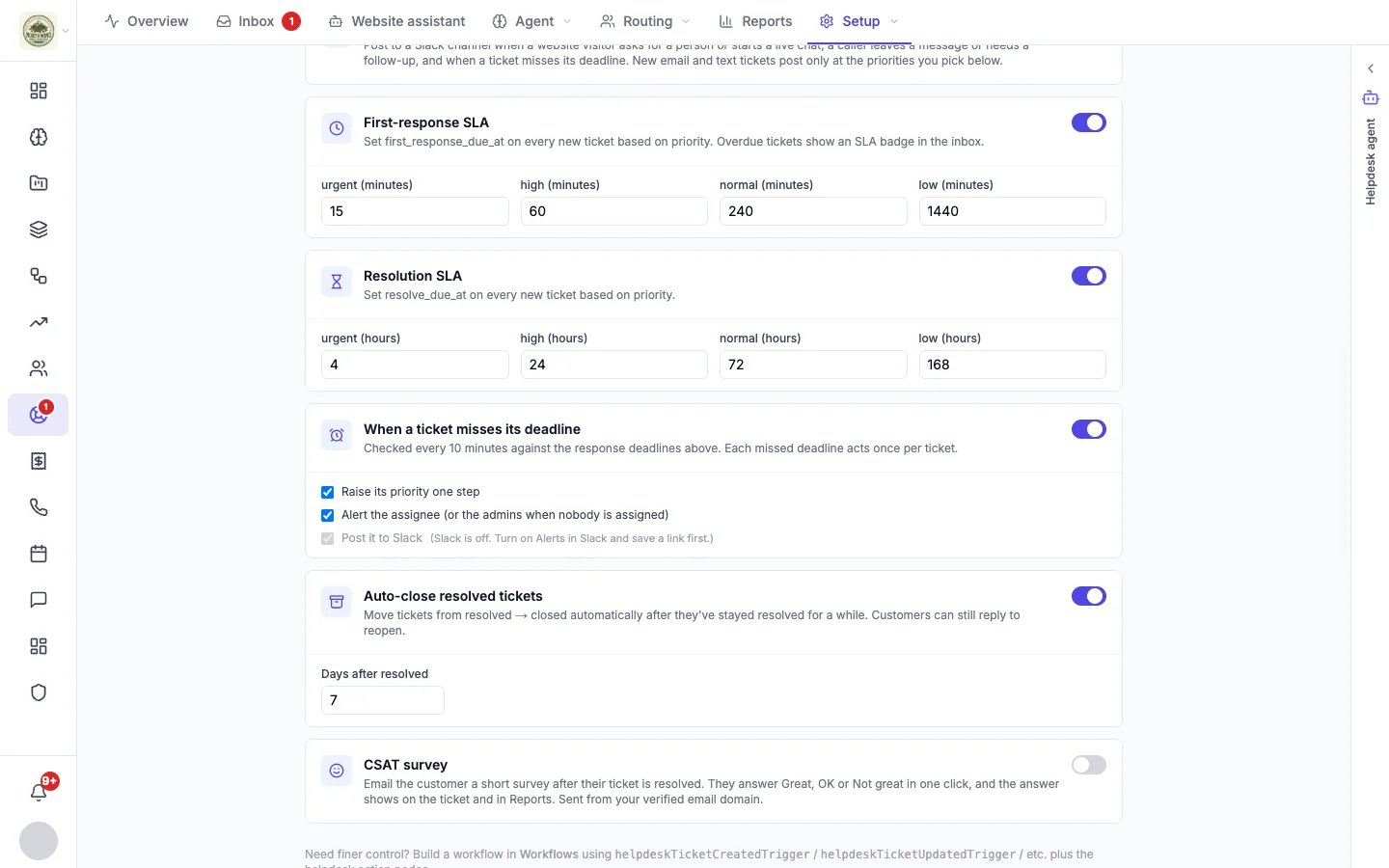
**First-response SLA** and **Resolution SLA** give every new conversation a deadline based on its priority. **When a ticket misses its deadline** raises its priority, alerts the assignee and posts to Slack. Set the targets on the SLA page; see [Routing and response times](/helpdesk/routing#response-time-targets).
## Route customer replies to
When a customer replies to an existing conversation by email, email a chosen teammate a heads-up with a link to it, so replies don't sit unseen.
## Alerts
**Alert the team about live chats** decides whether your team hears about a visitor who wants a person. **Alerts in Slack** also posts callers' messages and late conversations to Slack. Bells and emails for late conversations are set under **When a ticket misses its deadline**. See [Alerts](/helpdesk/alerts).
## Response time targets
**First-response SLA** and **Resolution SLA** give every new conversation a deadline based on its priority. **When a ticket misses its deadline** raises its priority, alerts the assignee and posts to Slack. Set the targets on the SLA page; see [Routing and response times](/helpdesk/routing#response-time-targets).
 ## Auto-close resolved tickets
Moves conversations from resolved to closed after they have stayed resolved for a number of days (7 by default). Customers can still reply to reopen.
## CSAT survey
Emails the customer a short satisfaction survey after their conversation is resolved. Off by default. See [Satisfaction surveys](/helpdesk/satisfaction-surveys).
## Auto-close resolved tickets
Moves conversations from resolved to closed after they have stayed resolved for a number of days (7 by default). Customers can still reply to reopen.
## CSAT survey
Emails the customer a short satisfaction survey after their conversation is resolved. Off by default. See [Satisfaction surveys](/helpdesk/satisfaction-surveys).
 ## Your helpdesk agent's settings
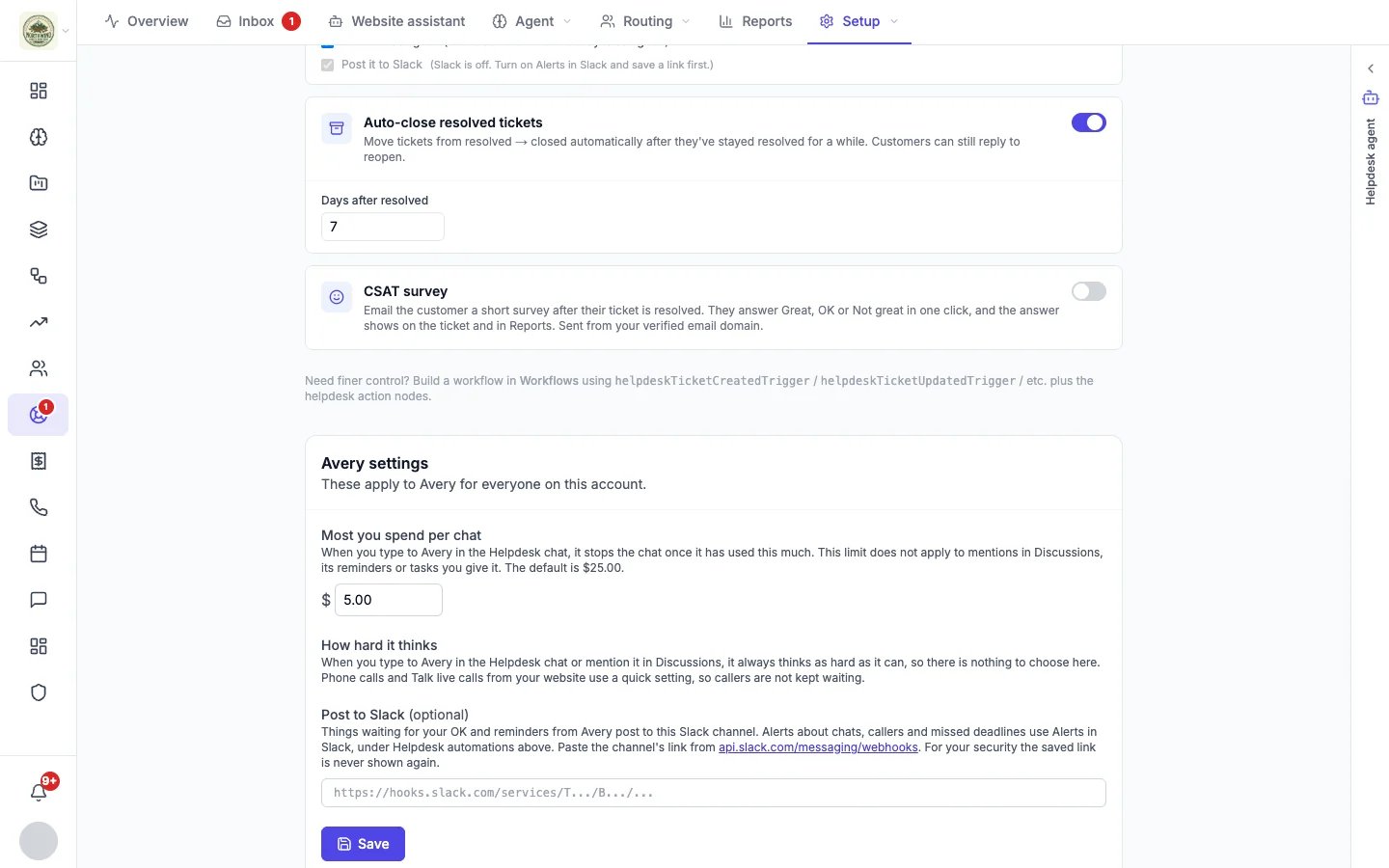
These apply to your helpdesk agent for everyone on the account (the section is named after your agent, for example "Avery settings"):
* **Most you spend per chat**: when you chat with the agent in the Helpdesk panel, it stops once it has used this much (\$25 by default). The limit does not apply to mentions in Discussions, its reminders, or tasks you give it.
* **How hard it thinks**: chats in the Helpdesk panel and mentions in Discussions always use its best reasoning. Phone and Talk live calls use a quick setting so callers are not kept waiting.
* **Post to Slack**: things waiting for your OK, and reminders from the agent, post to this Slack channel. The saved link is never shown again.
See [Your helpdesk agent](/helpdesk/helpdesk-agent).
## Notification sending domain
The verified domain your confirmation emails, surveys and other notifications are sent from. See [Email](/helpdesk/email#your-sending-domain).
## Blocked senders
Addresses and domains whose mail never opens a conversation. See [Email](/helpdesk/email#blocked-senders).
## Website chat history
How long conversations from your website chat are kept: forever, or 30 days, 90 days, 6 months, 1 year, 2 years or 3 years. Older chats are deleted every night with their messages, uploaded files and chat visits, and a contact a chat created is removed once nothing else is attached to it. Chats a teammate still has open are never deleted.
To remove one person's chats now, open their contact in the CRM and use **Erase this person's chats**. Only account owners and admins can change how long chats are kept or erase a person's chats.
This documentation is built and hosted on [Mintlify](https://mintlify.com), a developer documentation platform.
## Your helpdesk agent's settings
These apply to your helpdesk agent for everyone on the account (the section is named after your agent, for example "Avery settings"):
* **Most you spend per chat**: when you chat with the agent in the Helpdesk panel, it stops once it has used this much (\$25 by default). The limit does not apply to mentions in Discussions, its reminders, or tasks you give it.
* **How hard it thinks**: chats in the Helpdesk panel and mentions in Discussions always use its best reasoning. Phone and Talk live calls use a quick setting so callers are not kept waiting.
* **Post to Slack**: things waiting for your OK, and reminders from the agent, post to this Slack channel. The saved link is never shown again.
See [Your helpdesk agent](/helpdesk/helpdesk-agent).
## Notification sending domain
The verified domain your confirmation emails, surveys and other notifications are sent from. See [Email](/helpdesk/email#your-sending-domain).
## Blocked senders
Addresses and domains whose mail never opens a conversation. See [Email](/helpdesk/email#blocked-senders).
## Website chat history
How long conversations from your website chat are kept: forever, or 30 days, 90 days, 6 months, 1 year, 2 years or 3 years. Older chats are deleted every night with their messages, uploaded files and chat visits, and a contact a chat created is removed once nothing else is attached to it. Chats a teammate still has open are never deleted.
To remove one person's chats now, open their contact in the CRM and use **Erase this person's chats**. Only account owners and admins can change how long chats are kept or erase a person's chats.
This documentation is built and hosted on [Mintlify](https://mintlify.com), a developer documentation platform.