

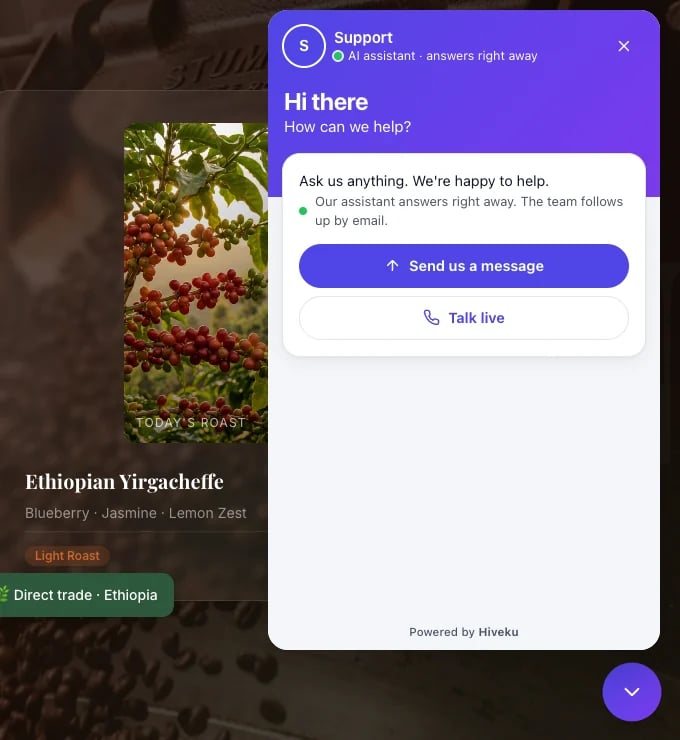
The chat on a website, opened to its home screen
Install the chat
Open the Install tab.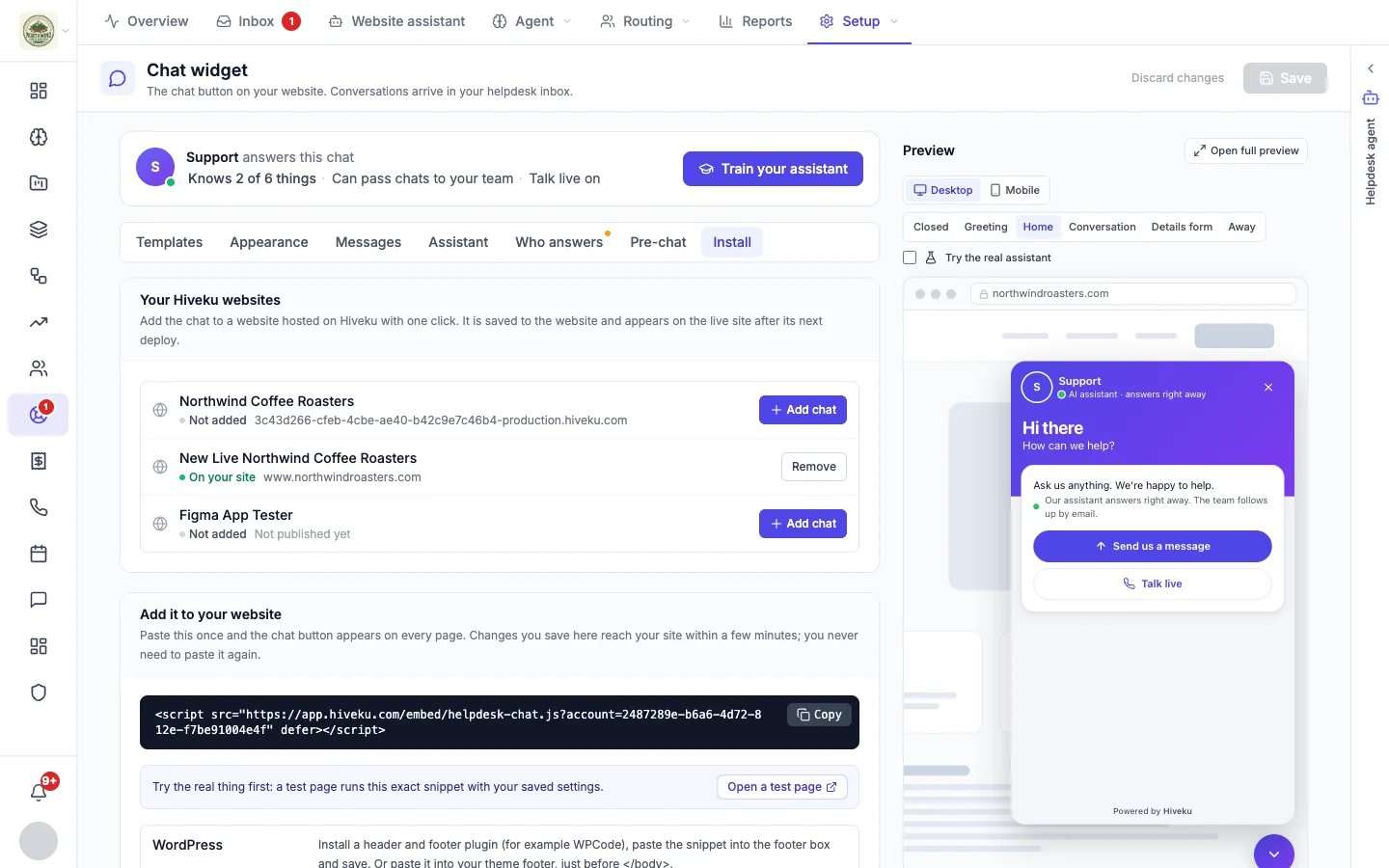
The Install tab
On a website hosted on Hiveku
Under Your Hiveku websites, click Add chat next to the site. The chat is saved to the website and appears on the live site after its next deploy. You can also ask the AI builder to “add the Hiveku chat”. Remove takes it off again.On any other website
Copy the one-line snippet under Add it to your website and paste it once, just before the closing</body> tag, so it is on every page:
Click Open a test page to try the real chat with your saved settings before you put it on your site.
Seen on lists the websites where visitors opened your chat in the last 30 days. If your site is missing, the snippet may not be installed yet.
Only show on these websites hides the chat button everywhere except the sites you list (a listed site covers its subdomains). It stops the chat appearing on a site that copied your code; it is not a security lock.
Choose how chats are answered
Under How chats are answered:- Support desk: visitors leave their name and email first, every chat becomes a ticket, and your team replies.
- Website assistant: visitors start chatting straight away. The assistant answers what it can, and offers to pass anything else to your team or take a message. See Website assistant.
Templates
Industry starter kits set the look, the welcome copy, the home-screen buttons and the assistant’s guardrails for your kind of business: home services, dental and medical, law firms, software support, online stores, and agencies. A kit never adds facts like prices or hours; you fill those in. Some kits also suggest saved answers you can add.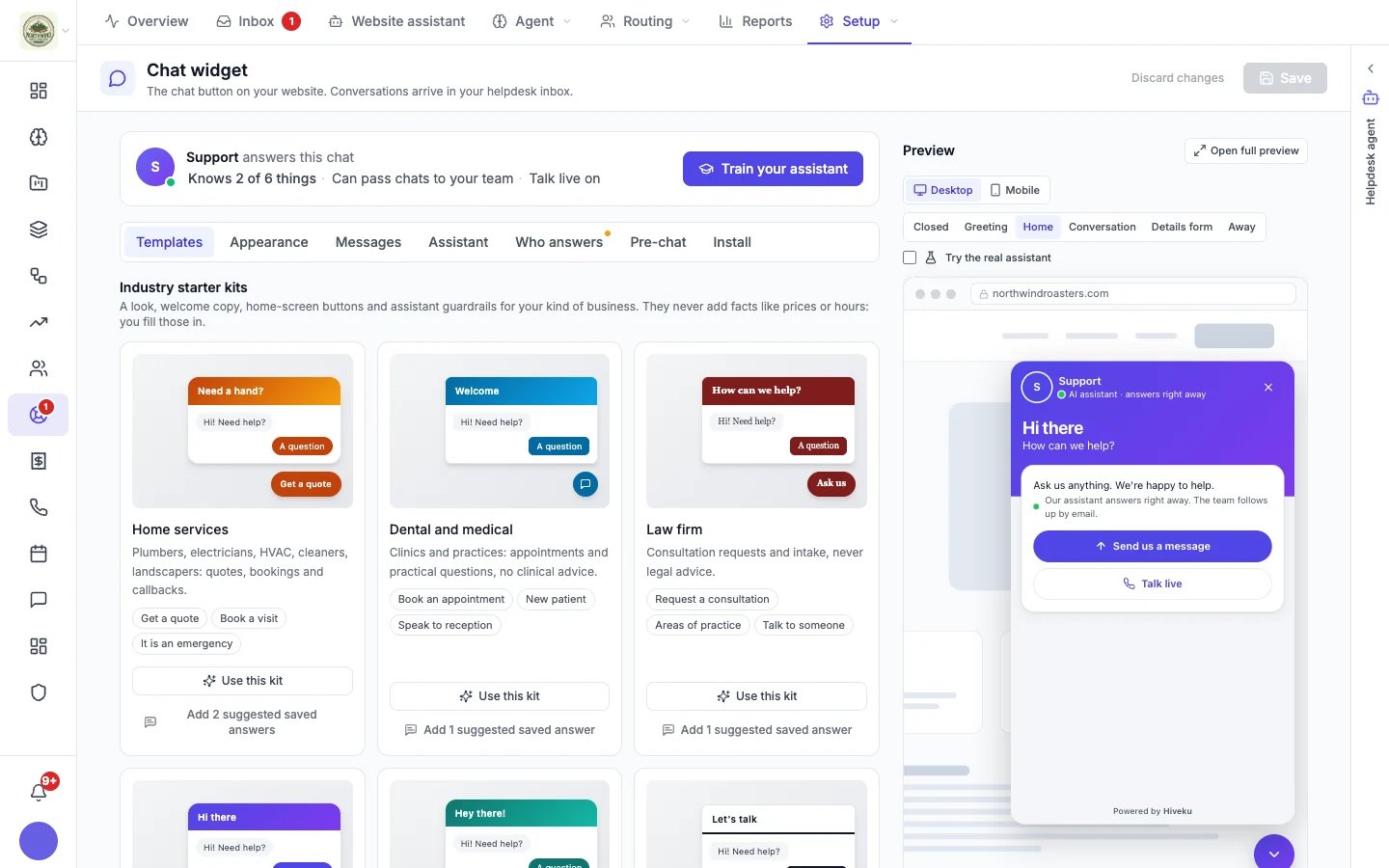
Appearance
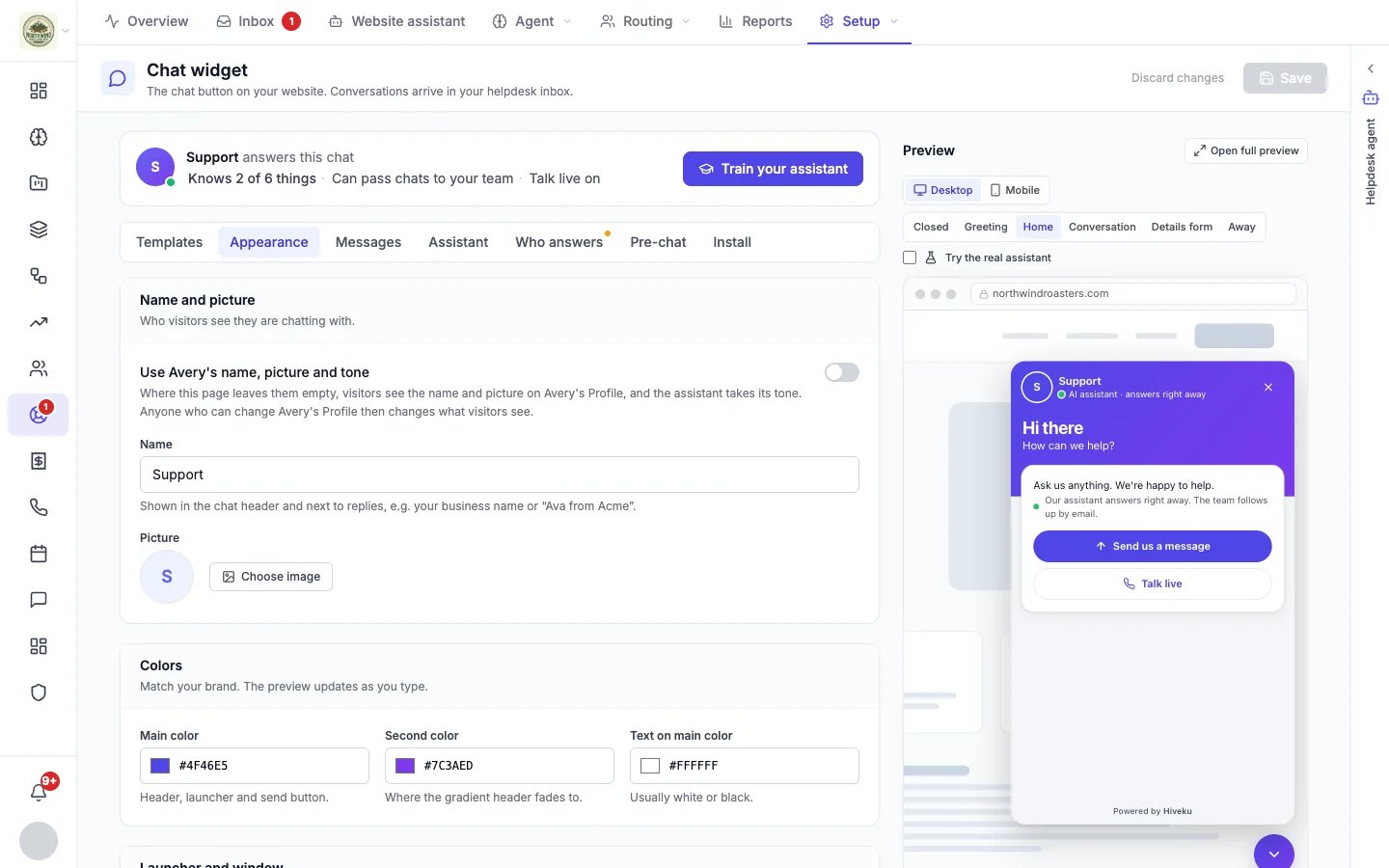
- Name and picture: who visitors see they are chatting with. Turn on Use [agent]‘s name, picture and tone to use your support agent’s Profile where this page leaves them empty.
- Colors: the main color (header, launcher and send button), the second color the header fades to, and the text color on the main color.
- Launcher and window: the button’s shape (circle, rounded square or a pill with a label) and size, which side of the page it sits on and how far from the edge, the window’s corners, the header style, light or dark (or match the visitor’s device), and the lettering.
Messages
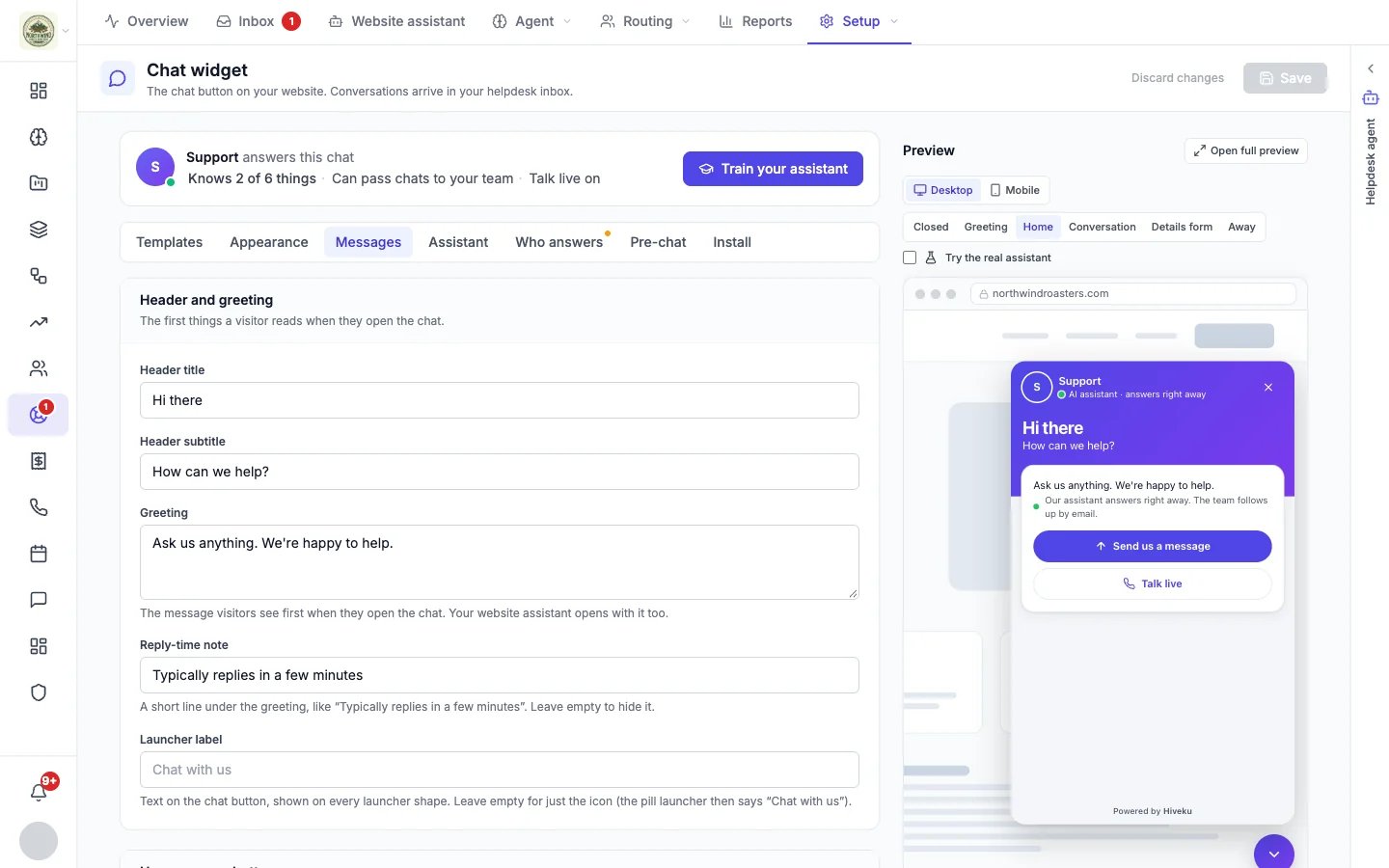
- Header and greeting: the header title and subtitle, and the first message visitors see. Your website assistant opens with it too.
- Reply-time note: a short line such as “Typically replies in a few minutes”. Leave it empty to hide it.
- Launcher label: text on the chat button.
- Home-screen buttons: up to six one-tap buttons under the greeting, so visitors can start with a common question.
- Proactive messages: a small bubble next to the button after a visitor has been on a page for a while. The first rule that matches the page is used.
- Getting the visitor’s attention: play a sound, and flash the browser tab title, when a reply arrives while the chat is closed or the visitor is on another tab.
Assistant
A short version of the website assistant settings: what it knows, the questions it could not answer, and what it can do (book appointments, take a message, pass chats to your team). Train your assistant opens the full page.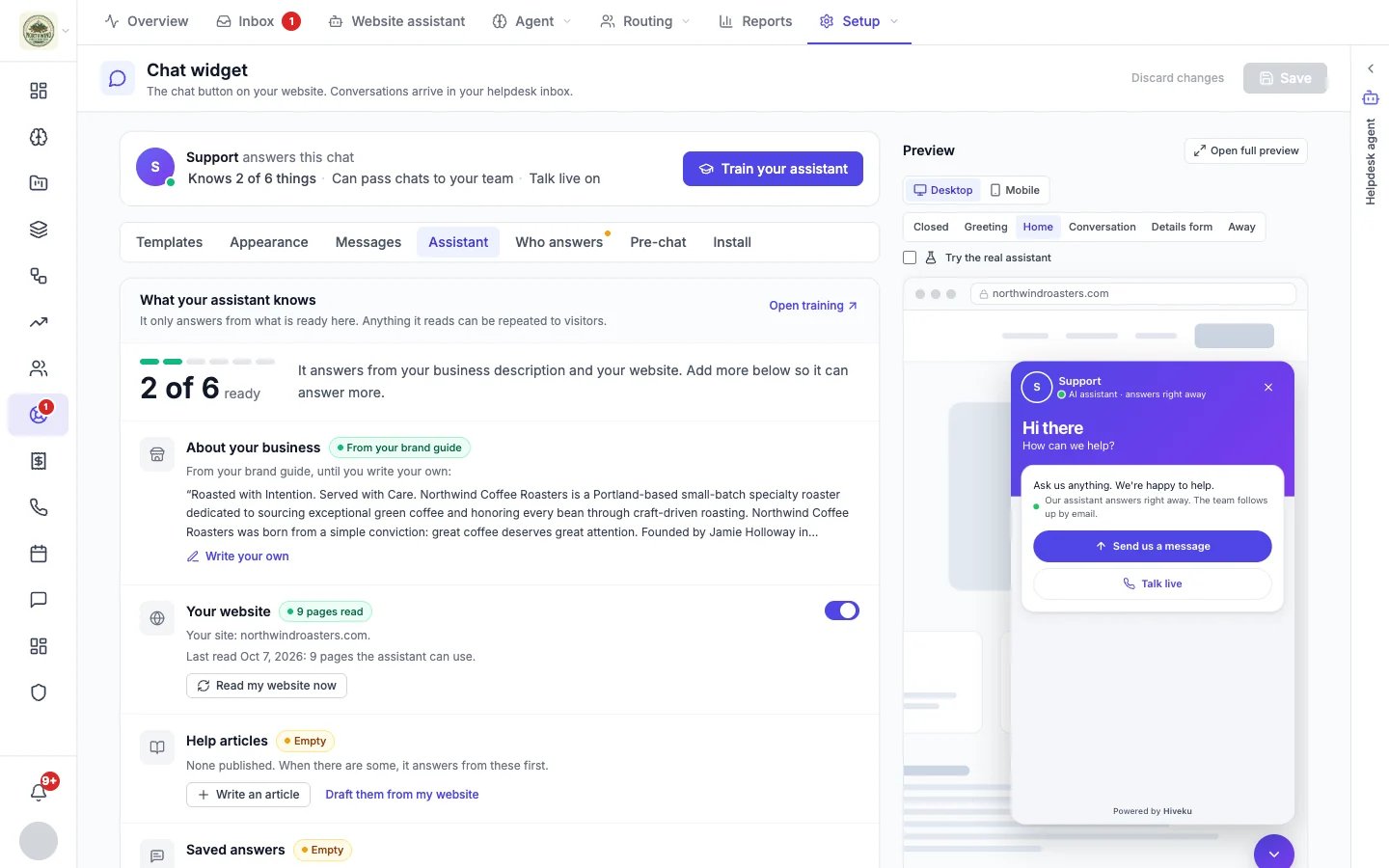
Who answers
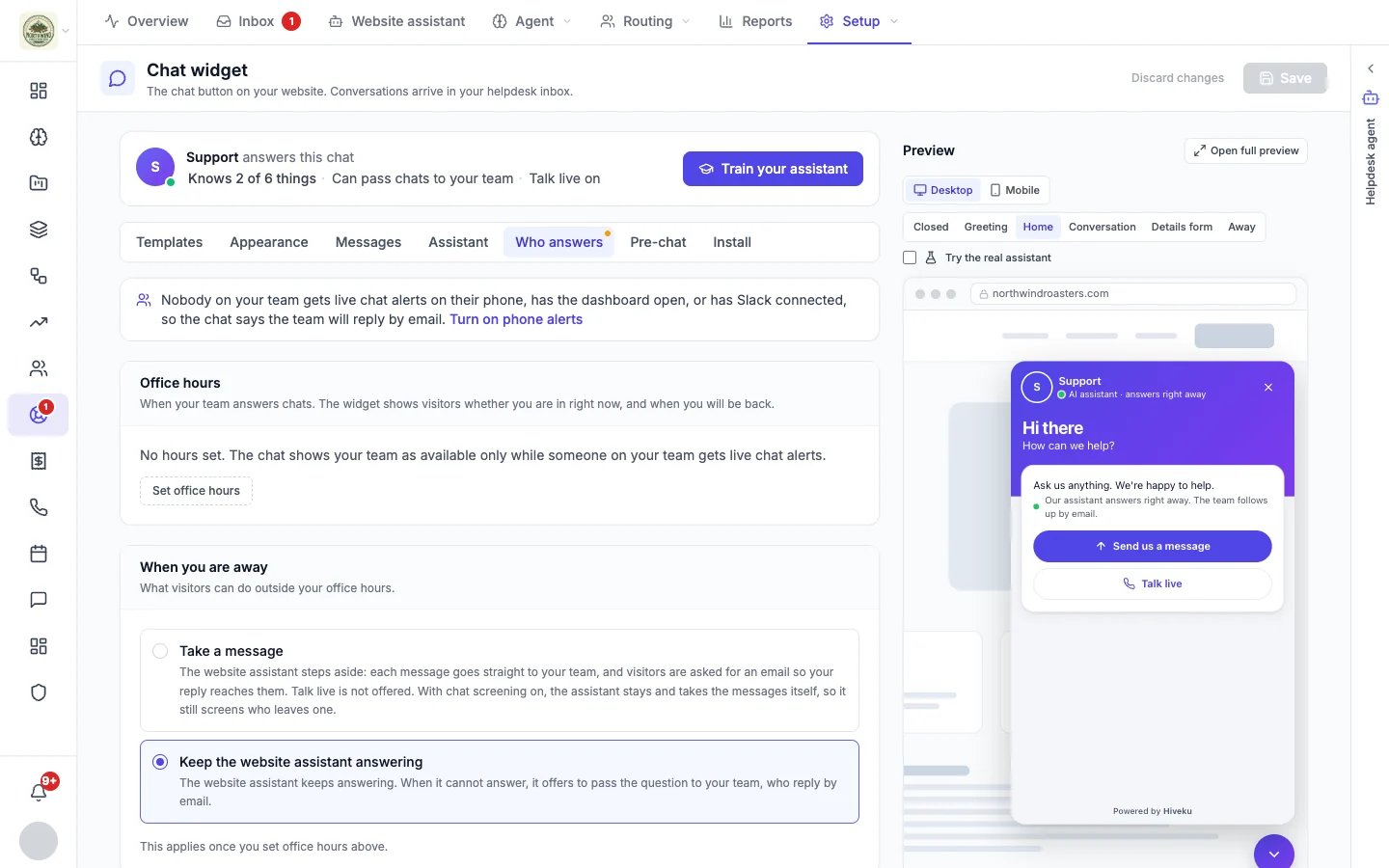
- Live chat alerts: the top of the tab says whether anyone on your team will be alerted to a live chat. If nobody has phone alerts on, the dashboard open, or Slack connected, the chat honestly tells visitors the team will reply by email. See Alerts.
- Office hours: when your team answers chats. The chat shows visitors whether you are in, and when you will be back.
- When you are away: either Take a message (each message goes straight to your team, and visitors are asked for an email so your reply reaches them) or Keep the website assistant answering.
- Talk live: a voice call visitors can start from the chat. Your AI assistant answers these calls, not a person, and they use your voice minutes. Visitors only see Talk live while your website assistant is answering, and it needs the Voice add-on.
Pre-chat
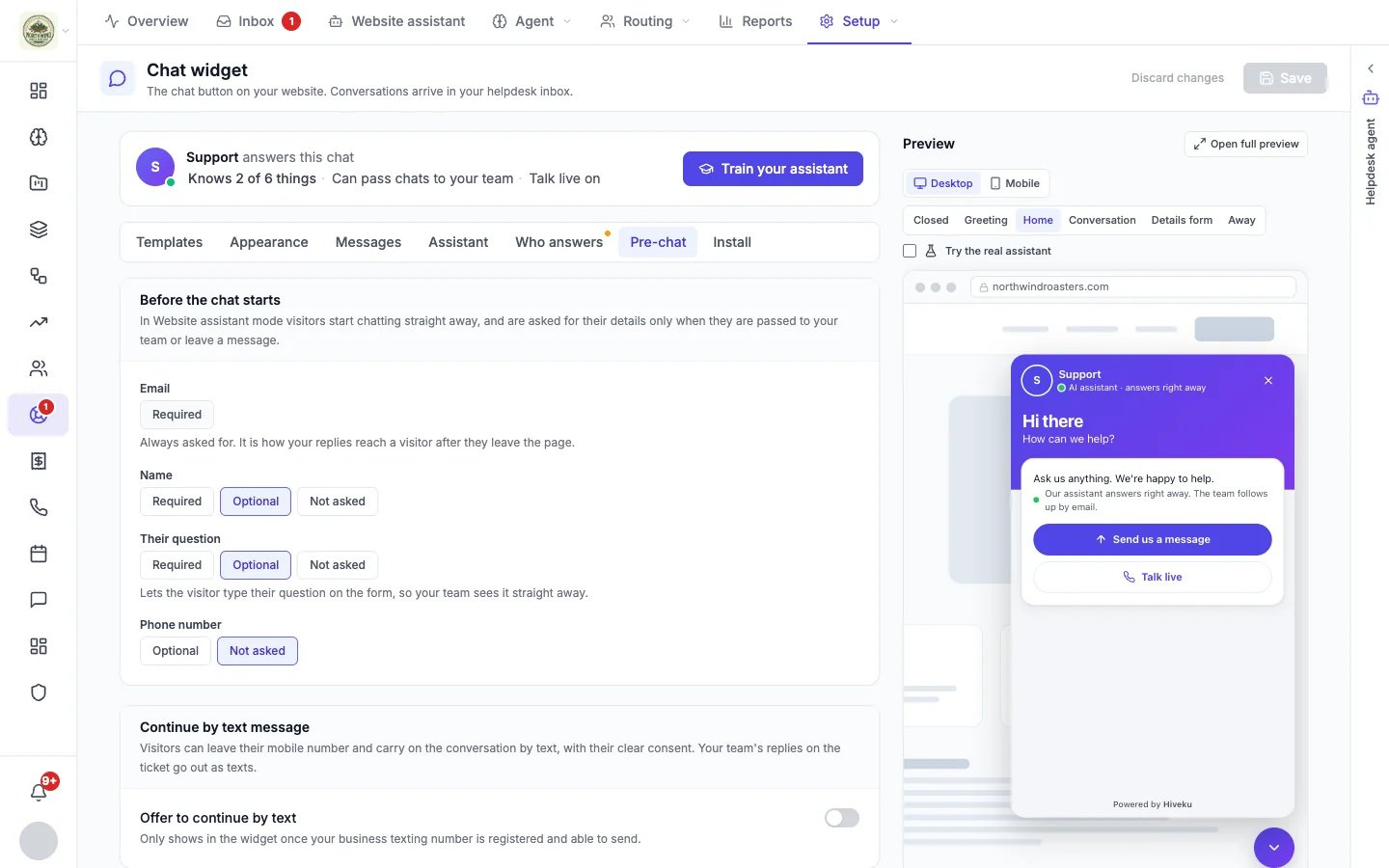
- Email is always asked for: it is how your replies reach a visitor after they leave the page. In Support desk mode visitors fill in the form before their first message. In Website assistant mode they start chatting straight away and are asked for their details only when the chat is passed to your team or they leave a message.
- Name and Their question can each be required, optional or not asked. Phone number can be optional or not asked.
- Continue by text message lets visitors leave a mobile number and carry on by text, with their clear consent. It shows once your business texting number is registered and able to send.