

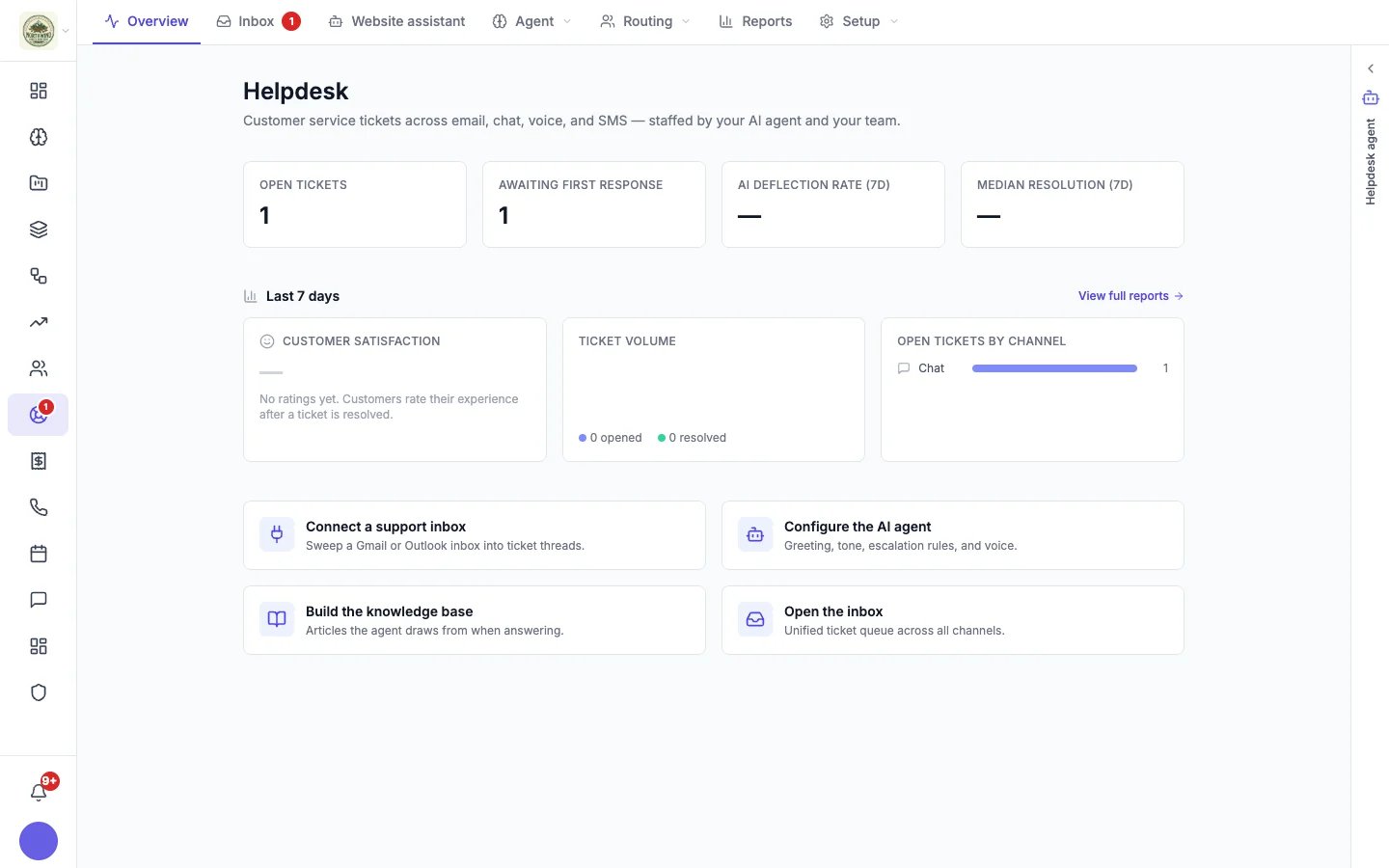
The Helpdesk overview: what is open, what is waiting, and the shortcuts to set things up
What’s included
Inbox
Every conversation from every channel, sorted by who has waited longest. A red count shows how many people are waiting for you.
Website chat
A chat button for your website, in your colors. Install it on any site with one line, or with one click on a site hosted on Hiveku.
Website assistant
AI that answers from your help articles, saved answers and website, books appointments, takes messages, and passes chats to your team.
Help articles and saved replies
Write an answer once. Your team inserts it in a click, and the assistant can answer with it.
Routing and response times
Team queues, automatic assignment, and response time targets that flag late conversations.
Automations and alerts
Confirmation emails, phone and Slack alerts when someone needs a person, satisfaction surveys and auto-close.
Satisfaction surveys
Ask customers how it went after a conversation is resolved, and see the results in Reports.
Reports
Volume, response and resolution times, missed targets, satisfaction and how much the assistant resolved on its own.
Channels
Where things are
The Helpdesk menu has seven parts:- Overview: open conversations, conversations awaiting a first response, the AI deflection rate (the share of resolved conversations never assigned to a teammate), and setup shortcuts.
- Inbox: every conversation. See The inbox.
- Website assistant: everything about the AI that answers your website chat and Talk live calls. See Website assistant.
- Agent: your helpdesk agent’s Memory, the Knowledge base (help articles) and Macros (saved replies and saved answers).
- Routing: Queues and SLA (response time targets).
- Reports: how your support is doing. See Reports.
- Setup: Connections (support inboxes), Chat widget, and Settings (automations, alerts, sending domain, blocked senders and chat history).
Get started
1
Install the chat on your website
Open Helpdesk → Setup → Chat widget → Install. On a site hosted on Hiveku, click Add chat. On any other site, paste the one-line snippet. See Website chat.
2
Choose who answers
On the Install tab, under How chats are answered, choose Support desk (every chat becomes a ticket your team answers) or the Website assistant (it answers what it can and passes the rest to your team).
3
Give the assistant something to answer from
Write a few help articles, add saved answers, and let it read your website. It only answers from what you give it.
4
Make sure someone gets the alert
When a visitor asks for a person, your team is alerted in the app, on their phones, by email, and in Slack if you turned on Slack alerts. Install the Hiveku app and turn on live chat alerts so a person is really there. See Alerts.
5
Connect your support email
Connect the mailbox customers already write to, or send from your verified domain. See Email.
6
Turn on the automations you want
Confirmation emails, automatic assignment, response time targets, auto-close and satisfaction surveys are in Setup → Settings. See Helpdesk settings.
Your helpdesk agent
Your support department’s AI agent sits in a side panel on the Helpdesk pages; in the inbox and in a website chat it is the Assistant tab of the open conversation instead. It is called Avery until you rename it. Ask it to triage new tickets, draft a reply, find stalled conversations or write a weekly report. See Your helpdesk agent.The website assistant (which talks to your visitors) and your helpdesk agent (which works with your team) are separate. Each has its own settings.