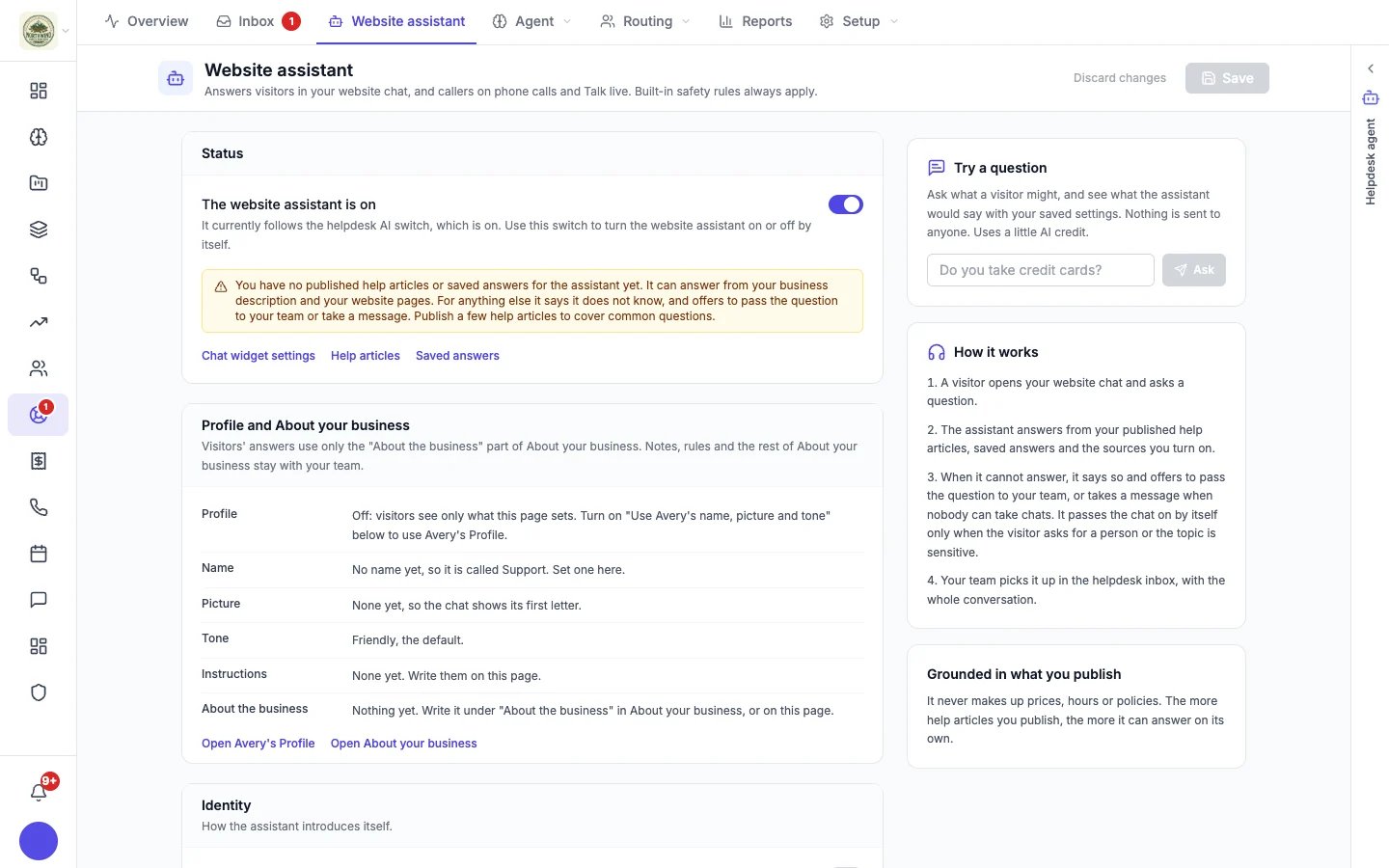
The Website assistant page
How it works
- A visitor opens your website chat and asks a question.
- The assistant answers from your published help articles, your saved answers, and the other sources you turn on.
- When it cannot answer, it says so and offers to pass the question to your team, or takes a message when nobody can take chats. It passes the chat on by itself when the visitor asks for a person, the topic is sensitive, or it cannot carry on: it reached its reply limit, ran out of AI credit, or had a technical problem.
- Your team picks it up in the inbox, with the whole conversation.
When a visitor asks for a person, the assistant passes the chat to your team straight away and tells them what happens next. With chat screening on, it first works out who they are, and asks when that is not clear. If nobody on your team answers within 15 minutes, it takes the chat back (never after a sensitive topic, its reply limit or running out of AI credit), tells the visitor the team will reply by email, and keeps helping in the meantime. The conversation stays in your inbox so a person still replies.
Status
The website assistant is on follows the helpdesk AI switch unless you set it here. If you have not published help articles or saved answers yet, the page tells you what it can answer from today.Who it is
- Profile and About your business: visitors’ answers use only the “About the business” part of About your business. Your notes, rules and the rest of About your business stay with your team. Links open your support agent’s Profile and About your business.
- Identity: the name and picture visitors see. Turn on Use [agent]‘s name, picture and tone to fill any gaps from your support agent’s Profile.
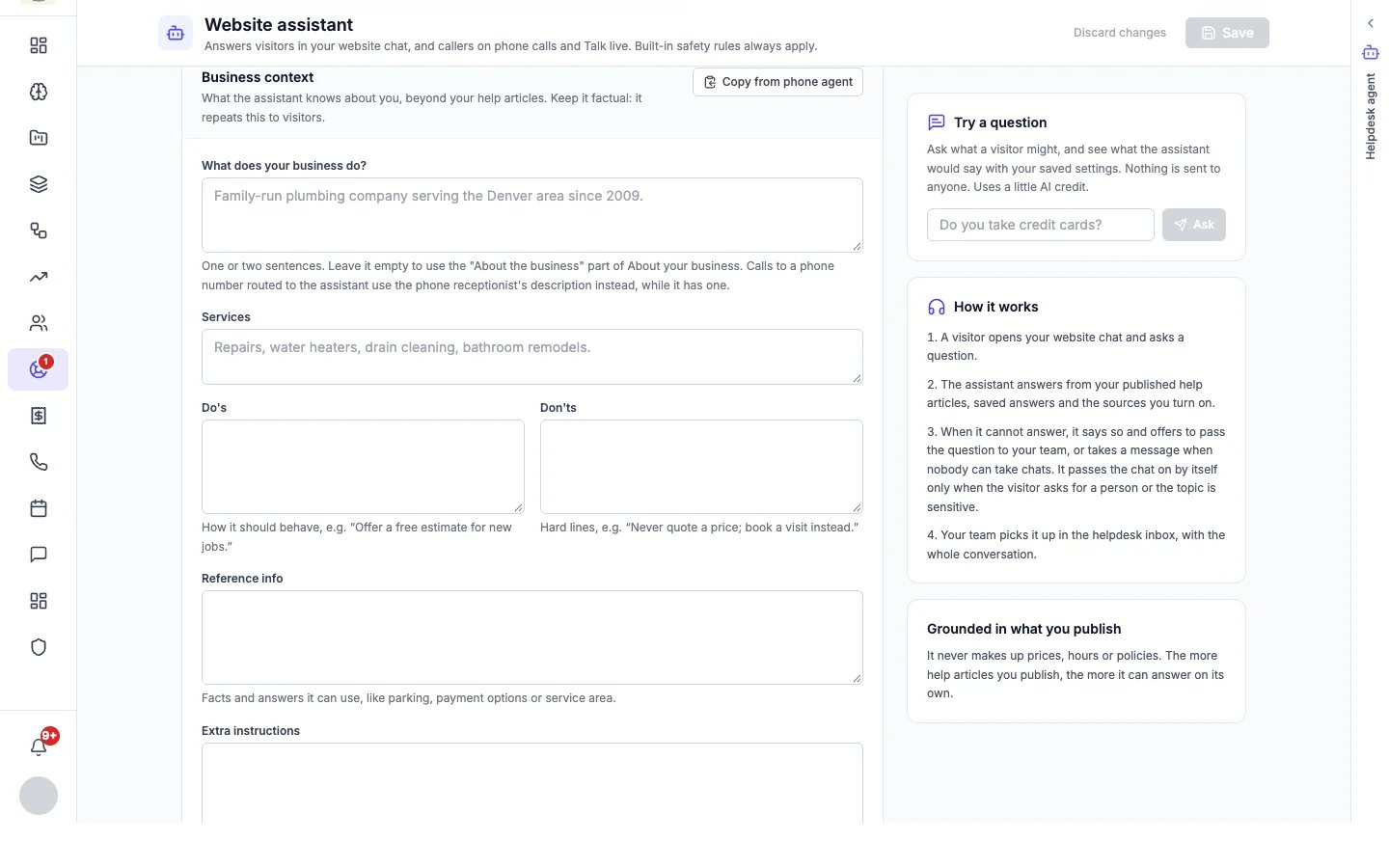
- Business context: what your business does, your services, do’s (“Offer a free estimate for new jobs”), don’ts (“Never quote a price; book a visit instead”), reference info (parking, payment options, service area) and extra instructions. Keep it factual: the assistant repeats it to visitors. Built-in safety rules always apply, and lines that try to switch them off are ignored.
- Business hours: when your business is open, so the assistant can tell visitors your hours and whether you are open right now. When your team answers chats is separate: that is Office hours on the chat widget.
What it knows
What your assistant knows sums up what it can answer from right now: help articles, saved answers, reference info, your Google Business Profile, your website pages, documents, and how many questions it could not answer in the last 30 days.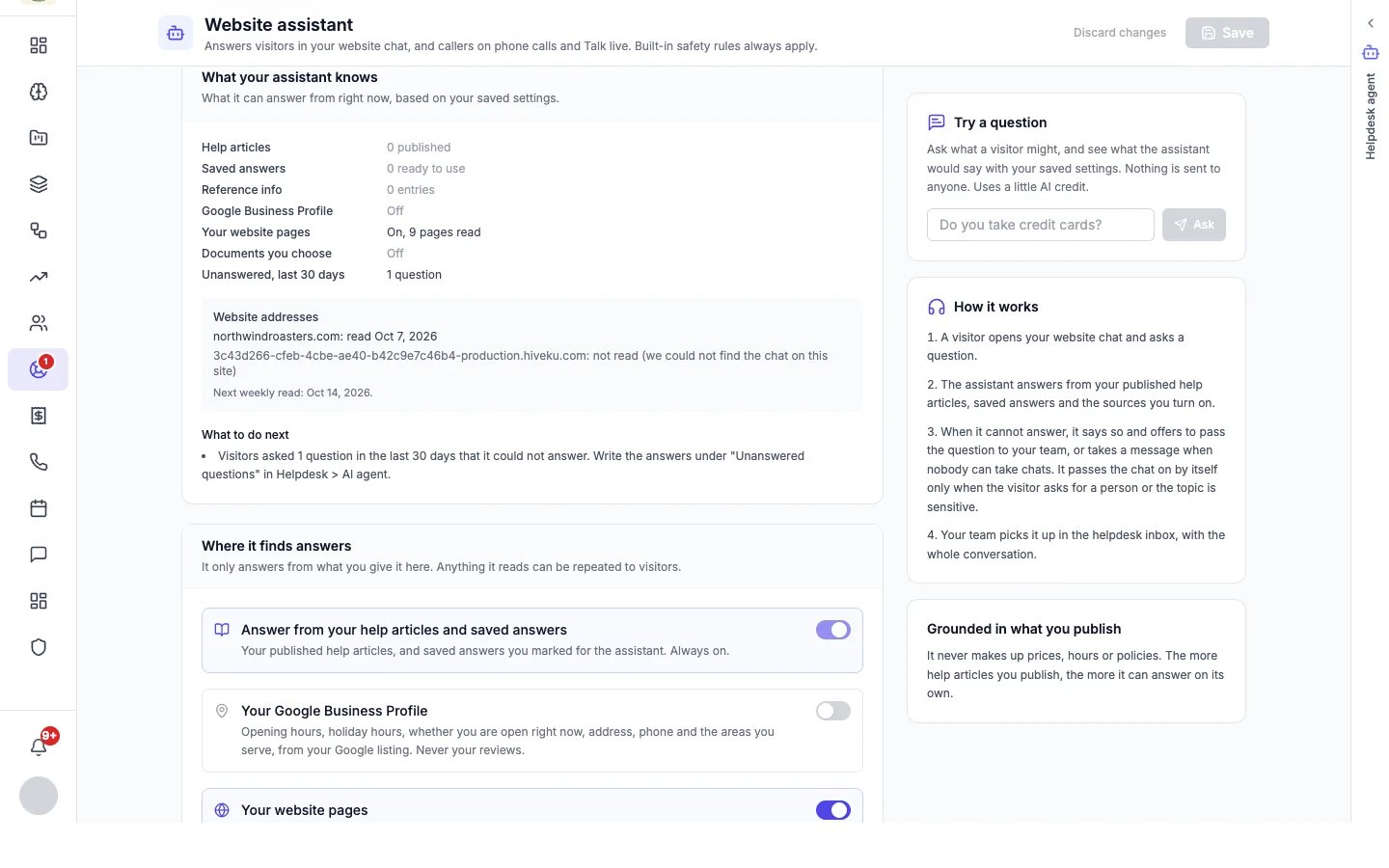
Where it finds answers
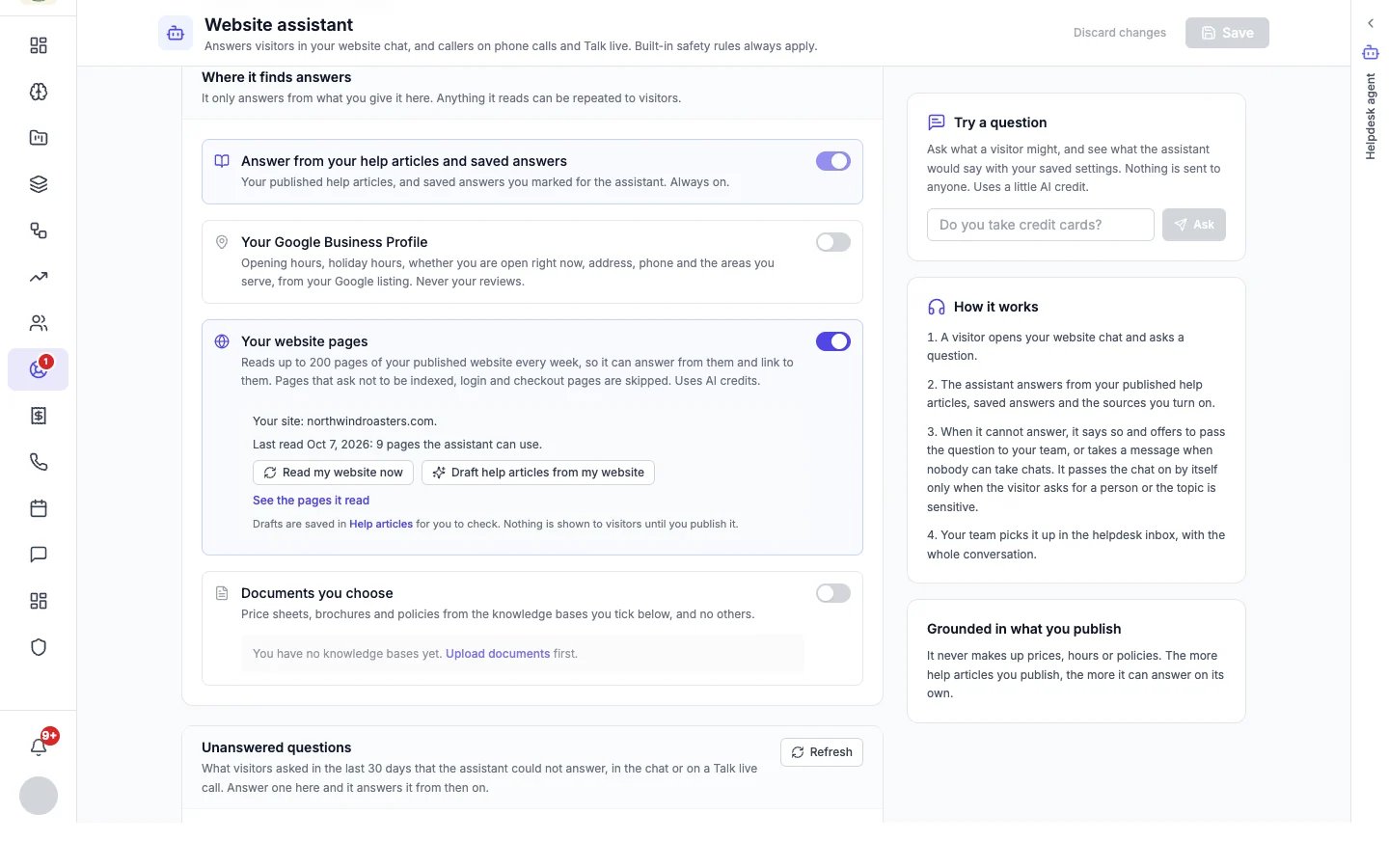
- Help articles and saved answers (always on): your published help articles, and saved answers you marked for the assistant.
- Your Google Business Profile: opening and holiday hours, whether you are open right now, address, phone and the areas you serve. Never your reviews.
- Your website pages: reads up to 200 pages of your published website every week, so it can answer from them and link to them. Pages that ask not to be indexed, and login and checkout pages, are skipped. It uses AI credits. Read my website now refreshes it, See the pages it read lists them, and Draft help articles from my website saves drafts in Help articles for you to check. Nothing is shown to visitors until you publish it.
- Documents you choose: price sheets, brochures and policies, from the knowledge bases you tick and no others. Upload documents in Marketing → Knowledge Base first.
Unanswered questions
The questions visitors asked in the last 30 days that it could not answer, in the chat or on a Talk live call. Click Write an answer next to one: it becomes a saved answer, and the assistant answers it from then on.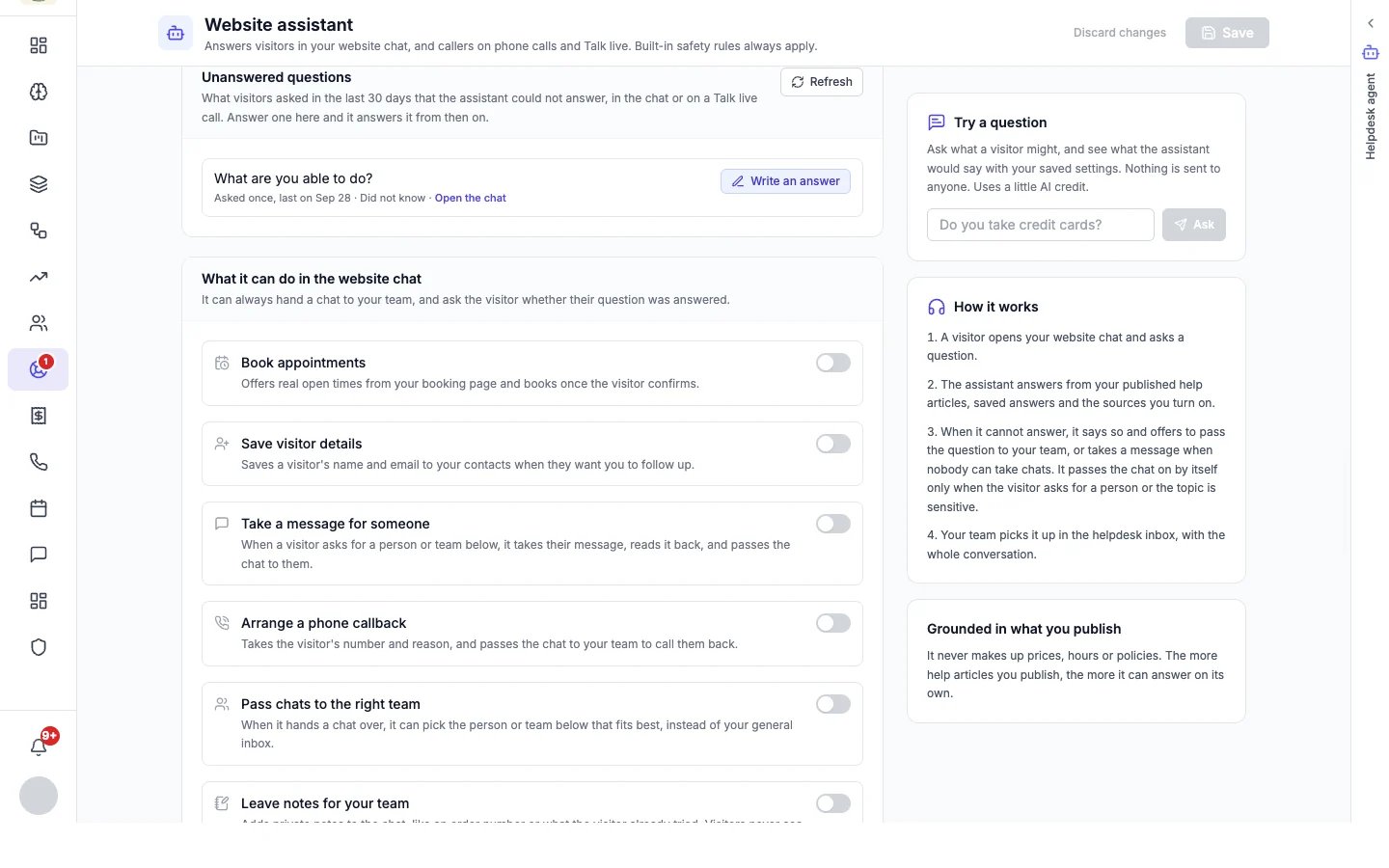
What it can do
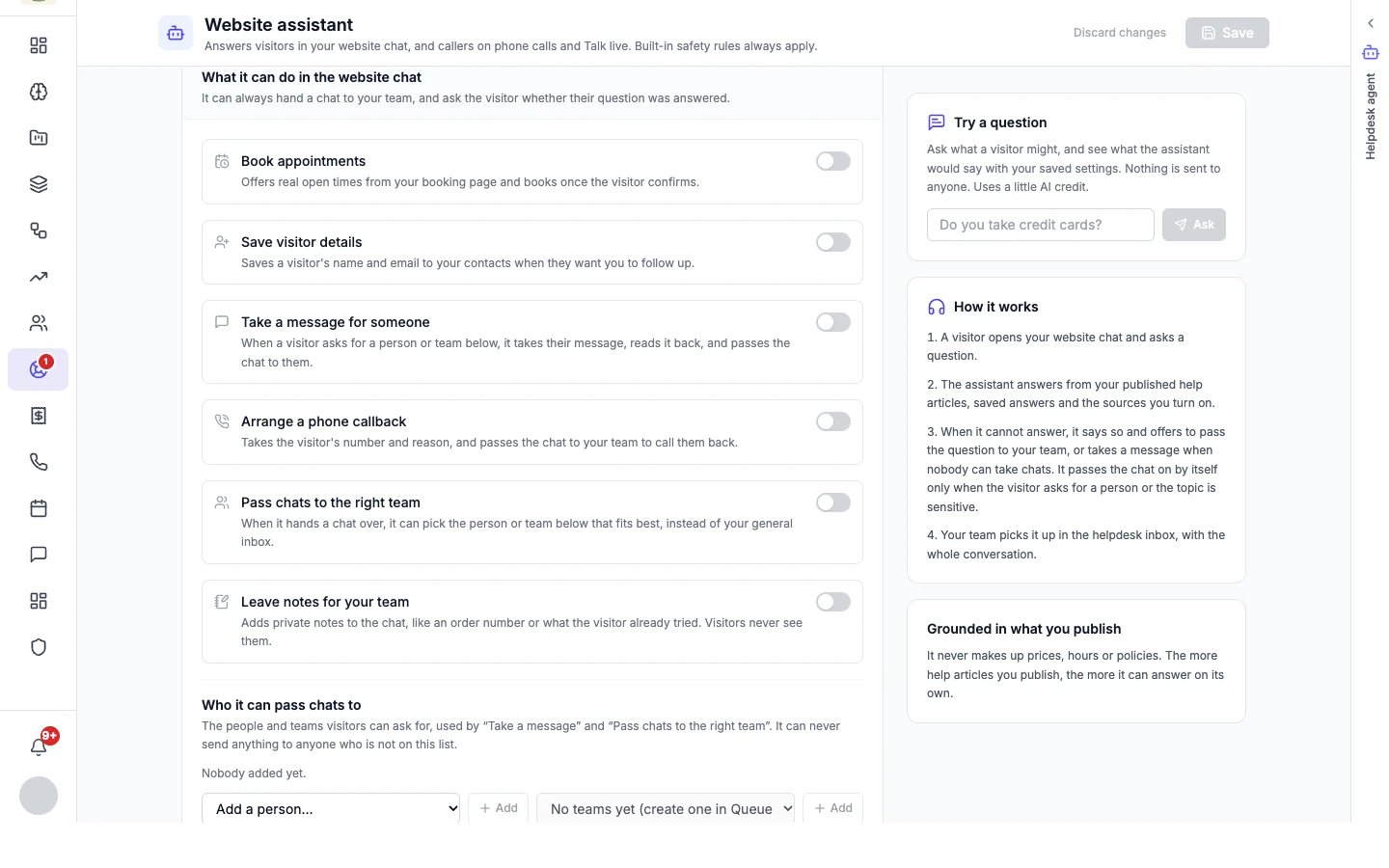
- Book appointments: offers real open times from your booking page and books once the visitor confirms. You need a booking page and at least one meeting type.
- Save visitor details: saves a visitor’s name and email to your contacts when they want you to follow up.
- Take a message for someone: when a visitor asks for a person or team on your list, it takes their message, reads it back, and passes the chat to them.
- Arrange a phone callback: takes the visitor’s number and reason, and passes the chat to your team to call them back.
- Pass chats to the right team: when it hands a chat over, it picks the person or team on your list that fits best, instead of your general inbox.
- Leave notes for your team: private notes on the chat, such as an order number or what the visitor already tried. Visitors never see them.
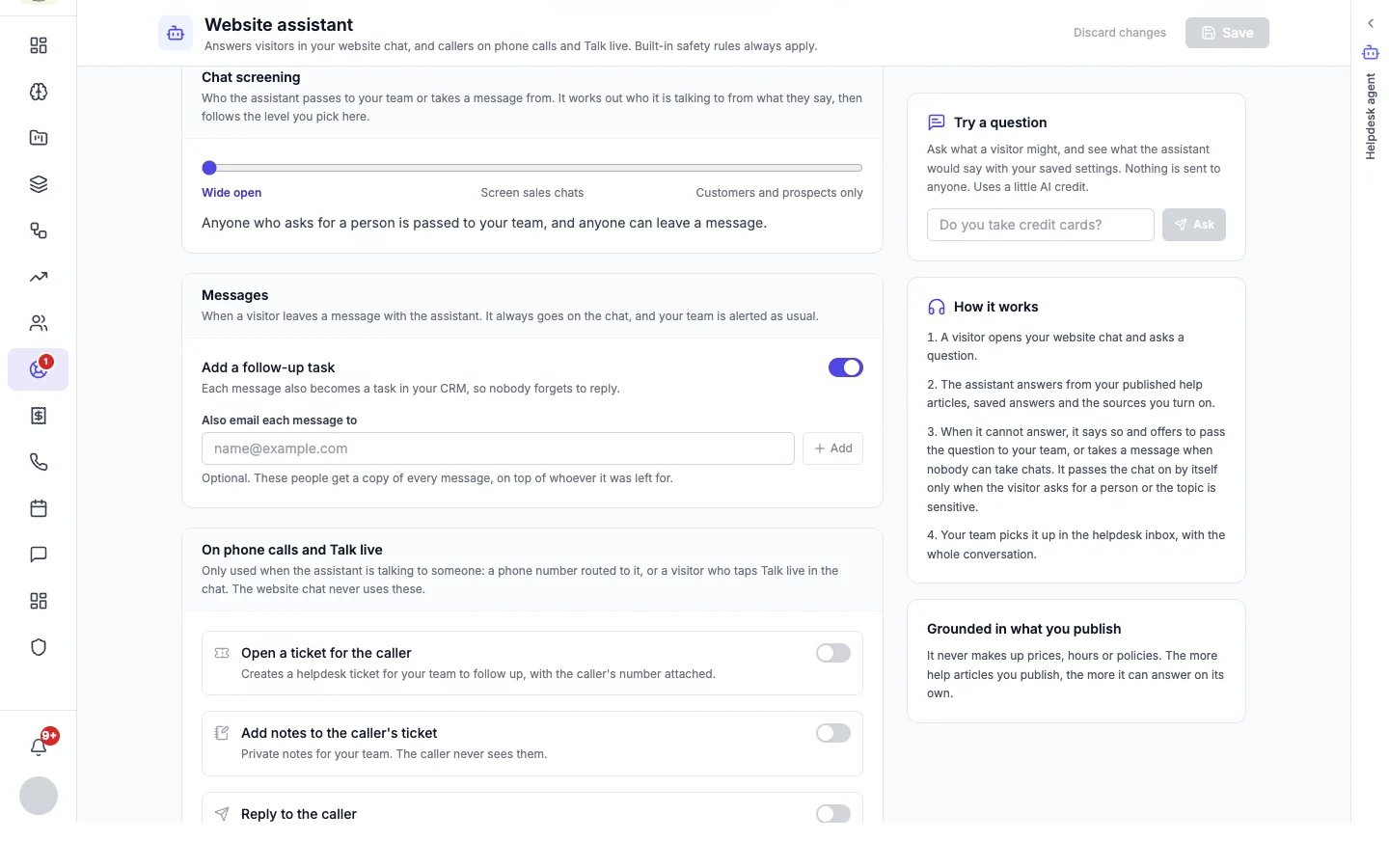
Chat screening
Chat screening decides who the assistant passes to your team or takes a message from:- Wide open: anyone who asks for a person is passed to your team, and anyone can leave a message.
- Screen sales chats: the assistant finds out who it is talking to before it passes a chat to your team. Sales and vendor chats can leave a message but are never passed on.
- Customers and prospects only: only customers and people interested in buying are passed to your team or can leave a message. Sales, vendor and recruiting chats are politely turned away.
Messages
When a visitor leaves a message, it always goes on the chat and your team is alerted as usual. You can also:- Add a follow-up task, so each message becomes a task in your CRM.
- Also email each message to extra people, on top of whoever it was left for.
On phone calls and Talk live
These apply only when the assistant is talking to someone: a phone number routed to it, or a visitor who taps Talk live in the chat.- Open a ticket for the caller, with their number attached.
- Add notes to the caller’s ticket (private to your team).
- Reply to the caller on their own ticket. On a call this is a fixed confirmation message, not wording the assistant writes.
- Close the caller’s ticket once they confirm their issue is handled. It only ever affects the caller’s own ticket.
Guardrails
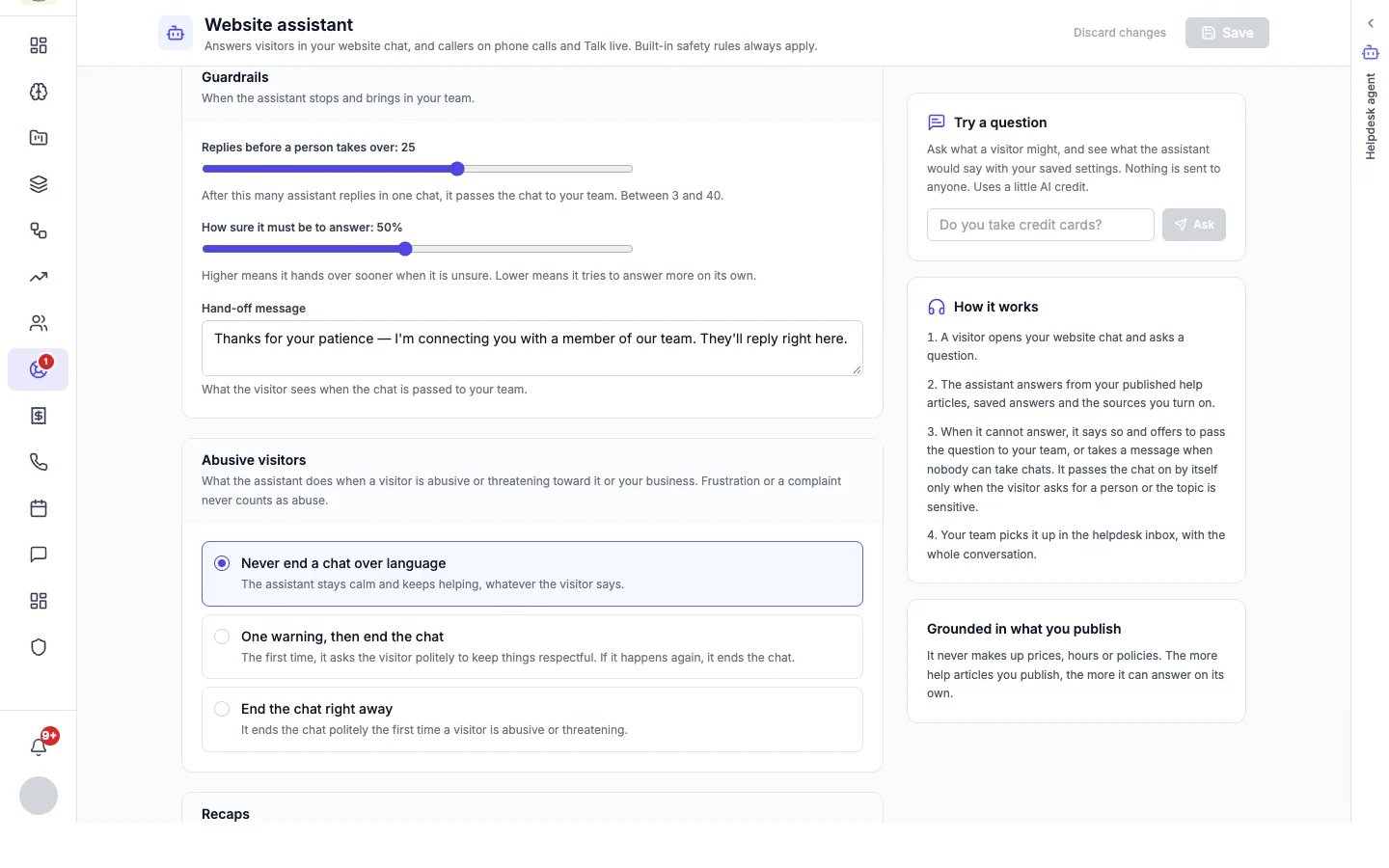
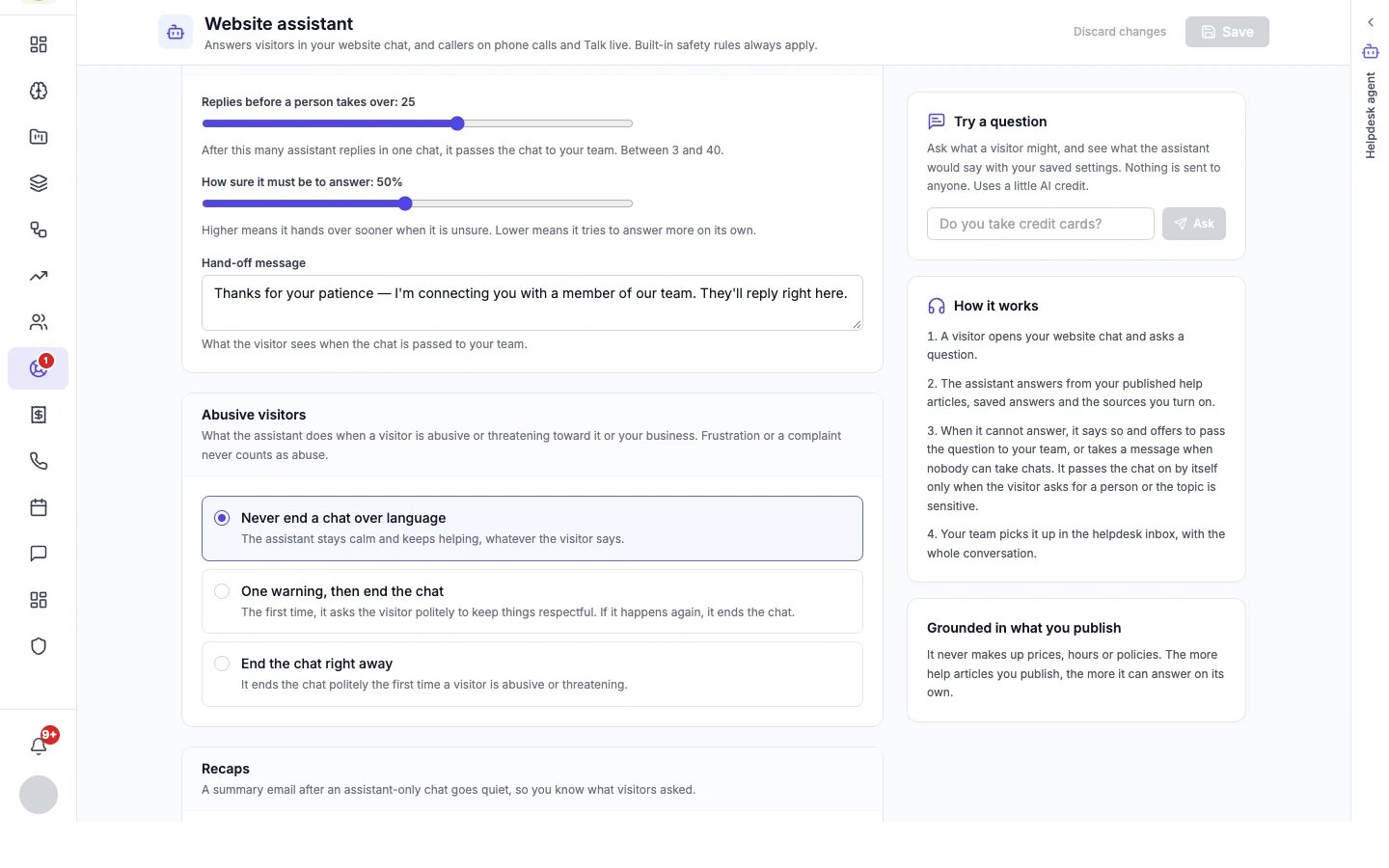
- Replies before a person takes over (25 by default, between 3 and 40): after this many assistant replies in one chat, it passes the chat to your team.
- How sure it must be to answer (50% by default): higher means that when it is unsure, it says so and offers to pass the question to your team more often.
- Hand-off message: what the visitor sees when the chat is passed to your team.
- Abusive visitors: never end a chat over language, give one warning and then end the chat, or end the chat right away. Frustration or a complaint never counts as abuse.
- Recaps: email a summary after an assistant-only chat goes quiet, so you know what visitors asked.
Try it
Try a question shows what the assistant would say to a question, with your saved settings. Nothing is sent to anyone, and it uses a little AI credit. Only account owners and admins can use it.