

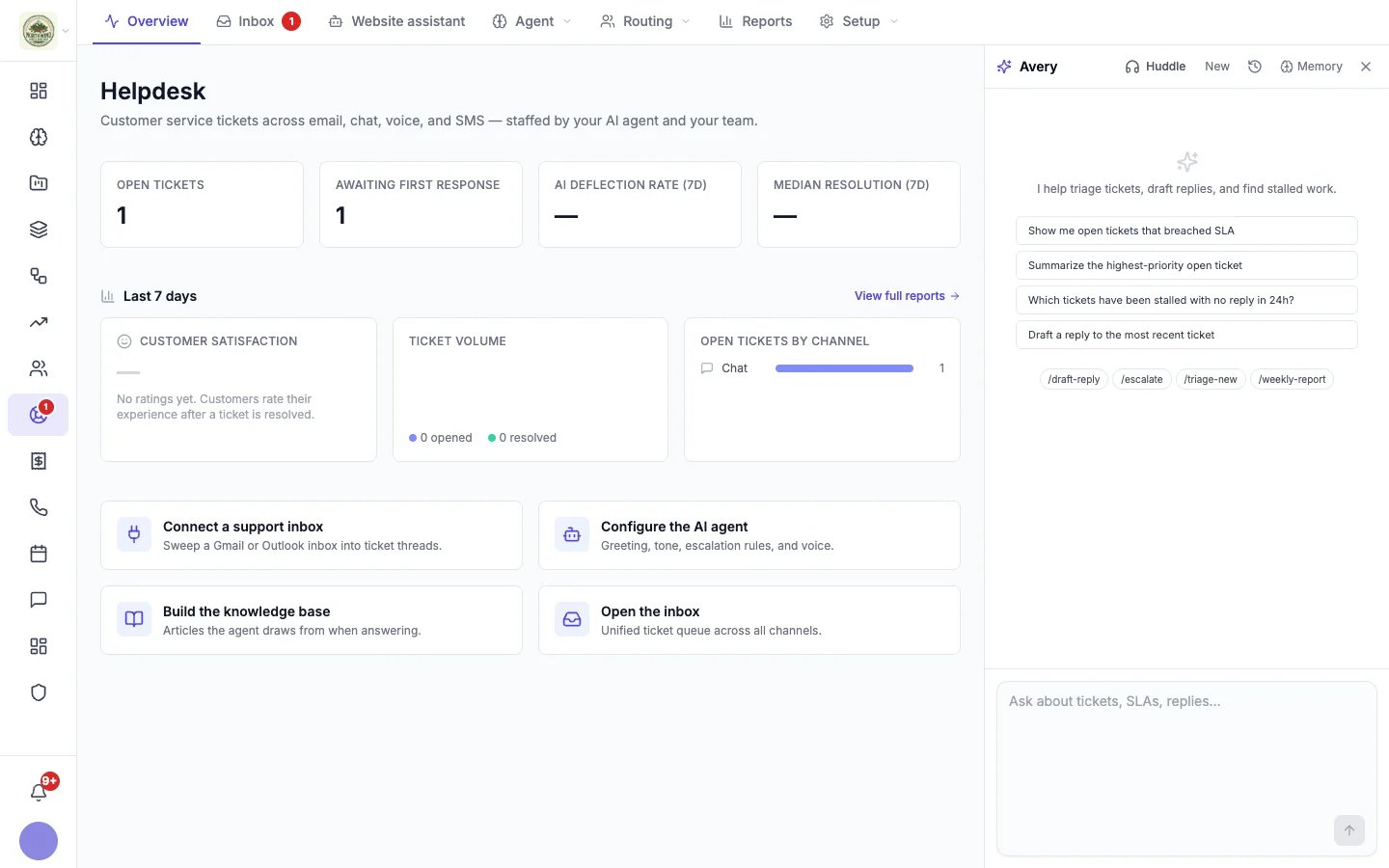
The helpdesk agent panel
What to ask it
Type in plain words, or start from a suggestion:- “Show me open tickets that breached SLA”
- “Summarize the highest-priority open ticket”
- “Which tickets have been stalled with no reply in 24h?”
- “Draft a reply to the most recent ticket”
These commands live in the agent’s Memory, so you can change them or add your own.
Replies to customers never go out on their own: each one waits on an approval card for your OK.
In a conversation
Open a conversation and switch the details panel to Assistant. The agent reads the conversation and can draft a reply straight into the reply box, for you to edit and send. You can also click Draft with assistant under the reply box. See Working a conversation.Huddle, history and memory
- Huddle starts a live voice conversation with the agent.
- New starts a fresh chat, and the clock icon shows your earlier chats.
- Memory (also under Helpdesk → Agent, named after your agent, for example Avery’s memory) shows what the agent remembers about your business, customers and preferences. Correct it there, and it follows what you write.
Settings
In Helpdesk → Setup → Settings, under your agent’s name:- Most you spend per chat caps what one chat in the panel can use ($25 by default).
- Post to Slack sends things waiting for your OK, and the agent’s reminders, to a Slack channel.