

Reply channel
How your replies are sent by default: through your connected Gmail or Outlook inbox, or from your verified domain with the Hiveku email service. See Email.Auto-acknowledge new tickets
On by default. As soon as a conversation opens, the customer gets a confirmation email with their reference number and a View your request button, and the confirmation is added to the conversation. It needs a verified sending domain, and text and phone conversations don’t get one.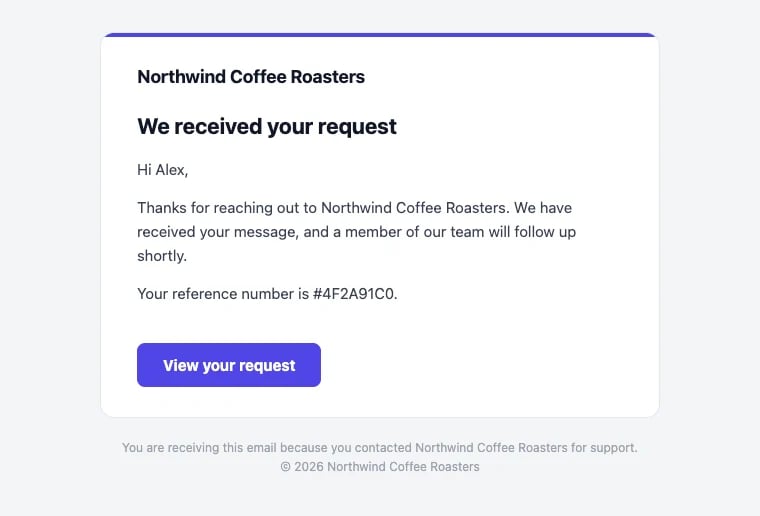
The confirmation email, in your business's name and colors
- Edit the Subject template and the Message. You can use
{{contact_first_name}},{{ticket_subject}},{{ticket_short_id}}and{{account_name}}. - Preview the email shows exactly what customers get: your business name, and the main color from your chat widget’s appearance settings.
- Use the default message brings back the default wording.
Auto-assign tickets
Pick a teammate automatically when a conversation lands: round-robin, least busy, or always the same person. See Routing.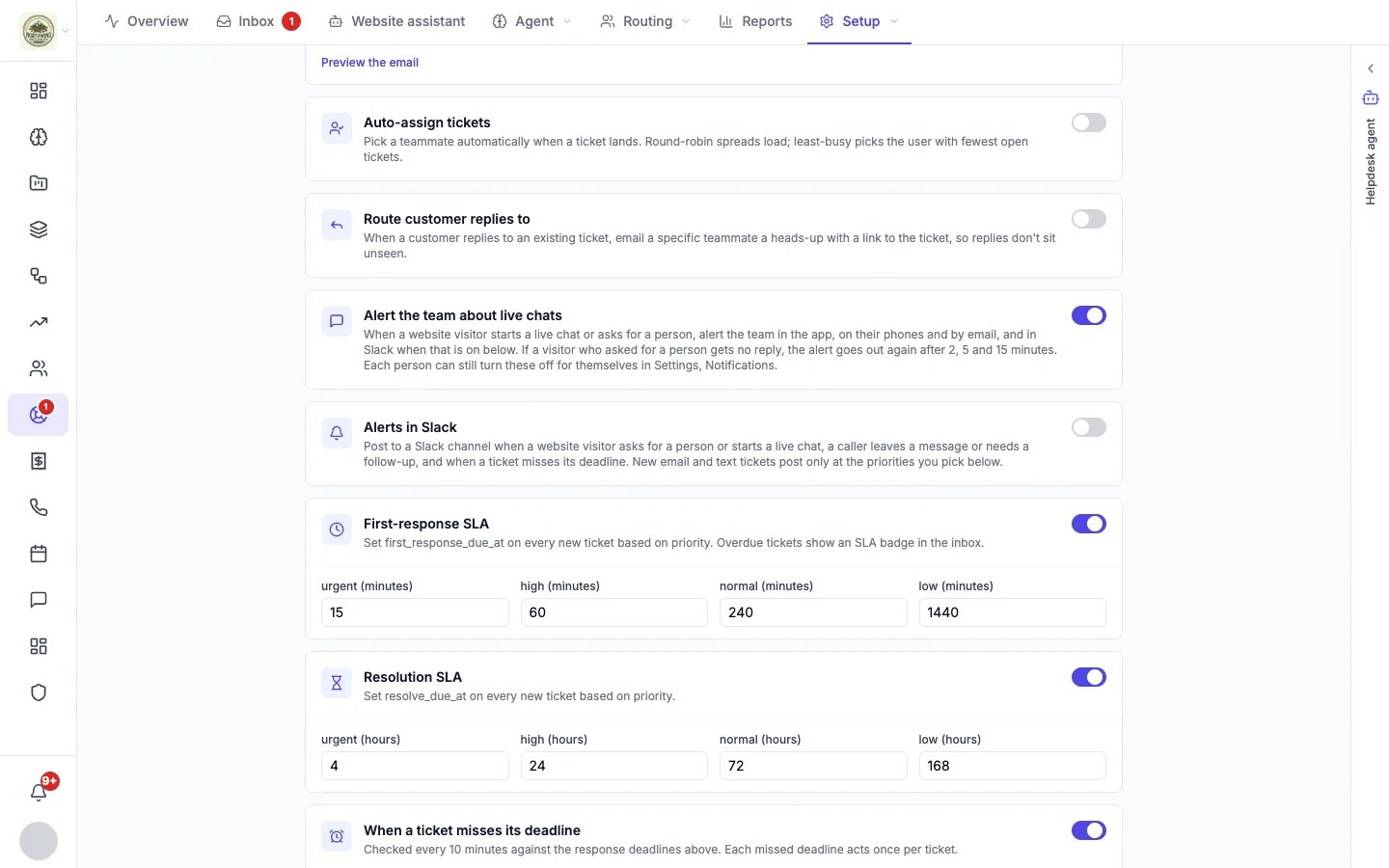
Route customer replies to
When a customer replies to an existing conversation by email, email a chosen teammate a heads-up with a link to it, so replies don’t sit unseen.Alerts
Alert the team about live chats decides whether your team hears about a visitor who wants a person. Alerts in Slack also posts callers’ messages and late conversations to Slack. Bells and emails for late conversations are set under When a ticket misses its deadline. See Alerts.Response time targets
First-response SLA and Resolution SLA give every new conversation a deadline based on its priority. When a ticket misses its deadline raises its priority, alerts the assignee and posts to Slack. Set the targets on the SLA page; see Routing and response times.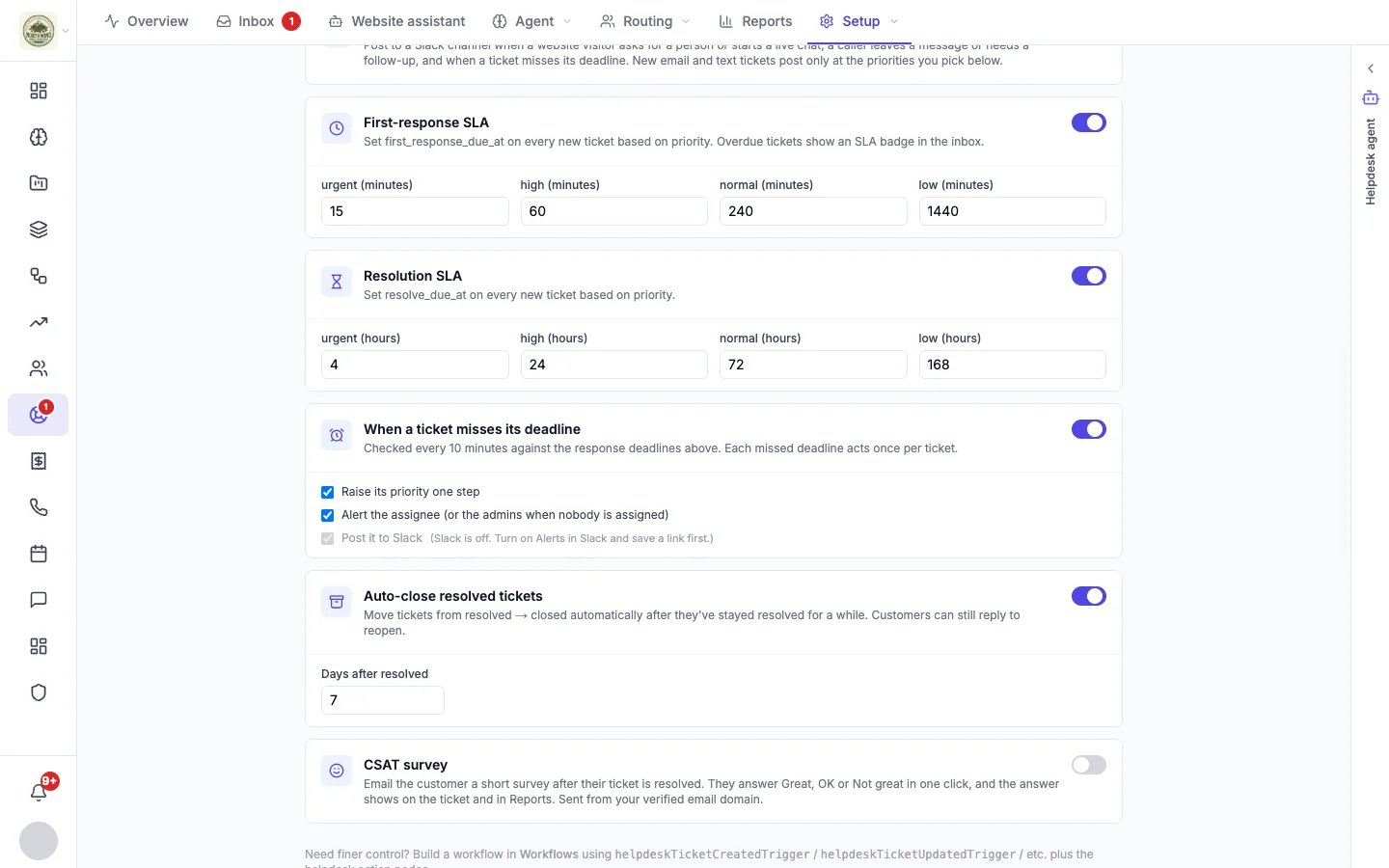
Auto-close resolved tickets
Moves conversations from resolved to closed after they have stayed resolved for a number of days (7 by default). Customers can still reply to reopen.CSAT survey
Emails the customer a short satisfaction survey after their conversation is resolved. Off by default. See Satisfaction surveys.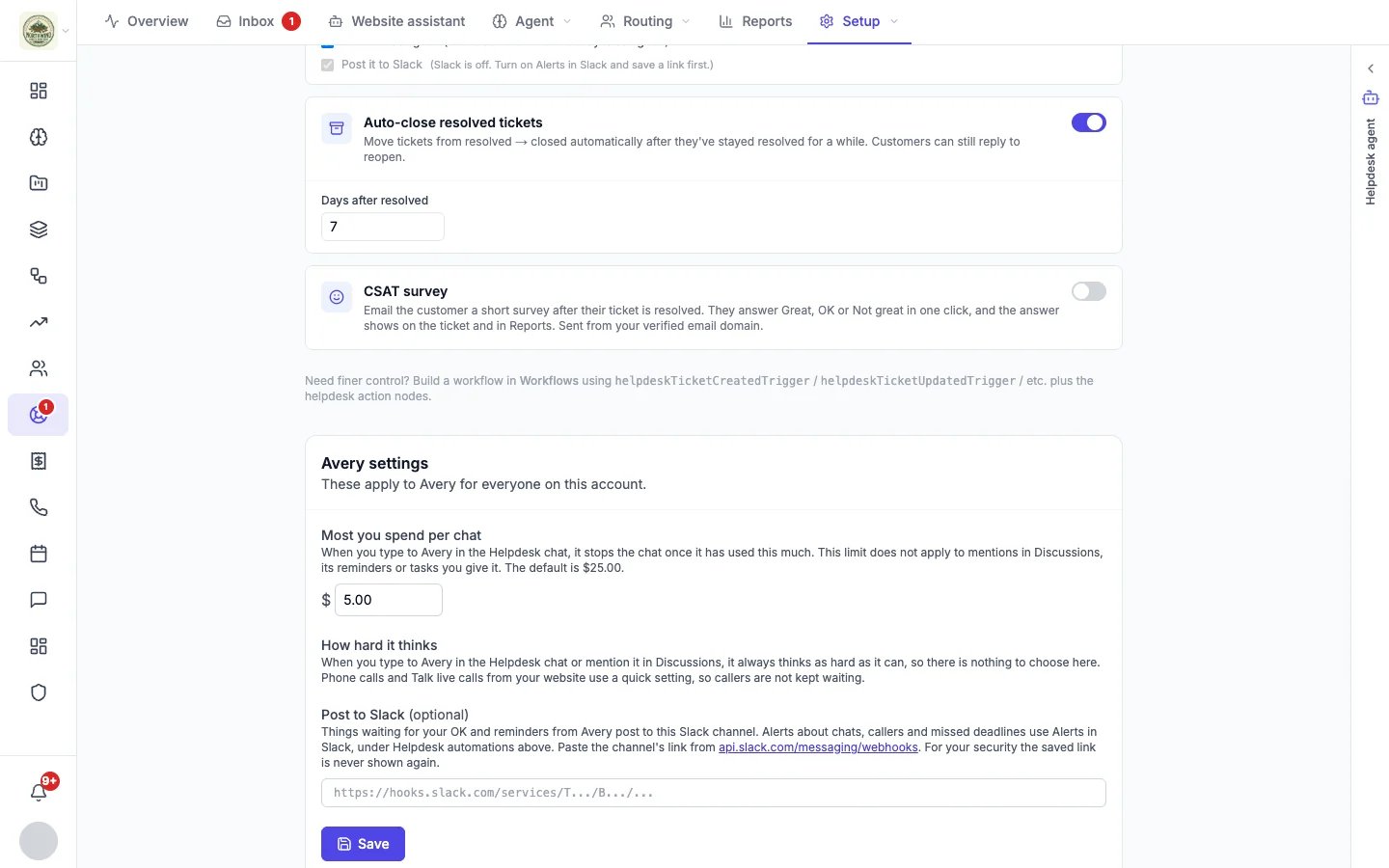
Your helpdesk agent’s settings
These apply to your helpdesk agent for everyone on the account (the section is named after your agent, for example “Avery settings”):- Most you spend per chat: when you chat with the agent in the Helpdesk panel, it stops once it has used this much ($25 by default). The limit does not apply to mentions in Discussions, its reminders, or tasks you give it.
- How hard it thinks: chats in the Helpdesk panel and mentions in Discussions always use its best reasoning. Phone and Talk live calls use a quick setting so callers are not kept waiting.
- Post to Slack: things waiting for your OK, and reminders from the agent, post to this Slack channel. The saved link is never shown again.