

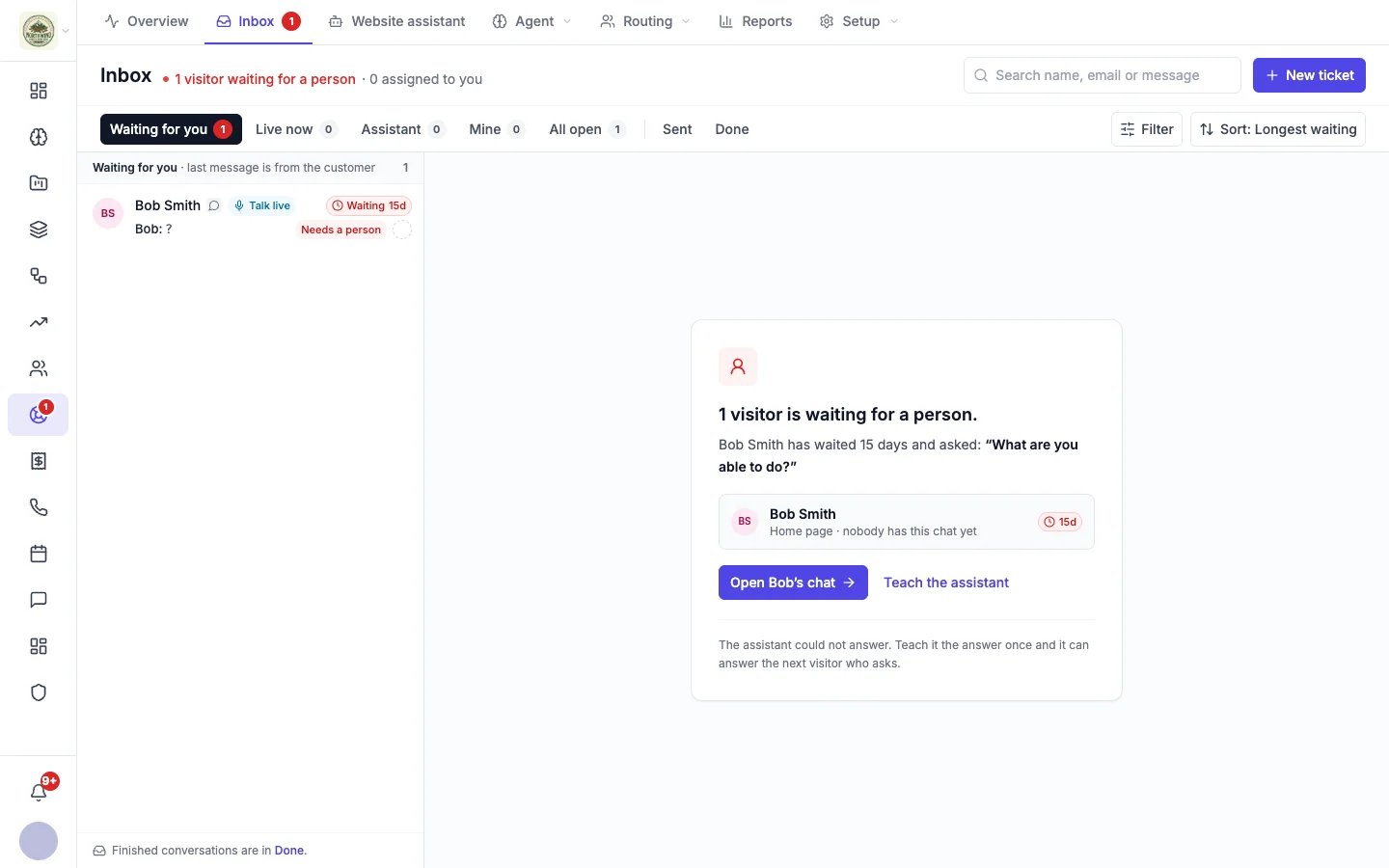
The inbox with one visitor waiting for a person
Views
The tabs across the top split your conversations into views:
When there is not room for all the tabs, they collapse into a view menu. On a phone, Filter and Sort become icon buttons.
Find a conversation
- Search by name, email address or message text.
- Filter by channel (website chat, email, text message, phone), priority, tag, or whether it is assigned to you or to nobody.
- Sort by Longest waiting (the default) or Newest activity.
Open a conversation
Click a row to open it beside the list. The middle pane shows the whole conversation; the right pane shows the customer’s details and why the conversation came to you. When nothing is open, the inbox shows a short summary of who is waiting and a button to open the longest-waiting conversation. See Working a conversation for replying, taking over a chat, assigning, and resolving.Act on several at once
Tick the box on a row (or several) to bring up the bulk bar. You can:- Assign to me, or Unassign to leave them with nobody. To give one to a teammate, open it on its full page (see Assign, prioritize and tag).
- Change their status, for example resolve them.
- Change their priority.
- Add tags.
Resolving a group of conversations at once does not send each customer a satisfaction survey. See Satisfaction surveys.
Create a ticket yourself
Click New ticket to log a conversation that started somewhere else, such as a phone call or an email to a personal address.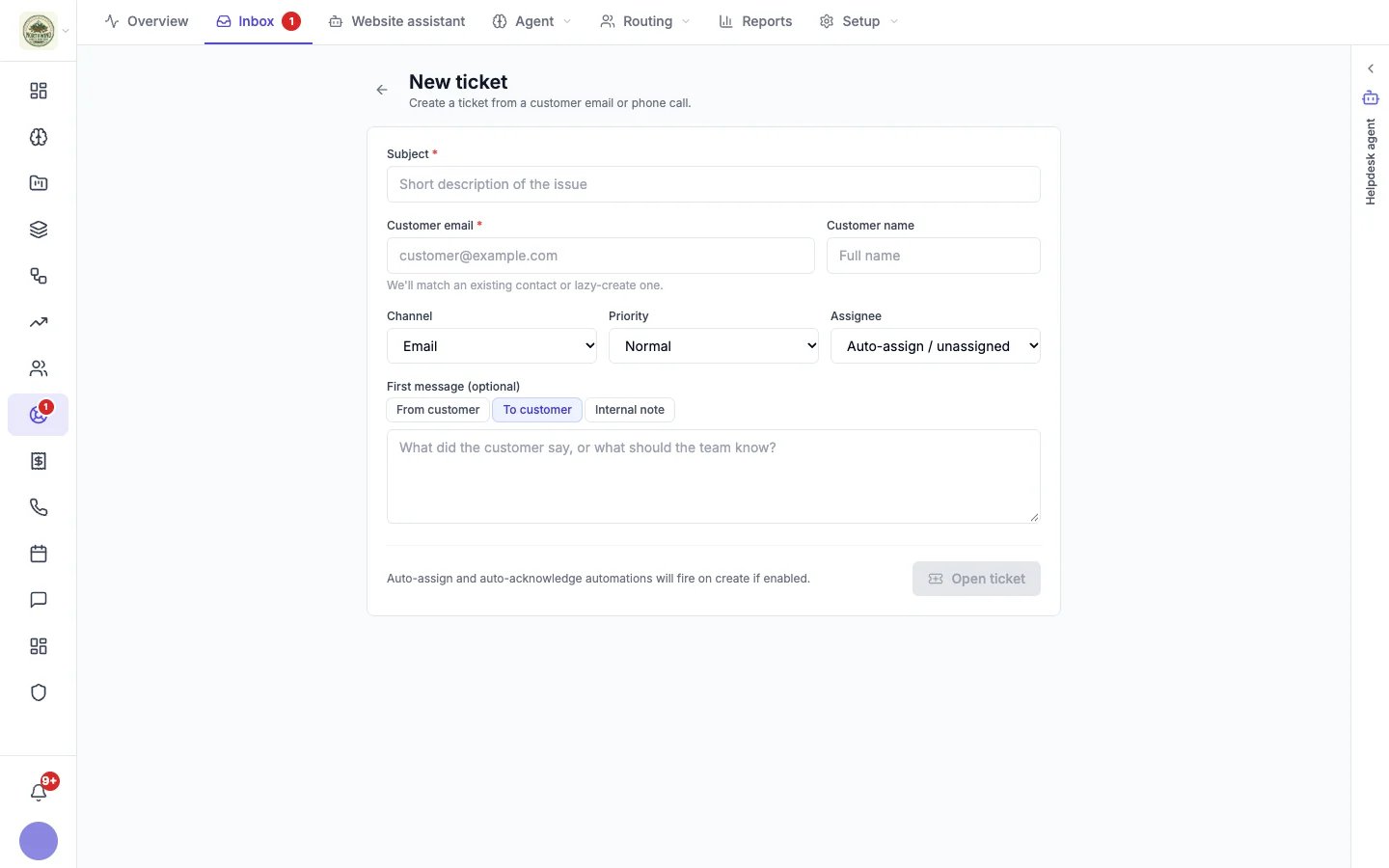
New ticket
- Enter a Subject and the Customer email. Hiveku matches an existing contact or creates one.
- Choose the Channel and Priority, and an Assignee (or leave it to automatic assignment).
- Optionally add the First message, as from the customer, to the customer, or as an internal note.
- Click Open ticket.