Connect a support inbox
Open Helpdesk → Setup → Connections.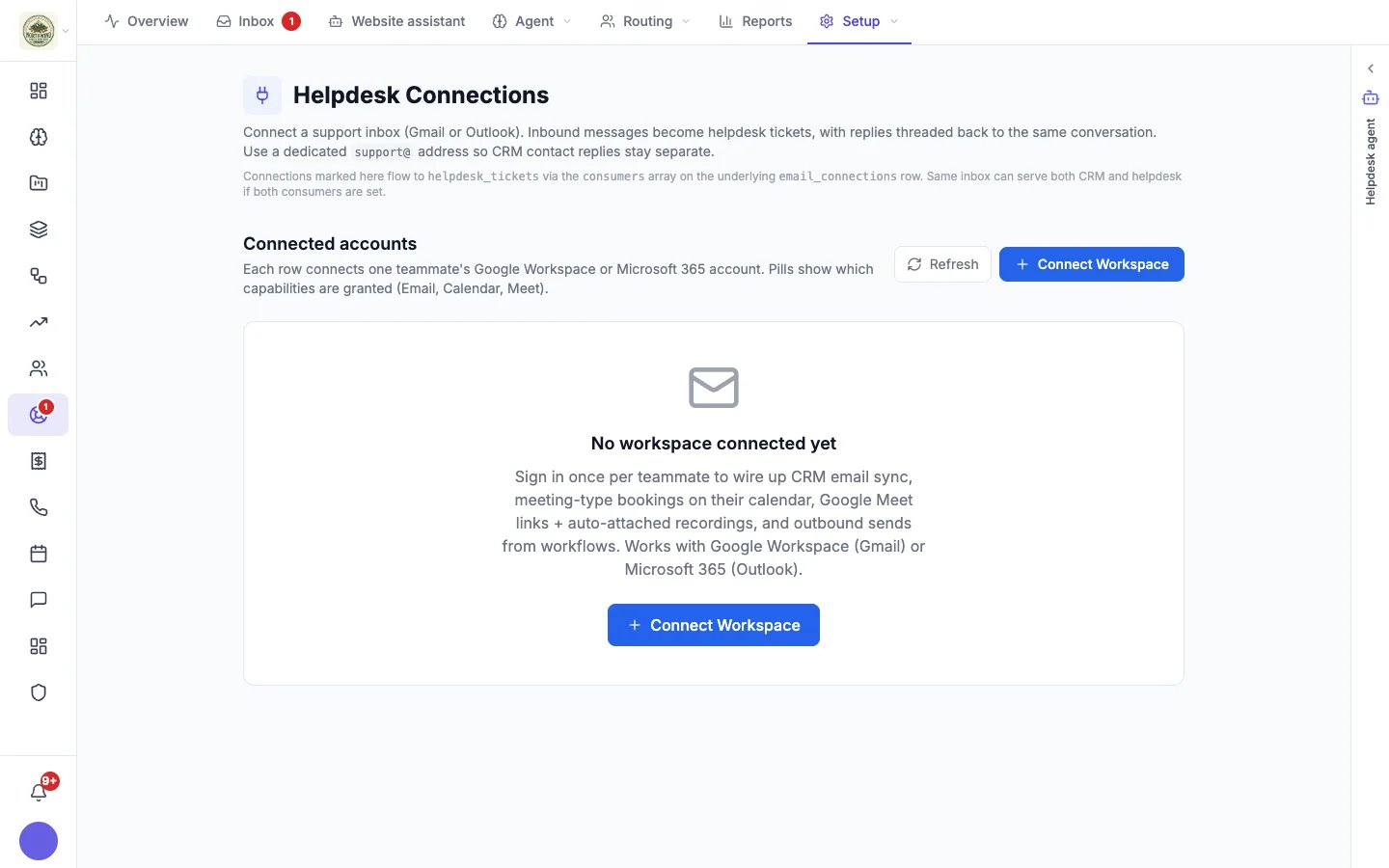
Helpdesk Connections
- Click Connect Workspace and sign in with the Google Workspace (Gmail) or Microsoft 365 (Outlook) account that receives your support mail. Each teammate connects their own account; one connection per mailbox.
- A mailbox you connect here is monitored for the helpdesk straight away. For a mailbox connected elsewhere, such as in the CRM, open its Sync settings and turn on Monitor for Helpdesk.
- Decide on Capture emails from unknown senders. On, mail from anyone opens a conversation and creates a CRM contact. Off, only people already in your contacts open conversations.
Choose how replies are sent
In Helpdesk → Setup → Settings, under Reply channel: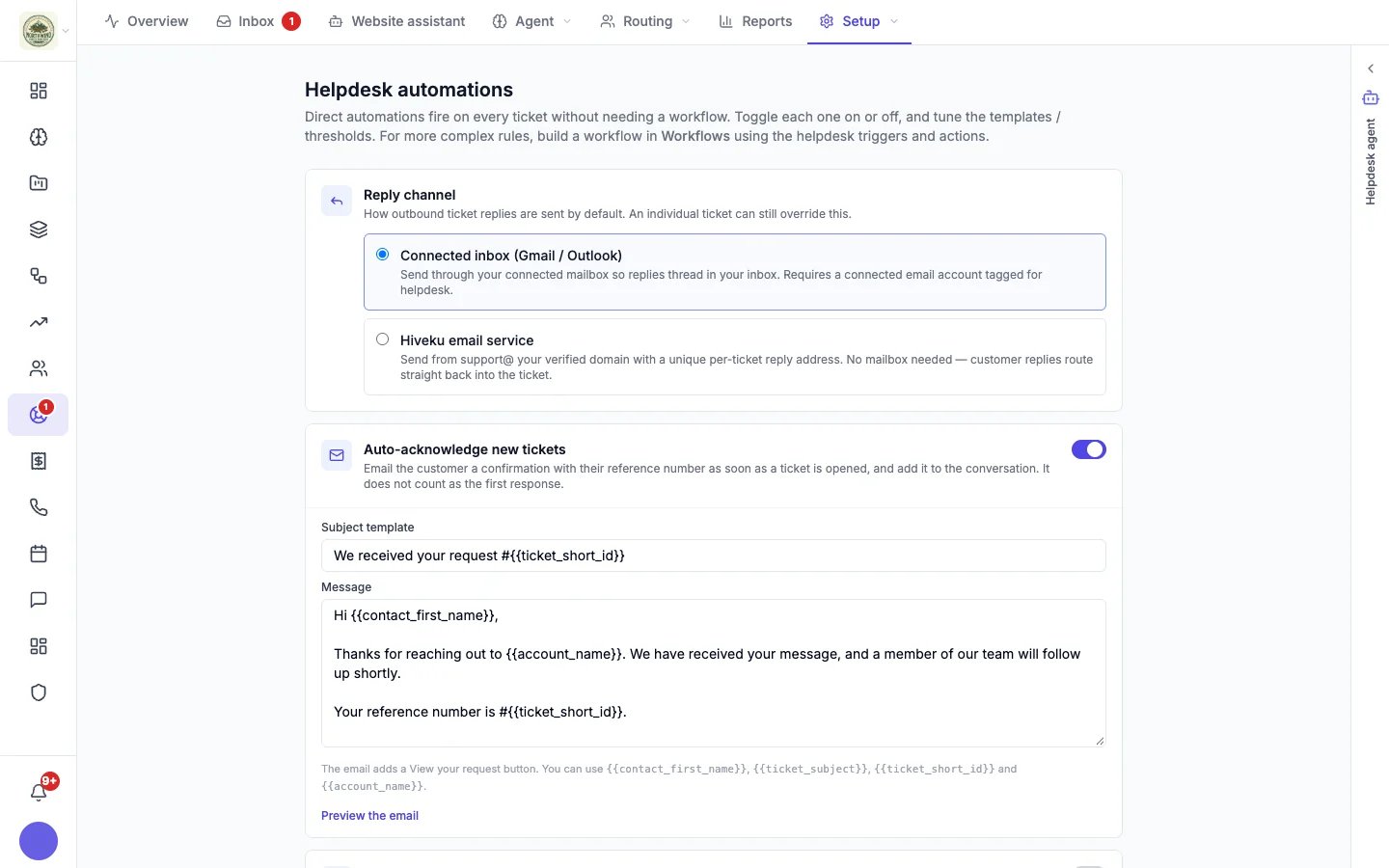
- Connected inbox (Gmail / Outlook): your replies go out through your connected mailbox, so they thread in your own inbox too. Needs a connected inbox marked for the helpdesk.
- Hiveku email service: your replies go out from support@ your verified domain, with a unique reply address for each conversation. For customers’ replies to come back into the conversation, your sending domain must be set up to receive them: an MX record on a sending subdomain that gets no other mail, plus a one-time setup by Hiveku support. See Email domains.
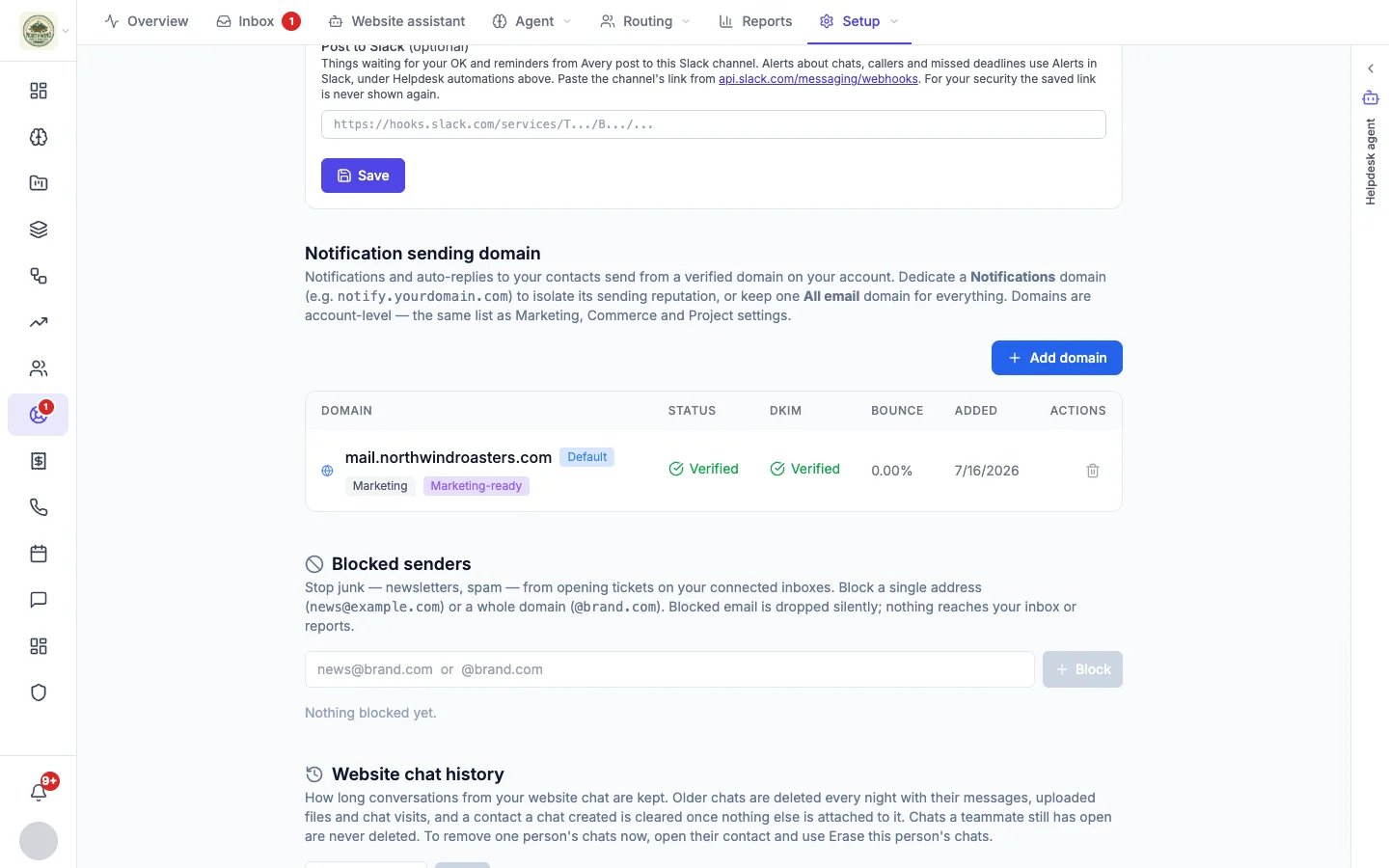
Your sending domain
Confirmation emails, satisfaction surveys and other notifications to your customers are sent from a verified domain on your account, as support@ that domain. Set it up in Helpdesk → Setup → Settings → Notification sending domain, or anywhere you manage email domains: the list is the same for Marketing, Commerce and your projects. See Email domains. You can dedicate a domain to notifications (for example notify.yourdomain.com) to keep its sending reputation separate from marketing email.Replies to your automatic emails
When a customer replies to your confirmation email or your satisfaction survey:- With the Hiveku email service, the reply goes straight to the conversation, once your domain is set up to receive replies (above).
- With a connected inbox, the reply goes to your support inbox and Hiveku adds it to the conversation it answers, so it never opens a second ticket.
- A reply to your survey that answers it, such as “1” or “Not great, the order was late”, is recorded as the customer’s rating, with anything they add as their comment, unless they already answered on their help page.
- The conversation reopens, so a follow-up lands back in Waiting for you. It stays resolved only when the reply gives your survey its answer and nothing else (a thank-you or a signature is fine), or is an automatic reply such as an out-of-office. A conversation merged into another stays closed.
Blocked senders
Stop newsletters and spam from opening tickets. In Helpdesk → Setup → Settings → Blocked senders, block a single address (news@brand.com) or a whole domain (@brand.com). Blocked email is dropped silently: nothing reaches your inbox or your reports. A reply from a blocked sender to a conversation that is already open still lands, so blocking a domain never cuts off a live conversation.