

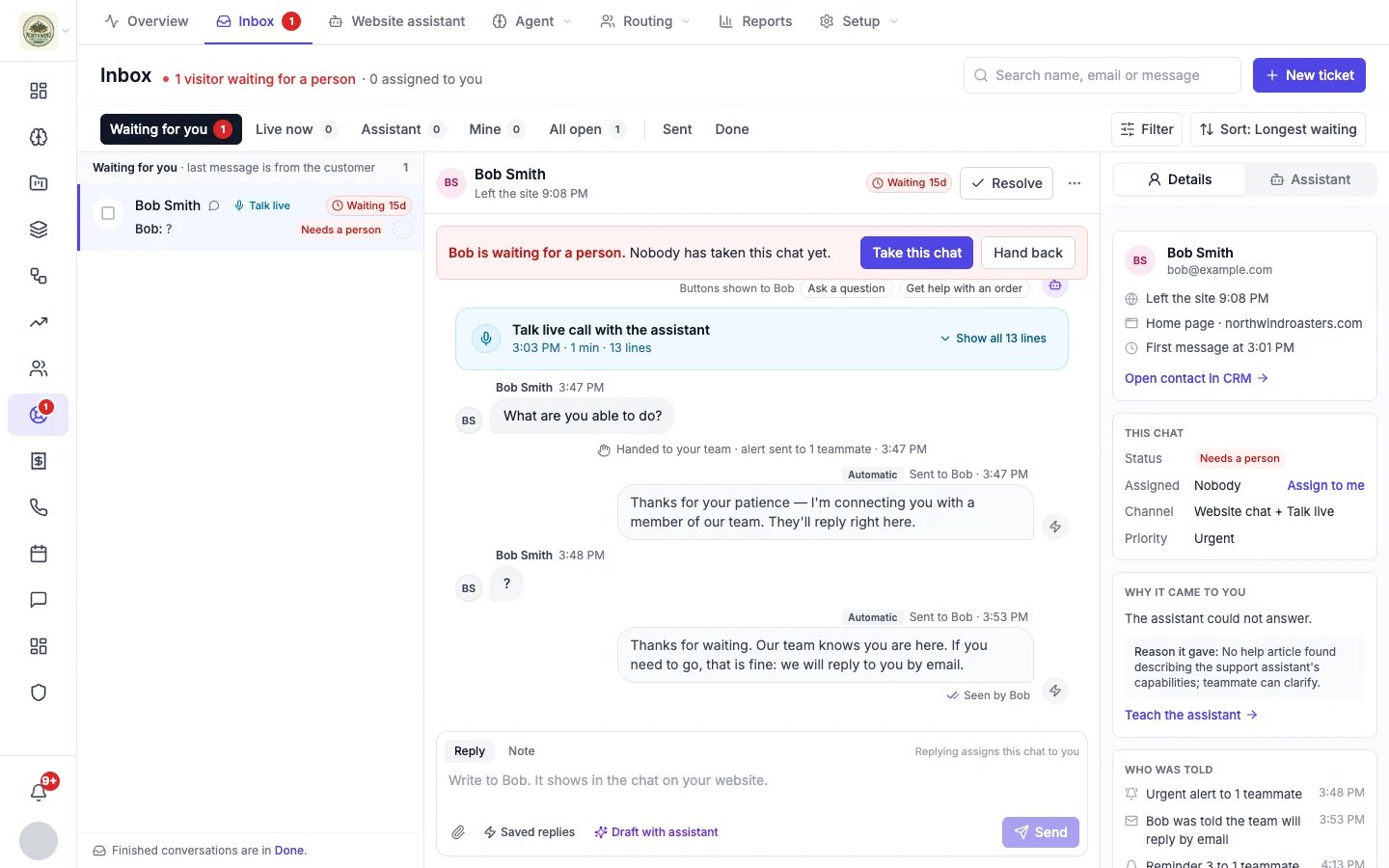
A website chat the assistant passed to the team, with the visitor waiting for a person
Take a chat
When the website assistant passes a chat to your team, a banner says the visitor is waiting for a person:- Take this chat: you answer from now on. The assistant stops replying, and the visitor sees that a teammate joined.
- Hand back (on the full conversation page, Hand back to assistant): the assistant carries on answering. It is not offered after a hand-off about a sensitive topic.
Reply or leave a note
The box at the bottom has two tabs:- Reply goes to the customer. In a website chat it appears in the chat on your website straight away. If the visitor has left the page and gave an email address, your reply reaches them by email. On an email conversation it is sent as an email reply, and on a text conversation as a text message. On a phone conversation a reply is saved on it but not sent: call the customer back or email them.
- Note is private to your team. Customers never see notes. Use them to record what you checked or to hand the conversation to a colleague.
- Attach files to your reply.
- Saved replies inserts one of your saved replies. Placeholders such as the customer’s first name are filled in for you.
- Draft with assistant asks your helpdesk AI to write a reply from the conversation. Read it and edit it before you send.
What the thread shows
- The customer’s messages, your team’s replies, and the website assistant’s answers.
- Automatic messages, such as “I’m connecting you with a member of our team”, marked so you can tell them apart from your team’s replies.
- A Talk live card when the visitor spoke to the assistant by voice. Click Show all lines to read the transcript.
- Events such as “Handed to your team · alert sent to 1 teammate”, and Seen by when the visitor has read your reply.
- Buttons shown to the visitor, the one-tap choices they had in the chat.
The details panel
The right-hand panel has two tabs. Details:- The customer: name, email address, the page they were on, when they first wrote, and Open contact in CRM.
- This chat: status, who it is assigned to (Assign to me), channel and priority.
- Why it came to you: why the assistant passed the chat on, in its own words. When it could not answer, Teach the assistant lets you write the answer once so it can answer the next visitor who asks.
- Who was told: every alert that went out about this conversation, such as an urgent alert to a teammate, the email that told the visitor the team would reply, and reminders.
Assign, prioritize and tag
- Assign the conversation to yourself from the details panel or the bulk bar. To give it to a teammate, choose More → Open full page and pick them under Assignee. Automatic assignment and team queues can do this for you; see Routing.
- Priority is Urgent, High, Normal or Low. It sets the conversation’s response time targets.
- Tags are free-form labels you can filter the inbox by.
Statuses
Click Resolve at the top of a conversation when you are done. Use Reopen to bring a finished conversation back.