

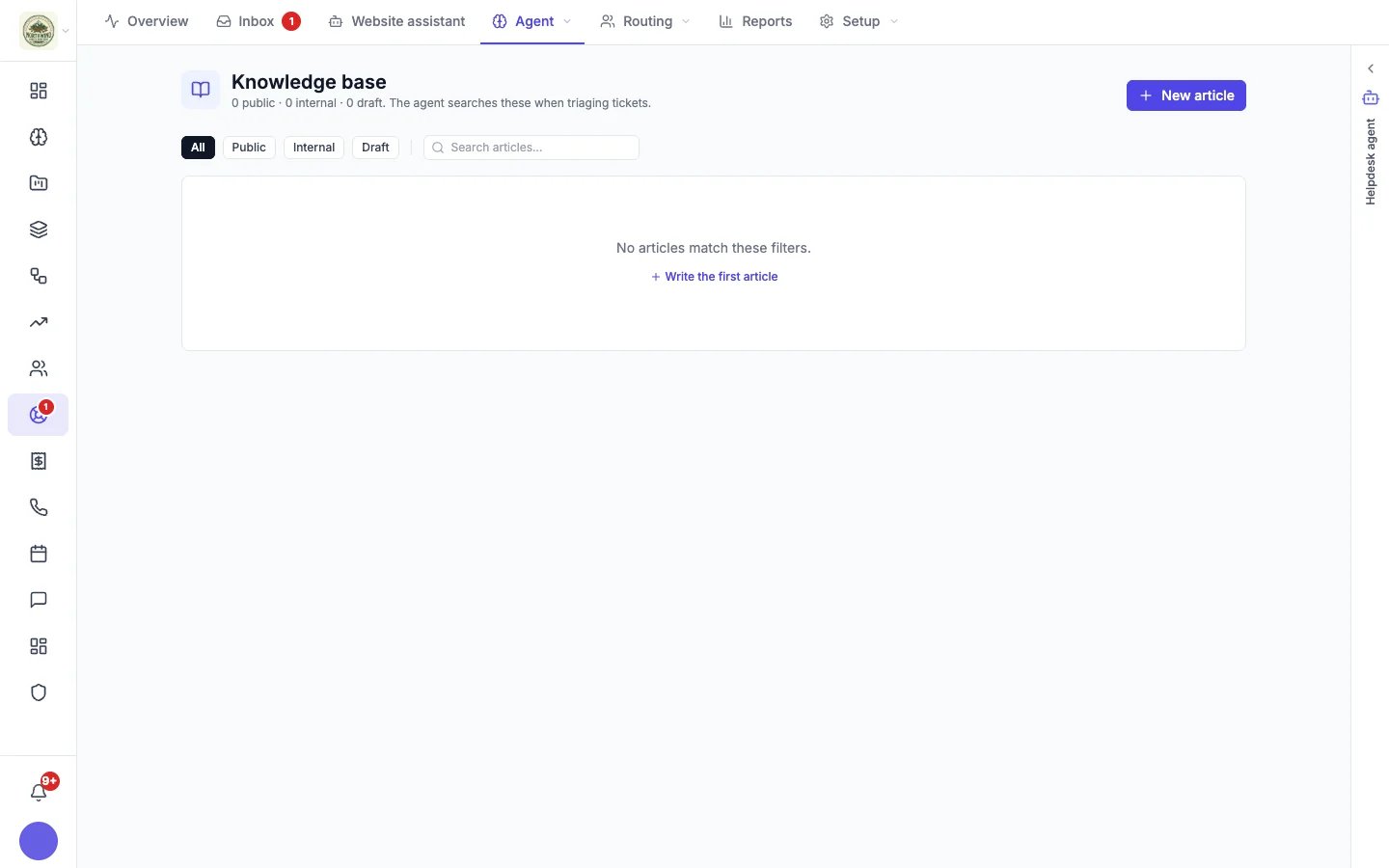
The Knowledge base, before the first article
Write an article
- Click New article.
- Give it a Title, for example “How to reset your password”.
- Add an Excerpt: a one-line, customer-friendly summary shown in search results.
- Write the Body in Markdown. Use headings and steps; short articles that answer one question work best.
- Add Tags (comma-separated) to group related articles.
- Choose its Visibility, then click Publish. Save draft keeps it unpublished, so customers and the assistant don’t see it yet.
The counts at the top (“0 public · 0 internal · 0 draft”) and the filters help you find what is published and what is still a draft.
Where customers see articles
- In the website chat: once you have published at least one public article, the chat’s home screen offers Search for help, so visitors can find an answer without waiting.
- On their help page: customers can open articles from the help page linked in your emails. See What customers see.
- In the assistant’s answers: the website assistant answers from your public articles and can link to them.
Draft articles from your website
On Helpdesk → Website assistant, turn on Your website pages and let the assistant read your site, then click Draft help articles from my website. Hiveku drafts articles from the pages it read and saves them in the Knowledge base for you to check. Nothing is shown to visitors until you publish it.What makes a good article
- One question per article, with the answer in the first sentence.
- Use the words your customers use (“my order hasn’t arrived”, not “fulfillment delay”).
- Keep facts current: the assistant repeats what you publish, word for word if it has to.
- Look at the assistant’s Unanswered questions each week. Each one is an article or a saved answer waiting to be written.