Write a campaign from your template, send yourself a test, check it for problems and see who it will reach, then send it now or schedule it
A campaign is one email sent once to an audience, such as a monthly newsletter. You fill in who it goes to and what it says, save it as a draft, then test it before anything reaches your list.This guide sets up Northwind Monthly: November for Northwind’s test audience, Docs test list, from the template made in Design an Email in the Visual Builder. It sends a test, runs the checks and stops just before sending.Before you start, you need a verified sending domain (Get Set Up to Send Marketing Email) and an audience (Build an Audience to Email).
Click Marketing in the left rail, then the Email Marketing card. On the Campaigns tab, click New campaign. (On an audience’s page, Send a campaign does the same with that audience already chosen.)
New campaign, on the Campaigns tab
2
Name it and write the subject
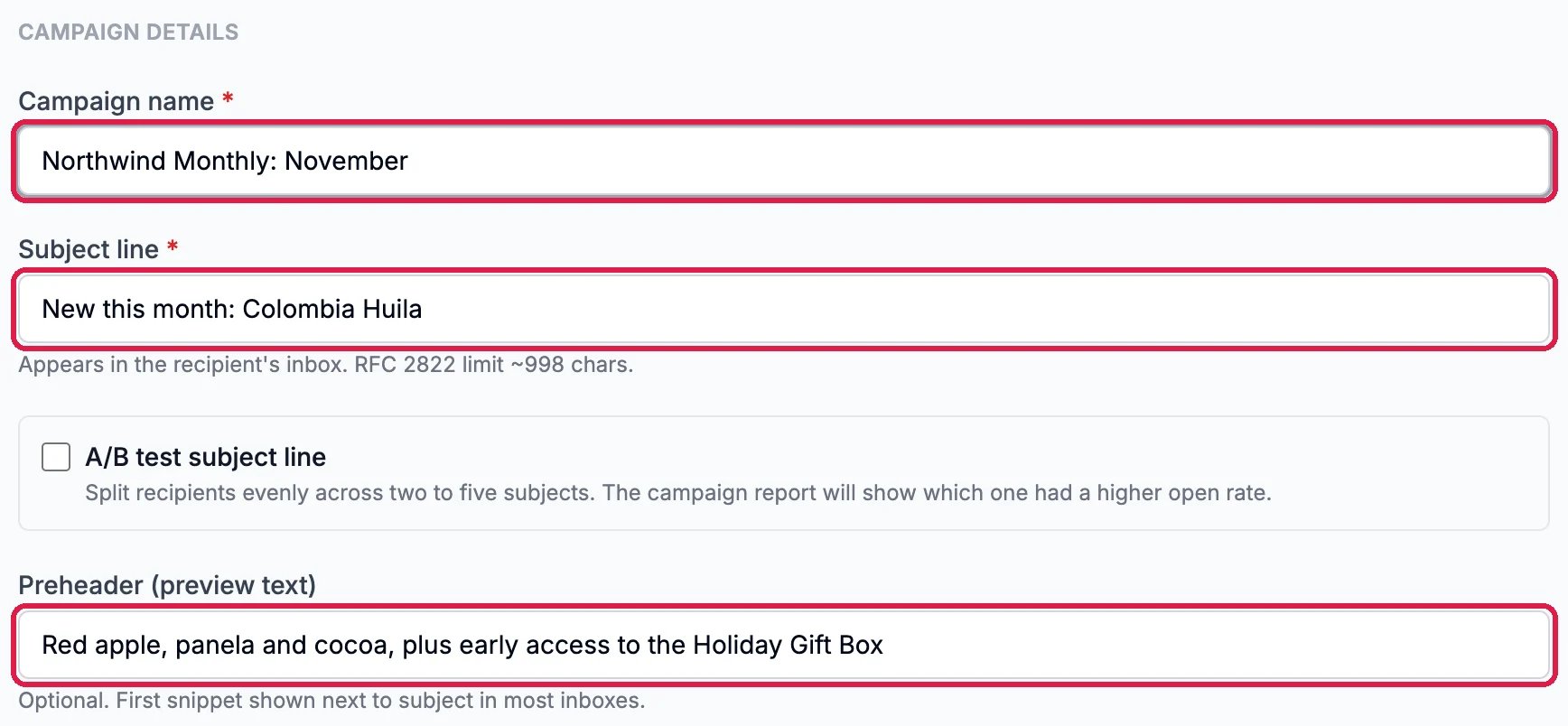
Type a Campaign name for your team, and the Subject line your readers will see.To try two to five subjects, tick A/B test subject line: recipients are split evenly, and the campaign’s results show which subject was opened more.Preheader (preview text) is the short line most inboxes show after the subject.
Name, subject and preview text
3
Choose who it goes to and who it's from
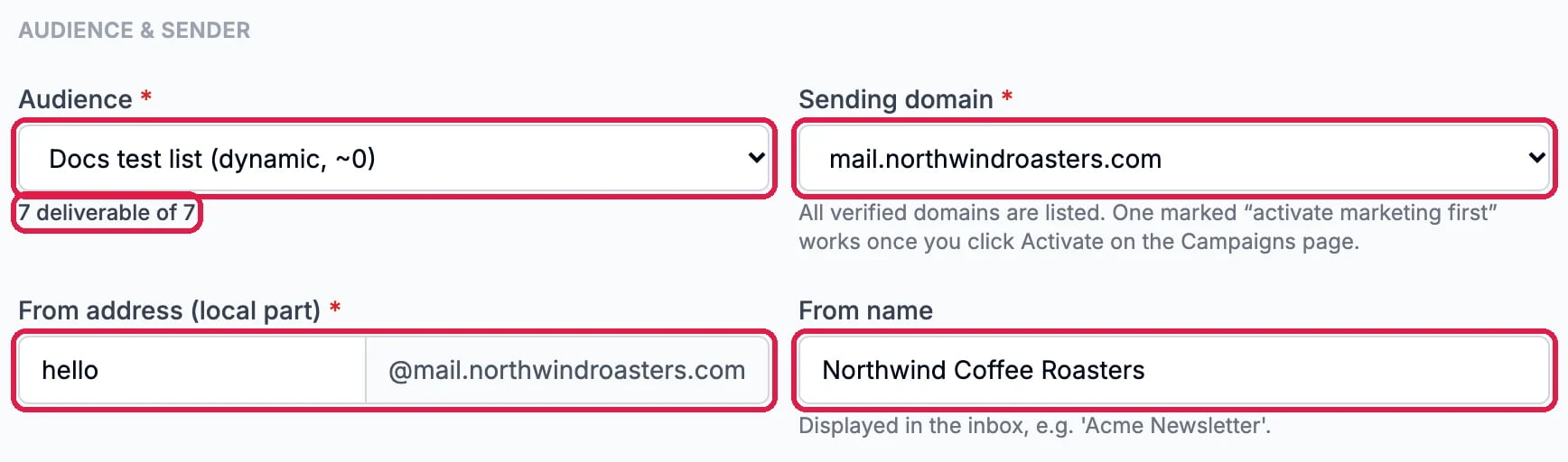
Pick the Audience. The line under it shows how many of its people can be emailed: Docs test list has 7 deliverable of 7. The number in brackets in the list isn’t kept up to date yet (~0 here), so go by the line under it.Pick your Sending domain, type the part of the address before the @ in From address (local part), and type the From name readers see in their inbox.
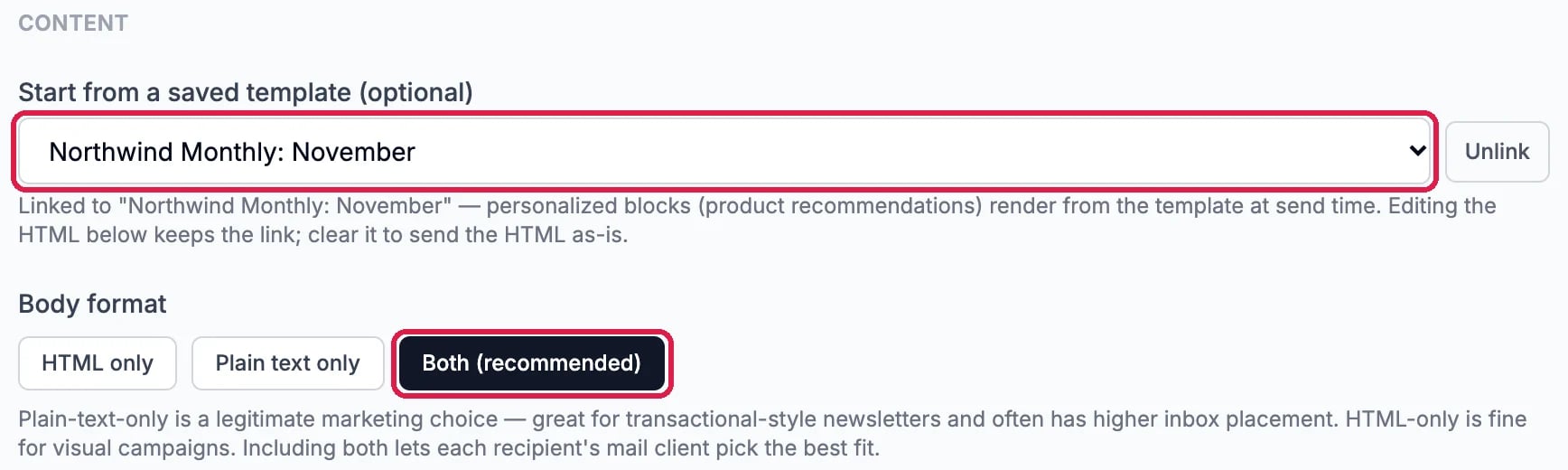
Under Start from a saved template (optional), pick your template. Its email fills the body below. Leave Body format on Both (recommended), so each reader’s email app can show the designed email or a plain-text version.
Northwind Monthly: November, in both formats
5
Choose when it goes out
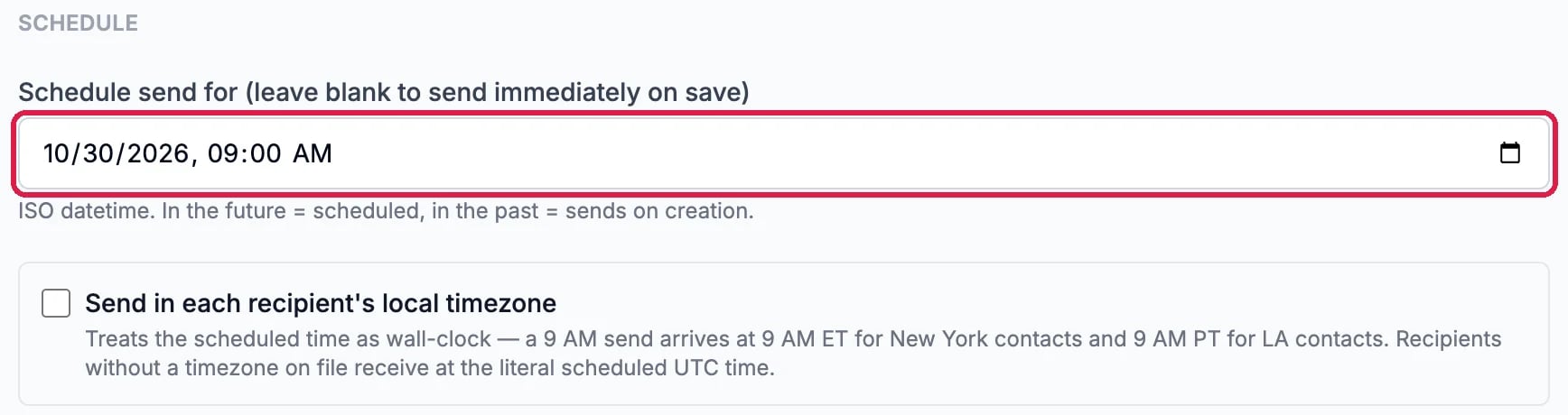
To send it later, pick a date and time in Schedule send for. Leave it blank to send it yourself once you have tested it. Despite what the label says, leaving it blank doesn’t send anything when you save: the campaign is saved as a draft and goes out only when you click Send now on its page. Send in each recipient’s local timezone sends at that time of day in each reader’s own time zone, where Hiveku knows it.
October 30 at 9:00 AM
At the moment Hiveku reads the time you type as UTC (Greenwich time), not your own: Northwind typed 9:00 AM and the campaign was set for 2:00 AM in Portland. Type the UTC time instead: for 9:00 AM in Portland, type 4:00 PM until November 1 and 5:00 PM after daylight saving time ends. Then check the time under Dry run (below), which shows it in your own time. If it’s wrong, cancel the campaign and make a new one.
6
Save the draft
Check everything, then click Save draft. Saving never sends anything: the campaign page that opens is where you test and send. A saved campaign can’t be edited yet, so to change it, cancel it and make a new one.
The campaign opens as a draft, with your sender and audience under its name and a preview of the email below (the number beside the audience isn’t kept up to date yet; Dry run shows the real count). Three buttons check it without sending to your list.
The draft, with Test send, Quality check and Dry run
1
Send yourself a test
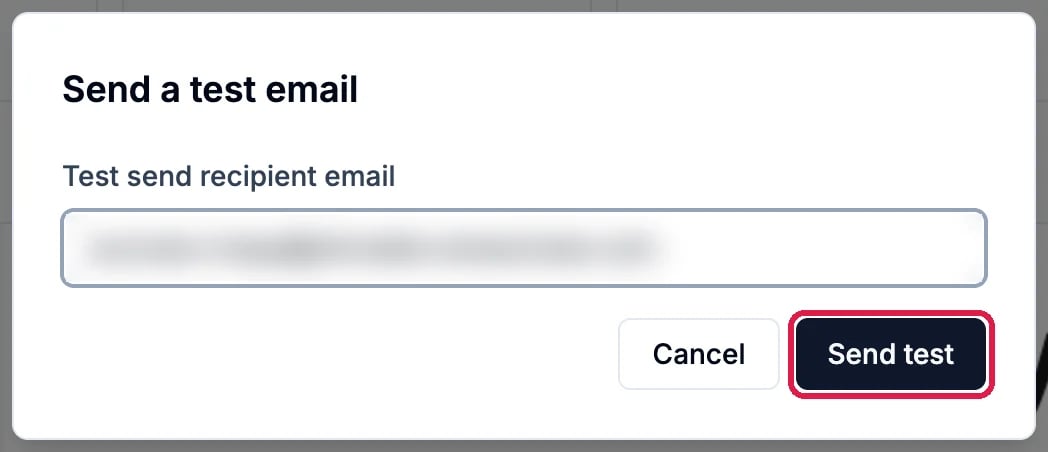
Click Test send, type your own email address under Test send recipient email and click Send test. The test is a real copy of the campaign, unsubscribe link included, and it doesn’t count in the campaign’s results.
Send a test email (address blurred)
A note under the buttons confirms where it went. Open it in your inbox and check the words, the photos and the links.
The test is on its way
2
Check it for problems
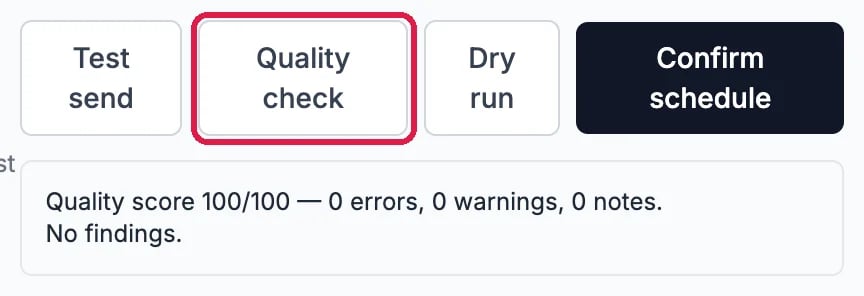
Click Quality check. It checks the subject, the preview text and the body for problems that hurt delivery or put readers off, and gives a score out of 100 with any findings listed.
100 out of 100, no findings
3
See who it would reach
Click Dry run. It works out the send without sending anything: how many people it would go to, and how many it would skip and why, such as unsubscribed or bounced addresses. Its Estimated completion line shows when the send would finish, in your own time.
The last button sends the campaign, and it reads differently depending on the schedule:
Send now, when you left Schedule send for blank. One click starts sending to the whole audience straight away; there is no second question, so test first.
Confirm schedule, when the scheduled time is still ahead. The campaign changes from draft to scheduled and goes out at that time on its own.
Northwind stops here and leaves its campaign as a draft.While a campaign is scheduled or sending, Cancel stops it (anything already sent can’t be called back), and Pause holds a send in progress until you Resume it. Duplicate makes a new draft copy of any campaign, including one already sent.
Replies go to the From address. The form has no separate reply-to address yet, so a reader’s reply goes to the address the campaign is sent from. If that address can’t receive email, tell readers in the email how to reach you.
Every email carries an unsubscribe link and your mailing address. Hiveku won’t send a campaign that lacks either, and anyone who unsubscribes is skipped from then on.
More:Campaigns covers every campaign setting and status.
⌘I
{"docsConfig":{"theme":"maple","$schema":"https://mintlify.com/docs.json","name":"Hiveku Builder","colors":{"primary":"#F9A825","light":"#FBC02D","dark":"#F57F17"},"logo":{"light":"https://mintcdn.com/locusdigital/AodgChCDua_G2sAP/images/hiveku-logo-light.svg?fit=max\u0026auto=format\u0026n=AodgChCDua_G2sAP\u0026q=85\u0026s=5d69f2502059f8269d670b35be741ad2","dark":"https://mintcdn.com/locusdigital/AodgChCDua_G2sAP/images/hiveku-logo-dark.svg?fit=max\u0026auto=format\u0026n=AodgChCDua_G2sAP\u0026q=85\u0026s=a78cef8cf1c9ae13d3dcbe31c3ca498d","href":"https://hiveku.com"},"favicon":"https://mintcdn.com/locusdigital/AodgChCDua_G2sAP/images/favicon.svg?fit=max\u0026auto=format\u0026n=AodgChCDua_G2sAP\u0026q=85\u0026s=1b959fd7abfd376351a1216e201aa8cb","api":{},"appearance":{"default":"system"},"seo":{},"styling":{"latex":true},"navigation":{"global":{"anchors":[{"anchor":"Changelog","icon":"list","href":"/changelog"},{"anchor":"App","icon":"arrow-up-right-from-square","href":"https://app.hiveku.com"}]},"pages":[]}},"deployment":{"deploymentMetadataValue":{"subdomain":"locusdigital","hasAudioNarration":false,"actualSubdomain":"locusdigital","customDomains":["docs.hiveku.com"],"gitSource":{"type":"github","owner":"locus2012","repo":"hiveku_docs","deployBranch":"main","contentDirectory":"","isPrivate":true,"mountPath":"","label":""},"chroma":{"liveDeploymentHistoryId":"6ad93ef3dfce72f355a2cb4b","collectionId":"c5501d14-52a4-4aa3-b791-a0808b54c4da","schemaVersion":"v3","latestBuiltDeploymentHistoryId":"6ad93ef3dfce72f355a2cb4b"},"entitlements":{"AI_CHAT":{"status":"DISABLED"}},"buildId":"6ad93ef3dfce72f355a2cb4b","clientVersion":"0.0.3926","searchFilterCounts":[{"language":"default","tag":"Documentation","count":390},{"language":"default","tag":"How-Tos","count":200},{"language":"default","tag":"Growing Your Business","count":57},{"language":"default","tag":"Integrations","count":25},{"language":"default","tag":"Publishing","count":18},{"language":"default","tag":"Integrations \u0026 BYOK","count":16},{"language":"default","tag":"Helpdesk","count":15},{"language":"default","tag":"Workflow Recipes","count":15},{"language":"default","tag":"Marketing Delivery","count":12},{"language":"default","tag":"API Reference","count":11}]},"assistantConfig":{"enableAskAiButton":false,"enableStarterQuestions":false,"enableContextualStarterQuestions":false,"enableAskAiSearchBar":true},"hasChatPermissions":false,"hasWebMcpPermissions":false,"toggles":[{"name":"kill-isr","enabled":true,"variant":{"name":"disabled","enabled":false,"feature_enabled":true},"impressionData":false},{"name":"agent-mintlify-slack","enabled":true,"variant":{"name":"disabled","enabled":false,"feature_enabled":true},"impressionData":false},{"name":"editor-v7-file-tree","enabled":true,"variant":{"name":"disabled","enabled":false,"feature_enabled":true},"impressionData":false},{"name":"agent-integrations-settings","enabled":true,"variant":{"name":"disabled","enabled":false,"feature_enabled":true},"impressionData":false},{"name":"automations-pr-grouping","enabled":true,"variant":{"name":"disabled","enabled":false,"feature_enabled":true},"impressionData":false},{"name":"custom-prefix","enabled":true,"variant":{"name":"disabled","enabled":false,"feature_enabled":true},"impressionData":false},{"name":"analytics-v7","enabled":true,"variant":{"name":"disabled","enabled":false,"feature_enabled":true},"impressionData":false},{"name":"user-flows-analytics","enabled":true,"variant":{"name":"disabled","enabled":false,"feature_enabled":true},"impressionData":false},{"name":"no-publish-flow","enabled":true,"variant":{"name":"disabled","enabled":false,"feature_enabled":true},"impressionData":false},{"name":"workos-onboarding","enabled":true,"variant":{"name":"disabled","enabled":false,"feature_enabled":true},"impressionData":false},{"name":"llms-txt-v2","enabled":true,"variant":{"name":"disabled","enabled":false,"feature_enabled":true},"impressionData":false},{"name":"pause-universal-search-reconcile","enabled":true,"variant":{"name":"disabled","enabled":false,"feature_enabled":true},"impressionData":false},{"name":"snapshot-serving-live","enabled":true,"variant":{"name":"disabled","enabled":false,"feature_enabled":true},"impressionData":false},{"name":"stripTemperatureMiddleware","enabled":true,"variant":{"name":"disabled","enabled":false,"feature_enabled":true},"impressionData":false},{"name":"per-site-search-delta","enabled":true,"variant":{"name":"disabled","enabled":false,"feature_enabled":true},"impressionData":false},{"name":"support-platform-pylon-zendesk","enabled":true,"variant":{"name":"disabled","enabled":false,"feature_enabled":true},"impressionData":false},{"name":"snapshot-serving","enabled":true,"variant":{"name":"disabled","enabled":false,"feature_enabled":true},"impressionData":false},{"name":"instant-rollback","enabled":true,"variant":{"name":"disabled","enabled":false,"feature_enabled":true},"impressionData":false},{"name":"granular-notifications-server","enabled":true,"variant":{"name":"disabled","enabled":false,"feature_enabled":true},"impressionData":false},{"name":"granular-notifications","enabled":true,"variant":{"name":"disabled","enabled":false,"feature_enabled":true},"impressionData":false},{"name":"editor-private-page-search","enabled":true,"variant":{"name":"disabled","enabled":false,"feature_enabled":true},"impressionData":false},{"name":"automations-fable","enabled":true,"variant":{"name":"disabled","enabled":false,"feature_enabled":true},"impressionData":false},{"name":"fixed-ai-action-pricing","enabled":true,"variant":{"name":"disabled","enabled":false,"feature_enabled":true},"impressionData":false},{"name":"automation-resolve-merge-conflict","enabled":true,"variant":{"name":"disabled","enabled":false,"feature_enabled":true},"impressionData":false},{"name":"scoped-publishing","enabled":true,"variant":{"name":"disabled","enabled":false,"feature_enabled":true},"impressionData":false},{"name":"mintql","enabled":true,"variant":{"name":"disabled","enabled":false,"feature_enabled":true},"impressionData":false},{"name":"page-level-analytics","enabled":true,"variant":{"name":"disabled","enabled":false,"feature_enabled":true},"impressionData":false},{"name":"editor-version-history-v2","enabled":true,"variant":{"name":"disabled","enabled":false,"feature_enabled":true},"impressionData":false},{"name":"editor-nav-generations","enabled":true,"variant":{"name":"disabled","enabled":false,"feature_enabled":true},"impressionData":false},{"name":"billing-page-v2","enabled":true,"variant":{"name":"disabled","enabled":false,"feature_enabled":true},"impressionData":false},{"name":"vite-origin","enabled":true,"variant":{"name":"disabled","enabled":false,"feature_enabled":true},"impressionData":false},{"name":"workspace-projects","enabled":true,"variant":{"name":"disabled","enabled":false,"feature_enabled":true},"impressionData":false},{"name":"assistant-v5","enabled":true,"variant":{"name":"disabled","enabled":false,"feature_enabled":true},"impressionData":false},{"name":"byok-sep-25","enabled":true,"variant":{"name":"disabled","enabled":false,"feature_enabled":true},"impressionData":false},{"name":"fork-pr-previews","enabled":true,"variant":{"name":"disabled","enabled":false,"feature_enabled":true},"impressionData":false},{"name":"revalidation-jwt","enabled":true,"variant":{"name":"disabled","enabled":false,"feature_enabled":true},"impressionData":false},{"name":"editor-agent-model-picker","enabled":true,"variant":{"name":"disabled","enabled":false,"feature_enabled":true},"impressionData":false},{"name":"hobby-abuse-scan","enabled":true,"variant":{"name":"disabled","enabled":false,"feature_enabled":true},"impressionData":false},{"name":"dashboard-inbox","enabled":true,"variant":{"name":"disabled","enabled":false,"feature_enabled":true},"impressionData":false}],"isAtlas":false,"googleFontsInlined":false},"customCss":[],"page":{"pagePath":"how-tos/email-marketing/send-a-campaign","slug":"/how-tos/email-marketing/send-a-campaign","pageMetadata":{"title":"Create, Test and Send an Email Campaign","sidebarTitle":"Send a Campaign","description":"Write a campaign from your template, send yourself a test, check it for problems and see who it will reach, then send it now or schedule it","href":"/how-tos/email-marketing/send-a-campaign"},"description":{"compiledSource":"\"use strict\";\nconst {jsx: _jsx} = arguments[0];\nconst {useMDXComponents: _provideComponents} = arguments[0];\nfunction _createMdxContent(props) {\n const _components = {\n p: \"p\",\n ..._provideComponents(),\n ...props.components\n };\n return _jsx(_components.p, {\n children: \"Write a campaign from your template, send yourself a test, check it for problems and see who it will reach, then send it now or schedule it\"\n });\n}\nfunction MDXContent(props = {}) {\n const {wrapper: MDXLayout} = {\n ..._provideComponents(),\n ...props.components\n };\n return MDXLayout ? _jsx(MDXLayout, {\n ...props,\n children: _jsx(_createMdxContent, {\n ...props\n })\n }) : _createMdxContent(props);\n}\nreturn {\n default: MDXContent\n};\n","frontmatter":{},"scope":{}},"pageType":"default","mdx":{"mdxSource":{"compiledSource":"\"use strict\";const{Fragment:_Fragment,jsx:_jsx,jsxs:_jsxs}=arguments[0];const{useMDXComponents:_provideComponents}=arguments[0];function _createMdxContent(props){const _components={a:`a`,li:`li`,p:`p`,strong:`strong`,ul:`ul`,..._provideComponents(),...props.components},{Frame,Heading,OptimizedImage,Step,Steps,Warning}=_components;if(!Frame)_missingMdxReference(`Frame`,true);if(!Heading)_missingMdxReference(`Heading`,true);if(!OptimizedImage)_missingMdxReference(`OptimizedImage`,true);if(!Step)_missingMdxReference(`Step`,true);if(!Steps)_missingMdxReference(`Steps`,true);if(!Warning)_missingMdxReference(`Warning`,true);return _jsxs(_Fragment,{children:[_jsx(_components.p,{children:`A campaign is one email sent once to an audience, such as a monthly newsletter. You fill in who it goes to and what it says, save it as a draft, then test it before anything reaches your list.`}),`\n`,_jsxs(_components.p,{children:[`This guide sets up Northwind Monthly: November for Northwind’s test audience, Docs test list, from the template made in `,_jsx(_components.a,{href:`/how-tos/email-marketing/design-an-email`,children:`Design an Email in the Visual Builder`}),`. It sends a test, runs the checks and stops just before sending.`]}),`\n`,_jsxs(_components.p,{children:[`Before you start, you need a verified sending domain (`,_jsx(_components.a,{href:`/how-tos/email-marketing/set-up-sending`,children:`Get Set Up to Send Marketing Email`}),`) and an audience (`,_jsx(_components.a,{href:`/how-tos/email-marketing/build-an-audience`,children:`Build an Audience to Email`}),`).`]}),`\n`,_jsx(Heading,{level:`2`,id:`write-the-campaign`,children:`Write the campaign`}),`\n`,_jsxs(Steps,{children:[_jsxs(Step,{title:`Start a new campaign`,children:[_jsxs(_components.p,{children:[`Click `,_jsx(_components.strong,{children:`Marketing`}),` in the left rail, then the `,_jsx(_components.strong,{children:`Email Marketing`}),` card. On the `,_jsx(_components.strong,{children:`Campaigns`}),` tab, click `,_jsx(_components.strong,{children:`New campaign`}),`. (On an audience’s page, `,_jsx(_components.strong,{children:`Send a campaign`}),` does the same with that audience already chosen.)`]}),_jsx(Frame,{caption:`New campaign, on the Campaigns tab`,children:_jsx(OptimizedImage,{src:`https://mintcdn.com/locusdigital/jj-Mx2rlc09XJUhQ/images/how-tos/email-marketing/camp-01-new-campaign-closeup.webp?fit=max\u0026auto=format\u0026n=jj-Mx2rlc09XJUhQ\u0026q=85\u0026s=f61f97a015d8ae80c7ea8a300c761874`,alt:`Marketing email with the Campaigns tab outlined and the New campaign button outlined`,width:`928`,\"data-og-width\":`1856`,\"data-og-height\":`292`,\"data-path\":`images/how-tos/email-marketing/camp-01-new-campaign-closeup.webp`,\"data-optimize\":`true`,\"data-opv\":`3`,srcset:`https://mintcdn.com/locusdigital/jj-Mx2rlc09XJUhQ/images/how-tos/email-marketing/camp-01-new-campaign-closeup.webp?w=280\u0026fit=max\u0026auto=format\u0026n=jj-Mx2rlc09XJUhQ\u0026q=85\u0026s=a7a7c4aa3e233f8ef6e41773dc4c44fc 280w, https://mintcdn.com/locusdigital/jj-Mx2rlc09XJUhQ/images/how-tos/email-marketing/camp-01-new-campaign-closeup.webp?w=560\u0026fit=max\u0026auto=format\u0026n=jj-Mx2rlc09XJUhQ\u0026q=85\u0026s=ae6e8dd40894928a757ff4e03d43af6c 560w, https://mintcdn.com/locusdigital/jj-Mx2rlc09XJUhQ/images/how-tos/email-marketing/camp-01-new-campaign-closeup.webp?w=840\u0026fit=max\u0026auto=format\u0026n=jj-Mx2rlc09XJUhQ\u0026q=85\u0026s=fd13dd6735fa6b78b9584787c80be3b3 840w, https://mintcdn.com/locusdigital/jj-Mx2rlc09XJUhQ/images/how-tos/email-marketing/camp-01-new-campaign-closeup.webp?w=1100\u0026fit=max\u0026auto=format\u0026n=jj-Mx2rlc09XJUhQ\u0026q=85\u0026s=e8ded89feea8ec37edccd9c9f371b4c9 1100w, https://mintcdn.com/locusdigital/jj-Mx2rlc09XJUhQ/images/how-tos/email-marketing/camp-01-new-campaign-closeup.webp?w=1650\u0026fit=max\u0026auto=format\u0026n=jj-Mx2rlc09XJUhQ\u0026q=85\u0026s=1d2a6de1c0a87eda19bf5e696a7e27ca 1650w, https://mintcdn.com/locusdigital/jj-Mx2rlc09XJUhQ/images/how-tos/email-marketing/camp-01-new-campaign-closeup.webp?w=2500\u0026fit=max\u0026auto=format\u0026n=jj-Mx2rlc09XJUhQ\u0026q=85\u0026s=17d8671bc144058f8c892cf6d0ae3359 2500w`})})]}),_jsxs(Step,{title:`Name it and write the subject`,children:[_jsxs(_components.p,{children:[`Type a `,_jsx(_components.strong,{children:`Campaign name`}),` for your team, and the `,_jsx(_components.strong,{children:`Subject line`}),` your readers will see.`]}),_jsxs(_components.p,{children:[`To try two to five subjects, tick `,_jsx(_components.strong,{children:`A/B test subject line`}),`: recipients are split evenly, and the campaign’s results show which subject was opened more.`]}),_jsxs(_components.p,{children:[_jsx(_components.strong,{children:`Preheader (preview text)`}),` is the short line most inboxes show after the subject.`]}),_jsx(Frame,{caption:`Name, subject and preview text`,children:_jsx(OptimizedImage,{src:`https://mintcdn.com/locusdigital/jj-Mx2rlc09XJUhQ/images/how-tos/email-marketing/camp-02-details-closeup.webp?fit=max\u0026auto=format\u0026n=jj-Mx2rlc09XJUhQ\u0026q=85\u0026s=c2dbc4c2914c60295c1abb2ce68a4e8d`,alt:`Campaign name Northwind Monthly: November, Subject line New this month: Colombia Huila, and Preheader Red apple, panela and cocoa, plus early access to the Holiday Gift Box, each outlined, with A/B test subject line unticked`,width:`868`,\"data-og-width\":`1736`,\"data-og-height\":`804`,\"data-path\":`images/how-tos/email-marketing/camp-02-details-closeup.webp`,\"data-optimize\":`true`,\"data-opv\":`3`,srcset:`https://mintcdn.com/locusdigital/jj-Mx2rlc09XJUhQ/images/how-tos/email-marketing/camp-02-details-closeup.webp?w=280\u0026fit=max\u0026auto=format\u0026n=jj-Mx2rlc09XJUhQ\u0026q=85\u0026s=951b68be61300427708612d2c2cfa1d8 280w, https://mintcdn.com/locusdigital/jj-Mx2rlc09XJUhQ/images/how-tos/email-marketing/camp-02-details-closeup.webp?w=560\u0026fit=max\u0026auto=format\u0026n=jj-Mx2rlc09XJUhQ\u0026q=85\u0026s=2dfcfc399022ea2c57fd009e65c619dd 560w, https://mintcdn.com/locusdigital/jj-Mx2rlc09XJUhQ/images/how-tos/email-marketing/camp-02-details-closeup.webp?w=840\u0026fit=max\u0026auto=format\u0026n=jj-Mx2rlc09XJUhQ\u0026q=85\u0026s=b1424794607227a260d337837b975019 840w, https://mintcdn.com/locusdigital/jj-Mx2rlc09XJUhQ/images/how-tos/email-marketing/camp-02-details-closeup.webp?w=1100\u0026fit=max\u0026auto=format\u0026n=jj-Mx2rlc09XJUhQ\u0026q=85\u0026s=9a3e70f6c23e7ef0b99c53bbe725d25a 1100w, https://mintcdn.com/locusdigital/jj-Mx2rlc09XJUhQ/images/how-tos/email-marketing/camp-02-details-closeup.webp?w=1650\u0026fit=max\u0026auto=format\u0026n=jj-Mx2rlc09XJUhQ\u0026q=85\u0026s=c70a3718be2f38ca1ac9c568b0ae907f 1650w, https://mintcdn.com/locusdigital/jj-Mx2rlc09XJUhQ/images/how-tos/email-marketing/camp-02-details-closeup.webp?w=2500\u0026fit=max\u0026auto=format\u0026n=jj-Mx2rlc09XJUhQ\u0026q=85\u0026s=7ed8cfb5e07c9741fb6741f29b07d44e 2500w`})})]}),_jsxs(Step,{title:`Choose who it goes to and who it's from`,children:[_jsxs(_components.p,{children:[`Pick the `,_jsx(_components.strong,{children:`Audience`}),`. The line under it shows how many of its people can be emailed: Docs test list has 7 deliverable of 7. The number in brackets in the list isn’t kept up to date yet (~0 here), so go by the line under it.`]}),_jsxs(_components.p,{children:[`Pick your `,_jsx(_components.strong,{children:`Sending domain`}),`, type the part of the address before the @ in `,_jsx(_components.strong,{children:`From address (local part)`}),`, and type the `,_jsx(_components.strong,{children:`From name`}),` readers see in their inbox.`]}),_jsx(Frame,{caption:`Docs test list, from hello@mail.northwindroasters.com`,children:_jsx(OptimizedImage,{src:`https://mintcdn.com/locusdigital/jj-Mx2rlc09XJUhQ/images/how-tos/email-marketing/camp-03-audience-sender-closeup.webp?fit=max\u0026auto=format\u0026n=jj-Mx2rlc09XJUhQ\u0026q=85\u0026s=fdf53af415b97ae0e17544ac95808e1b`,alt:`Audience Docs test list with 7 deliverable of 7 outlined, Sending domain mail.northwindroasters.com outlined, From address hello at mail.northwindroasters.com outlined, and From name Northwind Coffee Roasters outlined`,width:`868`,\"data-og-width\":`1736`,\"data-og-height\":`512`,\"data-path\":`images/how-tos/email-marketing/camp-03-audience-sender-closeup.webp`,\"data-optimize\":`true`,\"data-opv\":`3`,srcset:`https://mintcdn.com/locusdigital/jj-Mx2rlc09XJUhQ/images/how-tos/email-marketing/camp-03-audience-sender-closeup.webp?w=280\u0026fit=max\u0026auto=format\u0026n=jj-Mx2rlc09XJUhQ\u0026q=85\u0026s=5f09ed3520e956b6f2f6e19a25a33ae4 280w, https://mintcdn.com/locusdigital/jj-Mx2rlc09XJUhQ/images/how-tos/email-marketing/camp-03-audience-sender-closeup.webp?w=560\u0026fit=max\u0026auto=format\u0026n=jj-Mx2rlc09XJUhQ\u0026q=85\u0026s=67f4d5b2590aa5d6e7a55f9725cc389a 560w, https://mintcdn.com/locusdigital/jj-Mx2rlc09XJUhQ/images/how-tos/email-marketing/camp-03-audience-sender-closeup.webp?w=840\u0026fit=max\u0026auto=format\u0026n=jj-Mx2rlc09XJUhQ\u0026q=85\u0026s=a625e7865453857ae28853762d0baefa 840w, https://mintcdn.com/locusdigital/jj-Mx2rlc09XJUhQ/images/how-tos/email-marketing/camp-03-audience-sender-closeup.webp?w=1100\u0026fit=max\u0026auto=format\u0026n=jj-Mx2rlc09XJUhQ\u0026q=85\u0026s=37189e8c094d214893185536110f270e 1100w, https://mintcdn.com/locusdigital/jj-Mx2rlc09XJUhQ/images/how-tos/email-marketing/camp-03-audience-sender-closeup.webp?w=1650\u0026fit=max\u0026auto=format\u0026n=jj-Mx2rlc09XJUhQ\u0026q=85\u0026s=00313e770a2a40d62c5de8a278160e62 1650w, https://mintcdn.com/locusdigital/jj-Mx2rlc09XJUhQ/images/how-tos/email-marketing/camp-03-audience-sender-closeup.webp?w=2500\u0026fit=max\u0026auto=format\u0026n=jj-Mx2rlc09XJUhQ\u0026q=85\u0026s=88ca7225b53741c98e5c324f79d72905 2500w`})})]}),_jsxs(Step,{title:`Choose the content`,children:[_jsxs(_components.p,{children:[`Under `,_jsx(_components.strong,{children:`Start from a saved template (optional)`}),`, pick your template. Its email fills the body below. Leave `,_jsx(_components.strong,{children:`Body format`}),` on `,_jsx(_components.strong,{children:`Both (recommended)`}),`, so each reader’s email app can show the designed email or a plain-text version.`]}),_jsx(Frame,{caption:`Northwind Monthly: November, in both formats`,children:_jsx(OptimizedImage,{src:`https://mintcdn.com/locusdigital/jj-Mx2rlc09XJUhQ/images/how-tos/email-marketing/camp-04-content-closeup.webp?fit=max\u0026auto=format\u0026n=jj-Mx2rlc09XJUhQ\u0026q=85\u0026s=6d5e6f49218dff744c885946ca572cf9`,alt:`Start from a saved template (optional) set to Northwind Monthly: November, outlined, and Body format Both (recommended), outlined`,width:`868`,\"data-og-width\":`1736`,\"data-og-height\":`520`,\"data-path\":`images/how-tos/email-marketing/camp-04-content-closeup.webp`,\"data-optimize\":`true`,\"data-opv\":`3`,srcset:`https://mintcdn.com/locusdigital/jj-Mx2rlc09XJUhQ/images/how-tos/email-marketing/camp-04-content-closeup.webp?w=280\u0026fit=max\u0026auto=format\u0026n=jj-Mx2rlc09XJUhQ\u0026q=85\u0026s=1ef4ee49551f2310672590e3d5f1f597 280w, https://mintcdn.com/locusdigital/jj-Mx2rlc09XJUhQ/images/how-tos/email-marketing/camp-04-content-closeup.webp?w=560\u0026fit=max\u0026auto=format\u0026n=jj-Mx2rlc09XJUhQ\u0026q=85\u0026s=101d729fa7c85ffd8cfdef590d73915c 560w, https://mintcdn.com/locusdigital/jj-Mx2rlc09XJUhQ/images/how-tos/email-marketing/camp-04-content-closeup.webp?w=840\u0026fit=max\u0026auto=format\u0026n=jj-Mx2rlc09XJUhQ\u0026q=85\u0026s=7b4809cbb4e597584bb5e00da0b31b54 840w, https://mintcdn.com/locusdigital/jj-Mx2rlc09XJUhQ/images/how-tos/email-marketing/camp-04-content-closeup.webp?w=1100\u0026fit=max\u0026auto=format\u0026n=jj-Mx2rlc09XJUhQ\u0026q=85\u0026s=5b2480baa7ce33e987c1180245d75c03 1100w, https://mintcdn.com/locusdigital/jj-Mx2rlc09XJUhQ/images/how-tos/email-marketing/camp-04-content-closeup.webp?w=1650\u0026fit=max\u0026auto=format\u0026n=jj-Mx2rlc09XJUhQ\u0026q=85\u0026s=192eea7c555e5535fbd9a691cc966b17 1650w, https://mintcdn.com/locusdigital/jj-Mx2rlc09XJUhQ/images/how-tos/email-marketing/camp-04-content-closeup.webp?w=2500\u0026fit=max\u0026auto=format\u0026n=jj-Mx2rlc09XJUhQ\u0026q=85\u0026s=379b627dd6edd74550008baa47a99f04 2500w`})})]}),_jsxs(Step,{title:`Choose when it goes out`,children:[_jsxs(_components.p,{children:[`To send it later, pick a date and time in `,_jsx(_components.strong,{children:`Schedule send for`}),`. Leave it blank to send it yourself once you have tested it. Despite what the label says, leaving it blank doesn’t send anything when you save: the campaign is saved as a draft and goes out only when you click `,_jsx(_components.strong,{children:`Send now`}),` on its page. `,_jsx(_components.strong,{children:`Send in each recipient’s local timezone`}),` sends at that time of day in each reader’s own time zone, where Hiveku knows it.`]}),_jsx(Frame,{caption:`October 30 at 9:00 AM`,children:_jsx(OptimizedImage,{src:`https://mintcdn.com/locusdigital/jj-Mx2rlc09XJUhQ/images/how-tos/email-marketing/camp-05-schedule-closeup.webp?fit=max\u0026auto=format\u0026n=jj-Mx2rlc09XJUhQ\u0026q=85\u0026s=47348c855b4f03e3f8de995f711161f1`,alt:`Schedule send for 10/30/2026, 09:00 AM outlined, above Send in each recipient's local timezone, unticked`,width:`868`,\"data-og-width\":`1736`,\"data-og-height\":`460`,\"data-path\":`images/how-tos/email-marketing/camp-05-schedule-closeup.webp`,\"data-optimize\":`true`,\"data-opv\":`3`,srcset:`https://mintcdn.com/locusdigital/jj-Mx2rlc09XJUhQ/images/how-tos/email-marketing/camp-05-schedule-closeup.webp?w=280\u0026fit=max\u0026auto=format\u0026n=jj-Mx2rlc09XJUhQ\u0026q=85\u0026s=ff6f4a359746227f72eabd4e6dceccc9 280w, https://mintcdn.com/locusdigital/jj-Mx2rlc09XJUhQ/images/how-tos/email-marketing/camp-05-schedule-closeup.webp?w=560\u0026fit=max\u0026auto=format\u0026n=jj-Mx2rlc09XJUhQ\u0026q=85\u0026s=c41243faf6dcc14f1deb18f3d720c961 560w, https://mintcdn.com/locusdigital/jj-Mx2rlc09XJUhQ/images/how-tos/email-marketing/camp-05-schedule-closeup.webp?w=840\u0026fit=max\u0026auto=format\u0026n=jj-Mx2rlc09XJUhQ\u0026q=85\u0026s=ae29cb20e0d4394dfd1ea6080afbf6ae 840w, https://mintcdn.com/locusdigital/jj-Mx2rlc09XJUhQ/images/how-tos/email-marketing/camp-05-schedule-closeup.webp?w=1100\u0026fit=max\u0026auto=format\u0026n=jj-Mx2rlc09XJUhQ\u0026q=85\u0026s=4de0e6e586e6bb98b8333367bab6ee82 1100w, https://mintcdn.com/locusdigital/jj-Mx2rlc09XJUhQ/images/how-tos/email-marketing/camp-05-schedule-closeup.webp?w=1650\u0026fit=max\u0026auto=format\u0026n=jj-Mx2rlc09XJUhQ\u0026q=85\u0026s=b421a202a692acdbb3b43ebc4975cc53 1650w, https://mintcdn.com/locusdigital/jj-Mx2rlc09XJUhQ/images/how-tos/email-marketing/camp-05-schedule-closeup.webp?w=2500\u0026fit=max\u0026auto=format\u0026n=jj-Mx2rlc09XJUhQ\u0026q=85\u0026s=5c277cddb32091ded9fea5c18987ee6c 2500w`})}),_jsx(Warning,{children:_jsxs(_components.p,{children:[`At the moment Hiveku reads the time you type as UTC (Greenwich time), not your own: Northwind typed 9:00 AM and the campaign was set for 2:00 AM in Portland. Type the UTC time instead: for 9:00 AM in Portland, type 4:00 PM until November 1 and 5:00 PM after daylight saving time ends. Then check the time under `,_jsx(_components.strong,{children:`Dry run`}),` (below), which shows it in your own time. If it’s wrong, cancel the campaign and make a new one.`]})})]}),_jsxs(Step,{title:`Save the draft`,children:[_jsxs(_components.p,{children:[`Check everything, then click `,_jsx(_components.strong,{children:`Save draft`}),`. Saving never sends anything: the campaign page that opens is where you test and send. A saved campaign can’t be edited yet, so to change it, cancel it and make a new one.`]}),_jsx(Frame,{caption:`Save draft`,children:_jsx(OptimizedImage,{src:`https://mintcdn.com/locusdigital/ziwTwL4_x1DsGfIY/images/how-tos/email-marketing/camp-06-save-draft-closeup.webp?fit=max\u0026auto=format\u0026n=ziwTwL4_x1DsGfIY\u0026q=85\u0026s=3cccef9f5f765b582f3af8e6b80d60b8`,alt:`The Save draft button outlined, with Saved as draft. You'll see a preview and send button on the next screen.`,width:`708`,\"data-og-width\":`1416`,\"data-og-height\":`128`,\"data-path\":`images/how-tos/email-marketing/camp-06-save-draft-closeup.webp`,\"data-optimize\":`true`,\"data-opv\":`3`,srcset:`https://mintcdn.com/locusdigital/ziwTwL4_x1DsGfIY/images/how-tos/email-marketing/camp-06-save-draft-closeup.webp?w=280\u0026fit=max\u0026auto=format\u0026n=ziwTwL4_x1DsGfIY\u0026q=85\u0026s=ae9099e00b674325ff5de3519ec4f14c 280w, https://mintcdn.com/locusdigital/ziwTwL4_x1DsGfIY/images/how-tos/email-marketing/camp-06-save-draft-closeup.webp?w=560\u0026fit=max\u0026auto=format\u0026n=ziwTwL4_x1DsGfIY\u0026q=85\u0026s=ec2e6a0aff4323e8f6da4d0c13c05909 560w, https://mintcdn.com/locusdigital/ziwTwL4_x1DsGfIY/images/how-tos/email-marketing/camp-06-save-draft-closeup.webp?w=840\u0026fit=max\u0026auto=format\u0026n=ziwTwL4_x1DsGfIY\u0026q=85\u0026s=9dafc75d681893d310de5843671c616f 840w, https://mintcdn.com/locusdigital/ziwTwL4_x1DsGfIY/images/how-tos/email-marketing/camp-06-save-draft-closeup.webp?w=1100\u0026fit=max\u0026auto=format\u0026n=ziwTwL4_x1DsGfIY\u0026q=85\u0026s=12c99914905a3d380577002874d6c7db 1100w, https://mintcdn.com/locusdigital/ziwTwL4_x1DsGfIY/images/how-tos/email-marketing/camp-06-save-draft-closeup.webp?w=1650\u0026fit=max\u0026auto=format\u0026n=ziwTwL4_x1DsGfIY\u0026q=85\u0026s=9f80da0cf75e7a418726ee75afe3870f 1650w, https://mintcdn.com/locusdigital/ziwTwL4_x1DsGfIY/images/how-tos/email-marketing/camp-06-save-draft-closeup.webp?w=2500\u0026fit=max\u0026auto=format\u0026n=ziwTwL4_x1DsGfIY\u0026q=85\u0026s=db0e763c4f0b0be3998fca72b09b9fb6 2500w`})})]})]}),`\n`,_jsx(Heading,{level:`2`,id:`test-it`,children:`Test it`}),`\n`,_jsxs(_components.p,{children:[`The campaign opens as a `,_jsx(_components.strong,{children:`draft`}),`, with your sender and audience under its name and a preview of the email below (the number beside the audience isn’t kept up to date yet; `,_jsx(_components.strong,{children:`Dry run`}),` shows the real count). Three buttons check it without sending to your list.`]}),`\n`,_jsx(Frame,{caption:`The draft, with Test send, Quality check and Dry run`,children:_jsx(OptimizedImage,{src:`https://mintcdn.com/locusdigital/ziwTwL4_x1DsGfIY/images/how-tos/email-marketing/camp-07-draft-closeup.webp?fit=max\u0026auto=format\u0026n=ziwTwL4_x1DsGfIY\u0026q=85\u0026s=a78c3f357977ff86955c10b1196d8cda`,alt:`Northwind Monthly: November, draft, From Northwind Coffee Roasters at hello@mail.northwindroasters.com, with the Test send, Quality check and Dry run buttons outlined beside Confirm schedule, Duplicate and Cancel`,width:`1000`,\"data-og-width\":`2000`,\"data-og-height\":`308`,\"data-path\":`images/how-tos/email-marketing/camp-07-draft-closeup.webp`,\"data-optimize\":`true`,\"data-opv\":`3`,srcset:`https://mintcdn.com/locusdigital/ziwTwL4_x1DsGfIY/images/how-tos/email-marketing/camp-07-draft-closeup.webp?w=280\u0026fit=max\u0026auto=format\u0026n=ziwTwL4_x1DsGfIY\u0026q=85\u0026s=2e62e9103b386865811feecaf7189ebb 280w, https://mintcdn.com/locusdigital/ziwTwL4_x1DsGfIY/images/how-tos/email-marketing/camp-07-draft-closeup.webp?w=560\u0026fit=max\u0026auto=format\u0026n=ziwTwL4_x1DsGfIY\u0026q=85\u0026s=4e8ecc44129898297925e94e03c2b79a 560w, https://mintcdn.com/locusdigital/ziwTwL4_x1DsGfIY/images/how-tos/email-marketing/camp-07-draft-closeup.webp?w=840\u0026fit=max\u0026auto=format\u0026n=ziwTwL4_x1DsGfIY\u0026q=85\u0026s=c05fbfb601ee8d63c7b038b3a60646c2 840w, https://mintcdn.com/locusdigital/ziwTwL4_x1DsGfIY/images/how-tos/email-marketing/camp-07-draft-closeup.webp?w=1100\u0026fit=max\u0026auto=format\u0026n=ziwTwL4_x1DsGfIY\u0026q=85\u0026s=1cc8dd27d7b1738defa19bb74172b623 1100w, https://mintcdn.com/locusdigital/ziwTwL4_x1DsGfIY/images/how-tos/email-marketing/camp-07-draft-closeup.webp?w=1650\u0026fit=max\u0026auto=format\u0026n=ziwTwL4_x1DsGfIY\u0026q=85\u0026s=8600007ed55252829803fc4e36b306dd 1650w, https://mintcdn.com/locusdigital/ziwTwL4_x1DsGfIY/images/how-tos/email-marketing/camp-07-draft-closeup.webp?w=2500\u0026fit=max\u0026auto=format\u0026n=ziwTwL4_x1DsGfIY\u0026q=85\u0026s=29977f8d22dd1652e6c5644dde41cef7 2500w`})}),`\n`,_jsxs(Steps,{children:[_jsxs(Step,{title:`Send yourself a test`,children:[_jsxs(_components.p,{children:[`Click `,_jsx(_components.strong,{children:`Test send`}),`, type your own email address under `,_jsx(_components.strong,{children:`Test send recipient email`}),` and click `,_jsx(_components.strong,{children:`Send test`}),`. The test is a real copy of the campaign, unsubscribe link included, and it doesn’t count in the campaign’s results.`]}),_jsx(Frame,{caption:`Send a test email (address blurred)`,children:_jsx(OptimizedImage,{src:`https://mintcdn.com/locusdigital/ziwTwL4_x1DsGfIY/images/how-tos/email-marketing/camp-08-test-send-closeup.webp?fit=max\u0026auto=format\u0026n=ziwTwL4_x1DsGfIY\u0026q=85\u0026s=3f33bca94d02895c425da3ad2cdaa633`,alt:`Send a test email with the Test send recipient email box and the Send test button outlined`,width:`524`,\"data-og-width\":`1048`,\"data-og-height\":`452`,\"data-path\":`images/how-tos/email-marketing/camp-08-test-send-closeup.webp`,\"data-optimize\":`true`,\"data-opv\":`3`,srcset:`https://mintcdn.com/locusdigital/ziwTwL4_x1DsGfIY/images/how-tos/email-marketing/camp-08-test-send-closeup.webp?w=280\u0026fit=max\u0026auto=format\u0026n=ziwTwL4_x1DsGfIY\u0026q=85\u0026s=24efc1251448fece2e1c9937fda117c5 280w, https://mintcdn.com/locusdigital/ziwTwL4_x1DsGfIY/images/how-tos/email-marketing/camp-08-test-send-closeup.webp?w=560\u0026fit=max\u0026auto=format\u0026n=ziwTwL4_x1DsGfIY\u0026q=85\u0026s=96884fe3e4f3ae718d3c30c39c233f3c 560w, https://mintcdn.com/locusdigital/ziwTwL4_x1DsGfIY/images/how-tos/email-marketing/camp-08-test-send-closeup.webp?w=840\u0026fit=max\u0026auto=format\u0026n=ziwTwL4_x1DsGfIY\u0026q=85\u0026s=9a9207dd0ecb0405c269916b968a8dbc 840w, https://mintcdn.com/locusdigital/ziwTwL4_x1DsGfIY/images/how-tos/email-marketing/camp-08-test-send-closeup.webp?w=1100\u0026fit=max\u0026auto=format\u0026n=ziwTwL4_x1DsGfIY\u0026q=85\u0026s=b7c0315ddd4a03bed7879278c60a4ea7 1100w, https://mintcdn.com/locusdigital/ziwTwL4_x1DsGfIY/images/how-tos/email-marketing/camp-08-test-send-closeup.webp?w=1650\u0026fit=max\u0026auto=format\u0026n=ziwTwL4_x1DsGfIY\u0026q=85\u0026s=cc6e8e6097e7e4947cc0c09908181db1 1650w, https://mintcdn.com/locusdigital/ziwTwL4_x1DsGfIY/images/how-tos/email-marketing/camp-08-test-send-closeup.webp?w=2500\u0026fit=max\u0026auto=format\u0026n=ziwTwL4_x1DsGfIY\u0026q=85\u0026s=3cd3ef3f60851213b190f191972d7adb 2500w`})}),_jsx(_components.p,{children:`A note under the buttons confirms where it went. Open it in your inbox and check the words, the photos and the links.`}),_jsx(Frame,{caption:`The test is on its way`,children:_jsx(OptimizedImage,{src:`https://mintcdn.com/locusdigital/ziwTwL4_x1DsGfIY/images/how-tos/email-marketing/camp-09-test-sent-closeup.webp?fit=max\u0026auto=format\u0026n=ziwTwL4_x1DsGfIY\u0026q=85\u0026s=1ab857f2d788f2dd2f02fc7010584e88`,alt:`Test sent to a blurred address. Check the inbox.`,width:`479`,\"data-og-width\":`958`,\"data-og-height\":`172`,\"data-path\":`images/how-tos/email-marketing/camp-09-test-sent-closeup.webp`,\"data-optimize\":`true`,\"data-opv\":`3`,srcset:`https://mintcdn.com/locusdigital/ziwTwL4_x1DsGfIY/images/how-tos/email-marketing/camp-09-test-sent-closeup.webp?w=280\u0026fit=max\u0026auto=format\u0026n=ziwTwL4_x1DsGfIY\u0026q=85\u0026s=d8c6219ae555107933a5c9bb3120fb02 280w, https://mintcdn.com/locusdigital/ziwTwL4_x1DsGfIY/images/how-tos/email-marketing/camp-09-test-sent-closeup.webp?w=560\u0026fit=max\u0026auto=format\u0026n=ziwTwL4_x1DsGfIY\u0026q=85\u0026s=0c0aac94c072da848dfd20ebb5fd410e 560w, https://mintcdn.com/locusdigital/ziwTwL4_x1DsGfIY/images/how-tos/email-marketing/camp-09-test-sent-closeup.webp?w=840\u0026fit=max\u0026auto=format\u0026n=ziwTwL4_x1DsGfIY\u0026q=85\u0026s=9c628878774ce99de61937aa5a05389d 840w, https://mintcdn.com/locusdigital/ziwTwL4_x1DsGfIY/images/how-tos/email-marketing/camp-09-test-sent-closeup.webp?w=1100\u0026fit=max\u0026auto=format\u0026n=ziwTwL4_x1DsGfIY\u0026q=85\u0026s=4e3cacd9b65a11d31b250a3a261b099d 1100w, https://mintcdn.com/locusdigital/ziwTwL4_x1DsGfIY/images/how-tos/email-marketing/camp-09-test-sent-closeup.webp?w=1650\u0026fit=max\u0026auto=format\u0026n=ziwTwL4_x1DsGfIY\u0026q=85\u0026s=358b5d460a4cc13c71f89241c5dafbc8 1650w, https://mintcdn.com/locusdigital/ziwTwL4_x1DsGfIY/images/how-tos/email-marketing/camp-09-test-sent-closeup.webp?w=2500\u0026fit=max\u0026auto=format\u0026n=ziwTwL4_x1DsGfIY\u0026q=85\u0026s=eb8a472cada5c5b71c364358705059fa 2500w`})})]}),_jsxs(Step,{title:`Check it for problems`,children:[_jsxs(_components.p,{children:[`Click `,_jsx(_components.strong,{children:`Quality check`}),`. It checks the subject, the preview text and the body for problems that hurt delivery or put readers off, and gives a score out of 100 with any findings listed.`]}),_jsx(Frame,{caption:`100 out of 100, no findings`,children:_jsx(OptimizedImage,{src:`https://mintcdn.com/locusdigital/ziwTwL4_x1DsGfIY/images/how-tos/email-marketing/camp-10-quality-closeup.webp?fit=max\u0026auto=format\u0026n=ziwTwL4_x1DsGfIY\u0026q=85\u0026s=0e83c0ab19fa6547ad001cd4411479a2`,alt:`The Quality check button outlined, and Quality score 100/100, 0 errors, 0 warnings, 0 notes. No findings.`,width:`432`,\"data-og-width\":`864`,\"data-og-height\":`296`,\"data-path\":`images/how-tos/email-marketing/camp-10-quality-closeup.webp`,\"data-optimize\":`true`,\"data-opv\":`3`,srcset:`https://mintcdn.com/locusdigital/ziwTwL4_x1DsGfIY/images/how-tos/email-marketing/camp-10-quality-closeup.webp?w=280\u0026fit=max\u0026auto=format\u0026n=ziwTwL4_x1DsGfIY\u0026q=85\u0026s=37bbacae5f6dd265c1347ba5ea2c1dcd 280w, https://mintcdn.com/locusdigital/ziwTwL4_x1DsGfIY/images/how-tos/email-marketing/camp-10-quality-closeup.webp?w=560\u0026fit=max\u0026auto=format\u0026n=ziwTwL4_x1DsGfIY\u0026q=85\u0026s=af0c29112bdff7735d9721220b0ebc14 560w, https://mintcdn.com/locusdigital/ziwTwL4_x1DsGfIY/images/how-tos/email-marketing/camp-10-quality-closeup.webp?w=840\u0026fit=max\u0026auto=format\u0026n=ziwTwL4_x1DsGfIY\u0026q=85\u0026s=ea770ee91c163892d54f6370e6758435 840w, https://mintcdn.com/locusdigital/ziwTwL4_x1DsGfIY/images/how-tos/email-marketing/camp-10-quality-closeup.webp?w=1100\u0026fit=max\u0026auto=format\u0026n=ziwTwL4_x1DsGfIY\u0026q=85\u0026s=6f4c002778e245fd27d7b5209ab29cf1 1100w, https://mintcdn.com/locusdigital/ziwTwL4_x1DsGfIY/images/how-tos/email-marketing/camp-10-quality-closeup.webp?w=1650\u0026fit=max\u0026auto=format\u0026n=ziwTwL4_x1DsGfIY\u0026q=85\u0026s=277f1ce1334464fcc6b8eb025cb154ee 1650w, https://mintcdn.com/locusdigital/ziwTwL4_x1DsGfIY/images/how-tos/email-marketing/camp-10-quality-closeup.webp?w=2500\u0026fit=max\u0026auto=format\u0026n=ziwTwL4_x1DsGfIY\u0026q=85\u0026s=de01e6e279ff745afd9fd6e0d8d6cdb2 2500w`})})]}),_jsxs(Step,{title:`See who it would reach`,children:[_jsxs(_components.p,{children:[`Click `,_jsx(_components.strong,{children:`Dry run`}),`. It works out the send without sending anything: how many people it would go to, and how many it would skip and why, such as unsubscribed or bounced addresses. Its `,_jsx(_components.strong,{children:`Estimated completion`}),` line shows when the send would finish, in your own time.`]}),_jsx(Frame,{caption:`Dry run: 7 of 7 contacts`,children:_jsx(OptimizedImage,{src:`https://mintcdn.com/locusdigital/ziwTwL4_x1DsGfIY/images/how-tos/email-marketing/camp-11-dry-run-closeup.webp?fit=max\u0026auto=format\u0026n=ziwTwL4_x1DsGfIY\u0026q=85\u0026s=18e0545be071f1272d5fac404b715c99`,alt:`The Dry run button outlined, and Dry run OK, would dispatch 7 of 7 contacts. Skipped: 0, outlined`,width:`582`,\"data-og-width\":`1164`,\"data-og-height\":`180`,\"data-path\":`images/how-tos/email-marketing/camp-11-dry-run-closeup.webp`,\"data-optimize\":`true`,\"data-opv\":`3`,srcset:`https://mintcdn.com/locusdigital/ziwTwL4_x1DsGfIY/images/how-tos/email-marketing/camp-11-dry-run-closeup.webp?w=280\u0026fit=max\u0026auto=format\u0026n=ziwTwL4_x1DsGfIY\u0026q=85\u0026s=9145294e6dcb2d9d56e9dc7a79ec2091 280w, https://mintcdn.com/locusdigital/ziwTwL4_x1DsGfIY/images/how-tos/email-marketing/camp-11-dry-run-closeup.webp?w=560\u0026fit=max\u0026auto=format\u0026n=ziwTwL4_x1DsGfIY\u0026q=85\u0026s=3977b5bc4cc9f4b7646fd75aba99bd69 560w, https://mintcdn.com/locusdigital/ziwTwL4_x1DsGfIY/images/how-tos/email-marketing/camp-11-dry-run-closeup.webp?w=840\u0026fit=max\u0026auto=format\u0026n=ziwTwL4_x1DsGfIY\u0026q=85\u0026s=640739a28a9431bd4ca068f34d24aca7 840w, https://mintcdn.com/locusdigital/ziwTwL4_x1DsGfIY/images/how-tos/email-marketing/camp-11-dry-run-closeup.webp?w=1100\u0026fit=max\u0026auto=format\u0026n=ziwTwL4_x1DsGfIY\u0026q=85\u0026s=001ede72b880031a9cc3a8149f2d0a0f 1100w, https://mintcdn.com/locusdigital/ziwTwL4_x1DsGfIY/images/how-tos/email-marketing/camp-11-dry-run-closeup.webp?w=1650\u0026fit=max\u0026auto=format\u0026n=ziwTwL4_x1DsGfIY\u0026q=85\u0026s=c643a534cd2e2700d9a6f54fa7f3fb95 1650w, https://mintcdn.com/locusdigital/ziwTwL4_x1DsGfIY/images/how-tos/email-marketing/camp-11-dry-run-closeup.webp?w=2500\u0026fit=max\u0026auto=format\u0026n=ziwTwL4_x1DsGfIY\u0026q=85\u0026s=6eea82925dd34e6d1766343b4e9871fa 2500w`})})]})]}),`\n`,_jsx(Heading,{level:`2`,id:`send-it`,children:`Send it`}),`\n`,_jsx(_components.p,{children:`The last button sends the campaign, and it reads differently depending on the schedule:`}),`\n`,_jsxs(_components.ul,{children:[`\n`,_jsxs(_components.li,{children:[_jsx(_components.strong,{children:`Send now`}),`, when you left `,_jsx(_components.strong,{children:`Schedule send for`}),` blank. One click starts sending to the whole audience straight away; there is no second question, so test first.`]}),`\n`,_jsxs(_components.li,{children:[_jsx(_components.strong,{children:`Confirm schedule`}),`, when the scheduled time is still ahead. The campaign changes from draft to scheduled and goes out at that time on its own.`]}),`\n`]}),`\n`,_jsx(_components.p,{children:`Northwind stops here and leaves its campaign as a draft.`}),`\n`,_jsxs(_components.p,{children:[`While a campaign is scheduled or sending, `,_jsx(_components.strong,{children:`Cancel`}),` stops it (anything already sent can’t be called back), and `,_jsx(_components.strong,{children:`Pause`}),` holds a send in progress until you `,_jsx(_components.strong,{children:`Resume`}),` it. `,_jsx(_components.strong,{children:`Duplicate`}),` makes a new draft copy of any campaign, including one already sent.`]}),`\n`,_jsx(Heading,{level:`2`,id:`good-to-know`,children:`Good to know`}),`\n`,_jsxs(_components.ul,{children:[`\n`,_jsxs(_components.li,{children:[_jsx(_components.strong,{children:`Replies go to the From address.`}),` The form has no separate reply-to address yet, so a reader’s reply goes to the address the campaign is sent from. If that address can’t receive email, tell readers in the email how to reach you.`]}),`\n`,_jsxs(_components.li,{children:[_jsx(_components.strong,{children:`Every email carries an unsubscribe link and your mailing address.`}),` Hiveku won’t send a campaign that lacks either, and anyone who unsubscribes is skipped from then on.`]}),`\n`,_jsxs(_components.li,{children:[_jsx(_components.strong,{children:`More:`}),` `,_jsx(_components.a,{href:`/email-marketing/campaigns`,children:`Campaigns`}),` covers every campaign setting and status.`]}),`\n`]})]})}function MDXContent(props={}){const{wrapper:MDXLayout}={..._provideComponents(),...props.components};return MDXLayout?_jsx(MDXLayout,{...props,children:_jsx(_createMdxContent,{...props})}):_createMdxContent(props)}return{default:MDXContent};function _missingMdxReference(id,component){throw new Error(`Expected `+(component?`component`:`object`)+\" `\"+id+\"` to be defined: you likely forgot to import, pass, or provide it.\")}","frontmatter":{},"scope":{"config":{},"pageMetadata":{"title":"Create, Test and Send an Email Campaign","sidebarTitle":"Send a Campaign","description":"Write a campaign from your template, send yourself a test, check it for problems and see who it will reach, then send it now or schedule it","href":"/how-tos/email-marketing/send-a-campaign"}}},"mdxSourceWithNoJs":null},"mdxExtracts":{"tableOfContents":[{"title":"Write the campaign","slug":"write-the-campaign","depth":2,"children":[]},{"title":"Test it","slug":"test-it","depth":2,"children":[]},{"title":"Send it","slug":"send-it","depth":2,"children":[]},{"title":"Good to know","slug":"good-to-know","depth":2,"children":[]}],"codeExamples":{}},"jsLinks":[],"subdomain":"locusdigital","siteName":"Hiveku Builder","title":"Create, Test and Send an Email Campaign - Hiveku Builder","navMaps":{"firstHrefInVersion":{},"firstHrefInLanguage":{}},"lastModified":"2026-10-21T22:22:39.412Z","originalFileLocation":"how-tos/email-marketing/send-a-campaign.mdx"},"headHtml":"\u003cscript data-mint-head>(function(){var d=document.documentElement,p=null;if(!p){try{p=localStorage.getItem(\"isDarkMode\")}catch(e){}if(p==='true')p='dark';else if(p==='false')p='light';if(p!=='light'\u0026\u0026p!=='dark'\u0026\u0026p!=='system')p=\"system\"}var r=p==='system'?(matchMedia(\"(prefers-color-scheme: dark)\").matches?'dark':'light'):p;d.classList.remove(r==='dark'?'light':'dark');d.classList.add(r);d.setAttribute(\"data-theme-preference\",p)})();\u003c/script>\u003cmeta data-mint-head name=\"description\" content=\"Write a campaign from your template, send yourself a test, check it for problems and see who it will reach, then send it now or schedule it\">\u003cmeta data-mint-head name=\"application-name\" content=\"Hiveku Builder\">\u003cmeta data-mint-head name=\"generator\" content=\"Mintlify\">\u003clink data-mint-head rel=\"icon\" type=\"image/png\" sizes=\"192x192\" href=\"/mintlify-assets/_mintlify/favicons/locusdigital/Q6CcRfou6T0R_uxO/_generated/favicon/android-chrome-192x192.png\" media=\"(prefers-color-scheme: light)\">\u003clink data-mint-head rel=\"apple-touch-icon\" type=\"image/png\" sizes=\"180x180\" href=\"/mintlify-assets/_mintlify/favicons/locusdigital/Q6CcRfou6T0R_uxO/_generated/favicon/apple-touch-icon.png\">\u003clink data-mint-head rel=\"icon\" type=\"image/png\" sizes=\"16x16\" href=\"/mintlify-assets/_mintlify/favicons/locusdigital/Q6CcRfou6T0R_uxO/_generated/favicon/favicon-16x16.png\" media=\"(prefers-color-scheme: light)\">\u003clink data-mint-head rel=\"icon\" type=\"image/png\" sizes=\"32x32\" href=\"/mintlify-assets/_mintlify/favicons/locusdigital/Q6CcRfou6T0R_uxO/_generated/favicon/favicon-32x32.png\" media=\"(prefers-color-scheme: light)\">\u003clink data-mint-head rel=\"shortcut icon\" type=\"image/x-icon\" href=\"/mintlify-assets/_mintlify/favicons/locusdigital/Q6CcRfou6T0R_uxO/_generated/favicon/favicon.ico\" media=\"(prefers-color-scheme: light)\">\u003clink data-mint-head rel=\"icon\" type=\"image/png\" sizes=\"192x192\" href=\"/mintlify-assets/_mintlify/favicons/locusdigital/Q6CcRfou6T0R_uxO/_generated/favicon-dark/android-chrome-192x192.png\" media=\"(prefers-color-scheme: dark)\">\u003clink data-mint-head rel=\"icon\" type=\"image/png\" sizes=\"16x16\" href=\"/mintlify-assets/_mintlify/favicons/locusdigital/Q6CcRfou6T0R_uxO/_generated/favicon-dark/favicon-16x16.png\" media=\"(prefers-color-scheme: dark)\">\u003clink data-mint-head rel=\"icon\" type=\"image/png\" sizes=\"32x32\" href=\"/mintlify-assets/_mintlify/favicons/locusdigital/Q6CcRfou6T0R_uxO/_generated/favicon-dark/favicon-32x32.png\" media=\"(prefers-color-scheme: dark)\">\u003clink data-mint-head rel=\"shortcut icon\" type=\"image/x-icon\" href=\"/mintlify-assets/_mintlify/favicons/locusdigital/Q6CcRfou6T0R_uxO/_generated/favicon-dark/favicon.ico\" media=\"(prefers-color-scheme: dark)\">\u003cmeta data-mint-head property=\"og:title\" content=\"Create, Test and Send an Email Campaign - Hiveku Builder\">\u003cmeta data-mint-head property=\"og:description\" content=\"Write a campaign from your template, send yourself a test, check it for problems and see who it will reach, then send it now or schedule it\">\u003cmeta data-mint-head property=\"og:site_name\" content=\"Hiveku Builder\">\u003cmeta data-mint-head property=\"og:url\" content=\"https://docs.hiveku.com/how-tos/email-marketing/send-a-campaign\">\u003cmeta data-mint-head property=\"og:type\" content=\"website\">\u003cmeta data-mint-head property=\"og:image\" content=\"https://locusdigital.mintlify.app/_mintlify/api/og/v2?division=Email+Marketing%3A+Step+by+Step\u0026amp;title=Create%2C+Test+and+Send+an+Email+Campaign\u0026amp;description=Write+a+campaign+from+your+template%2C+send+yourself+a+test%2C+check+it+for+problems+and+see+who+it+will+reach%2C+then+send+it+now+or+schedule+it\u0026amp;theme=ba4ac0880b4e71dea3d42bfa\u0026amp;signature=eb227971e8933cf2177ad38d150aec73b5170970c2c7cd843ce1596d8d492450\">\u003cmeta data-mint-head property=\"og:image:width\" content=\"1200\">\u003cmeta data-mint-head property=\"og:image:height\" content=\"630\">\u003cmeta data-mint-head name=\"twitter:card\" content=\"summary_large_image\">\u003cmeta data-mint-head name=\"twitter:title\" content=\"Create, Test and Send an Email Campaign - Hiveku Builder\">\u003cmeta data-mint-head name=\"twitter:description\" content=\"Write a campaign from your template, send yourself a test, check it for problems and see who it will reach, then send it now or schedule it\">\u003cmeta data-mint-head name=\"twitter:image\" content=\"https://locusdigital.mintlify.app/_mintlify/api/og/v2?division=Email+Marketing%3A+Step+by+Step\u0026amp;title=Create%2C+Test+and+Send+an+Email+Campaign\u0026amp;description=Write+a+campaign+from+your+template%2C+send+yourself+a+test%2C+check+it+for+problems+and+see+who+it+will+reach%2C+then+send+it+now+or+schedule+it\u0026amp;theme=ba4ac0880b4e71dea3d42bfa\u0026amp;signature=eb227971e8933cf2177ad38d150aec73b5170970c2c7cd843ce1596d8d492450\">\u003cmeta data-mint-head name=\"twitter:image:width\" content=\"1200\">\u003cmeta data-mint-head name=\"twitter:image:height\" content=\"630\">\u003cmeta data-mint-head name=\"msapplication-config\" content=\"/mintlify-assets/_mintlify/favicons/locusdigital/Q6CcRfou6T0R_uxO/_generated/favicon/browserconfig.xml\">\u003cmeta data-mint-head name=\"apple-mobile-web-app-title\" content=\"Hiveku Builder\">\u003cmeta data-mint-head name=\"msapplication-TileColor\" content=\"#F9A825\">\u003clink data-mint-head rel=\"canonical\" href=\"https://docs.hiveku.com/how-tos/email-marketing/send-a-campaign\">\u003clink data-mint-head rel=\"alternate\" type=\"application/xml\" href=\"/sitemap.xml\">\u003clink data-mint-head rel=\"alternate\" type=\"text/markdown\" href=\"/how-tos/email-marketing/send-a-campaign.md\">\u003cscript data-mint-head type=\"application/ld+json\">{\"@context\":\"https://schema.org\",\"@graph\":[{\"@type\":\"Organization\",\"@id\":\"https://docs.hiveku.com/#organization\",\"name\":\"Hiveku Builder\",\"url\":\"https://docs.hiveku.com\",\"logo\":{\"@type\":\"ImageObject\",\"url\":\"https://mintcdn.com/locusdigital/AodgChCDua_G2sAP/images/hiveku-logo-light.svg?fit=max\u0026auto=format\u0026n=AodgChCDua_G2sAP\u0026q=85\u0026s=5d69f2502059f8269d670b35be741ad2\"}},{\"@type\":\"WebSite\",\"@id\":\"https://docs.hiveku.com#website\",\"name\":\"Hiveku Builder\",\"url\":\"https://docs.hiveku.com\",\"publisher\":{\"@id\":\"https://docs.hiveku.com/#organization\"}},{\"@type\":\"WebPage\",\"@id\":\"https://docs.hiveku.com/how-tos/email-marketing/send-a-campaign#webpage\",\"url\":\"https://docs.hiveku.com/how-tos/email-marketing/send-a-campaign\",\"name\":\"Create, Test and Send an Email Campaign\",\"description\":\"Write a campaign from your template, send yourself a test, check it for problems and see who it will reach, then send it now or schedule it\",\"dateModified\":\"2026-10-21T22:22:39.412Z\",\"isPartOf\":{\"@id\":\"https://docs.hiveku.com#website\"},\"breadcrumb\":{\"@id\":\"https://docs.hiveku.com/how-tos/email-marketing/send-a-campaign#breadcrumb\"}},{\"@type\":\"BreadcrumbList\",\"@id\":\"https://docs.hiveku.com/how-tos/email-marketing/send-a-campaign#breadcrumb\",\"itemListElement\":[{\"@type\":\"ListItem\",\"position\":1,\"name\":\"How-Tos\",\"item\":\"https://docs.hiveku.com/how-tos/overview\"},{\"@type\":\"ListItem\",\"position\":2,\"name\":\"Email Marketing: Step by Step\",\"item\":\"https://docs.hiveku.com/how-tos/email-marketing/set-up-sending\"},{\"@type\":\"ListItem\",\"position\":3,\"name\":\"Create, Test and Send an Email Campaign\",\"item\":\"https://docs.hiveku.com/how-tos/email-marketing/send-a-campaign\"}]},{\"@type\":[\"Article\",\"TechArticle\"],\"@id\":\"https://docs.hiveku.com/how-tos/email-marketing/send-a-campaign#article\",\"headline\":\"Create, Test and Send an Email Campaign\",\"name\":\"Create, Test and Send an Email Campaign\",\"description\":\"Write a campaign from your template, send yourself a test, check it for problems and see who it will reach, then send it now or schedule it\",\"url\":\"https://docs.hiveku.com/how-tos/email-marketing/send-a-campaign\",\"mainEntityOfPage\":{\"@id\":\"https://docs.hiveku.com/how-tos/email-marketing/send-a-campaign#webpage\"},\"dateModified\":\"2026-10-21T22:22:39.412Z\",\"publisher\":{\"@id\":\"https://docs.hiveku.com/#organization\"},\"isPartOf\":{\"@id\":\"https://docs.hiveku.com#website\"}}]}\u003c/script>\u003cscript data-mint-head type=\"application/ld+json\">{\"@context\":\"https://schema.org\",\"@type\":\"WebSite\",\"name\":\"Hiveku Builder\",\"creator\":{\"@type\":\"Organization\",\"name\":\"Mintlify\",\"url\":\"https://mintlify.com\"}}\u003c/script>","siteName":"Hiveku Builder","nav":{"global":{"anchors":[{"anchor":"Changelog","icon":"list","href":"/changelog"},{"anchor":"App","icon":"arrow-up-right-from-square","href":"https://app.hiveku.com"}]},"tabs":[{"tab":"Documentation","groups":[{"group":"Get Started","pages":[{"title":"Hiveku Builder","sidebarTitle":"Introduction","href":"/introduction"},{"title":"Quickstart","href":"/quickstart"},{"title":"Projects","href":"/projects"},{"title":"Hiveku Mobile App","sidebarTitle":"Mobile App","href":"/mobile/hiveku-app"}]},{"group":"Dashboards","pages":[{"title":"Your Dashboard","sidebarTitle":"Overview","href":"/dashboards/overview"},{"title":"Customize a Dashboard","sidebarTitle":"Customize","href":"/dashboards/customize"},{"title":"Widget Types","sidebarTitle":"Widget Types","href":"/dashboards/widgets"},{"title":"Share and Publish Dashboards","sidebarTitle":"Share and Publish","href":"/dashboards/sharing"},{"title":"Your Data","sidebarTitle":"Your Data","href":"/dashboards/your-data"},{"title":"Buttons and Forms on Dashboards","sidebarTitle":"Buttons and Forms","href":"/dashboards/buttons"},{"title":"Team Activity","sidebarTitle":"Team Activity","href":"/dashboards/team-activity"},{"title":"The Workspaces Dashboard","sidebarTitle":"Workspaces","href":"/dashboards/workspaces"},{"title":"Build Dashboards with AI","sidebarTitle":"Build with AI","href":"/dashboards/ai-agents"}]},{"group":"AI Assistant","pages":[{"title":"AI Assistant","href":"/ai/overview"},{"title":"Message Queue","href":"/ai/message-queue"},{"title":"Undo an AI Turn","href":"/ai/undo-turn"},{"title":"AI Modes","href":"/ai/modes"},{"title":"AI Tools","href":"/ai/tools"},{"title":"AI Models","href":"/ai/models"},{"title":"AI Ops Inbox","sidebarTitle":"Ops Inbox","href":"/ai/ops-inbox"},{"title":"Reporting Problems to Hiveku","sidebarTitle":"Reporting Problems","href":"/ai/reporting-problems"}]},{"group":"Code Editor","pages":[{"title":"Code Editor","href":"/editor/overview"},{"title":"File Management","href":"/editor/files"},{"title":"Live Preview","sidebarTitle":"Live Preview","href":"/editor/live-preview"},{"title":"Branches and environments","sidebarTitle":"Branches","href":"/editor/branches"},{"title":"Versions","sidebarTitle":"Versions","href":"/editor/versions"},{"title":"Reviews and merging","sidebarTitle":"Reviews and merging","href":"/editor/reviews"},{"title":"The merge line and branch settings","sidebarTitle":"Merge line","href":"/editor/merge-line"},{"title":"Project history","sidebarTitle":"Project history","href":"/editor/project-history"},{"title":"Branches and AI tools","sidebarTitle":"Branches and AI tools","href":"/editor/branches-and-ai"},{"title":"Git Panel","sidebarTitle":"Git Panel","href":"/editor/github"}]},{"group":"Design Studio","pages":[{"title":"Design Studio Overview","sidebarTitle":"Overview","href":"/design/overview"},{"title":"Motion Graphics","sidebarTitle":"Motion Graphics","href":"/design/motion-graphics"},{"title":"Animation Editor","sidebarTitle":"Animation Editor","href":"/design/animation-editor"},{"title":"Animated Templates","sidebarTitle":"Templates","href":"/design/templates"},{"title":"AI Video Generation","sidebarTitle":"AI Video","href":"/design/ai-video"},{"title":"Exporting Designs","sidebarTitle":"Exporting","href":"/design/exporting"},{"title":"Media Library and AI Images","sidebarTitle":"Media Library","href":"/design/media-library"},{"title":"Section Library","sidebarTitle":"Section Library","href":"/design/section-library"}]},{"group":"CMS","pages":[{"title":"CMS Overview","sidebarTitle":"Overview","href":"/cms/overview"},{"title":"The Manifest (hiveku.cms.json)","sidebarTitle":"Manifest","href":"/cms/manifest"},{"title":"Field Types","sidebarTitle":"Field Types","href":"/cms/field-types"},{"title":"Collections","sidebarTitle":"Collections","href":"/cms/collections"},{"title":"Editing Content in the CMS Panel","sidebarTitle":"Editing Content","href":"/cms/editing-content"},{"title":"Scheduled Publishing","sidebarTitle":"Scheduled Publishing","href":"/cms/scheduled-publishing"},{"title":"Bulk Import Content","sidebarTitle":"Bulk Import","href":"/cms/bulk-import"},{"title":"How AI Agents Use the CMS","sidebarTitle":"AI Integration","href":"/cms/agent-integration"}]},{"group":"Email Marketing","pages":[{"title":"Email Marketing Overview","sidebarTitle":"Overview","href":"/email-marketing/overview"},{"title":"Quickstart","sidebarTitle":"Quickstart","href":"/email-marketing/quickstart"},{"title":"Before you can send","sidebarTitle":"Setup Checklist","href":"/email-marketing/setup-checklist"},{"title":"Audiences","href":"/email-marketing/audiences"},{"title":"Campaigns","href":"/email-marketing/campaigns"},{"title":"Templates","href":"/email-marketing/templates"},{"title":"Sequences (Drip Campaigns)","sidebarTitle":"Sequences","href":"/email-marketing/sequences"},{"title":"Deliverability Dashboard","sidebarTitle":"Deliverability","href":"/email-marketing/deliverability"},{"title":"Using the AI Email Coach","sidebarTitle":"AI Email Coach","href":"/email-marketing/email-coach"}]},{"group":"Social Media","pages":[{"title":"Social Media Overview","sidebarTitle":"Overview","href":"/social/overview"},{"title":"Connecting Social Accounts","sidebarTitle":"Connecting Accounts","href":"/social/connecting-accounts"},{"title":"The Social Composer","sidebarTitle":"Composer","href":"/social/composer"},{"title":"Social AI Assistant","sidebarTitle":"AI Assistant","href":"/social/ai-assistant"},{"title":"Social Analytics","sidebarTitle":"Analytics","href":"/social/analytics"},{"title":"Social Engagement Inbox","sidebarTitle":"Engagement","href":"/social/engagement"}]},{"group":"Advertising","pages":[{"title":"Advertising (PPC) Overview","sidebarTitle":"Overview","href":"/advertising/overview"},{"title":"Connecting Ad Accounts","sidebarTitle":"Connecting Accounts","href":"/advertising/connecting-accounts"},{"title":"Advertising Campaigns","sidebarTitle":"Campaigns","href":"/advertising/campaigns"},{"title":"Streaming TV \u0026 CTV Ads","sidebarTitle":"Streaming TV","href":"/advertising/streaming-tv"},{"title":"AI Advertising Strategist","sidebarTitle":"AI Strategist","href":"/advertising/ai-strategist"},{"title":"Reports Hub \u0026 Client Reports","sidebarTitle":"Reports Hub","href":"/advertising/reports"},{"title":"Listings \u0026 Local Presence","sidebarTitle":"Listings","href":"/advertising/listings"}]},{"group":"Marketing Delivery","pages":[{"title":"How Attribution Works","sidebarTitle":"How Attribution Works","href":"/marketing/attribution"},{"title":"Conversion Uploads","sidebarTitle":"Conversion Uploads","href":"/marketing/conversion-uploads"},{"title":"PPC Depth Tools","sidebarTitle":"PPC Depth Tools","href":"/marketing/ppc-depth-tools"},{"title":"SEO Delivery Tools","sidebarTitle":"SEO Delivery Tools","href":"/marketing/seo-delivery-tools"},{"title":"Client Reporting \u0026 Approvals","sidebarTitle":"Client Reporting \u0026 Approvals","href":"/marketing/client-reporting"},{"title":"Standing Playbooks","sidebarTitle":"Standing Playbooks","href":"/marketing/standing-playbooks"},{"title":"The Content Department","sidebarTitle":"Content Department","href":"/marketing/content-department"},{"title":"Pre-Publish SEO Check","sidebarTitle":"Pre-Publish Check","href":"/marketing/content-seo-check"},{"title":"Scheduling and the Content Calendar","sidebarTitle":"Schedule \u0026 Calendar","href":"/marketing/content-calendar"},{"title":"Distribution, Performance, Proof and Research","sidebarTitle":"Distribution and Proof","href":"/marketing/content-program"},{"title":"Authors, the SERP Brief, Positioning and Titles","sidebarTitle":"Authors, Briefs and Titles","href":"/marketing/content-briefs-and-titles"},{"title":"Site Architecture, Bottom-Funnel Pages, the Decision Loop and Conversion","sidebarTitle":"Architecture, Decisions and Conversion","href":"/marketing/content-architecture"}]},{"group":"Commerce","pages":[{"title":"Commerce Overview","sidebarTitle":"Overview","href":"/commerce/overview"},{"title":"Products \u0026 Services Catalog","sidebarTitle":"Products","href":"/commerce/products"},{"title":"Invoices","sidebarTitle":"Invoices","href":"/commerce/invoices"},{"title":"Estimates (Quotes)","sidebarTitle":"Estimates","href":"/commerce/estimates"},{"title":"Contracts \u0026 E-Signatures","sidebarTitle":"Contracts","href":"/commerce/contracts"},{"title":"Subscriptions","sidebarTitle":"Subscriptions","href":"/commerce/subscriptions"},{"title":"Client Portal","sidebarTitle":"Client Portal","href":"/commerce/client-portal"},{"title":"Payment Processing","sidebarTitle":"Payments","href":"/commerce/payments"},{"title":"Payment Pages","sidebarTitle":"Payment Pages","href":"/commerce/payment-pages"},{"title":"Reports \u0026 Analytics","sidebarTitle":"Reports","href":"/commerce/reports"}]},{"group":"Calendar","pages":[{"title":"Calendar Overview","sidebarTitle":"Overview","href":"/calendar/overview"},{"title":"Meeting Types","href":"/calendar/meeting-types"},{"title":"Availability","href":"/calendar/availability"},{"title":"Manage Bookings","href":"/calendar/bookings"},{"title":"Team Calendars","href":"/calendar/team-calendars"},{"title":"Embed the Booking Widget","href":"/calendar/embed-booking-widget"},{"title":"Calendar Automations","href":"/calendar/automations"}]},{"group":"Communications","pages":[{"title":"Communications Overview","sidebarTitle":"Overview","href":"/communications/overview"},{"title":"Phone Numbers (DIDs)","href":"/communications/phone-numbers"},{"title":"Number Porting","href":"/communications/porting"},{"title":"Extensions and Devices","href":"/communications/extensions"},{"title":"Ring Groups","href":"/communications/ring-groups"},{"title":"IVR Auto-Attendants","href":"/communications/ivr"},{"title":"Call Queues","href":"/communications/queues"},{"title":"SMS Messaging","href":"/communications/sms"},{"title":"Phone Tracking (DNI)","href":"/communications/phone-tracking"},{"title":"AI Voice Agent","href":"/communications/voice-ai-agent"},{"title":"Compliance and Recording","href":"/communications/compliance"}]},{"group":"Helpdesk","pages":[{"title":"Helpdesk Overview","sidebarTitle":"Overview","href":"/helpdesk/overview"},{"title":"The Inbox","sidebarTitle":"Inbox","href":"/helpdesk/inbox"},{"title":"Working a Conversation","sidebarTitle":"Working a conversation","href":"/helpdesk/conversations"},{"title":"Website Chat","sidebarTitle":"Website chat","href":"/helpdesk/chat-widget"},{"title":"Website Assistant","sidebarTitle":"Website assistant","href":"/helpdesk/website-assistant"},{"title":"Help Articles","sidebarTitle":"Help articles","href":"/helpdesk/knowledge-base"},{"title":"Saved Replies and Saved Answers","sidebarTitle":"Saved replies","href":"/helpdesk/saved-replies"},{"title":"Email","sidebarTitle":"Email","href":"/helpdesk/email"},{"title":"Routing and Response Times","sidebarTitle":"Routing and response times","href":"/helpdesk/routing"},{"title":"Alerts","sidebarTitle":"Alerts","href":"/helpdesk/alerts"},{"title":"Helpdesk Settings","sidebarTitle":"Settings","href":"/helpdesk/settings"},{"title":"Satisfaction Surveys","sidebarTitle":"Satisfaction surveys","href":"/helpdesk/satisfaction-surveys"},{"title":"Helpdesk Reports","sidebarTitle":"Reports","href":"/helpdesk/reports"},{"title":"What Customers See","sidebarTitle":"What customers see","href":"/helpdesk/customer-experience"},{"title":"Your Helpdesk Agent","sidebarTitle":"Helpdesk agent","href":"/helpdesk/helpdesk-agent"}]},{"group":"Sales","pages":[{"title":"Sales AI Co-pilot Overview","sidebarTitle":"Overview","href":"/sales/overview"},{"title":"Using the Sales Co-pilot","href":"/sales/using-co-pilot"},{"title":"Pending Actions Queue","href":"/sales/pending-actions"},{"title":"Outbound Lead Pipeline","href":"/sales/outbound-pipeline"}]},{"group":"Publishing","pages":[{"title":"Hosting","href":"/publishing/hosting"},{"title":"Serverless Hosting Guide","sidebarTitle":"Serverless Guide","href":"/publishing/serverless-guide"},{"title":"Custom Domains","href":"/publishing/custom-domains"},{"title":"Deployments","href":"/publishing/deployments"},{"title":"Social Share Cards","sidebarTitle":"Social Share Cards","href":"/design/social-share-cards"}]},{"group":"Native Mobile","pages":[{"title":"Native Mobile Overview","sidebarTitle":"Overview","href":"/mobile/overview"},{"title":"Mobile Quickstart","sidebarTitle":"Quickstart","href":"/mobile/quickstart"},{"title":"Mobile Credentials","sidebarTitle":"Credentials","href":"/mobile/credentials"},{"title":"Phone-Frame Preview","sidebarTitle":"Preview","href":"/mobile/preview"},{"title":"Builds \u0026 Submissions","sidebarTitle":"Builds","href":"/mobile/builds"},{"title":"App Store Assets","sidebarTitle":"App Store Assets","href":"/mobile/app-store-assets"},{"title":"Native Modules","sidebarTitle":"Native Modules","href":"/mobile/native-modules"}]},{"group":"Email","pages":[{"title":"Email Overview","sidebarTitle":"Overview","href":"/email/overview"},{"title":"Quickstart","href":"/email/quickstart"},{"title":"Domains","href":"/email/domains"},{"title":"API Keys","href":"/email/api-keys"},{"title":"Sending Emails","href":"/email/sending"},{"title":"Templates","href":"/email/templates"},{"title":"Webhooks","href":"/email/webhooks"},{"title":"Dedicated IPs","href":"/email/dedicated-ips"},{"title":"Deliverability","href":"/email/deliverability"}]},{"group":"Integrations","pages":[{"title":"GitHub","href":"/integrations/github"},{"title":"Figma Import","href":"/integrations/figma"},{"title":"Workflows","href":"/integrations/workflows"},{"title":"Workflow Node Reference","href":"/integrations/workflow-nodes"},{"title":"Set up Claude Code with Hiveku","sidebarTitle":"Claude Code: Setup","href":"/integrations/claude-code-setup"},{"title":"Hiveku for Claude Code","sidebarTitle":"Claude Code Plugin","href":"/integrations/claude-code-plugin"},{"title":"Hiveku Gateway","sidebarTitle":"Hiveku Gateway","href":"/integrations/hiveku-gateway"},{"title":"Gateway runbook","sidebarTitle":"Runbook","href":"/integrations/gateway-runbook"},{"title":"LLM Connectors (MCP)","sidebarTitle":"LLM Connectors","href":"/integrations/llm-connectors"},{"group":"Webflow","pages":[{"title":"Webflow Overview","sidebarTitle":"Overview","href":"/integrations/webflow/overview"},{"title":"Connecting Webflow","sidebarTitle":"Connecting","href":"/integrations/webflow/connecting"},{"title":"The Webflow Workspace","sidebarTitle":"Workspace","href":"/integrations/webflow/workspace"},{"title":"Webflow as the Content Source","sidebarTitle":"Content Source","href":"/integrations/webflow/content"},{"title":"The Webflow AI Chat","sidebarTitle":"AI Chat","href":"/integrations/webflow/ai-chat"},{"title":"Webflow Automations","sidebarTitle":"Automations","href":"/integrations/webflow/automations"},{"title":"Webflow for Developers","sidebarTitle":"For Developers","href":"/integrations/webflow/developers"}]},{"group":"Shopify","pages":[{"title":"Shopify Overview","sidebarTitle":"Overview","href":"/integrations/shopify/overview"},{"title":"Connecting Shopify","sidebarTitle":"Connecting","href":"/integrations/shopify/connecting"},{"title":"Using Shopify in a Project","sidebarTitle":"Using in a Project","href":"/integrations/shopify/using-in-projects"},{"title":"Storefront Scaffolding","sidebarTitle":"Storefront","href":"/integrations/shopify/storefront"},{"title":"Hiveku Subscriptions","sidebarTitle":"Subscriptions","href":"/integrations/shopify/subscriptions"},{"title":"Hiveku Reviews","sidebarTitle":"Reviews","href":"/integrations/shopify/reviews"},{"title":"CRO Defaults Bundle","sidebarTitle":"CRO Bundle","href":"/integrations/shopify/cro-bundle"},{"title":"Retrofitting an Existing Project","sidebarTitle":"Retrofitting","href":"/integrations/shopify/retrofitting"},{"title":"Shopify for Developers","sidebarTitle":"For Developers","href":"/integrations/shopify/developers"}]}]},{"group":"How-Tos","pages":[{"title":"How-Tos","sidebarTitle":"Overview","href":"/how-tos/overview"},{"group":"Getting Started","pages":[{"title":"Sign Up \u0026 Create Your First Project","sidebarTitle":"Sign Up","href":"/how-tos/sign-up"},{"title":"Invite Team Members","sidebarTitle":"Invite Team","href":"/how-tos/invite-team"}]},{"group":"Site Builder Walkthrough","pages":[{"title":"Open Your Site in the Builder","sidebarTitle":"1. Open Your Site","href":"/how-tos/site-builder/open-your-site"},{"title":"Make a Change with the AI Chat","sidebarTitle":"2. Change with AI","href":"/how-tos/site-builder/change-with-ai"},{"title":"Edit Text and Styles by Clicking","sidebarTitle":"3. Edit Visually","href":"/how-tos/site-builder/edit-visually"},{"title":"Add a New Page","sidebarTitle":"4. Add a Page","href":"/how-tos/site-builder/add-a-page"},{"title":"Check Your Site on Phone and Tablet","sidebarTitle":"5. Phone and Tablet","href":"/how-tos/site-builder/phone-and-tablet"},{"title":"Undo a Change","sidebarTitle":"6. Undo a Change","href":"/how-tos/site-builder/undo-a-change"},{"title":"Publish Your Changes","sidebarTitle":"7. Publish","href":"/how-tos/site-builder/publish"}]},{"group":"Site Builder: Next Steps","pages":[{"title":"Edit Your Content in the CMS","sidebarTitle":"Edit CMS Content","href":"/how-tos/site-builder/edit-cms-content"},{"title":"Write and Publish a Blog Post","sidebarTitle":"Write a Blog Post","href":"/how-tos/site-builder/write-a-blog-post"},{"title":"Try a Change on a Branch First","sidebarTitle":"Try It on a Branch","href":"/how-tos/site-builder/try-on-a-branch"},{"title":"Improve How a Page Shows in Google","sidebarTitle":"Titles for Google","href":"/how-tos/site-builder/page-titles-for-google"},{"title":"Check a Page for Problems","sidebarTitle":"Check a Page for Problems","href":"/how-tos/site-builder/check-a-page-for-problems"},{"title":"Replace a Photo on Your Site","sidebarTitle":"Replace a Photo","href":"/how-tos/site-builder/replace-a-photo"},{"title":"See Who Filled In Your Forms","sidebarTitle":"Form Submissions","href":"/how-tos/site-builder/form-submissions"},{"title":"Follow Up a Lead from Your Website","sidebarTitle":"Follow Up a Lead","href":"/how-tos/site-builder/follow-up-a-lead"},{"title":"Teach Your Website Assistant","sidebarTitle":"Teach Your Website Assistant","href":"/how-tos/site-builder/teach-your-website-assistant"},{"title":"Add a Chat to Your Website","sidebarTitle":"Add a Website Chat","href":"/how-tos/site-builder/add-website-chat"},{"title":"Reply to New Leads Automatically","sidebarTitle":"Reply to New Leads","href":"/how-tos/site-builder/reply-to-new-leads"}]},{"group":"Helpdesk: Step by Step","pages":[{"title":"Write a Help Article","sidebarTitle":"Write a Help Article","href":"/how-tos/helpdesk/write-a-help-article"},{"title":"Turn Your Website Pages into Help Articles","sidebarTitle":"Help Articles from Your Website","href":"/how-tos/helpdesk/help-articles-from-your-website"},{"title":"Save Replies You Send Often","sidebarTitle":"Save Replies You Send Often","href":"/how-tos/helpdesk/save-replies"},{"title":"Answer a Visitor Who Asked for a Person","sidebarTitle":"Answer a Waiting Visitor","href":"/how-tos/helpdesk/answer-a-waiting-visitor"},{"title":"Get Alerted When a Visitor Is Waiting","sidebarTitle":"Get Alerted When a Visitor Waits","href":"/how-tos/helpdesk/get-alerted-when-a-visitor-waits"}]},{"group":"Workflows: Step by Step","pages":[{"title":"Start a Workflow from a Template","sidebarTitle":"Start from a Template","href":"/how-tos/workflows/start-from-a-template"},{"title":"Add and Connect Workflow Steps Yourself","sidebarTitle":"Add Steps Yourself","href":"/how-tos/workflows/build-a-workflow-by-hand"},{"title":"Run a Workflow on a Schedule","sidebarTitle":"Run on a Schedule","href":"/how-tos/workflows/run-on-a-schedule"},{"title":"See What a Workflow Did","sidebarTitle":"See What a Workflow Did","href":"/how-tos/workflows/see-what-a-workflow-did"}]},{"group":"Calendar: Step by Step","pages":[{"title":"Set Up Your Booking Page","sidebarTitle":"Set Up Your Booking Page","href":"/how-tos/calendar/booking-page"},{"title":"Create a Meeting Type People Can Book","sidebarTitle":"Create a Meeting Type","href":"/how-tos/calendar/meeting-type"},{"title":"Set Your Weekly Hours and Days Off","sidebarTitle":"Set Your Hours and Days Off","href":"/how-tos/calendar/availability"},{"title":"Share Your Booking Link and QR Code","sidebarTitle":"Share Your Booking Link","href":"/how-tos/calendar/share-booking-link"}]},{"group":"CRM and Sales: Step by Step","pages":[{"title":"Bring Your Contacts In from a Spreadsheet","sidebarTitle":"Import Contacts","href":"/how-tos/crm/import-contacts"},{"title":"Add a Business and Link Its People and Deals","sidebarTitle":"Add a Business","href":"/how-tos/crm/add-a-company"},{"title":"Set Up Your Sales Pipeline and Its Stages","sidebarTitle":"Pipeline and Stages","href":"/how-tos/crm/pipeline-stages"},{"title":"Plan Your Follow-Ups with Tasks","sidebarTitle":"Follow-Up Tasks","href":"/how-tos/crm/follow-up-tasks"},{"title":"Add Your Own Fields to Contacts, Companies and Deals","sidebarTitle":"Add Your Own Fields","href":"/how-tos/crm/custom-fields"},{"title":"Stop Contacting Someone Who Asked You To","sidebarTitle":"Stop Contacting Someone","href":"/how-tos/crm/do-not-contact"},{"title":"Ask Your Sales Agent About Your Pipeline","sidebarTitle":"Ask Your Sales Agent","href":"/how-tos/crm/ask-your-sales-agent"}]},{"group":"Commerce: Step by Step","pages":[{"title":"Set Up Invoicing: Your Name, Colors, Tax and Numbers","sidebarTitle":"Set Up Invoicing","href":"/how-tos/commerce/set-up-invoicing"},{"title":"Add Your Products and Services","sidebarTitle":"Add Products and Services","href":"/how-tos/commerce/add-products-and-services"},{"title":"Create and Send an Invoice","sidebarTitle":"Send an Invoice","href":"/how-tos/commerce/send-an-invoice"},{"title":"Record a Payment by Check, Cash or Transfer","sidebarTitle":"Record a Payment","href":"/how-tos/commerce/record-a-payment"},{"title":"Send a Quote and Turn It into an Invoice","sidebarTitle":"Send a Quote","href":"/how-tos/commerce/send-an-estimate"},{"title":"Bill a Client Every Month","sidebarTitle":"Bill Every Month","href":"/how-tos/commerce/recurring-invoice"}]},{"group":"AI Team: Step by Step","pages":[{"title":"Tell Your AI Team About Your Business","sidebarTitle":"Tell Your AI Team About Your Business","href":"/how-tos/ai-team/tell-your-ai-team-about-your-business"},{"title":"Give an Agent a Rule or a Skill","sidebarTitle":"Give an Agent a Rule or a Skill","href":"/how-tos/ai-team/give-an-agent-a-rule-or-skill"},{"title":"Ask Your Chief of Staff to Get Something Done","sidebarTitle":"Ask Your Chief of Staff","href":"/how-tos/ai-team/ask-your-chief-of-staff"},{"title":"Steer a Room: Pace, Decisions and Spending","sidebarTitle":"Steer a Room","href":"/how-tos/ai-team/steer-a-room"}]},{"group":"Phone: Step by Step","pages":[{"title":"Get a Local or Toll-Free Number","sidebarTitle":"Get a Phone Number","href":"/how-tos/phone/get-a-phone-number"}]},{"group":"Websites: Step by Step","pages":[{"title":"Create a New Website","sidebarTitle":"Create a New Website","href":"/how-tos/websites/create-a-new-site"},{"title":"Copy a Site to Start a New One","sidebarTitle":"Copy a Site","href":"/how-tos/websites/copy-a-site"},{"title":"Rename or Delete a Site","sidebarTitle":"Rename or Delete a Site","href":"/how-tos/websites/rename-or-delete-a-site"},{"title":"Connect Your Own Domain","sidebarTitle":"Connect Your Domain","href":"/how-tos/websites/connect-your-domain"},{"title":"Check Your Domain's DNS and Email Records","sidebarTitle":"Check Your Domain","href":"/how-tos/websites/check-your-domain"},{"title":"Download a Backup of Your Whole Site","sidebarTitle":"Back Up Your Site","href":"/how-tos/websites/back-up-your-site"},{"title":"Send an Old Page Address to a New One","sidebarTitle":"Redirect an Old Address","href":"/how-tos/websites/redirect-an-old-address"}]},{"group":"Content and Brand: Step by Step","pages":[{"title":"Set Up Your Logo, Colors and Fonts","sidebarTitle":"Logo, Colors and Fonts","href":"/how-tos/content/logo-colors-and-fonts"},{"title":"Tell the AI How Your Brand Sounds","sidebarTitle":"Brand Voice","href":"/how-tos/content/brand-voice"},{"title":"Upload and Organize Your Photos","sidebarTitle":"Upload and Organize Photos","href":"/how-tos/content/upload-and-organize-media"},{"title":"Create or Edit a Picture with AI","sidebarTitle":"Create a Picture with AI","href":"/how-tos/content/ai-images"},{"title":"Have the AI Write a Blog Post","sidebarTitle":"Have the AI Write a Post","href":"/how-tos/content/ai-write-a-post"},{"title":"Schedule a Post and See It on the Calendar","sidebarTitle":"Schedule a Post","href":"/how-tos/content/schedule-a-post"}]},{"group":"Marketing: Step by Step","pages":[{"title":"Collect Reviews and Testimonials","sidebarTitle":"Collect Testimonials","href":"/how-tos/marketing/collect-testimonials"},{"title":"Find Keywords Worth Targeting","sidebarTitle":"Find Keywords Worth Targeting","href":"/how-tos/marketing/keyword-research"},{"title":"Track Where You Rank on Google","sidebarTitle":"Track Where You Rank","href":"/how-tos/marketing/track-rankings"},{"title":"Run a Site Audit and Fix What It Finds","sidebarTitle":"Run a Site Audit","href":"/how-tos/marketing/site-audit"}]},{"group":"Email Marketing: Step by Step","pages":[{"title":"Get Set Up to Send Marketing Email","sidebarTitle":"Get Set Up to Send","href":"/how-tos/email-marketing/set-up-sending"},{"title":"Design an Email in the Visual Builder","sidebarTitle":"Design an Email","href":"/how-tos/email-marketing/design-an-email"},{"title":"Build an Audience to Email","sidebarTitle":"Build an Audience","description":"Bring a list of people who asked to hear from you into Hiveku, save the right people as an audience, and check who a campaign to it would reach","href":"/how-tos/email-marketing/build-an-audience"},{"title":"Create, Test and Send an Email Campaign","sidebarTitle":"Send a Campaign","href":"/how-tos/email-marketing/send-a-campaign"}]},{"group":"Teamwork: Step by Step","pages":[{"title":"Plan a Project and Add Its Tasks","sidebarTitle":"Plan a Project","description":"Make a project for a piece of work, add its tasks, give each one an owner and a date, and follow it on a board","href":"/how-tos/teamwork/plan-a-project"},{"title":"Work a Task from Start to Done","sidebarTitle":"Work a Task to Done","href":"/how-tos/teamwork/work-a-task"},{"title":"Map Ideas on a Hiveboard","sidebarTitle":"Map Ideas on a Hiveboard","href":"/how-tos/teamwork/hiveboard"}]},{"group":"Building Your Site","pages":[{"title":"Manage Website Pages","sidebarTitle":"Manage Pages","href":"/how-tos/manage-pages"},{"title":"Import a Figma Design","sidebarTitle":"Import from Figma","href":"/how-tos/import-figma"},{"title":"Set Up User Authentication","sidebarTitle":"Set Up Auth","href":"/how-tos/setup-auth"},{"title":"Create Database Tables","sidebarTitle":"Create Tables","href":"/how-tos/create-tables"},{"title":"Customize Authentication Email Templates","sidebarTitle":"Auth Email Templates","href":"/how-tos/auth-email-templates"},{"title":"Initialize Your CMS","sidebarTitle":"Initialize CMS","href":"/how-tos/initialize-cms"},{"title":"Migrate an Existing Site to the CMS","sidebarTitle":"Migrate to CMS","href":"/how-tos/migrate-site-to-cms"},{"title":"Add a New Collection to Your CMS","sidebarTitle":"Add a Collection","href":"/how-tos/add-collection"},{"title":"Link Collections with References","sidebarTitle":"CMS References","href":"/how-tos/cms-references"}]},{"group":"Publishing","pages":[{"title":"Deploy Your Site","sidebarTitle":"Deploy","href":"/how-tos/deploy-site"},{"title":"Set Up a Custom Domain","sidebarTitle":"Custom Domain","href":"/how-tos/custom-domain"},{"title":"Set Up a Database for Your Site","sidebarTitle":"Set Up Database","href":"/how-tos/setup-database"},{"title":"Configure Environment Variables","sidebarTitle":"Env Vars","href":"/how-tos/env-vars"},{"title":"Share Variables Across Sites","sidebarTitle":"Environment Groups","href":"/how-tos/environment-groups"},{"title":"Schedule Recurring Tasks with Cron Jobs","sidebarTitle":"Cron Jobs","href":"/how-tos/cron-jobs"},{"title":"Manage URL Redirects","sidebarTitle":"Redirects","href":"/how-tos/manage-redirects"},{"title":"Enable Site Enhancements","sidebarTitle":"Site Enhancements","href":"/how-tos/site-enhancements"},{"title":"Allow a Monitor Through the Firewall","sidebarTitle":"Firewall","href":"/how-tos/site-firewall"},{"title":"Organize Your Sitemap","sidebarTitle":"Organize Sitemap","href":"/how-tos/organize-sitemap"},{"title":"View Deployment \u0026 Runtime Logs","sidebarTitle":"View Logs","href":"/how-tos/view-logs"},{"title":"Back Up Your Database","sidebarTitle":"Back Up Database","href":"/how-tos/backup-database"},{"title":"Use the Terminal in Your Dev Container","sidebarTitle":"Use the Terminal","href":"/how-tos/use-terminal"}]},{"group":"Growing Your Business","pages":[{"title":"Send Transactional Emails","sidebarTitle":"Send Emails","href":"/how-tos/send-emails"},{"title":"Track Site Analytics","sidebarTitle":"Track Analytics","href":"/how-tos/track-analytics"},{"title":"Manage Form Submissions","sidebarTitle":"Form Submissions","href":"/how-tos/manage-form-submissions"},{"title":"Optimize Your Site for SEO","sidebarTitle":"SEO","href":"/how-tos/seo"},{"title":"Connect Social Media Accounts","sidebarTitle":"Connect Social Accounts","href":"/how-tos/connect-social-accounts"},{"title":"Schedule Social Media Posts","sidebarTitle":"Social Posts","href":"/how-tos/social-posts"},{"title":"Run a Cold Email Campaign","sidebarTitle":"Cold Email","href":"/how-tos/cold-email"},{"title":"Add and Manage CRM Contacts","sidebarTitle":"CRM Contacts","href":"/how-tos/crm-contacts"},{"title":"Run Sales Sequences from Your Own Inbox","sidebarTitle":"Sales Sequences","href":"/how-tos/crm-sales-sequences"},{"title":"Work with the AI SDR","sidebarTitle":"AI SDR","href":"/how-tos/ai-sdr"},{"title":"AI SDR Reminders","sidebarTitle":"AI SDR Reminders","href":"/how-tos/ai-sdr-reminders"},{"title":"Set Up Email Webhooks","sidebarTitle":"Email Webhooks","href":"/how-tos/email-webhooks"},{"title":"Request a Dedicated Email IP","sidebarTitle":"Dedicated Email IP","href":"/how-tos/dedicated-email-ip"},{"title":"Manage Email Suppressions","sidebarTitle":"Email Suppressions","href":"/how-tos/email-suppressions"},{"title":"Run an AI SEO Site Audit","sidebarTitle":"SEO Site Audit","href":"/how-tos/seo-audit"},{"title":"Run SEO from Claude Code","sidebarTitle":"SEO from Claude Code","href":"/how-tos/seo-from-claude-code"},{"title":"Add Google Analytics to Your Site","sidebarTitle":"Add Google Analytics","href":"/how-tos/add-google-analytics"},{"title":"Add Stripe Payments","sidebarTitle":"Add Stripe","href":"/how-tos/add-stripe"},{"title":"Add a Chat Widget","sidebarTitle":"Add Chat Widget","href":"/how-tos/add-chat-widget"},{"title":"Set Up Content Pillars for Social Strategy","sidebarTitle":"Content Pillars","href":"/how-tos/content-pillars"},{"title":"Add LinkedIn Organization Pages","sidebarTitle":"LinkedIn Org Pages","href":"/how-tos/linkedin-org-pages"},{"title":"Build a Customer Journey Map","sidebarTitle":"Customer Journey","href":"/how-tos/customer-journey"},{"title":"Set Up a Brand Guide","sidebarTitle":"Brand Guide","href":"/how-tos/brand-guide"},{"title":"Research SEO Keywords","sidebarTitle":"Keyword Research","href":"/how-tos/keyword-research"},{"title":"Track Keyword Rankings","sidebarTitle":"Track Rankings","href":"/how-tos/track-rankings"},{"title":"Monitor Your Backlinks","sidebarTitle":"Backlinks","href":"/how-tos/backlinks-tracker"},{"title":"Create Before/After Comparison Grids","sidebarTitle":"Before/After Grids","href":"/how-tos/before-after-grid"},{"title":"Use the Marketing Content Review Workflow","sidebarTitle":"Content Reviews","href":"/how-tos/content-review-workflow"},{"title":"Connect Hiveku to Zapier","sidebarTitle":"Connect Zapier","href":"/how-tos/connect-zapier"},{"title":"Connect External Services with Webhooks","sidebarTitle":"Webhook Patterns","href":"/how-tos/webhook-patterns"},{"title":"Connect HubSpot","sidebarTitle":"Connect HubSpot","href":"/how-tos/connect-hubspot"},{"title":"Connect Mailchimp","sidebarTitle":"Connect Mailchimp","href":"/how-tos/connect-mailchimp"},{"title":"Manage PPC Campaigns","sidebarTitle":"Manage PPC","href":"/how-tos/manage-ppc-campaigns"},{"title":"Add a Newsletter Signup Form","sidebarTitle":"Newsletter Signup","href":"/how-tos/add-newsletter-signup"},{"title":"Add Customer Reviews \u0026 Testimonials","sidebarTitle":"Testimonials","href":"/how-tos/add-testimonials"},{"title":"Optimize Core Web Vitals","sidebarTitle":"Optimize Performance","href":"/how-tos/optimize-performance"},{"title":"Connect Notion","sidebarTitle":"Connect Notion","href":"/how-tos/connect-notion"},{"title":"Send SMS with Twilio","sidebarTitle":"Connect Twilio","href":"/how-tos/connect-twilio"},{"title":"Build Product Pages with Checkout","sidebarTitle":"Product Pages","href":"/how-tos/add-product-pages"},{"title":"Set up your Shopify store on Hiveku","sidebarTitle":"Set up Shopify store","href":"/how-tos/setup-shopify-store"},{"title":"Add Structured Data (Schema.org)","sidebarTitle":"Structured Data","href":"/how-tos/add-structured-data"},{"title":"Track UTM Campaigns \u0026 Attribution","sidebarTitle":"UTM Tracking","href":"/how-tos/track-utm-campaigns"},{"title":"Add Rate Limiting to Your API","sidebarTitle":"Rate Limiting","href":"/how-tos/rate-limit-api"},{"title":"Add Search to Your Site","sidebarTitle":"Site Search","href":"/how-tos/add-search"},{"title":"Set Up a Drip Email Sequence","sidebarTitle":"Drip Sequence","href":"/how-tos/setup-drip-sequence"},{"title":"A/B Test Subject Lines","sidebarTitle":"A/B Test Subjects","href":"/how-tos/ab-test-subject-lines"},{"title":"Diagnose Email Deliverability Issues","sidebarTitle":"Diagnose Deliverability","href":"/how-tos/diagnose-deliverability"},{"title":"Set Up Recurring Subscriptions","sidebarTitle":"Setup Subscription","href":"/how-tos/setup-recurring-subscription"},{"title":"Send a Contract for E-Signature","sidebarTitle":"Send Contract","href":"/how-tos/send-contract-for-signing"},{"title":"Set Up the Client Portal","sidebarTitle":"Setup Client Portal","href":"/how-tos/setup-client-portal"},{"title":"Use Your Own Domain for Billing","sidebarTitle":"Billing Custom Domain","href":"/how-tos/portal-custom-domain"},{"title":"Track Accounts Receivable (AR Aging)","sidebarTitle":"Track AR Aging","href":"/how-tos/track-ar-aging"},{"title":"Embed Bookings on Your Hiveku Site","href":"/how-tos/embed-booking-on-site"},{"title":"Buy and Configure a Phone Number","href":"/how-tos/buy-phone-number"},{"title":"Set Up an IVR Auto-Attendant","href":"/how-tos/setup-ivr"},{"title":"Set Up the AI Voice Receptionist","href":"/how-tos/setup-ai-receptionist"},{"title":"Enable the Sales AI Co-pilot","href":"/how-tos/enable-sales-copilot"}]},{"group":"Workflow Recipes","pages":[{"title":"Workflow Recipe: Slack Notifications for Form Submissions","sidebarTitle":"Slack Notifications","href":"/how-tos/workflow-slack-notifications"},{"title":"Workflow Recipe: Auto-Sync Leads to Your CRM","sidebarTitle":"Leads to CRM","href":"/how-tos/workflow-leads-to-crm"},{"title":"Workflow Recipe: Auto-Post New Blog Articles to LinkedIn","sidebarTitle":"Blog to LinkedIn","href":"/how-tos/workflow-blog-to-linkedin"},{"title":"Workflow Recipe: Alert on SEO Ranking Drops","sidebarTitle":"SEO Rank Alerts","href":"/how-tos/workflow-seo-rank-alert"},{"title":"Workflow Recipe: Send a Weekly Team Digest","sidebarTitle":"Weekly Digest","href":"/how-tos/workflow-weekly-digest"},{"title":"Workflow Recipe: Welcome Email Sequence for New Signups","sidebarTitle":"Welcome Sequence","href":"/how-tos/workflow-welcome-sequence"},{"title":"Workflow Recipe: AI-Generated Form Responses","sidebarTitle":"AI Form Responses","href":"/how-tos/workflow-ai-form-response"},{"title":"Workflow Recipe: Automated Daily Database Backup","sidebarTitle":"Database Backup","href":"/how-tos/workflow-database-backup"},{"title":"Workflow Recipe: Abandoned Cart Recovery","sidebarTitle":"Abandoned Cart","href":"/how-tos/workflow-abandoned-cart"},{"title":"Workflow Recipe: Re-engagement Campaign for Inactive Users","sidebarTitle":"Re-engagement","href":"/how-tos/workflow-re-engagement"},{"title":"Workflow Recipe: Auto-Request Reviews After Purchase","sidebarTitle":"Request Reviews","href":"/how-tos/workflow-request-reviews"},{"title":"Workflow Recipe: Lead Scoring Based on Behavior","sidebarTitle":"Lead Scoring","href":"/how-tos/workflow-lead-scoring"},{"title":"Workflow Recipe: Subscription Renewal Reminders","sidebarTitle":"Renewal Reminders","href":"/how-tos/workflow-subscription-renewal"},{"title":"Workflow Recipe: Low-Stock Inventory Alerts","sidebarTitle":"Low-Stock Alerts","href":"/how-tos/workflow-low-stock"},{"title":"Workflow Recipe: Auto-Route Support Tickets","sidebarTitle":"Ticket Routing","href":"/how-tos/workflow-support-routing"}]},{"group":"Integrations \u0026 BYOK","pages":[{"title":"Set Up a Google Cloud OAuth App","sidebarTitle":"Google OAuth App","href":"/how-tos/google-oauth-app"},{"title":"Set Up a Microsoft Azure OAuth App","sidebarTitle":"Microsoft OAuth App","href":"/how-tos/microsoft-oauth-app"},{"title":"Connect Gmail","sidebarTitle":"Connect Gmail","href":"/how-tos/connect-gmail"},{"title":"Connect Google Calendar","sidebarTitle":"Connect Google Calendar","href":"/how-tos/connect-google-calendar"},{"title":"Connect Google Search Console","sidebarTitle":"Connect Search Console","href":"/how-tos/connect-gsc"},{"title":"Connect Google Business Profile","sidebarTitle":"Connect Business Profile","href":"/how-tos/connect-gbp"},{"title":"Connect Facebook \u0026 Instagram for Social Posting","sidebarTitle":"Facebook \u0026 Instagram","href":"/how-tos/connect-meta-social"},{"title":"Connect LinkedIn for Social Posting","sidebarTitle":"LinkedIn","href":"/how-tos/connect-linkedin-social"},{"title":"Connect X (Twitter) for Social Posting","sidebarTitle":"X (Twitter)","href":"/how-tos/connect-x"},{"title":"Connect TikTok for Social Posting","sidebarTitle":"TikTok","href":"/how-tos/connect-tiktok"},{"title":"Post to Google Business Profile","sidebarTitle":"Google Business Posts","href":"/how-tos/connect-gbp-social"},{"title":"Connect Google Ads","sidebarTitle":"Connect Google Ads","href":"/how-tos/connect-google-ads"},{"title":"Connect Outlook","sidebarTitle":"Connect Outlook","href":"/how-tos/connect-outlook"},{"title":"Connect Meta Ads (Facebook \u0026 Instagram)","sidebarTitle":"Connect Meta Ads","href":"/how-tos/connect-meta-ads"},{"title":"Connect TikTok Ads","sidebarTitle":"Connect TikTok Ads","href":"/how-tos/connect-tiktok-ads"},{"title":"Connect GoHighLevel (GHL)","sidebarTitle":"Connect GHL","href":"/how-tos/connect-ghl"}]},{"group":"Collaborating","pages":[{"title":"Set Up Site Review \u0026 Feedback","sidebarTitle":"Site Review","href":"/how-tos/site-review"},{"title":"Automate Tasks with Workflows","sidebarTitle":"Workflows","href":"/how-tos/workflows"},{"title":"Connect GitHub","sidebarTitle":"Connect GitHub","href":"/how-tos/connect-github"},{"title":"Use Project Discussions","sidebarTitle":"Discussions","href":"/how-tos/project-discussions"},{"title":"Project Management","sidebarTitle":"Project Management","href":"/how-tos/pm-projects"},{"title":"Manage Project Tasks","sidebarTitle":"Project Tasks","href":"/how-tos/manage-tasks"}]},{"group":"Account","pages":[{"title":"Manage Team Members \u0026 Roles","sidebarTitle":"Team Roles","href":"/how-tos/team-roles"},{"title":"Build a Custom Role","sidebarTitle":"Custom Roles","href":"/how-tos/manage-permissions"},{"title":"Bring Your Own AI API Key (BYOK)","sidebarTitle":"BYOK","href":"/how-tos/byok-ai"},{"title":"Clone a Project","sidebarTitle":"Clone Project","href":"/how-tos/clone-project"},{"title":"Monitor Usage \u0026 Costs","sidebarTitle":"Monitor Usage","href":"/how-tos/monitor-usage"},{"title":"Switch Between Accounts","sidebarTitle":"Switch Accounts","href":"/how-tos/switch-accounts"},{"title":"Rename or Delete a Project","sidebarTitle":"Rename / Delete","href":"/how-tos/rename-delete-project"}]},{"title":"Migrate from CallRail","href":"/how-tos/migrate-from-callrail"}]},{"group":"Account \u0026 Settings","pages":[{"title":"Team Members","href":"/settings/team"},{"title":"Your Home Account","sidebarTitle":"Home Account","href":"/settings/home-account"},{"title":"Roles \u0026 Permissions","sidebarTitle":"Permissions","href":"/settings/permissions"},{"title":"AI Credits","href":"/settings/ai-credits"},{"title":"Domains","href":"/settings/domains"},{"title":"Buying a Domain","href":"/settings/buying-domains"},{"title":"Transferring a Domain In","href":"/settings/transferring-domains"},{"title":"Billing","href":"/settings/billing"},{"title":"Data Retention \u0026 Storage","sidebarTitle":"Data Retention","href":"/settings/data-retention"},{"title":"Export Your Data","sidebarTitle":"Export Your Data","href":"/settings/export-your-data"}]},{"group":"Partners","pages":[{"title":"Partner Program","sidebarTitle":"Overview","href":"/partners/overview"},{"title":"Commissions \u0026 Tiers","sidebarTitle":"Commissions","href":"/partners/commissions"},{"title":"Referral Links","sidebarTitle":"Referrals","href":"/partners/referrals"},{"title":"Managing Clients","sidebarTitle":"Managing clients","href":"/partners/managing-clients"},{"title":"Whitelabel","sidebarTitle":"Whitelabel","href":"/partners/whitelabel"},{"title":"Partner Badges","sidebarTitle":"Badges","href":"/partners/badges"}]}]},{"tab":"API Reference","pages":[{"title":"API Reference","href":"/api-reference/overview"}]},{"tab":"Help Center","pages":[{"title":"Help Center","href":"/help-center/faq"}]}]},"title":"Create, Test and Send an Email Campaign - Hiveku Builder","buildId":"dpl_9DauxEjb9gzCtcuhPQFbquJvx7FJ","deploymentId":"dpl_9DauxEjb9gzCtcuhPQFbquJvx7FJ","dynamics":["07c022d89b","a74be98ba7","a9bb46feb3"],"chunks":["Frame-DpBmNN95.js","DynamicMarkdown-BY_qDhTn.js","zoom-image-lightbox-D4WcYaf4.js","PlusIcon-CwhPVjTe.js","lightbox-handle-r17bVUz3.js","Markdown-BA8elm3x.js","clsx-D-31Aetf.js","lib--scc4DXi.js","lib-B8HbPgcC.js","html-void-elements-mCSPHezU.js","dist-Bd0qg17S.js","katex-YMM-FMeD.js","marked.esm-CZWythHk.js","AssistantPageLink-DM8kDBn3.js"]}