

Let it read your website
1
Open the website assistant
Click Helpdesk in the left rail, then Website assistant at the top.
2
Switch on your website pages
Under Where it finds answers, switch on Your website pages, then click Save at the top of the page. The assistant reads up to 200 pages of your published website every week, and skips pages that ask not to be indexed, login pages and checkout pages. Reading your site uses AI credits.
3
Read it now
Click Read my website now for a fresh read after you publish changes. Owners and admins can click it up to three times a day. The line above the buttons says when it last read your site and how many pages it can use.
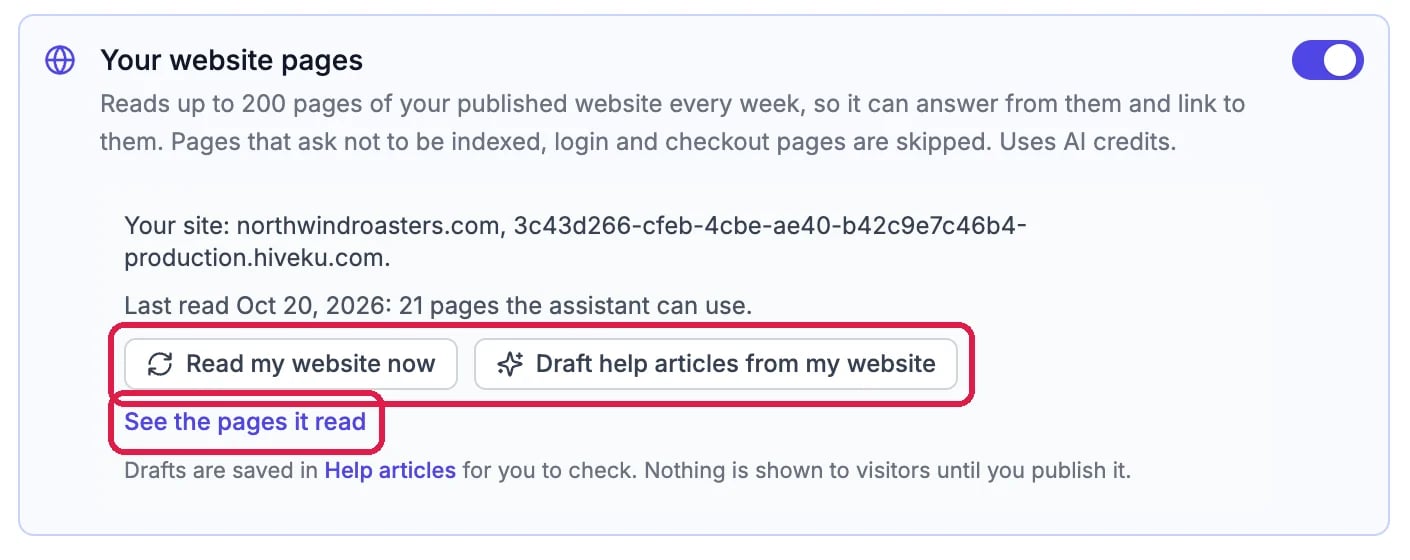
Northwind's site, read
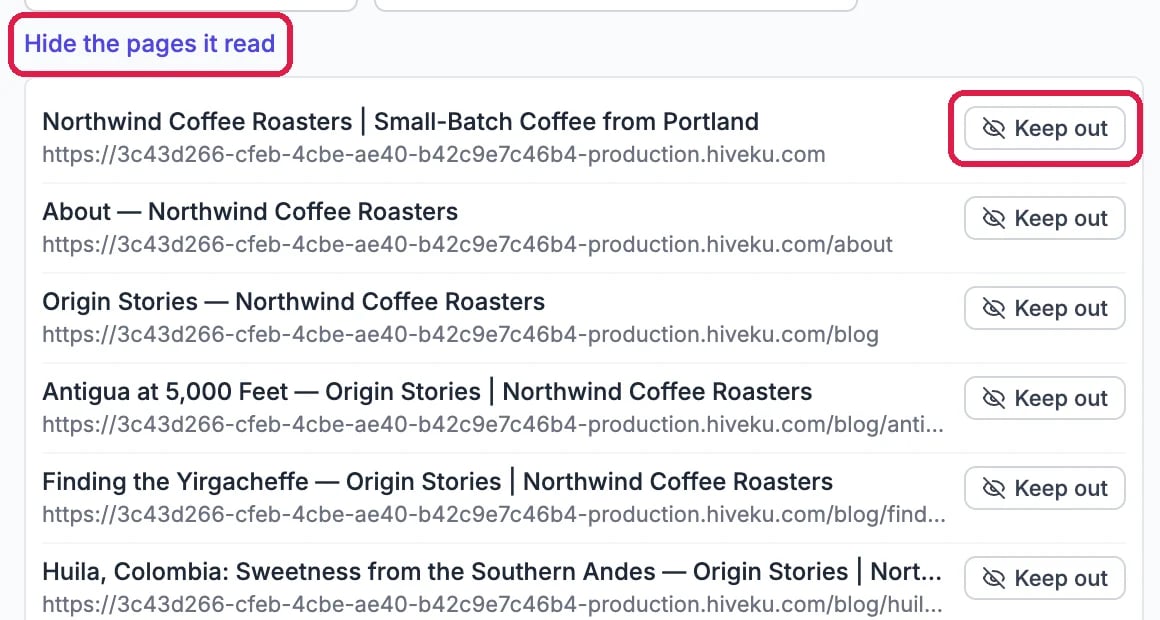
The pages the assistant uses
Draft articles from your pages
Click Draft help articles from my website. In a minute, a message says how many drafts it wrote. Each press drafts a few articles from a few of your pages. Owners and admins can draft, and drafting uses AI credits. The drafts are in Agent > Knowledge base (the Help articles link under the buttons opens them), marked Draft and tagged from-website. Northwind got eight, about its coffees, how they are processed, and how fresh they are.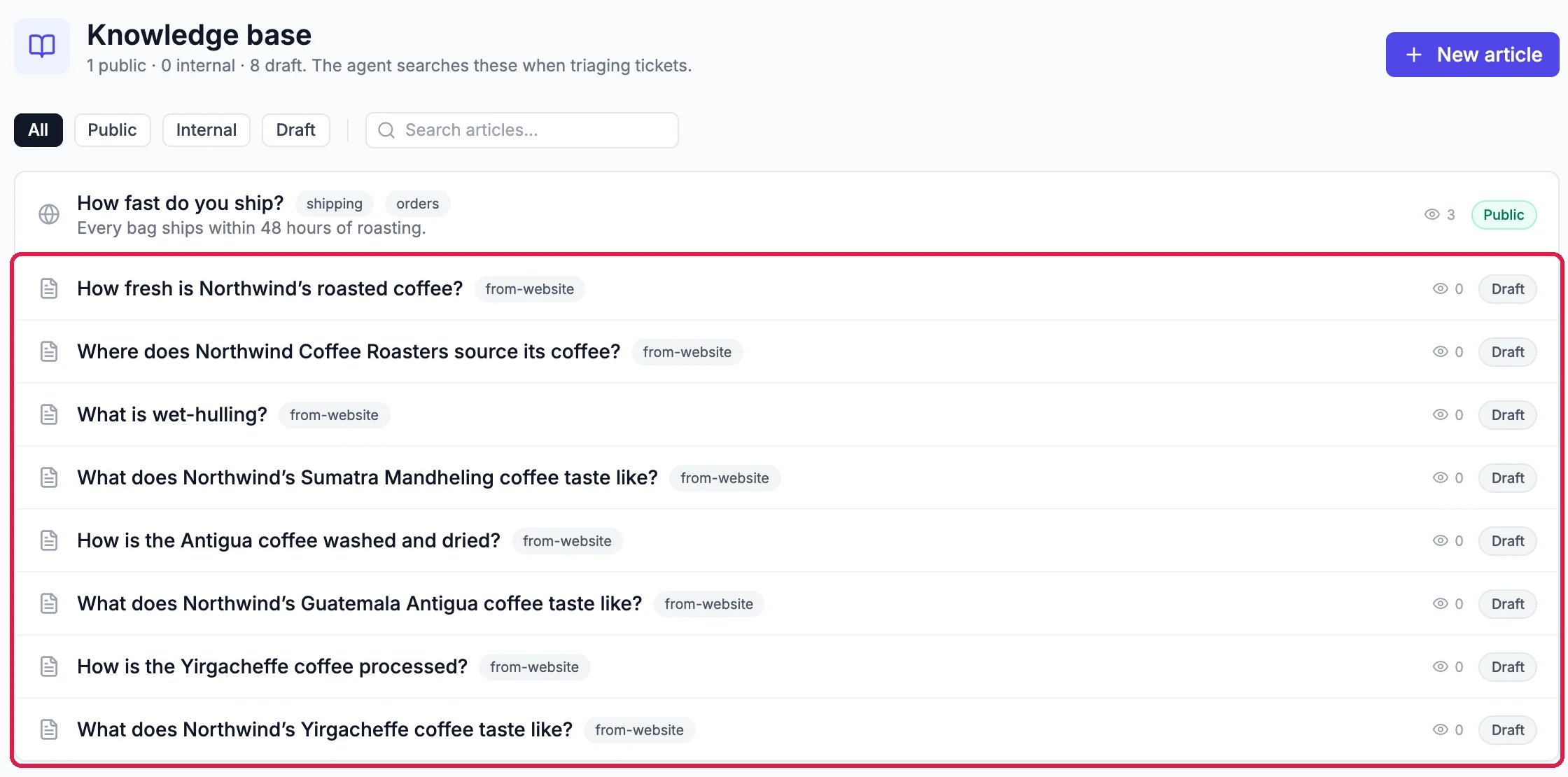
Eight drafts, waiting for a check
Check each draft, then publish it
Click a draft to read it. Each one says which page it came from. Check every fact against that page and what you actually do: an article is only as right as the page it was drafted from.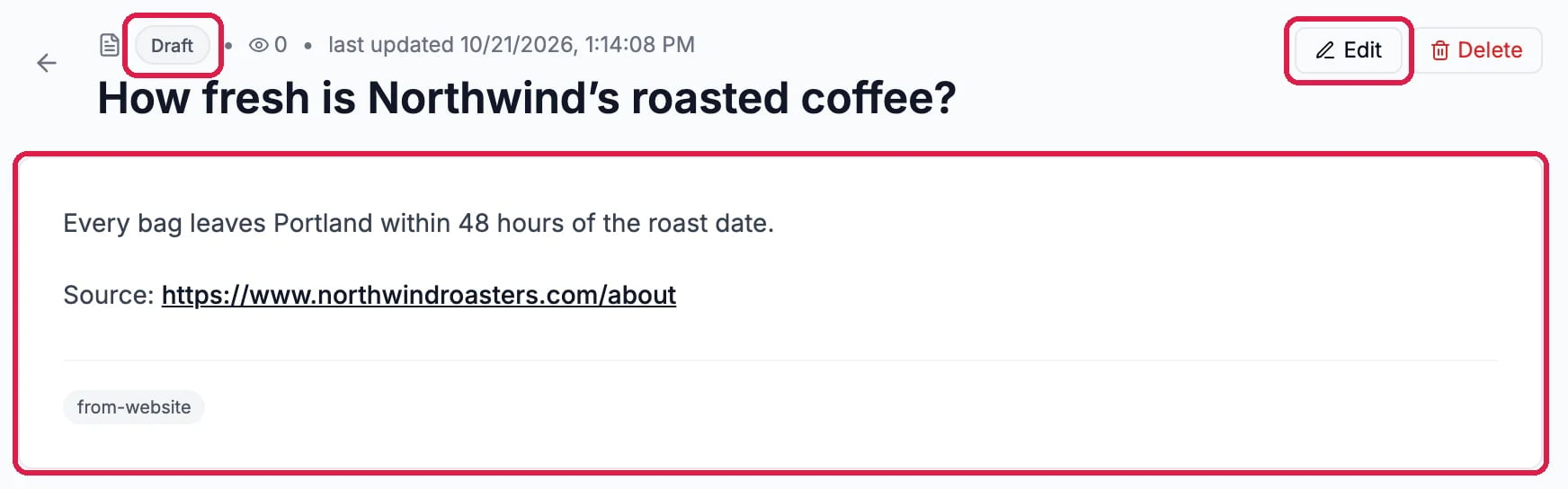
A draft, with the page it came from
Good to know
- Keep your site and your articles in step. When a page changes, the weekly read picks it up for the assistant, but a published article keeps its own text: update the article too.
- More: Teach Your Website Assistant and Write a Help Article Customers Can Find.