

Northwind is a demo account whose AI Hiveku pays for, so the pictures say Covered by Hiveku. On your account, the same place says how the work is paid for from your AI credits.
Open the plan
Open the Room from Rooms in the chief of staff panel. The Plan tab on the right shows the goal, each step and whether it is done. If the panel is hidden, click the … at the top of the Room, then Show plan and decisions (in a narrow window, Plan, decisions and notes).Choose the pace
Under When a stage is done, a stage being a group of steps that run together:- Check with me first waits for your OK before the next stage.
- Keep going until the plan is done carries on by itself, up to the plan’s budget.
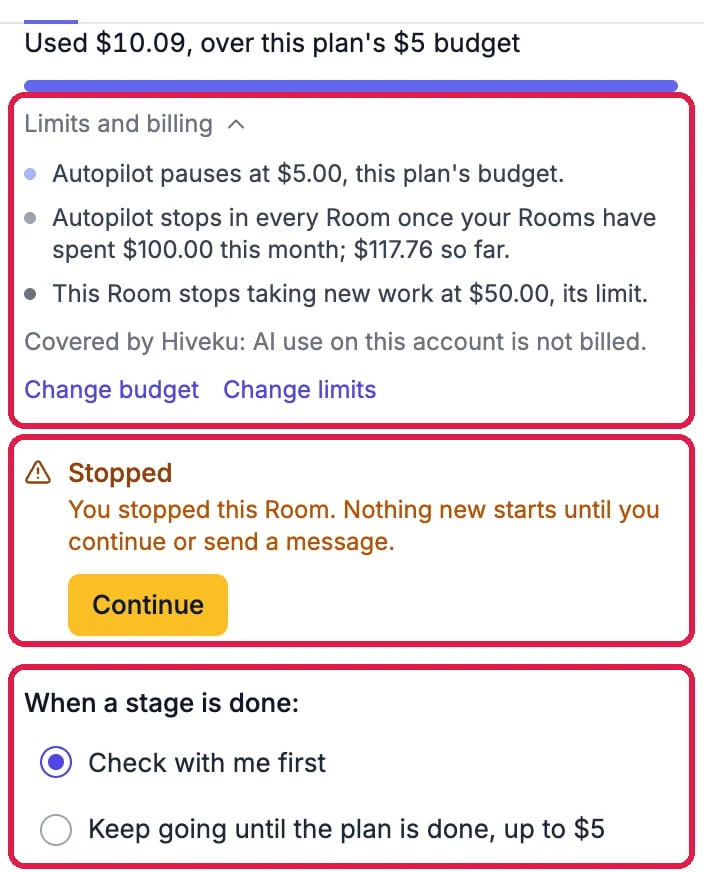
Spending, a stopped Room and the pace
Set what it may spend
The line under the goal shows what the Room has spent. Click Limits and billing to see the three limits:- The plan’s budget: when the Room reaches it, the chief of staff stops going on by itself. Work you ask for yourself can go past it, as it did here.
- The Room’s limit: a Room takes no new work past it, your own messages included. One limit applies to every Room on the account.
- The monthly limit: the chief of staff stops going on by itself in every Room once your Rooms reach it this month.
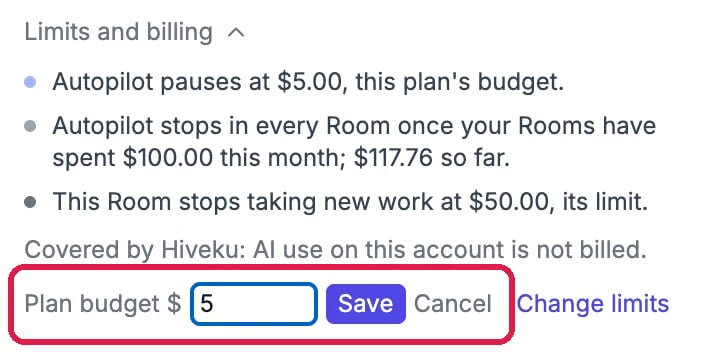
A new budget for this plan
Choose how deep the work goes
At the bottom of the Plan tab, Department quality sets how thoroughly the departments work in this Room. Standard fits most work. Premium does deeper work and costs about 5 to 10 times as much per task. Only this Room changes; new Rooms start on your account’s default, which is Standard unless someone changed it.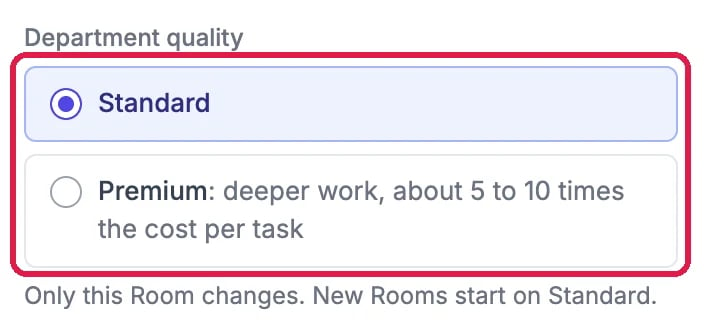
Standard or Premium
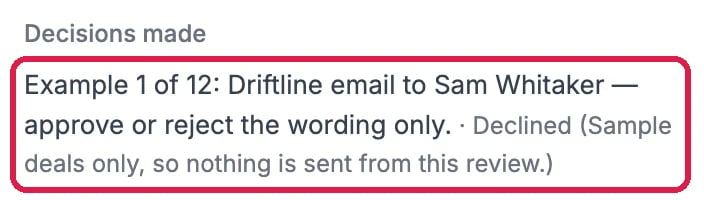
Your answers, kept with the plan
See who is working
Click Boardroom at the top of the Room. The chief of staff sits at the head of the table, with each department that worked in the Room and what it is doing. Read the conversation goes back to the chat, Start a huddle talks with the table out loud (a huddle uses AI credits and needs Voice turned on for your account), and Ask a department brings in a department that isn’t at the table yet.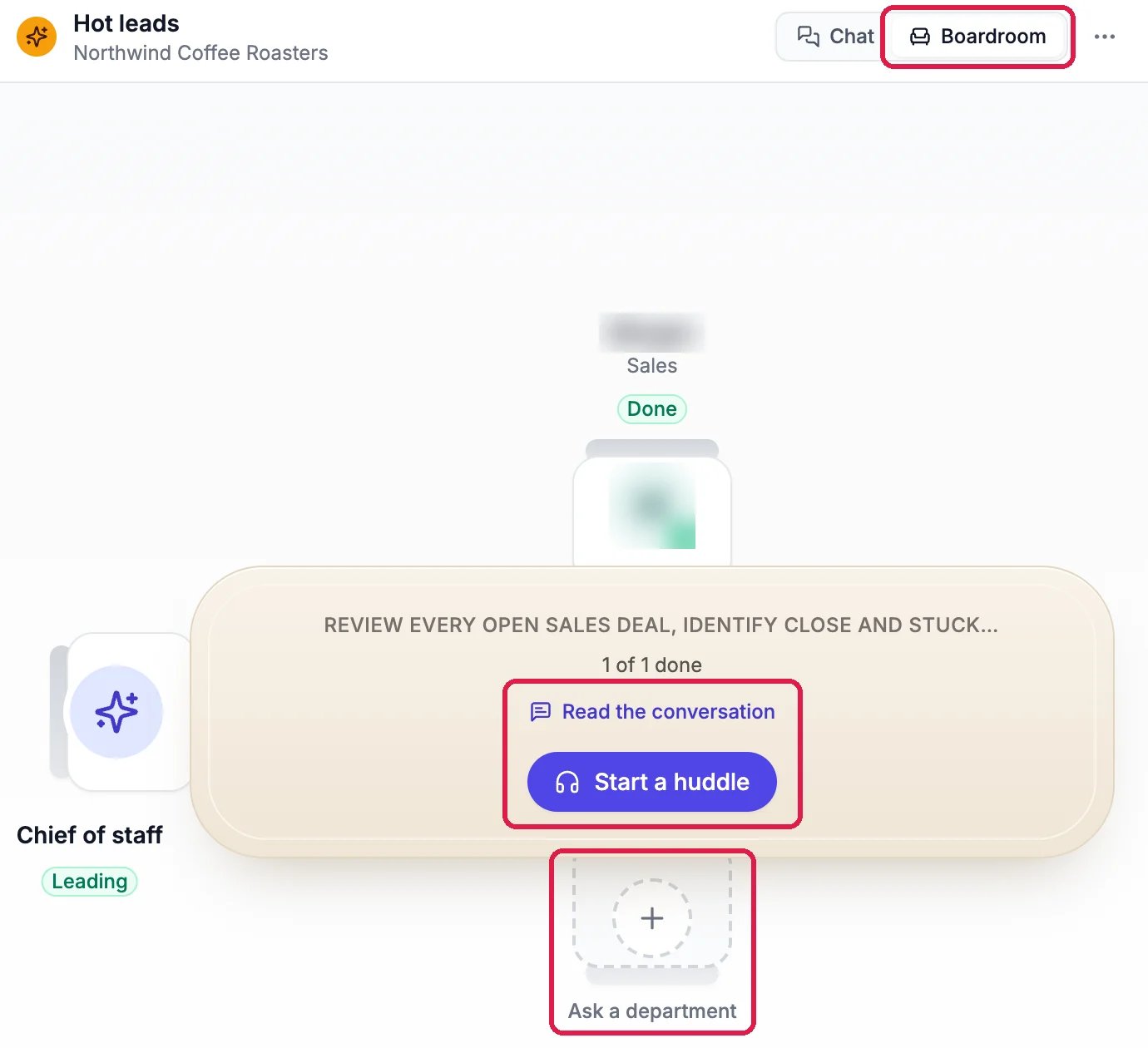
The Room as a table
Good to know
- Answer decisions any time. The Decisions tab keeps every card waiting for you.
- Find a Room again. Rooms lists every request, newest first, with what each has spent. Once you have eight or more, Search by name or goal finds an older one.
- More: Ask Your Chief of Staff to Get Something Done.