Set Up Invoicing: Your Name, Colors, Tax and Numbers
Put your business name, colors, payment terms, tax rates and invoice numbers on every invoice, and design how the invoice PDF looks
Before your first invoice goes out, set invoicing up once: the name your clients see, your brand colors, your usual payment terms, the tax you charge and how your invoices are numbered. Every new invoice starts from these settings.This guide sets up invoicing for Northwind Coffee Roasters: its name and colors, Net 30 terms, a tax rate for its café clients in Washington, invoice numbers that continue from 1001, and an invoice design in its colors.
Until you connect a payment processor, every Commerce page shows Payment processor not connected at the top. You can still set everything up, send invoices and record payments you receive by check or transfer; your clients can’t pay online yet.
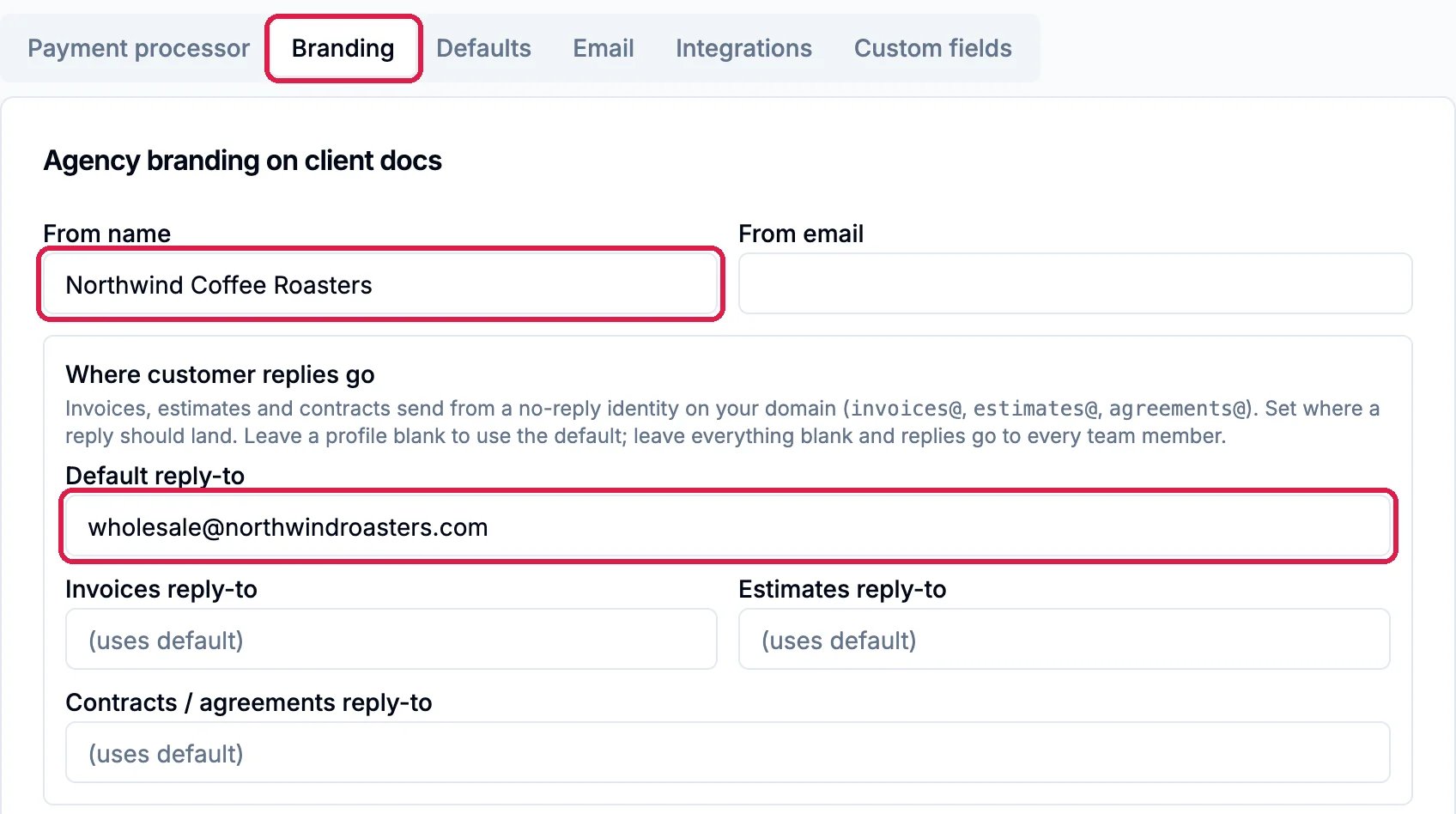
On the Branding tab, type your business name in From name. It is the sender name on your invoice emails and the name at the top of your invoices.Under Where customer replies go, type the address that should receive your clients’ replies in Default reply-to. The boxes under it send replies about invoices, estimates or contracts somewhere else.
Northwind's name and reply address
Leave From email blank unless the address is on a domain you have verified for sending. With it blank, invoices are sent from invoices@ on your verified domain (see the Email tab), or, until you have one, from Hiveku’s invoice address, always with your From name on them.
2
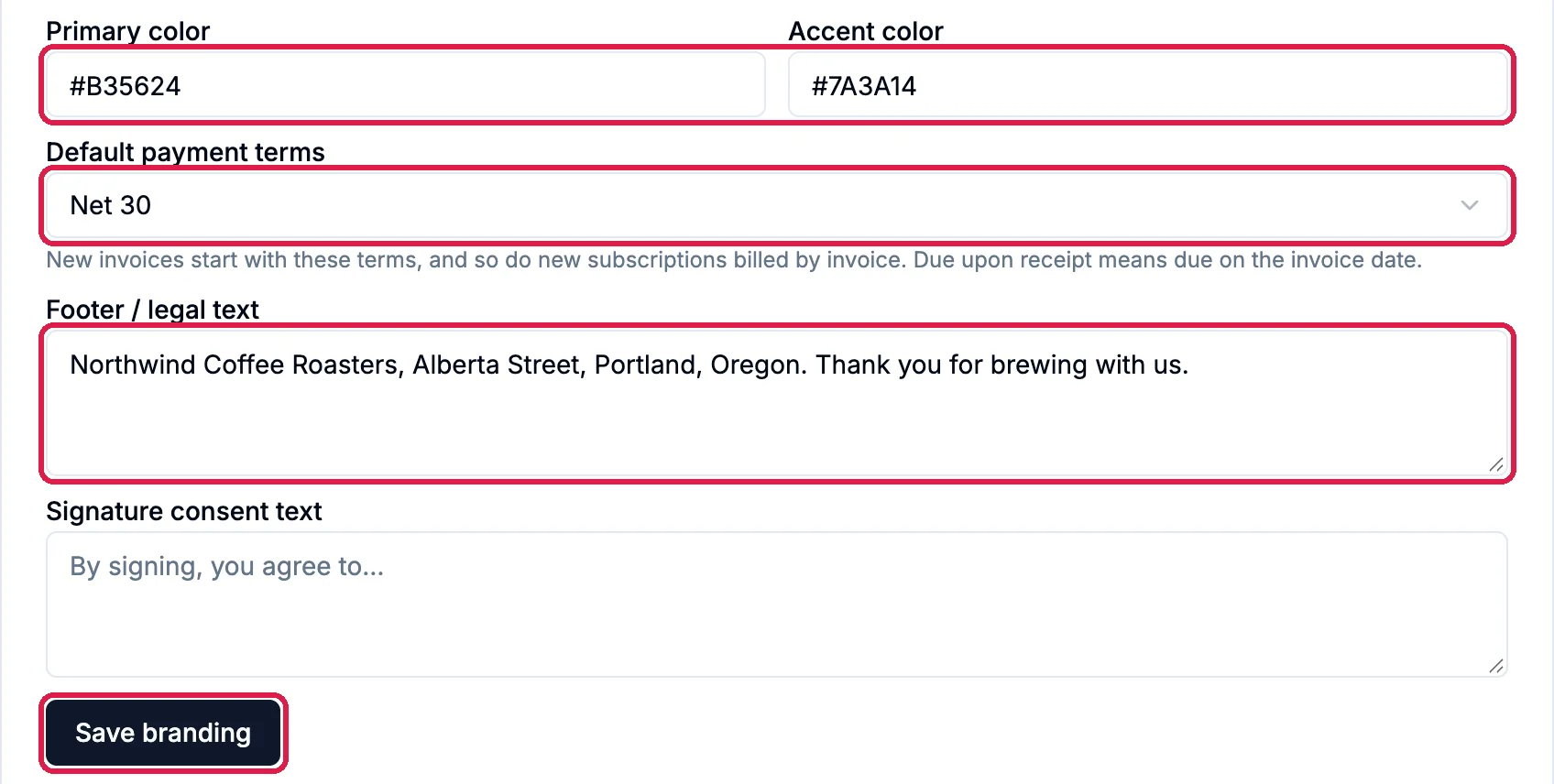
Your colors, terms and footer
Type your brand colors as color codes, such as #B35624, in Primary color and Accent color. They color your invoice emails and the page where clients view and pay, and a new invoice design starts in your Primary color.Pick your usual Default payment terms: new invoices start with them. Add the line you want at the bottom of your invoices in Footer / legal text. Then click Save branding.
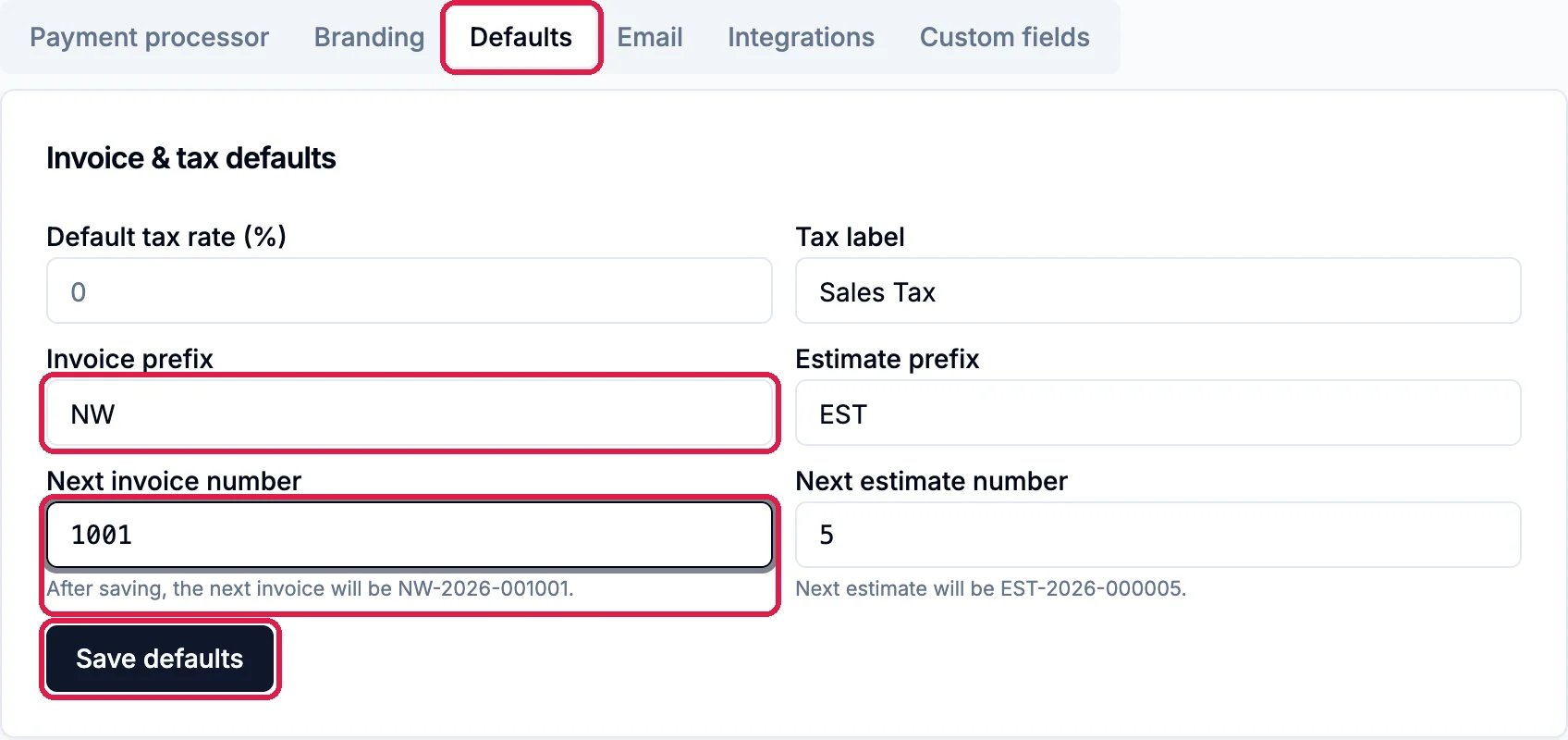
On the Defaults tab, set the Default tax rate (%) and the Tax label printed on your invoices. Northwind is in Oregon, which has no sales tax, so its default stays at 0.Type an Invoice prefix and the Next invoice number. The line under the number shows what your next invoice will be called. Hiveku adds a dash and the year, so type the prefix without a dash. Then click Save defaults.
Invoices that continue from 1001
2
A different rate for some states
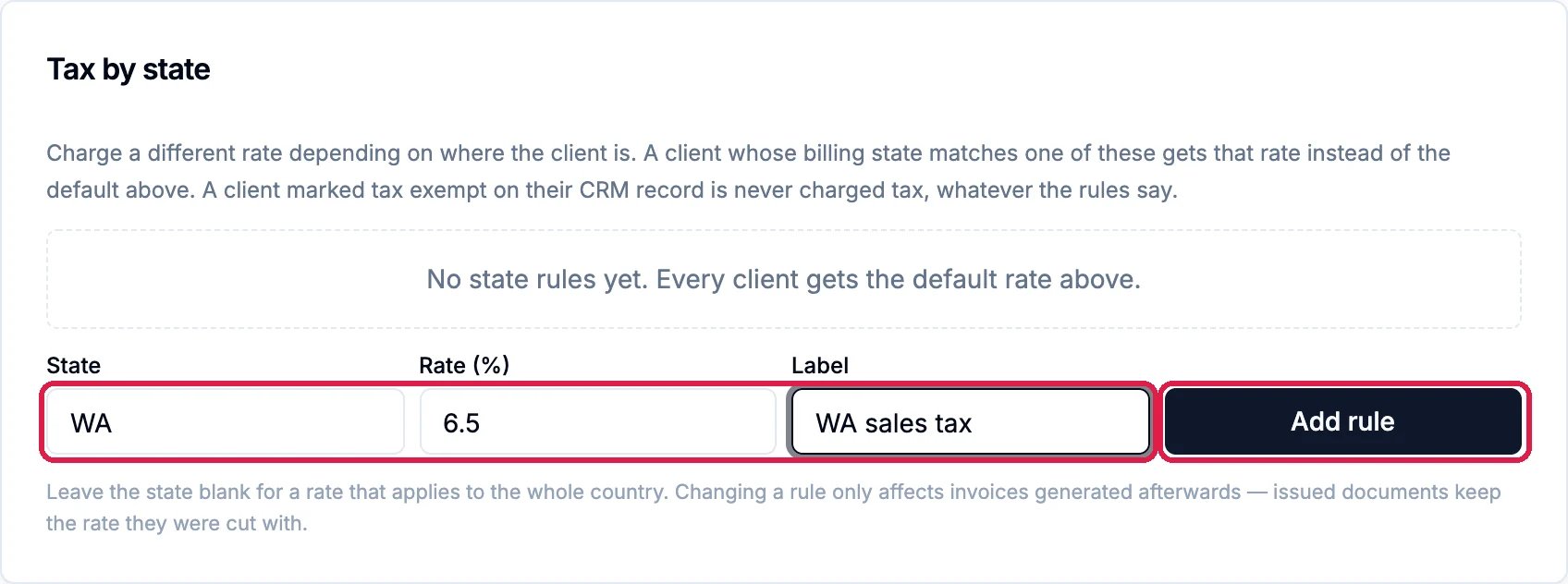
Under Tax by state, type the State, the Rate (%) and a Label, then click Add rule. A client whose billing state matches the rule gets that rate instead of your default. Leave State blank for a rate that covers the whole country. Here Northwind adds Washington, where some of its café clients are.
A rate for clients in Washington
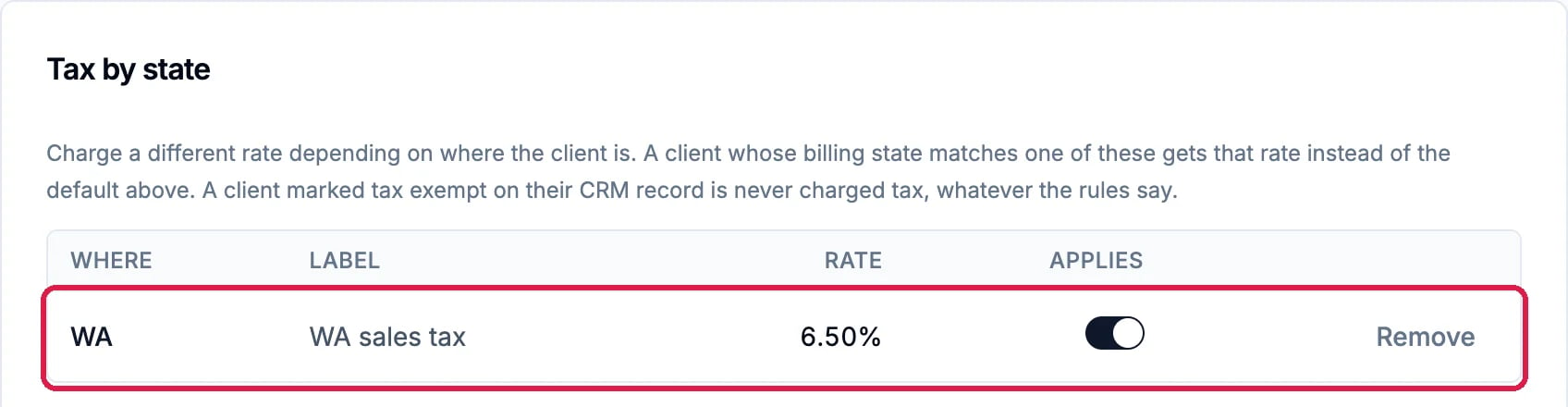
The rule appears in the table. Its Applies switch turns it off and on.
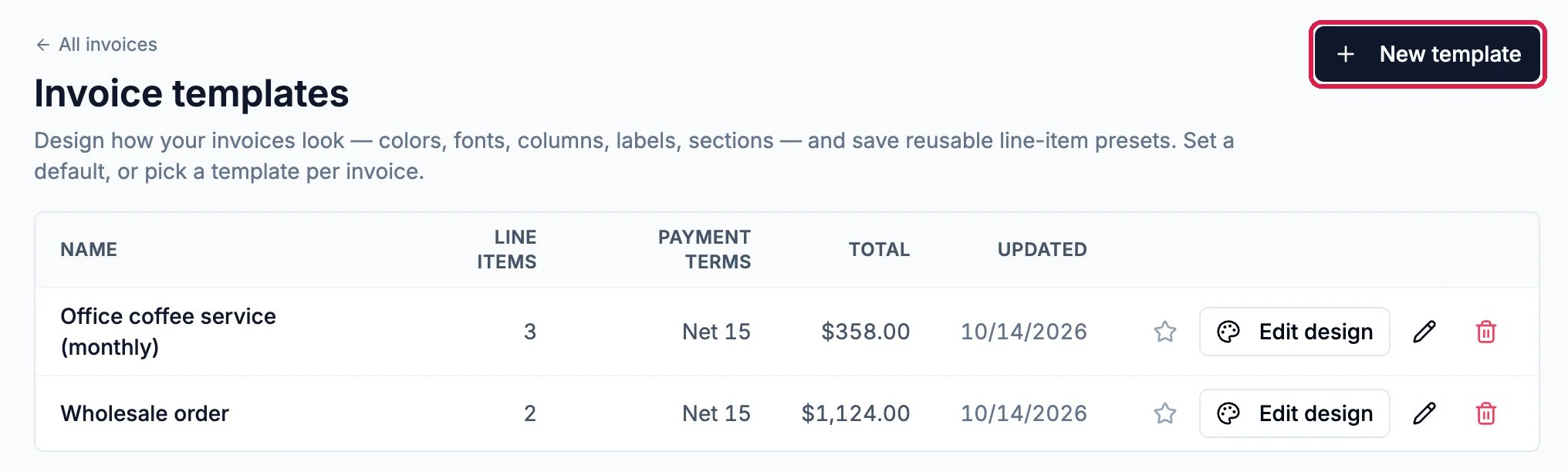
Click Invoices in the Commerce menu, then Templates at the top right, then New template. The new template opens in its design editor.
New template, on Invoice templates
2
Choose the look
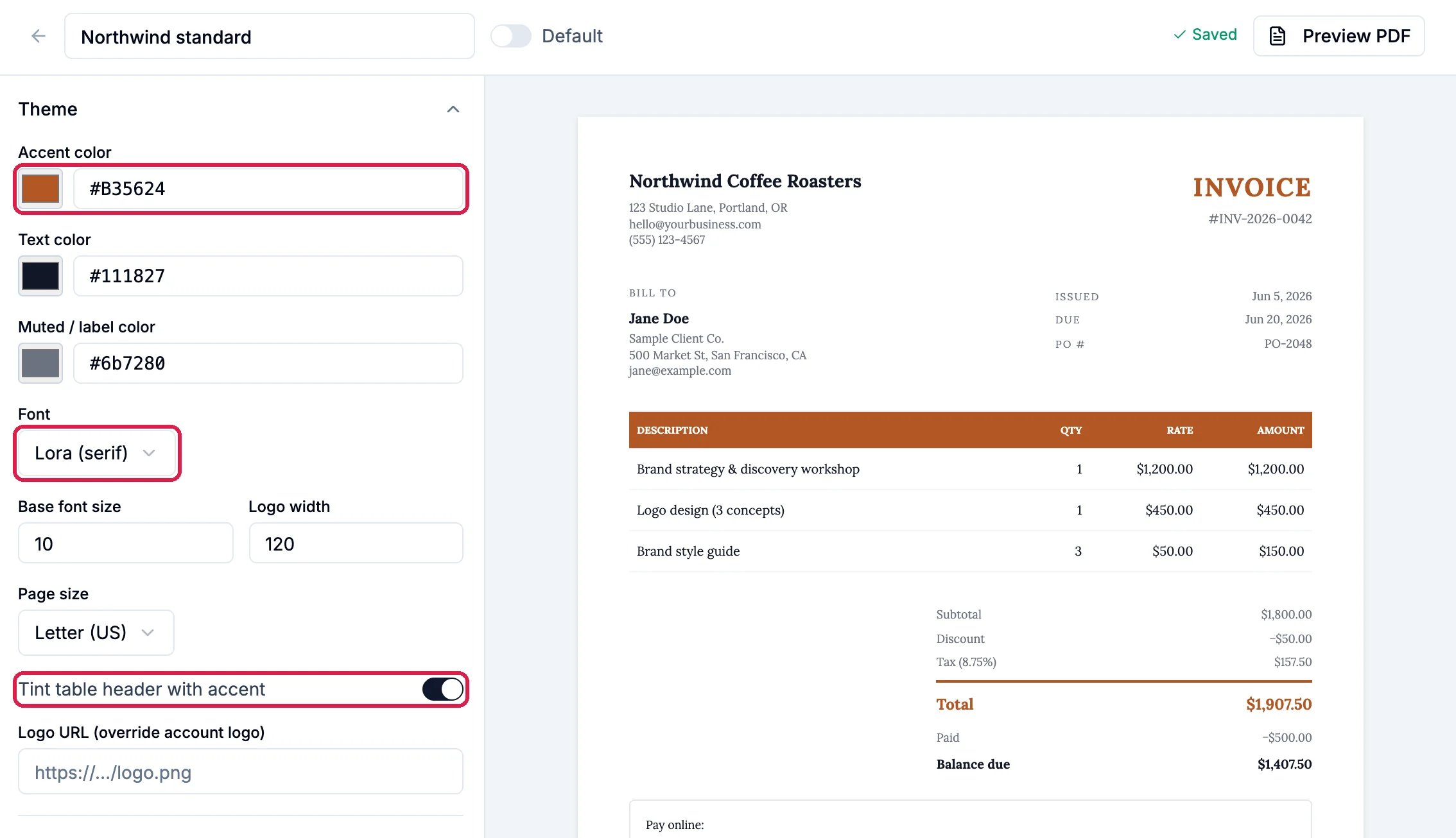
Type the template’s name at the top. Under Theme, Accent color starts as your Primary color. It colors the word Invoice and the total, and the table header too when Tint table header with accent is on. Pick a Font if you like. The preview on the right changes as you go, and the template saves by itself.
The Northwind look
3
Name the columns
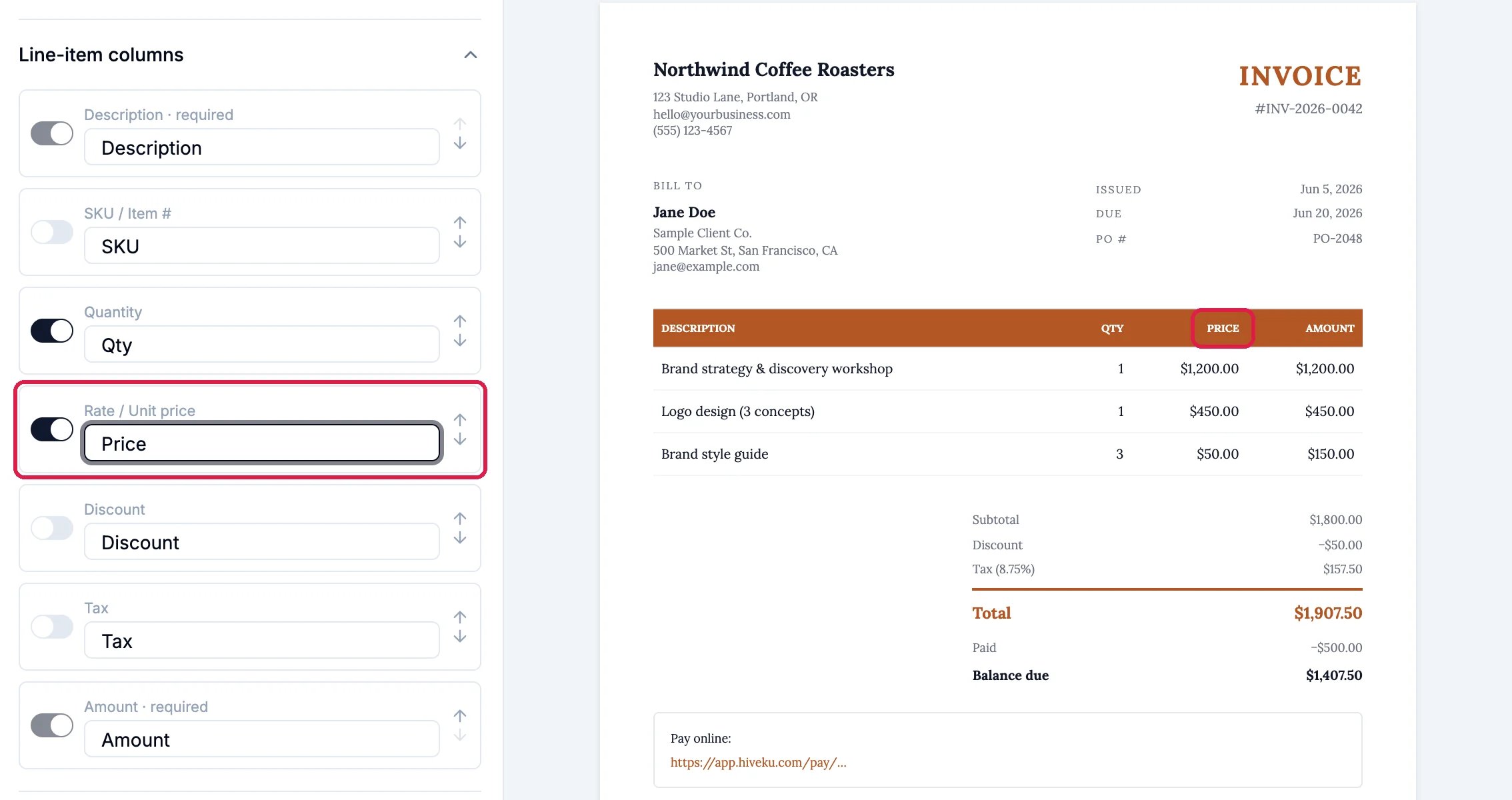
Under Line-item columns, switch columns on or off and rename them. Here the Rate / Unit price column is called Price.
Rate becomes Price
4
Tell clients how to pay
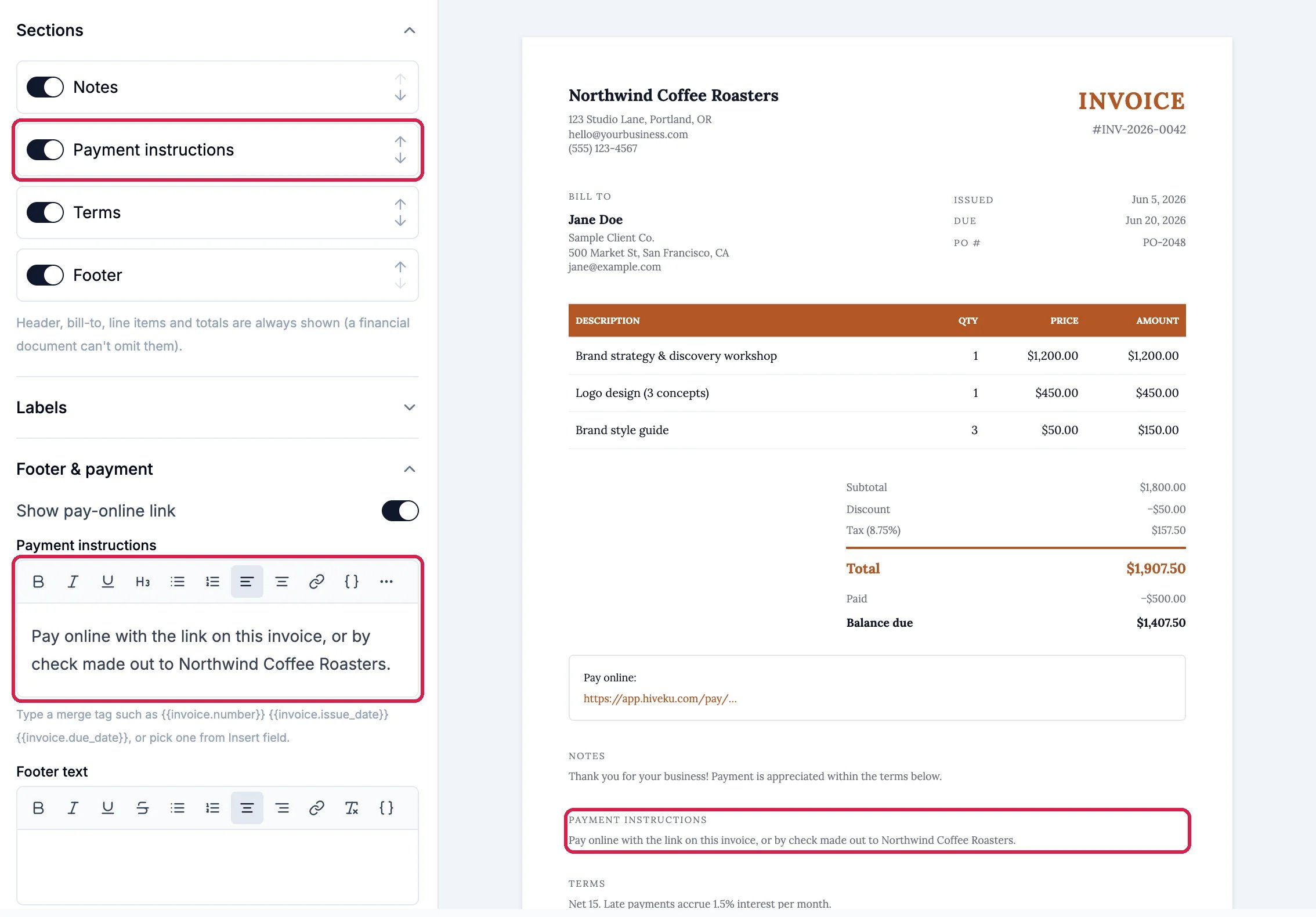
Under Sections, switch on Payment instructions, then write them under Footer & payment. The same editor has Header, which shows your logo and business contact, and Labels, which renames words such as Bill to and Balance due.
Payment instructions, on the invoice
5
Make it your default
Switch on Default at the top. Invoices you start from Blank invoice use this design.
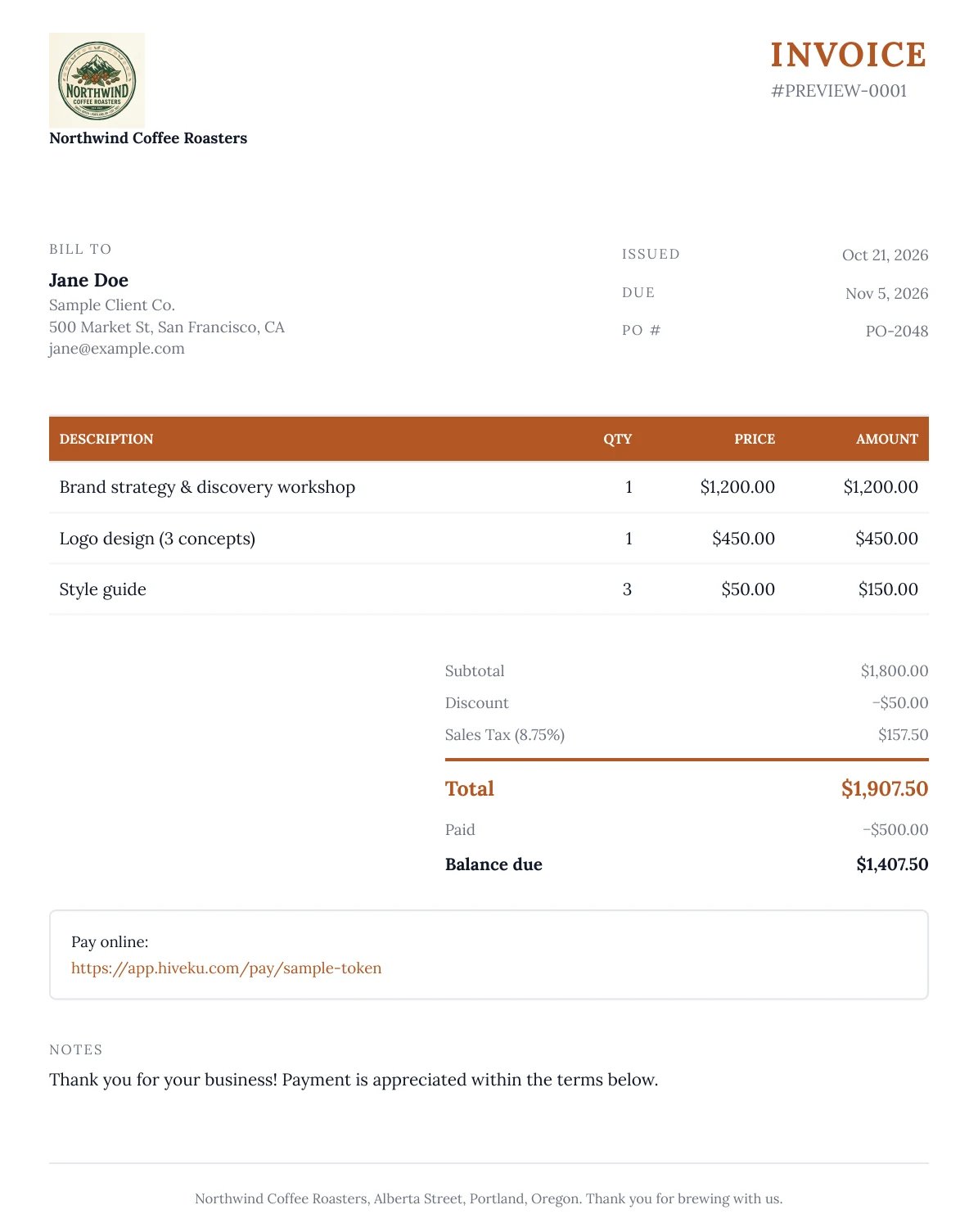
Click Preview PDF. The PDF opens in a new tab, with sample lines and your own logo, business name, address and footer. The preview beside the controls uses a sample address and no logo, so check the PDF to see your own.
The Northwind design, as a PDF
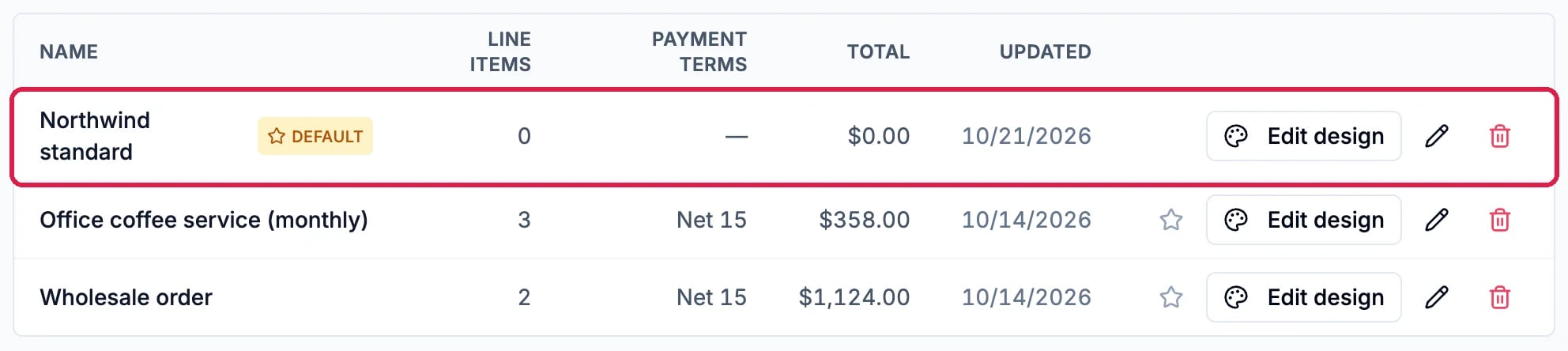
The logo is your account logo, which you set under Settings > General. The address is your account’s mailing address, under Mailing address on the Settings tab of Email Marketing.Back on Invoice templates, your template is marked Default.
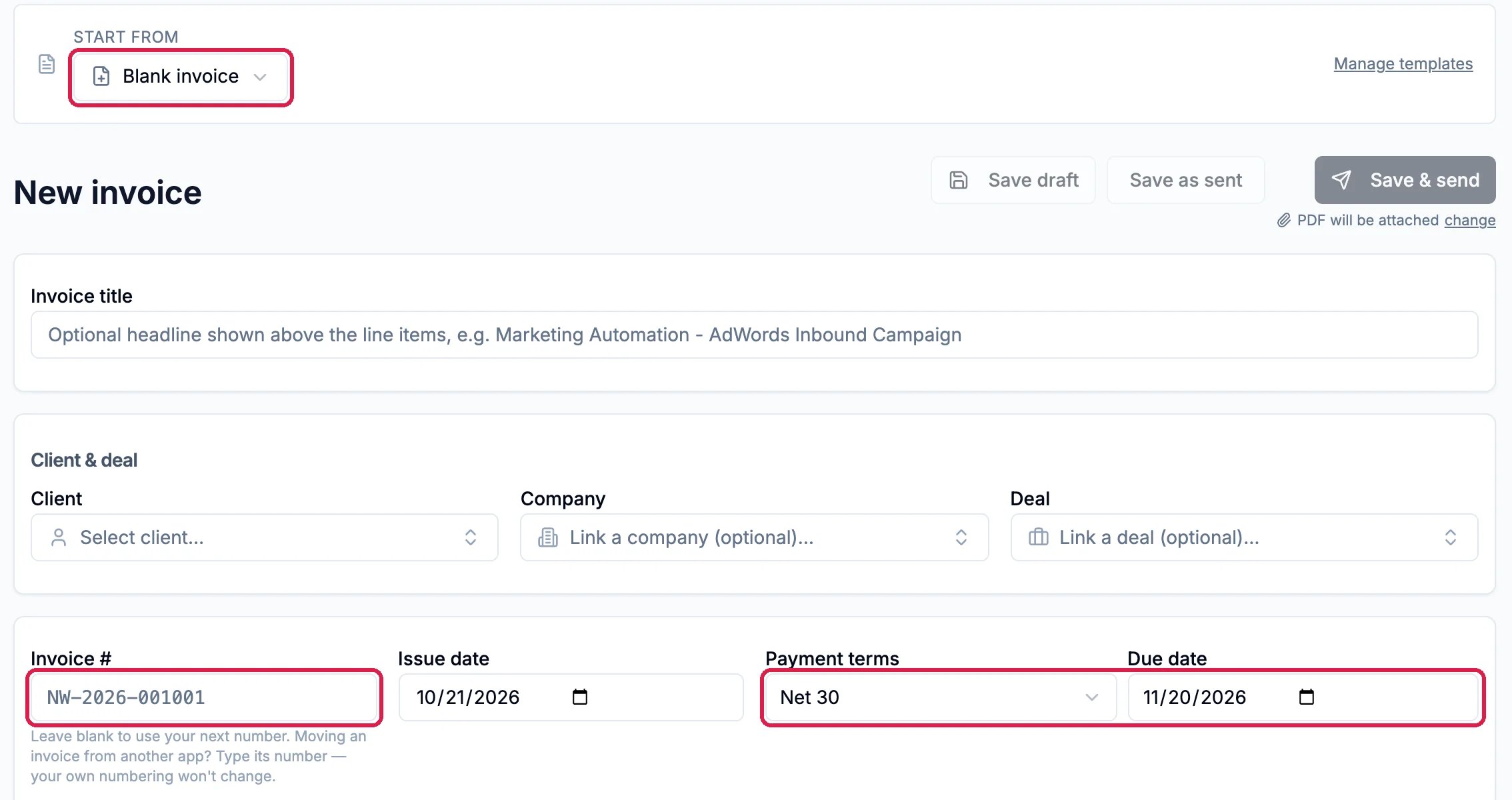
Click Invoices, then New invoice. Invoice # shows the number the invoice will get when you save it, and Payment terms and Due date start from your default terms. Nothing is created until you click Save draft, Save as sent or Save & send.
Changes apply to new invoices. A new rate or tax rule is used on invoices you make afterwards. Invoices already made keep the rate they were made with.
Tax-exempt clients are never charged tax. Mark a client tax exempt on their CRM record, and no rate applies to them.
Moving from another app? Set Next invoice number to the number after your last invoice there. Numbers already used are skipped, so two invoices never share a number.
More:Invoices covers every invoice setting, and Payments covers connecting a processor.
⌘I
{"docsConfig":{"theme":"maple","$schema":"https://mintlify.com/docs.json","name":"Hiveku Builder","colors":{"primary":"#F9A825","light":"#FBC02D","dark":"#F57F17"},"logo":{"light":"https://mintcdn.com/locusdigital/AodgChCDua_G2sAP/images/hiveku-logo-light.svg?fit=max\u0026auto=format\u0026n=AodgChCDua_G2sAP\u0026q=85\u0026s=5d69f2502059f8269d670b35be741ad2","dark":"https://mintcdn.com/locusdigital/AodgChCDua_G2sAP/images/hiveku-logo-dark.svg?fit=max\u0026auto=format\u0026n=AodgChCDua_G2sAP\u0026q=85\u0026s=a78cef8cf1c9ae13d3dcbe31c3ca498d","href":"https://hiveku.com"},"favicon":"https://mintcdn.com/locusdigital/AodgChCDua_G2sAP/images/favicon.svg?fit=max\u0026auto=format\u0026n=AodgChCDua_G2sAP\u0026q=85\u0026s=1b959fd7abfd376351a1216e201aa8cb","api":{},"appearance":{"default":"system"},"seo":{},"styling":{"latex":true},"navigation":{"global":{"anchors":[{"anchor":"Changelog","icon":"list","href":"/changelog"},{"anchor":"App","icon":"arrow-up-right-from-square","href":"https://app.hiveku.com"}]},"pages":[]}},"deployment":{"deploymentMetadataValue":{"subdomain":"locusdigital","hasAudioNarration":false,"actualSubdomain":"locusdigital","customDomains":["docs.hiveku.com"],"gitSource":{"type":"github","owner":"locus2012","repo":"hiveku_docs","deployBranch":"main","contentDirectory":"","isPrivate":true,"mountPath":"","label":""},"chroma":{"liveDeploymentHistoryId":"6ad8e556bd23b74f5d56e18a","collectionId":"45bbf3ff-3644-4a88-b944-c3087cbecb8d","schemaVersion":"v3","latestBuiltDeploymentHistoryId":"6ad8e556bd23b74f5d56e18a"},"entitlements":{"AI_CHAT":{"status":"DISABLED"}},"buildId":"6ad8fdb7f6868f22dd26dd75","clientVersion":"0.0.3908","searchFilterCounts":[{"language":"default","tag":"Documentation","count":356},{"language":"default","tag":"How-Tos","count":166},{"language":"default","tag":"Growing Your Business","count":62},{"language":"default","tag":"Integrations","count":25},{"language":"default","tag":"Publishing","count":18},{"language":"default","tag":"Integrations \u0026 BYOK","count":16},{"language":"default","tag":"Helpdesk","count":15},{"language":"default","tag":"Workflow Recipes","count":15},{"language":"default","tag":"Marketing Delivery","count":12},{"language":"default","tag":"API Reference","count":11}]},"assistantConfig":{"enableAskAiButton":false,"enableStarterQuestions":false,"enableContextualStarterQuestions":false,"enableAskAiSearchBar":true},"hasChatPermissions":false,"hasWebMcpPermissions":false,"toggles":[{"name":"kill-isr","enabled":true,"variant":{"name":"disabled","enabled":false,"feature_enabled":true},"impressionData":false},{"name":"agent-mintlify-slack","enabled":true,"variant":{"name":"disabled","enabled":false,"feature_enabled":true},"impressionData":false},{"name":"editor-v7-file-tree","enabled":true,"variant":{"name":"disabled","enabled":false,"feature_enabled":true},"impressionData":false},{"name":"agent-integrations-settings","enabled":true,"variant":{"name":"disabled","enabled":false,"feature_enabled":true},"impressionData":false},{"name":"automations-pr-grouping","enabled":true,"variant":{"name":"disabled","enabled":false,"feature_enabled":true},"impressionData":false},{"name":"custom-prefix","enabled":true,"variant":{"name":"disabled","enabled":false,"feature_enabled":true},"impressionData":false},{"name":"analytics-v7","enabled":true,"variant":{"name":"disabled","enabled":false,"feature_enabled":true},"impressionData":false},{"name":"user-flows-analytics","enabled":true,"variant":{"name":"disabled","enabled":false,"feature_enabled":true},"impressionData":false},{"name":"no-publish-flow","enabled":true,"variant":{"name":"disabled","enabled":false,"feature_enabled":true},"impressionData":false},{"name":"workos-onboarding","enabled":true,"variant":{"name":"disabled","enabled":false,"feature_enabled":true},"impressionData":false},{"name":"llms-txt-v2","enabled":true,"variant":{"name":"disabled","enabled":false,"feature_enabled":true},"impressionData":false},{"name":"pause-universal-search-reconcile","enabled":true,"variant":{"name":"disabled","enabled":false,"feature_enabled":true},"impressionData":false},{"name":"snapshot-serving-live","enabled":true,"variant":{"name":"disabled","enabled":false,"feature_enabled":true},"impressionData":false},{"name":"stripTemperatureMiddleware","enabled":true,"variant":{"name":"disabled","enabled":false,"feature_enabled":true},"impressionData":false},{"name":"per-site-search-delta","enabled":true,"variant":{"name":"disabled","enabled":false,"feature_enabled":true},"impressionData":false},{"name":"support-platform-pylon-zendesk","enabled":true,"variant":{"name":"disabled","enabled":false,"feature_enabled":true},"impressionData":false},{"name":"editor-branches-v2-autocommit","enabled":true,"variant":{"name":"disabled","enabled":false,"feature_enabled":true},"impressionData":false},{"name":"editor-branches-v2","enabled":true,"variant":{"name":"disabled","enabled":false,"feature_enabled":true},"impressionData":false},{"name":"snapshot-serving","enabled":true,"variant":{"name":"disabled","enabled":false,"feature_enabled":true},"impressionData":false},{"name":"instant-rollback","enabled":true,"variant":{"name":"disabled","enabled":false,"feature_enabled":true},"impressionData":false},{"name":"granular-notifications-server","enabled":true,"variant":{"name":"disabled","enabled":false,"feature_enabled":true},"impressionData":false},{"name":"granular-notifications","enabled":true,"variant":{"name":"disabled","enabled":false,"feature_enabled":true},"impressionData":false},{"name":"editor-private-page-search","enabled":true,"variant":{"name":"disabled","enabled":false,"feature_enabled":true},"impressionData":false},{"name":"automations-fable","enabled":true,"variant":{"name":"disabled","enabled":false,"feature_enabled":true},"impressionData":false},{"name":"fixed-ai-action-pricing","enabled":true,"variant":{"name":"disabled","enabled":false,"feature_enabled":true},"impressionData":false},{"name":"automation-resolve-merge-conflict","enabled":true,"variant":{"name":"disabled","enabled":false,"feature_enabled":true},"impressionData":false},{"name":"scoped-publishing","enabled":true,"variant":{"name":"disabled","enabled":false,"feature_enabled":true},"impressionData":false},{"name":"mintql","enabled":true,"variant":{"name":"disabled","enabled":false,"feature_enabled":true},"impressionData":false},{"name":"page-level-analytics","enabled":true,"variant":{"name":"disabled","enabled":false,"feature_enabled":true},"impressionData":false},{"name":"teamspace","enabled":true,"variant":{"name":"disabled","enabled":false,"feature_enabled":true},"impressionData":false},{"name":"editor-version-history-v2","enabled":true,"variant":{"name":"disabled","enabled":false,"feature_enabled":true},"impressionData":false},{"name":"editor-nav-generations","enabled":true,"variant":{"name":"disabled","enabled":false,"feature_enabled":true},"impressionData":false},{"name":"billing-page-v2","enabled":true,"variant":{"name":"disabled","enabled":false,"feature_enabled":true},"impressionData":false},{"name":"vite-origin","enabled":true,"variant":{"name":"disabled","enabled":false,"feature_enabled":true},"impressionData":false},{"name":"workspace-projects","enabled":true,"variant":{"name":"disabled","enabled":false,"feature_enabled":true},"impressionData":false},{"name":"assistant-v5","enabled":true,"variant":{"name":"disabled","enabled":false,"feature_enabled":true},"impressionData":false},{"name":"byok-sep-25","enabled":true,"variant":{"name":"disabled","enabled":false,"feature_enabled":true},"impressionData":false},{"name":"fork-pr-previews","enabled":true,"variant":{"name":"disabled","enabled":false,"feature_enabled":true},"impressionData":false},{"name":"revalidation-jwt","enabled":true,"variant":{"name":"disabled","enabled":false,"feature_enabled":true},"impressionData":false},{"name":"editor-agent-model-picker","enabled":true,"variant":{"name":"disabled","enabled":false,"feature_enabled":true},"impressionData":false},{"name":"client-snapshot-docs-config","enabled":true,"variant":{"name":"disabled","enabled":false,"feature_enabled":true},"impressionData":false},{"name":"hobby-abuse-scan","enabled":true,"variant":{"name":"disabled","enabled":false,"feature_enabled":true},"impressionData":false},{"name":"dashboard-inbox","enabled":true,"variant":{"name":"disabled","enabled":false,"feature_enabled":true},"impressionData":false}],"isAtlas":false,"googleFontsInlined":false},"customCss":[],"page":{"pagePath":"how-tos/commerce/set-up-invoicing","slug":"/how-tos/commerce/set-up-invoicing","pageMetadata":{"title":"Set Up Invoicing: Your Name, Colors, Tax and Numbers","sidebarTitle":"Set Up Invoicing","description":"Put your business name, colors, payment terms, tax rates and invoice numbers on every invoice, and design how the invoice PDF looks","href":"/how-tos/commerce/set-up-invoicing"},"description":{"compiledSource":"\"use strict\";\nconst {jsx: _jsx} = arguments[0];\nconst {useMDXComponents: _provideComponents} = arguments[0];\nfunction _createMdxContent(props) {\n const _components = {\n p: \"p\",\n ..._provideComponents(),\n ...props.components\n };\n return _jsx(_components.p, {\n children: \"Put your business name, colors, payment terms, tax rates and invoice numbers on every invoice, and design how the invoice PDF looks\"\n });\n}\nfunction MDXContent(props = {}) {\n const {wrapper: MDXLayout} = {\n ..._provideComponents(),\n ...props.components\n };\n return MDXLayout ? _jsx(MDXLayout, {\n ...props,\n children: _jsx(_createMdxContent, {\n ...props\n })\n }) : _createMdxContent(props);\n}\nreturn {\n default: MDXContent\n};\n","frontmatter":{},"scope":{}},"pageType":"default","mdx":{"mdxSource":{"compiledSource":"\"use strict\";const{Fragment:_Fragment,jsx:_jsx,jsxs:_jsxs}=arguments[0];const{useMDXComponents:_provideComponents}=arguments[0];function _createMdxContent(props){const _components={a:`a`,li:`li`,p:`p`,strong:`strong`,ul:`ul`,..._provideComponents(),...props.components},{Frame,Heading,Note,OptimizedImage,Step,Steps}=_components;if(!Frame)_missingMdxReference(`Frame`,true);if(!Heading)_missingMdxReference(`Heading`,true);if(!Note)_missingMdxReference(`Note`,true);if(!OptimizedImage)_missingMdxReference(`OptimizedImage`,true);if(!Step)_missingMdxReference(`Step`,true);if(!Steps)_missingMdxReference(`Steps`,true);return _jsxs(_Fragment,{children:[_jsx(_components.p,{children:`Before your first invoice goes out, set invoicing up once: the name your clients see, your brand colors, your usual payment terms, the tax you charge and how your invoices are numbered. Every new invoice starts from these settings.`}),`\n`,_jsx(_components.p,{children:`This guide sets up invoicing for Northwind Coffee Roasters: its name and colors, Net 30 terms, a tax rate for its café clients in Washington, invoice numbers that continue from 1001, and an invoice design in its colors.`}),`\n`,_jsx(Note,{children:_jsxs(_components.p,{children:[`Until you connect a payment processor, every Commerce page shows `,_jsx(_components.strong,{children:`Payment processor not connected`}),` at the top. You can still set everything up, send invoices and record payments you receive by check or transfer; your clients can’t pay online yet.`]})}),`\n`,_jsx(Frame,{caption:`The notice at the top of Commerce pages`,children:_jsx(OptimizedImage,{src:`https://mintcdn.com/locusdigital/38IXlqtlzrpIScxT/images/how-tos/commerce/inv-00-banner-closeup.webp?fit=max\u0026auto=format\u0026n=38IXlqtlzrpIScxT\u0026q=85\u0026s=54065054d55bc51b5c7e263a53273179`,alt:`Payment processor not connected. You can send invoices and record manual payments, but customers won't be able to pay online until you connect a processor. Connect a processor`,width:`1136`,\"data-og-width\":`2272`,\"data-og-height\":`130`,\"data-path\":`images/how-tos/commerce/inv-00-banner-closeup.webp`,\"data-optimize\":`true`,\"data-opv\":`3`,srcset:`https://mintcdn.com/locusdigital/38IXlqtlzrpIScxT/images/how-tos/commerce/inv-00-banner-closeup.webp?w=280\u0026fit=max\u0026auto=format\u0026n=38IXlqtlzrpIScxT\u0026q=85\u0026s=fee83c56fb2987ccb72981ee9db743ec 280w, https://mintcdn.com/locusdigital/38IXlqtlzrpIScxT/images/how-tos/commerce/inv-00-banner-closeup.webp?w=560\u0026fit=max\u0026auto=format\u0026n=38IXlqtlzrpIScxT\u0026q=85\u0026s=326a2a2fddaca24b043bae014a7478ed 560w, https://mintcdn.com/locusdigital/38IXlqtlzrpIScxT/images/how-tos/commerce/inv-00-banner-closeup.webp?w=840\u0026fit=max\u0026auto=format\u0026n=38IXlqtlzrpIScxT\u0026q=85\u0026s=f04c6c52e9cdea53549d40da8fced799 840w, https://mintcdn.com/locusdigital/38IXlqtlzrpIScxT/images/how-tos/commerce/inv-00-banner-closeup.webp?w=1100\u0026fit=max\u0026auto=format\u0026n=38IXlqtlzrpIScxT\u0026q=85\u0026s=45352e1069e9fd7bcf7fb9d2d3d88a45 1100w, https://mintcdn.com/locusdigital/38IXlqtlzrpIScxT/images/how-tos/commerce/inv-00-banner-closeup.webp?w=1650\u0026fit=max\u0026auto=format\u0026n=38IXlqtlzrpIScxT\u0026q=85\u0026s=2f2b7a2b558cb4037805f62eef107626 1650w, https://mintcdn.com/locusdigital/38IXlqtlzrpIScxT/images/how-tos/commerce/inv-00-banner-closeup.webp?w=2500\u0026fit=max\u0026auto=format\u0026n=38IXlqtlzrpIScxT\u0026q=85\u0026s=4a845c91f87f4bfef42b1d675d8c3295 2500w`})}),`\n`,_jsx(Heading,{level:`2`,id:`open-the-commerce-settings`,children:`Open the Commerce settings`}),`\n`,_jsxs(_components.p,{children:[`Click `,_jsx(_components.strong,{children:`Commerce`}),` in the left rail, then `,_jsx(_components.strong,{children:`Settings`}),` at the bottom of the Commerce menu.`]}),`\n`,_jsx(Frame,{caption:`Settings, at the end of the Commerce menu`,children:_jsx(OptimizedImage,{src:`https://mintcdn.com/locusdigital/38IXlqtlzrpIScxT/images/how-tos/commerce/inv-01-open-settings-closeup.webp?fit=max\u0026auto=format\u0026n=38IXlqtlzrpIScxT\u0026q=85\u0026s=5094e782a6ef9e9a3b69f44fddeab72d`,alt:`The bottom of the Commerce menu: Revenue by client, Invoice details, Tax summary and Settings, with Settings outlined`,width:`225`,\"data-og-width\":`450`,\"data-og-height\":`390`,\"data-path\":`images/how-tos/commerce/inv-01-open-settings-closeup.webp`,\"data-optimize\":`true`,\"data-opv\":`3`,srcset:`https://mintcdn.com/locusdigital/38IXlqtlzrpIScxT/images/how-tos/commerce/inv-01-open-settings-closeup.webp?w=280\u0026fit=max\u0026auto=format\u0026n=38IXlqtlzrpIScxT\u0026q=85\u0026s=7178b55fecb1bba04f83f588cc61fcd1 280w, https://mintcdn.com/locusdigital/38IXlqtlzrpIScxT/images/how-tos/commerce/inv-01-open-settings-closeup.webp?w=560\u0026fit=max\u0026auto=format\u0026n=38IXlqtlzrpIScxT\u0026q=85\u0026s=c3e10d9acff889c901d691a808b9d24d 560w, https://mintcdn.com/locusdigital/38IXlqtlzrpIScxT/images/how-tos/commerce/inv-01-open-settings-closeup.webp?w=840\u0026fit=max\u0026auto=format\u0026n=38IXlqtlzrpIScxT\u0026q=85\u0026s=961b211223a178a29b24d0d86093d273 840w, https://mintcdn.com/locusdigital/38IXlqtlzrpIScxT/images/how-tos/commerce/inv-01-open-settings-closeup.webp?w=1100\u0026fit=max\u0026auto=format\u0026n=38IXlqtlzrpIScxT\u0026q=85\u0026s=a734240fd5a85656b008b8df05e756d3 1100w, https://mintcdn.com/locusdigital/38IXlqtlzrpIScxT/images/how-tos/commerce/inv-01-open-settings-closeup.webp?w=1650\u0026fit=max\u0026auto=format\u0026n=38IXlqtlzrpIScxT\u0026q=85\u0026s=7a5d5aeb0840142a061d8ea89f2bfdc5 1650w, https://mintcdn.com/locusdigital/38IXlqtlzrpIScxT/images/how-tos/commerce/inv-01-open-settings-closeup.webp?w=2500\u0026fit=max\u0026auto=format\u0026n=38IXlqtlzrpIScxT\u0026q=85\u0026s=99eb8662239ca64647c772d5b0d7d6cc 2500w`})}),`\n`,_jsx(Heading,{level:`2`,id:`add-your-name-colors-and-terms`,children:`Add your name, colors and terms`}),`\n`,_jsxs(Steps,{children:[_jsxs(Step,{title:`Your name, and where replies go`,children:[_jsxs(_components.p,{children:[`On the `,_jsx(_components.strong,{children:`Branding`}),` tab, type your business name in `,_jsx(_components.strong,{children:`From name`}),`. It is the sender name on your invoice emails and the name at the top of your invoices.`]}),_jsxs(_components.p,{children:[`Under `,_jsx(_components.strong,{children:`Where customer replies go`}),`, type the address that should receive your clients’ replies in `,_jsx(_components.strong,{children:`Default reply-to`}),`. The boxes under it send replies about invoices, estimates or contracts somewhere else.`]}),_jsx(Frame,{caption:`Northwind's name and reply address`,children:_jsx(OptimizedImage,{src:`https://mintcdn.com/locusdigital/38IXlqtlzrpIScxT/images/how-tos/commerce/inv-02-branding-name-closeup.webp?fit=max\u0026auto=format\u0026n=38IXlqtlzrpIScxT\u0026q=85\u0026s=d6535974dcbc15543d87efca8c6a0549`,alt:`The Branding tab outlined, From name Northwind Coffee Roasters outlined, From email empty, and Default reply-to wholesale@northwindroasters.com outlined`,width:`848`,\"data-og-width\":`1696`,\"data-og-height\":`948`,\"data-path\":`images/how-tos/commerce/inv-02-branding-name-closeup.webp`,\"data-optimize\":`true`,\"data-opv\":`3`,srcset:`https://mintcdn.com/locusdigital/38IXlqtlzrpIScxT/images/how-tos/commerce/inv-02-branding-name-closeup.webp?w=280\u0026fit=max\u0026auto=format\u0026n=38IXlqtlzrpIScxT\u0026q=85\u0026s=3c3fd3ddd22fd0b139fa49fa261ee00d 280w, https://mintcdn.com/locusdigital/38IXlqtlzrpIScxT/images/how-tos/commerce/inv-02-branding-name-closeup.webp?w=560\u0026fit=max\u0026auto=format\u0026n=38IXlqtlzrpIScxT\u0026q=85\u0026s=1c05313b5f52eb5f56a69b8f921744f2 560w, https://mintcdn.com/locusdigital/38IXlqtlzrpIScxT/images/how-tos/commerce/inv-02-branding-name-closeup.webp?w=840\u0026fit=max\u0026auto=format\u0026n=38IXlqtlzrpIScxT\u0026q=85\u0026s=b446efdf2599b07a20fbb2ec89ec39e1 840w, https://mintcdn.com/locusdigital/38IXlqtlzrpIScxT/images/how-tos/commerce/inv-02-branding-name-closeup.webp?w=1100\u0026fit=max\u0026auto=format\u0026n=38IXlqtlzrpIScxT\u0026q=85\u0026s=6a57f4ec4303ea201d4d7aad464268b4 1100w, https://mintcdn.com/locusdigital/38IXlqtlzrpIScxT/images/how-tos/commerce/inv-02-branding-name-closeup.webp?w=1650\u0026fit=max\u0026auto=format\u0026n=38IXlqtlzrpIScxT\u0026q=85\u0026s=bd3c62146e5f80198a8554831aa48c36 1650w, https://mintcdn.com/locusdigital/38IXlqtlzrpIScxT/images/how-tos/commerce/inv-02-branding-name-closeup.webp?w=2500\u0026fit=max\u0026auto=format\u0026n=38IXlqtlzrpIScxT\u0026q=85\u0026s=521fb10f6eddd0fef46932d168f699b8 2500w`})}),_jsxs(_components.p,{children:[`Leave `,_jsx(_components.strong,{children:`From email`}),` blank unless the address is on a domain you have verified for sending. With it blank, invoices are sent from invoices@ on your verified domain (see the `,_jsx(_components.strong,{children:`Email`}),` tab), or, until you have one, from Hiveku’s invoice address, always with your `,_jsx(_components.strong,{children:`From name`}),` on them.`]})]}),_jsxs(Step,{title:`Your colors, terms and footer`,children:[_jsxs(_components.p,{children:[`Type your brand colors as color codes, such as #B35624, in `,_jsx(_components.strong,{children:`Primary color`}),` and `,_jsx(_components.strong,{children:`Accent color`}),`. They color your invoice emails and the page where clients view and pay, and a new invoice design starts in your `,_jsx(_components.strong,{children:`Primary color`}),`.`]}),_jsxs(_components.p,{children:[`Pick your usual `,_jsx(_components.strong,{children:`Default payment terms`}),`: new invoices start with them. Add the line you want at the bottom of your invoices in `,_jsx(_components.strong,{children:`Footer / legal text`}),`. Then click `,_jsx(_components.strong,{children:`Save branding`}),`.`]}),_jsx(Frame,{caption:`Colors, Net 30 and a footer`,children:_jsx(OptimizedImage,{src:`https://mintcdn.com/locusdigital/38IXlqtlzrpIScxT/images/how-tos/commerce/inv-03-branding-colors-closeup.webp?fit=max\u0026auto=format\u0026n=38IXlqtlzrpIScxT\u0026q=85\u0026s=e010ba7fbe49ebcb3260d922be9a2593`,alt:`Primary color #B35624 and Accent color #7A3A14, Default payment terms Net 30, the footer text, and the Save branding button, outlined`,width:`848`,\"data-og-width\":`1696`,\"data-og-height\":`856`,\"data-path\":`images/how-tos/commerce/inv-03-branding-colors-closeup.webp`,\"data-optimize\":`true`,\"data-opv\":`3`,srcset:`https://mintcdn.com/locusdigital/38IXlqtlzrpIScxT/images/how-tos/commerce/inv-03-branding-colors-closeup.webp?w=280\u0026fit=max\u0026auto=format\u0026n=38IXlqtlzrpIScxT\u0026q=85\u0026s=cd1feae9c2db7e61454d167e7cc630bd 280w, https://mintcdn.com/locusdigital/38IXlqtlzrpIScxT/images/how-tos/commerce/inv-03-branding-colors-closeup.webp?w=560\u0026fit=max\u0026auto=format\u0026n=38IXlqtlzrpIScxT\u0026q=85\u0026s=12910f40187ec375480e46756f2b0540 560w, https://mintcdn.com/locusdigital/38IXlqtlzrpIScxT/images/how-tos/commerce/inv-03-branding-colors-closeup.webp?w=840\u0026fit=max\u0026auto=format\u0026n=38IXlqtlzrpIScxT\u0026q=85\u0026s=9a47cfe312b362dc02e38b06ba37ec21 840w, https://mintcdn.com/locusdigital/38IXlqtlzrpIScxT/images/how-tos/commerce/inv-03-branding-colors-closeup.webp?w=1100\u0026fit=max\u0026auto=format\u0026n=38IXlqtlzrpIScxT\u0026q=85\u0026s=dca50cac17a9107da0e25243abc5e5a9 1100w, https://mintcdn.com/locusdigital/38IXlqtlzrpIScxT/images/how-tos/commerce/inv-03-branding-colors-closeup.webp?w=1650\u0026fit=max\u0026auto=format\u0026n=38IXlqtlzrpIScxT\u0026q=85\u0026s=aa927353304a453842cf3b3b373aabd6 1650w, https://mintcdn.com/locusdigital/38IXlqtlzrpIScxT/images/how-tos/commerce/inv-03-branding-colors-closeup.webp?w=2500\u0026fit=max\u0026auto=format\u0026n=38IXlqtlzrpIScxT\u0026q=85\u0026s=710062340f483c9fd0fb15724ab1c409 2500w`})})]})]}),`\n`,_jsx(Heading,{level:`2`,id:`set-your-tax-and-invoice-numbers`,children:`Set your tax and invoice numbers`}),`\n`,_jsxs(Steps,{children:[_jsxs(Step,{title:`Your default tax and your numbering`,children:[_jsxs(_components.p,{children:[`On the `,_jsx(_components.strong,{children:`Defaults`}),` tab, set the `,_jsx(_components.strong,{children:`Default tax rate (%)`}),` and the `,_jsx(_components.strong,{children:`Tax label`}),` printed on your invoices. Northwind is in Oregon, which has no sales tax, so its default stays at 0.`]}),_jsxs(_components.p,{children:[`Type an `,_jsx(_components.strong,{children:`Invoice prefix`}),` and the `,_jsx(_components.strong,{children:`Next invoice number`}),`. The line under the number shows what your next invoice will be called. Hiveku adds a dash and the year, so type the prefix without a dash. Then click `,_jsx(_components.strong,{children:`Save defaults`}),`.`]}),_jsx(Frame,{caption:`Invoices that continue from 1001`,children:_jsx(OptimizedImage,{src:`https://mintcdn.com/locusdigital/38IXlqtlzrpIScxT/images/how-tos/commerce/inv-04-defaults-closeup.webp?fit=max\u0026auto=format\u0026n=38IXlqtlzrpIScxT\u0026q=85\u0026s=045af855ff5f18da304cdb504e47e4cb`,alt:`The Defaults tab outlined, Invoice prefix NW outlined, Next invoice number 1001 with After saving, the next invoice will be NW-2026-001001, outlined, and Save defaults outlined`,width:`848`,\"data-og-width\":`1696`,\"data-og-height\":`800`,\"data-path\":`images/how-tos/commerce/inv-04-defaults-closeup.webp`,\"data-optimize\":`true`,\"data-opv\":`3`,srcset:`https://mintcdn.com/locusdigital/38IXlqtlzrpIScxT/images/how-tos/commerce/inv-04-defaults-closeup.webp?w=280\u0026fit=max\u0026auto=format\u0026n=38IXlqtlzrpIScxT\u0026q=85\u0026s=12c95664990390a54fc926f507c15001 280w, https://mintcdn.com/locusdigital/38IXlqtlzrpIScxT/images/how-tos/commerce/inv-04-defaults-closeup.webp?w=560\u0026fit=max\u0026auto=format\u0026n=38IXlqtlzrpIScxT\u0026q=85\u0026s=74496de3c3432cc290d513890f9012db 560w, https://mintcdn.com/locusdigital/38IXlqtlzrpIScxT/images/how-tos/commerce/inv-04-defaults-closeup.webp?w=840\u0026fit=max\u0026auto=format\u0026n=38IXlqtlzrpIScxT\u0026q=85\u0026s=8deb08439589be6e04a4a48fa06038b8 840w, https://mintcdn.com/locusdigital/38IXlqtlzrpIScxT/images/how-tos/commerce/inv-04-defaults-closeup.webp?w=1100\u0026fit=max\u0026auto=format\u0026n=38IXlqtlzrpIScxT\u0026q=85\u0026s=d6c49ec5404fbcd2d0e8344957e2b18f 1100w, https://mintcdn.com/locusdigital/38IXlqtlzrpIScxT/images/how-tos/commerce/inv-04-defaults-closeup.webp?w=1650\u0026fit=max\u0026auto=format\u0026n=38IXlqtlzrpIScxT\u0026q=85\u0026s=fed931a905861e0b61321fb1e034a038 1650w, https://mintcdn.com/locusdigital/38IXlqtlzrpIScxT/images/how-tos/commerce/inv-04-defaults-closeup.webp?w=2500\u0026fit=max\u0026auto=format\u0026n=38IXlqtlzrpIScxT\u0026q=85\u0026s=1d1cca6fea6305e0197332275aa5aee9 2500w`})})]}),_jsxs(Step,{title:`A different rate for some states`,children:[_jsxs(_components.p,{children:[`Under `,_jsx(_components.strong,{children:`Tax by state`}),`, type the `,_jsx(_components.strong,{children:`State`}),`, the `,_jsx(_components.strong,{children:`Rate (%)`}),` and a `,_jsx(_components.strong,{children:`Label`}),`, then click `,_jsx(_components.strong,{children:`Add rule`}),`. A client whose billing state matches the rule gets that rate instead of your default. Leave `,_jsx(_components.strong,{children:`State`}),` blank for a rate that covers the whole country. Here Northwind adds Washington, where some of its café clients are.`]}),_jsx(Frame,{caption:`A rate for clients in Washington`,children:_jsx(OptimizedImage,{src:`https://mintcdn.com/locusdigital/38IXlqtlzrpIScxT/images/how-tos/commerce/inv-05-tax-rule-closeup.webp?fit=max\u0026auto=format\u0026n=38IXlqtlzrpIScxT\u0026q=85\u0026s=f2d415c236152e3e04a0435b633044c2`,alt:`Tax by state with State WA, Rate 6.5 and Label WA sales tax outlined, and the Add rule button outlined`,width:`848`,\"data-og-width\":`1696`,\"data-og-height\":`632`,\"data-path\":`images/how-tos/commerce/inv-05-tax-rule-closeup.webp`,\"data-optimize\":`true`,\"data-opv\":`3`,srcset:`https://mintcdn.com/locusdigital/38IXlqtlzrpIScxT/images/how-tos/commerce/inv-05-tax-rule-closeup.webp?w=280\u0026fit=max\u0026auto=format\u0026n=38IXlqtlzrpIScxT\u0026q=85\u0026s=7108fb823a2c42d9cc47630683312250 280w, https://mintcdn.com/locusdigital/38IXlqtlzrpIScxT/images/how-tos/commerce/inv-05-tax-rule-closeup.webp?w=560\u0026fit=max\u0026auto=format\u0026n=38IXlqtlzrpIScxT\u0026q=85\u0026s=48bcb2f586c503d79b190cb03ebc1f0c 560w, https://mintcdn.com/locusdigital/38IXlqtlzrpIScxT/images/how-tos/commerce/inv-05-tax-rule-closeup.webp?w=840\u0026fit=max\u0026auto=format\u0026n=38IXlqtlzrpIScxT\u0026q=85\u0026s=38e87864aa8144933f34b111421cf1b8 840w, https://mintcdn.com/locusdigital/38IXlqtlzrpIScxT/images/how-tos/commerce/inv-05-tax-rule-closeup.webp?w=1100\u0026fit=max\u0026auto=format\u0026n=38IXlqtlzrpIScxT\u0026q=85\u0026s=3ebe42c730ee237c244e7e731fd6c699 1100w, https://mintcdn.com/locusdigital/38IXlqtlzrpIScxT/images/how-tos/commerce/inv-05-tax-rule-closeup.webp?w=1650\u0026fit=max\u0026auto=format\u0026n=38IXlqtlzrpIScxT\u0026q=85\u0026s=666abee2cfaa1773521ea9394b82069a 1650w, https://mintcdn.com/locusdigital/38IXlqtlzrpIScxT/images/how-tos/commerce/inv-05-tax-rule-closeup.webp?w=2500\u0026fit=max\u0026auto=format\u0026n=38IXlqtlzrpIScxT\u0026q=85\u0026s=cc044851d0e118a7bcf9f2e641b8bd4b 2500w`})}),_jsxs(_components.p,{children:[`The rule appears in the table. Its `,_jsx(_components.strong,{children:`Applies`}),` switch turns it off and on.`]}),_jsx(Frame,{caption:`The Washington rule`,children:_jsx(OptimizedImage,{src:`https://mintcdn.com/locusdigital/38IXlqtlzrpIScxT/images/how-tos/commerce/inv-06-tax-rule-added-closeup.webp?fit=max\u0026auto=format\u0026n=38IXlqtlzrpIScxT\u0026q=85\u0026s=fc840e1c668e08efa83ab746c02e1386`,alt:`The tax rules table with WA, WA sales tax, 6.50% and the Applies switch on, outlined`,width:`848`,\"data-og-width\":`1696`,\"data-og-height\":`440`,\"data-path\":`images/how-tos/commerce/inv-06-tax-rule-added-closeup.webp`,\"data-optimize\":`true`,\"data-opv\":`3`,srcset:`https://mintcdn.com/locusdigital/38IXlqtlzrpIScxT/images/how-tos/commerce/inv-06-tax-rule-added-closeup.webp?w=280\u0026fit=max\u0026auto=format\u0026n=38IXlqtlzrpIScxT\u0026q=85\u0026s=9cd3d064a9875a809c96212a34331fea 280w, https://mintcdn.com/locusdigital/38IXlqtlzrpIScxT/images/how-tos/commerce/inv-06-tax-rule-added-closeup.webp?w=560\u0026fit=max\u0026auto=format\u0026n=38IXlqtlzrpIScxT\u0026q=85\u0026s=b869b9ea1c71c931902e2aaff00da833 560w, https://mintcdn.com/locusdigital/38IXlqtlzrpIScxT/images/how-tos/commerce/inv-06-tax-rule-added-closeup.webp?w=840\u0026fit=max\u0026auto=format\u0026n=38IXlqtlzrpIScxT\u0026q=85\u0026s=ff40c2ba6e72479d320fcd260bcb1972 840w, https://mintcdn.com/locusdigital/38IXlqtlzrpIScxT/images/how-tos/commerce/inv-06-tax-rule-added-closeup.webp?w=1100\u0026fit=max\u0026auto=format\u0026n=38IXlqtlzrpIScxT\u0026q=85\u0026s=8876449ae5a2e597e1b6ccb3d563c014 1100w, https://mintcdn.com/locusdigital/38IXlqtlzrpIScxT/images/how-tos/commerce/inv-06-tax-rule-added-closeup.webp?w=1650\u0026fit=max\u0026auto=format\u0026n=38IXlqtlzrpIScxT\u0026q=85\u0026s=9f5cac4264ace152af2c6f63ccdb4551 1650w, https://mintcdn.com/locusdigital/38IXlqtlzrpIScxT/images/how-tos/commerce/inv-06-tax-rule-added-closeup.webp?w=2500\u0026fit=max\u0026auto=format\u0026n=38IXlqtlzrpIScxT\u0026q=85\u0026s=1949bf4a21e9305668b95f6fd7b7ee10 2500w`})})]})]}),`\n`,_jsx(Heading,{level:`2`,id:`design-your-invoice`,children:`Design your invoice`}),`\n`,_jsxs(Steps,{children:[_jsxs(Step,{title:`Start a template`,children:[_jsxs(_components.p,{children:[`Click `,_jsx(_components.strong,{children:`Invoices`}),` in the Commerce menu, then `,_jsx(_components.strong,{children:`Templates`}),` at the top right, then `,_jsx(_components.strong,{children:`New template`}),`. The new template opens in its design editor.`]}),_jsx(Frame,{caption:`New template, on Invoice templates`,children:_jsx(OptimizedImage,{src:`https://mintcdn.com/locusdigital/38IXlqtlzrpIScxT/images/how-tos/commerce/inv-08-new-template-closeup.webp?fit=max\u0026auto=format\u0026n=38IXlqtlzrpIScxT\u0026q=85\u0026s=e4a6e30176eae267e8f6de4a894cb0fb`,alt:`Invoice templates with two templates in the list and the New template button outlined`,width:`1016`,\"data-og-width\":`2032`,\"data-og-height\":`612`,\"data-path\":`images/how-tos/commerce/inv-08-new-template-closeup.webp`,\"data-optimize\":`true`,\"data-opv\":`3`,srcset:`https://mintcdn.com/locusdigital/38IXlqtlzrpIScxT/images/how-tos/commerce/inv-08-new-template-closeup.webp?w=280\u0026fit=max\u0026auto=format\u0026n=38IXlqtlzrpIScxT\u0026q=85\u0026s=42644acf3bc41738f57250d6af232a8f 280w, https://mintcdn.com/locusdigital/38IXlqtlzrpIScxT/images/how-tos/commerce/inv-08-new-template-closeup.webp?w=560\u0026fit=max\u0026auto=format\u0026n=38IXlqtlzrpIScxT\u0026q=85\u0026s=fce8c7d27c3691ac2f8f45206ccc3edc 560w, https://mintcdn.com/locusdigital/38IXlqtlzrpIScxT/images/how-tos/commerce/inv-08-new-template-closeup.webp?w=840\u0026fit=max\u0026auto=format\u0026n=38IXlqtlzrpIScxT\u0026q=85\u0026s=4f52d32898e95f1eed7914868e4637f2 840w, https://mintcdn.com/locusdigital/38IXlqtlzrpIScxT/images/how-tos/commerce/inv-08-new-template-closeup.webp?w=1100\u0026fit=max\u0026auto=format\u0026n=38IXlqtlzrpIScxT\u0026q=85\u0026s=deb4cf07c00014cb3d5753a126e4ee7e 1100w, https://mintcdn.com/locusdigital/38IXlqtlzrpIScxT/images/how-tos/commerce/inv-08-new-template-closeup.webp?w=1650\u0026fit=max\u0026auto=format\u0026n=38IXlqtlzrpIScxT\u0026q=85\u0026s=89dbe326ba880f8bf2ac5c406882abaa 1650w, https://mintcdn.com/locusdigital/38IXlqtlzrpIScxT/images/how-tos/commerce/inv-08-new-template-closeup.webp?w=2500\u0026fit=max\u0026auto=format\u0026n=38IXlqtlzrpIScxT\u0026q=85\u0026s=73ee0694b2569159bbf7531f669acc1b 2500w`})})]}),_jsxs(Step,{title:`Choose the look`,children:[_jsxs(_components.p,{children:[`Type the template’s name at the top. Under `,_jsx(_components.strong,{children:`Theme`}),`, `,_jsx(_components.strong,{children:`Accent color`}),` starts as your `,_jsx(_components.strong,{children:`Primary color`}),`. It colors the word Invoice and the total, and the table header too when `,_jsx(_components.strong,{children:`Tint table header with accent`}),` is on. Pick a `,_jsx(_components.strong,{children:`Font`}),` if you like. The preview on the right changes as you go, and the template saves by itself.`]}),_jsx(Frame,{caption:`The Northwind look`,children:_jsx(OptimizedImage,{src:`https://mintcdn.com/locusdigital/38IXlqtlzrpIScxT/images/how-tos/commerce/inv-09-theme-closeup.webp?fit=max\u0026auto=format\u0026n=38IXlqtlzrpIScxT\u0026q=85\u0026s=60e1732ed55fb8acbbc8a2b700ca4af6`,alt:`The template editor: name Northwind standard, Saved, Preview PDF, and under Theme the Accent color #B35624, the Font Lora (serif) and Tint table header with accent, outlined, with the preview showing an orange INVOICE and table header`,width:`1134`,\"data-og-width\":`2268`,\"data-og-height\":`1306`,\"data-path\":`images/how-tos/commerce/inv-09-theme-closeup.webp`,\"data-optimize\":`true`,\"data-opv\":`3`,srcset:`https://mintcdn.com/locusdigital/38IXlqtlzrpIScxT/images/how-tos/commerce/inv-09-theme-closeup.webp?w=280\u0026fit=max\u0026auto=format\u0026n=38IXlqtlzrpIScxT\u0026q=85\u0026s=a6c3209bc5beaf672f1580100e952dd7 280w, https://mintcdn.com/locusdigital/38IXlqtlzrpIScxT/images/how-tos/commerce/inv-09-theme-closeup.webp?w=560\u0026fit=max\u0026auto=format\u0026n=38IXlqtlzrpIScxT\u0026q=85\u0026s=e583bc7e3d1c430a27d0a56582eccccd 560w, https://mintcdn.com/locusdigital/38IXlqtlzrpIScxT/images/how-tos/commerce/inv-09-theme-closeup.webp?w=840\u0026fit=max\u0026auto=format\u0026n=38IXlqtlzrpIScxT\u0026q=85\u0026s=6c1706d598a7d065d5d76d799d8f5a29 840w, https://mintcdn.com/locusdigital/38IXlqtlzrpIScxT/images/how-tos/commerce/inv-09-theme-closeup.webp?w=1100\u0026fit=max\u0026auto=format\u0026n=38IXlqtlzrpIScxT\u0026q=85\u0026s=c22107658d03329f1c88fd8d7a90e7a3 1100w, https://mintcdn.com/locusdigital/38IXlqtlzrpIScxT/images/how-tos/commerce/inv-09-theme-closeup.webp?w=1650\u0026fit=max\u0026auto=format\u0026n=38IXlqtlzrpIScxT\u0026q=85\u0026s=6b121b37e64a72f6d3619edfaa68f53a 1650w, https://mintcdn.com/locusdigital/38IXlqtlzrpIScxT/images/how-tos/commerce/inv-09-theme-closeup.webp?w=2500\u0026fit=max\u0026auto=format\u0026n=38IXlqtlzrpIScxT\u0026q=85\u0026s=7366a607e21d2eb131695c1214a770aa 2500w`})})]}),_jsxs(Step,{title:`Name the columns`,children:[_jsxs(_components.p,{children:[`Under `,_jsx(_components.strong,{children:`Line-item columns`}),`, switch columns on or off and rename them. Here the `,_jsx(_components.strong,{children:`Rate / Unit price`}),` column is called Price.`]}),_jsx(Frame,{caption:`Rate becomes Price`,children:_jsx(OptimizedImage,{src:`https://mintcdn.com/locusdigital/38IXlqtlzrpIScxT/images/how-tos/commerce/inv-10-columns-closeup.webp?fit=max\u0026auto=format\u0026n=38IXlqtlzrpIScxT\u0026q=85\u0026s=1a71450c6a10d95ef7a012920d9a00a0`,alt:`Line-item columns with the Rate / Unit price column renamed Price and outlined, and the preview's table showing PRICE, outlined`,width:`1134`,\"data-og-width\":`2268`,\"data-og-height\":`1200`,\"data-path\":`images/how-tos/commerce/inv-10-columns-closeup.webp`,\"data-optimize\":`true`,\"data-opv\":`3`,srcset:`https://mintcdn.com/locusdigital/38IXlqtlzrpIScxT/images/how-tos/commerce/inv-10-columns-closeup.webp?w=280\u0026fit=max\u0026auto=format\u0026n=38IXlqtlzrpIScxT\u0026q=85\u0026s=5ac16cd58a7b8f06a77e20d6e16583d6 280w, https://mintcdn.com/locusdigital/38IXlqtlzrpIScxT/images/how-tos/commerce/inv-10-columns-closeup.webp?w=560\u0026fit=max\u0026auto=format\u0026n=38IXlqtlzrpIScxT\u0026q=85\u0026s=82cde87515250ca677b6b2b7da67e339 560w, https://mintcdn.com/locusdigital/38IXlqtlzrpIScxT/images/how-tos/commerce/inv-10-columns-closeup.webp?w=840\u0026fit=max\u0026auto=format\u0026n=38IXlqtlzrpIScxT\u0026q=85\u0026s=5529c753bfe22217625422f025f4a6ba 840w, https://mintcdn.com/locusdigital/38IXlqtlzrpIScxT/images/how-tos/commerce/inv-10-columns-closeup.webp?w=1100\u0026fit=max\u0026auto=format\u0026n=38IXlqtlzrpIScxT\u0026q=85\u0026s=107134c0f749823ff38890c02228c189 1100w, https://mintcdn.com/locusdigital/38IXlqtlzrpIScxT/images/how-tos/commerce/inv-10-columns-closeup.webp?w=1650\u0026fit=max\u0026auto=format\u0026n=38IXlqtlzrpIScxT\u0026q=85\u0026s=34ee92abf56320c74542a585f2cb223e 1650w, https://mintcdn.com/locusdigital/38IXlqtlzrpIScxT/images/how-tos/commerce/inv-10-columns-closeup.webp?w=2500\u0026fit=max\u0026auto=format\u0026n=38IXlqtlzrpIScxT\u0026q=85\u0026s=0aee9aa00c4e25e9ff5a4c854f75845d 2500w`})})]}),_jsxs(Step,{title:`Tell clients how to pay`,children:[_jsxs(_components.p,{children:[`Under `,_jsx(_components.strong,{children:`Sections`}),`, switch on `,_jsx(_components.strong,{children:`Payment instructions`}),`, then write them under `,_jsx(_components.strong,{children:`Footer \u0026 payment`}),`. The same editor has `,_jsx(_components.strong,{children:`Header`}),`, which shows your logo and business contact, and `,_jsx(_components.strong,{children:`Labels`}),`, which renames words such as Bill to and Balance due.`]}),_jsx(Frame,{caption:`Payment instructions, on the invoice`,children:_jsx(OptimizedImage,{src:`https://mintcdn.com/locusdigital/38IXlqtlzrpIScxT/images/how-tos/commerce/inv-11-payment-instructions-closeup.webp?fit=max\u0026auto=format\u0026n=38IXlqtlzrpIScxT\u0026q=85\u0026s=9411fb68de11625d2f9b595b895043dc`,alt:`Sections with Payment instructions switched on and outlined, the Payment instructions text under Footer and payment outlined, and the same text in the preview, outlined`,width:`1134`,\"data-og-width\":`2268`,\"data-og-height\":`1580`,\"data-path\":`images/how-tos/commerce/inv-11-payment-instructions-closeup.webp`,\"data-optimize\":`true`,\"data-opv\":`3`,srcset:`https://mintcdn.com/locusdigital/38IXlqtlzrpIScxT/images/how-tos/commerce/inv-11-payment-instructions-closeup.webp?w=280\u0026fit=max\u0026auto=format\u0026n=38IXlqtlzrpIScxT\u0026q=85\u0026s=f01520efea53785100bde935a8f6c0eb 280w, https://mintcdn.com/locusdigital/38IXlqtlzrpIScxT/images/how-tos/commerce/inv-11-payment-instructions-closeup.webp?w=560\u0026fit=max\u0026auto=format\u0026n=38IXlqtlzrpIScxT\u0026q=85\u0026s=912f4b761d36dae95f6f416f23bc1b43 560w, https://mintcdn.com/locusdigital/38IXlqtlzrpIScxT/images/how-tos/commerce/inv-11-payment-instructions-closeup.webp?w=840\u0026fit=max\u0026auto=format\u0026n=38IXlqtlzrpIScxT\u0026q=85\u0026s=526be8cf02f59c1b4aa0ae4eb4e88248 840w, https://mintcdn.com/locusdigital/38IXlqtlzrpIScxT/images/how-tos/commerce/inv-11-payment-instructions-closeup.webp?w=1100\u0026fit=max\u0026auto=format\u0026n=38IXlqtlzrpIScxT\u0026q=85\u0026s=90c5e73c7b79890329571fe78aac69ec 1100w, https://mintcdn.com/locusdigital/38IXlqtlzrpIScxT/images/how-tos/commerce/inv-11-payment-instructions-closeup.webp?w=1650\u0026fit=max\u0026auto=format\u0026n=38IXlqtlzrpIScxT\u0026q=85\u0026s=840669ed5f37cf626f728894bf9d6e3f 1650w, https://mintcdn.com/locusdigital/38IXlqtlzrpIScxT/images/how-tos/commerce/inv-11-payment-instructions-closeup.webp?w=2500\u0026fit=max\u0026auto=format\u0026n=38IXlqtlzrpIScxT\u0026q=85\u0026s=2175df1eea46ade7572ce9615be0f226 2500w`})})]}),_jsxs(Step,{title:`Make it your default`,children:[_jsxs(_components.p,{children:[`Switch on `,_jsx(_components.strong,{children:`Default`}),` at the top. Invoices you start from `,_jsx(_components.strong,{children:`Blank invoice`}),` use this design.`]}),_jsx(Frame,{caption:`Default, and Preview PDF`,children:_jsx(OptimizedImage,{src:`https://mintcdn.com/locusdigital/38IXlqtlzrpIScxT/images/how-tos/commerce/inv-12-default-closeup.webp?fit=max\u0026auto=format\u0026n=38IXlqtlzrpIScxT\u0026q=85\u0026s=3f827ea21232ff14e69451c9c293314b`,alt:`The editor's top bar: Northwind standard, the Default switch on and outlined, Saved, and the Preview PDF button outlined`,width:`1134`,\"data-og-width\":`2268`,\"data-og-height\":`116`,\"data-path\":`images/how-tos/commerce/inv-12-default-closeup.webp`,\"data-optimize\":`true`,\"data-opv\":`3`,srcset:`https://mintcdn.com/locusdigital/38IXlqtlzrpIScxT/images/how-tos/commerce/inv-12-default-closeup.webp?w=280\u0026fit=max\u0026auto=format\u0026n=38IXlqtlzrpIScxT\u0026q=85\u0026s=1f5882880b275d26cefab49f04750973 280w, https://mintcdn.com/locusdigital/38IXlqtlzrpIScxT/images/how-tos/commerce/inv-12-default-closeup.webp?w=560\u0026fit=max\u0026auto=format\u0026n=38IXlqtlzrpIScxT\u0026q=85\u0026s=135a224b5e3d9cad13eb48e7c83386c9 560w, https://mintcdn.com/locusdigital/38IXlqtlzrpIScxT/images/how-tos/commerce/inv-12-default-closeup.webp?w=840\u0026fit=max\u0026auto=format\u0026n=38IXlqtlzrpIScxT\u0026q=85\u0026s=e7dc7f4664fb1d8ba4eb06f71bffc5e2 840w, https://mintcdn.com/locusdigital/38IXlqtlzrpIScxT/images/how-tos/commerce/inv-12-default-closeup.webp?w=1100\u0026fit=max\u0026auto=format\u0026n=38IXlqtlzrpIScxT\u0026q=85\u0026s=e1d967b5d2dca1cd860be2bc7f802016 1100w, https://mintcdn.com/locusdigital/38IXlqtlzrpIScxT/images/how-tos/commerce/inv-12-default-closeup.webp?w=1650\u0026fit=max\u0026auto=format\u0026n=38IXlqtlzrpIScxT\u0026q=85\u0026s=337057f2001c555c38e758ece13be341 1650w, https://mintcdn.com/locusdigital/38IXlqtlzrpIScxT/images/how-tos/commerce/inv-12-default-closeup.webp?w=2500\u0026fit=max\u0026auto=format\u0026n=38IXlqtlzrpIScxT\u0026q=85\u0026s=aa9dcb0700d284c19d944f8ad801d820 2500w`})})]})]}),`\n`,_jsx(Heading,{level:`2`,id:`check-the-pdf`,children:`Check the PDF`}),`\n`,_jsxs(_components.p,{children:[`Click `,_jsx(_components.strong,{children:`Preview PDF`}),`. The PDF opens in a new tab, with sample lines and your own logo, business name, address and footer. The preview beside the controls uses a sample address and no logo, so check the PDF to see your own.`]}),`\n`,_jsx(Frame,{caption:`The Northwind design, as a PDF`,children:_jsx(OptimizedImage,{src:`https://mintcdn.com/locusdigital/38IXlqtlzrpIScxT/images/how-tos/commerce/inv-13-pdf-preview.webp?fit=max\u0026auto=format\u0026n=38IXlqtlzrpIScxT\u0026q=85\u0026s=d276a1fe3f9050b499ac9eb2803e9af8`,alt:`The PDF preview: the Northwind logo and name, INVOICE in orange, sample client and lines with an orange table header and a Price column, Sales Tax, the total in orange, Pay online, and the Northwind footer line`,width:`597`,\"data-og-width\":`1195`,\"data-og-height\":`1505`,\"data-path\":`images/how-tos/commerce/inv-13-pdf-preview.webp`,\"data-optimize\":`true`,\"data-opv\":`3`,srcset:`https://mintcdn.com/locusdigital/38IXlqtlzrpIScxT/images/how-tos/commerce/inv-13-pdf-preview.webp?w=280\u0026fit=max\u0026auto=format\u0026n=38IXlqtlzrpIScxT\u0026q=85\u0026s=cc855ae5ef07880394d6983c685c999a 280w, https://mintcdn.com/locusdigital/38IXlqtlzrpIScxT/images/how-tos/commerce/inv-13-pdf-preview.webp?w=560\u0026fit=max\u0026auto=format\u0026n=38IXlqtlzrpIScxT\u0026q=85\u0026s=c48934e5247cc78e5bbca9b0fda301b0 560w, https://mintcdn.com/locusdigital/38IXlqtlzrpIScxT/images/how-tos/commerce/inv-13-pdf-preview.webp?w=840\u0026fit=max\u0026auto=format\u0026n=38IXlqtlzrpIScxT\u0026q=85\u0026s=06b8993eeae492a48f82be7c68adbdce 840w, https://mintcdn.com/locusdigital/38IXlqtlzrpIScxT/images/how-tos/commerce/inv-13-pdf-preview.webp?w=1100\u0026fit=max\u0026auto=format\u0026n=38IXlqtlzrpIScxT\u0026q=85\u0026s=635ab70045f9e4442df489ef69b585b3 1100w, https://mintcdn.com/locusdigital/38IXlqtlzrpIScxT/images/how-tos/commerce/inv-13-pdf-preview.webp?w=1650\u0026fit=max\u0026auto=format\u0026n=38IXlqtlzrpIScxT\u0026q=85\u0026s=669423c95a4b36eefa4b43036c99be90 1650w, https://mintcdn.com/locusdigital/38IXlqtlzrpIScxT/images/how-tos/commerce/inv-13-pdf-preview.webp?w=2500\u0026fit=max\u0026auto=format\u0026n=38IXlqtlzrpIScxT\u0026q=85\u0026s=819574059302bd2cc77d7ea3134b9712 2500w`})}),`\n`,_jsxs(_components.p,{children:[`The logo is your account logo, which you set under `,_jsx(_components.strong,{children:`Settings`}),` > `,_jsx(_components.strong,{children:`General`}),`. The address is your account’s mailing address, under `,_jsx(_components.strong,{children:`Mailing address`}),` on the `,_jsx(_components.strong,{children:`Settings`}),` tab of Email Marketing.`]}),`\n`,_jsxs(_components.p,{children:[`Back on `,_jsx(_components.strong,{children:`Invoice templates`}),`, your template is marked `,_jsx(_components.strong,{children:`Default`}),`.`]}),`\n`,_jsx(Frame,{caption:`Northwind standard, the default`,children:_jsx(OptimizedImage,{src:`https://mintcdn.com/locusdigital/38IXlqtlzrpIScxT/images/how-tos/commerce/inv-15-default-badge-closeup.webp?fit=max\u0026auto=format\u0026n=38IXlqtlzrpIScxT\u0026q=85\u0026s=2a22a40dba058bceed6164cd79a83146`,alt:`The templates list with Northwind standard marked DEFAULT, outlined, above Office coffee service (monthly) and Wholesale order`,width:`992`,\"data-og-width\":`1984`,\"data-og-height\":`444`,\"data-path\":`images/how-tos/commerce/inv-15-default-badge-closeup.webp`,\"data-optimize\":`true`,\"data-opv\":`3`,srcset:`https://mintcdn.com/locusdigital/38IXlqtlzrpIScxT/images/how-tos/commerce/inv-15-default-badge-closeup.webp?w=280\u0026fit=max\u0026auto=format\u0026n=38IXlqtlzrpIScxT\u0026q=85\u0026s=ca8b9f1412e8b43f1bdeb59a2a587651 280w, https://mintcdn.com/locusdigital/38IXlqtlzrpIScxT/images/how-tos/commerce/inv-15-default-badge-closeup.webp?w=560\u0026fit=max\u0026auto=format\u0026n=38IXlqtlzrpIScxT\u0026q=85\u0026s=5d2c2b355073eacedc53b594c4d28724 560w, https://mintcdn.com/locusdigital/38IXlqtlzrpIScxT/images/how-tos/commerce/inv-15-default-badge-closeup.webp?w=840\u0026fit=max\u0026auto=format\u0026n=38IXlqtlzrpIScxT\u0026q=85\u0026s=072dc4f8b3aa59db16b3720ec2ea3f69 840w, https://mintcdn.com/locusdigital/38IXlqtlzrpIScxT/images/how-tos/commerce/inv-15-default-badge-closeup.webp?w=1100\u0026fit=max\u0026auto=format\u0026n=38IXlqtlzrpIScxT\u0026q=85\u0026s=8d91d90288a2b07faf1a2247b227d46a 1100w, https://mintcdn.com/locusdigital/38IXlqtlzrpIScxT/images/how-tos/commerce/inv-15-default-badge-closeup.webp?w=1650\u0026fit=max\u0026auto=format\u0026n=38IXlqtlzrpIScxT\u0026q=85\u0026s=b6d6ce28e36c3ea87bbfd05150902a7d 1650w, https://mintcdn.com/locusdigital/38IXlqtlzrpIScxT/images/how-tos/commerce/inv-15-default-badge-closeup.webp?w=2500\u0026fit=max\u0026auto=format\u0026n=38IXlqtlzrpIScxT\u0026q=85\u0026s=f81b8b8454600b691220d7eb858d2129 2500w`})}),`\n`,_jsx(Heading,{level:`2`,id:`see-it-on-a-new-invoice`,children:`See it on a new invoice`}),`\n`,_jsxs(_components.p,{children:[`Click `,_jsx(_components.strong,{children:`Invoices`}),`, then `,_jsx(_components.strong,{children:`New invoice`}),`. `,_jsx(_components.strong,{children:`Invoice #`}),` shows the number the invoice will get when you save it, and `,_jsx(_components.strong,{children:`Payment terms`}),` and `,_jsx(_components.strong,{children:`Due date`}),` start from your default terms. Nothing is created until you click `,_jsx(_components.strong,{children:`Save draft`}),`, `,_jsx(_components.strong,{children:`Save as sent`}),` or `,_jsx(_components.strong,{children:`Save \u0026 send`}),`.`]}),`\n`,_jsx(Frame,{caption:`NW-2026-001001, due in 30 days`,children:_jsx(OptimizedImage,{src:`https://mintcdn.com/locusdigital/38IXlqtlzrpIScxT/images/how-tos/commerce/inv-14-new-invoice-closeup.webp?fit=max\u0026auto=format\u0026n=38IXlqtlzrpIScxT\u0026q=85\u0026s=aad11e1791cfb24f1a8b13b4a111eb0f`,alt:`New invoice with Start from Blank invoice outlined, Invoice # NW-2026-001001 outlined, and Payment terms Net 30 with Due date 11/20/2026 outlined`,width:`1134`,\"data-og-width\":`2268`,\"data-og-height\":`1200`,\"data-path\":`images/how-tos/commerce/inv-14-new-invoice-closeup.webp`,\"data-optimize\":`true`,\"data-opv\":`3`,srcset:`https://mintcdn.com/locusdigital/38IXlqtlzrpIScxT/images/how-tos/commerce/inv-14-new-invoice-closeup.webp?w=280\u0026fit=max\u0026auto=format\u0026n=38IXlqtlzrpIScxT\u0026q=85\u0026s=244a86aa75a8b844dca5e50a62f7582f 280w, https://mintcdn.com/locusdigital/38IXlqtlzrpIScxT/images/how-tos/commerce/inv-14-new-invoice-closeup.webp?w=560\u0026fit=max\u0026auto=format\u0026n=38IXlqtlzrpIScxT\u0026q=85\u0026s=8ce48bbeebb09f6547483ef5f3719be2 560w, https://mintcdn.com/locusdigital/38IXlqtlzrpIScxT/images/how-tos/commerce/inv-14-new-invoice-closeup.webp?w=840\u0026fit=max\u0026auto=format\u0026n=38IXlqtlzrpIScxT\u0026q=85\u0026s=e4a1cd9c1708669588bbf00edb0b30ce 840w, https://mintcdn.com/locusdigital/38IXlqtlzrpIScxT/images/how-tos/commerce/inv-14-new-invoice-closeup.webp?w=1100\u0026fit=max\u0026auto=format\u0026n=38IXlqtlzrpIScxT\u0026q=85\u0026s=178d35111f65ba91226aad20c2e97484 1100w, https://mintcdn.com/locusdigital/38IXlqtlzrpIScxT/images/how-tos/commerce/inv-14-new-invoice-closeup.webp?w=1650\u0026fit=max\u0026auto=format\u0026n=38IXlqtlzrpIScxT\u0026q=85\u0026s=d45c0f310cb8e1ef6535cbd1a7788ffc 1650w, https://mintcdn.com/locusdigital/38IXlqtlzrpIScxT/images/how-tos/commerce/inv-14-new-invoice-closeup.webp?w=2500\u0026fit=max\u0026auto=format\u0026n=38IXlqtlzrpIScxT\u0026q=85\u0026s=446f7c0aabe24e81260c5ccf5ca90de7 2500w`})}),`\n`,_jsx(Heading,{level:`2`,id:`good-to-know`,children:`Good to know`}),`\n`,_jsxs(_components.ul,{children:[`\n`,_jsxs(_components.li,{children:[_jsx(_components.strong,{children:`Changes apply to new invoices.`}),` A new rate or tax rule is used on invoices you make afterwards. Invoices already made keep the rate they were made with.`]}),`\n`,_jsxs(_components.li,{children:[_jsx(_components.strong,{children:`Tax-exempt clients are never charged tax.`}),` Mark a client tax exempt on their CRM record, and no rate applies to them.`]}),`\n`,_jsxs(_components.li,{children:[_jsx(_components.strong,{children:`Moving from another app?`}),` Set `,_jsx(_components.strong,{children:`Next invoice number`}),` to the number after your last invoice there. Numbers already used are skipped, so two invoices never share a number.`]}),`\n`,_jsxs(_components.li,{children:[_jsx(_components.strong,{children:`More:`}),` `,_jsx(_components.a,{href:`/commerce/invoices`,children:`Invoices`}),` covers every invoice setting, and `,_jsx(_components.a,{href:`/commerce/payments`,children:`Payments`}),` covers connecting a processor.`]}),`\n`]})]})}function MDXContent(props={}){const{wrapper:MDXLayout}={..._provideComponents(),...props.components};return MDXLayout?_jsx(MDXLayout,{...props,children:_jsx(_createMdxContent,{...props})}):_createMdxContent(props)}return{default:MDXContent};function _missingMdxReference(id,component){throw new Error(`Expected `+(component?`component`:`object`)+\" `\"+id+\"` to be defined: you likely forgot to import, pass, or provide it.\")}","frontmatter":{},"scope":{"config":{},"pageMetadata":{"title":"Set Up Invoicing: Your Name, Colors, Tax and Numbers","sidebarTitle":"Set Up Invoicing","description":"Put your business name, colors, payment terms, tax rates and invoice numbers on every invoice, and design how the invoice PDF looks","href":"/how-tos/commerce/set-up-invoicing"}}},"mdxSourceWithNoJs":null},"mdxExtracts":{"tableOfContents":[{"title":"Open the Commerce settings","slug":"open-the-commerce-settings","depth":2,"children":[]},{"title":"Add your name, colors and terms","slug":"add-your-name-colors-and-terms","depth":2,"children":[]},{"title":"Set your tax and invoice numbers","slug":"set-your-tax-and-invoice-numbers","depth":2,"children":[]},{"title":"Design your invoice","slug":"design-your-invoice","depth":2,"children":[]},{"title":"Check the PDF","slug":"check-the-pdf","depth":2,"children":[]},{"title":"See it on a new invoice","slug":"see-it-on-a-new-invoice","depth":2,"children":[]},{"title":"Good to know","slug":"good-to-know","depth":2,"children":[]}],"codeExamples":{}},"jsLinks":[],"subdomain":"locusdigital","siteName":"Hiveku Builder","title":"Set Up Invoicing: Your Name, Colors, Tax and Numbers - Hiveku Builder","navMaps":{"firstHrefInVersion":{},"firstHrefInLanguage":{}},"lastModified":"2026-10-21T16:16:42.303Z","originalFileLocation":"how-tos/commerce/set-up-invoicing.mdx"},"headHtml":"\u003cscript data-mint-head>(function(){var d=document.documentElement,p=null;if(!p){try{p=localStorage.getItem(\"isDarkMode\")}catch(e){}if(p==='true')p='dark';else if(p==='false')p='light';if(p!=='light'\u0026\u0026p!=='dark'\u0026\u0026p!=='system')p=\"system\"}var r=p==='system'?(matchMedia(\"(prefers-color-scheme: dark)\").matches?'dark':'light'):p;d.classList.remove(r==='dark'?'light':'dark');d.classList.add(r);d.setAttribute(\"data-theme-preference\",p)})();\u003c/script>\u003cmeta data-mint-head name=\"description\" content=\"Put your business name, colors, payment terms, tax rates and invoice numbers on every invoice, and design how the invoice PDF looks\">\u003cmeta data-mint-head name=\"application-name\" content=\"Hiveku Builder\">\u003cmeta data-mint-head name=\"generator\" content=\"Mintlify\">\u003clink data-mint-head rel=\"icon\" type=\"image/png\" sizes=\"192x192\" href=\"/mintlify-assets/_mintlify/favicons/locusdigital/Q6CcRfou6T0R_uxO/_generated/favicon/android-chrome-192x192.png\" media=\"(prefers-color-scheme: light)\">\u003clink data-mint-head rel=\"apple-touch-icon\" type=\"image/png\" sizes=\"180x180\" href=\"/mintlify-assets/_mintlify/favicons/locusdigital/Q6CcRfou6T0R_uxO/_generated/favicon/apple-touch-icon.png\">\u003clink data-mint-head rel=\"icon\" type=\"image/png\" sizes=\"16x16\" href=\"/mintlify-assets/_mintlify/favicons/locusdigital/Q6CcRfou6T0R_uxO/_generated/favicon/favicon-16x16.png\" media=\"(prefers-color-scheme: light)\">\u003clink data-mint-head rel=\"icon\" type=\"image/png\" sizes=\"32x32\" href=\"/mintlify-assets/_mintlify/favicons/locusdigital/Q6CcRfou6T0R_uxO/_generated/favicon/favicon-32x32.png\" media=\"(prefers-color-scheme: light)\">\u003clink data-mint-head rel=\"shortcut icon\" type=\"image/x-icon\" href=\"/mintlify-assets/_mintlify/favicons/locusdigital/Q6CcRfou6T0R_uxO/_generated/favicon/favicon.ico\" media=\"(prefers-color-scheme: light)\">\u003clink data-mint-head rel=\"icon\" type=\"image/png\" sizes=\"192x192\" href=\"/mintlify-assets/_mintlify/favicons/locusdigital/Q6CcRfou6T0R_uxO/_generated/favicon-dark/android-chrome-192x192.png\" media=\"(prefers-color-scheme: dark)\">\u003clink data-mint-head rel=\"icon\" type=\"image/png\" sizes=\"16x16\" href=\"/mintlify-assets/_mintlify/favicons/locusdigital/Q6CcRfou6T0R_uxO/_generated/favicon-dark/favicon-16x16.png\" media=\"(prefers-color-scheme: dark)\">\u003clink data-mint-head rel=\"icon\" type=\"image/png\" sizes=\"32x32\" href=\"/mintlify-assets/_mintlify/favicons/locusdigital/Q6CcRfou6T0R_uxO/_generated/favicon-dark/favicon-32x32.png\" media=\"(prefers-color-scheme: dark)\">\u003clink data-mint-head rel=\"shortcut icon\" type=\"image/x-icon\" href=\"/mintlify-assets/_mintlify/favicons/locusdigital/Q6CcRfou6T0R_uxO/_generated/favicon-dark/favicon.ico\" media=\"(prefers-color-scheme: dark)\">\u003cmeta data-mint-head property=\"og:title\" content=\"Set Up Invoicing: Your Name, Colors, Tax and Numbers - Hiveku Builder\">\u003cmeta data-mint-head property=\"og:description\" content=\"Put your business name, colors, payment terms, tax rates and invoice numbers on every invoice, and design how the invoice PDF looks\">\u003cmeta data-mint-head property=\"og:site_name\" content=\"Hiveku Builder\">\u003cmeta data-mint-head property=\"og:url\" content=\"https://docs.hiveku.com/how-tos/commerce/set-up-invoicing\">\u003cmeta data-mint-head property=\"og:type\" content=\"website\">\u003cmeta data-mint-head name=\"twitter:card\" content=\"summary_large_image\">\u003cmeta data-mint-head name=\"twitter:title\" content=\"Set Up Invoicing: Your Name, Colors, Tax and Numbers - Hiveku Builder\">\u003cmeta data-mint-head name=\"twitter:description\" content=\"Put your business name, colors, payment terms, tax rates and invoice numbers on every invoice, and design how the invoice PDF looks\">\u003cmeta data-mint-head name=\"msapplication-config\" content=\"/mintlify-assets/_mintlify/favicons/locusdigital/Q6CcRfou6T0R_uxO/_generated/favicon/browserconfig.xml\">\u003cmeta data-mint-head name=\"apple-mobile-web-app-title\" content=\"Hiveku Builder\">\u003cmeta data-mint-head name=\"msapplication-TileColor\" content=\"#F9A825\">\u003clink data-mint-head rel=\"canonical\" href=\"https://docs.hiveku.com/how-tos/commerce/set-up-invoicing\">\u003clink data-mint-head rel=\"alternate\" type=\"application/xml\" href=\"/sitemap.xml\">\u003clink data-mint-head rel=\"alternate\" type=\"text/markdown\" href=\"/how-tos/commerce/set-up-invoicing.md\">\u003cscript data-mint-head type=\"application/ld+json\">{\"@context\":\"https://schema.org\",\"@graph\":[{\"@type\":\"Organization\",\"@id\":\"https://docs.hiveku.com/#organization\",\"name\":\"Hiveku Builder\",\"url\":\"https://docs.hiveku.com\",\"logo\":{\"@type\":\"ImageObject\",\"url\":\"https://mintcdn.com/locusdigital/AodgChCDua_G2sAP/images/hiveku-logo-light.svg?fit=max\u0026auto=format\u0026n=AodgChCDua_G2sAP\u0026q=85\u0026s=5d69f2502059f8269d670b35be741ad2\"}},{\"@type\":\"WebSite\",\"@id\":\"https://docs.hiveku.com#website\",\"name\":\"Hiveku Builder\",\"url\":\"https://docs.hiveku.com\",\"publisher\":{\"@id\":\"https://docs.hiveku.com/#organization\"}},{\"@type\":\"WebPage\",\"@id\":\"https://docs.hiveku.com/how-tos/commerce/set-up-invoicing#webpage\",\"url\":\"https://docs.hiveku.com/how-tos/commerce/set-up-invoicing\",\"name\":\"Set Up Invoicing: Your Name, Colors, Tax and Numbers\",\"description\":\"Put your business name, colors, payment terms, tax rates and invoice numbers on every invoice, and design how the invoice PDF looks\",\"dateModified\":\"2026-10-21T16:16:42.303Z\",\"isPartOf\":{\"@id\":\"https://docs.hiveku.com#website\"},\"breadcrumb\":{\"@id\":\"https://docs.hiveku.com/how-tos/commerce/set-up-invoicing#breadcrumb\"}},{\"@type\":\"BreadcrumbList\",\"@id\":\"https://docs.hiveku.com/how-tos/commerce/set-up-invoicing#breadcrumb\",\"itemListElement\":[{\"@type\":\"ListItem\",\"position\":1,\"name\":\"How-Tos\",\"item\":\"https://docs.hiveku.com/how-tos/overview\"},{\"@type\":\"ListItem\",\"position\":2,\"name\":\"Set Up Invoicing: Your Name, Colors, Tax and Numbers\",\"item\":\"https://docs.hiveku.com/how-tos/commerce/set-up-invoicing\"}]},{\"@type\":[\"Article\",\"TechArticle\"],\"@id\":\"https://docs.hiveku.com/how-tos/commerce/set-up-invoicing#article\",\"headline\":\"Set Up Invoicing: Your Name, Colors, Tax and Numbers\",\"name\":\"Set Up Invoicing: Your Name, Colors, Tax and Numbers\",\"description\":\"Put your business name, colors, payment terms, tax rates and invoice numbers on every invoice, and design how the invoice PDF looks\",\"url\":\"https://docs.hiveku.com/how-tos/commerce/set-up-invoicing\",\"mainEntityOfPage\":{\"@id\":\"https://docs.hiveku.com/how-tos/commerce/set-up-invoicing#webpage\"},\"dateModified\":\"2026-10-21T16:16:42.303Z\",\"publisher\":{\"@id\":\"https://docs.hiveku.com/#organization\"},\"isPartOf\":{\"@id\":\"https://docs.hiveku.com#website\"}}]}\u003c/script>\u003cscript data-mint-head type=\"application/ld+json\">{\"@context\":\"https://schema.org\",\"@type\":\"WebSite\",\"name\":\"Hiveku Builder\",\"creator\":{\"@type\":\"Organization\",\"name\":\"Mintlify\",\"url\":\"https://mintlify.com\"}}\u003c/script>","siteName":"Hiveku Builder","nav":{"global":{"anchors":[{"anchor":"Changelog","icon":"list","href":"/changelog"},{"anchor":"App","icon":"arrow-up-right-from-square","href":"https://app.hiveku.com"}]},"tabs":[{"tab":"Documentation","groups":[{"group":"Get Started","pages":[{"title":"Hiveku Builder","sidebarTitle":"Introduction","href":"/introduction"},{"title":"Quickstart","href":"/quickstart"},{"title":"Projects","href":"/projects"},{"title":"Hiveku Mobile App","sidebarTitle":"Mobile App","href":"/mobile/hiveku-app"}]},{"group":"Dashboards","pages":[{"title":"Your Dashboard","sidebarTitle":"Overview","href":"/dashboards/overview"},{"title":"Customize a Dashboard","sidebarTitle":"Customize","href":"/dashboards/customize"},{"title":"Widget Types","sidebarTitle":"Widget Types","href":"/dashboards/widgets"},{"title":"Share and Publish Dashboards","sidebarTitle":"Share and Publish","href":"/dashboards/sharing"},{"title":"Your Data","sidebarTitle":"Your Data","href":"/dashboards/your-data"},{"title":"Buttons and Forms on Dashboards","sidebarTitle":"Buttons and Forms","href":"/dashboards/buttons"},{"title":"Team Activity","sidebarTitle":"Team Activity","href":"/dashboards/team-activity"},{"title":"The Workspaces Dashboard","sidebarTitle":"Workspaces","href":"/dashboards/workspaces"},{"title":"Build Dashboards with AI","sidebarTitle":"Build with AI","href":"/dashboards/ai-agents"}]},{"group":"AI Assistant","pages":[{"title":"AI Assistant","href":"/ai/overview"},{"title":"Message Queue","href":"/ai/message-queue"},{"title":"Undo an AI Turn","href":"/ai/undo-turn"},{"title":"AI Modes","href":"/ai/modes"},{"title":"AI Tools","href":"/ai/tools"},{"title":"AI Models","href":"/ai/models"},{"title":"AI Ops Inbox","sidebarTitle":"Ops Inbox","href":"/ai/ops-inbox"},{"title":"Reporting Problems to Hiveku","sidebarTitle":"Reporting Problems","href":"/ai/reporting-problems"}]},{"group":"Code Editor","pages":[{"title":"Code Editor","href":"/editor/overview"},{"title":"File Management","href":"/editor/files"},{"title":"Live Preview","sidebarTitle":"Live Preview","href":"/editor/live-preview"},{"title":"Branches and environments","sidebarTitle":"Branches","href":"/editor/branches"},{"title":"Versions","sidebarTitle":"Versions","href":"/editor/versions"},{"title":"Reviews and merging","sidebarTitle":"Reviews and merging","href":"/editor/reviews"},{"title":"The merge line and branch settings","sidebarTitle":"Merge line","href":"/editor/merge-line"},{"title":"Project history","sidebarTitle":"Project history","href":"/editor/project-history"},{"title":"Branches and AI tools","sidebarTitle":"Branches and AI tools","href":"/editor/branches-and-ai"},{"title":"Git Panel","sidebarTitle":"Git Panel","href":"/editor/github"}]},{"group":"Design Studio","pages":[{"title":"Design Studio Overview","sidebarTitle":"Overview","href":"/design/overview"},{"title":"Motion Graphics","sidebarTitle":"Motion Graphics","href":"/design/motion-graphics"},{"title":"Animation Editor","sidebarTitle":"Animation Editor","href":"/design/animation-editor"},{"title":"Animated Templates","sidebarTitle":"Templates","href":"/design/templates"},{"title":"AI Video Generation","sidebarTitle":"AI Video","href":"/design/ai-video"},{"title":"Exporting Designs","sidebarTitle":"Exporting","href":"/design/exporting"},{"title":"Media Library and AI Images","sidebarTitle":"Media Library","href":"/design/media-library"},{"title":"Section Library","sidebarTitle":"Section Library","href":"/design/section-library"}]},{"group":"CMS","pages":[{"title":"CMS Overview","sidebarTitle":"Overview","href":"/cms/overview"},{"title":"The Manifest (hiveku.cms.json)","sidebarTitle":"Manifest","href":"/cms/manifest"},{"title":"Field Types","sidebarTitle":"Field Types","href":"/cms/field-types"},{"title":"Collections","sidebarTitle":"Collections","href":"/cms/collections"},{"title":"Editing Content in the CMS Panel","sidebarTitle":"Editing Content","href":"/cms/editing-content"},{"title":"Scheduled Publishing","sidebarTitle":"Scheduled Publishing","href":"/cms/scheduled-publishing"},{"title":"Bulk Import Content","sidebarTitle":"Bulk Import","href":"/cms/bulk-import"},{"title":"How AI Agents Use the CMS","sidebarTitle":"AI Integration","href":"/cms/agent-integration"}]},{"group":"Email Marketing","pages":[{"title":"Email Marketing Overview","sidebarTitle":"Overview","href":"/email-marketing/overview"},{"title":"Quickstart","sidebarTitle":"Quickstart","href":"/email-marketing/quickstart"},{"title":"Before you can send","sidebarTitle":"Setup Checklist","href":"/email-marketing/setup-checklist"},{"title":"Audiences","href":"/email-marketing/audiences"},{"title":"Campaigns","href":"/email-marketing/campaigns"},{"title":"Templates","href":"/email-marketing/templates"},{"title":"Sequences (Drip Campaigns)","sidebarTitle":"Sequences","href":"/email-marketing/sequences"},{"title":"Deliverability Dashboard","sidebarTitle":"Deliverability","href":"/email-marketing/deliverability"},{"title":"Using the AI Email Coach","sidebarTitle":"AI Email Coach","href":"/email-marketing/email-coach"}]},{"group":"Social Media","pages":[{"title":"Social Media Overview","sidebarTitle":"Overview","href":"/social/overview"},{"title":"Connecting Social Accounts","sidebarTitle":"Connecting Accounts","href":"/social/connecting-accounts"},{"title":"The Social Composer","sidebarTitle":"Composer","href":"/social/composer"},{"title":"Social AI Assistant","sidebarTitle":"AI Assistant","href":"/social/ai-assistant"},{"title":"Social Analytics","sidebarTitle":"Analytics","href":"/social/analytics"},{"title":"Social Engagement Inbox","sidebarTitle":"Engagement","href":"/social/engagement"}]},{"group":"Advertising","pages":[{"title":"Advertising (PPC) Overview","sidebarTitle":"Overview","href":"/advertising/overview"},{"title":"Connecting Ad Accounts","sidebarTitle":"Connecting Accounts","href":"/advertising/connecting-accounts"},{"title":"Advertising Campaigns","sidebarTitle":"Campaigns","href":"/advertising/campaigns"},{"title":"Streaming TV \u0026 CTV Ads","sidebarTitle":"Streaming TV","href":"/advertising/streaming-tv"},{"title":"AI Advertising Strategist","sidebarTitle":"AI Strategist","href":"/advertising/ai-strategist"},{"title":"Reports Hub \u0026 Client Reports","sidebarTitle":"Reports Hub","href":"/advertising/reports"},{"title":"Listings \u0026 Local Presence","sidebarTitle":"Listings","href":"/advertising/listings"}]},{"group":"Marketing Delivery","pages":[{"title":"How Attribution Works","sidebarTitle":"How Attribution Works","href":"/marketing/attribution"},{"title":"Conversion Uploads","sidebarTitle":"Conversion Uploads","href":"/marketing/conversion-uploads"},{"title":"PPC Depth Tools","sidebarTitle":"PPC Depth Tools","href":"/marketing/ppc-depth-tools"},{"title":"SEO Delivery Tools","sidebarTitle":"SEO Delivery Tools","href":"/marketing/seo-delivery-tools"},{"title":"Client Reporting \u0026 Approvals","sidebarTitle":"Client Reporting \u0026 Approvals","href":"/marketing/client-reporting"},{"title":"Standing Playbooks","sidebarTitle":"Standing Playbooks","href":"/marketing/standing-playbooks"},{"title":"The Content Department","sidebarTitle":"Content Department","href":"/marketing/content-department"},{"title":"Pre-Publish SEO Check","sidebarTitle":"Pre-Publish Check","href":"/marketing/content-seo-check"},{"title":"Scheduling and the Content Calendar","sidebarTitle":"Schedule \u0026 Calendar","href":"/marketing/content-calendar"},{"title":"Distribution, Performance, Proof and Research","sidebarTitle":"Distribution and Proof","href":"/marketing/content-program"},{"title":"Authors, the SERP Brief, Positioning and Titles","sidebarTitle":"Authors, Briefs and Titles","href":"/marketing/content-briefs-and-titles"},{"title":"Site Architecture, Bottom-Funnel Pages, the Decision Loop and Conversion","sidebarTitle":"Architecture, Decisions and Conversion","href":"/marketing/content-architecture"}]},{"group":"Commerce","pages":[{"title":"Commerce Overview","sidebarTitle":"Overview","href":"/commerce/overview"},{"title":"Products \u0026 Services Catalog","sidebarTitle":"Products","href":"/commerce/products"},{"title":"Invoices","sidebarTitle":"Invoices","href":"/commerce/invoices"},{"title":"Estimates (Quotes)","sidebarTitle":"Estimates","href":"/commerce/estimates"},{"title":"Contracts \u0026 E-Signatures","sidebarTitle":"Contracts","href":"/commerce/contracts"},{"title":"Subscriptions","sidebarTitle":"Subscriptions","href":"/commerce/subscriptions"},{"title":"Client Portal","sidebarTitle":"Client Portal","href":"/commerce/client-portal"},{"title":"Payment Processing","sidebarTitle":"Payments","href":"/commerce/payments"},{"title":"Payment Pages","sidebarTitle":"Payment Pages","href":"/commerce/payment-pages"},{"title":"Reports \u0026 Analytics","sidebarTitle":"Reports","href":"/commerce/reports"}]},{"group":"Calendar","pages":[{"title":"Calendar Overview","sidebarTitle":"Overview","href":"/calendar/overview"},{"title":"Meeting Types","href":"/calendar/meeting-types"},{"title":"Availability","href":"/calendar/availability"},{"title":"Manage Bookings","href":"/calendar/bookings"},{"title":"Team Calendars","href":"/calendar/team-calendars"},{"title":"Embed the Booking Widget","href":"/calendar/embed-booking-widget"},{"title":"Calendar Automations","href":"/calendar/automations"}]},{"group":"Communications","pages":[{"title":"Communications Overview","sidebarTitle":"Overview","href":"/communications/overview"},{"title":"Phone Numbers (DIDs)","href":"/communications/phone-numbers"},{"title":"Number Porting","href":"/communications/porting"},{"title":"Extensions and Devices","href":"/communications/extensions"},{"title":"Ring Groups","href":"/communications/ring-groups"},{"title":"IVR Auto-Attendants","href":"/communications/ivr"},{"title":"Call Queues","href":"/communications/queues"},{"title":"SMS Messaging","href":"/communications/sms"},{"title":"Phone Tracking (DNI)","href":"/communications/phone-tracking"},{"title":"AI Voice Agent","href":"/communications/voice-ai-agent"},{"title":"Compliance and Recording","href":"/communications/compliance"}]},{"group":"Helpdesk","pages":[{"title":"Helpdesk Overview","sidebarTitle":"Overview","href":"/helpdesk/overview"},{"title":"The Inbox","sidebarTitle":"Inbox","href":"/helpdesk/inbox"},{"title":"Working a Conversation","sidebarTitle":"Working a conversation","href":"/helpdesk/conversations"},{"title":"Website Chat","sidebarTitle":"Website chat","href":"/helpdesk/chat-widget"},{"title":"Website Assistant","sidebarTitle":"Website assistant","href":"/helpdesk/website-assistant"},{"title":"Help Articles","sidebarTitle":"Help articles","href":"/helpdesk/knowledge-base"},{"title":"Saved Replies and Saved Answers","sidebarTitle":"Saved replies","href":"/helpdesk/saved-replies"},{"title":"Email","sidebarTitle":"Email","href":"/helpdesk/email"},{"title":"Routing and Response Times","sidebarTitle":"Routing and response times","href":"/helpdesk/routing"},{"title":"Alerts","sidebarTitle":"Alerts","href":"/helpdesk/alerts"},{"title":"Helpdesk Settings","sidebarTitle":"Settings","href":"/helpdesk/settings"},{"title":"Satisfaction Surveys","sidebarTitle":"Satisfaction surveys","href":"/helpdesk/satisfaction-surveys"},{"title":"Helpdesk Reports","sidebarTitle":"Reports","href":"/helpdesk/reports"},{"title":"What Customers See","sidebarTitle":"What customers see","href":"/helpdesk/customer-experience"},{"title":"Your Helpdesk Agent","sidebarTitle":"Helpdesk agent","href":"/helpdesk/helpdesk-agent"}]},{"group":"Sales","pages":[{"title":"Sales AI Co-pilot Overview","sidebarTitle":"Overview","href":"/sales/overview"},{"title":"Using the Sales Co-pilot","href":"/sales/using-co-pilot"},{"title":"Pending Actions Queue","href":"/sales/pending-actions"},{"title":"Outbound Lead Pipeline","href":"/sales/outbound-pipeline"}]},{"group":"Publishing","pages":[{"title":"Hosting","href":"/publishing/hosting"},{"title":"Serverless Hosting Guide","sidebarTitle":"Serverless Guide","href":"/publishing/serverless-guide"},{"title":"Custom Domains","href":"/publishing/custom-domains"},{"title":"Deployments","href":"/publishing/deployments"},{"title":"Social Share Cards","sidebarTitle":"Social Share Cards","href":"/design/social-share-cards"}]},{"group":"Native Mobile","pages":[{"title":"Native Mobile Overview","sidebarTitle":"Overview","href":"/mobile/overview"},{"title":"Mobile Quickstart","sidebarTitle":"Quickstart","href":"/mobile/quickstart"},{"title":"Mobile Credentials","sidebarTitle":"Credentials","href":"/mobile/credentials"},{"title":"Phone-Frame Preview","sidebarTitle":"Preview","href":"/mobile/preview"},{"title":"Builds \u0026 Submissions","sidebarTitle":"Builds","href":"/mobile/builds"},{"title":"App Store Assets","sidebarTitle":"App Store Assets","href":"/mobile/app-store-assets"},{"title":"Native Modules","sidebarTitle":"Native Modules","href":"/mobile/native-modules"}]},{"group":"Email","pages":[{"title":"Email Overview","sidebarTitle":"Overview","href":"/email/overview"},{"title":"Quickstart","href":"/email/quickstart"},{"title":"Domains","href":"/email/domains"},{"title":"API Keys","href":"/email/api-keys"},{"title":"Sending Emails","href":"/email/sending"},{"title":"Templates","href":"/email/templates"},{"title":"Webhooks","href":"/email/webhooks"},{"title":"Dedicated IPs","href":"/email/dedicated-ips"},{"title":"Deliverability","href":"/email/deliverability"}]},{"group":"Integrations","pages":[{"title":"GitHub","href":"/integrations/github"},{"title":"Figma Import","href":"/integrations/figma"},{"title":"Workflows","href":"/integrations/workflows"},{"title":"Workflow Node Reference","href":"/integrations/workflow-nodes"},{"title":"Set up Claude Code with Hiveku","sidebarTitle":"Claude Code: Setup","href":"/integrations/claude-code-setup"},{"title":"Hiveku for Claude Code","sidebarTitle":"Claude Code Plugin","href":"/integrations/claude-code-plugin"},{"title":"Hiveku Gateway","sidebarTitle":"Hiveku Gateway","href":"/integrations/hiveku-gateway"},{"title":"Gateway runbook","sidebarTitle":"Runbook","href":"/integrations/gateway-runbook"},{"title":"LLM Connectors (MCP)","sidebarTitle":"LLM Connectors","href":"/integrations/llm-connectors"},{"group":"Webflow","pages":[{"title":"Webflow Overview","sidebarTitle":"Overview","href":"/integrations/webflow/overview"},{"title":"Connecting Webflow","sidebarTitle":"Connecting","href":"/integrations/webflow/connecting"},{"title":"The Webflow Workspace","sidebarTitle":"Workspace","href":"/integrations/webflow/workspace"},{"title":"Webflow as the Content Source","sidebarTitle":"Content Source","href":"/integrations/webflow/content"},{"title":"The Webflow AI Chat","sidebarTitle":"AI Chat","href":"/integrations/webflow/ai-chat"},{"title":"Webflow Automations","sidebarTitle":"Automations","href":"/integrations/webflow/automations"},{"title":"Webflow for Developers","sidebarTitle":"For Developers","href":"/integrations/webflow/developers"}]},{"group":"Shopify","pages":[{"title":"Shopify Overview","sidebarTitle":"Overview","href":"/integrations/shopify/overview"},{"title":"Connecting Shopify","sidebarTitle":"Connecting","href":"/integrations/shopify/connecting"},{"title":"Using Shopify in a Project","sidebarTitle":"Using in a Project","href":"/integrations/shopify/using-in-projects"},{"title":"Storefront Scaffolding","sidebarTitle":"Storefront","href":"/integrations/shopify/storefront"},{"title":"Hiveku Subscriptions","sidebarTitle":"Subscriptions","href":"/integrations/shopify/subscriptions"},{"title":"Hiveku Reviews","sidebarTitle":"Reviews","href":"/integrations/shopify/reviews"},{"title":"CRO Defaults Bundle","sidebarTitle":"CRO Bundle","href":"/integrations/shopify/cro-bundle"},{"title":"Retrofitting an Existing Project","sidebarTitle":"Retrofitting","href":"/integrations/shopify/retrofitting"},{"title":"Shopify for Developers","sidebarTitle":"For Developers","href":"/integrations/shopify/developers"}]}]},{"group":"How-Tos","pages":[{"title":"How-Tos","sidebarTitle":"Overview","href":"/how-tos/overview"},{"group":"Getting Started","pages":[{"title":"Sign Up \u0026 Create Your First Project","sidebarTitle":"Sign Up","href":"/how-tos/sign-up"},{"title":"Invite Team Members","sidebarTitle":"Invite Team","href":"/how-tos/invite-team"}]},{"group":"Site Builder Walkthrough","pages":[{"title":"Open Your Site in the Builder","sidebarTitle":"1. Open Your Site","href":"/how-tos/site-builder/open-your-site"},{"title":"Make a Change with the AI Chat","sidebarTitle":"2. Change with AI","href":"/how-tos/site-builder/change-with-ai"},{"title":"Edit Text and Styles by Clicking","sidebarTitle":"3. Edit Visually","href":"/how-tos/site-builder/edit-visually"},{"title":"Add a New Page","sidebarTitle":"4. Add a Page","href":"/how-tos/site-builder/add-a-page"},{"title":"Check Your Site on Phone and Tablet","sidebarTitle":"5. Phone and Tablet","href":"/how-tos/site-builder/phone-and-tablet"},{"title":"Undo a Change","sidebarTitle":"6. Undo a Change","href":"/how-tos/site-builder/undo-a-change"},{"title":"Publish Your Changes","sidebarTitle":"7. Publish","href":"/how-tos/site-builder/publish"}]},{"group":"Site Builder: Next Steps","pages":[{"title":"Edit Your Content in the CMS","sidebarTitle":"Edit CMS Content","href":"/how-tos/site-builder/edit-cms-content"},{"title":"Write and Publish a Blog Post","sidebarTitle":"Write a Blog Post","href":"/how-tos/site-builder/write-a-blog-post"},{"title":"Try a Change on a Branch First","sidebarTitle":"Try It on a Branch","href":"/how-tos/site-builder/try-on-a-branch"},{"title":"Improve How a Page Shows in Google","sidebarTitle":"Titles for Google","href":"/how-tos/site-builder/page-titles-for-google"},{"title":"See Who Filled In Your Forms","sidebarTitle":"Form Submissions","href":"/how-tos/site-builder/form-submissions"},{"title":"Follow Up a Lead from Your Website","sidebarTitle":"Follow Up a Lead","href":"/how-tos/site-builder/follow-up-a-lead"},{"title":"Teach Your Website Assistant","sidebarTitle":"Teach Your Website Assistant","href":"/how-tos/site-builder/teach-your-website-assistant"},{"title":"Add a Chat to Your Website","sidebarTitle":"Add a Website Chat","href":"/how-tos/site-builder/add-website-chat"},{"title":"Reply to New Leads Automatically","sidebarTitle":"Reply to New Leads","href":"/how-tos/site-builder/reply-to-new-leads"}]},{"group":"Helpdesk: Step by Step","pages":[{"title":"Write a Help Article","sidebarTitle":"Write a Help Article","href":"/how-tos/helpdesk/write-a-help-article"},{"title":"Save Replies You Send Often","sidebarTitle":"Save Replies You Send Often","href":"/how-tos/helpdesk/save-replies"},{"title":"Answer a Visitor Who Asked for a Person","sidebarTitle":"Answer a Waiting Visitor","href":"/how-tos/helpdesk/answer-a-waiting-visitor"},{"title":"Get Alerted When a Visitor Is Waiting","sidebarTitle":"Get Alerted When a Visitor Waits","href":"/how-tos/helpdesk/get-alerted-when-a-visitor-waits"}]},{"group":"Workflows: Step by Step","pages":[{"title":"Start a Workflow from a Template","sidebarTitle":"Start from a Template","href":"/how-tos/workflows/start-from-a-template"},{"title":"Run a Workflow on a Schedule","sidebarTitle":"Run on a Schedule","href":"/how-tos/workflows/run-on-a-schedule"},{"title":"See What a Workflow Did","sidebarTitle":"See What a Workflow Did","href":"/how-tos/workflows/see-what-a-workflow-did"}]},{"group":"Calendar: Step by Step","pages":[{"title":"Set Up Your Booking Page","sidebarTitle":"Set Up Your Booking Page","href":"/how-tos/calendar/booking-page"},{"title":"Create a Meeting Type People Can Book","sidebarTitle":"Create a Meeting Type","href":"/how-tos/calendar/meeting-type"},{"title":"Set Your Weekly Hours and Days Off","sidebarTitle":"Set Your Hours and Days Off","href":"/how-tos/calendar/availability"}]},{"group":"CRM and Sales: Step by Step","pages":[{"title":"Bring Your Contacts In from a Spreadsheet","sidebarTitle":"Import Contacts","href":"/how-tos/crm/import-contacts"},{"title":"Set Up Your Sales Pipeline and Its Stages","sidebarTitle":"Pipeline and Stages","href":"/how-tos/crm/pipeline-stages"},{"title":"Plan Your Follow-Ups with Tasks","sidebarTitle":"Follow-Up Tasks","href":"/how-tos/crm/follow-up-tasks"},{"title":"Ask Your Sales Agent About Your Pipeline","sidebarTitle":"Ask Your Sales Agent","description":"Ask your sales agent which deals need you, get a next step for each, and have it draft a follow-up before anything is sent","href":"/how-tos/crm/ask-your-sales-agent"}]},{"group":"Commerce: Step by Step","pages":[{"title":"Set Up Invoicing: Your Name, Colors, Tax and Numbers","sidebarTitle":"Set Up Invoicing","href":"/how-tos/commerce/set-up-invoicing"}]},{"group":"AI Team: Step by Step","pages":[{"title":"Tell Your AI Team About Your Business","sidebarTitle":"Tell Your AI Team About Your Business","description":"Write the one page every agent reads in every chat, check what your agents have suggested adding, and see an agent use it","href":"/how-tos/ai-team/tell-your-ai-team-about-your-business"},{"title":"Give an Agent a Rule or a Skill","sidebarTitle":"Give an Agent a Rule or a Skill","href":"/how-tos/ai-team/give-an-agent-a-rule-or-skill"},{"title":"Ask Your Chief of Staff to Get Something Done","sidebarTitle":"Ask Your Chief of Staff","href":"/how-tos/ai-team/ask-your-chief-of-staff"}]},{"group":"Building Your Site","pages":[{"title":"Manage Website Pages","sidebarTitle":"Manage Pages","href":"/how-tos/manage-pages"},{"title":"Import a Figma Design","sidebarTitle":"Import from Figma","href":"/how-tos/import-figma"},{"title":"Set Up User Authentication","sidebarTitle":"Set Up Auth","href":"/how-tos/setup-auth"},{"title":"Create Database Tables","sidebarTitle":"Create Tables","href":"/how-tos/create-tables"},{"title":"Customize Authentication Email Templates","sidebarTitle":"Auth Email Templates","href":"/how-tos/auth-email-templates"},{"title":"Initialize Your CMS","sidebarTitle":"Initialize CMS","href":"/how-tos/initialize-cms"},{"title":"Migrate an Existing Site to the CMS","sidebarTitle":"Migrate to CMS","href":"/how-tos/migrate-site-to-cms"},{"title":"Add a New Collection to Your CMS","sidebarTitle":"Add a Collection","href":"/how-tos/add-collection"},{"title":"Link Collections with References","sidebarTitle":"CMS References","href":"/how-tos/cms-references"}]},{"group":"Publishing","pages":[{"title":"Deploy Your Site","sidebarTitle":"Deploy","href":"/how-tos/deploy-site"},{"title":"Set Up a Custom Domain","sidebarTitle":"Custom Domain","href":"/how-tos/custom-domain"},{"title":"Set Up a Database for Your Site","sidebarTitle":"Set Up Database","href":"/how-tos/setup-database"},{"title":"Configure Environment Variables","sidebarTitle":"Env Vars","href":"/how-tos/env-vars"},{"title":"Share Variables Across Sites","sidebarTitle":"Environment Groups","href":"/how-tos/environment-groups"},{"title":"Schedule Recurring Tasks with Cron Jobs","sidebarTitle":"Cron Jobs","href":"/how-tos/cron-jobs"},{"title":"Manage URL Redirects","sidebarTitle":"Redirects","href":"/how-tos/manage-redirects"},{"title":"Enable Site Enhancements","sidebarTitle":"Site Enhancements","href":"/how-tos/site-enhancements"},{"title":"Allow a Monitor Through the Firewall","sidebarTitle":"Firewall","href":"/how-tos/site-firewall"},{"title":"Organize Your Sitemap","sidebarTitle":"Organize Sitemap","href":"/how-tos/organize-sitemap"},{"title":"View Deployment \u0026 Runtime Logs","sidebarTitle":"View Logs","href":"/how-tos/view-logs"},{"title":"Back Up Your Database","sidebarTitle":"Back Up Database","href":"/how-tos/backup-database"},{"title":"Use the Terminal in Your Dev Container","sidebarTitle":"Use the Terminal","href":"/how-tos/use-terminal"}]},{"group":"Growing Your Business","pages":[{"title":"Send Transactional Emails","sidebarTitle":"Send Emails","href":"/how-tos/send-emails"},{"title":"Track Site Analytics","sidebarTitle":"Track Analytics","href":"/how-tos/track-analytics"},{"title":"Manage Form Submissions","sidebarTitle":"Form Submissions","href":"/how-tos/manage-form-submissions"},{"title":"Optimize Your Site for SEO","sidebarTitle":"SEO","href":"/how-tos/seo"},{"title":"Connect Social Media Accounts","sidebarTitle":"Connect Social Accounts","href":"/how-tos/connect-social-accounts"},{"title":"Schedule Social Media Posts","sidebarTitle":"Social Posts","href":"/how-tos/social-posts"},{"title":"Run a Cold Email Campaign","sidebarTitle":"Cold Email","href":"/how-tos/cold-email"},{"title":"Add and Manage CRM Contacts","sidebarTitle":"CRM Contacts","href":"/how-tos/crm-contacts"},{"title":"Run Sales Sequences from Your Own Inbox","sidebarTitle":"Sales Sequences","href":"/how-tos/crm-sales-sequences"},{"title":"Work with the AI SDR","sidebarTitle":"AI SDR","href":"/how-tos/ai-sdr"},{"title":"AI SDR Reminders","sidebarTitle":"AI SDR Reminders","href":"/how-tos/ai-sdr-reminders"},{"title":"Set Up Email Webhooks","sidebarTitle":"Email Webhooks","href":"/how-tos/email-webhooks"},{"title":"Request a Dedicated Email IP","sidebarTitle":"Dedicated Email IP","href":"/how-tos/dedicated-email-ip"},{"title":"Manage Email Suppressions","sidebarTitle":"Email Suppressions","href":"/how-tos/email-suppressions"},{"title":"Run an AI SEO Site Audit","sidebarTitle":"SEO Site Audit","href":"/how-tos/seo-audit"},{"title":"Run SEO from Claude Code","sidebarTitle":"SEO from Claude Code","href":"/how-tos/seo-from-claude-code"},{"title":"Add Google Analytics to Your Site","sidebarTitle":"Add Google Analytics","href":"/how-tos/add-google-analytics"},{"title":"Add Stripe Payments","sidebarTitle":"Add Stripe","href":"/how-tos/add-stripe"},{"title":"Add a Chat Widget","sidebarTitle":"Add Chat Widget","href":"/how-tos/add-chat-widget"},{"title":"Set Up Content Pillars for Social Strategy","sidebarTitle":"Content Pillars","href":"/how-tos/content-pillars"},{"title":"Add LinkedIn Organization Pages","sidebarTitle":"LinkedIn Org Pages","href":"/how-tos/linkedin-org-pages"},{"title":"Build a Customer Journey Map","sidebarTitle":"Customer Journey","href":"/how-tos/customer-journey"},{"title":"Set Up a Brand Guide","sidebarTitle":"Brand Guide","href":"/how-tos/brand-guide"},{"title":"Research SEO Keywords","sidebarTitle":"Keyword Research","href":"/how-tos/keyword-research"},{"title":"Track Keyword Rankings","sidebarTitle":"Track Rankings","href":"/how-tos/track-rankings"},{"title":"Monitor Your Backlinks","sidebarTitle":"Backlinks","href":"/how-tos/backlinks-tracker"},{"title":"Create Before/After Comparison Grids","sidebarTitle":"Before/After Grids","href":"/how-tos/before-after-grid"},{"title":"Use the Marketing Content Review Workflow","sidebarTitle":"Content Reviews","href":"/how-tos/content-review-workflow"},{"title":"Connect Hiveku to Zapier","sidebarTitle":"Connect Zapier","href":"/how-tos/connect-zapier"},{"title":"Connect External Services with Webhooks","sidebarTitle":"Webhook Patterns","href":"/how-tos/webhook-patterns"},{"title":"Connect HubSpot","sidebarTitle":"Connect HubSpot","href":"/how-tos/connect-hubspot"},{"title":"Connect Mailchimp","sidebarTitle":"Connect Mailchimp","href":"/how-tos/connect-mailchimp"},{"title":"Manage PPC Campaigns","sidebarTitle":"Manage PPC","href":"/how-tos/manage-ppc-campaigns"},{"title":"Add a Newsletter Signup Form","sidebarTitle":"Newsletter Signup","href":"/how-tos/add-newsletter-signup"},{"title":"Add Customer Reviews \u0026 Testimonials","sidebarTitle":"Testimonials","href":"/how-tos/add-testimonials"},{"title":"Optimize Core Web Vitals","sidebarTitle":"Optimize Performance","href":"/how-tos/optimize-performance"},{"title":"Connect Notion","sidebarTitle":"Connect Notion","href":"/how-tos/connect-notion"},{"title":"Send SMS with Twilio","sidebarTitle":"Connect Twilio","href":"/how-tos/connect-twilio"},{"title":"Build Product Pages with Checkout","sidebarTitle":"Product Pages","href":"/how-tos/add-product-pages"},{"title":"Set up your Shopify store on Hiveku","sidebarTitle":"Set up Shopify store","href":"/how-tos/setup-shopify-store"},{"title":"Add Structured Data (Schema.org)","sidebarTitle":"Structured Data","href":"/how-tos/add-structured-data"},{"title":"Track UTM Campaigns \u0026 Attribution","sidebarTitle":"UTM Tracking","href":"/how-tos/track-utm-campaigns"},{"title":"Add Rate Limiting to Your API","sidebarTitle":"Rate Limiting","href":"/how-tos/rate-limit-api"},{"title":"Add Search to Your Site","sidebarTitle":"Site Search","href":"/how-tos/add-search"},{"title":"Send Your First Email Marketing Campaign","sidebarTitle":"First Email Campaign","href":"/how-tos/send-first-email-campaign"},{"title":"Build a Dynamic Audience","sidebarTitle":"Dynamic Audience","href":"/how-tos/build-dynamic-audience"},{"title":"Set Up a Drip Email Sequence","sidebarTitle":"Drip Sequence","href":"/how-tos/setup-drip-sequence"},{"title":"A/B Test Subject Lines","sidebarTitle":"A/B Test Subjects","href":"/how-tos/ab-test-subject-lines"},{"title":"Diagnose Email Deliverability Issues","sidebarTitle":"Diagnose Deliverability","href":"/how-tos/diagnose-deliverability"},{"title":"Send Your First Invoice","sidebarTitle":"Send First Invoice","href":"/how-tos/send-first-invoice"},{"title":"Create and Send an Estimate","sidebarTitle":"Create Estimate","href":"/how-tos/create-estimate"},{"title":"Set Up Recurring Subscriptions","sidebarTitle":"Setup Subscription","href":"/how-tos/setup-recurring-subscription"},{"title":"Send a Contract for E-Signature","sidebarTitle":"Send Contract","href":"/how-tos/send-contract-for-signing"},{"title":"Set Up the Client Portal","sidebarTitle":"Setup Client Portal","href":"/how-tos/setup-client-portal"},{"title":"Use Your Own Domain for Billing","sidebarTitle":"Billing Custom Domain","href":"/how-tos/portal-custom-domain"},{"title":"Track Accounts Receivable (AR Aging)","sidebarTitle":"Track AR Aging","href":"/how-tos/track-ar-aging"},{"title":"Set Up Your Booking Page","href":"/how-tos/setup-booking-page"},{"title":"Embed Bookings on Your Hiveku Site","href":"/how-tos/embed-booking-on-site"},{"title":"Buy and Configure a Phone Number","href":"/how-tos/buy-phone-number"},{"title":"Set Up an IVR Auto-Attendant","href":"/how-tos/setup-ivr"},{"title":"Set Up the AI Voice Receptionist","href":"/how-tos/setup-ai-receptionist"},{"title":"Enable the Sales AI Co-pilot","href":"/how-tos/enable-sales-copilot"}]},{"group":"Workflow Recipes","pages":[{"title":"Workflow Recipe: Slack Notifications for Form Submissions","sidebarTitle":"Slack Notifications","href":"/how-tos/workflow-slack-notifications"},{"title":"Workflow Recipe: Auto-Sync Leads to Your CRM","sidebarTitle":"Leads to CRM","href":"/how-tos/workflow-leads-to-crm"},{"title":"Workflow Recipe: Auto-Post New Blog Articles to LinkedIn","sidebarTitle":"Blog to LinkedIn","href":"/how-tos/workflow-blog-to-linkedin"},{"title":"Workflow Recipe: Alert on SEO Ranking Drops","sidebarTitle":"SEO Rank Alerts","href":"/how-tos/workflow-seo-rank-alert"},{"title":"Workflow Recipe: Send a Weekly Team Digest","sidebarTitle":"Weekly Digest","href":"/how-tos/workflow-weekly-digest"},{"title":"Workflow Recipe: Welcome Email Sequence for New Signups","sidebarTitle":"Welcome Sequence","href":"/how-tos/workflow-welcome-sequence"},{"title":"Workflow Recipe: AI-Generated Form Responses","sidebarTitle":"AI Form Responses","href":"/how-tos/workflow-ai-form-response"},{"title":"Workflow Recipe: Automated Daily Database Backup","sidebarTitle":"Database Backup","href":"/how-tos/workflow-database-backup"},{"title":"Workflow Recipe: Abandoned Cart Recovery","sidebarTitle":"Abandoned Cart","href":"/how-tos/workflow-abandoned-cart"},{"title":"Workflow Recipe: Re-engagement Campaign for Inactive Users","sidebarTitle":"Re-engagement","href":"/how-tos/workflow-re-engagement"},{"title":"Workflow Recipe: Auto-Request Reviews After Purchase","sidebarTitle":"Request Reviews","href":"/how-tos/workflow-request-reviews"},{"title":"Workflow Recipe: Lead Scoring Based on Behavior","sidebarTitle":"Lead Scoring","href":"/how-tos/workflow-lead-scoring"},{"title":"Workflow Recipe: Subscription Renewal Reminders","sidebarTitle":"Renewal Reminders","href":"/how-tos/workflow-subscription-renewal"},{"title":"Workflow Recipe: Low-Stock Inventory Alerts","sidebarTitle":"Low-Stock Alerts","href":"/how-tos/workflow-low-stock"},{"title":"Workflow Recipe: Auto-Route Support Tickets","sidebarTitle":"Ticket Routing","href":"/how-tos/workflow-support-routing"}]},{"group":"Integrations \u0026 BYOK","pages":[{"title":"Set Up a Google Cloud OAuth App","sidebarTitle":"Google OAuth App","href":"/how-tos/google-oauth-app"},{"title":"Set Up a Microsoft Azure OAuth App","sidebarTitle":"Microsoft OAuth App","href":"/how-tos/microsoft-oauth-app"},{"title":"Connect Gmail","sidebarTitle":"Connect Gmail","href":"/how-tos/connect-gmail"},{"title":"Connect Google Calendar","sidebarTitle":"Connect Google Calendar","href":"/how-tos/connect-google-calendar"},{"title":"Connect Google Search Console","sidebarTitle":"Connect Search Console","href":"/how-tos/connect-gsc"},{"title":"Connect Google Business Profile","sidebarTitle":"Connect Business Profile","href":"/how-tos/connect-gbp"},{"title":"Connect Facebook \u0026 Instagram for Social Posting","sidebarTitle":"Facebook \u0026 Instagram","href":"/how-tos/connect-meta-social"},{"title":"Connect LinkedIn for Social Posting","sidebarTitle":"LinkedIn","href":"/how-tos/connect-linkedin-social"},{"title":"Connect X (Twitter) for Social Posting","sidebarTitle":"X (Twitter)","href":"/how-tos/connect-x"},{"title":"Connect TikTok for Social Posting","sidebarTitle":"TikTok","href":"/how-tos/connect-tiktok"},{"title":"Post to Google Business Profile","sidebarTitle":"Google Business Posts","href":"/how-tos/connect-gbp-social"},{"title":"Connect Google Ads","sidebarTitle":"Connect Google Ads","href":"/how-tos/connect-google-ads"},{"title":"Connect Outlook","sidebarTitle":"Connect Outlook","href":"/how-tos/connect-outlook"},{"title":"Connect Meta Ads (Facebook \u0026 Instagram)","sidebarTitle":"Connect Meta Ads","href":"/how-tos/connect-meta-ads"},{"title":"Connect TikTok Ads","sidebarTitle":"Connect TikTok Ads","href":"/how-tos/connect-tiktok-ads"},{"title":"Connect GoHighLevel (GHL)","sidebarTitle":"Connect GHL","href":"/how-tos/connect-ghl"}]},{"group":"Collaborating","pages":[{"title":"Set Up Site Review \u0026 Feedback","sidebarTitle":"Site Review","href":"/how-tos/site-review"},{"title":"Automate Tasks with Workflows","sidebarTitle":"Workflows","href":"/how-tos/workflows"},{"title":"Connect GitHub","sidebarTitle":"Connect GitHub","href":"/how-tos/connect-github"},{"title":"Use Project Discussions","sidebarTitle":"Discussions","href":"/how-tos/project-discussions"},{"title":"Project Management","sidebarTitle":"Project Management","href":"/how-tos/pm-projects"},{"title":"Manage Project Tasks","sidebarTitle":"Project Tasks","href":"/how-tos/manage-tasks"}]},{"group":"Account","pages":[{"title":"Manage Team Members \u0026 Roles","sidebarTitle":"Team Roles","href":"/how-tos/team-roles"},{"title":"Build a Custom Role","sidebarTitle":"Custom Roles","href":"/how-tos/manage-permissions"},{"title":"Bring Your Own AI API Key (BYOK)","sidebarTitle":"BYOK","href":"/how-tos/byok-ai"},{"title":"Clone a Project","sidebarTitle":"Clone Project","href":"/how-tos/clone-project"},{"title":"Monitor Usage \u0026 Costs","sidebarTitle":"Monitor Usage","href":"/how-tos/monitor-usage"},{"title":"Switch Between Accounts","sidebarTitle":"Switch Accounts","href":"/how-tos/switch-accounts"},{"title":"Rename or Delete a Project","sidebarTitle":"Rename / Delete","href":"/how-tos/rename-delete-project"}]},{"title":"Migrate from CallRail","href":"/how-tos/migrate-from-callrail"}]},{"group":"Account \u0026 Settings","pages":[{"title":"Team Members","href":"/settings/team"},{"title":"Your Home Account","sidebarTitle":"Home Account","href":"/settings/home-account"},{"title":"Roles \u0026 Permissions","sidebarTitle":"Permissions","href":"/settings/permissions"},{"title":"AI Credits","href":"/settings/ai-credits"},{"title":"Domains","href":"/settings/domains"},{"title":"Buying a Domain","href":"/settings/buying-domains"},{"title":"Transferring a Domain In","href":"/settings/transferring-domains"},{"title":"Billing","href":"/settings/billing"},{"title":"Data Retention \u0026 Storage","sidebarTitle":"Data Retention","href":"/settings/data-retention"},{"title":"Export Your Data","sidebarTitle":"Export Your Data","href":"/settings/export-your-data"}]},{"group":"Partners","pages":[{"title":"Partner Program","sidebarTitle":"Overview","href":"/partners/overview"},{"title":"Commissions \u0026 Tiers","sidebarTitle":"Commissions","href":"/partners/commissions"},{"title":"Referral Links","sidebarTitle":"Referrals","href":"/partners/referrals"},{"title":"Managing Clients","sidebarTitle":"Managing clients","href":"/partners/managing-clients"},{"title":"Whitelabel","sidebarTitle":"Whitelabel","href":"/partners/whitelabel"},{"title":"Partner Badges","sidebarTitle":"Badges","href":"/partners/badges"}]}]},{"tab":"API Reference","pages":[{"title":"API Reference","href":"/api-reference/overview"}]},{"tab":"Help Center","pages":[{"title":"Help Center","href":"/help-center/faq"}]}]},"title":"Set Up Invoicing: Your Name, Colors, Tax and Numbers - Hiveku Builder","buildId":"dpl_CUnGQP1HgFUzoxatVC37y4zP83Vx","deploymentId":"dpl_CUnGQP1HgFUzoxatVC37y4zP83Vx","dynamics":["07c022d89b","a74be98ba7"],"chunks":["Frame-BCFzRGe_.js","DynamicMarkdown-BUuAYxJE.js","zoom-image-lightbox-DQ5W4Q2v.js","PlusIcon-jZ8vgk6R.js","lightbox-handle-r17bVUz3.js"]}