

Make the report
ROI Reports is in early access. If you don’t see it under Marketing, it hasn’t reached your account yet.
- Report name: what your client will see, for example “Northwind marketing report”.
- Schedule: Weekly or Monthly rebuilds it and emails it on its own to the addresses you’ve sent it to. Manual only sends it only when you click Email.
- Period: the dates it covers: the last 7, 30 or 90 days, or the last calendar month. Matches the schedule covers the last 7 days for a weekly or manual report and the last 30 for a monthly one.

A new report, sent only when you choose

The report, ready to share
See what your client sees
Click View. The report opens with your logo, the period, a one-line summary and the numbers.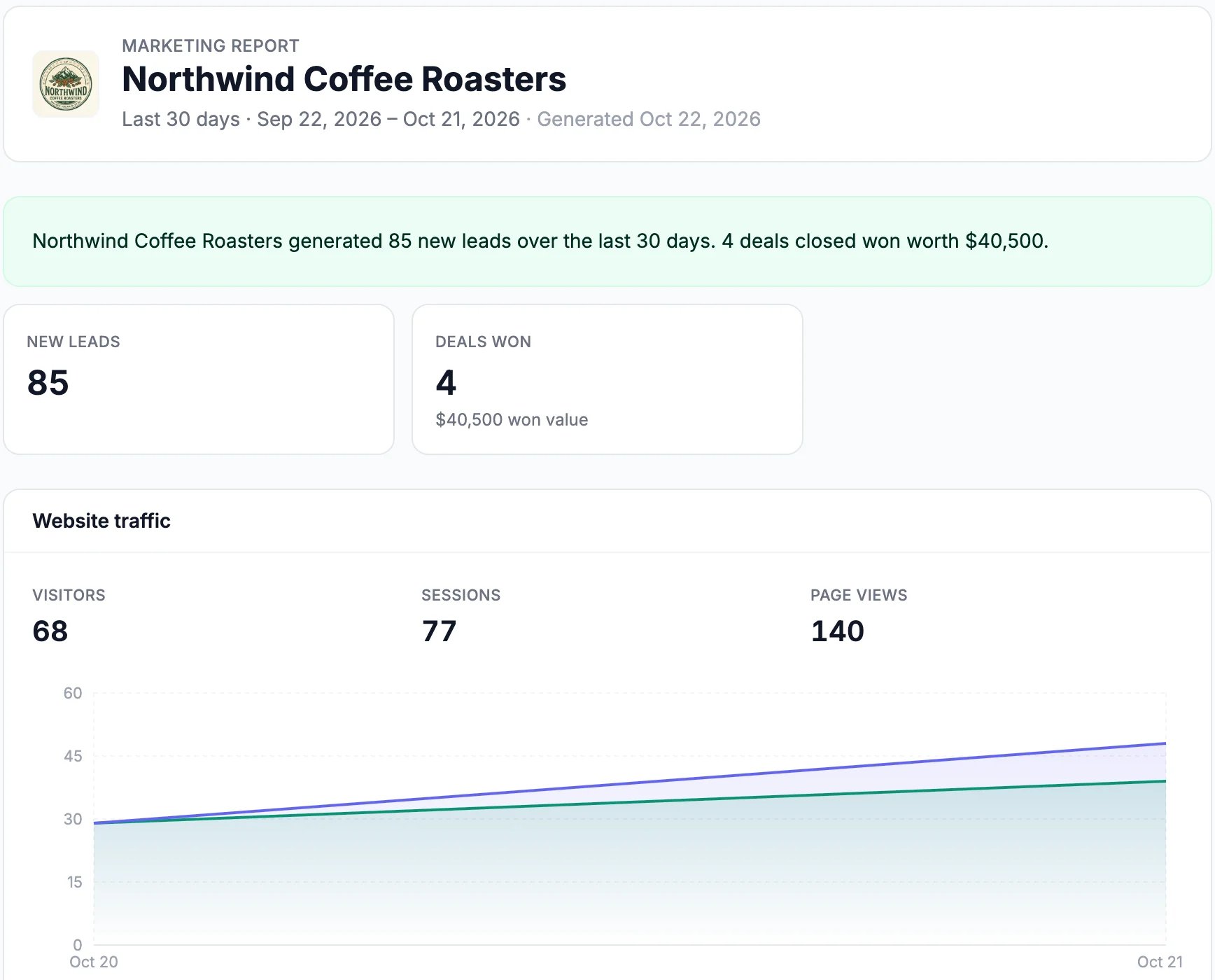
The top of Northwind's report
Share it
- Copy link copies the report’s address to paste into a message. Anyone with the link can open it.
- Email opens a box for your client’s addresses. Type them, separated by commas, and click Send now. It sends the report as last made, so click Regenerate first if you changed the period. The addresses you send to are saved, replacing any saved before, and get every scheduled report too.

Email: your client's addresses
Keep it up to date
- Regenerate rebuilds the numbers now. A scheduled report does this by itself before it goes out.
- Period and Compare ads with on the row change what the next report covers.
- Delete: click the trash icon, then Delete. Its link stops working at once. Northwind deleted its demo report after this guide.
Good to know
- Where the numbers come from: leads and deals from your CRM, visitors from your website’s analytics, and rankings from Track Where You Rank on Google.
- More detail: Client Reporting & Approvals.