Make a review funnel, share its link or QR code, and check each testimonial before anything is published
A review funnel is a short page your customers open from a link or a QR code. It asks for a star rating first, then the next step that fits: happy customers are asked for a testimonial, and unhappy ones get a private form that only your team reads. Nothing a customer sends shows anywhere until you publish it.This guide makes a funnel for Northwind’s Saturday coffee tastings and answers it once as a customer.
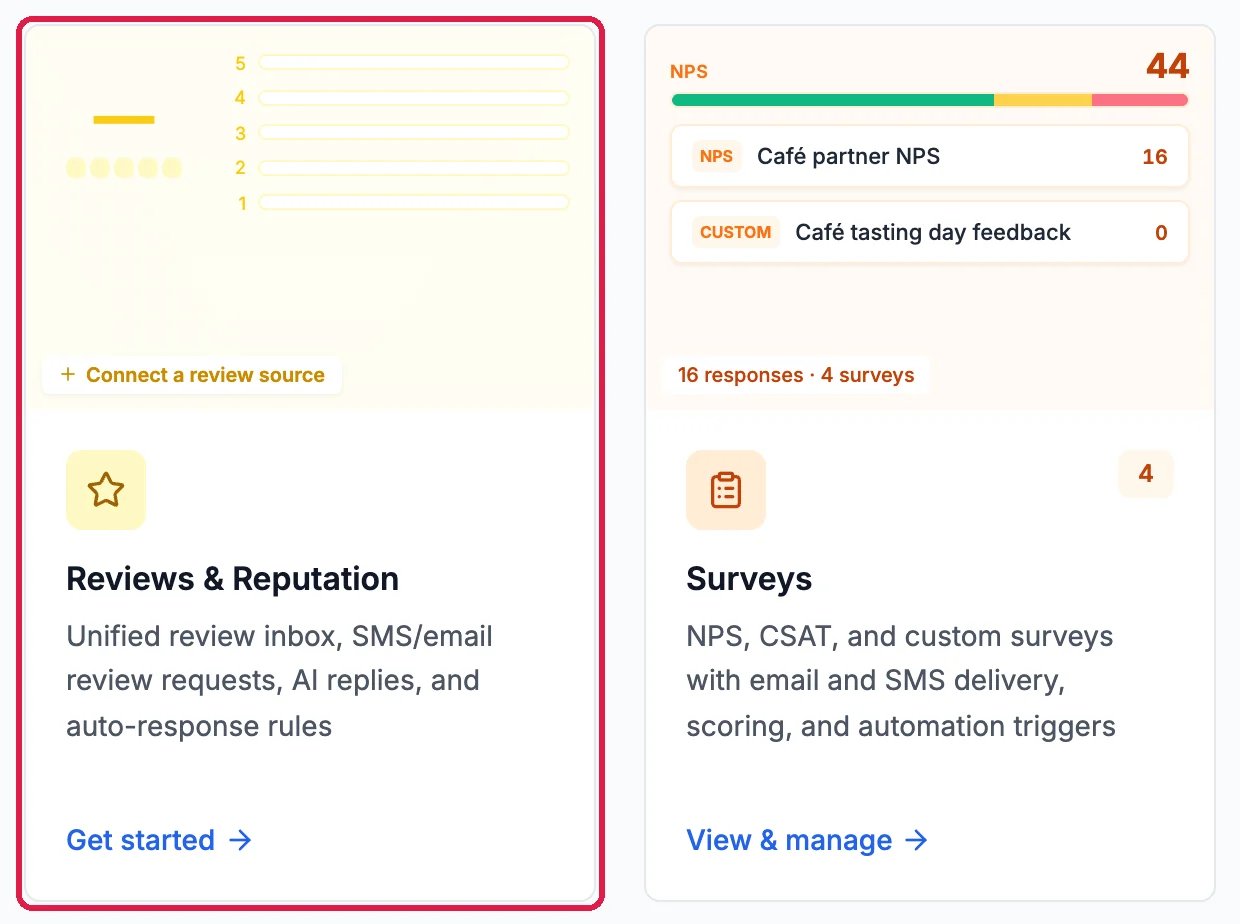
Click Marketing in the left rail, then the Reviews & Reputation card.
Reviews & Reputation, on the Marketing page
2
Click New funnel
Open the Funnels tab and click New funnel.
Funnels, and New funnel
3
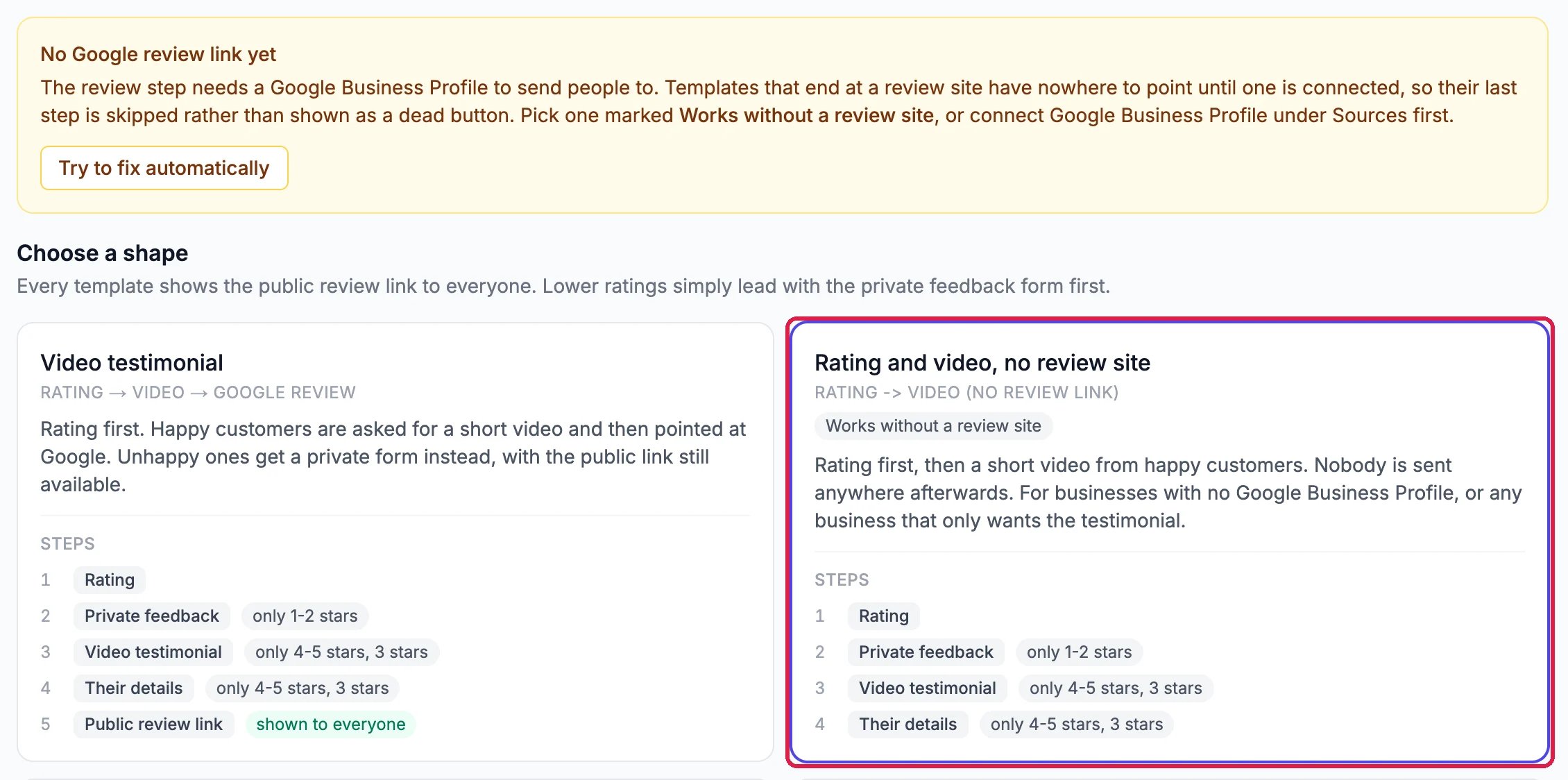
Choose a shape
Each template lists its steps and who sees each one. Video testimonial asks happy customers for a short video and then for a Google review, Rating and video, no review site asks only for the video, and Google review only sends happy customers straight to your Google listing. Customers who would rather not record can always type their testimonial instead.If your Google Business Profile is not connected yet, the page says No Google review link yet. Pick a template marked Works without a review site, or connect Google under Sources first. Northwind has no Google listing connected, so it picks Rating and video, no review site.
A template that works without a review site
4
Name it and create it
Type a Funnel name and click Create funnel. Customers never see the name, so name it after the moment you send it.
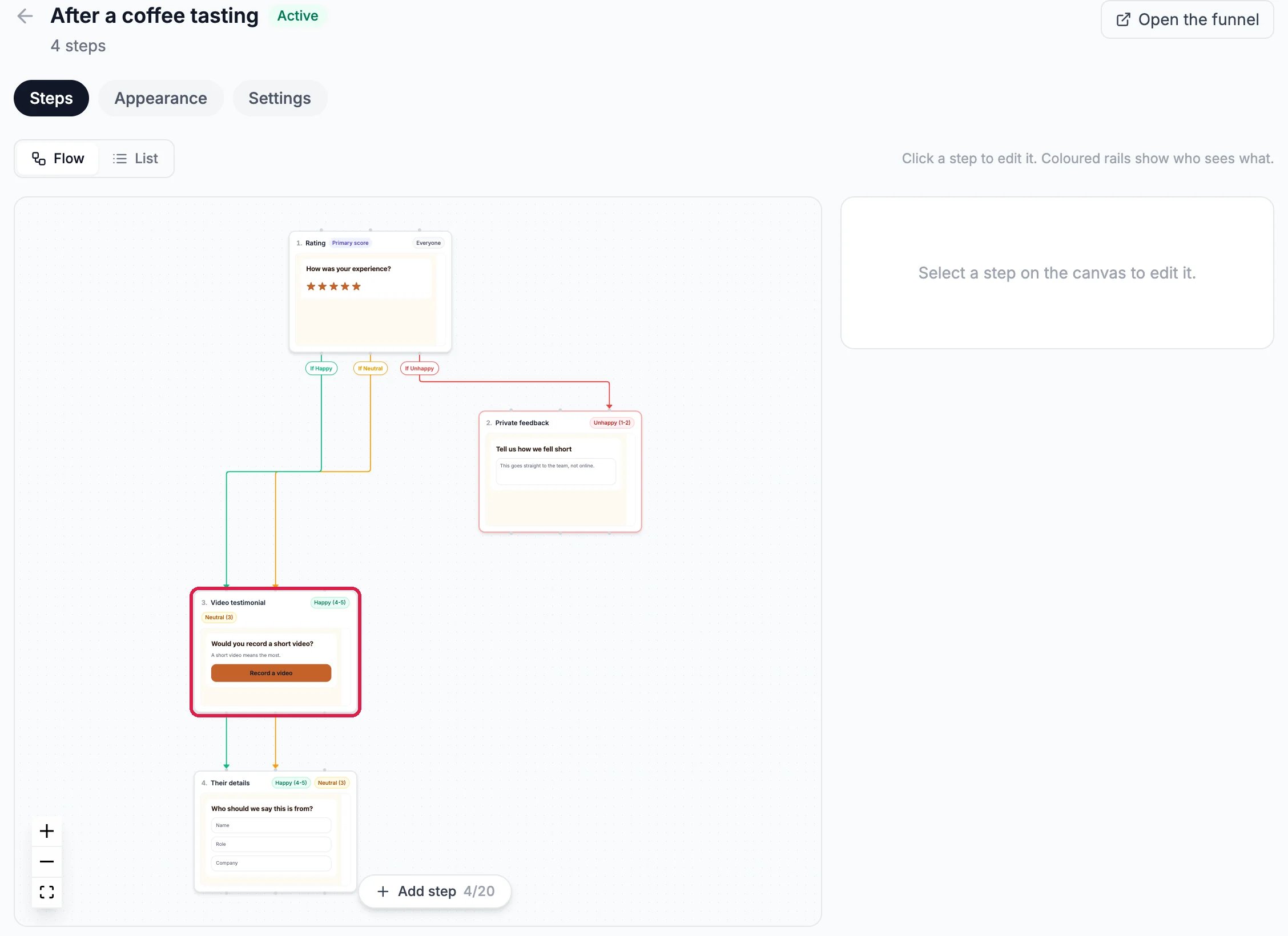
The funnel opens on its Steps. The colored lines show who sees what: everyone rates first, customers who give 3 to 5 stars see the video step and Their details, and customers who give 1 or 2 stars see Private feedback, which goes to your team and not online.
Northwind's funnel, step by step
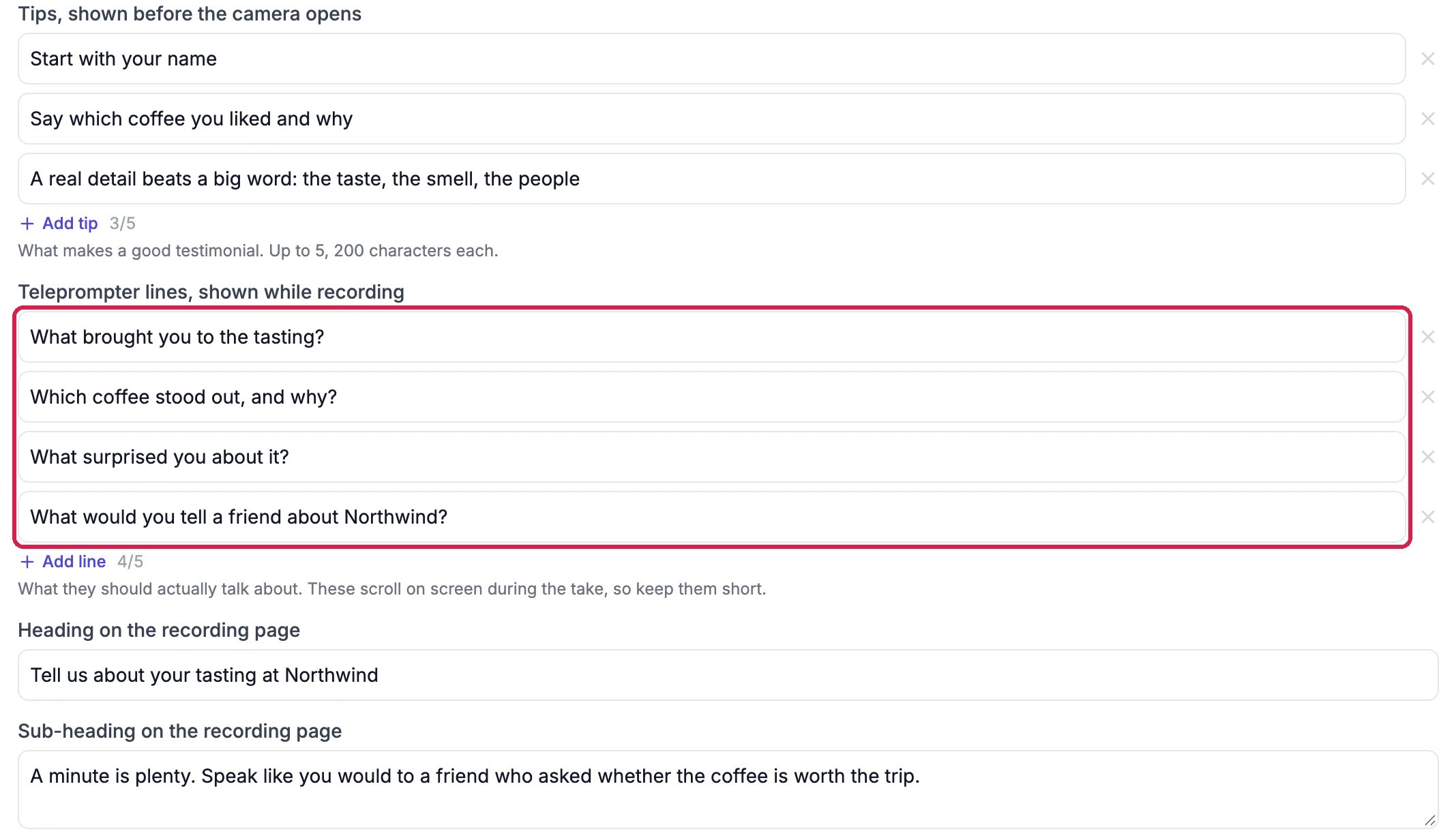
Click the Video testimonial step to change what it asks. The starting questions suit a service business, so rewrite them in your customers’ words under Tips, shown before the camera opens and Teleprompter lines, shown while recording. Heading on the recording page and Sub-heading on the recording page are the first lines customers read when they start. Then click Save steps.
Questions about the tasting
The same step always lets customers type instead of recording, and always asks their permission to publish, using the words under Permission wording.
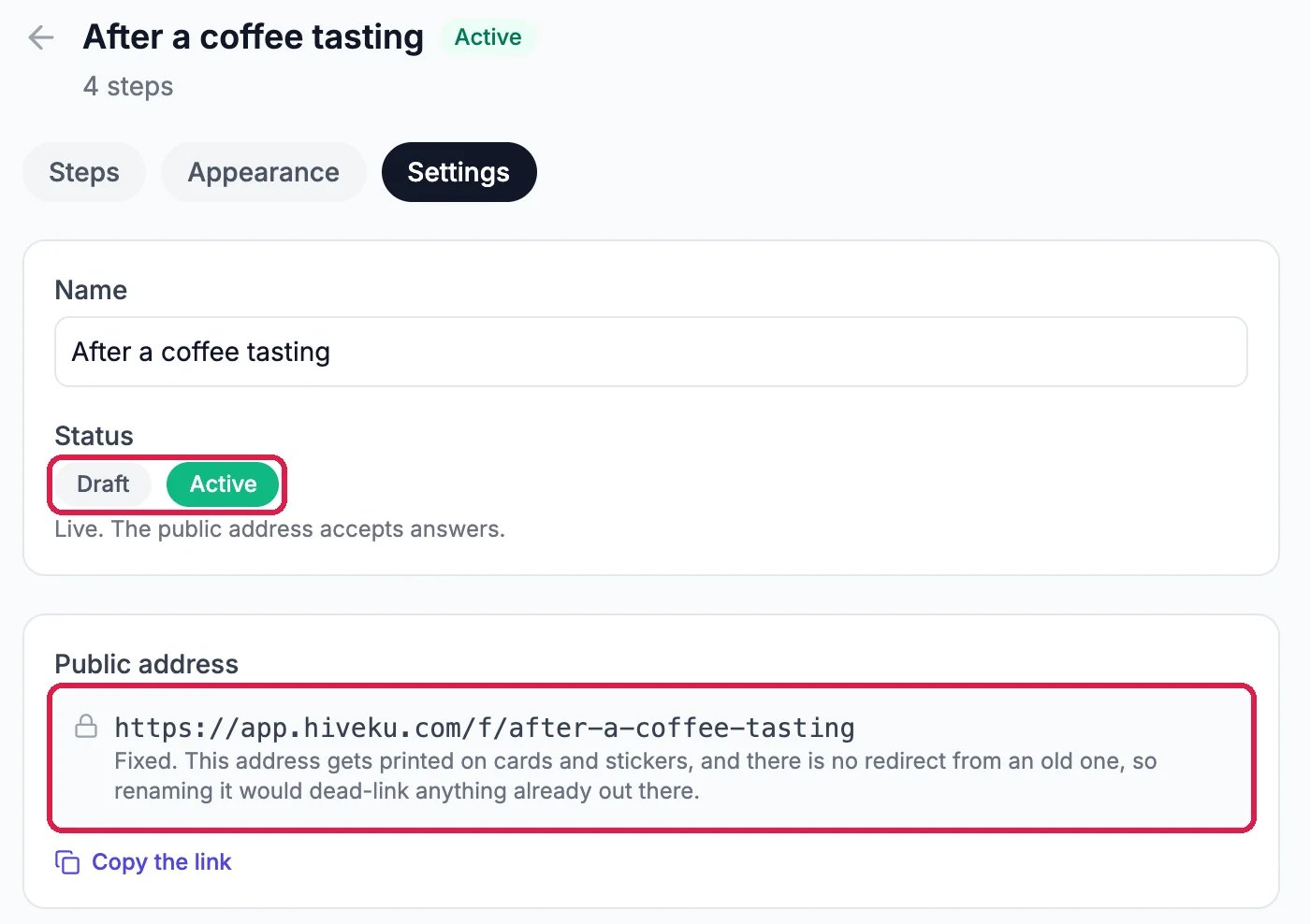
Open the funnel’s Settings tab, next to Steps and Appearance. Status reads Active, so the public address accepts answers. The Public address never changes, so it is safe to print.
Active, with a fixed public address
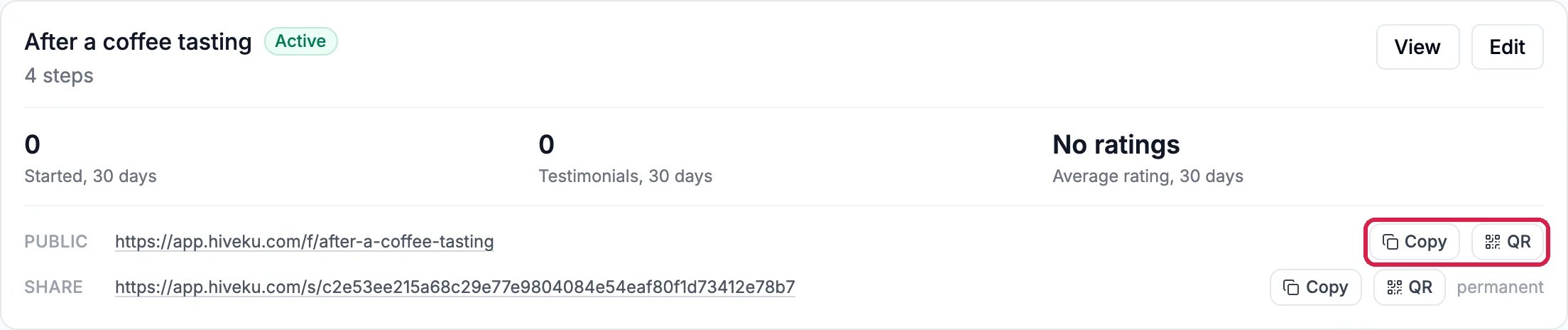
Back on Funnels, next to Public, click Copy to paste the link into an email, a receipt or your website, or QR for a code to print for the counter.
Copy and QR, for the public link
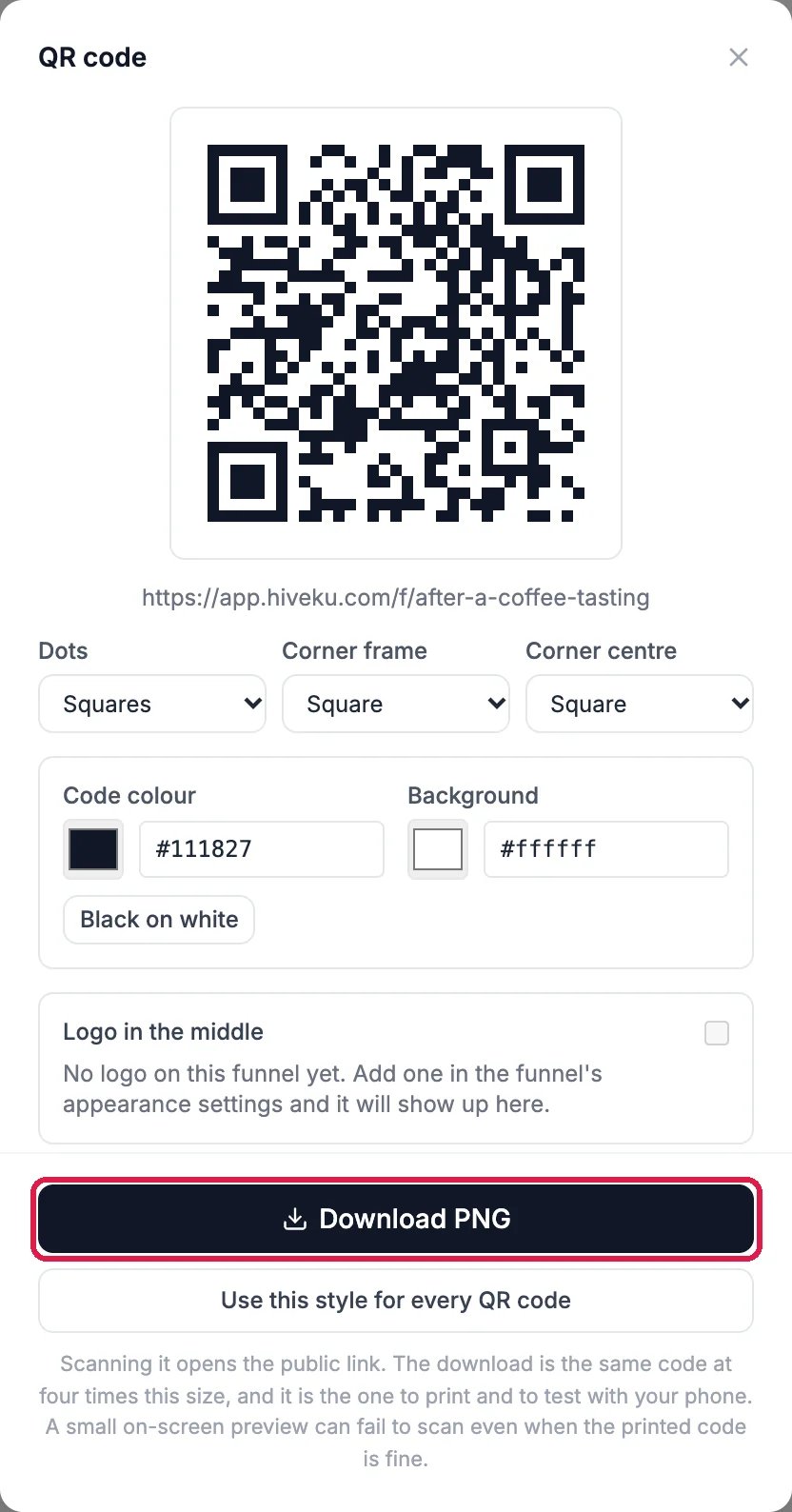
In QR code, choose the dots, corners and colors you like and click Download PNG. Print the download, not a screenshot: it is the full-size code.
Open the public link in a private window to see exactly what a customer sees.
1
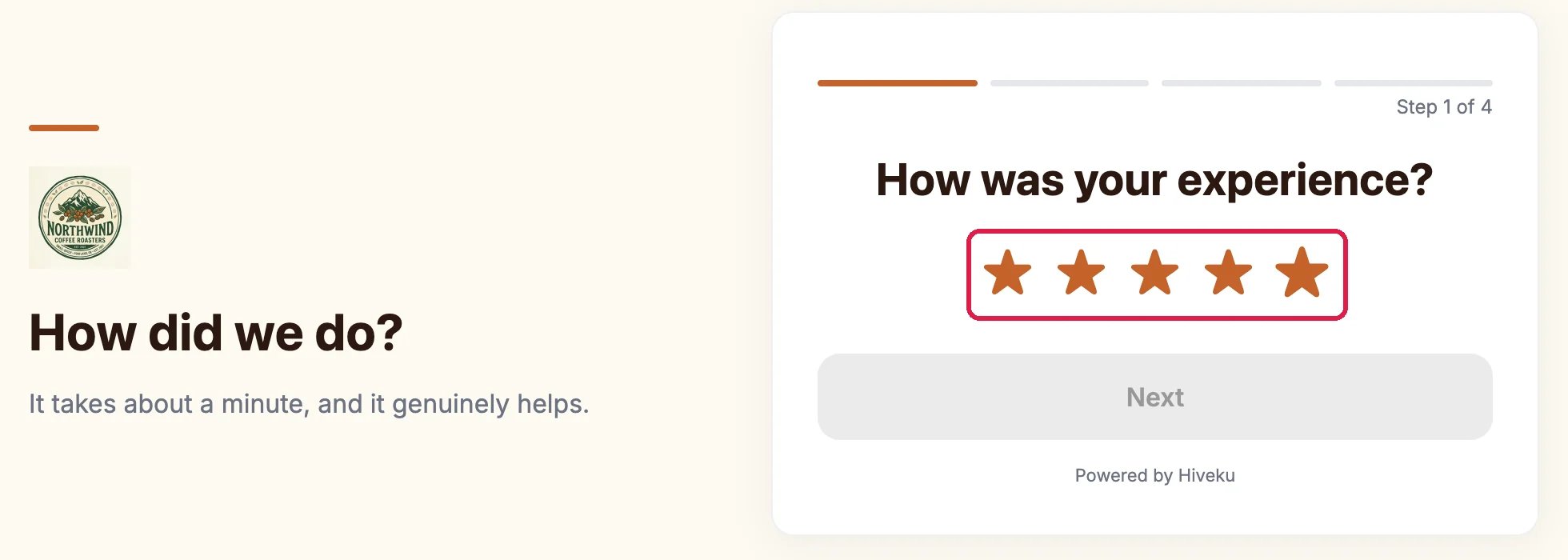
Rate the visit
Pick a star rating.
Five stars
2
Start the testimonial
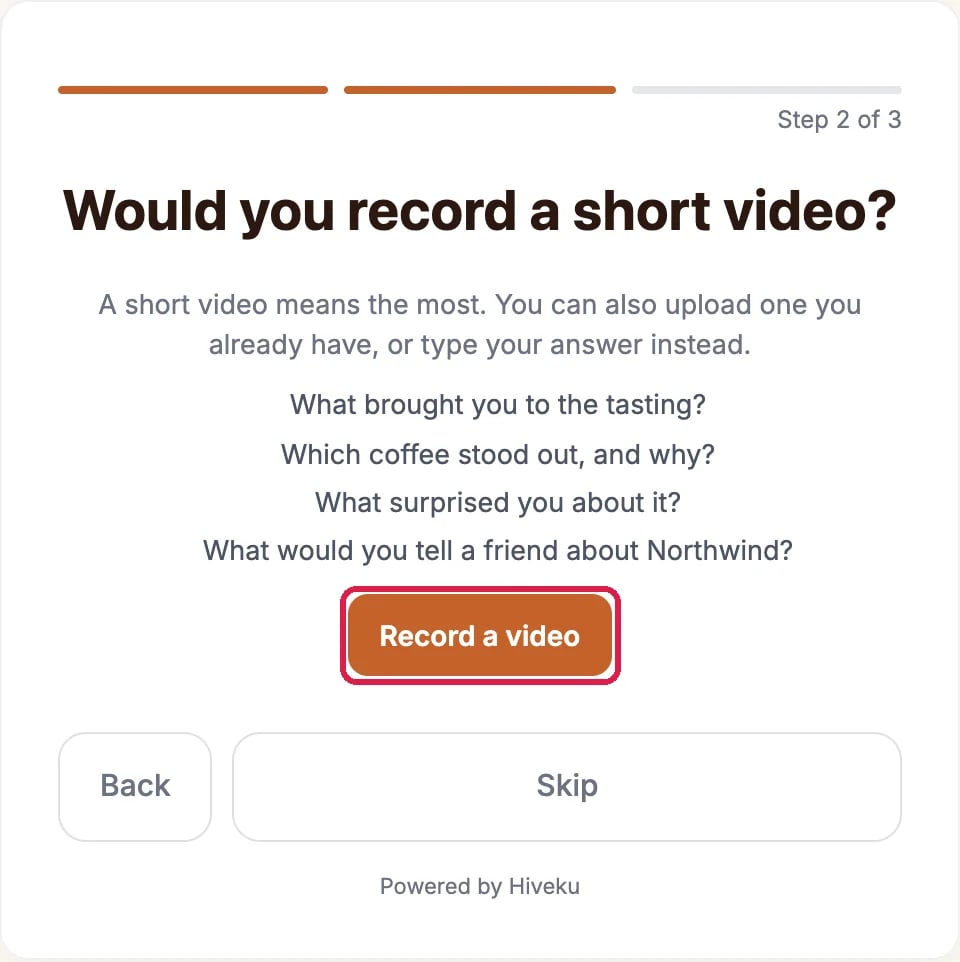
A happy customer sees your questions and Record a video.
The video step, with Northwind's questions
3
Say who it is from
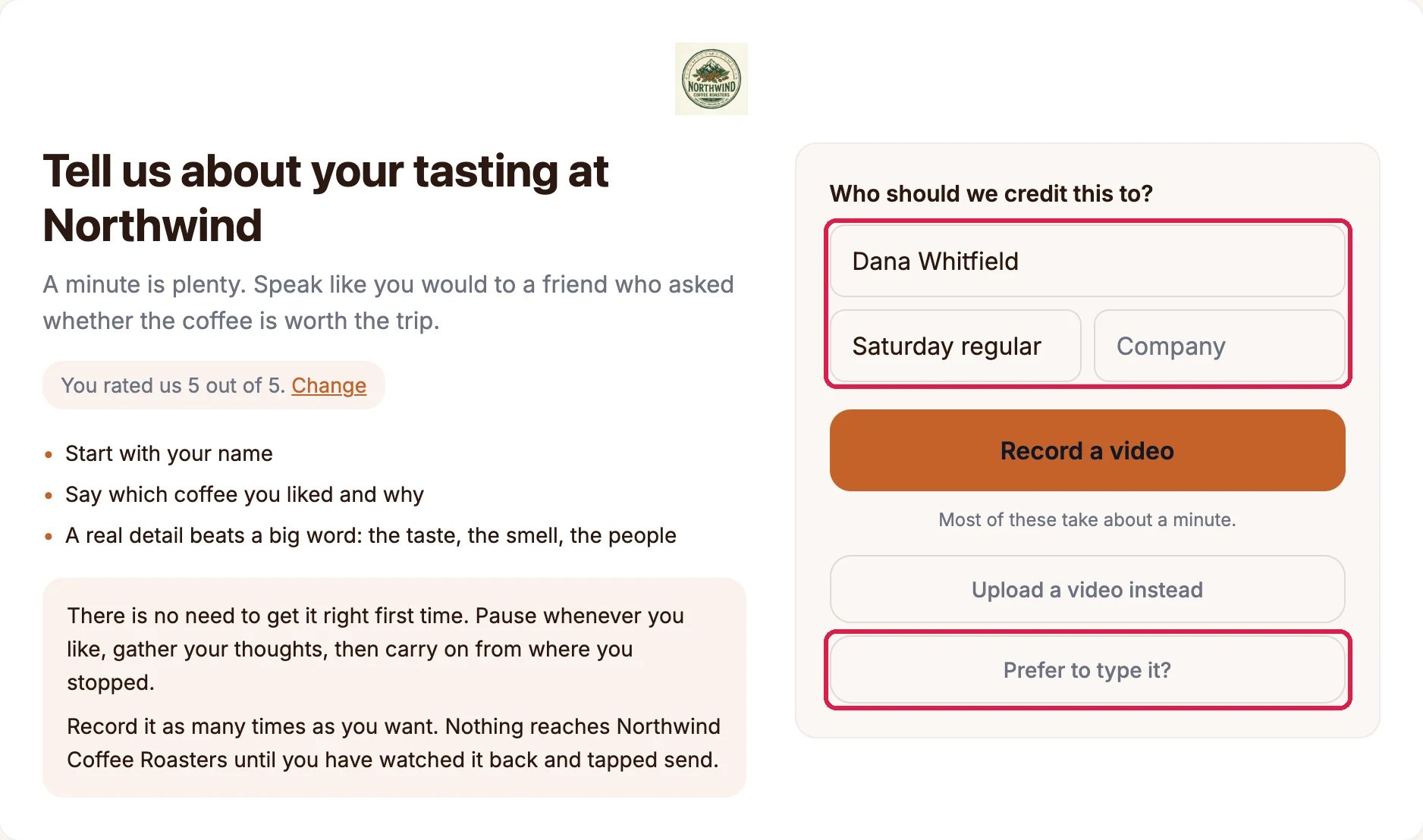
The recording page opens. Under Who should we credit this to?, the customer adds a name and, if they like, a role and a company. Then they pick Record a video, Upload a video instead or Prefer to type it?. Northwind’s customer types it.
Record, upload or type
4
Give permission and send
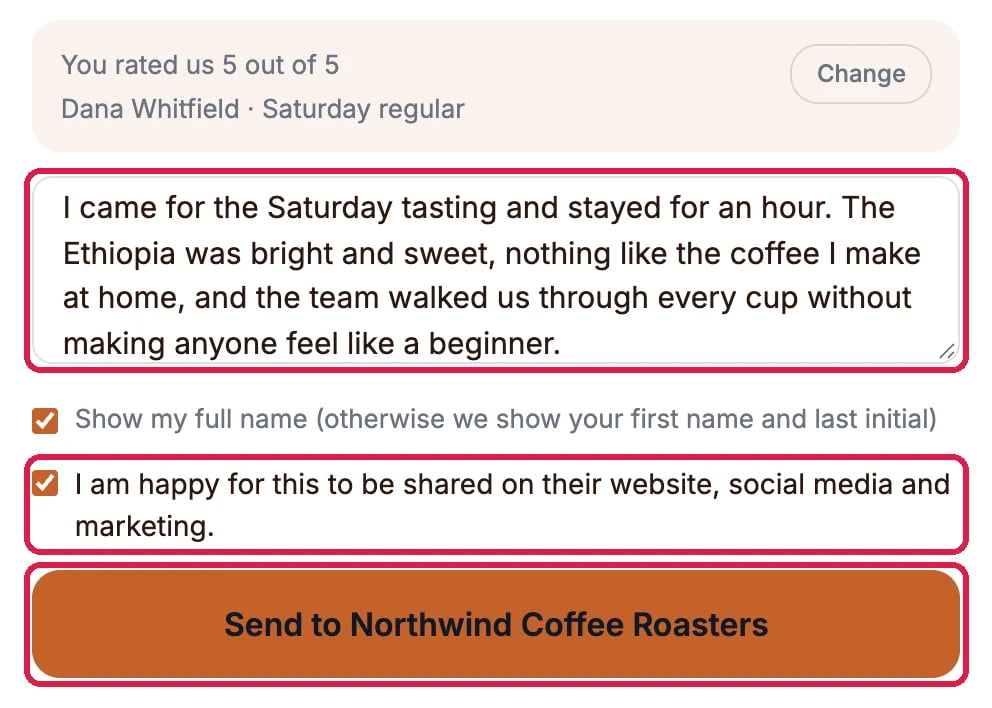
They type the testimonial, tick the permission box and click Send to Northwind Coffee Roasters (your business name). A thank-you page confirms it.
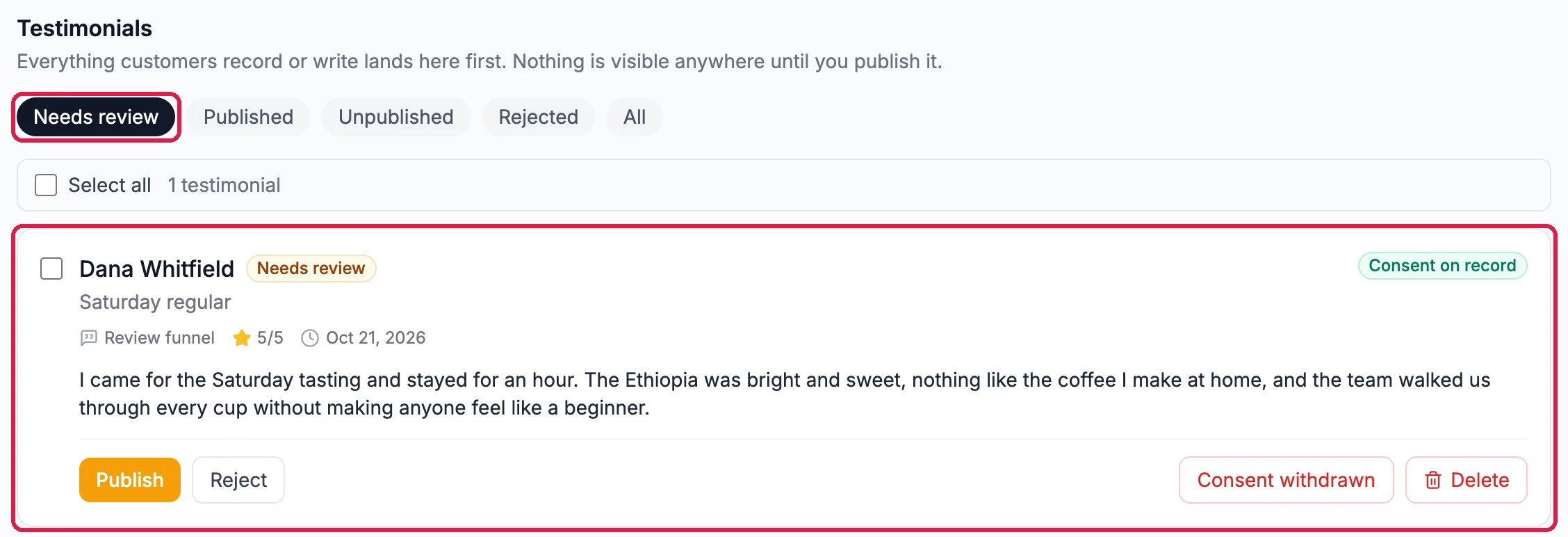
Open the Testimonials tab. Every new testimonial waits under Needs review, with the customer’s name, the rating, where it came from and Consent on record. It shows nowhere until you click Publish. Reject keeps it out for good, and for a video it also deletes the recording.
Unhappy customers reach you first. A rating of 1 or 2 stars leads to Private feedback, which only your team reads. In templates with a Google review step, everyone sees that link whatever they rated: hiding it from unhappy customers breaks Google’s review rules.
Someone changes their mind? Click Consent withdrawn on their testimonial. It is hidden everywhere at once and any recording is deleted.
Send it by email or text. The Requests tab sends a funnel to your customers for you.
{"docsConfig":{"theme":"maple","$schema":"https://mintlify.com/docs.json","name":"Hiveku Builder","colors":{"primary":"#F9A825","light":"#FBC02D","dark":"#F57F17"},"logo":{"light":"https://mintcdn.com/locusdigital/AodgChCDua_G2sAP/images/hiveku-logo-light.svg?fit=max\u0026auto=format\u0026n=AodgChCDua_G2sAP\u0026q=85\u0026s=5d69f2502059f8269d670b35be741ad2","dark":"https://mintcdn.com/locusdigital/AodgChCDua_G2sAP/images/hiveku-logo-dark.svg?fit=max\u0026auto=format\u0026n=AodgChCDua_G2sAP\u0026q=85\u0026s=a78cef8cf1c9ae13d3dcbe31c3ca498d","href":"https://hiveku.com"},"favicon":"https://mintcdn.com/locusdigital/AodgChCDua_G2sAP/images/favicon.svg?fit=max\u0026auto=format\u0026n=AodgChCDua_G2sAP\u0026q=85\u0026s=1b959fd7abfd376351a1216e201aa8cb","api":{},"appearance":{"default":"system"},"seo":{},"styling":{"latex":true},"navigation":{"global":{"anchors":[{"anchor":"Changelog","icon":"list","href":"/changelog"},{"anchor":"App","icon":"arrow-up-right-from-square","href":"https://app.hiveku.com"}]},"pages":[]}},"deployment":{"deploymentMetadataValue":{"subdomain":"locusdigital","hasAudioNarration":false,"actualSubdomain":"locusdigital","customDomains":["docs.hiveku.com"],"gitSource":{"type":"github","owner":"locus2012","repo":"hiveku_docs","deployBranch":"main","contentDirectory":"","isPrivate":true,"mountPath":"","label":""},"chroma":{"liveDeploymentHistoryId":"6ad91686376cd1b0b022d773","collectionId":"05ca33a5-f7c6-4816-b3fc-29e6f999676a","schemaVersion":"v3","latestBuiltDeploymentHistoryId":"6ad91686376cd1b0b022d773"},"entitlements":{"AI_CHAT":{"status":"DISABLED"}},"buildId":"6ad91686376cd1b0b022d773","clientVersion":"0.0.3918","searchFilterCounts":[{"language":"default","tag":"Documentation","count":383},{"language":"default","tag":"How-Tos","count":193},{"language":"default","tag":"Growing Your Business","count":61},{"language":"default","tag":"Integrations","count":25},{"language":"default","tag":"Publishing","count":18},{"language":"default","tag":"Integrations \u0026 BYOK","count":16},{"language":"default","tag":"Helpdesk","count":15},{"language":"default","tag":"Workflow Recipes","count":15},{"language":"default","tag":"Marketing Delivery","count":12},{"language":"default","tag":"API Reference","count":11}]},"assistantConfig":{"enableAskAiButton":false,"enableStarterQuestions":false,"enableContextualStarterQuestions":false,"enableAskAiSearchBar":true},"hasChatPermissions":false,"hasWebMcpPermissions":false,"toggles":[{"name":"kill-isr","enabled":true,"variant":{"name":"disabled","enabled":false,"feature_enabled":true},"impressionData":false},{"name":"agent-mintlify-slack","enabled":true,"variant":{"name":"disabled","enabled":false,"feature_enabled":true},"impressionData":false},{"name":"editor-v7-file-tree","enabled":true,"variant":{"name":"disabled","enabled":false,"feature_enabled":true},"impressionData":false},{"name":"agent-integrations-settings","enabled":true,"variant":{"name":"disabled","enabled":false,"feature_enabled":true},"impressionData":false},{"name":"automations-pr-grouping","enabled":true,"variant":{"name":"disabled","enabled":false,"feature_enabled":true},"impressionData":false},{"name":"custom-prefix","enabled":true,"variant":{"name":"disabled","enabled":false,"feature_enabled":true},"impressionData":false},{"name":"analytics-v7","enabled":true,"variant":{"name":"disabled","enabled":false,"feature_enabled":true},"impressionData":false},{"name":"user-flows-analytics","enabled":true,"variant":{"name":"disabled","enabled":false,"feature_enabled":true},"impressionData":false},{"name":"no-publish-flow","enabled":true,"variant":{"name":"disabled","enabled":false,"feature_enabled":true},"impressionData":false},{"name":"workos-onboarding","enabled":true,"variant":{"name":"disabled","enabled":false,"feature_enabled":true},"impressionData":false},{"name":"llms-txt-v2","enabled":true,"variant":{"name":"disabled","enabled":false,"feature_enabled":true},"impressionData":false},{"name":"pause-universal-search-reconcile","enabled":true,"variant":{"name":"disabled","enabled":false,"feature_enabled":true},"impressionData":false},{"name":"snapshot-serving-live","enabled":true,"variant":{"name":"disabled","enabled":false,"feature_enabled":true},"impressionData":false},{"name":"stripTemperatureMiddleware","enabled":true,"variant":{"name":"disabled","enabled":false,"feature_enabled":true},"impressionData":false},{"name":"per-site-search-delta","enabled":true,"variant":{"name":"disabled","enabled":false,"feature_enabled":true},"impressionData":false},{"name":"support-platform-pylon-zendesk","enabled":true,"variant":{"name":"disabled","enabled":false,"feature_enabled":true},"impressionData":false},{"name":"editor-branches-v2-autocommit","enabled":true,"variant":{"name":"disabled","enabled":false,"feature_enabled":true},"impressionData":false},{"name":"editor-branches-v2","enabled":true,"variant":{"name":"disabled","enabled":false,"feature_enabled":true},"impressionData":false},{"name":"snapshot-serving","enabled":true,"variant":{"name":"disabled","enabled":false,"feature_enabled":true},"impressionData":false},{"name":"instant-rollback","enabled":true,"variant":{"name":"disabled","enabled":false,"feature_enabled":true},"impressionData":false},{"name":"granular-notifications-server","enabled":true,"variant":{"name":"disabled","enabled":false,"feature_enabled":true},"impressionData":false},{"name":"granular-notifications","enabled":true,"variant":{"name":"disabled","enabled":false,"feature_enabled":true},"impressionData":false},{"name":"editor-private-page-search","enabled":true,"variant":{"name":"disabled","enabled":false,"feature_enabled":true},"impressionData":false},{"name":"automations-fable","enabled":true,"variant":{"name":"disabled","enabled":false,"feature_enabled":true},"impressionData":false},{"name":"fixed-ai-action-pricing","enabled":true,"variant":{"name":"disabled","enabled":false,"feature_enabled":true},"impressionData":false},{"name":"automation-resolve-merge-conflict","enabled":true,"variant":{"name":"disabled","enabled":false,"feature_enabled":true},"impressionData":false},{"name":"scoped-publishing","enabled":true,"variant":{"name":"disabled","enabled":false,"feature_enabled":true},"impressionData":false},{"name":"mintql","enabled":true,"variant":{"name":"disabled","enabled":false,"feature_enabled":true},"impressionData":false},{"name":"page-level-analytics","enabled":true,"variant":{"name":"disabled","enabled":false,"feature_enabled":true},"impressionData":false},{"name":"teamspace","enabled":true,"variant":{"name":"disabled","enabled":false,"feature_enabled":true},"impressionData":false},{"name":"editor-version-history-v2","enabled":true,"variant":{"name":"disabled","enabled":false,"feature_enabled":true},"impressionData":false},{"name":"editor-nav-generations","enabled":true,"variant":{"name":"disabled","enabled":false,"feature_enabled":true},"impressionData":false},{"name":"billing-page-v2","enabled":true,"variant":{"name":"disabled","enabled":false,"feature_enabled":true},"impressionData":false},{"name":"vite-origin","enabled":true,"variant":{"name":"disabled","enabled":false,"feature_enabled":true},"impressionData":false},{"name":"workspace-projects","enabled":true,"variant":{"name":"disabled","enabled":false,"feature_enabled":true},"impressionData":false},{"name":"assistant-v5","enabled":true,"variant":{"name":"disabled","enabled":false,"feature_enabled":true},"impressionData":false},{"name":"byok-sep-25","enabled":true,"variant":{"name":"disabled","enabled":false,"feature_enabled":true},"impressionData":false},{"name":"fork-pr-previews","enabled":true,"variant":{"name":"disabled","enabled":false,"feature_enabled":true},"impressionData":false},{"name":"revalidation-jwt","enabled":true,"variant":{"name":"disabled","enabled":false,"feature_enabled":true},"impressionData":false},{"name":"editor-agent-model-picker","enabled":true,"variant":{"name":"disabled","enabled":false,"feature_enabled":true},"impressionData":false},{"name":"client-snapshot-docs-config","enabled":true,"variant":{"name":"disabled","enabled":false,"feature_enabled":true},"impressionData":false},{"name":"hobby-abuse-scan","enabled":true,"variant":{"name":"disabled","enabled":false,"feature_enabled":true},"impressionData":false},{"name":"dashboard-inbox","enabled":true,"variant":{"name":"disabled","enabled":false,"feature_enabled":true},"impressionData":false}],"isAtlas":false,"googleFontsInlined":false},"customCss":[],"page":{"pagePath":"how-tos/marketing/collect-testimonials","slug":"/how-tos/marketing/collect-testimonials","pageMetadata":{"title":"Collect Reviews and Testimonials","sidebarTitle":"Collect Testimonials","description":"Make a review funnel, share its link or QR code, and check each testimonial before anything is published","href":"/how-tos/marketing/collect-testimonials"},"description":{"compiledSource":"\"use strict\";\nconst {jsx: _jsx} = arguments[0];\nconst {useMDXComponents: _provideComponents} = arguments[0];\nfunction _createMdxContent(props) {\n const _components = {\n p: \"p\",\n ..._provideComponents(),\n ...props.components\n };\n return _jsx(_components.p, {\n children: \"Make a review funnel, share its link or QR code, and check each testimonial before anything is published\"\n });\n}\nfunction MDXContent(props = {}) {\n const {wrapper: MDXLayout} = {\n ..._provideComponents(),\n ...props.components\n };\n return MDXLayout ? _jsx(MDXLayout, {\n ...props,\n children: _jsx(_createMdxContent, {\n ...props\n })\n }) : _createMdxContent(props);\n}\nreturn {\n default: MDXContent\n};\n","frontmatter":{},"scope":{}},"pageType":"default","mdx":{"mdxSource":{"compiledSource":"\"use strict\";const{Fragment:_Fragment,jsx:_jsx,jsxs:_jsxs}=arguments[0];const{useMDXComponents:_provideComponents}=arguments[0];function _createMdxContent(props){const _components={a:`a`,li:`li`,p:`p`,strong:`strong`,ul:`ul`,..._provideComponents(),...props.components},{Frame,Heading,OptimizedImage,Step,Steps}=_components;if(!Frame)_missingMdxReference(`Frame`,true);if(!Heading)_missingMdxReference(`Heading`,true);if(!OptimizedImage)_missingMdxReference(`OptimizedImage`,true);if(!Step)_missingMdxReference(`Step`,true);if(!Steps)_missingMdxReference(`Steps`,true);return _jsxs(_Fragment,{children:[_jsx(_components.p,{children:`A review funnel is a short page your customers open from a link or a QR code. It asks for a star rating first, then the next step that fits: happy customers are asked for a testimonial, and unhappy ones get a private form that only your team reads. Nothing a customer sends shows anywhere until you publish it.`}),`\n`,_jsx(_components.p,{children:`This guide makes a funnel for Northwind’s Saturday coffee tastings and answers it once as a customer.`}),`\n`,_jsx(Heading,{level:`2`,id:`make-a-review-funnel`,children:`Make a review funnel`}),`\n`,_jsxs(Steps,{children:[_jsxs(Step,{title:`Open Reviews \u0026 Reputation`,children:[_jsxs(_components.p,{children:[`Click `,_jsx(_components.strong,{children:`Marketing`}),` in the left rail, then the `,_jsx(_components.strong,{children:`Reviews \u0026 Reputation`}),` card.`]}),_jsx(Frame,{caption:`Reviews \u0026 Reputation, on the Marketing page`,children:_jsx(OptimizedImage,{src:`https://mintcdn.com/locusdigital/f6vZe1ed9HfrrzXb/images/how-tos/marketing/rev-01-open-reviews-closeup.webp?fit=max\u0026auto=format\u0026n=f6vZe1ed9HfrrzXb\u0026q=85\u0026s=74d7f6c5b7f65ce81e8c581bf2b53dd6`,alt:`The Reviews \u0026 Reputation card on the Marketing page, outlined, next to the Surveys card`,width:`620`,\"data-og-width\":`1240`,\"data-og-height\":`924`,\"data-path\":`images/how-tos/marketing/rev-01-open-reviews-closeup.webp`,\"data-optimize\":`true`,\"data-opv\":`3`,srcset:`https://mintcdn.com/locusdigital/f6vZe1ed9HfrrzXb/images/how-tos/marketing/rev-01-open-reviews-closeup.webp?w=280\u0026fit=max\u0026auto=format\u0026n=f6vZe1ed9HfrrzXb\u0026q=85\u0026s=a02b9063f0895e771a0b73d4dfba9cd9 280w, https://mintcdn.com/locusdigital/f6vZe1ed9HfrrzXb/images/how-tos/marketing/rev-01-open-reviews-closeup.webp?w=560\u0026fit=max\u0026auto=format\u0026n=f6vZe1ed9HfrrzXb\u0026q=85\u0026s=1061099bdb307cddf68be603dd0a3ec9 560w, https://mintcdn.com/locusdigital/f6vZe1ed9HfrrzXb/images/how-tos/marketing/rev-01-open-reviews-closeup.webp?w=840\u0026fit=max\u0026auto=format\u0026n=f6vZe1ed9HfrrzXb\u0026q=85\u0026s=d5104e02ac3a81e68f92313d3dbf4cda 840w, https://mintcdn.com/locusdigital/f6vZe1ed9HfrrzXb/images/how-tos/marketing/rev-01-open-reviews-closeup.webp?w=1100\u0026fit=max\u0026auto=format\u0026n=f6vZe1ed9HfrrzXb\u0026q=85\u0026s=dfb1601c243c4aa906b8755268fdd954 1100w, https://mintcdn.com/locusdigital/f6vZe1ed9HfrrzXb/images/how-tos/marketing/rev-01-open-reviews-closeup.webp?w=1650\u0026fit=max\u0026auto=format\u0026n=f6vZe1ed9HfrrzXb\u0026q=85\u0026s=5f539413b846265c7e24f55448bcc587 1650w, https://mintcdn.com/locusdigital/f6vZe1ed9HfrrzXb/images/how-tos/marketing/rev-01-open-reviews-closeup.webp?w=2500\u0026fit=max\u0026auto=format\u0026n=f6vZe1ed9HfrrzXb\u0026q=85\u0026s=870e1a65d4f18669ad16b422065a7932 2500w`})})]}),_jsxs(Step,{title:`Click New funnel`,children:[_jsxs(_components.p,{children:[`Open the `,_jsx(_components.strong,{children:`Funnels`}),` tab and click `,_jsx(_components.strong,{children:`New funnel`}),`.`]}),_jsx(Frame,{caption:`Funnels, and New funnel`,children:_jsx(OptimizedImage,{src:`https://mintcdn.com/locusdigital/f6vZe1ed9HfrrzXb/images/how-tos/marketing/rev-02-new-funnel-closeup.webp?fit=max\u0026auto=format\u0026n=f6vZe1ed9HfrrzXb\u0026q=85\u0026s=9debf00a2736dbb3cc89cd522dffb672`,alt:`Reviews and reputation with the Funnels tab and the New funnel button outlined`,width:`1130`,\"data-og-width\":`2260`,\"data-og-height\":`380`,\"data-path\":`images/how-tos/marketing/rev-02-new-funnel-closeup.webp`,\"data-optimize\":`true`,\"data-opv\":`3`,srcset:`https://mintcdn.com/locusdigital/f6vZe1ed9HfrrzXb/images/how-tos/marketing/rev-02-new-funnel-closeup.webp?w=280\u0026fit=max\u0026auto=format\u0026n=f6vZe1ed9HfrrzXb\u0026q=85\u0026s=d9bd3df49dcfa9bd03b9575334c0513f 280w, https://mintcdn.com/locusdigital/f6vZe1ed9HfrrzXb/images/how-tos/marketing/rev-02-new-funnel-closeup.webp?w=560\u0026fit=max\u0026auto=format\u0026n=f6vZe1ed9HfrrzXb\u0026q=85\u0026s=9105753a7c23ae7702d12f8f4219df7f 560w, https://mintcdn.com/locusdigital/f6vZe1ed9HfrrzXb/images/how-tos/marketing/rev-02-new-funnel-closeup.webp?w=840\u0026fit=max\u0026auto=format\u0026n=f6vZe1ed9HfrrzXb\u0026q=85\u0026s=44aeda1ff021048a22b78e44fa62d323 840w, https://mintcdn.com/locusdigital/f6vZe1ed9HfrrzXb/images/how-tos/marketing/rev-02-new-funnel-closeup.webp?w=1100\u0026fit=max\u0026auto=format\u0026n=f6vZe1ed9HfrrzXb\u0026q=85\u0026s=ad3570e4d95b5a26b44c3fdda383f846 1100w, https://mintcdn.com/locusdigital/f6vZe1ed9HfrrzXb/images/how-tos/marketing/rev-02-new-funnel-closeup.webp?w=1650\u0026fit=max\u0026auto=format\u0026n=f6vZe1ed9HfrrzXb\u0026q=85\u0026s=7afc9d5a6d6192c9576b45e7a718ca5b 1650w, https://mintcdn.com/locusdigital/f6vZe1ed9HfrrzXb/images/how-tos/marketing/rev-02-new-funnel-closeup.webp?w=2500\u0026fit=max\u0026auto=format\u0026n=f6vZe1ed9HfrrzXb\u0026q=85\u0026s=95f04f79e188387edc2de20b2ec66f0d 2500w`})})]}),_jsxs(Step,{title:`Choose a shape`,children:[_jsxs(_components.p,{children:[`Each template lists its steps and who sees each one. `,_jsx(_components.strong,{children:`Video testimonial`}),` asks happy customers for a short video and then for a Google review, `,_jsx(_components.strong,{children:`Rating and video, no review site`}),` asks only for the video, and `,_jsx(_components.strong,{children:`Google review only`}),` sends happy customers straight to your Google listing. Customers who would rather not record can always type their testimonial instead.`]}),_jsxs(_components.p,{children:[`If your Google Business Profile is not connected yet, the page says `,_jsx(_components.strong,{children:`No Google review link yet`}),`. Pick a template marked `,_jsx(_components.strong,{children:`Works without a review site`}),`, or connect Google under `,_jsx(_components.strong,{children:`Sources`}),` first. Northwind has no Google listing connected, so it picks `,_jsx(_components.strong,{children:`Rating and video, no review site`}),`.`]}),_jsx(Frame,{caption:`A template that works without a review site`,children:_jsx(OptimizedImage,{src:`https://mintcdn.com/locusdigital/f6vZe1ed9HfrrzXb/images/how-tos/marketing/rev-03-pick-template-closeup.webp?fit=max\u0026auto=format\u0026n=f6vZe1ed9HfrrzXb\u0026q=85\u0026s=452debea4d8d8a0bcf3ca83929f31b19`,alt:`No Google review link yet, and below it the Rating and video, no review site template outlined, marked Works without a review site, with its four steps`,width:`1130`,\"data-og-width\":`2260`,\"data-og-height\":`1124`,\"data-path\":`images/how-tos/marketing/rev-03-pick-template-closeup.webp`,\"data-optimize\":`true`,\"data-opv\":`3`,srcset:`https://mintcdn.com/locusdigital/f6vZe1ed9HfrrzXb/images/how-tos/marketing/rev-03-pick-template-closeup.webp?w=280\u0026fit=max\u0026auto=format\u0026n=f6vZe1ed9HfrrzXb\u0026q=85\u0026s=4f5b5fb5cde7df429ef8bf2f2f91bbe0 280w, https://mintcdn.com/locusdigital/f6vZe1ed9HfrrzXb/images/how-tos/marketing/rev-03-pick-template-closeup.webp?w=560\u0026fit=max\u0026auto=format\u0026n=f6vZe1ed9HfrrzXb\u0026q=85\u0026s=edec68aa894fbca82c0288468e0b1861 560w, https://mintcdn.com/locusdigital/f6vZe1ed9HfrrzXb/images/how-tos/marketing/rev-03-pick-template-closeup.webp?w=840\u0026fit=max\u0026auto=format\u0026n=f6vZe1ed9HfrrzXb\u0026q=85\u0026s=eeb40f7578902f0d0a16e90c83ec0a2a 840w, https://mintcdn.com/locusdigital/f6vZe1ed9HfrrzXb/images/how-tos/marketing/rev-03-pick-template-closeup.webp?w=1100\u0026fit=max\u0026auto=format\u0026n=f6vZe1ed9HfrrzXb\u0026q=85\u0026s=99de43f95ad7b4ac5f17ae483d582031 1100w, https://mintcdn.com/locusdigital/f6vZe1ed9HfrrzXb/images/how-tos/marketing/rev-03-pick-template-closeup.webp?w=1650\u0026fit=max\u0026auto=format\u0026n=f6vZe1ed9HfrrzXb\u0026q=85\u0026s=ba3e33fb587ff4ea1bfc182f127ebe4a 1650w, https://mintcdn.com/locusdigital/f6vZe1ed9HfrrzXb/images/how-tos/marketing/rev-03-pick-template-closeup.webp?w=2500\u0026fit=max\u0026auto=format\u0026n=f6vZe1ed9HfrrzXb\u0026q=85\u0026s=5059da722ccc20877facc9bf788e5789 2500w`})})]}),_jsxs(Step,{title:`Name it and create it`,children:[_jsxs(_components.p,{children:[`Type a `,_jsx(_components.strong,{children:`Funnel name`}),` and click `,_jsx(_components.strong,{children:`Create funnel`}),`. Customers never see the name, so name it after the moment you send it.`]}),_jsx(Frame,{caption:`The name, and Create funnel`,children:_jsx(OptimizedImage,{src:`https://mintcdn.com/locusdigital/f6vZe1ed9HfrrzXb/images/how-tos/marketing/rev-04-name-and-create-closeup.webp?fit=max\u0026auto=format\u0026n=f6vZe1ed9HfrrzXb\u0026q=85\u0026s=6f37995f26ce795d297d2503f68f59a8`,alt:`Funnel name After a coffee tasting and the Create funnel button, both outlined`,width:`1124`,\"data-og-width\":`2248`,\"data-og-height\":`284`,\"data-path\":`images/how-tos/marketing/rev-04-name-and-create-closeup.webp`,\"data-optimize\":`true`,\"data-opv\":`3`,srcset:`https://mintcdn.com/locusdigital/f6vZe1ed9HfrrzXb/images/how-tos/marketing/rev-04-name-and-create-closeup.webp?w=280\u0026fit=max\u0026auto=format\u0026n=f6vZe1ed9HfrrzXb\u0026q=85\u0026s=991bb7d224e12cff7985898738a7f8e1 280w, https://mintcdn.com/locusdigital/f6vZe1ed9HfrrzXb/images/how-tos/marketing/rev-04-name-and-create-closeup.webp?w=560\u0026fit=max\u0026auto=format\u0026n=f6vZe1ed9HfrrzXb\u0026q=85\u0026s=5febcc0027ecc0d73ae8d5b1405b3b5e 560w, https://mintcdn.com/locusdigital/f6vZe1ed9HfrrzXb/images/how-tos/marketing/rev-04-name-and-create-closeup.webp?w=840\u0026fit=max\u0026auto=format\u0026n=f6vZe1ed9HfrrzXb\u0026q=85\u0026s=fed418071d59e10e4fa859c5d8592be5 840w, https://mintcdn.com/locusdigital/f6vZe1ed9HfrrzXb/images/how-tos/marketing/rev-04-name-and-create-closeup.webp?w=1100\u0026fit=max\u0026auto=format\u0026n=f6vZe1ed9HfrrzXb\u0026q=85\u0026s=a72845149e52cff16e046448b4c765fa 1100w, https://mintcdn.com/locusdigital/f6vZe1ed9HfrrzXb/images/how-tos/marketing/rev-04-name-and-create-closeup.webp?w=1650\u0026fit=max\u0026auto=format\u0026n=f6vZe1ed9HfrrzXb\u0026q=85\u0026s=0f4c5d552b2e7818b1cc9b83933c0990 1650w, https://mintcdn.com/locusdigital/f6vZe1ed9HfrrzXb/images/how-tos/marketing/rev-04-name-and-create-closeup.webp?w=2500\u0026fit=max\u0026auto=format\u0026n=f6vZe1ed9HfrrzXb\u0026q=85\u0026s=c1a95deb780211081f6efba1e15e8435 2500w`})})]})]}),`\n`,_jsx(Heading,{level:`2`,id:`make-the-questions-yours`,children:`Make the questions yours`}),`\n`,_jsxs(_components.p,{children:[`The funnel opens on its `,_jsx(_components.strong,{children:`Steps`}),`. The colored lines show who sees what: everyone rates first, customers who give 3 to 5 stars see the video step and `,_jsx(_components.strong,{children:`Their details`}),`, and customers who give 1 or 2 stars see `,_jsx(_components.strong,{children:`Private feedback`}),`, which goes to your team and not online.`]}),`\n`,_jsx(Frame,{caption:`Northwind's funnel, step by step`,children:_jsx(OptimizedImage,{src:`https://mintcdn.com/locusdigital/f6vZe1ed9HfrrzXb/images/how-tos/marketing/rev-05-steps-closeup.webp?fit=max\u0026auto=format\u0026n=f6vZe1ed9HfrrzXb\u0026q=85\u0026s=f47cd7c3b3e845873f6a72facc887fc2`,alt:`The funnel After a coffee tasting, Active, on the Steps tab: Rating for everyone, then Video testimonial for happy and neutral customers, outlined, Their details below it, and Private feedback for unhappy customers`,width:`1128`,\"data-og-width\":`2256`,\"data-og-height\":`1640`,\"data-path\":`images/how-tos/marketing/rev-05-steps-closeup.webp`,\"data-optimize\":`true`,\"data-opv\":`3`,srcset:`https://mintcdn.com/locusdigital/f6vZe1ed9HfrrzXb/images/how-tos/marketing/rev-05-steps-closeup.webp?w=280\u0026fit=max\u0026auto=format\u0026n=f6vZe1ed9HfrrzXb\u0026q=85\u0026s=e74c92aa21f6c1e6bf66be4f9f37da60 280w, https://mintcdn.com/locusdigital/f6vZe1ed9HfrrzXb/images/how-tos/marketing/rev-05-steps-closeup.webp?w=560\u0026fit=max\u0026auto=format\u0026n=f6vZe1ed9HfrrzXb\u0026q=85\u0026s=bbcd437bf60bffa59e55a8bb44a46f3d 560w, https://mintcdn.com/locusdigital/f6vZe1ed9HfrrzXb/images/how-tos/marketing/rev-05-steps-closeup.webp?w=840\u0026fit=max\u0026auto=format\u0026n=f6vZe1ed9HfrrzXb\u0026q=85\u0026s=ecc52e0302d538b40227639d4edcc24b 840w, https://mintcdn.com/locusdigital/f6vZe1ed9HfrrzXb/images/how-tos/marketing/rev-05-steps-closeup.webp?w=1100\u0026fit=max\u0026auto=format\u0026n=f6vZe1ed9HfrrzXb\u0026q=85\u0026s=c9d7d78854b8e30396834d0e318ca698 1100w, https://mintcdn.com/locusdigital/f6vZe1ed9HfrrzXb/images/how-tos/marketing/rev-05-steps-closeup.webp?w=1650\u0026fit=max\u0026auto=format\u0026n=f6vZe1ed9HfrrzXb\u0026q=85\u0026s=de01581cd857b86e21028eacfd5296f2 1650w, https://mintcdn.com/locusdigital/f6vZe1ed9HfrrzXb/images/how-tos/marketing/rev-05-steps-closeup.webp?w=2500\u0026fit=max\u0026auto=format\u0026n=f6vZe1ed9HfrrzXb\u0026q=85\u0026s=10b78ea9e49bd813b87d548055eddb30 2500w`})}),`\n`,_jsxs(_components.p,{children:[`Click the `,_jsx(_components.strong,{children:`Video testimonial`}),` step to change what it asks. The starting questions suit a service business, so rewrite them in your customers’ words under `,_jsx(_components.strong,{children:`Tips, shown before the camera opens`}),` and `,_jsx(_components.strong,{children:`Teleprompter lines, shown while recording`}),`. `,_jsx(_components.strong,{children:`Heading on the recording page`}),` and `,_jsx(_components.strong,{children:`Sub-heading on the recording page`}),` are the first lines customers read when they start. Then click `,_jsx(_components.strong,{children:`Save steps`}),`.`]}),`\n`,_jsx(Frame,{caption:`Questions about the tasting`,children:_jsx(OptimizedImage,{src:`https://mintcdn.com/locusdigital/f6vZe1ed9HfrrzXb/images/how-tos/marketing/rev-06-questions-closeup.webp?fit=max\u0026auto=format\u0026n=f6vZe1ed9HfrrzXb\u0026q=85\u0026s=0b4f67c1c81a8ce935b9806eb1fbe2c5`,alt:`The Video testimonial step's settings: three tips, the four teleprompter lines about the tasting outlined, and the heading Tell us about your tasting at Northwind`,width:`1066`,\"data-og-width\":`2132`,\"data-og-height\":`1232`,\"data-path\":`images/how-tos/marketing/rev-06-questions-closeup.webp`,\"data-optimize\":`true`,\"data-opv\":`3`,srcset:`https://mintcdn.com/locusdigital/f6vZe1ed9HfrrzXb/images/how-tos/marketing/rev-06-questions-closeup.webp?w=280\u0026fit=max\u0026auto=format\u0026n=f6vZe1ed9HfrrzXb\u0026q=85\u0026s=f36b07026bff1fbdfc3ba43120de30dd 280w, https://mintcdn.com/locusdigital/f6vZe1ed9HfrrzXb/images/how-tos/marketing/rev-06-questions-closeup.webp?w=560\u0026fit=max\u0026auto=format\u0026n=f6vZe1ed9HfrrzXb\u0026q=85\u0026s=ccf53e00759b899724c3d570e8d20f07 560w, https://mintcdn.com/locusdigital/f6vZe1ed9HfrrzXb/images/how-tos/marketing/rev-06-questions-closeup.webp?w=840\u0026fit=max\u0026auto=format\u0026n=f6vZe1ed9HfrrzXb\u0026q=85\u0026s=c2af9800049b17a63beaa63808d32b74 840w, https://mintcdn.com/locusdigital/f6vZe1ed9HfrrzXb/images/how-tos/marketing/rev-06-questions-closeup.webp?w=1100\u0026fit=max\u0026auto=format\u0026n=f6vZe1ed9HfrrzXb\u0026q=85\u0026s=43f7e8fd2c2874d95ebd805156310d90 1100w, https://mintcdn.com/locusdigital/f6vZe1ed9HfrrzXb/images/how-tos/marketing/rev-06-questions-closeup.webp?w=1650\u0026fit=max\u0026auto=format\u0026n=f6vZe1ed9HfrrzXb\u0026q=85\u0026s=9c0617fac90eda8a58fa75916a0c022b 1650w, https://mintcdn.com/locusdigital/f6vZe1ed9HfrrzXb/images/how-tos/marketing/rev-06-questions-closeup.webp?w=2500\u0026fit=max\u0026auto=format\u0026n=f6vZe1ed9HfrrzXb\u0026q=85\u0026s=ead60218c7e66a5d0f3fb69d2e655f15 2500w`})}),`\n`,_jsxs(_components.p,{children:[`The same step always lets customers type instead of recording, and always asks their permission to publish, using the words under `,_jsx(_components.strong,{children:`Permission wording`}),`.`]}),`\n`,_jsx(Heading,{level:`2`,id:`check-it-is-live-and-share-it`,children:`Check it is live and share it`}),`\n`,_jsxs(_components.p,{children:[`Open the funnel’s `,_jsx(_components.strong,{children:`Settings`}),` tab, next to `,_jsx(_components.strong,{children:`Steps`}),` and `,_jsx(_components.strong,{children:`Appearance`}),`. `,_jsx(_components.strong,{children:`Status`}),` reads `,_jsx(_components.strong,{children:`Active`}),`, so the public address accepts answers. The `,_jsx(_components.strong,{children:`Public address`}),` never changes, so it is safe to print.`]}),`\n`,_jsx(Frame,{caption:`Active, with a fixed public address`,children:_jsx(OptimizedImage,{src:`https://mintcdn.com/locusdigital/f6vZe1ed9HfrrzXb/images/how-tos/marketing/rev-07-settings-closeup.webp?fit=max\u0026auto=format\u0026n=f6vZe1ed9HfrrzXb\u0026q=85\u0026s=f60854acd36857067c21776dc453c74c`,alt:`The funnel's Settings: Status with Draft and Active, Active selected, and the Public address https://app.hiveku.com/f/after-a-coffee-tasting, both outlined`,width:`700`,\"data-og-width\":`1400`,\"data-og-height\":`988`,\"data-path\":`images/how-tos/marketing/rev-07-settings-closeup.webp`,\"data-optimize\":`true`,\"data-opv\":`3`,srcset:`https://mintcdn.com/locusdigital/f6vZe1ed9HfrrzXb/images/how-tos/marketing/rev-07-settings-closeup.webp?w=280\u0026fit=max\u0026auto=format\u0026n=f6vZe1ed9HfrrzXb\u0026q=85\u0026s=988e38324c47a8ba29de6ea6f99ce78f 280w, https://mintcdn.com/locusdigital/f6vZe1ed9HfrrzXb/images/how-tos/marketing/rev-07-settings-closeup.webp?w=560\u0026fit=max\u0026auto=format\u0026n=f6vZe1ed9HfrrzXb\u0026q=85\u0026s=3fac0a6520ebc3aa9815f6955f3389da 560w, https://mintcdn.com/locusdigital/f6vZe1ed9HfrrzXb/images/how-tos/marketing/rev-07-settings-closeup.webp?w=840\u0026fit=max\u0026auto=format\u0026n=f6vZe1ed9HfrrzXb\u0026q=85\u0026s=e3a8d1e8b9ea1bf4479d96805ffcc480 840w, https://mintcdn.com/locusdigital/f6vZe1ed9HfrrzXb/images/how-tos/marketing/rev-07-settings-closeup.webp?w=1100\u0026fit=max\u0026auto=format\u0026n=f6vZe1ed9HfrrzXb\u0026q=85\u0026s=e4f837148ae5b1d3feb457369034fb64 1100w, https://mintcdn.com/locusdigital/f6vZe1ed9HfrrzXb/images/how-tos/marketing/rev-07-settings-closeup.webp?w=1650\u0026fit=max\u0026auto=format\u0026n=f6vZe1ed9HfrrzXb\u0026q=85\u0026s=629b6c93aba49be5a39b9128e693b060 1650w, https://mintcdn.com/locusdigital/f6vZe1ed9HfrrzXb/images/how-tos/marketing/rev-07-settings-closeup.webp?w=2500\u0026fit=max\u0026auto=format\u0026n=f6vZe1ed9HfrrzXb\u0026q=85\u0026s=e49b3b3e8ac80834c670cf6ca25ceeb7 2500w`})}),`\n`,_jsxs(_components.p,{children:[`Back on `,_jsx(_components.strong,{children:`Funnels`}),`, next to `,_jsx(_components.strong,{children:`Public`}),`, click `,_jsx(_components.strong,{children:`Copy`}),` to paste the link into an email, a receipt or your website, or `,_jsx(_components.strong,{children:`QR`}),` for a code to print for the counter.`]}),`\n`,_jsx(Frame,{caption:`Copy and QR, for the public link`,children:_jsx(OptimizedImage,{src:`https://mintcdn.com/locusdigital/f6vZe1ed9HfrrzXb/images/how-tos/marketing/rev-08-share-closeup.webp?fit=max\u0026auto=format\u0026n=f6vZe1ed9HfrrzXb\u0026q=85\u0026s=0b3a7d6344f65c4ca33b5cbb13c08a31`,alt:`The funnel After a coffee tasting on Funnels, with the Copy and QR buttons of its Public link outlined`,width:`1104`,\"data-og-width\":`2208`,\"data-og-height\":`464`,\"data-path\":`images/how-tos/marketing/rev-08-share-closeup.webp`,\"data-optimize\":`true`,\"data-opv\":`3`,srcset:`https://mintcdn.com/locusdigital/f6vZe1ed9HfrrzXb/images/how-tos/marketing/rev-08-share-closeup.webp?w=280\u0026fit=max\u0026auto=format\u0026n=f6vZe1ed9HfrrzXb\u0026q=85\u0026s=14d0dc2446b594965e6389fa4ee6120a 280w, https://mintcdn.com/locusdigital/f6vZe1ed9HfrrzXb/images/how-tos/marketing/rev-08-share-closeup.webp?w=560\u0026fit=max\u0026auto=format\u0026n=f6vZe1ed9HfrrzXb\u0026q=85\u0026s=af6ba07f44f27f94ced99e0b9fad1975 560w, https://mintcdn.com/locusdigital/f6vZe1ed9HfrrzXb/images/how-tos/marketing/rev-08-share-closeup.webp?w=840\u0026fit=max\u0026auto=format\u0026n=f6vZe1ed9HfrrzXb\u0026q=85\u0026s=48542ae9572b518eb57c02805b044f6f 840w, https://mintcdn.com/locusdigital/f6vZe1ed9HfrrzXb/images/how-tos/marketing/rev-08-share-closeup.webp?w=1100\u0026fit=max\u0026auto=format\u0026n=f6vZe1ed9HfrrzXb\u0026q=85\u0026s=33f4a63a24881d4a3f441c05a9534baf 1100w, https://mintcdn.com/locusdigital/f6vZe1ed9HfrrzXb/images/how-tos/marketing/rev-08-share-closeup.webp?w=1650\u0026fit=max\u0026auto=format\u0026n=f6vZe1ed9HfrrzXb\u0026q=85\u0026s=5f967067310bafa0d736e582f53a3a99 1650w, https://mintcdn.com/locusdigital/f6vZe1ed9HfrrzXb/images/how-tos/marketing/rev-08-share-closeup.webp?w=2500\u0026fit=max\u0026auto=format\u0026n=f6vZe1ed9HfrrzXb\u0026q=85\u0026s=f3d518a15b7c6599ac68290be7540fba 2500w`})}),`\n`,_jsxs(_components.p,{children:[`In `,_jsx(_components.strong,{children:`QR code`}),`, choose the dots, corners and colors you like and click `,_jsx(_components.strong,{children:`Download PNG`}),`. Print the download, not a screenshot: it is the full-size code.`]}),`\n`,_jsx(Frame,{caption:`The QR code for the counter`,children:_jsx(OptimizedImage,{src:`https://mintcdn.com/locusdigital/f6vZe1ed9HfrrzXb/images/how-tos/marketing/rev-09-qr-closeup.webp?fit=max\u0026auto=format\u0026n=f6vZe1ed9HfrrzXb\u0026q=85\u0026s=2664b937e71ccce9f4b0efe037cb11f3`,alt:`The QR code window with the code for the public link, its style choices and the Download PNG button outlined`,width:`416`,\"data-og-width\":`832`,\"data-og-height\":`1588`,\"data-path\":`images/how-tos/marketing/rev-09-qr-closeup.webp`,\"data-optimize\":`true`,\"data-opv\":`3`,srcset:`https://mintcdn.com/locusdigital/f6vZe1ed9HfrrzXb/images/how-tos/marketing/rev-09-qr-closeup.webp?w=280\u0026fit=max\u0026auto=format\u0026n=f6vZe1ed9HfrrzXb\u0026q=85\u0026s=bd26a37660f83b99b0be6fb1b35475bf 280w, https://mintcdn.com/locusdigital/f6vZe1ed9HfrrzXb/images/how-tos/marketing/rev-09-qr-closeup.webp?w=560\u0026fit=max\u0026auto=format\u0026n=f6vZe1ed9HfrrzXb\u0026q=85\u0026s=2e67317434b5809c1b6ce2b2041910ab 560w, https://mintcdn.com/locusdigital/f6vZe1ed9HfrrzXb/images/how-tos/marketing/rev-09-qr-closeup.webp?w=840\u0026fit=max\u0026auto=format\u0026n=f6vZe1ed9HfrrzXb\u0026q=85\u0026s=c92636450d4659957efcbda9292ab0e7 840w, https://mintcdn.com/locusdigital/f6vZe1ed9HfrrzXb/images/how-tos/marketing/rev-09-qr-closeup.webp?w=1100\u0026fit=max\u0026auto=format\u0026n=f6vZe1ed9HfrrzXb\u0026q=85\u0026s=68c6e475da5bba56a7e735ff7cc71f5c 1100w, https://mintcdn.com/locusdigital/f6vZe1ed9HfrrzXb/images/how-tos/marketing/rev-09-qr-closeup.webp?w=1650\u0026fit=max\u0026auto=format\u0026n=f6vZe1ed9HfrrzXb\u0026q=85\u0026s=2a25b46693e1782b250a1acd3e81c148 1650w, https://mintcdn.com/locusdigital/f6vZe1ed9HfrrzXb/images/how-tos/marketing/rev-09-qr-closeup.webp?w=2500\u0026fit=max\u0026auto=format\u0026n=f6vZe1ed9HfrrzXb\u0026q=85\u0026s=05650c78282c9e32335ffda731434a6a 2500w`})}),`\n`,_jsx(Heading,{level:`2`,id:`answer-it-as-a-customer`,children:`Answer it as a customer`}),`\n`,_jsx(_components.p,{children:`Open the public link in a private window to see exactly what a customer sees.`}),`\n`,_jsxs(Steps,{children:[_jsxs(Step,{title:`Rate the visit`,children:[_jsx(_components.p,{children:`Pick a star rating.`}),_jsx(Frame,{caption:`Five stars`,children:_jsx(OptimizedImage,{src:`https://mintcdn.com/locusdigital/f6vZe1ed9HfrrzXb/images/how-tos/marketing/rev-10-rate-closeup.webp?fit=max\u0026auto=format\u0026n=f6vZe1ed9HfrrzXb\u0026q=85\u0026s=bd89cf7d8d6d5d41bc63a661f2a02317`,alt:`The funnel page with the Northwind logo, How did we do?, and How was your experience? with five stars outlined`,width:`980`,\"data-og-width\":`1960`,\"data-og-height\":`700`,\"data-path\":`images/how-tos/marketing/rev-10-rate-closeup.webp`,\"data-optimize\":`true`,\"data-opv\":`3`,srcset:`https://mintcdn.com/locusdigital/f6vZe1ed9HfrrzXb/images/how-tos/marketing/rev-10-rate-closeup.webp?w=280\u0026fit=max\u0026auto=format\u0026n=f6vZe1ed9HfrrzXb\u0026q=85\u0026s=f081fe7a9c9e100b248a4b4d367c8820 280w, https://mintcdn.com/locusdigital/f6vZe1ed9HfrrzXb/images/how-tos/marketing/rev-10-rate-closeup.webp?w=560\u0026fit=max\u0026auto=format\u0026n=f6vZe1ed9HfrrzXb\u0026q=85\u0026s=78e669fff627bc6ac5e6fc3a429695eb 560w, https://mintcdn.com/locusdigital/f6vZe1ed9HfrrzXb/images/how-tos/marketing/rev-10-rate-closeup.webp?w=840\u0026fit=max\u0026auto=format\u0026n=f6vZe1ed9HfrrzXb\u0026q=85\u0026s=f3a1b76ae966971bd6cb580b32efa59c 840w, https://mintcdn.com/locusdigital/f6vZe1ed9HfrrzXb/images/how-tos/marketing/rev-10-rate-closeup.webp?w=1100\u0026fit=max\u0026auto=format\u0026n=f6vZe1ed9HfrrzXb\u0026q=85\u0026s=72bd4f9629b7819b73d62a7020b500dc 1100w, https://mintcdn.com/locusdigital/f6vZe1ed9HfrrzXb/images/how-tos/marketing/rev-10-rate-closeup.webp?w=1650\u0026fit=max\u0026auto=format\u0026n=f6vZe1ed9HfrrzXb\u0026q=85\u0026s=2e3c04eb78d1a8552fff0006a3754ea6 1650w, https://mintcdn.com/locusdigital/f6vZe1ed9HfrrzXb/images/how-tos/marketing/rev-10-rate-closeup.webp?w=2500\u0026fit=max\u0026auto=format\u0026n=f6vZe1ed9HfrrzXb\u0026q=85\u0026s=9d70dc0f7aeb1449f4ebb857ea341ab2 2500w`})})]}),_jsxs(Step,{title:`Start the testimonial`,children:[_jsxs(_components.p,{children:[`A happy customer sees your questions and `,_jsx(_components.strong,{children:`Record a video`}),`.`]}),_jsx(Frame,{caption:`The video step, with Northwind's questions`,children:_jsx(OptimizedImage,{src:`https://mintcdn.com/locusdigital/f6vZe1ed9HfrrzXb/images/how-tos/marketing/rev-11-video-step-closeup.webp?fit=max\u0026auto=format\u0026n=f6vZe1ed9HfrrzXb\u0026q=85\u0026s=dc4f06d2c9bfa8aa1ac4981b22232271`,alt:`Would you record a short video?, with the four questions about the tasting and the Record a video button outlined`,width:`480`,\"data-og-width\":`960`,\"data-og-height\":`962`,\"data-path\":`images/how-tos/marketing/rev-11-video-step-closeup.webp`,\"data-optimize\":`true`,\"data-opv\":`3`,srcset:`https://mintcdn.com/locusdigital/f6vZe1ed9HfrrzXb/images/how-tos/marketing/rev-11-video-step-closeup.webp?w=280\u0026fit=max\u0026auto=format\u0026n=f6vZe1ed9HfrrzXb\u0026q=85\u0026s=87b78fbe414406cf42571370273b0dee 280w, https://mintcdn.com/locusdigital/f6vZe1ed9HfrrzXb/images/how-tos/marketing/rev-11-video-step-closeup.webp?w=560\u0026fit=max\u0026auto=format\u0026n=f6vZe1ed9HfrrzXb\u0026q=85\u0026s=318e2881d4453b3efd10f239df0a42e6 560w, https://mintcdn.com/locusdigital/f6vZe1ed9HfrrzXb/images/how-tos/marketing/rev-11-video-step-closeup.webp?w=840\u0026fit=max\u0026auto=format\u0026n=f6vZe1ed9HfrrzXb\u0026q=85\u0026s=c916d7153d370a041e35633147a424fc 840w, https://mintcdn.com/locusdigital/f6vZe1ed9HfrrzXb/images/how-tos/marketing/rev-11-video-step-closeup.webp?w=1100\u0026fit=max\u0026auto=format\u0026n=f6vZe1ed9HfrrzXb\u0026q=85\u0026s=18b026834b621259ac69d61bcd96a64f 1100w, https://mintcdn.com/locusdigital/f6vZe1ed9HfrrzXb/images/how-tos/marketing/rev-11-video-step-closeup.webp?w=1650\u0026fit=max\u0026auto=format\u0026n=f6vZe1ed9HfrrzXb\u0026q=85\u0026s=dcb075c3b2b54f6356c95fcfb7af79c7 1650w, https://mintcdn.com/locusdigital/f6vZe1ed9HfrrzXb/images/how-tos/marketing/rev-11-video-step-closeup.webp?w=2500\u0026fit=max\u0026auto=format\u0026n=f6vZe1ed9HfrrzXb\u0026q=85\u0026s=60568d2670694aa8ac4b28d36da7ec47 2500w`})})]}),_jsxs(Step,{title:`Say who it is from`,children:[_jsxs(_components.p,{children:[`The recording page opens. Under `,_jsx(_components.strong,{children:`Who should we credit this to?`}),`, the customer adds a name and, if they like, a role and a company. Then they pick `,_jsx(_components.strong,{children:`Record a video`}),`, `,_jsx(_components.strong,{children:`Upload a video instead`}),` or `,_jsx(_components.strong,{children:`Prefer to type it?`}),`. Northwind’s customer types it.`]}),_jsx(Frame,{caption:`Record, upload or type`,children:_jsx(OptimizedImage,{src:`https://mintcdn.com/locusdigital/f6vZe1ed9HfrrzXb/images/how-tos/marketing/rev-12-recorder-closeup.webp?fit=max\u0026auto=format\u0026n=f6vZe1ed9HfrrzXb\u0026q=85\u0026s=cbf7728885fd50ea1ae640e04978b8e3`,alt:`Tell us about your tasting at Northwind, with the tips, and on the right the name Dana Whitfield and the role Saturday regular, outlined, then Record a video, Upload a video instead, and Prefer to type it?, outlined`,width:`938`,\"data-og-width\":`1876`,\"data-og-height\":`1108`,\"data-path\":`images/how-tos/marketing/rev-12-recorder-closeup.webp`,\"data-optimize\":`true`,\"data-opv\":`3`,srcset:`https://mintcdn.com/locusdigital/f6vZe1ed9HfrrzXb/images/how-tos/marketing/rev-12-recorder-closeup.webp?w=280\u0026fit=max\u0026auto=format\u0026n=f6vZe1ed9HfrrzXb\u0026q=85\u0026s=9e534acb9e50d8023087f64182f6392d 280w, https://mintcdn.com/locusdigital/f6vZe1ed9HfrrzXb/images/how-tos/marketing/rev-12-recorder-closeup.webp?w=560\u0026fit=max\u0026auto=format\u0026n=f6vZe1ed9HfrrzXb\u0026q=85\u0026s=b66cbb985384bccbc69218c822d327aa 560w, https://mintcdn.com/locusdigital/f6vZe1ed9HfrrzXb/images/how-tos/marketing/rev-12-recorder-closeup.webp?w=840\u0026fit=max\u0026auto=format\u0026n=f6vZe1ed9HfrrzXb\u0026q=85\u0026s=2889e9392904b1e1788f333668e940d2 840w, https://mintcdn.com/locusdigital/f6vZe1ed9HfrrzXb/images/how-tos/marketing/rev-12-recorder-closeup.webp?w=1100\u0026fit=max\u0026auto=format\u0026n=f6vZe1ed9HfrrzXb\u0026q=85\u0026s=3dab71152d0087bbf827b6405d7fe2a7 1100w, https://mintcdn.com/locusdigital/f6vZe1ed9HfrrzXb/images/how-tos/marketing/rev-12-recorder-closeup.webp?w=1650\u0026fit=max\u0026auto=format\u0026n=f6vZe1ed9HfrrzXb\u0026q=85\u0026s=84db056573ff98b5193c058a282bf589 1650w, https://mintcdn.com/locusdigital/f6vZe1ed9HfrrzXb/images/how-tos/marketing/rev-12-recorder-closeup.webp?w=2500\u0026fit=max\u0026auto=format\u0026n=f6vZe1ed9HfrrzXb\u0026q=85\u0026s=5630cbe71907c2638ef666826c217023 2500w`})})]}),_jsxs(Step,{title:`Give permission and send`,children:[_jsxs(_components.p,{children:[`They type the testimonial, tick the permission box and click `,_jsx(_components.strong,{children:`Send to Northwind Coffee Roasters`}),` (your business name). A thank-you page confirms it.`]}),_jsx(Frame,{caption:`The testimonial, the permission box and Send`,children:_jsx(OptimizedImage,{src:`https://mintcdn.com/locusdigital/f6vZe1ed9HfrrzXb/images/how-tos/marketing/rev-13-type-and-send-closeup.webp?fit=max\u0026auto=format\u0026n=f6vZe1ed9HfrrzXb\u0026q=85\u0026s=d3b914541ec866b680bfe5b751d8ab83`,alt:`The typed testimonial, Show my full name ticked, the permission box I am happy for this to be shared on their website, social media and marketing ticked, and the Send to Northwind Coffee Roasters button, outlined`,width:`496`,\"data-og-width\":`992`,\"data-og-height\":`708`,\"data-path\":`images/how-tos/marketing/rev-13-type-and-send-closeup.webp`,\"data-optimize\":`true`,\"data-opv\":`3`,srcset:`https://mintcdn.com/locusdigital/f6vZe1ed9HfrrzXb/images/how-tos/marketing/rev-13-type-and-send-closeup.webp?w=280\u0026fit=max\u0026auto=format\u0026n=f6vZe1ed9HfrrzXb\u0026q=85\u0026s=c95860549dfb77980372a3b7480d06b3 280w, https://mintcdn.com/locusdigital/f6vZe1ed9HfrrzXb/images/how-tos/marketing/rev-13-type-and-send-closeup.webp?w=560\u0026fit=max\u0026auto=format\u0026n=f6vZe1ed9HfrrzXb\u0026q=85\u0026s=b707b8670278b8fbd5c4b2cb9ff27ee1 560w, https://mintcdn.com/locusdigital/f6vZe1ed9HfrrzXb/images/how-tos/marketing/rev-13-type-and-send-closeup.webp?w=840\u0026fit=max\u0026auto=format\u0026n=f6vZe1ed9HfrrzXb\u0026q=85\u0026s=0c3517c09976628325f49efe6998f68b 840w, https://mintcdn.com/locusdigital/f6vZe1ed9HfrrzXb/images/how-tos/marketing/rev-13-type-and-send-closeup.webp?w=1100\u0026fit=max\u0026auto=format\u0026n=f6vZe1ed9HfrrzXb\u0026q=85\u0026s=029106845abe2df24338a47ef79613a9 1100w, https://mintcdn.com/locusdigital/f6vZe1ed9HfrrzXb/images/how-tos/marketing/rev-13-type-and-send-closeup.webp?w=1650\u0026fit=max\u0026auto=format\u0026n=f6vZe1ed9HfrrzXb\u0026q=85\u0026s=67d543d6f4bc9ab11d14e26e547774c9 1650w, https://mintcdn.com/locusdigital/f6vZe1ed9HfrrzXb/images/how-tos/marketing/rev-13-type-and-send-closeup.webp?w=2500\u0026fit=max\u0026auto=format\u0026n=f6vZe1ed9HfrrzXb\u0026q=85\u0026s=16b00af42d3698d9a33e43afc10bcee7 2500w`})})]})]}),`\n`,_jsx(Heading,{level:`2`,id:`check-it-before-it-goes-anywhere`,children:`Check it before it goes anywhere`}),`\n`,_jsxs(_components.p,{children:[`Open the `,_jsx(_components.strong,{children:`Testimonials`}),` tab. Every new testimonial waits under `,_jsx(_components.strong,{children:`Needs review`}),`, with the customer’s name, the rating, where it came from and `,_jsx(_components.strong,{children:`Consent on record`}),`. It shows nowhere until you click `,_jsx(_components.strong,{children:`Publish`}),`. `,_jsx(_components.strong,{children:`Reject`}),` keeps it out for good, and for a video it also deletes the recording.`]}),`\n`,_jsx(Frame,{caption:`Waiting for your OK`,children:_jsx(OptimizedImage,{src:`https://mintcdn.com/locusdigital/f6vZe1ed9HfrrzXb/images/how-tos/marketing/rev-14-needs-review-closeup.webp?fit=max\u0026auto=format\u0026n=f6vZe1ed9HfrrzXb\u0026q=85\u0026s=307cbd0f1149d646354cc586e0079ef3`,alt:`Testimonials with the Needs review filter outlined and Dana Whitfield's testimonial, outlined: Saturday regular, Review funnel, 5/5, Consent on record, with Publish, Reject, Consent withdrawn and Delete`,width:`1128`,\"data-og-width\":`2256`,\"data-og-height\":`772`,\"data-path\":`images/how-tos/marketing/rev-14-needs-review-closeup.webp`,\"data-optimize\":`true`,\"data-opv\":`3`,srcset:`https://mintcdn.com/locusdigital/f6vZe1ed9HfrrzXb/images/how-tos/marketing/rev-14-needs-review-closeup.webp?w=280\u0026fit=max\u0026auto=format\u0026n=f6vZe1ed9HfrrzXb\u0026q=85\u0026s=3be8f40635893af11169dd894084cf69 280w, https://mintcdn.com/locusdigital/f6vZe1ed9HfrrzXb/images/how-tos/marketing/rev-14-needs-review-closeup.webp?w=560\u0026fit=max\u0026auto=format\u0026n=f6vZe1ed9HfrrzXb\u0026q=85\u0026s=c9229ecbfd7845cf41ed9cff3f0558a7 560w, https://mintcdn.com/locusdigital/f6vZe1ed9HfrrzXb/images/how-tos/marketing/rev-14-needs-review-closeup.webp?w=840\u0026fit=max\u0026auto=format\u0026n=f6vZe1ed9HfrrzXb\u0026q=85\u0026s=88cb7128d4fbd409437d42b8d0faac6f 840w, https://mintcdn.com/locusdigital/f6vZe1ed9HfrrzXb/images/how-tos/marketing/rev-14-needs-review-closeup.webp?w=1100\u0026fit=max\u0026auto=format\u0026n=f6vZe1ed9HfrrzXb\u0026q=85\u0026s=b56af51a3e1be1367bd6827bd8331177 1100w, https://mintcdn.com/locusdigital/f6vZe1ed9HfrrzXb/images/how-tos/marketing/rev-14-needs-review-closeup.webp?w=1650\u0026fit=max\u0026auto=format\u0026n=f6vZe1ed9HfrrzXb\u0026q=85\u0026s=9cdd489ec84a12f772c1ea36e61e332e 1650w, https://mintcdn.com/locusdigital/f6vZe1ed9HfrrzXb/images/how-tos/marketing/rev-14-needs-review-closeup.webp?w=2500\u0026fit=max\u0026auto=format\u0026n=f6vZe1ed9HfrrzXb\u0026q=85\u0026s=e0cde776f5ea0b2c2b904545551e36c2 2500w`})}),`\n`,_jsx(Heading,{level:`2`,id:`good-to-know`,children:`Good to know`}),`\n`,_jsxs(_components.ul,{children:[`\n`,_jsxs(_components.li,{children:[_jsx(_components.strong,{children:`Unhappy customers reach you first.`}),` A rating of 1 or 2 stars leads to `,_jsx(_components.strong,{children:`Private feedback`}),`, which only your team reads. In templates with a Google review step, everyone sees that link whatever they rated: hiding it from unhappy customers breaks Google’s review rules.`]}),`\n`,_jsxs(_components.li,{children:[_jsx(_components.strong,{children:`Someone changes their mind?`}),` Click `,_jsx(_components.strong,{children:`Consent withdrawn`}),` on their testimonial. It is hidden everywhere at once and any recording is deleted.`]}),`\n`,_jsxs(_components.li,{children:[_jsx(_components.strong,{children:`Send it by email or text.`}),` The `,_jsx(_components.strong,{children:`Requests`}),` tab sends a funnel to your customers for you.`]}),`\n`,_jsxs(_components.li,{children:[_jsx(_components.strong,{children:`More:`}),` `,_jsx(_components.a,{href:`/how-tos/add-testimonials`,children:`Add Customer Reviews \u0026 Testimonials`}),` covers putting testimonials on your website.`]}),`\n`]})]})}function MDXContent(props={}){const{wrapper:MDXLayout}={..._provideComponents(),...props.components};return MDXLayout?_jsx(MDXLayout,{...props,children:_jsx(_createMdxContent,{...props})}):_createMdxContent(props)}return{default:MDXContent};function _missingMdxReference(id,component){throw new Error(`Expected `+(component?`component`:`object`)+\" `\"+id+\"` to be defined: you likely forgot to import, pass, or provide it.\")}","frontmatter":{},"scope":{"config":{},"pageMetadata":{"title":"Collect Reviews and Testimonials","sidebarTitle":"Collect Testimonials","description":"Make a review funnel, share its link or QR code, and check each testimonial before anything is published","href":"/how-tos/marketing/collect-testimonials"}}},"mdxSourceWithNoJs":null},"mdxExtracts":{"tableOfContents":[{"title":"Make a review funnel","slug":"make-a-review-funnel","depth":2,"children":[]},{"title":"Make the questions yours","slug":"make-the-questions-yours","depth":2,"children":[]},{"title":"Check it is live and share it","slug":"check-it-is-live-and-share-it","depth":2,"children":[]},{"title":"Answer it as a customer","slug":"answer-it-as-a-customer","depth":2,"children":[]},{"title":"Check it before it goes anywhere","slug":"check-it-before-it-goes-anywhere","depth":2,"children":[]},{"title":"Good to know","slug":"good-to-know","depth":2,"children":[]}],"codeExamples":{}},"jsLinks":[],"subdomain":"locusdigital","siteName":"Hiveku Builder","title":"Collect Reviews and Testimonials - Hiveku Builder","navMaps":{"firstHrefInVersion":{},"firstHrefInLanguage":{}},"lastModified":"2026-10-21T19:21:23.997Z","originalFileLocation":"how-tos/marketing/collect-testimonials.mdx"},"headHtml":"\u003cscript data-mint-head>(function(){var d=document.documentElement,p=null;if(!p){try{p=localStorage.getItem(\"isDarkMode\")}catch(e){}if(p==='true')p='dark';else if(p==='false')p='light';if(p!=='light'\u0026\u0026p!=='dark'\u0026\u0026p!=='system')p=\"system\"}var r=p==='system'?(matchMedia(\"(prefers-color-scheme: dark)\").matches?'dark':'light'):p;d.classList.remove(r==='dark'?'light':'dark');d.classList.add(r);d.setAttribute(\"data-theme-preference\",p)})();\u003c/script>\u003cmeta data-mint-head name=\"description\" content=\"Make a review funnel, share its link or QR code, and check each testimonial before anything is published\">\u003cmeta data-mint-head name=\"application-name\" content=\"Hiveku Builder\">\u003cmeta data-mint-head name=\"generator\" content=\"Mintlify\">\u003clink data-mint-head rel=\"icon\" type=\"image/png\" sizes=\"192x192\" href=\"/mintlify-assets/_mintlify/favicons/locusdigital/Q6CcRfou6T0R_uxO/_generated/favicon/android-chrome-192x192.png\" media=\"(prefers-color-scheme: light)\">\u003clink data-mint-head rel=\"apple-touch-icon\" type=\"image/png\" sizes=\"180x180\" href=\"/mintlify-assets/_mintlify/favicons/locusdigital/Q6CcRfou6T0R_uxO/_generated/favicon/apple-touch-icon.png\">\u003clink data-mint-head rel=\"icon\" type=\"image/png\" sizes=\"16x16\" href=\"/mintlify-assets/_mintlify/favicons/locusdigital/Q6CcRfou6T0R_uxO/_generated/favicon/favicon-16x16.png\" media=\"(prefers-color-scheme: light)\">\u003clink data-mint-head rel=\"icon\" type=\"image/png\" sizes=\"32x32\" href=\"/mintlify-assets/_mintlify/favicons/locusdigital/Q6CcRfou6T0R_uxO/_generated/favicon/favicon-32x32.png\" media=\"(prefers-color-scheme: light)\">\u003clink data-mint-head rel=\"shortcut icon\" type=\"image/x-icon\" href=\"/mintlify-assets/_mintlify/favicons/locusdigital/Q6CcRfou6T0R_uxO/_generated/favicon/favicon.ico\" media=\"(prefers-color-scheme: light)\">\u003clink data-mint-head rel=\"icon\" type=\"image/png\" sizes=\"192x192\" href=\"/mintlify-assets/_mintlify/favicons/locusdigital/Q6CcRfou6T0R_uxO/_generated/favicon-dark/android-chrome-192x192.png\" media=\"(prefers-color-scheme: dark)\">\u003clink data-mint-head rel=\"icon\" type=\"image/png\" sizes=\"16x16\" href=\"/mintlify-assets/_mintlify/favicons/locusdigital/Q6CcRfou6T0R_uxO/_generated/favicon-dark/favicon-16x16.png\" media=\"(prefers-color-scheme: dark)\">\u003clink data-mint-head rel=\"icon\" type=\"image/png\" sizes=\"32x32\" href=\"/mintlify-assets/_mintlify/favicons/locusdigital/Q6CcRfou6T0R_uxO/_generated/favicon-dark/favicon-32x32.png\" media=\"(prefers-color-scheme: dark)\">\u003clink data-mint-head rel=\"shortcut icon\" type=\"image/x-icon\" href=\"/mintlify-assets/_mintlify/favicons/locusdigital/Q6CcRfou6T0R_uxO/_generated/favicon-dark/favicon.ico\" media=\"(prefers-color-scheme: dark)\">\u003cmeta data-mint-head property=\"og:title\" content=\"Collect Reviews and Testimonials - Hiveku Builder\">\u003cmeta data-mint-head property=\"og:description\" content=\"Make a review funnel, share its link or QR code, and check each testimonial before anything is published\">\u003cmeta data-mint-head property=\"og:site_name\" content=\"Hiveku Builder\">\u003cmeta data-mint-head property=\"og:url\" content=\"https://docs.hiveku.com/how-tos/marketing/collect-testimonials\">\u003cmeta data-mint-head property=\"og:type\" content=\"website\">\u003cmeta data-mint-head property=\"og:image\" content=\"https://locusdigital.mintlify.app/_mintlify/api/og/v2?division=Marketing%3A+Step+by+Step\u0026amp;title=Collect+Reviews+and+Testimonials\u0026amp;description=Make+a+review+funnel%2C+share+its+link+or+QR+code%2C+and+check+each+testimonial+before+anything+is+published\u0026amp;theme=ab0fc0903825abd87eea7ee5\u0026amp;signature=86d26f72e1721f5ddf8f382a68350c70282dcebe191010becf59ffce398a1dd7\">\u003cmeta data-mint-head property=\"og:image:width\" content=\"1200\">\u003cmeta data-mint-head property=\"og:image:height\" content=\"630\">\u003cmeta data-mint-head name=\"twitter:card\" content=\"summary_large_image\">\u003cmeta data-mint-head name=\"twitter:title\" content=\"Collect Reviews and Testimonials - Hiveku Builder\">\u003cmeta data-mint-head name=\"twitter:description\" content=\"Make a review funnel, share its link or QR code, and check each testimonial before anything is published\">\u003cmeta data-mint-head name=\"twitter:image\" content=\"https://locusdigital.mintlify.app/_mintlify/api/og/v2?division=Marketing%3A+Step+by+Step\u0026amp;title=Collect+Reviews+and+Testimonials\u0026amp;description=Make+a+review+funnel%2C+share+its+link+or+QR+code%2C+and+check+each+testimonial+before+anything+is+published\u0026amp;theme=ab0fc0903825abd87eea7ee5\u0026amp;signature=86d26f72e1721f5ddf8f382a68350c70282dcebe191010becf59ffce398a1dd7\">\u003cmeta data-mint-head name=\"twitter:image:width\" content=\"1200\">\u003cmeta data-mint-head name=\"twitter:image:height\" content=\"630\">\u003cmeta data-mint-head name=\"msapplication-config\" content=\"/mintlify-assets/_mintlify/favicons/locusdigital/Q6CcRfou6T0R_uxO/_generated/favicon/browserconfig.xml\">\u003cmeta data-mint-head name=\"apple-mobile-web-app-title\" content=\"Hiveku Builder\">\u003cmeta data-mint-head name=\"msapplication-TileColor\" content=\"#F9A825\">\u003clink data-mint-head rel=\"canonical\" href=\"https://docs.hiveku.com/how-tos/marketing/collect-testimonials\">\u003clink data-mint-head rel=\"alternate\" type=\"application/xml\" href=\"/sitemap.xml\">\u003clink data-mint-head rel=\"alternate\" type=\"text/markdown\" href=\"/how-tos/marketing/collect-testimonials.md\">\u003cscript data-mint-head type=\"application/ld+json\">{\"@context\":\"https://schema.org\",\"@graph\":[{\"@type\":\"Organization\",\"@id\":\"https://docs.hiveku.com/#organization\",\"name\":\"Hiveku Builder\",\"url\":\"https://docs.hiveku.com\",\"logo\":{\"@type\":\"ImageObject\",\"url\":\"https://mintcdn.com/locusdigital/AodgChCDua_G2sAP/images/hiveku-logo-light.svg?fit=max\u0026auto=format\u0026n=AodgChCDua_G2sAP\u0026q=85\u0026s=5d69f2502059f8269d670b35be741ad2\"}},{\"@type\":\"WebSite\",\"@id\":\"https://docs.hiveku.com#website\",\"name\":\"Hiveku Builder\",\"url\":\"https://docs.hiveku.com\",\"publisher\":{\"@id\":\"https://docs.hiveku.com/#organization\"}},{\"@type\":\"WebPage\",\"@id\":\"https://docs.hiveku.com/how-tos/marketing/collect-testimonials#webpage\",\"url\":\"https://docs.hiveku.com/how-tos/marketing/collect-testimonials\",\"name\":\"Collect Reviews and Testimonials\",\"description\":\"Make a review funnel, share its link or QR code, and check each testimonial before anything is published\",\"dateModified\":\"2026-10-21T19:21:23.997Z\",\"isPartOf\":{\"@id\":\"https://docs.hiveku.com#website\"},\"breadcrumb\":{\"@id\":\"https://docs.hiveku.com/how-tos/marketing/collect-testimonials#breadcrumb\"}},{\"@type\":\"BreadcrumbList\",\"@id\":\"https://docs.hiveku.com/how-tos/marketing/collect-testimonials#breadcrumb\",\"itemListElement\":[{\"@type\":\"ListItem\",\"position\":1,\"name\":\"How-Tos\",\"item\":\"https://docs.hiveku.com/how-tos/overview\"},{\"@type\":\"ListItem\",\"position\":2,\"name\":\"Collect Reviews and Testimonials\",\"item\":\"https://docs.hiveku.com/how-tos/marketing/collect-testimonials\"}]},{\"@type\":[\"Article\",\"TechArticle\"],\"@id\":\"https://docs.hiveku.com/how-tos/marketing/collect-testimonials#article\",\"headline\":\"Collect Reviews and Testimonials\",\"name\":\"Collect Reviews and Testimonials\",\"description\":\"Make a review funnel, share its link or QR code, and check each testimonial before anything is published\",\"url\":\"https://docs.hiveku.com/how-tos/marketing/collect-testimonials\",\"mainEntityOfPage\":{\"@id\":\"https://docs.hiveku.com/how-tos/marketing/collect-testimonials#webpage\"},\"dateModified\":\"2026-10-21T19:21:23.997Z\",\"publisher\":{\"@id\":\"https://docs.hiveku.com/#organization\"},\"isPartOf\":{\"@id\":\"https://docs.hiveku.com#website\"}}]}\u003c/script>\u003cscript data-mint-head type=\"application/ld+json\">{\"@context\":\"https://schema.org\",\"@type\":\"WebSite\",\"name\":\"Hiveku Builder\",\"creator\":{\"@type\":\"Organization\",\"name\":\"Mintlify\",\"url\":\"https://mintlify.com\"}}\u003c/script>","siteName":"Hiveku Builder","nav":{"global":{"anchors":[{"anchor":"Changelog","icon":"list","href":"/changelog"},{"anchor":"App","icon":"arrow-up-right-from-square","href":"https://app.hiveku.com"}]},"tabs":[{"tab":"Documentation","groups":[{"group":"Get Started","pages":[{"title":"Hiveku Builder","sidebarTitle":"Introduction","href":"/introduction"},{"title":"Quickstart","href":"/quickstart"},{"title":"Projects","href":"/projects"},{"title":"Hiveku Mobile App","sidebarTitle":"Mobile App","href":"/mobile/hiveku-app"}]},{"group":"Dashboards","pages":[{"title":"Your Dashboard","sidebarTitle":"Overview","href":"/dashboards/overview"},{"title":"Customize a Dashboard","sidebarTitle":"Customize","href":"/dashboards/customize"},{"title":"Widget Types","sidebarTitle":"Widget Types","href":"/dashboards/widgets"},{"title":"Share and Publish Dashboards","sidebarTitle":"Share and Publish","href":"/dashboards/sharing"},{"title":"Your Data","sidebarTitle":"Your Data","href":"/dashboards/your-data"},{"title":"Buttons and Forms on Dashboards","sidebarTitle":"Buttons and Forms","href":"/dashboards/buttons"},{"title":"Team Activity","sidebarTitle":"Team Activity","href":"/dashboards/team-activity"},{"title":"The Workspaces Dashboard","sidebarTitle":"Workspaces","href":"/dashboards/workspaces"},{"title":"Build Dashboards with AI","sidebarTitle":"Build with AI","href":"/dashboards/ai-agents"}]},{"group":"AI Assistant","pages":[{"title":"AI Assistant","href":"/ai/overview"},{"title":"Message Queue","href":"/ai/message-queue"},{"title":"Undo an AI Turn","href":"/ai/undo-turn"},{"title":"AI Modes","href":"/ai/modes"},{"title":"AI Tools","href":"/ai/tools"},{"title":"AI Models","href":"/ai/models"},{"title":"AI Ops Inbox","sidebarTitle":"Ops Inbox","href":"/ai/ops-inbox"},{"title":"Reporting Problems to Hiveku","sidebarTitle":"Reporting Problems","href":"/ai/reporting-problems"}]},{"group":"Code Editor","pages":[{"title":"Code Editor","href":"/editor/overview"},{"title":"File Management","href":"/editor/files"},{"title":"Live Preview","sidebarTitle":"Live Preview","href":"/editor/live-preview"},{"title":"Branches and environments","sidebarTitle":"Branches","href":"/editor/branches"},{"title":"Versions","sidebarTitle":"Versions","href":"/editor/versions"},{"title":"Reviews and merging","sidebarTitle":"Reviews and merging","href":"/editor/reviews"},{"title":"The merge line and branch settings","sidebarTitle":"Merge line","href":"/editor/merge-line"},{"title":"Project history","sidebarTitle":"Project history","href":"/editor/project-history"},{"title":"Branches and AI tools","sidebarTitle":"Branches and AI tools","href":"/editor/branches-and-ai"},{"title":"Git Panel","sidebarTitle":"Git Panel","href":"/editor/github"}]},{"group":"Design Studio","pages":[{"title":"Design Studio Overview","sidebarTitle":"Overview","href":"/design/overview"},{"title":"Motion Graphics","sidebarTitle":"Motion Graphics","href":"/design/motion-graphics"},{"title":"Animation Editor","sidebarTitle":"Animation Editor","href":"/design/animation-editor"},{"title":"Animated Templates","sidebarTitle":"Templates","href":"/design/templates"},{"title":"AI Video Generation","sidebarTitle":"AI Video","href":"/design/ai-video"},{"title":"Exporting Designs","sidebarTitle":"Exporting","href":"/design/exporting"},{"title":"Media Library and AI Images","sidebarTitle":"Media Library","href":"/design/media-library"},{"title":"Section Library","sidebarTitle":"Section Library","href":"/design/section-library"}]},{"group":"CMS","pages":[{"title":"CMS Overview","sidebarTitle":"Overview","href":"/cms/overview"},{"title":"The Manifest (hiveku.cms.json)","sidebarTitle":"Manifest","href":"/cms/manifest"},{"title":"Field Types","sidebarTitle":"Field Types","href":"/cms/field-types"},{"title":"Collections","sidebarTitle":"Collections","href":"/cms/collections"},{"title":"Editing Content in the CMS Panel","sidebarTitle":"Editing Content","href":"/cms/editing-content"},{"title":"Scheduled Publishing","sidebarTitle":"Scheduled Publishing","href":"/cms/scheduled-publishing"},{"title":"Bulk Import Content","sidebarTitle":"Bulk Import","href":"/cms/bulk-import"},{"title":"How AI Agents Use the CMS","sidebarTitle":"AI Integration","href":"/cms/agent-integration"}]},{"group":"Email Marketing","pages":[{"title":"Email Marketing Overview","sidebarTitle":"Overview","href":"/email-marketing/overview"},{"title":"Quickstart","sidebarTitle":"Quickstart","href":"/email-marketing/quickstart"},{"title":"Before you can send","sidebarTitle":"Setup Checklist","href":"/email-marketing/setup-checklist"},{"title":"Audiences","href":"/email-marketing/audiences"},{"title":"Campaigns","href":"/email-marketing/campaigns"},{"title":"Templates","href":"/email-marketing/templates"},{"title":"Sequences (Drip Campaigns)","sidebarTitle":"Sequences","href":"/email-marketing/sequences"},{"title":"Deliverability Dashboard","sidebarTitle":"Deliverability","href":"/email-marketing/deliverability"},{"title":"Using the AI Email Coach","sidebarTitle":"AI Email Coach","href":"/email-marketing/email-coach"}]},{"group":"Social Media","pages":[{"title":"Social Media Overview","sidebarTitle":"Overview","href":"/social/overview"},{"title":"Connecting Social Accounts","sidebarTitle":"Connecting Accounts","href":"/social/connecting-accounts"},{"title":"The Social Composer","sidebarTitle":"Composer","href":"/social/composer"},{"title":"Social AI Assistant","sidebarTitle":"AI Assistant","href":"/social/ai-assistant"},{"title":"Social Analytics","sidebarTitle":"Analytics","href":"/social/analytics"},{"title":"Social Engagement Inbox","sidebarTitle":"Engagement","href":"/social/engagement"}]},{"group":"Advertising","pages":[{"title":"Advertising (PPC) Overview","sidebarTitle":"Overview","href":"/advertising/overview"},{"title":"Connecting Ad Accounts","sidebarTitle":"Connecting Accounts","href":"/advertising/connecting-accounts"},{"title":"Advertising Campaigns","sidebarTitle":"Campaigns","href":"/advertising/campaigns"},{"title":"Streaming TV \u0026 CTV Ads","sidebarTitle":"Streaming TV","href":"/advertising/streaming-tv"},{"title":"AI Advertising Strategist","sidebarTitle":"AI Strategist","href":"/advertising/ai-strategist"},{"title":"Reports Hub \u0026 Client Reports","sidebarTitle":"Reports Hub","href":"/advertising/reports"},{"title":"Listings \u0026 Local Presence","sidebarTitle":"Listings","href":"/advertising/listings"}]},{"group":"Marketing Delivery","pages":[{"title":"How Attribution Works","sidebarTitle":"How Attribution Works","href":"/marketing/attribution"},{"title":"Conversion Uploads","sidebarTitle":"Conversion Uploads","href":"/marketing/conversion-uploads"},{"title":"PPC Depth Tools","sidebarTitle":"PPC Depth Tools","href":"/marketing/ppc-depth-tools"},{"title":"SEO Delivery Tools","sidebarTitle":"SEO Delivery Tools","href":"/marketing/seo-delivery-tools"},{"title":"Client Reporting \u0026 Approvals","sidebarTitle":"Client Reporting \u0026 Approvals","href":"/marketing/client-reporting"},{"title":"Standing Playbooks","sidebarTitle":"Standing Playbooks","href":"/marketing/standing-playbooks"},{"title":"The Content Department","sidebarTitle":"Content Department","href":"/marketing/content-department"},{"title":"Pre-Publish SEO Check","sidebarTitle":"Pre-Publish Check","href":"/marketing/content-seo-check"},{"title":"Scheduling and the Content Calendar","sidebarTitle":"Schedule \u0026 Calendar","href":"/marketing/content-calendar"},{"title":"Distribution, Performance, Proof and Research","sidebarTitle":"Distribution and Proof","href":"/marketing/content-program"},{"title":"Authors, the SERP Brief, Positioning and Titles","sidebarTitle":"Authors, Briefs and Titles","href":"/marketing/content-briefs-and-titles"},{"title":"Site Architecture, Bottom-Funnel Pages, the Decision Loop and Conversion","sidebarTitle":"Architecture, Decisions and Conversion","href":"/marketing/content-architecture"}]},{"group":"Commerce","pages":[{"title":"Commerce Overview","sidebarTitle":"Overview","href":"/commerce/overview"},{"title":"Products \u0026 Services Catalog","sidebarTitle":"Products","href":"/commerce/products"},{"title":"Invoices","sidebarTitle":"Invoices","href":"/commerce/invoices"},{"title":"Estimates (Quotes)","sidebarTitle":"Estimates","href":"/commerce/estimates"},{"title":"Contracts \u0026 E-Signatures","sidebarTitle":"Contracts","href":"/commerce/contracts"},{"title":"Subscriptions","sidebarTitle":"Subscriptions","href":"/commerce/subscriptions"},{"title":"Client Portal","sidebarTitle":"Client Portal","href":"/commerce/client-portal"},{"title":"Payment Processing","sidebarTitle":"Payments","href":"/commerce/payments"},{"title":"Payment Pages","sidebarTitle":"Payment Pages","href":"/commerce/payment-pages"},{"title":"Reports \u0026 Analytics","sidebarTitle":"Reports","href":"/commerce/reports"}]},{"group":"Calendar","pages":[{"title":"Calendar Overview","sidebarTitle":"Overview","href":"/calendar/overview"},{"title":"Meeting Types","href":"/calendar/meeting-types"},{"title":"Availability","href":"/calendar/availability"},{"title":"Manage Bookings","href":"/calendar/bookings"},{"title":"Team Calendars","href":"/calendar/team-calendars"},{"title":"Embed the Booking Widget","href":"/calendar/embed-booking-widget"},{"title":"Calendar Automations","href":"/calendar/automations"}]},{"group":"Communications","pages":[{"title":"Communications Overview","sidebarTitle":"Overview","href":"/communications/overview"},{"title":"Phone Numbers (DIDs)","href":"/communications/phone-numbers"},{"title":"Number Porting","href":"/communications/porting"},{"title":"Extensions and Devices","href":"/communications/extensions"},{"title":"Ring Groups","href":"/communications/ring-groups"},{"title":"IVR Auto-Attendants","href":"/communications/ivr"},{"title":"Call Queues","href":"/communications/queues"},{"title":"SMS Messaging","href":"/communications/sms"},{"title":"Phone Tracking (DNI)","href":"/communications/phone-tracking"},{"title":"AI Voice Agent","href":"/communications/voice-ai-agent"},{"title":"Compliance and Recording","href":"/communications/compliance"}]},{"group":"Helpdesk","pages":[{"title":"Helpdesk Overview","sidebarTitle":"Overview","href":"/helpdesk/overview"},{"title":"The Inbox","sidebarTitle":"Inbox","href":"/helpdesk/inbox"},{"title":"Working a Conversation","sidebarTitle":"Working a conversation","href":"/helpdesk/conversations"},{"title":"Website Chat","sidebarTitle":"Website chat","href":"/helpdesk/chat-widget"},{"title":"Website Assistant","sidebarTitle":"Website assistant","href":"/helpdesk/website-assistant"},{"title":"Help Articles","sidebarTitle":"Help articles","href":"/helpdesk/knowledge-base"},{"title":"Saved Replies and Saved Answers","sidebarTitle":"Saved replies","href":"/helpdesk/saved-replies"},{"title":"Email","sidebarTitle":"Email","href":"/helpdesk/email"},{"title":"Routing and Response Times","sidebarTitle":"Routing and response times","href":"/helpdesk/routing"},{"title":"Alerts","sidebarTitle":"Alerts","href":"/helpdesk/alerts"},{"title":"Helpdesk Settings","sidebarTitle":"Settings","href":"/helpdesk/settings"},{"title":"Satisfaction Surveys","sidebarTitle":"Satisfaction surveys","href":"/helpdesk/satisfaction-surveys"},{"title":"Helpdesk Reports","sidebarTitle":"Reports","href":"/helpdesk/reports"},{"title":"What Customers See","sidebarTitle":"What customers see","href":"/helpdesk/customer-experience"},{"title":"Your Helpdesk Agent","sidebarTitle":"Helpdesk agent","href":"/helpdesk/helpdesk-agent"}]},{"group":"Sales","pages":[{"title":"Sales AI Co-pilot Overview","sidebarTitle":"Overview","href":"/sales/overview"},{"title":"Using the Sales Co-pilot","href":"/sales/using-co-pilot"},{"title":"Pending Actions Queue","href":"/sales/pending-actions"},{"title":"Outbound Lead Pipeline","href":"/sales/outbound-pipeline"}]},{"group":"Publishing","pages":[{"title":"Hosting","href":"/publishing/hosting"},{"title":"Serverless Hosting Guide","sidebarTitle":"Serverless Guide","href":"/publishing/serverless-guide"},{"title":"Custom Domains","href":"/publishing/custom-domains"},{"title":"Deployments","href":"/publishing/deployments"},{"title":"Social Share Cards","sidebarTitle":"Social Share Cards","href":"/design/social-share-cards"}]},{"group":"Native Mobile","pages":[{"title":"Native Mobile Overview","sidebarTitle":"Overview","href":"/mobile/overview"},{"title":"Mobile Quickstart","sidebarTitle":"Quickstart","href":"/mobile/quickstart"},{"title":"Mobile Credentials","sidebarTitle":"Credentials","href":"/mobile/credentials"},{"title":"Phone-Frame Preview","sidebarTitle":"Preview","href":"/mobile/preview"},{"title":"Builds \u0026 Submissions","sidebarTitle":"Builds","href":"/mobile/builds"},{"title":"App Store Assets","sidebarTitle":"App Store Assets","href":"/mobile/app-store-assets"},{"title":"Native Modules","sidebarTitle":"Native Modules","href":"/mobile/native-modules"}]},{"group":"Email","pages":[{"title":"Email Overview","sidebarTitle":"Overview","href":"/email/overview"},{"title":"Quickstart","href":"/email/quickstart"},{"title":"Domains","href":"/email/domains"},{"title":"API Keys","href":"/email/api-keys"},{"title":"Sending Emails","href":"/email/sending"},{"title":"Templates","href":"/email/templates"},{"title":"Webhooks","href":"/email/webhooks"},{"title":"Dedicated IPs","href":"/email/dedicated-ips"},{"title":"Deliverability","href":"/email/deliverability"}]},{"group":"Integrations","pages":[{"title":"GitHub","href":"/integrations/github"},{"title":"Figma Import","href":"/integrations/figma"},{"title":"Workflows","href":"/integrations/workflows"},{"title":"Workflow Node Reference","href":"/integrations/workflow-nodes"},{"title":"Set up Claude Code with Hiveku","sidebarTitle":"Claude Code: Setup","href":"/integrations/claude-code-setup"},{"title":"Hiveku for Claude Code","sidebarTitle":"Claude Code Plugin","href":"/integrations/claude-code-plugin"},{"title":"Hiveku Gateway","sidebarTitle":"Hiveku Gateway","href":"/integrations/hiveku-gateway"},{"title":"Gateway runbook","sidebarTitle":"Runbook","href":"/integrations/gateway-runbook"},{"title":"LLM Connectors (MCP)","sidebarTitle":"LLM Connectors","href":"/integrations/llm-connectors"},{"group":"Webflow","pages":[{"title":"Webflow Overview","sidebarTitle":"Overview","href":"/integrations/webflow/overview"},{"title":"Connecting Webflow","sidebarTitle":"Connecting","href":"/integrations/webflow/connecting"},{"title":"The Webflow Workspace","sidebarTitle":"Workspace","href":"/integrations/webflow/workspace"},{"title":"Webflow as the Content Source","sidebarTitle":"Content Source","href":"/integrations/webflow/content"},{"title":"The Webflow AI Chat","sidebarTitle":"AI Chat","href":"/integrations/webflow/ai-chat"},{"title":"Webflow Automations","sidebarTitle":"Automations","href":"/integrations/webflow/automations"},{"title":"Webflow for Developers","sidebarTitle":"For Developers","href":"/integrations/webflow/developers"}]},{"group":"Shopify","pages":[{"title":"Shopify Overview","sidebarTitle":"Overview","href":"/integrations/shopify/overview"},{"title":"Connecting Shopify","sidebarTitle":"Connecting","href":"/integrations/shopify/connecting"},{"title":"Using Shopify in a Project","sidebarTitle":"Using in a Project","href":"/integrations/shopify/using-in-projects"},{"title":"Storefront Scaffolding","sidebarTitle":"Storefront","href":"/integrations/shopify/storefront"},{"title":"Hiveku Subscriptions","sidebarTitle":"Subscriptions","href":"/integrations/shopify/subscriptions"},{"title":"Hiveku Reviews","sidebarTitle":"Reviews","href":"/integrations/shopify/reviews"},{"title":"CRO Defaults Bundle","sidebarTitle":"CRO Bundle","href":"/integrations/shopify/cro-bundle"},{"title":"Retrofitting an Existing Project","sidebarTitle":"Retrofitting","href":"/integrations/shopify/retrofitting"},{"title":"Shopify for Developers","sidebarTitle":"For Developers","href":"/integrations/shopify/developers"}]}]},{"group":"How-Tos","pages":[{"title":"How-Tos","sidebarTitle":"Overview","href":"/how-tos/overview"},{"group":"Getting Started","pages":[{"title":"Sign Up \u0026 Create Your First Project","sidebarTitle":"Sign Up","href":"/how-tos/sign-up"},{"title":"Invite Team Members","sidebarTitle":"Invite Team","href":"/how-tos/invite-team"}]},{"group":"Site Builder Walkthrough","pages":[{"title":"Open Your Site in the Builder","sidebarTitle":"1. Open Your Site","href":"/how-tos/site-builder/open-your-site"},{"title":"Make a Change with the AI Chat","sidebarTitle":"2. Change with AI","href":"/how-tos/site-builder/change-with-ai"},{"title":"Edit Text and Styles by Clicking","sidebarTitle":"3. Edit Visually","href":"/how-tos/site-builder/edit-visually"},{"title":"Add a New Page","sidebarTitle":"4. Add a Page","href":"/how-tos/site-builder/add-a-page"},{"title":"Check Your Site on Phone and Tablet","sidebarTitle":"5. Phone and Tablet","href":"/how-tos/site-builder/phone-and-tablet"},{"title":"Undo a Change","sidebarTitle":"6. Undo a Change","href":"/how-tos/site-builder/undo-a-change"},{"title":"Publish Your Changes","sidebarTitle":"7. Publish","href":"/how-tos/site-builder/publish"}]},{"group":"Site Builder: Next Steps","pages":[{"title":"Edit Your Content in the CMS","sidebarTitle":"Edit CMS Content","href":"/how-tos/site-builder/edit-cms-content"},{"title":"Write and Publish a Blog Post","sidebarTitle":"Write a Blog Post","href":"/how-tos/site-builder/write-a-blog-post"},{"title":"Try a Change on a Branch First","sidebarTitle":"Try It on a Branch","href":"/how-tos/site-builder/try-on-a-branch"},{"title":"Improve How a Page Shows in Google","sidebarTitle":"Titles for Google","href":"/how-tos/site-builder/page-titles-for-google"},{"title":"Check a Page for Problems","sidebarTitle":"Check a Page for Problems","href":"/how-tos/site-builder/check-a-page-for-problems"},{"title":"Replace a Photo on Your Site","sidebarTitle":"Replace a Photo","href":"/how-tos/site-builder/replace-a-photo"},{"title":"See Who Filled In Your Forms","sidebarTitle":"Form Submissions","href":"/how-tos/site-builder/form-submissions"},{"title":"Follow Up a Lead from Your Website","sidebarTitle":"Follow Up a Lead","href":"/how-tos/site-builder/follow-up-a-lead"},{"title":"Teach Your Website Assistant","sidebarTitle":"Teach Your Website Assistant","href":"/how-tos/site-builder/teach-your-website-assistant"},{"title":"Add a Chat to Your Website","sidebarTitle":"Add a Website Chat","href":"/how-tos/site-builder/add-website-chat"},{"title":"Reply to New Leads Automatically","sidebarTitle":"Reply to New Leads","href":"/how-tos/site-builder/reply-to-new-leads"}]},{"group":"Helpdesk: Step by Step","pages":[{"title":"Write a Help Article","sidebarTitle":"Write a Help Article","href":"/how-tos/helpdesk/write-a-help-article"},{"title":"Turn Your Website Pages into Help Articles","sidebarTitle":"Help Articles from Your Website","href":"/how-tos/helpdesk/help-articles-from-your-website"},{"title":"Save Replies You Send Often","sidebarTitle":"Save Replies You Send Often","href":"/how-tos/helpdesk/save-replies"},{"title":"Answer a Visitor Who Asked for a Person","sidebarTitle":"Answer a Waiting Visitor","href":"/how-tos/helpdesk/answer-a-waiting-visitor"},{"title":"Get Alerted When a Visitor Is Waiting","sidebarTitle":"Get Alerted When a Visitor Waits","href":"/how-tos/helpdesk/get-alerted-when-a-visitor-waits"}]},{"group":"Workflows: Step by Step","pages":[{"title":"Start a Workflow from a Template","sidebarTitle":"Start from a Template","href":"/how-tos/workflows/start-from-a-template"},{"title":"Add and Connect Workflow Steps Yourself","sidebarTitle":"Add Steps Yourself","href":"/how-tos/workflows/build-a-workflow-by-hand"},{"title":"Run a Workflow on a Schedule","sidebarTitle":"Run on a Schedule","href":"/how-tos/workflows/run-on-a-schedule"},{"title":"See What a Workflow Did","sidebarTitle":"See What a Workflow Did","href":"/how-tos/workflows/see-what-a-workflow-did"}]},{"group":"Calendar: Step by Step","pages":[{"title":"Set Up Your Booking Page","sidebarTitle":"Set Up Your Booking Page","href":"/how-tos/calendar/booking-page"},{"title":"Create a Meeting Type People Can Book","sidebarTitle":"Create a Meeting Type","href":"/how-tos/calendar/meeting-type"},{"title":"Set Your Weekly Hours and Days Off","sidebarTitle":"Set Your Hours and Days Off","href":"/how-tos/calendar/availability"},{"title":"Share Your Booking Link and QR Code","sidebarTitle":"Share Your Booking Link","href":"/how-tos/calendar/share-booking-link"}]},{"group":"CRM and Sales: Step by Step","pages":[{"title":"Bring Your Contacts In from a Spreadsheet","sidebarTitle":"Import Contacts","href":"/how-tos/crm/import-contacts"},{"title":"Add a Business and Link Its People and Deals","sidebarTitle":"Add a Business","href":"/how-tos/crm/add-a-company"},{"title":"Set Up Your Sales Pipeline and Its Stages","sidebarTitle":"Pipeline and Stages","href":"/how-tos/crm/pipeline-stages"},{"title":"Plan Your Follow-Ups with Tasks","sidebarTitle":"Follow-Up Tasks","href":"/how-tos/crm/follow-up-tasks"},{"title":"Add Your Own Fields to Contacts, Companies and Deals","sidebarTitle":"Add Your Own Fields","href":"/how-tos/crm/custom-fields"},{"title":"Stop Contacting Someone Who Asked You To","sidebarTitle":"Stop Contacting Someone","href":"/how-tos/crm/do-not-contact"},{"title":"Ask Your Sales Agent About Your Pipeline","sidebarTitle":"Ask Your Sales Agent","href":"/how-tos/crm/ask-your-sales-agent"}]},{"group":"Commerce: Step by Step","pages":[{"title":"Set Up Invoicing: Your Name, Colors, Tax and Numbers","sidebarTitle":"Set Up Invoicing","href":"/how-tos/commerce/set-up-invoicing"}]},{"group":"AI Team: Step by Step","pages":[{"title":"Tell Your AI Team About Your Business","sidebarTitle":"Tell Your AI Team About Your Business","href":"/how-tos/ai-team/tell-your-ai-team-about-your-business"},{"title":"Give an Agent a Rule or a Skill","sidebarTitle":"Give an Agent a Rule or a Skill","href":"/how-tos/ai-team/give-an-agent-a-rule-or-skill"},{"title":"Ask Your Chief of Staff to Get Something Done","sidebarTitle":"Ask Your Chief of Staff","href":"/how-tos/ai-team/ask-your-chief-of-staff"},{"title":"Steer a Room: Pace, Decisions and Spending","sidebarTitle":"Steer a Room","href":"/how-tos/ai-team/steer-a-room"}]},{"group":"Phone: Step by Step","pages":[{"title":"Get a Local or Toll-Free Number","sidebarTitle":"Get a Phone Number","href":"/how-tos/phone/get-a-phone-number"}]},{"group":"Websites: Step by Step","pages":[{"title":"Create a New Website","sidebarTitle":"Create a New Website","href":"/how-tos/websites/create-a-new-site"},{"title":"Copy a Site to Start a New One","sidebarTitle":"Copy a Site","href":"/how-tos/websites/copy-a-site"},{"title":"Rename or Delete a Site","sidebarTitle":"Rename or Delete a Site","href":"/how-tos/websites/rename-or-delete-a-site"},{"title":"Connect Your Own Domain","sidebarTitle":"Connect Your Domain","href":"/how-tos/websites/connect-your-domain"},{"title":"Check Your Domain's DNS and Email Records","sidebarTitle":"Check Your Domain","href":"/how-tos/websites/check-your-domain"},{"title":"Download a Backup of Your Whole Site","sidebarTitle":"Back Up Your Site","href":"/how-tos/websites/back-up-your-site"},{"title":"Send an Old Page Address to a New One","sidebarTitle":"Redirect an Old Address","href":"/how-tos/websites/redirect-an-old-address"}]},{"group":"Content and Brand: Step by Step","pages":[{"title":"Set Up Your Logo, Colors and Fonts","sidebarTitle":"Logo, Colors and Fonts","href":"/how-tos/content/logo-colors-and-fonts"},{"title":"Tell the AI How Your Brand Sounds","sidebarTitle":"Brand Voice","href":"/how-tos/content/brand-voice"},{"title":"Upload and Organize Your Photos","sidebarTitle":"Upload and Organize Photos","href":"/how-tos/content/upload-and-organize-media"},{"title":"Create or Edit a Picture with AI","sidebarTitle":"Create a Picture with AI","href":"/how-tos/content/ai-images"},{"title":"Have the AI Write a Blog Post","sidebarTitle":"Have the AI Write a Post","href":"/how-tos/content/ai-write-a-post"},{"title":"Schedule a Post and See It on the Calendar","sidebarTitle":"Schedule a Post","description":"Pick the day and time a post goes live, choose what your site does then, find it on the content calendar, and change or cancel it","href":"/how-tos/content/schedule-a-post"}]},{"group":"Marketing: Step by Step","pages":[{"title":"Collect Reviews and Testimonials","sidebarTitle":"Collect Testimonials","href":"/how-tos/marketing/collect-testimonials"},{"title":"Find Keywords Worth Targeting","sidebarTitle":"Find Keywords Worth Targeting","description":"Look up how often people search for a phrase, how hard it is to rank for, and which related searches fit your business","href":"/how-tos/marketing/keyword-research"},{"title":"Track Where You Rank on Google","sidebarTitle":"Track Where You Rank","href":"/how-tos/marketing/track-rankings"},{"title":"Run a Site Audit and Fix What It Finds","sidebarTitle":"Run a Site Audit","href":"/how-tos/marketing/site-audit"}]},{"group":"Teamwork: Step by Step","pages":[{"title":"Plan a Project and Add Its Tasks","sidebarTitle":"Plan a Project","href":"/how-tos/teamwork/plan-a-project"}]},{"group":"Building Your Site","pages":[{"title":"Manage Website Pages","sidebarTitle":"Manage Pages","href":"/how-tos/manage-pages"},{"title":"Import a Figma Design","sidebarTitle":"Import from Figma","href":"/how-tos/import-figma"},{"title":"Set Up User Authentication","sidebarTitle":"Set Up Auth","href":"/how-tos/setup-auth"},{"title":"Create Database Tables","sidebarTitle":"Create Tables","href":"/how-tos/create-tables"},{"title":"Customize Authentication Email Templates","sidebarTitle":"Auth Email Templates","href":"/how-tos/auth-email-templates"},{"title":"Initialize Your CMS","sidebarTitle":"Initialize CMS","href":"/how-tos/initialize-cms"},{"title":"Migrate an Existing Site to the CMS","sidebarTitle":"Migrate to CMS","href":"/how-tos/migrate-site-to-cms"},{"title":"Add a New Collection to Your CMS","sidebarTitle":"Add a Collection","href":"/how-tos/add-collection"},{"title":"Link Collections with References","sidebarTitle":"CMS References","href":"/how-tos/cms-references"}]},{"group":"Publishing","pages":[{"title":"Deploy Your Site","sidebarTitle":"Deploy","href":"/how-tos/deploy-site"},{"title":"Set Up a Custom Domain","sidebarTitle":"Custom Domain","href":"/how-tos/custom-domain"},{"title":"Set Up a Database for Your Site","sidebarTitle":"Set Up Database","href":"/how-tos/setup-database"},{"title":"Configure Environment Variables","sidebarTitle":"Env Vars","href":"/how-tos/env-vars"},{"title":"Share Variables Across Sites","sidebarTitle":"Environment Groups","href":"/how-tos/environment-groups"},{"title":"Schedule Recurring Tasks with Cron Jobs","sidebarTitle":"Cron Jobs","href":"/how-tos/cron-jobs"},{"title":"Manage URL Redirects","sidebarTitle":"Redirects","href":"/how-tos/manage-redirects"},{"title":"Enable Site Enhancements","sidebarTitle":"Site Enhancements","href":"/how-tos/site-enhancements"},{"title":"Allow a Monitor Through the Firewall","sidebarTitle":"Firewall","href":"/how-tos/site-firewall"},{"title":"Organize Your Sitemap","sidebarTitle":"Organize Sitemap","href":"/how-tos/organize-sitemap"},{"title":"View Deployment \u0026 Runtime Logs","sidebarTitle":"View Logs","href":"/how-tos/view-logs"},{"title":"Back Up Your Database","sidebarTitle":"Back Up Database","href":"/how-tos/backup-database"},{"title":"Use the Terminal in Your Dev Container","sidebarTitle":"Use the Terminal","href":"/how-tos/use-terminal"}]},{"group":"Growing Your Business","pages":[{"title":"Send Transactional Emails","sidebarTitle":"Send Emails","href":"/how-tos/send-emails"},{"title":"Track Site Analytics","sidebarTitle":"Track Analytics","href":"/how-tos/track-analytics"},{"title":"Manage Form Submissions","sidebarTitle":"Form Submissions","href":"/how-tos/manage-form-submissions"},{"title":"Optimize Your Site for SEO","sidebarTitle":"SEO","href":"/how-tos/seo"},{"title":"Connect Social Media Accounts","sidebarTitle":"Connect Social Accounts","href":"/how-tos/connect-social-accounts"},{"title":"Schedule Social Media Posts","sidebarTitle":"Social Posts","href":"/how-tos/social-posts"},{"title":"Run a Cold Email Campaign","sidebarTitle":"Cold Email","href":"/how-tos/cold-email"},{"title":"Add and Manage CRM Contacts","sidebarTitle":"CRM Contacts","href":"/how-tos/crm-contacts"},{"title":"Run Sales Sequences from Your Own Inbox","sidebarTitle":"Sales Sequences","href":"/how-tos/crm-sales-sequences"},{"title":"Work with the AI SDR","sidebarTitle":"AI SDR","href":"/how-tos/ai-sdr"},{"title":"AI SDR Reminders","sidebarTitle":"AI SDR Reminders","href":"/how-tos/ai-sdr-reminders"},{"title":"Set Up Email Webhooks","sidebarTitle":"Email Webhooks","href":"/how-tos/email-webhooks"},{"title":"Request a Dedicated Email IP","sidebarTitle":"Dedicated Email IP","href":"/how-tos/dedicated-email-ip"},{"title":"Manage Email Suppressions","sidebarTitle":"Email Suppressions","href":"/how-tos/email-suppressions"},{"title":"Run an AI SEO Site Audit","sidebarTitle":"SEO Site Audit","href":"/how-tos/seo-audit"},{"title":"Run SEO from Claude Code","sidebarTitle":"SEO from Claude Code","href":"/how-tos/seo-from-claude-code"},{"title":"Add Google Analytics to Your Site","sidebarTitle":"Add Google Analytics","href":"/how-tos/add-google-analytics"},{"title":"Add Stripe Payments","sidebarTitle":"Add Stripe","href":"/how-tos/add-stripe"},{"title":"Add a Chat Widget","sidebarTitle":"Add Chat Widget","href":"/how-tos/add-chat-widget"},{"title":"Set Up Content Pillars for Social Strategy","sidebarTitle":"Content Pillars","href":"/how-tos/content-pillars"},{"title":"Add LinkedIn Organization Pages","sidebarTitle":"LinkedIn Org Pages","href":"/how-tos/linkedin-org-pages"},{"title":"Build a Customer Journey Map","sidebarTitle":"Customer Journey","href":"/how-tos/customer-journey"},{"title":"Set Up a Brand Guide","sidebarTitle":"Brand Guide","href":"/how-tos/brand-guide"},{"title":"Research SEO Keywords","sidebarTitle":"Keyword Research","href":"/how-tos/keyword-research"},{"title":"Track Keyword Rankings","sidebarTitle":"Track Rankings","href":"/how-tos/track-rankings"},{"title":"Monitor Your Backlinks","sidebarTitle":"Backlinks","href":"/how-tos/backlinks-tracker"},{"title":"Create Before/After Comparison Grids","sidebarTitle":"Before/After Grids","href":"/how-tos/before-after-grid"},{"title":"Use the Marketing Content Review Workflow","sidebarTitle":"Content Reviews","href":"/how-tos/content-review-workflow"},{"title":"Connect Hiveku to Zapier","sidebarTitle":"Connect Zapier","href":"/how-tos/connect-zapier"},{"title":"Connect External Services with Webhooks","sidebarTitle":"Webhook Patterns","href":"/how-tos/webhook-patterns"},{"title":"Connect HubSpot","sidebarTitle":"Connect HubSpot","href":"/how-tos/connect-hubspot"},{"title":"Connect Mailchimp","sidebarTitle":"Connect Mailchimp","href":"/how-tos/connect-mailchimp"},{"title":"Manage PPC Campaigns","sidebarTitle":"Manage PPC","href":"/how-tos/manage-ppc-campaigns"},{"title":"Add a Newsletter Signup Form","sidebarTitle":"Newsletter Signup","href":"/how-tos/add-newsletter-signup"},{"title":"Add Customer Reviews \u0026 Testimonials","sidebarTitle":"Testimonials","href":"/how-tos/add-testimonials"},{"title":"Optimize Core Web Vitals","sidebarTitle":"Optimize Performance","href":"/how-tos/optimize-performance"},{"title":"Connect Notion","sidebarTitle":"Connect Notion","href":"/how-tos/connect-notion"},{"title":"Send SMS with Twilio","sidebarTitle":"Connect Twilio","href":"/how-tos/connect-twilio"},{"title":"Build Product Pages with Checkout","sidebarTitle":"Product Pages","href":"/how-tos/add-product-pages"},{"title":"Set up your Shopify store on Hiveku","sidebarTitle":"Set up Shopify store","href":"/how-tos/setup-shopify-store"},{"title":"Add Structured Data (Schema.org)","sidebarTitle":"Structured Data","href":"/how-tos/add-structured-data"},{"title":"Track UTM Campaigns \u0026 Attribution","sidebarTitle":"UTM Tracking","href":"/how-tos/track-utm-campaigns"},{"title":"Add Rate Limiting to Your API","sidebarTitle":"Rate Limiting","href":"/how-tos/rate-limit-api"},{"title":"Add Search to Your Site","sidebarTitle":"Site Search","href":"/how-tos/add-search"},{"title":"Send Your First Email Marketing Campaign","sidebarTitle":"First Email Campaign","href":"/how-tos/send-first-email-campaign"},{"title":"Build a Dynamic Audience","sidebarTitle":"Dynamic Audience","href":"/how-tos/build-dynamic-audience"},{"title":"Set Up a Drip Email Sequence","sidebarTitle":"Drip Sequence","href":"/how-tos/setup-drip-sequence"},{"title":"A/B Test Subject Lines","sidebarTitle":"A/B Test Subjects","href":"/how-tos/ab-test-subject-lines"},{"title":"Diagnose Email Deliverability Issues","sidebarTitle":"Diagnose Deliverability","href":"/how-tos/diagnose-deliverability"},{"title":"Send Your First Invoice","sidebarTitle":"Send First Invoice","href":"/how-tos/send-first-invoice"},{"title":"Create and Send an Estimate","sidebarTitle":"Create Estimate","href":"/how-tos/create-estimate"},{"title":"Set Up Recurring Subscriptions","sidebarTitle":"Setup Subscription","href":"/how-tos/setup-recurring-subscription"},{"title":"Send a Contract for E-Signature","sidebarTitle":"Send Contract","href":"/how-tos/send-contract-for-signing"},{"title":"Set Up the Client Portal","sidebarTitle":"Setup Client Portal","href":"/how-tos/setup-client-portal"},{"title":"Use Your Own Domain for Billing","sidebarTitle":"Billing Custom Domain","href":"/how-tos/portal-custom-domain"},{"title":"Track Accounts Receivable (AR Aging)","sidebarTitle":"Track AR Aging","href":"/how-tos/track-ar-aging"},{"title":"Embed Bookings on Your Hiveku Site","href":"/how-tos/embed-booking-on-site"},{"title":"Buy and Configure a Phone Number","href":"/how-tos/buy-phone-number"},{"title":"Set Up an IVR Auto-Attendant","href":"/how-tos/setup-ivr"},{"title":"Set Up the AI Voice Receptionist","href":"/how-tos/setup-ai-receptionist"},{"title":"Enable the Sales AI Co-pilot","href":"/how-tos/enable-sales-copilot"}]},{"group":"Workflow Recipes","pages":[{"title":"Workflow Recipe: Slack Notifications for Form Submissions","sidebarTitle":"Slack Notifications","href":"/how-tos/workflow-slack-notifications"},{"title":"Workflow Recipe: Auto-Sync Leads to Your CRM","sidebarTitle":"Leads to CRM","href":"/how-tos/workflow-leads-to-crm"},{"title":"Workflow Recipe: Auto-Post New Blog Articles to LinkedIn","sidebarTitle":"Blog to LinkedIn","href":"/how-tos/workflow-blog-to-linkedin"},{"title":"Workflow Recipe: Alert on SEO Ranking Drops","sidebarTitle":"SEO Rank Alerts","href":"/how-tos/workflow-seo-rank-alert"},{"title":"Workflow Recipe: Send a Weekly Team Digest","sidebarTitle":"Weekly Digest","href":"/how-tos/workflow-weekly-digest"},{"title":"Workflow Recipe: Welcome Email Sequence for New Signups","sidebarTitle":"Welcome Sequence","href":"/how-tos/workflow-welcome-sequence"},{"title":"Workflow Recipe: AI-Generated Form Responses","sidebarTitle":"AI Form Responses","href":"/how-tos/workflow-ai-form-response"},{"title":"Workflow Recipe: Automated Daily Database Backup","sidebarTitle":"Database Backup","href":"/how-tos/workflow-database-backup"},{"title":"Workflow Recipe: Abandoned Cart Recovery","sidebarTitle":"Abandoned Cart","href":"/how-tos/workflow-abandoned-cart"},{"title":"Workflow Recipe: Re-engagement Campaign for Inactive Users","sidebarTitle":"Re-engagement","href":"/how-tos/workflow-re-engagement"},{"title":"Workflow Recipe: Auto-Request Reviews After Purchase","sidebarTitle":"Request Reviews","href":"/how-tos/workflow-request-reviews"},{"title":"Workflow Recipe: Lead Scoring Based on Behavior","sidebarTitle":"Lead Scoring","href":"/how-tos/workflow-lead-scoring"},{"title":"Workflow Recipe: Subscription Renewal Reminders","sidebarTitle":"Renewal Reminders","href":"/how-tos/workflow-subscription-renewal"},{"title":"Workflow Recipe: Low-Stock Inventory Alerts","sidebarTitle":"Low-Stock Alerts","href":"/how-tos/workflow-low-stock"},{"title":"Workflow Recipe: Auto-Route Support Tickets","sidebarTitle":"Ticket Routing","href":"/how-tos/workflow-support-routing"}]},{"group":"Integrations \u0026 BYOK","pages":[{"title":"Set Up a Google Cloud OAuth App","sidebarTitle":"Google OAuth App","href":"/how-tos/google-oauth-app"},{"title":"Set Up a Microsoft Azure OAuth App","sidebarTitle":"Microsoft OAuth App","href":"/how-tos/microsoft-oauth-app"},{"title":"Connect Gmail","sidebarTitle":"Connect Gmail","href":"/how-tos/connect-gmail"},{"title":"Connect Google Calendar","sidebarTitle":"Connect Google Calendar","href":"/how-tos/connect-google-calendar"},{"title":"Connect Google Search Console","sidebarTitle":"Connect Search Console","href":"/how-tos/connect-gsc"},{"title":"Connect Google Business Profile","sidebarTitle":"Connect Business Profile","href":"/how-tos/connect-gbp"},{"title":"Connect Facebook \u0026 Instagram for Social Posting","sidebarTitle":"Facebook \u0026 Instagram","href":"/how-tos/connect-meta-social"},{"title":"Connect LinkedIn for Social Posting","sidebarTitle":"LinkedIn","href":"/how-tos/connect-linkedin-social"},{"title":"Connect X (Twitter) for Social Posting","sidebarTitle":"X (Twitter)","href":"/how-tos/connect-x"},{"title":"Connect TikTok for Social Posting","sidebarTitle":"TikTok","href":"/how-tos/connect-tiktok"},{"title":"Post to Google Business Profile","sidebarTitle":"Google Business Posts","href":"/how-tos/connect-gbp-social"},{"title":"Connect Google Ads","sidebarTitle":"Connect Google Ads","href":"/how-tos/connect-google-ads"},{"title":"Connect Outlook","sidebarTitle":"Connect Outlook","href":"/how-tos/connect-outlook"},{"title":"Connect Meta Ads (Facebook \u0026 Instagram)","sidebarTitle":"Connect Meta Ads","href":"/how-tos/connect-meta-ads"},{"title":"Connect TikTok Ads","sidebarTitle":"Connect TikTok Ads","href":"/how-tos/connect-tiktok-ads"},{"title":"Connect GoHighLevel (GHL)","sidebarTitle":"Connect GHL","href":"/how-tos/connect-ghl"}]},{"group":"Collaborating","pages":[{"title":"Set Up Site Review \u0026 Feedback","sidebarTitle":"Site Review","href":"/how-tos/site-review"},{"title":"Automate Tasks with Workflows","sidebarTitle":"Workflows","href":"/how-tos/workflows"},{"title":"Connect GitHub","sidebarTitle":"Connect GitHub","href":"/how-tos/connect-github"},{"title":"Use Project Discussions","sidebarTitle":"Discussions","href":"/how-tos/project-discussions"},{"title":"Project Management","sidebarTitle":"Project Management","href":"/how-tos/pm-projects"},{"title":"Manage Project Tasks","sidebarTitle":"Project Tasks","href":"/how-tos/manage-tasks"}]},{"group":"Account","pages":[{"title":"Manage Team Members \u0026 Roles","sidebarTitle":"Team Roles","href":"/how-tos/team-roles"},{"title":"Build a Custom Role","sidebarTitle":"Custom Roles","href":"/how-tos/manage-permissions"},{"title":"Bring Your Own AI API Key (BYOK)","sidebarTitle":"BYOK","href":"/how-tos/byok-ai"},{"title":"Clone a Project","sidebarTitle":"Clone Project","href":"/how-tos/clone-project"},{"title":"Monitor Usage \u0026 Costs","sidebarTitle":"Monitor Usage","href":"/how-tos/monitor-usage"},{"title":"Switch Between Accounts","sidebarTitle":"Switch Accounts","href":"/how-tos/switch-accounts"},{"title":"Rename or Delete a Project","sidebarTitle":"Rename / Delete","href":"/how-tos/rename-delete-project"}]},{"title":"Migrate from CallRail","href":"/how-tos/migrate-from-callrail"}]},{"group":"Account \u0026 Settings","pages":[{"title":"Team Members","href":"/settings/team"},{"title":"Your Home Account","sidebarTitle":"Home Account","href":"/settings/home-account"},{"title":"Roles \u0026 Permissions","sidebarTitle":"Permissions","href":"/settings/permissions"},{"title":"AI Credits","href":"/settings/ai-credits"},{"title":"Domains","href":"/settings/domains"},{"title":"Buying a Domain","href":"/settings/buying-domains"},{"title":"Transferring a Domain In","href":"/settings/transferring-domains"},{"title":"Billing","href":"/settings/billing"},{"title":"Data Retention \u0026 Storage","sidebarTitle":"Data Retention","href":"/settings/data-retention"},{"title":"Export Your Data","sidebarTitle":"Export Your Data","href":"/settings/export-your-data"}]},{"group":"Partners","pages":[{"title":"Partner Program","sidebarTitle":"Overview","href":"/partners/overview"},{"title":"Commissions \u0026 Tiers","sidebarTitle":"Commissions","href":"/partners/commissions"},{"title":"Referral Links","sidebarTitle":"Referrals","href":"/partners/referrals"},{"title":"Managing Clients","sidebarTitle":"Managing clients","href":"/partners/managing-clients"},{"title":"Whitelabel","sidebarTitle":"Whitelabel","href":"/partners/whitelabel"},{"title":"Partner Badges","sidebarTitle":"Badges","href":"/partners/badges"}]}]},{"tab":"API Reference","pages":[{"title":"API Reference","href":"/api-reference/overview"}]},{"tab":"Help Center","pages":[{"title":"Help Center","href":"/help-center/faq"}]}]},"title":"Collect Reviews and Testimonials - Hiveku Builder","buildId":"dpl_22zLaHtK6fmmSqApXTTP5tC7UBZn","deploymentId":"dpl_22zLaHtK6fmmSqApXTTP5tC7UBZn","dynamics":["07c022d89b","a74be98ba7","a9bb46feb3"],"chunks":["Frame-Qhh4ynaL.js","DynamicMarkdown-UgxZIUya.js","zoom-image-lightbox-BxIiCHya.js","PlusIcon-Br4qdG7I.js","lightbox-handle-r17bVUz3.js","Markdown-C2DpfgOe.js","clsx-0-KjZd2T.js","lib--scc4DXi.js","lib-B8HbPgcC.js","html-void-elements-mCSPHezU.js","dist-CWiAfhyt.js","katex-YMM-FMeD.js","marked.esm-CZWythHk.js","AssistantPageLink-X9LXGN-c.js"]}