Start a new chat, describe a change in plain words, watch the AI make it, and keep refining it
The chat on the left of the builder is the fastest way to change your site. You describe what you want, the AI edits your site, and the preview on the right updates when it is done.In this example we replace the Northwind home page headline, then fix a menu that is hard to read.
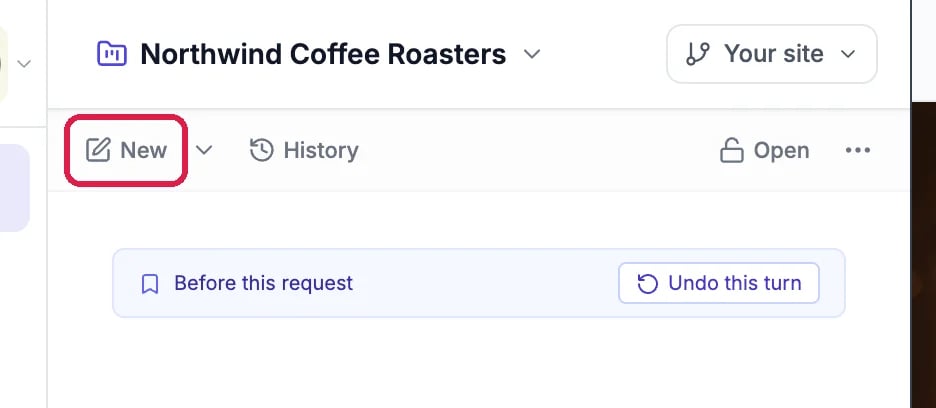
At the top of the chat, click New. Each new chat starts from a clean slate, which keeps the AI focused on one job. Your earlier chats stay under History.
The New button at the top of the chat
The arrow next to New offers two other kinds of chat: Private chat (only you can see it) and Temporary chat (deleted when you leave it).
2
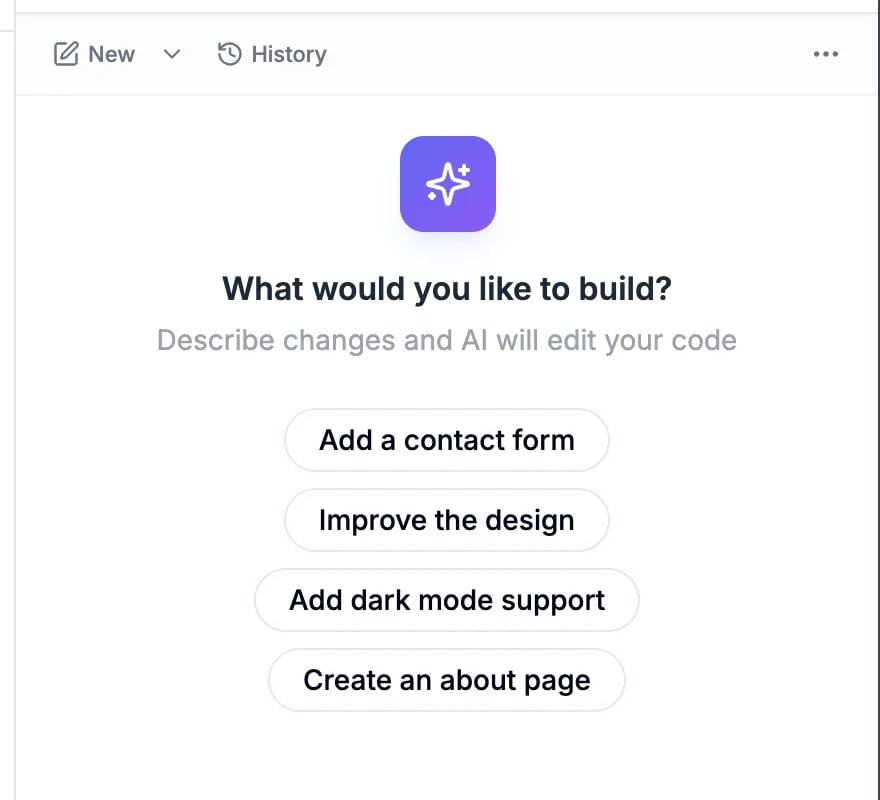
Look at the empty chat
A new chat asks What would you like to build? and offers a few ideas, such as Add a contact form. Click one to use it, or type your own request.
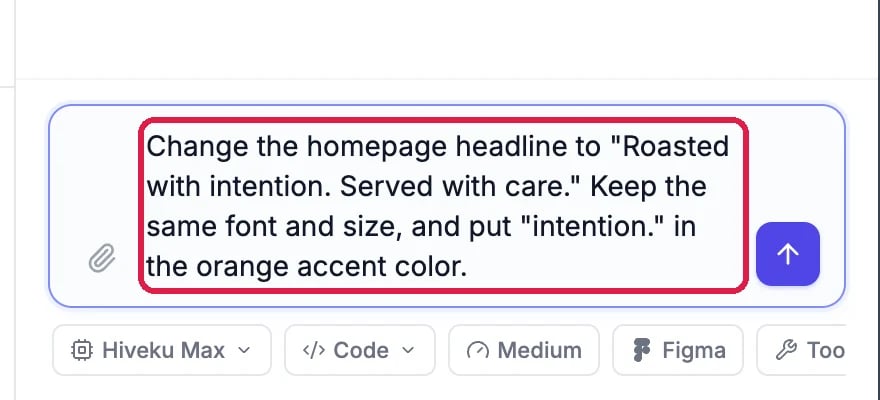
Click the box at the bottom of the chat (it says Describe your changes…) and write the change the way you would explain it to a person. Say what to change, what it should say, and anything that must stay the same.For Northwind we typed:
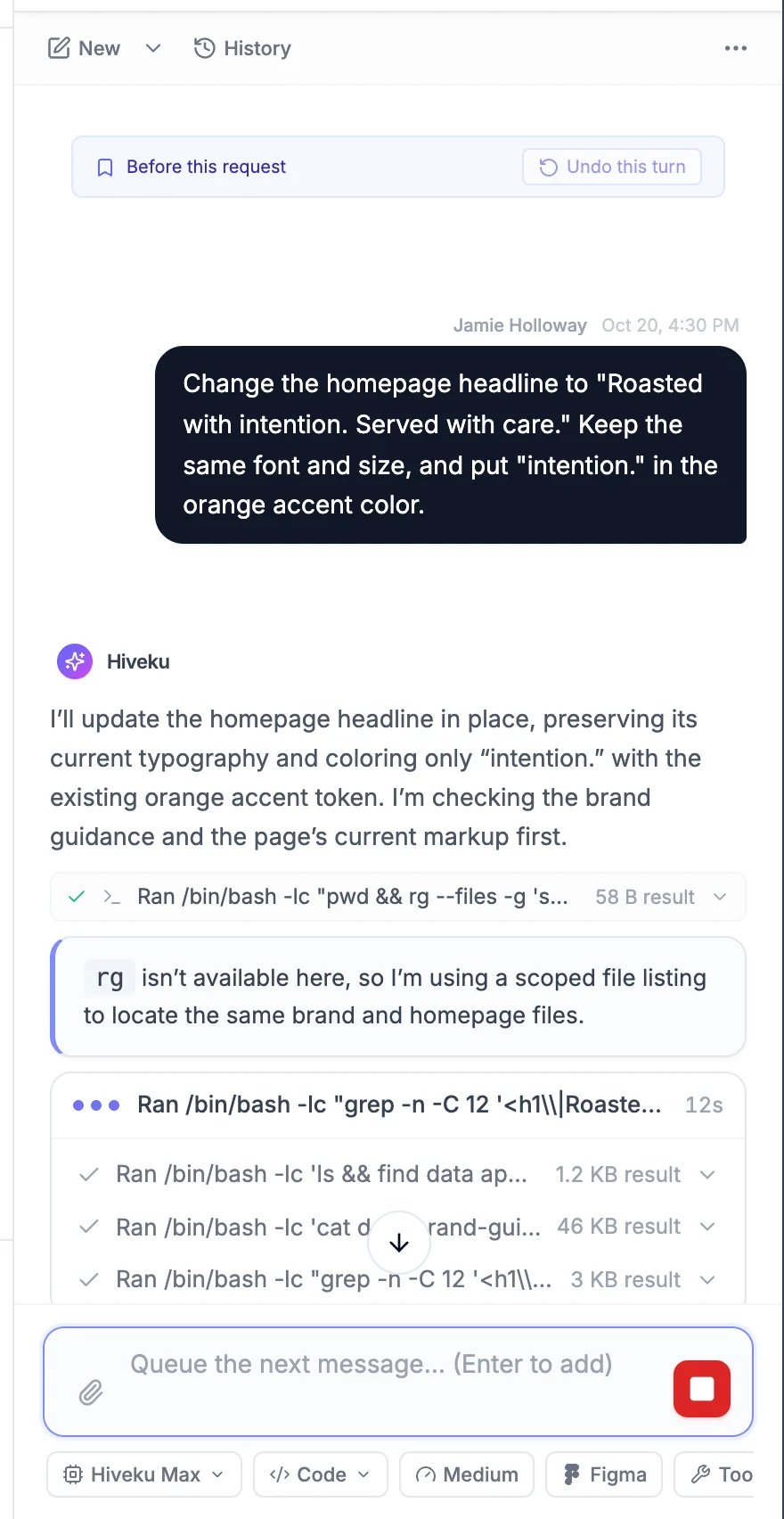
Change the homepage headline to "Roasted with intention. Served with care." Keep the same font and size, and put "intention." in the orange accent color.
The request typed into the chat box
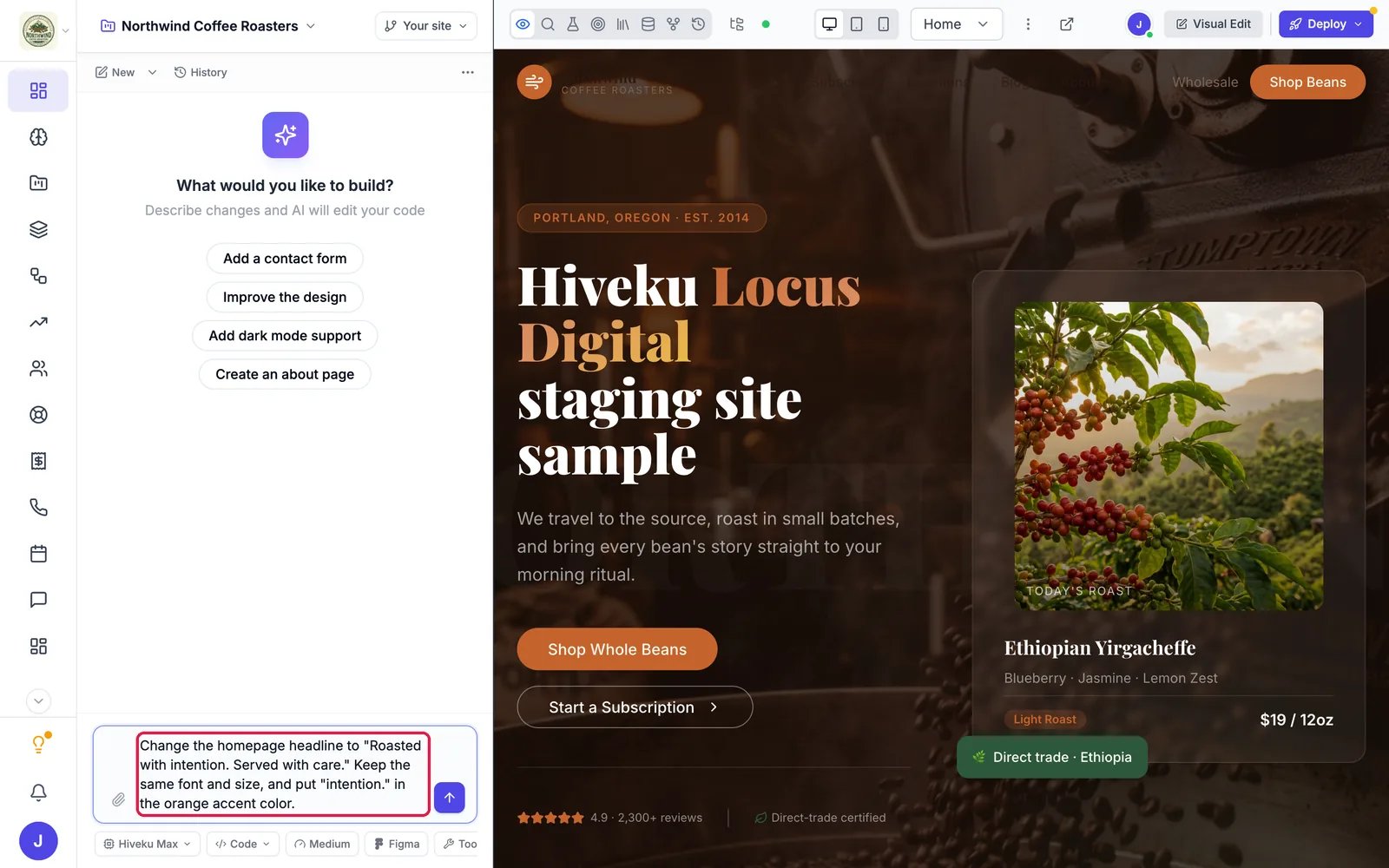
The whole builder with the request ready to send
2
Press Enter to send
Press Enter, or click the arrow button. (To start a new line instead, press Shift + Enter.)
The AI shows what it is doing while it works: a short plan, then each step it takes, such as reading a page or editing a file. Small changes like this one usually take about a minute. Bigger ones, like a whole new page, can take several minutes.
The AI working on the request
While it works:
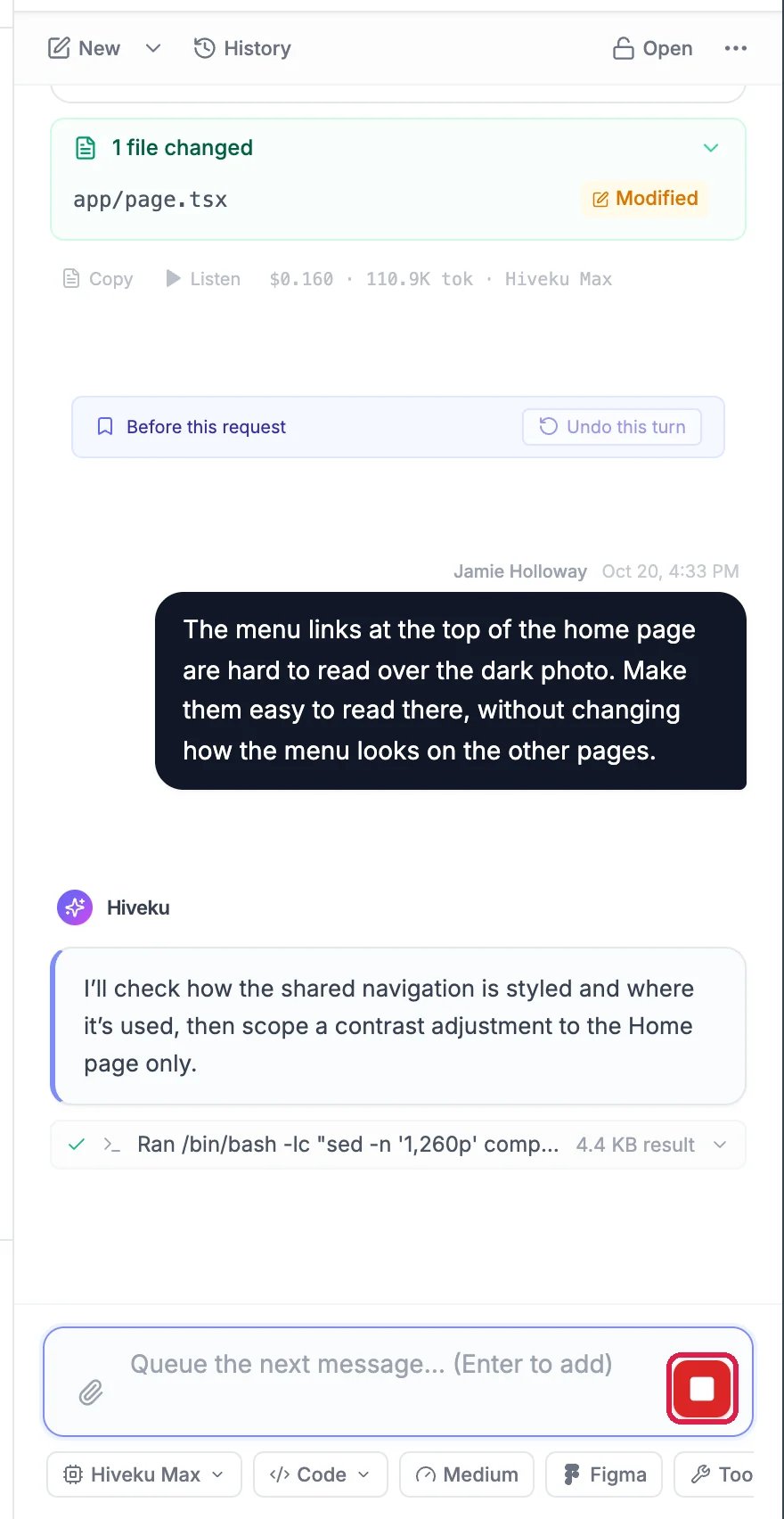
You can keep typing. The box now says Queue the next message. Anything you send waits and runs when this request finishes.
You can stop it. Click the red Stop button next to the chat box (or press Esc in the chat box). You are only charged for the work done so far.
You can leave the page. The request keeps going, and the result is in the chat when you come back.
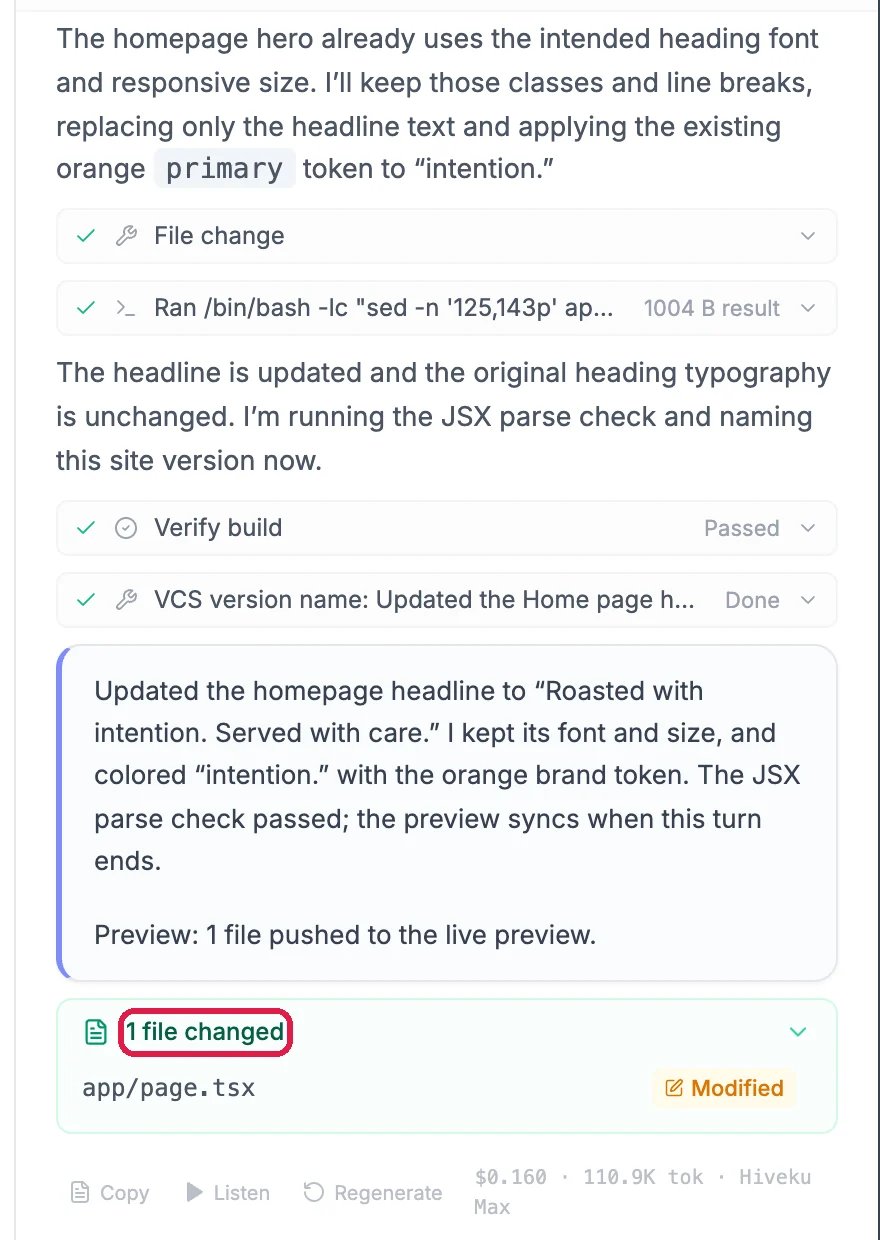
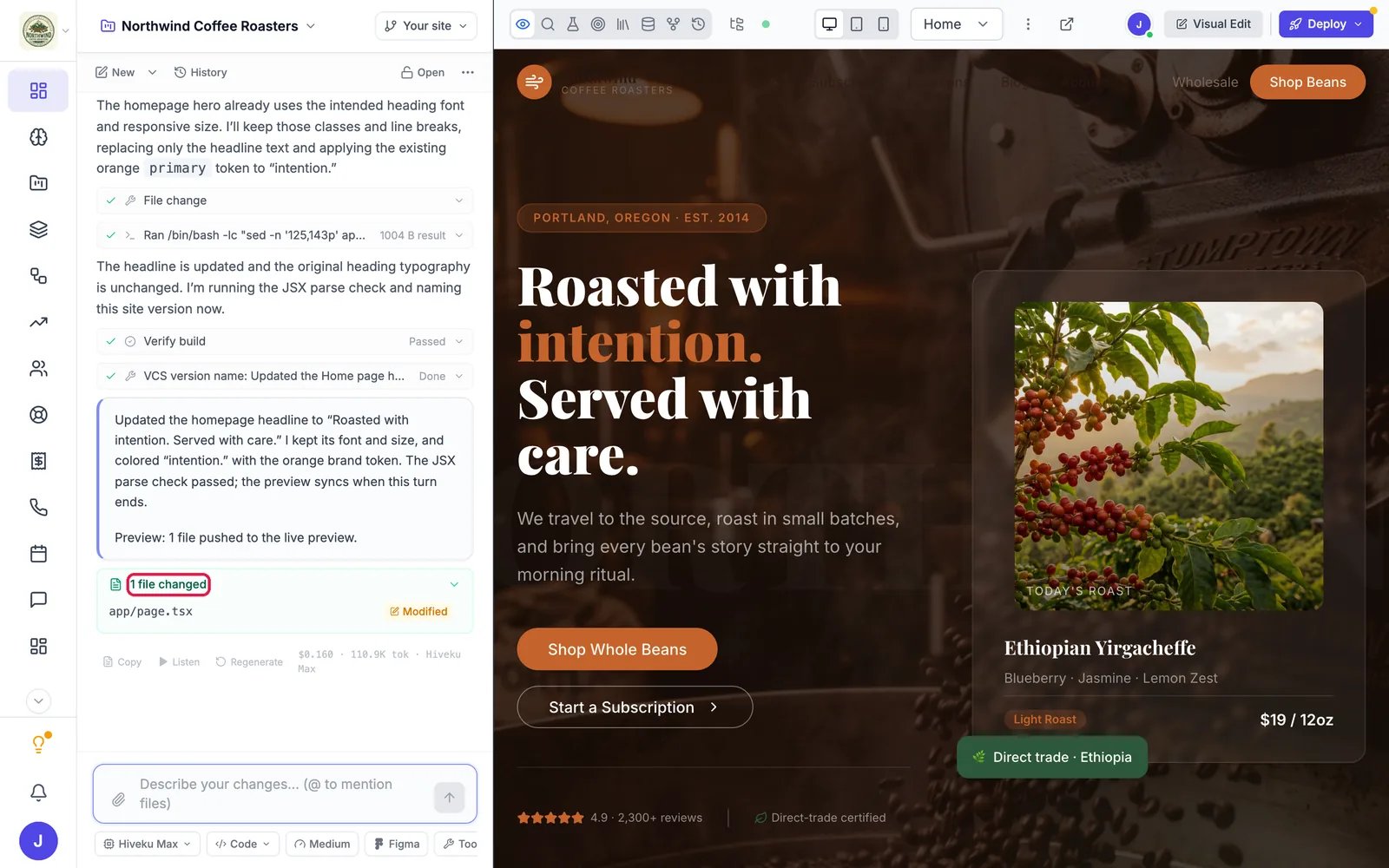
When the AI is done, it writes a short summary of what it changed. Under the summary, a green box lists the files it changed (here, 1 file changed). The preview on the right updates on its own.
The finished request: a summary and the list of changed files
The whole builder when the request is done
The new headline in the preview
Look the change over in the preview. If it is not quite right, just say so in the same chat (next section). If you do not want it at all, see Undo a Change.
The change is saved, but visitors do not see it yet. It reaches your live site when you publish.
The AI remembers everything said in the chat, so follow-up requests can be short.On the Northwind home page, the menu links at the top were dark brown on a dark photo and almost impossible to read:
Before: the menu links are hard to see
1
Describe the problem
You do not need to know how to fix it. Describe what you see and what you want:
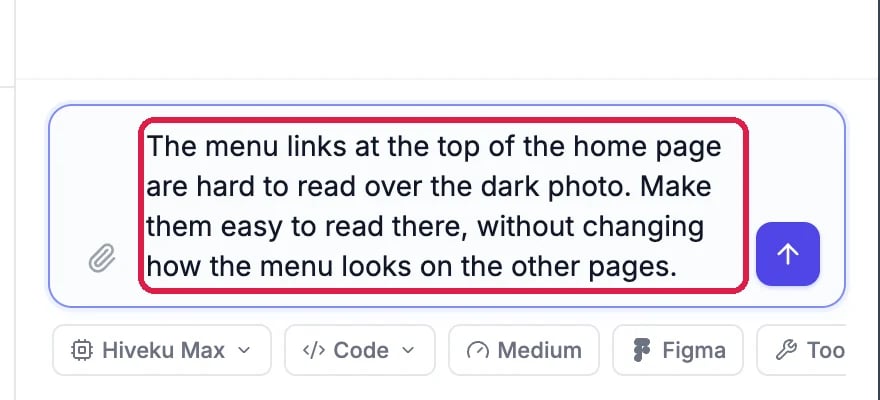
The menu links at the top of the home page are hard to read over the dark photo. Make them easy to read there, without changing how the menu looks on the other pages.
A follow-up request
2
Let it work
The Stop button (outlined) is there if you change your mind.
The AI working on the follow-up
After: the menu links are light
3
Refine until it is right
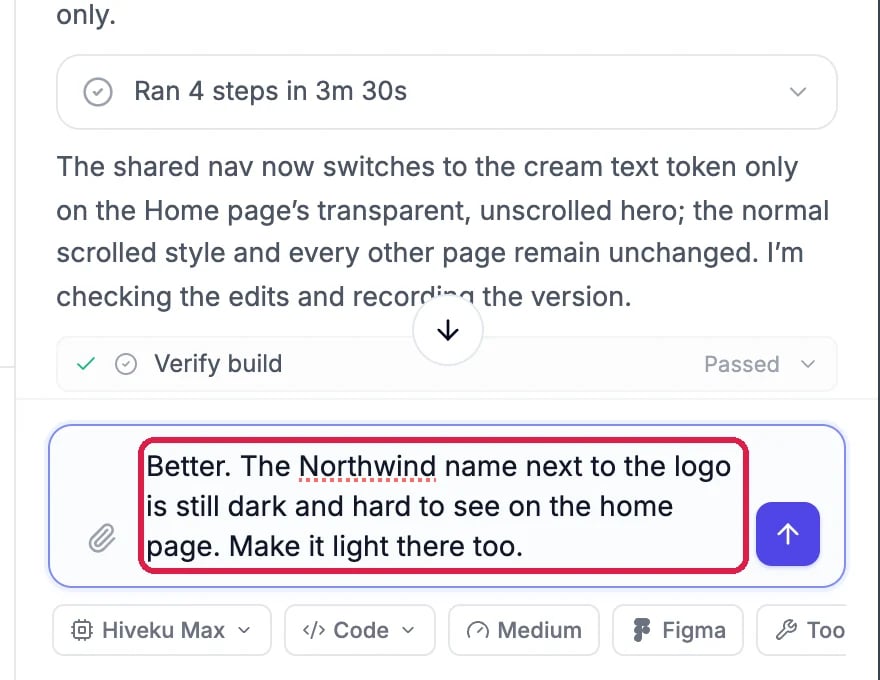
The links were fixed, but the Northwind name next to the logo was still dark. One more short message took care of it:
Better. The Northwind name next to the logo is still dark and hard to see on the home page. Make it light there too.
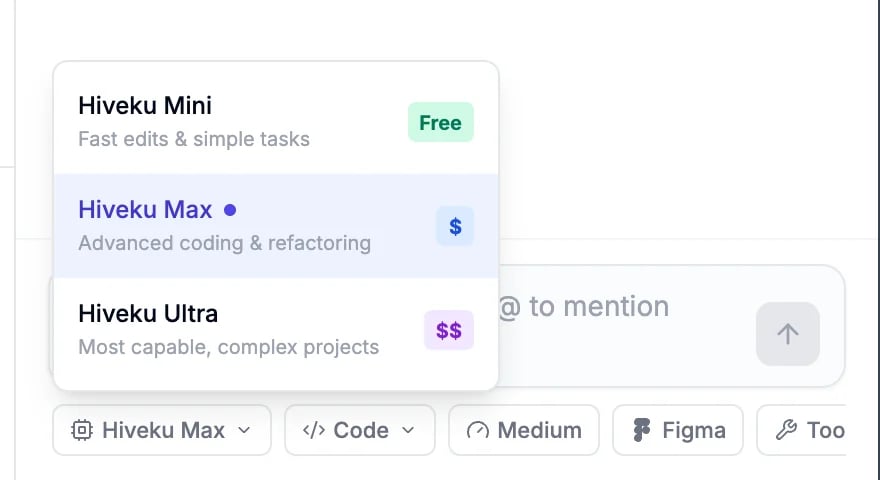
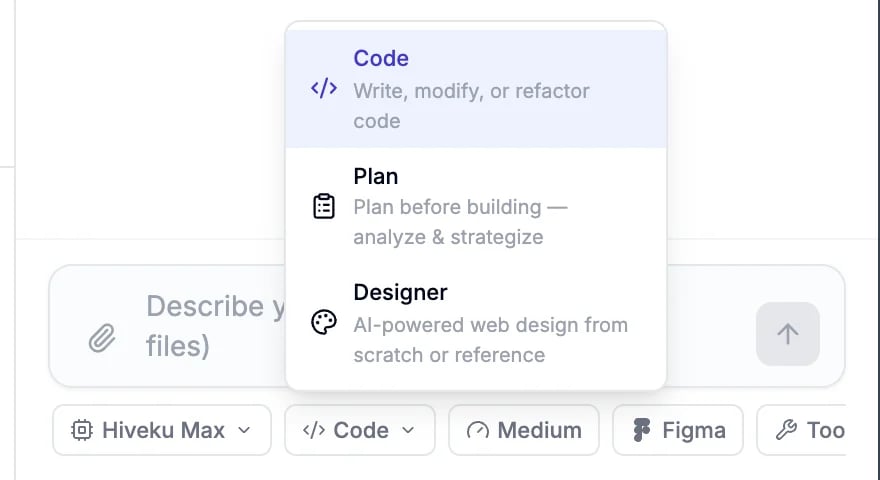
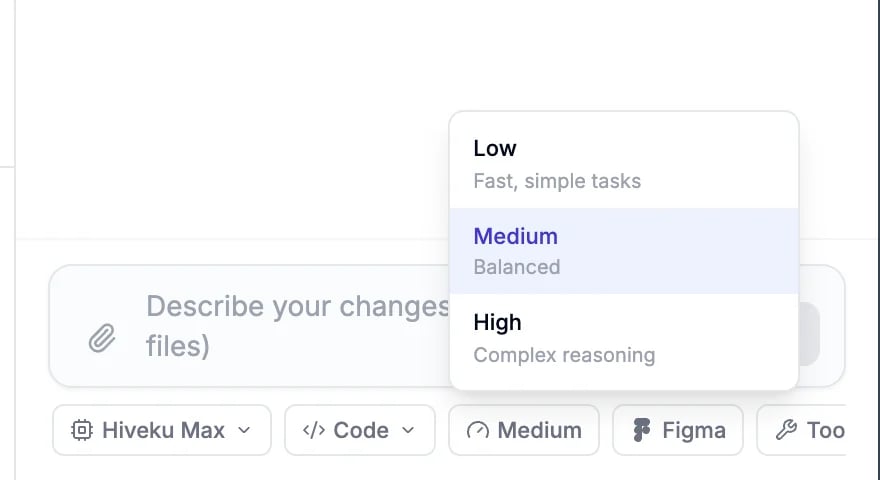
Under the chat box are three menus. You can leave them as they are for everyday changes.
Model
Hiveku Mini for fast, simple edits (free), Hiveku Max for advanced coding and bigger changes, and Hiveku Ultra for the most complex projects. Your plan decides which ones you can pick.
Mode
Code writes and changes your site (the default). Plan thinks a change through with you before building it. Designer designs pages from scratch or from a reference.
Effort
Low for fast, simple tasks, Medium for most work (the default), High for harder problems.
Attach pictures and files. Click the paperclip, drag files onto the chat, or paste them. A screenshot of something you like (or of something that looks wrong) is often the quickest way to explain it. You can attach up to 20 files to one message: pictures up to 20 MB each, PDFs, documents and audio up to 25 MB, and videos up to 50 MB.
Point at a file. Type @ and start typing a file name to pick a file for the AI to look at.
Use a command. Type / to see the commands, such as /clear to start a new chat, like New.
Change the words under the headline yourself, right on the page.
⌘I
{"docsConfig":{"theme":"maple","$schema":"https://mintlify.com/docs.json","name":"Hiveku Builder","colors":{"primary":"#F9A825","light":"#FBC02D","dark":"#F57F17"},"logo":{"light":"https://mintcdn.com/locusdigital/AodgChCDua_G2sAP/images/hiveku-logo-light.svg?fit=max\u0026auto=format\u0026n=AodgChCDua_G2sAP\u0026q=85\u0026s=5d69f2502059f8269d670b35be741ad2","dark":"https://mintcdn.com/locusdigital/AodgChCDua_G2sAP/images/hiveku-logo-dark.svg?fit=max\u0026auto=format\u0026n=AodgChCDua_G2sAP\u0026q=85\u0026s=a78cef8cf1c9ae13d3dcbe31c3ca498d","href":"https://hiveku.com"},"favicon":"https://mintcdn.com/locusdigital/AodgChCDua_G2sAP/images/favicon.svg?fit=max\u0026auto=format\u0026n=AodgChCDua_G2sAP\u0026q=85\u0026s=1b959fd7abfd376351a1216e201aa8cb","api":{},"appearance":{"default":"system"},"seo":{},"styling":{"latex":true},"navigation":{"global":{"anchors":[{"anchor":"Changelog","icon":"list","href":"/changelog"},{"anchor":"App","icon":"arrow-up-right-from-square","href":"https://app.hiveku.com"}]},"pages":[]}},"deployment":{"deploymentMetadataValue":{"subdomain":"locusdigital","hasAudioNarration":false,"actualSubdomain":"locusdigital","customDomains":["docs.hiveku.com"],"gitSource":{"type":"github","owner":"locus2012","repo":"hiveku_docs","deployBranch":"main","contentDirectory":"","isPrivate":true,"mountPath":"","label":""},"chroma":{"liveDeploymentHistoryId":"6ad7f784dabdb46dd298512d","collectionId":"9007f4c5-160e-4969-aeb2-d52b1862e501","schemaVersion":"v3","latestBuiltDeploymentHistoryId":"6ad7f784dabdb46dd298512d"},"entitlements":{"AI_CHAT":{"status":"DISABLED"}},"buildId":"6ad7f784dabdb46dd298512d","clientVersion":"0.0.3908","searchFilterCounts":[{"language":"default","tag":"Documentation","count":330},{"language":"default","tag":"How-Tos","count":140},{"language":"default","tag":"Growing Your Business","count":62},{"language":"default","tag":"Integrations","count":25},{"language":"default","tag":"Publishing","count":18},{"language":"default","tag":"Integrations \u0026 BYOK","count":16},{"language":"default","tag":"Helpdesk","count":15},{"language":"default","tag":"Workflow Recipes","count":15},{"language":"default","tag":"Marketing Delivery","count":12},{"language":"default","tag":"API Reference","count":11}]},"assistantConfig":{"enableAskAiButton":false,"enableStarterQuestions":false,"enableContextualStarterQuestions":false,"enableAskAiSearchBar":true},"hasChatPermissions":false,"hasWebMcpPermissions":false,"toggles":[{"name":"kill-isr","enabled":true,"variant":{"name":"disabled","enabled":false,"feature_enabled":true},"impressionData":false},{"name":"agent-mintlify-slack","enabled":true,"variant":{"name":"disabled","enabled":false,"feature_enabled":true},"impressionData":false},{"name":"editor-v7-file-tree","enabled":true,"variant":{"name":"disabled","enabled":false,"feature_enabled":true},"impressionData":false},{"name":"agent-integrations-settings","enabled":true,"variant":{"name":"disabled","enabled":false,"feature_enabled":true},"impressionData":false},{"name":"automations-pr-grouping","enabled":true,"variant":{"name":"disabled","enabled":false,"feature_enabled":true},"impressionData":false},{"name":"custom-prefix","enabled":true,"variant":{"name":"disabled","enabled":false,"feature_enabled":true},"impressionData":false},{"name":"analytics-v7","enabled":true,"variant":{"name":"disabled","enabled":false,"feature_enabled":true},"impressionData":false},{"name":"user-flows-analytics","enabled":true,"variant":{"name":"disabled","enabled":false,"feature_enabled":true},"impressionData":false},{"name":"no-publish-flow","enabled":true,"variant":{"name":"disabled","enabled":false,"feature_enabled":true},"impressionData":false},{"name":"workos-onboarding","enabled":true,"variant":{"name":"disabled","enabled":false,"feature_enabled":true},"impressionData":false},{"name":"llms-txt-v2","enabled":true,"variant":{"name":"disabled","enabled":false,"feature_enabled":true},"impressionData":false},{"name":"pause-universal-search-reconcile","enabled":true,"variant":{"name":"disabled","enabled":false,"feature_enabled":true},"impressionData":false},{"name":"snapshot-serving-live","enabled":true,"variant":{"name":"disabled","enabled":false,"feature_enabled":true},"impressionData":false},{"name":"stripTemperatureMiddleware","enabled":true,"variant":{"name":"disabled","enabled":false,"feature_enabled":true},"impressionData":false},{"name":"per-site-search-delta","enabled":true,"variant":{"name":"disabled","enabled":false,"feature_enabled":true},"impressionData":false},{"name":"support-platform-pylon-zendesk","enabled":true,"variant":{"name":"disabled","enabled":false,"feature_enabled":true},"impressionData":false},{"name":"editor-branches-v2-autocommit","enabled":true,"variant":{"name":"disabled","enabled":false,"feature_enabled":true},"impressionData":false},{"name":"editor-branches-v2","enabled":true,"variant":{"name":"disabled","enabled":false,"feature_enabled":true},"impressionData":false},{"name":"snapshot-serving","enabled":true,"variant":{"name":"disabled","enabled":false,"feature_enabled":true},"impressionData":false},{"name":"instant-rollback","enabled":true,"variant":{"name":"disabled","enabled":false,"feature_enabled":true},"impressionData":false},{"name":"granular-notifications-server","enabled":true,"variant":{"name":"disabled","enabled":false,"feature_enabled":true},"impressionData":false},{"name":"granular-notifications","enabled":true,"variant":{"name":"disabled","enabled":false,"feature_enabled":true},"impressionData":false},{"name":"editor-private-page-search","enabled":true,"variant":{"name":"disabled","enabled":false,"feature_enabled":true},"impressionData":false},{"name":"automations-fable","enabled":true,"variant":{"name":"disabled","enabled":false,"feature_enabled":true},"impressionData":false},{"name":"fixed-ai-action-pricing","enabled":true,"variant":{"name":"disabled","enabled":false,"feature_enabled":true},"impressionData":false},{"name":"automation-resolve-merge-conflict","enabled":true,"variant":{"name":"disabled","enabled":false,"feature_enabled":true},"impressionData":false},{"name":"scoped-publishing","enabled":true,"variant":{"name":"disabled","enabled":false,"feature_enabled":true},"impressionData":false},{"name":"mintql","enabled":true,"variant":{"name":"disabled","enabled":false,"feature_enabled":true},"impressionData":false},{"name":"page-level-analytics","enabled":true,"variant":{"name":"disabled","enabled":false,"feature_enabled":true},"impressionData":false},{"name":"teamspace","enabled":true,"variant":{"name":"disabled","enabled":false,"feature_enabled":true},"impressionData":false},{"name":"editor-version-history-v2","enabled":true,"variant":{"name":"disabled","enabled":false,"feature_enabled":true},"impressionData":false},{"name":"vite-origin","enabled":true,"variant":{"name":"disabled","enabled":false,"feature_enabled":true},"impressionData":false},{"name":"editor-nav-generations","enabled":true,"variant":{"name":"disabled","enabled":false,"feature_enabled":true},"impressionData":false},{"name":"billing-page-v2","enabled":true,"variant":{"name":"disabled","enabled":false,"feature_enabled":true},"impressionData":false},{"name":"workspace-projects","enabled":true,"variant":{"name":"disabled","enabled":false,"feature_enabled":true},"impressionData":false},{"name":"assistant-v5","enabled":true,"variant":{"name":"disabled","enabled":false,"feature_enabled":true},"impressionData":false},{"name":"byok-sep-25","enabled":true,"variant":{"name":"disabled","enabled":false,"feature_enabled":true},"impressionData":false},{"name":"fork-pr-previews","enabled":true,"variant":{"name":"disabled","enabled":false,"feature_enabled":true},"impressionData":false},{"name":"revalidation-jwt","enabled":true,"variant":{"name":"disabled","enabled":false,"feature_enabled":true},"impressionData":false},{"name":"editor-agent-model-picker","enabled":true,"variant":{"name":"disabled","enabled":false,"feature_enabled":true},"impressionData":false},{"name":"client-snapshot-docs-config","enabled":true,"variant":{"name":"disabled","enabled":false,"feature_enabled":true},"impressionData":false},{"name":"hobby-abuse-scan","enabled":true,"variant":{"name":"disabled","enabled":false,"feature_enabled":true},"impressionData":false},{"name":"dashboard-inbox","enabled":true,"variant":{"name":"disabled","enabled":false,"feature_enabled":true},"impressionData":false}],"isAtlas":false,"googleFontsInlined":false},"customCss":[],"page":{"pagePath":"how-tos/site-builder/change-with-ai","slug":"/how-tos/site-builder/change-with-ai","pageMetadata":{"title":"Make a Change with the AI Chat","sidebarTitle":"2. Change with AI","description":"Start a new chat, describe a change in plain words, watch the AI make it, and keep refining it","href":"/how-tos/site-builder/change-with-ai"},"description":{"compiledSource":"\"use strict\";\nconst {jsx: _jsx} = arguments[0];\nconst {useMDXComponents: _provideComponents} = arguments[0];\nfunction _createMdxContent(props) {\n const _components = {\n p: \"p\",\n ..._provideComponents(),\n ...props.components\n };\n return _jsx(_components.p, {\n children: \"Start a new chat, describe a change in plain words, watch the AI make it, and keep refining it\"\n });\n}\nfunction MDXContent(props = {}) {\n const {wrapper: MDXLayout} = {\n ..._provideComponents(),\n ...props.components\n };\n return MDXLayout ? _jsx(MDXLayout, {\n ...props,\n children: _jsx(_createMdxContent, {\n ...props\n })\n }) : _createMdxContent(props);\n}\nreturn {\n default: MDXContent\n};\n","frontmatter":{},"scope":{}},"pageType":"default","mdx":{"mdxSource":{"compiledSource":"\"use strict\";const{Fragment:_Fragment,jsx:_jsx,jsxs:_jsxs}=arguments[0];const{useMDXComponents:_provideComponents}=arguments[0];function _createMdxContent(props){const _components={a:`a`,code:`code`,li:`li`,p:`p`,pre:`pre`,span:`span`,strong:`strong`,ul:`ul`,..._provideComponents(),...props.components},{Card,CardGroup,CodeBlock,Frame,Heading,Note,OptimizedImage,Step,Steps}=_components;if(!Card)_missingMdxReference(`Card`,true);if(!CardGroup)_missingMdxReference(`CardGroup`,true);if(!CodeBlock)_missingMdxReference(`CodeBlock`,true);if(!Frame)_missingMdxReference(`Frame`,true);if(!Heading)_missingMdxReference(`Heading`,true);if(!Note)_missingMdxReference(`Note`,true);if(!OptimizedImage)_missingMdxReference(`OptimizedImage`,true);if(!Step)_missingMdxReference(`Step`,true);if(!Steps)_missingMdxReference(`Steps`,true);return _jsxs(_Fragment,{children:[_jsx(_components.p,{children:`The chat on the left of the builder is the fastest way to change your site. You describe what you want, the AI edits your site, and the preview on the right updates when it is done.`}),`\n`,_jsx(_components.p,{children:`In this example we replace the Northwind home page headline, then fix a menu that is hard to read.`}),`\n`,_jsx(Heading,{level:`2`,id:`start-a-new-chat`,children:`Start a new chat`}),`\n`,_jsxs(Steps,{children:[_jsxs(Step,{title:`Click New`,children:[_jsxs(_components.p,{children:[`At the top of the chat, click `,_jsx(_components.strong,{children:`New`}),`. Each new chat starts from a clean slate, which keeps the AI focused on one job. Your earlier chats stay under `,_jsx(_components.strong,{children:`History`}),`.`]}),_jsx(Frame,{caption:`The New button at the top of the chat`,children:_jsx(OptimizedImage,{src:`https://mintcdn.com/locusdigital/HHtyEzypiRRWLDpM/images/how-tos/site-builder/ai-01-new-chat-button-closeup.webp?fit=max\u0026auto=format\u0026n=HHtyEzypiRRWLDpM\u0026q=85\u0026s=7e4bc04e09cab69de2bfcb812e5e361e`,alt:`The top of the chat panel with the New button outlined, next to History`,width:`468`,\"data-og-width\":`936`,\"data-og-height\":`408`,\"data-path\":`images/how-tos/site-builder/ai-01-new-chat-button-closeup.webp`,\"data-optimize\":`true`,\"data-opv\":`3`,srcset:`https://mintcdn.com/locusdigital/HHtyEzypiRRWLDpM/images/how-tos/site-builder/ai-01-new-chat-button-closeup.webp?w=280\u0026fit=max\u0026auto=format\u0026n=HHtyEzypiRRWLDpM\u0026q=85\u0026s=e182a73f3c5442a8d0f4f5d44f42ad04 280w, https://mintcdn.com/locusdigital/HHtyEzypiRRWLDpM/images/how-tos/site-builder/ai-01-new-chat-button-closeup.webp?w=560\u0026fit=max\u0026auto=format\u0026n=HHtyEzypiRRWLDpM\u0026q=85\u0026s=f020d4c6e7c64445b815c3c5480c84fb 560w, https://mintcdn.com/locusdigital/HHtyEzypiRRWLDpM/images/how-tos/site-builder/ai-01-new-chat-button-closeup.webp?w=840\u0026fit=max\u0026auto=format\u0026n=HHtyEzypiRRWLDpM\u0026q=85\u0026s=72e7c414cc682838a1b2add99fed3207 840w, https://mintcdn.com/locusdigital/HHtyEzypiRRWLDpM/images/how-tos/site-builder/ai-01-new-chat-button-closeup.webp?w=1100\u0026fit=max\u0026auto=format\u0026n=HHtyEzypiRRWLDpM\u0026q=85\u0026s=f8f5a6bfdb58ae0587417a0242024e4d 1100w, https://mintcdn.com/locusdigital/HHtyEzypiRRWLDpM/images/how-tos/site-builder/ai-01-new-chat-button-closeup.webp?w=1650\u0026fit=max\u0026auto=format\u0026n=HHtyEzypiRRWLDpM\u0026q=85\u0026s=a257ef6c99a3267dfec171b11b546ae8 1650w, https://mintcdn.com/locusdigital/HHtyEzypiRRWLDpM/images/how-tos/site-builder/ai-01-new-chat-button-closeup.webp?w=2500\u0026fit=max\u0026auto=format\u0026n=HHtyEzypiRRWLDpM\u0026q=85\u0026s=6b363653862fec52301c994c01272f00 2500w`})}),_jsxs(_components.p,{children:[`The arrow next to `,_jsx(_components.strong,{children:`New`}),` offers two other kinds of chat: `,_jsx(_components.strong,{children:`Private chat`}),` (only you can see it) and `,_jsx(_components.strong,{children:`Temporary chat`}),` (deleted when you leave it).`]})]}),_jsxs(Step,{title:`Look at the empty chat`,children:[_jsxs(_components.p,{children:[`A new chat asks `,_jsx(_components.strong,{children:`What would you like to build?`}),` and offers a few ideas, such as `,_jsx(_components.strong,{children:`Add a contact form`}),`. Click one to use it, or type your own request.`]}),_jsx(Frame,{caption:`A new, empty chat`,children:_jsx(OptimizedImage,{src:`https://mintcdn.com/locusdigital/HHtyEzypiRRWLDpM/images/how-tos/site-builder/ai-02-empty-chat-closeup.webp?fit=max\u0026auto=format\u0026n=HHtyEzypiRRWLDpM\u0026q=85\u0026s=971548d831741c78d1774da64246a731`,alt:`An empty chat that asks What would you like to build? with four suggested requests`,width:`440`,\"data-og-width\":`880`,\"data-og-height\":`800`,\"data-path\":`images/how-tos/site-builder/ai-02-empty-chat-closeup.webp`,\"data-optimize\":`true`,\"data-opv\":`3`,srcset:`https://mintcdn.com/locusdigital/HHtyEzypiRRWLDpM/images/how-tos/site-builder/ai-02-empty-chat-closeup.webp?w=280\u0026fit=max\u0026auto=format\u0026n=HHtyEzypiRRWLDpM\u0026q=85\u0026s=a5c567ce8096cc5167de192413953e83 280w, https://mintcdn.com/locusdigital/HHtyEzypiRRWLDpM/images/how-tos/site-builder/ai-02-empty-chat-closeup.webp?w=560\u0026fit=max\u0026auto=format\u0026n=HHtyEzypiRRWLDpM\u0026q=85\u0026s=fa835447507554763c46838c578ff9f9 560w, https://mintcdn.com/locusdigital/HHtyEzypiRRWLDpM/images/how-tos/site-builder/ai-02-empty-chat-closeup.webp?w=840\u0026fit=max\u0026auto=format\u0026n=HHtyEzypiRRWLDpM\u0026q=85\u0026s=30de60a3b4394b480cc49181c2e71297 840w, https://mintcdn.com/locusdigital/HHtyEzypiRRWLDpM/images/how-tos/site-builder/ai-02-empty-chat-closeup.webp?w=1100\u0026fit=max\u0026auto=format\u0026n=HHtyEzypiRRWLDpM\u0026q=85\u0026s=3853e9ada19b2da010ca7b8143351b21 1100w, https://mintcdn.com/locusdigital/HHtyEzypiRRWLDpM/images/how-tos/site-builder/ai-02-empty-chat-closeup.webp?w=1650\u0026fit=max\u0026auto=format\u0026n=HHtyEzypiRRWLDpM\u0026q=85\u0026s=838aaf38d6e30eb4dc3e07bde6fa25d4 1650w, https://mintcdn.com/locusdigital/HHtyEzypiRRWLDpM/images/how-tos/site-builder/ai-02-empty-chat-closeup.webp?w=2500\u0026fit=max\u0026auto=format\u0026n=HHtyEzypiRRWLDpM\u0026q=85\u0026s=b3686bef9bd329604960936f2e008262 2500w`})})]})]}),`\n`,_jsx(Heading,{level:`2`,id:`describe-the-change`,children:`Describe the change`}),`\n`,_jsxs(Steps,{children:[_jsxs(Step,{title:`Type what you want`,children:[_jsxs(_components.p,{children:[`Click the box at the bottom of the chat (it says `,_jsx(_components.strong,{children:`Describe your changes…`}),`) and write the change the way you would explain it to a person. Say what to change, what it should say, and anything that must stay the same.`]}),_jsx(_components.p,{children:`For Northwind we typed:`}),_jsx(CodeBlock,{filename:``,wrap:`true`,numberOfLines:`2`,language:`text`,children:_jsx(_components.pre,{className:`shiki shiki-themes github-light-default dark-plus`,style:{backgroundColor:`#ffffff`,\"--shiki-dark-bg\":`#0B0C0E`,color:`#1f2328`,\"--shiki-dark\":`#D4D4D4`},language:`text`,children:_jsxs(_components.code,{language:`text`,numberOfLines:`2`,children:[_jsx(_components.span,{className:`line`,children:_jsx(_components.span,{children:`Change the homepage headline to \"Roasted with intention. Served with care.\" Keep the same font and size, and put \"intention.\" in the orange accent color.`})}),`\n`,_jsx(_components.span,{className:`line`,children:_jsx(_components.span,{})})]})})}),_jsx(Frame,{caption:`The request typed into the chat box`,children:_jsx(OptimizedImage,{src:`https://mintcdn.com/locusdigital/HHtyEzypiRRWLDpM/images/how-tos/site-builder/ai-03-type-request-closeup.webp?fit=max\u0026auto=format\u0026n=HHtyEzypiRRWLDpM\u0026q=85\u0026s=20b335030be6718e85089f51e5bb5f02`,alt:`The chat box with the headline request typed in and the send arrow highlighted`,width:`440`,\"data-og-width\":`880`,\"data-og-height\":`400`,\"data-path\":`images/how-tos/site-builder/ai-03-type-request-closeup.webp`,\"data-optimize\":`true`,\"data-opv\":`3`,srcset:`https://mintcdn.com/locusdigital/HHtyEzypiRRWLDpM/images/how-tos/site-builder/ai-03-type-request-closeup.webp?w=280\u0026fit=max\u0026auto=format\u0026n=HHtyEzypiRRWLDpM\u0026q=85\u0026s=19ffa7116a0225da2a83b311c01eb2f0 280w, https://mintcdn.com/locusdigital/HHtyEzypiRRWLDpM/images/how-tos/site-builder/ai-03-type-request-closeup.webp?w=560\u0026fit=max\u0026auto=format\u0026n=HHtyEzypiRRWLDpM\u0026q=85\u0026s=f1ec2ec389c2872a631cb67b4478559f 560w, https://mintcdn.com/locusdigital/HHtyEzypiRRWLDpM/images/how-tos/site-builder/ai-03-type-request-closeup.webp?w=840\u0026fit=max\u0026auto=format\u0026n=HHtyEzypiRRWLDpM\u0026q=85\u0026s=6833c7f1ac788ab630b80d135829a46f 840w, https://mintcdn.com/locusdigital/HHtyEzypiRRWLDpM/images/how-tos/site-builder/ai-03-type-request-closeup.webp?w=1100\u0026fit=max\u0026auto=format\u0026n=HHtyEzypiRRWLDpM\u0026q=85\u0026s=2c0abbbc4cbe1d907646dcb648776ef2 1100w, https://mintcdn.com/locusdigital/HHtyEzypiRRWLDpM/images/how-tos/site-builder/ai-03-type-request-closeup.webp?w=1650\u0026fit=max\u0026auto=format\u0026n=HHtyEzypiRRWLDpM\u0026q=85\u0026s=2f5d5ff020b733a400605fbf6f6b3011 1650w, https://mintcdn.com/locusdigital/HHtyEzypiRRWLDpM/images/how-tos/site-builder/ai-03-type-request-closeup.webp?w=2500\u0026fit=max\u0026auto=format\u0026n=HHtyEzypiRRWLDpM\u0026q=85\u0026s=2599025793f9e6acf152fa7569f2cfce 2500w`})}),_jsx(Frame,{caption:`The whole builder with the request ready to send`,children:_jsx(OptimizedImage,{src:`https://mintcdn.com/locusdigital/HHtyEzypiRRWLDpM/images/how-tos/site-builder/ai-03-type-request.webp?fit=max\u0026auto=format\u0026n=HHtyEzypiRRWLDpM\u0026q=85\u0026s=716cf9988775c6740154affdbfe0bf72`,alt:`The site builder with the request typed in the chat box and the old headline still showing in the preview`,\"data-og-width\":`1600`,width:`1600`,\"data-og-height\":`1000`,height:`1000`,\"data-path\":`images/how-tos/site-builder/ai-03-type-request.webp`,\"data-optimize\":`true`,\"data-opv\":`3`,srcset:`https://mintcdn.com/locusdigital/HHtyEzypiRRWLDpM/images/how-tos/site-builder/ai-03-type-request.webp?w=280\u0026fit=max\u0026auto=format\u0026n=HHtyEzypiRRWLDpM\u0026q=85\u0026s=4600a3f0f6506c510396292424d5de6b 280w, https://mintcdn.com/locusdigital/HHtyEzypiRRWLDpM/images/how-tos/site-builder/ai-03-type-request.webp?w=560\u0026fit=max\u0026auto=format\u0026n=HHtyEzypiRRWLDpM\u0026q=85\u0026s=b4f054afd094fbd1995f597fcc87bc46 560w, https://mintcdn.com/locusdigital/HHtyEzypiRRWLDpM/images/how-tos/site-builder/ai-03-type-request.webp?w=840\u0026fit=max\u0026auto=format\u0026n=HHtyEzypiRRWLDpM\u0026q=85\u0026s=b70fa9fbd3fc3899f2ebdd08b7c54205 840w, https://mintcdn.com/locusdigital/HHtyEzypiRRWLDpM/images/how-tos/site-builder/ai-03-type-request.webp?w=1100\u0026fit=max\u0026auto=format\u0026n=HHtyEzypiRRWLDpM\u0026q=85\u0026s=b986a796fcc0dfe8b3a8d3290a059c17 1100w, https://mintcdn.com/locusdigital/HHtyEzypiRRWLDpM/images/how-tos/site-builder/ai-03-type-request.webp?w=1650\u0026fit=max\u0026auto=format\u0026n=HHtyEzypiRRWLDpM\u0026q=85\u0026s=22088becac8db1d69d78b47f3946a483 1650w, https://mintcdn.com/locusdigital/HHtyEzypiRRWLDpM/images/how-tos/site-builder/ai-03-type-request.webp?w=2500\u0026fit=max\u0026auto=format\u0026n=HHtyEzypiRRWLDpM\u0026q=85\u0026s=fab477e6bf17294991123a0f641284ba 2500w`})})]}),_jsx(Step,{title:`Press Enter to send`,children:_jsxs(_components.p,{children:[`Press `,_jsx(_components.strong,{children:`Enter`}),`, or click the arrow button. (To start a new line instead, press `,_jsx(_components.strong,{children:`Shift + Enter`}),`.)`]})})]}),`\n`,_jsx(Heading,{level:`2`,id:`watch-the-ai-work`,children:`Watch the AI work`}),`\n`,_jsx(_components.p,{children:`The AI shows what it is doing while it works: a short plan, then each step it takes, such as reading a page or editing a file. Small changes like this one usually take about a minute. Bigger ones, like a whole new page, can take several minutes.`}),`\n`,_jsx(Frame,{caption:`The AI working on the request`,children:_jsx(OptimizedImage,{src:`https://mintcdn.com/locusdigital/HHtyEzypiRRWLDpM/images/how-tos/site-builder/ai-04-working-closeup.webp?fit=max\u0026auto=format\u0026n=HHtyEzypiRRWLDpM\u0026q=85\u0026s=12dc4c585bde16bde9ae1e9598e7e2db`,alt:`The chat while the AI works: its plan, a list of steps, and the chat box now saying Queue the next message`,width:`440`,\"data-og-width\":`880`,\"data-og-height\":`1704`,\"data-path\":`images/how-tos/site-builder/ai-04-working-closeup.webp`,\"data-optimize\":`true`,\"data-opv\":`3`,srcset:`https://mintcdn.com/locusdigital/HHtyEzypiRRWLDpM/images/how-tos/site-builder/ai-04-working-closeup.webp?w=280\u0026fit=max\u0026auto=format\u0026n=HHtyEzypiRRWLDpM\u0026q=85\u0026s=746c510cf53f7790ae15d13357947ad9 280w, https://mintcdn.com/locusdigital/HHtyEzypiRRWLDpM/images/how-tos/site-builder/ai-04-working-closeup.webp?w=560\u0026fit=max\u0026auto=format\u0026n=HHtyEzypiRRWLDpM\u0026q=85\u0026s=f7483289a03dae1f80f1a042f806ab8e 560w, https://mintcdn.com/locusdigital/HHtyEzypiRRWLDpM/images/how-tos/site-builder/ai-04-working-closeup.webp?w=840\u0026fit=max\u0026auto=format\u0026n=HHtyEzypiRRWLDpM\u0026q=85\u0026s=cebc91124efe2e01ab6298636bdbc0bf 840w, https://mintcdn.com/locusdigital/HHtyEzypiRRWLDpM/images/how-tos/site-builder/ai-04-working-closeup.webp?w=1100\u0026fit=max\u0026auto=format\u0026n=HHtyEzypiRRWLDpM\u0026q=85\u0026s=61f274934a84de9d206553999b70a9e9 1100w, https://mintcdn.com/locusdigital/HHtyEzypiRRWLDpM/images/how-tos/site-builder/ai-04-working-closeup.webp?w=1650\u0026fit=max\u0026auto=format\u0026n=HHtyEzypiRRWLDpM\u0026q=85\u0026s=7cad41591eb2a9113f69be5a08fbe91a 1650w, https://mintcdn.com/locusdigital/HHtyEzypiRRWLDpM/images/how-tos/site-builder/ai-04-working-closeup.webp?w=2500\u0026fit=max\u0026auto=format\u0026n=HHtyEzypiRRWLDpM\u0026q=85\u0026s=ebd4b108361ffb8ef75c237e7c6e4bc0 2500w`})}),`\n`,_jsx(_components.p,{children:`While it works:`}),`\n`,_jsxs(_components.ul,{children:[`\n`,_jsxs(_components.li,{children:[_jsx(_components.strong,{children:`You can keep typing.`}),` The box now says `,_jsx(_components.strong,{children:`Queue the next message`}),`. Anything you send waits and runs when this request finishes.`]}),`\n`,_jsxs(_components.li,{children:[_jsx(_components.strong,{children:`You can stop it.`}),` Click the red `,_jsx(_components.strong,{children:`Stop`}),` button next to the chat box (or press `,_jsx(_components.strong,{children:`Esc`}),` in the chat box). You are only charged for the work done so far.`]}),`\n`,_jsxs(_components.li,{children:[_jsx(_components.strong,{children:`You can leave the page.`}),` The request keeps going, and the result is in the chat when you come back.`]}),`\n`]}),`\n`,_jsx(Heading,{level:`2`,id:`check-the-result`,children:`Check the result`}),`\n`,_jsxs(_components.p,{children:[`When the AI is done, it writes a short summary of what it changed. Under the summary, a green box lists the files it changed (here, `,_jsx(_components.strong,{children:`1 file changed`}),`). The preview on the right updates on its own.`]}),`\n`,_jsx(Frame,{caption:`The finished request: a summary and the list of changed files`,children:_jsx(OptimizedImage,{src:`https://mintcdn.com/locusdigital/HHtyEzypiRRWLDpM/images/how-tos/site-builder/ai-05-done-closeup.webp?fit=max\u0026auto=format\u0026n=HHtyEzypiRRWLDpM\u0026q=85\u0026s=b3864b73cfeb9025d7ecb88d2f449b56`,alt:`The end of the AI's reply with its summary and a green box saying 1 file changed, outlined`,width:`440`,\"data-og-width\":`880`,\"data-og-height\":`1240`,\"data-path\":`images/how-tos/site-builder/ai-05-done-closeup.webp`,\"data-optimize\":`true`,\"data-opv\":`3`,srcset:`https://mintcdn.com/locusdigital/HHtyEzypiRRWLDpM/images/how-tos/site-builder/ai-05-done-closeup.webp?w=280\u0026fit=max\u0026auto=format\u0026n=HHtyEzypiRRWLDpM\u0026q=85\u0026s=68d1929f69edc1c591fb0b5965b1bb05 280w, https://mintcdn.com/locusdigital/HHtyEzypiRRWLDpM/images/how-tos/site-builder/ai-05-done-closeup.webp?w=560\u0026fit=max\u0026auto=format\u0026n=HHtyEzypiRRWLDpM\u0026q=85\u0026s=4c15065de945d6d3f4aaa6ee41de40b7 560w, https://mintcdn.com/locusdigital/HHtyEzypiRRWLDpM/images/how-tos/site-builder/ai-05-done-closeup.webp?w=840\u0026fit=max\u0026auto=format\u0026n=HHtyEzypiRRWLDpM\u0026q=85\u0026s=95302f930df0c186f23225c182690dee 840w, https://mintcdn.com/locusdigital/HHtyEzypiRRWLDpM/images/how-tos/site-builder/ai-05-done-closeup.webp?w=1100\u0026fit=max\u0026auto=format\u0026n=HHtyEzypiRRWLDpM\u0026q=85\u0026s=85104881d6e6f28a7ba634ff08373100 1100w, https://mintcdn.com/locusdigital/HHtyEzypiRRWLDpM/images/how-tos/site-builder/ai-05-done-closeup.webp?w=1650\u0026fit=max\u0026auto=format\u0026n=HHtyEzypiRRWLDpM\u0026q=85\u0026s=75c6ab2447d6af858ebffc512ef7c6eb 1650w, https://mintcdn.com/locusdigital/HHtyEzypiRRWLDpM/images/how-tos/site-builder/ai-05-done-closeup.webp?w=2500\u0026fit=max\u0026auto=format\u0026n=HHtyEzypiRRWLDpM\u0026q=85\u0026s=470ba6475b642c0f06b8eee9177bdf07 2500w`})}),`\n`,_jsx(Frame,{caption:`The whole builder when the request is done`,children:_jsx(OptimizedImage,{src:`https://mintcdn.com/locusdigital/HHtyEzypiRRWLDpM/images/how-tos/site-builder/ai-05-done.webp?fit=max\u0026auto=format\u0026n=HHtyEzypiRRWLDpM\u0026q=85\u0026s=16890d87123db70865721f0d81b1fda5`,alt:`The builder with the AI's finished reply on the left and the new Northwind headline in the preview`,\"data-og-width\":`1600`,width:`1600`,\"data-og-height\":`1000`,height:`1000`,\"data-path\":`images/how-tos/site-builder/ai-05-done.webp`,\"data-optimize\":`true`,\"data-opv\":`3`,srcset:`https://mintcdn.com/locusdigital/HHtyEzypiRRWLDpM/images/how-tos/site-builder/ai-05-done.webp?w=280\u0026fit=max\u0026auto=format\u0026n=HHtyEzypiRRWLDpM\u0026q=85\u0026s=8fcbe83e3c7871b83c781ba66b797b79 280w, https://mintcdn.com/locusdigital/HHtyEzypiRRWLDpM/images/how-tos/site-builder/ai-05-done.webp?w=560\u0026fit=max\u0026auto=format\u0026n=HHtyEzypiRRWLDpM\u0026q=85\u0026s=bfdca3ad637714420bb99603c1f1f14b 560w, https://mintcdn.com/locusdigital/HHtyEzypiRRWLDpM/images/how-tos/site-builder/ai-05-done.webp?w=840\u0026fit=max\u0026auto=format\u0026n=HHtyEzypiRRWLDpM\u0026q=85\u0026s=81debca8272f529d16ea0a15d7d3457f 840w, https://mintcdn.com/locusdigital/HHtyEzypiRRWLDpM/images/how-tos/site-builder/ai-05-done.webp?w=1100\u0026fit=max\u0026auto=format\u0026n=HHtyEzypiRRWLDpM\u0026q=85\u0026s=110528edc3f3783c6bd753a0848c06d8 1100w, https://mintcdn.com/locusdigital/HHtyEzypiRRWLDpM/images/how-tos/site-builder/ai-05-done.webp?w=1650\u0026fit=max\u0026auto=format\u0026n=HHtyEzypiRRWLDpM\u0026q=85\u0026s=ffe788b7a7d2c384291884404358a4e7 1650w, https://mintcdn.com/locusdigital/HHtyEzypiRRWLDpM/images/how-tos/site-builder/ai-05-done.webp?w=2500\u0026fit=max\u0026auto=format\u0026n=HHtyEzypiRRWLDpM\u0026q=85\u0026s=1ea131906b34811256765b6c669add4d 2500w`})}),`\n`,_jsx(Frame,{caption:`The new headline in the preview`,children:_jsx(OptimizedImage,{src:`https://mintcdn.com/locusdigital/HHtyEzypiRRWLDpM/images/how-tos/site-builder/ai-06-result-closeup.webp?fit=max\u0026auto=format\u0026n=HHtyEzypiRRWLDpM\u0026q=85\u0026s=9b4ca9e2e918f1db23e523688807ba48`,alt:`The Northwind home page headline now reading Roasted with intention. Served with care., with intention. in orange`,width:`520`,\"data-og-width\":`1040`,\"data-og-height\":`680`,\"data-path\":`images/how-tos/site-builder/ai-06-result-closeup.webp`,\"data-optimize\":`true`,\"data-opv\":`3`,srcset:`https://mintcdn.com/locusdigital/HHtyEzypiRRWLDpM/images/how-tos/site-builder/ai-06-result-closeup.webp?w=280\u0026fit=max\u0026auto=format\u0026n=HHtyEzypiRRWLDpM\u0026q=85\u0026s=be92c86477c881adf7ff0085579390ee 280w, https://mintcdn.com/locusdigital/HHtyEzypiRRWLDpM/images/how-tos/site-builder/ai-06-result-closeup.webp?w=560\u0026fit=max\u0026auto=format\u0026n=HHtyEzypiRRWLDpM\u0026q=85\u0026s=acecb3a74233c5080d0f1bb567d928cf 560w, https://mintcdn.com/locusdigital/HHtyEzypiRRWLDpM/images/how-tos/site-builder/ai-06-result-closeup.webp?w=840\u0026fit=max\u0026auto=format\u0026n=HHtyEzypiRRWLDpM\u0026q=85\u0026s=1f6956a8b965b871f1849789363e29d0 840w, https://mintcdn.com/locusdigital/HHtyEzypiRRWLDpM/images/how-tos/site-builder/ai-06-result-closeup.webp?w=1100\u0026fit=max\u0026auto=format\u0026n=HHtyEzypiRRWLDpM\u0026q=85\u0026s=3e647ceb9d00dabd624de12f83e513f2 1100w, https://mintcdn.com/locusdigital/HHtyEzypiRRWLDpM/images/how-tos/site-builder/ai-06-result-closeup.webp?w=1650\u0026fit=max\u0026auto=format\u0026n=HHtyEzypiRRWLDpM\u0026q=85\u0026s=f0629ad29f34a3ace693b21f4ba4b6b4 1650w, https://mintcdn.com/locusdigital/HHtyEzypiRRWLDpM/images/how-tos/site-builder/ai-06-result-closeup.webp?w=2500\u0026fit=max\u0026auto=format\u0026n=HHtyEzypiRRWLDpM\u0026q=85\u0026s=96860f86e5cea469d825799b20e03538 2500w`})}),`\n`,_jsxs(_components.p,{children:[`Look the change over in the preview. If it is not quite right, just say so in the same chat (next section). If you do not want it at all, see `,_jsx(_components.a,{href:`/how-tos/site-builder/undo-a-change`,children:`Undo a Change`}),`.`]}),`\n`,_jsx(Note,{children:_jsxs(_components.p,{children:[`The change is saved, but visitors do not see it yet. It reaches your live site when you `,_jsx(_components.a,{href:`/how-tos/site-builder/publish`,children:`publish`}),`.`]})}),`\n`,_jsx(Heading,{level:`2`,id:`keep-going-in-the-same-chat`,children:`Keep going in the same chat`}),`\n`,_jsx(_components.p,{children:`The AI remembers everything said in the chat, so follow-up requests can be short.`}),`\n`,_jsx(_components.p,{children:`On the Northwind home page, the menu links at the top were dark brown on a dark photo and almost impossible to read:`}),`\n`,_jsx(Frame,{caption:`Before: the menu links are hard to see`,children:_jsx(OptimizedImage,{src:`https://mintcdn.com/locusdigital/HHtyEzypiRRWLDpM/images/how-tos/site-builder/ai-07-menu-before-closeup.webp?fit=max\u0026auto=format\u0026n=HHtyEzypiRRWLDpM\u0026q=85\u0026s=159efa27a97a85819227d820846d2c00`,alt:`The Northwind menu bar with dark, barely visible links over a dark photo`,\"data-og-width\":`1856`,width:`1856`,\"data-og-height\":`160`,height:`160`,\"data-path\":`images/how-tos/site-builder/ai-07-menu-before-closeup.webp`,\"data-optimize\":`true`,\"data-opv\":`3`,srcset:`https://mintcdn.com/locusdigital/HHtyEzypiRRWLDpM/images/how-tos/site-builder/ai-07-menu-before-closeup.webp?w=280\u0026fit=max\u0026auto=format\u0026n=HHtyEzypiRRWLDpM\u0026q=85\u0026s=d0298efa8591e166025f1ea2ba367dbf 280w, https://mintcdn.com/locusdigital/HHtyEzypiRRWLDpM/images/how-tos/site-builder/ai-07-menu-before-closeup.webp?w=560\u0026fit=max\u0026auto=format\u0026n=HHtyEzypiRRWLDpM\u0026q=85\u0026s=85bb70504d75221e0ea2e77687e5d255 560w, https://mintcdn.com/locusdigital/HHtyEzypiRRWLDpM/images/how-tos/site-builder/ai-07-menu-before-closeup.webp?w=840\u0026fit=max\u0026auto=format\u0026n=HHtyEzypiRRWLDpM\u0026q=85\u0026s=8685025f391f8de853d381c54629903e 840w, https://mintcdn.com/locusdigital/HHtyEzypiRRWLDpM/images/how-tos/site-builder/ai-07-menu-before-closeup.webp?w=1100\u0026fit=max\u0026auto=format\u0026n=HHtyEzypiRRWLDpM\u0026q=85\u0026s=a0e26adc34b292cc4bcbce21140f91cd 1100w, https://mintcdn.com/locusdigital/HHtyEzypiRRWLDpM/images/how-tos/site-builder/ai-07-menu-before-closeup.webp?w=1650\u0026fit=max\u0026auto=format\u0026n=HHtyEzypiRRWLDpM\u0026q=85\u0026s=205588bd5c0fe0d21da0bad8d3b312ae 1650w, https://mintcdn.com/locusdigital/HHtyEzypiRRWLDpM/images/how-tos/site-builder/ai-07-menu-before-closeup.webp?w=2500\u0026fit=max\u0026auto=format\u0026n=HHtyEzypiRRWLDpM\u0026q=85\u0026s=2f175e2b2bb376040a2598f398b53b34 2500w`})}),`\n`,_jsxs(Steps,{children:[_jsxs(Step,{title:`Describe the problem`,children:[_jsx(_components.p,{children:`You do not need to know how to fix it. Describe what you see and what you want:`}),_jsx(CodeBlock,{filename:``,wrap:`true`,numberOfLines:`2`,language:`text`,children:_jsx(_components.pre,{className:`shiki shiki-themes github-light-default dark-plus`,style:{backgroundColor:`#ffffff`,\"--shiki-dark-bg\":`#0B0C0E`,color:`#1f2328`,\"--shiki-dark\":`#D4D4D4`},language:`text`,children:_jsxs(_components.code,{language:`text`,numberOfLines:`2`,children:[_jsx(_components.span,{className:`line`,children:_jsx(_components.span,{children:`The menu links at the top of the home page are hard to read over the dark photo. Make them easy to read there, without changing how the menu looks on the other pages.`})}),`\n`,_jsx(_components.span,{className:`line`,children:_jsx(_components.span,{})})]})})}),_jsx(Frame,{caption:`A follow-up request`,children:_jsx(OptimizedImage,{src:`https://mintcdn.com/locusdigital/HHtyEzypiRRWLDpM/images/how-tos/site-builder/ai-08-followup-typed-closeup.webp?fit=max\u0026auto=format\u0026n=HHtyEzypiRRWLDpM\u0026q=85\u0026s=c821f3eea34a206f102bd9e2b45b5c84`,alt:`The chat box with the menu request typed in`,width:`440`,\"data-og-width\":`880`,\"data-og-height\":`400`,\"data-path\":`images/how-tos/site-builder/ai-08-followup-typed-closeup.webp`,\"data-optimize\":`true`,\"data-opv\":`3`,srcset:`https://mintcdn.com/locusdigital/HHtyEzypiRRWLDpM/images/how-tos/site-builder/ai-08-followup-typed-closeup.webp?w=280\u0026fit=max\u0026auto=format\u0026n=HHtyEzypiRRWLDpM\u0026q=85\u0026s=49fc10332ca8e01f653fcd7a1b7ccc0a 280w, https://mintcdn.com/locusdigital/HHtyEzypiRRWLDpM/images/how-tos/site-builder/ai-08-followup-typed-closeup.webp?w=560\u0026fit=max\u0026auto=format\u0026n=HHtyEzypiRRWLDpM\u0026q=85\u0026s=32f53eccaa32c597151a466429058b37 560w, https://mintcdn.com/locusdigital/HHtyEzypiRRWLDpM/images/how-tos/site-builder/ai-08-followup-typed-closeup.webp?w=840\u0026fit=max\u0026auto=format\u0026n=HHtyEzypiRRWLDpM\u0026q=85\u0026s=0ad184c3e8248f5d5e1126f0c266093d 840w, https://mintcdn.com/locusdigital/HHtyEzypiRRWLDpM/images/how-tos/site-builder/ai-08-followup-typed-closeup.webp?w=1100\u0026fit=max\u0026auto=format\u0026n=HHtyEzypiRRWLDpM\u0026q=85\u0026s=207fdcc74af81ae346163c54b6ff7f68 1100w, https://mintcdn.com/locusdigital/HHtyEzypiRRWLDpM/images/how-tos/site-builder/ai-08-followup-typed-closeup.webp?w=1650\u0026fit=max\u0026auto=format\u0026n=HHtyEzypiRRWLDpM\u0026q=85\u0026s=245552b7ef590d015c3f51b90d858749 1650w, https://mintcdn.com/locusdigital/HHtyEzypiRRWLDpM/images/how-tos/site-builder/ai-08-followup-typed-closeup.webp?w=2500\u0026fit=max\u0026auto=format\u0026n=HHtyEzypiRRWLDpM\u0026q=85\u0026s=0ad11cd452ff0eda6d9d400ac04dac47 2500w`})})]}),_jsxs(Step,{title:`Let it work`,children:[_jsxs(_components.p,{children:[`The `,_jsx(_components.strong,{children:`Stop`}),` button (outlined) is there if you change your mind.`]}),_jsx(Frame,{caption:`The AI working on the follow-up`,children:_jsx(OptimizedImage,{src:`https://mintcdn.com/locusdigital/HHtyEzypiRRWLDpM/images/how-tos/site-builder/ai-09-working-closeup.webp?fit=max\u0026auto=format\u0026n=HHtyEzypiRRWLDpM\u0026q=85\u0026s=a097f2002e4fd1288915d02502912973`,alt:`The chat while the AI works on the menu request, with the red Stop button outlined`,width:`440`,\"data-og-width\":`880`,\"data-og-height\":`1704`,\"data-path\":`images/how-tos/site-builder/ai-09-working-closeup.webp`,\"data-optimize\":`true`,\"data-opv\":`3`,srcset:`https://mintcdn.com/locusdigital/HHtyEzypiRRWLDpM/images/how-tos/site-builder/ai-09-working-closeup.webp?w=280\u0026fit=max\u0026auto=format\u0026n=HHtyEzypiRRWLDpM\u0026q=85\u0026s=dfaae1bdb1c58d0b43653237d1c5b399 280w, https://mintcdn.com/locusdigital/HHtyEzypiRRWLDpM/images/how-tos/site-builder/ai-09-working-closeup.webp?w=560\u0026fit=max\u0026auto=format\u0026n=HHtyEzypiRRWLDpM\u0026q=85\u0026s=3e7e7ddc69de110e67dcbc32c8736763 560w, https://mintcdn.com/locusdigital/HHtyEzypiRRWLDpM/images/how-tos/site-builder/ai-09-working-closeup.webp?w=840\u0026fit=max\u0026auto=format\u0026n=HHtyEzypiRRWLDpM\u0026q=85\u0026s=a8d22ebb861ea4c5c2c95d57eda3f107 840w, https://mintcdn.com/locusdigital/HHtyEzypiRRWLDpM/images/how-tos/site-builder/ai-09-working-closeup.webp?w=1100\u0026fit=max\u0026auto=format\u0026n=HHtyEzypiRRWLDpM\u0026q=85\u0026s=b4ded1a265d7254aa342e322f5e3a7bf 1100w, https://mintcdn.com/locusdigital/HHtyEzypiRRWLDpM/images/how-tos/site-builder/ai-09-working-closeup.webp?w=1650\u0026fit=max\u0026auto=format\u0026n=HHtyEzypiRRWLDpM\u0026q=85\u0026s=f364c0cbf0d1900a9abe77b9f440fcd5 1650w, https://mintcdn.com/locusdigital/HHtyEzypiRRWLDpM/images/how-tos/site-builder/ai-09-working-closeup.webp?w=2500\u0026fit=max\u0026auto=format\u0026n=HHtyEzypiRRWLDpM\u0026q=85\u0026s=31c395a8ebf6cc2b7adb1acae21a8648 2500w`})}),_jsx(Frame,{caption:`After: the menu links are light`,children:_jsx(OptimizedImage,{src:`https://mintcdn.com/locusdigital/HHtyEzypiRRWLDpM/images/how-tos/site-builder/ai-10-menu-after-closeup.webp?fit=max\u0026auto=format\u0026n=HHtyEzypiRRWLDpM\u0026q=85\u0026s=abacbdc92240c30edbf31e127d3fe040`,alt:`The menu bar with light, readable links; the Northwind name next to the logo is still dark`,\"data-og-width\":`1856`,width:`1856`,\"data-og-height\":`160`,height:`160`,\"data-path\":`images/how-tos/site-builder/ai-10-menu-after-closeup.webp`,\"data-optimize\":`true`,\"data-opv\":`3`,srcset:`https://mintcdn.com/locusdigital/HHtyEzypiRRWLDpM/images/how-tos/site-builder/ai-10-menu-after-closeup.webp?w=280\u0026fit=max\u0026auto=format\u0026n=HHtyEzypiRRWLDpM\u0026q=85\u0026s=a8903e8688e20e48e49fc046b01b469e 280w, https://mintcdn.com/locusdigital/HHtyEzypiRRWLDpM/images/how-tos/site-builder/ai-10-menu-after-closeup.webp?w=560\u0026fit=max\u0026auto=format\u0026n=HHtyEzypiRRWLDpM\u0026q=85\u0026s=0c15285429c3d9a4f2873d50e603935f 560w, https://mintcdn.com/locusdigital/HHtyEzypiRRWLDpM/images/how-tos/site-builder/ai-10-menu-after-closeup.webp?w=840\u0026fit=max\u0026auto=format\u0026n=HHtyEzypiRRWLDpM\u0026q=85\u0026s=ebf95f63ef5de0ce2adb307eaa34d706 840w, https://mintcdn.com/locusdigital/HHtyEzypiRRWLDpM/images/how-tos/site-builder/ai-10-menu-after-closeup.webp?w=1100\u0026fit=max\u0026auto=format\u0026n=HHtyEzypiRRWLDpM\u0026q=85\u0026s=4befbaa859880cdcbe378cb2444d0053 1100w, https://mintcdn.com/locusdigital/HHtyEzypiRRWLDpM/images/how-tos/site-builder/ai-10-menu-after-closeup.webp?w=1650\u0026fit=max\u0026auto=format\u0026n=HHtyEzypiRRWLDpM\u0026q=85\u0026s=f8ae81a734b178191811a0c25dbfeef1 1650w, https://mintcdn.com/locusdigital/HHtyEzypiRRWLDpM/images/how-tos/site-builder/ai-10-menu-after-closeup.webp?w=2500\u0026fit=max\u0026auto=format\u0026n=HHtyEzypiRRWLDpM\u0026q=85\u0026s=4c90a67f2f047dd558c45f0c26959663 2500w`})})]}),_jsxs(Step,{title:`Refine until it is right`,children:[_jsxs(_components.p,{children:[`The links were fixed, but the `,_jsx(_components.strong,{children:`Northwind`}),` name next to the logo was still dark. One more short message took care of it:`]}),_jsx(CodeBlock,{filename:``,wrap:`true`,numberOfLines:`2`,language:`text`,children:_jsx(_components.pre,{className:`shiki shiki-themes github-light-default dark-plus`,style:{backgroundColor:`#ffffff`,\"--shiki-dark-bg\":`#0B0C0E`,color:`#1f2328`,\"--shiki-dark\":`#D4D4D4`},language:`text`,children:_jsxs(_components.code,{language:`text`,numberOfLines:`2`,children:[_jsx(_components.span,{className:`line`,children:_jsx(_components.span,{children:`Better. The Northwind name next to the logo is still dark and hard to see on the home page. Make it light there too.`})}),`\n`,_jsx(_components.span,{className:`line`,children:_jsx(_components.span,{})})]})})}),_jsx(Frame,{caption:`The second follow-up, typed in`,children:_jsx(OptimizedImage,{src:`https://mintcdn.com/locusdigital/HHtyEzypiRRWLDpM/images/how-tos/site-builder/ai-11-refine-typed-closeup.webp?fit=max\u0026auto=format\u0026n=HHtyEzypiRRWLDpM\u0026q=85\u0026s=af8c60154bf7c533928124e6452f984e`,alt:`The chat box with the request to make the Northwind name light too, below the AI's earlier reply`,width:`440`,\"data-og-width\":`880`,\"data-og-height\":`680`,\"data-path\":`images/how-tos/site-builder/ai-11-refine-typed-closeup.webp`,\"data-optimize\":`true`,\"data-opv\":`3`,srcset:`https://mintcdn.com/locusdigital/HHtyEzypiRRWLDpM/images/how-tos/site-builder/ai-11-refine-typed-closeup.webp?w=280\u0026fit=max\u0026auto=format\u0026n=HHtyEzypiRRWLDpM\u0026q=85\u0026s=662412931405d2d72ef22ce7ddd77b4e 280w, https://mintcdn.com/locusdigital/HHtyEzypiRRWLDpM/images/how-tos/site-builder/ai-11-refine-typed-closeup.webp?w=560\u0026fit=max\u0026auto=format\u0026n=HHtyEzypiRRWLDpM\u0026q=85\u0026s=b9e6dc62f231961433acde90d9d7056d 560w, https://mintcdn.com/locusdigital/HHtyEzypiRRWLDpM/images/how-tos/site-builder/ai-11-refine-typed-closeup.webp?w=840\u0026fit=max\u0026auto=format\u0026n=HHtyEzypiRRWLDpM\u0026q=85\u0026s=add755084dc89dadc8eb879ec5225f0d 840w, https://mintcdn.com/locusdigital/HHtyEzypiRRWLDpM/images/how-tos/site-builder/ai-11-refine-typed-closeup.webp?w=1100\u0026fit=max\u0026auto=format\u0026n=HHtyEzypiRRWLDpM\u0026q=85\u0026s=a1891715b30b672df55e5359980a3f75 1100w, https://mintcdn.com/locusdigital/HHtyEzypiRRWLDpM/images/how-tos/site-builder/ai-11-refine-typed-closeup.webp?w=1650\u0026fit=max\u0026auto=format\u0026n=HHtyEzypiRRWLDpM\u0026q=85\u0026s=3c034f20254b732c3d17419d9197104f 1650w, https://mintcdn.com/locusdigital/HHtyEzypiRRWLDpM/images/how-tos/site-builder/ai-11-refine-typed-closeup.webp?w=2500\u0026fit=max\u0026auto=format\u0026n=HHtyEzypiRRWLDpM\u0026q=85\u0026s=c2d0ae5164d3a48bf535d374e7bc27d9 2500w`})}),_jsx(Frame,{caption:`The finished menu`,children:_jsx(OptimizedImage,{src:`https://mintcdn.com/locusdigital/HHtyEzypiRRWLDpM/images/how-tos/site-builder/ai-12-menu-final-closeup.webp?fit=max\u0026auto=format\u0026n=HHtyEzypiRRWLDpM\u0026q=85\u0026s=c333f907fdf7dc1777094fe9ea6b8768`,alt:`The menu bar with the Northwind name and every link light and easy to read`,\"data-og-width\":`1856`,width:`1856`,\"data-og-height\":`160`,height:`160`,\"data-path\":`images/how-tos/site-builder/ai-12-menu-final-closeup.webp`,\"data-optimize\":`true`,\"data-opv\":`3`,srcset:`https://mintcdn.com/locusdigital/HHtyEzypiRRWLDpM/images/how-tos/site-builder/ai-12-menu-final-closeup.webp?w=280\u0026fit=max\u0026auto=format\u0026n=HHtyEzypiRRWLDpM\u0026q=85\u0026s=78eac5c9de933b953182c788fb8daaf5 280w, https://mintcdn.com/locusdigital/HHtyEzypiRRWLDpM/images/how-tos/site-builder/ai-12-menu-final-closeup.webp?w=560\u0026fit=max\u0026auto=format\u0026n=HHtyEzypiRRWLDpM\u0026q=85\u0026s=5dd66b332b1e48daf4df4fe9bae56e38 560w, https://mintcdn.com/locusdigital/HHtyEzypiRRWLDpM/images/how-tos/site-builder/ai-12-menu-final-closeup.webp?w=840\u0026fit=max\u0026auto=format\u0026n=HHtyEzypiRRWLDpM\u0026q=85\u0026s=dd949ac3a2d4ff05e3e99a79191a3f95 840w, https://mintcdn.com/locusdigital/HHtyEzypiRRWLDpM/images/how-tos/site-builder/ai-12-menu-final-closeup.webp?w=1100\u0026fit=max\u0026auto=format\u0026n=HHtyEzypiRRWLDpM\u0026q=85\u0026s=3d5daaae4dcf4725028983a32f0802d8 1100w, https://mintcdn.com/locusdigital/HHtyEzypiRRWLDpM/images/how-tos/site-builder/ai-12-menu-final-closeup.webp?w=1650\u0026fit=max\u0026auto=format\u0026n=HHtyEzypiRRWLDpM\u0026q=85\u0026s=1cf0e674938b390c54ba5a23da57ea82 1650w, https://mintcdn.com/locusdigital/HHtyEzypiRRWLDpM/images/how-tos/site-builder/ai-12-menu-final-closeup.webp?w=2500\u0026fit=max\u0026auto=format\u0026n=HHtyEzypiRRWLDpM\u0026q=85\u0026s=8f46071bc6ba6fedfddafca91dbb40d5 2500w`})})]})]}),`\n`,_jsx(Heading,{level:`2`,id:`choose-how-the-ai-works`,children:`Choose how the AI works`}),`\n`,_jsx(_components.p,{children:`Under the chat box are three menus. You can leave them as they are for everyday changes.`}),`\n`,_jsxs(CardGroup,{cols:3,children:[_jsx(Card,{title:`Model`,children:_jsxs(_components.p,{children:[_jsx(_components.strong,{children:`Hiveku Mini`}),` for fast, simple edits (free), `,_jsx(_components.strong,{children:`Hiveku Max`}),` for advanced coding and bigger changes, and `,_jsx(_components.strong,{children:`Hiveku Ultra`}),` for the most complex projects. Your plan decides which ones you can pick.`]})}),_jsx(Card,{title:`Mode`,children:_jsxs(_components.p,{children:[_jsx(_components.strong,{children:`Code`}),` writes and changes your site (the default). `,_jsx(_components.strong,{children:`Plan`}),` thinks a change through with you before building it. `,_jsx(_components.strong,{children:`Designer`}),` designs pages from scratch or from a reference.`]})}),_jsx(Card,{title:`Effort`,children:_jsxs(_components.p,{children:[_jsx(_components.strong,{children:`Low`}),` for fast, simple tasks, `,_jsx(_components.strong,{children:`Medium`}),` for most work (the default), `,_jsx(_components.strong,{children:`High`}),` for harder problems.`]})})]}),`\n`,_jsx(Frame,{caption:`The model menu`,children:_jsx(OptimizedImage,{src:`https://mintcdn.com/locusdigital/HHtyEzypiRRWLDpM/images/how-tos/site-builder/ai-pick-hiveku-max-closeup.webp?fit=max\u0026auto=format\u0026n=HHtyEzypiRRWLDpM\u0026q=85\u0026s=92c25756e8657a0a4eb317a32a3584d9`,alt:`The model menu listing Hiveku Mini (Free), Hiveku Max and Hiveku Ultra`,width:`440`,\"data-og-width\":`880`,\"data-og-height\":`480`,\"data-path\":`images/how-tos/site-builder/ai-pick-hiveku-max-closeup.webp`,\"data-optimize\":`true`,\"data-opv\":`3`,srcset:`https://mintcdn.com/locusdigital/HHtyEzypiRRWLDpM/images/how-tos/site-builder/ai-pick-hiveku-max-closeup.webp?w=280\u0026fit=max\u0026auto=format\u0026n=HHtyEzypiRRWLDpM\u0026q=85\u0026s=2382d45094a912ce519206e393f87ae1 280w, https://mintcdn.com/locusdigital/HHtyEzypiRRWLDpM/images/how-tos/site-builder/ai-pick-hiveku-max-closeup.webp?w=560\u0026fit=max\u0026auto=format\u0026n=HHtyEzypiRRWLDpM\u0026q=85\u0026s=e23614d9b42433d10aadd35b2a5d1c11 560w, https://mintcdn.com/locusdigital/HHtyEzypiRRWLDpM/images/how-tos/site-builder/ai-pick-hiveku-max-closeup.webp?w=840\u0026fit=max\u0026auto=format\u0026n=HHtyEzypiRRWLDpM\u0026q=85\u0026s=e9024d8c2cbe8e0e8ff3848662283b68 840w, https://mintcdn.com/locusdigital/HHtyEzypiRRWLDpM/images/how-tos/site-builder/ai-pick-hiveku-max-closeup.webp?w=1100\u0026fit=max\u0026auto=format\u0026n=HHtyEzypiRRWLDpM\u0026q=85\u0026s=b8d7255231c43c835faea9fc69bb718c 1100w, https://mintcdn.com/locusdigital/HHtyEzypiRRWLDpM/images/how-tos/site-builder/ai-pick-hiveku-max-closeup.webp?w=1650\u0026fit=max\u0026auto=format\u0026n=HHtyEzypiRRWLDpM\u0026q=85\u0026s=96fb2aa4f9594f987c58071a3596006f 1650w, https://mintcdn.com/locusdigital/HHtyEzypiRRWLDpM/images/how-tos/site-builder/ai-pick-hiveku-max-closeup.webp?w=2500\u0026fit=max\u0026auto=format\u0026n=HHtyEzypiRRWLDpM\u0026q=85\u0026s=0584995f68c3927953839ab1fc1a27f4 2500w`})}),`\n`,_jsx(Frame,{caption:`The mode menu`,children:_jsx(OptimizedImage,{src:`https://mintcdn.com/locusdigital/HHtyEzypiRRWLDpM/images/how-tos/site-builder/ai-pick-code-closeup.webp?fit=max\u0026auto=format\u0026n=HHtyEzypiRRWLDpM\u0026q=85\u0026s=c99940d3c9667d080abae81c29c4c89e`,alt:`The mode menu listing Code, Plan and Designer with a short description of each`,width:`440`,\"data-og-width\":`880`,\"data-og-height\":`480`,\"data-path\":`images/how-tos/site-builder/ai-pick-code-closeup.webp`,\"data-optimize\":`true`,\"data-opv\":`3`,srcset:`https://mintcdn.com/locusdigital/HHtyEzypiRRWLDpM/images/how-tos/site-builder/ai-pick-code-closeup.webp?w=280\u0026fit=max\u0026auto=format\u0026n=HHtyEzypiRRWLDpM\u0026q=85\u0026s=9911c6c60726cd6dee4b3cf90a84a9b3 280w, https://mintcdn.com/locusdigital/HHtyEzypiRRWLDpM/images/how-tos/site-builder/ai-pick-code-closeup.webp?w=560\u0026fit=max\u0026auto=format\u0026n=HHtyEzypiRRWLDpM\u0026q=85\u0026s=b0dbb576cac9661ff91b73055a9edf3b 560w, https://mintcdn.com/locusdigital/HHtyEzypiRRWLDpM/images/how-tos/site-builder/ai-pick-code-closeup.webp?w=840\u0026fit=max\u0026auto=format\u0026n=HHtyEzypiRRWLDpM\u0026q=85\u0026s=9f2d09d2e8c97e2dcc5c4aa604c2747a 840w, https://mintcdn.com/locusdigital/HHtyEzypiRRWLDpM/images/how-tos/site-builder/ai-pick-code-closeup.webp?w=1100\u0026fit=max\u0026auto=format\u0026n=HHtyEzypiRRWLDpM\u0026q=85\u0026s=d2313deeed1a9c991027e9324ece80e5 1100w, https://mintcdn.com/locusdigital/HHtyEzypiRRWLDpM/images/how-tos/site-builder/ai-pick-code-closeup.webp?w=1650\u0026fit=max\u0026auto=format\u0026n=HHtyEzypiRRWLDpM\u0026q=85\u0026s=697229367711063476ea9ef9fc488328 1650w, https://mintcdn.com/locusdigital/HHtyEzypiRRWLDpM/images/how-tos/site-builder/ai-pick-code-closeup.webp?w=2500\u0026fit=max\u0026auto=format\u0026n=HHtyEzypiRRWLDpM\u0026q=85\u0026s=3ddf1bbc131a5c7afdba63f2fed16047 2500w`})}),`\n`,_jsx(Frame,{caption:`The effort menu`,children:_jsx(OptimizedImage,{src:`https://mintcdn.com/locusdigital/HHtyEzypiRRWLDpM/images/how-tos/site-builder/ai-pick-medium-closeup.webp?fit=max\u0026auto=format\u0026n=HHtyEzypiRRWLDpM\u0026q=85\u0026s=696d33049024ef90bb4b06206d325827`,alt:`The effort menu listing Low, Medium and High`,width:`440`,\"data-og-width\":`880`,\"data-og-height\":`480`,\"data-path\":`images/how-tos/site-builder/ai-pick-medium-closeup.webp`,\"data-optimize\":`true`,\"data-opv\":`3`,srcset:`https://mintcdn.com/locusdigital/HHtyEzypiRRWLDpM/images/how-tos/site-builder/ai-pick-medium-closeup.webp?w=280\u0026fit=max\u0026auto=format\u0026n=HHtyEzypiRRWLDpM\u0026q=85\u0026s=083cb89e7dae6ffb7915d9f6683cd383 280w, https://mintcdn.com/locusdigital/HHtyEzypiRRWLDpM/images/how-tos/site-builder/ai-pick-medium-closeup.webp?w=560\u0026fit=max\u0026auto=format\u0026n=HHtyEzypiRRWLDpM\u0026q=85\u0026s=0a41a642a74109e2dda48382cb3d6675 560w, https://mintcdn.com/locusdigital/HHtyEzypiRRWLDpM/images/how-tos/site-builder/ai-pick-medium-closeup.webp?w=840\u0026fit=max\u0026auto=format\u0026n=HHtyEzypiRRWLDpM\u0026q=85\u0026s=ede4eb4bfa4fb6c0ce2d6fa77b68f688 840w, https://mintcdn.com/locusdigital/HHtyEzypiRRWLDpM/images/how-tos/site-builder/ai-pick-medium-closeup.webp?w=1100\u0026fit=max\u0026auto=format\u0026n=HHtyEzypiRRWLDpM\u0026q=85\u0026s=32a3bf74a6dc9b321aaf037c7b6169c7 1100w, https://mintcdn.com/locusdigital/HHtyEzypiRRWLDpM/images/how-tos/site-builder/ai-pick-medium-closeup.webp?w=1650\u0026fit=max\u0026auto=format\u0026n=HHtyEzypiRRWLDpM\u0026q=85\u0026s=6d6f4b7a065266d462b4da4f2dc44a18 1650w, https://mintcdn.com/locusdigital/HHtyEzypiRRWLDpM/images/how-tos/site-builder/ai-pick-medium-closeup.webp?w=2500\u0026fit=max\u0026auto=format\u0026n=HHtyEzypiRRWLDpM\u0026q=85\u0026s=9eca27b4e00acef0191cdb0dfe030e69 2500w`})}),`\n`,_jsx(Heading,{level:`2`,id:`more-ways-to-tell-the-ai-what-you-want`,children:`More ways to tell the AI what you want`}),`\n`,_jsxs(_components.ul,{children:[`\n`,_jsxs(_components.li,{children:[_jsx(_components.strong,{children:`Attach pictures and files.`}),` Click the paperclip, drag files onto the chat, or paste them. A screenshot of something you like (or of something that looks wrong) is often the quickest way to explain it. You can attach up to 20 files to one message: pictures up to 20 MB each, PDFs, documents and audio up to 25 MB, and videos up to 50 MB.`]}),`\n`,_jsxs(_components.li,{children:[_jsx(_components.strong,{children:`Point at a file.`}),` Type `,_jsx(_components.strong,{children:`@`}),` and start typing a file name to pick a file for the AI to look at.`]}),`\n`,_jsxs(_components.li,{children:[_jsx(_components.strong,{children:`Use a command.`}),` Type `,_jsx(_components.strong,{children:`/`}),` to see the commands, such as `,_jsx(_components.code,{children:`/clear`}),` to start a new chat, like `,_jsx(_components.strong,{children:`New`}),`.`]}),`\n`]}),`\n`,_jsx(Heading,{level:`2`,id:`tips-for-good-requests`,children:`Tips for good requests`}),`\n`,_jsxs(_components.ul,{children:[`\n`,_jsxs(_components.li,{children:[_jsx(_components.strong,{children:`Be specific.`}),` “Make a button” is vague. “Add an orange Shop Now button under the headline that goes to the Shop page” is clear.`]}),`\n`,_jsxs(_components.li,{children:[_jsx(_components.strong,{children:`One change at a time.`}),` Smaller requests are faster, easier to check, and easier to undo.`]}),`\n`,_jsxs(_components.li,{children:[_jsx(_components.strong,{children:`Say what must not change.`}),` “Without changing the other pages” or “keep the same font” saves a round of fixes.`]}),`\n`,_jsxs(_components.li,{children:[_jsx(_components.strong,{children:`Describe what you see.`}),` You do not need technical words. “The menu is hard to read over the photo” works.`]}),`\n`]}),`\n`,_jsxs(_components.p,{children:[`Requests on Hiveku Max and Ultra use AI credits (Hiveku Mini is free). The cost shows under the AI’s reply, and your balance is in `,_jsx(_components.strong,{children:`Settings > Billing`}),`.`]}),`\n`,_jsx(Heading,{level:`2`,id:`next`,children:`Next`}),`\n`,_jsx(Card,{title:`3. Edit text and styles by clicking`,icon:`arrow-pointer`,href:`/how-tos/site-builder/edit-visually`,children:_jsx(_components.p,{children:`Change the words under the headline yourself, right on the page.`})})]})}function MDXContent(props={}){const{wrapper:MDXLayout}={..._provideComponents(),...props.components};return MDXLayout?_jsx(MDXLayout,{...props,children:_jsx(_createMdxContent,{...props})}):_createMdxContent(props)}return{default:MDXContent};function _missingMdxReference(id,component){throw new Error(`Expected `+(component?`component`:`object`)+\" `\"+id+\"` to be defined: you likely forgot to import, pass, or provide it.\")}","frontmatter":{},"scope":{"config":{},"pageMetadata":{"title":"Make a Change with the AI Chat","sidebarTitle":"2. Change with AI","description":"Start a new chat, describe a change in plain words, watch the AI make it, and keep refining it","href":"/how-tos/site-builder/change-with-ai"}}},"mdxSourceWithNoJs":null},"mdxExtracts":{"tableOfContents":[{"title":"Start a new chat","slug":"start-a-new-chat","depth":2,"children":[]},{"title":"Describe the change","slug":"describe-the-change","depth":2,"children":[]},{"title":"Watch the AI work","slug":"watch-the-ai-work","depth":2,"children":[]},{"title":"Check the result","slug":"check-the-result","depth":2,"children":[]},{"title":"Keep going in the same chat","slug":"keep-going-in-the-same-chat","depth":2,"children":[]},{"title":"Choose how the AI works","slug":"choose-how-the-ai-works","depth":2,"children":[]},{"title":"More ways to tell the AI what you want","slug":"more-ways-to-tell-the-ai-what-you-want","depth":2,"children":[]},{"title":"Tips for good requests","slug":"tips-for-good-requests","depth":2,"children":[]},{"title":"Next","slug":"next","depth":2,"children":[]}],"codeExamples":{}},"jsLinks":[],"subdomain":"locusdigital","siteName":"Hiveku Builder","title":"Make a Change with the AI Chat - Hiveku Builder","navMaps":{"firstHrefInVersion":{},"firstHrefInLanguage":{}},"lastModified":"2026-10-20T23:22:34.254Z","originalFileLocation":"how-tos/site-builder/change-with-ai.mdx"},"headHtml":"\u003cscript data-mint-head>(function(){var d=document.documentElement,p=null;if(!p){try{p=localStorage.getItem(\"isDarkMode\")}catch(e){}if(p==='true')p='dark';else if(p==='false')p='light';if(p!=='light'\u0026\u0026p!=='dark'\u0026\u0026p!=='system')p=\"system\"}var r=p==='system'?(matchMedia(\"(prefers-color-scheme: dark)\").matches?'dark':'light'):p;d.classList.remove(r==='dark'?'light':'dark');d.classList.add(r);d.setAttribute(\"data-theme-preference\",p)})();\u003c/script>\u003cmeta data-mint-head name=\"description\" content=\"Start a new chat, describe a change in plain words, watch the AI make it, and keep refining it\">\u003cmeta data-mint-head name=\"application-name\" content=\"Hiveku Builder\">\u003cmeta data-mint-head name=\"generator\" content=\"Mintlify\">\u003clink data-mint-head rel=\"icon\" type=\"image/png\" sizes=\"192x192\" href=\"/mintlify-assets/_mintlify/favicons/locusdigital/Q6CcRfou6T0R_uxO/_generated/favicon/android-chrome-192x192.png\" media=\"(prefers-color-scheme: light)\">\u003clink data-mint-head rel=\"apple-touch-icon\" type=\"image/png\" sizes=\"180x180\" href=\"/mintlify-assets/_mintlify/favicons/locusdigital/Q6CcRfou6T0R_uxO/_generated/favicon/apple-touch-icon.png\">\u003clink data-mint-head rel=\"icon\" type=\"image/png\" sizes=\"16x16\" href=\"/mintlify-assets/_mintlify/favicons/locusdigital/Q6CcRfou6T0R_uxO/_generated/favicon/favicon-16x16.png\" media=\"(prefers-color-scheme: light)\">\u003clink data-mint-head rel=\"icon\" type=\"image/png\" sizes=\"32x32\" href=\"/mintlify-assets/_mintlify/favicons/locusdigital/Q6CcRfou6T0R_uxO/_generated/favicon/favicon-32x32.png\" media=\"(prefers-color-scheme: light)\">\u003clink data-mint-head rel=\"shortcut icon\" type=\"image/x-icon\" href=\"/mintlify-assets/_mintlify/favicons/locusdigital/Q6CcRfou6T0R_uxO/_generated/favicon/favicon.ico\" media=\"(prefers-color-scheme: light)\">\u003clink data-mint-head rel=\"icon\" type=\"image/png\" sizes=\"192x192\" href=\"/mintlify-assets/_mintlify/favicons/locusdigital/Q6CcRfou6T0R_uxO/_generated/favicon-dark/android-chrome-192x192.png\" media=\"(prefers-color-scheme: dark)\">\u003clink data-mint-head rel=\"icon\" type=\"image/png\" sizes=\"16x16\" href=\"/mintlify-assets/_mintlify/favicons/locusdigital/Q6CcRfou6T0R_uxO/_generated/favicon-dark/favicon-16x16.png\" media=\"(prefers-color-scheme: dark)\">\u003clink data-mint-head rel=\"icon\" type=\"image/png\" sizes=\"32x32\" href=\"/mintlify-assets/_mintlify/favicons/locusdigital/Q6CcRfou6T0R_uxO/_generated/favicon-dark/favicon-32x32.png\" media=\"(prefers-color-scheme: dark)\">\u003clink data-mint-head rel=\"shortcut icon\" type=\"image/x-icon\" href=\"/mintlify-assets/_mintlify/favicons/locusdigital/Q6CcRfou6T0R_uxO/_generated/favicon-dark/favicon.ico\" media=\"(prefers-color-scheme: dark)\">\u003cmeta data-mint-head property=\"og:title\" content=\"Make a Change with the AI Chat - Hiveku Builder\">\u003cmeta data-mint-head property=\"og:description\" content=\"Start a new chat, describe a change in plain words, watch the AI make it, and keep refining it\">\u003cmeta data-mint-head property=\"og:site_name\" content=\"Hiveku Builder\">\u003cmeta data-mint-head property=\"og:url\" content=\"https://docs.hiveku.com/how-tos/site-builder/change-with-ai\">\u003cmeta data-mint-head property=\"og:type\" content=\"website\">\u003cmeta data-mint-head name=\"twitter:card\" content=\"summary_large_image\">\u003cmeta data-mint-head name=\"twitter:title\" content=\"Make a Change with the AI Chat - Hiveku Builder\">\u003cmeta data-mint-head name=\"twitter:description\" content=\"Start a new chat, describe a change in plain words, watch the AI make it, and keep refining it\">\u003cmeta data-mint-head name=\"msapplication-config\" content=\"/mintlify-assets/_mintlify/favicons/locusdigital/Q6CcRfou6T0R_uxO/_generated/favicon/browserconfig.xml\">\u003cmeta data-mint-head name=\"apple-mobile-web-app-title\" content=\"Hiveku Builder\">\u003cmeta data-mint-head name=\"msapplication-TileColor\" content=\"#F9A825\">\u003clink data-mint-head rel=\"canonical\" href=\"https://docs.hiveku.com/how-tos/site-builder/change-with-ai\">\u003clink data-mint-head rel=\"alternate\" type=\"application/xml\" href=\"/sitemap.xml\">\u003clink data-mint-head rel=\"alternate\" type=\"text/markdown\" href=\"/how-tos/site-builder/change-with-ai.md\">\u003cscript data-mint-head type=\"application/ld+json\">{\"@context\":\"https://schema.org\",\"@graph\":[{\"@type\":\"Organization\",\"@id\":\"https://docs.hiveku.com/#organization\",\"name\":\"Hiveku Builder\",\"url\":\"https://docs.hiveku.com\",\"logo\":{\"@type\":\"ImageObject\",\"url\":\"https://mintcdn.com/locusdigital/AodgChCDua_G2sAP/images/hiveku-logo-light.svg?fit=max\u0026auto=format\u0026n=AodgChCDua_G2sAP\u0026q=85\u0026s=5d69f2502059f8269d670b35be741ad2\"}},{\"@type\":\"WebSite\",\"@id\":\"https://docs.hiveku.com#website\",\"name\":\"Hiveku Builder\",\"url\":\"https://docs.hiveku.com\",\"publisher\":{\"@id\":\"https://docs.hiveku.com/#organization\"}},{\"@type\":\"WebPage\",\"@id\":\"https://docs.hiveku.com/how-tos/site-builder/change-with-ai#webpage\",\"url\":\"https://docs.hiveku.com/how-tos/site-builder/change-with-ai\",\"name\":\"Make a Change with the AI Chat\",\"description\":\"Start a new chat, describe a change in plain words, watch the AI make it, and keep refining it\",\"dateModified\":\"2026-10-20T23:22:34.254Z\",\"isPartOf\":{\"@id\":\"https://docs.hiveku.com#website\"},\"breadcrumb\":{\"@id\":\"https://docs.hiveku.com/how-tos/site-builder/change-with-ai#breadcrumb\"}},{\"@type\":\"BreadcrumbList\",\"@id\":\"https://docs.hiveku.com/how-tos/site-builder/change-with-ai#breadcrumb\",\"itemListElement\":[{\"@type\":\"ListItem\",\"position\":1,\"name\":\"How-Tos\",\"item\":\"https://docs.hiveku.com/how-tos/overview\"},{\"@type\":\"ListItem\",\"position\":2,\"name\":\"Site Builder Walkthrough\",\"item\":\"https://docs.hiveku.com/how-tos/site-builder/open-your-site\"},{\"@type\":\"ListItem\",\"position\":3,\"name\":\"Make a Change with the AI Chat\",\"item\":\"https://docs.hiveku.com/how-tos/site-builder/change-with-ai\"}]},{\"@type\":[\"Article\",\"TechArticle\"],\"@id\":\"https://docs.hiveku.com/how-tos/site-builder/change-with-ai#article\",\"headline\":\"Make a Change with the AI Chat\",\"name\":\"Make a Change with the AI Chat\",\"description\":\"Start a new chat, describe a change in plain words, watch the AI make it, and keep refining it\",\"url\":\"https://docs.hiveku.com/how-tos/site-builder/change-with-ai\",\"mainEntityOfPage\":{\"@id\":\"https://docs.hiveku.com/how-tos/site-builder/change-with-ai#webpage\"},\"dateModified\":\"2026-10-20T23:22:34.254Z\",\"publisher\":{\"@id\":\"https://docs.hiveku.com/#organization\"},\"isPartOf\":{\"@id\":\"https://docs.hiveku.com#website\"}}]}\u003c/script>\u003cscript data-mint-head type=\"application/ld+json\">{\"@context\":\"https://schema.org\",\"@type\":\"WebSite\",\"name\":\"Hiveku Builder\",\"creator\":{\"@type\":\"Organization\",\"name\":\"Mintlify\",\"url\":\"https://mintlify.com\"}}\u003c/script>","siteName":"Hiveku Builder","nav":{"global":{"anchors":[{"anchor":"Changelog","icon":"list","href":"/changelog"},{"anchor":"App","icon":"arrow-up-right-from-square","href":"https://app.hiveku.com"}]},"tabs":[{"tab":"Documentation","groups":[{"group":"Get Started","pages":[{"title":"Hiveku Builder","sidebarTitle":"Introduction","href":"/introduction"},{"title":"Quickstart","href":"/quickstart"},{"title":"Projects","href":"/projects"},{"title":"Hiveku Mobile App","sidebarTitle":"Mobile App","href":"/mobile/hiveku-app"}]},{"group":"Dashboards","pages":[{"title":"Your Dashboard","sidebarTitle":"Overview","href":"/dashboards/overview"},{"title":"Customize a Dashboard","sidebarTitle":"Customize","href":"/dashboards/customize"},{"title":"Widget Types","sidebarTitle":"Widget Types","href":"/dashboards/widgets"},{"title":"Share and Publish Dashboards","sidebarTitle":"Share and Publish","href":"/dashboards/sharing"},{"title":"Your Data","sidebarTitle":"Your Data","href":"/dashboards/your-data"},{"title":"Buttons and Forms on Dashboards","sidebarTitle":"Buttons and Forms","href":"/dashboards/buttons"},{"title":"Team Activity","sidebarTitle":"Team Activity","href":"/dashboards/team-activity"},{"title":"The Workspaces Dashboard","sidebarTitle":"Workspaces","href":"/dashboards/workspaces"},{"title":"Build Dashboards with AI","sidebarTitle":"Build with AI","href":"/dashboards/ai-agents"}]},{"group":"AI Assistant","pages":[{"title":"AI Assistant","href":"/ai/overview"},{"title":"Message Queue","href":"/ai/message-queue"},{"title":"Undo an AI Turn","href":"/ai/undo-turn"},{"title":"AI Modes","href":"/ai/modes"},{"title":"AI Tools","href":"/ai/tools"},{"title":"AI Models","href":"/ai/models"},{"title":"AI Ops Inbox","sidebarTitle":"Ops Inbox","href":"/ai/ops-inbox"},{"title":"Reporting Problems to Hiveku","sidebarTitle":"Reporting Problems","href":"/ai/reporting-problems"}]},{"group":"Code Editor","pages":[{"title":"Code Editor","href":"/editor/overview"},{"title":"File Management","href":"/editor/files"},{"title":"Live Preview","sidebarTitle":"Live Preview","href":"/editor/live-preview"},{"title":"Branches and environments","sidebarTitle":"Branches","href":"/editor/branches"},{"title":"Versions","sidebarTitle":"Versions","href":"/editor/versions"},{"title":"Reviews and merging","sidebarTitle":"Reviews and merging","href":"/editor/reviews"},{"title":"The merge line and branch settings","sidebarTitle":"Merge line","href":"/editor/merge-line"},{"title":"Project history","sidebarTitle":"Project history","href":"/editor/project-history"},{"title":"Branches and AI tools","sidebarTitle":"Branches and AI tools","href":"/editor/branches-and-ai"},{"title":"Git Panel","sidebarTitle":"Git Panel","href":"/editor/github"}]},{"group":"Design Studio","pages":[{"title":"Design Studio Overview","sidebarTitle":"Overview","href":"/design/overview"},{"title":"Motion Graphics","sidebarTitle":"Motion Graphics","href":"/design/motion-graphics"},{"title":"Animation Editor","sidebarTitle":"Animation Editor","href":"/design/animation-editor"},{"title":"Animated Templates","sidebarTitle":"Templates","href":"/design/templates"},{"title":"AI Video Generation","sidebarTitle":"AI Video","href":"/design/ai-video"},{"title":"Exporting Designs","sidebarTitle":"Exporting","href":"/design/exporting"},{"title":"Media Library and AI Images","sidebarTitle":"Media Library","href":"/design/media-library"},{"title":"Section Library","sidebarTitle":"Section Library","href":"/design/section-library"}]},{"group":"CMS","pages":[{"title":"CMS Overview","sidebarTitle":"Overview","href":"/cms/overview"},{"title":"The Manifest (hiveku.cms.json)","sidebarTitle":"Manifest","href":"/cms/manifest"},{"title":"Field Types","sidebarTitle":"Field Types","href":"/cms/field-types"},{"title":"Collections","sidebarTitle":"Collections","href":"/cms/collections"},{"title":"Editing Content in the CMS Panel","sidebarTitle":"Editing Content","href":"/cms/editing-content"},{"title":"Scheduled Publishing","sidebarTitle":"Scheduled Publishing","href":"/cms/scheduled-publishing"},{"title":"Bulk Import Content","sidebarTitle":"Bulk Import","href":"/cms/bulk-import"},{"title":"How AI Agents Use the CMS","sidebarTitle":"AI Integration","href":"/cms/agent-integration"}]},{"group":"Email Marketing","pages":[{"title":"Email Marketing Overview","sidebarTitle":"Overview","href":"/email-marketing/overview"},{"title":"Quickstart","sidebarTitle":"Quickstart","href":"/email-marketing/quickstart"},{"title":"Before you can send","sidebarTitle":"Setup Checklist","href":"/email-marketing/setup-checklist"},{"title":"Audiences","href":"/email-marketing/audiences"},{"title":"Campaigns","href":"/email-marketing/campaigns"},{"title":"Templates","href":"/email-marketing/templates"},{"title":"Sequences (Drip Campaigns)","sidebarTitle":"Sequences","href":"/email-marketing/sequences"},{"title":"Deliverability Dashboard","sidebarTitle":"Deliverability","href":"/email-marketing/deliverability"},{"title":"Using the AI Email Coach","sidebarTitle":"AI Email Coach","href":"/email-marketing/email-coach"}]},{"group":"Social Media","pages":[{"title":"Social Media Overview","sidebarTitle":"Overview","href":"/social/overview"},{"title":"Connecting Social Accounts","sidebarTitle":"Connecting Accounts","href":"/social/connecting-accounts"},{"title":"The Social Composer","sidebarTitle":"Composer","href":"/social/composer"},{"title":"Social AI Assistant","sidebarTitle":"AI Assistant","href":"/social/ai-assistant"},{"title":"Social Analytics","sidebarTitle":"Analytics","href":"/social/analytics"},{"title":"Social Engagement Inbox","sidebarTitle":"Engagement","href":"/social/engagement"}]},{"group":"Advertising","pages":[{"title":"Advertising (PPC) Overview","sidebarTitle":"Overview","href":"/advertising/overview"},{"title":"Connecting Ad Accounts","sidebarTitle":"Connecting Accounts","href":"/advertising/connecting-accounts"},{"title":"Advertising Campaigns","sidebarTitle":"Campaigns","href":"/advertising/campaigns"},{"title":"Streaming TV \u0026 CTV Ads","sidebarTitle":"Streaming TV","href":"/advertising/streaming-tv"},{"title":"AI Advertising Strategist","sidebarTitle":"AI Strategist","href":"/advertising/ai-strategist"},{"title":"Reports Hub \u0026 Client Reports","sidebarTitle":"Reports Hub","href":"/advertising/reports"},{"title":"Listings \u0026 Local Presence","sidebarTitle":"Listings","href":"/advertising/listings"}]},{"group":"Marketing Delivery","pages":[{"title":"How Attribution Works","sidebarTitle":"How Attribution Works","href":"/marketing/attribution"},{"title":"Conversion Uploads","sidebarTitle":"Conversion Uploads","href":"/marketing/conversion-uploads"},{"title":"PPC Depth Tools","sidebarTitle":"PPC Depth Tools","href":"/marketing/ppc-depth-tools"},{"title":"SEO Delivery Tools","sidebarTitle":"SEO Delivery Tools","href":"/marketing/seo-delivery-tools"},{"title":"Client Reporting \u0026 Approvals","sidebarTitle":"Client Reporting \u0026 Approvals","href":"/marketing/client-reporting"},{"title":"Standing Playbooks","sidebarTitle":"Standing Playbooks","href":"/marketing/standing-playbooks"},{"title":"The Content Department","sidebarTitle":"Content Department","href":"/marketing/content-department"},{"title":"Pre-Publish SEO Check","sidebarTitle":"Pre-Publish Check","href":"/marketing/content-seo-check"},{"title":"Scheduling and the Content Calendar","sidebarTitle":"Schedule \u0026 Calendar","href":"/marketing/content-calendar"},{"title":"Distribution, Performance, Proof and Research","sidebarTitle":"Distribution and Proof","href":"/marketing/content-program"},{"title":"Authors, the SERP Brief, Positioning and Titles","sidebarTitle":"Authors, Briefs and Titles","href":"/marketing/content-briefs-and-titles"},{"title":"Site Architecture, Bottom-Funnel Pages, the Decision Loop and Conversion","sidebarTitle":"Architecture, Decisions and Conversion","href":"/marketing/content-architecture"}]},{"group":"Commerce","pages":[{"title":"Commerce Overview","sidebarTitle":"Overview","href":"/commerce/overview"},{"title":"Products \u0026 Services Catalog","sidebarTitle":"Products","href":"/commerce/products"},{"title":"Invoices","sidebarTitle":"Invoices","href":"/commerce/invoices"},{"title":"Estimates (Quotes)","sidebarTitle":"Estimates","href":"/commerce/estimates"},{"title":"Contracts \u0026 E-Signatures","sidebarTitle":"Contracts","href":"/commerce/contracts"},{"title":"Subscriptions","sidebarTitle":"Subscriptions","href":"/commerce/subscriptions"},{"title":"Client Portal","sidebarTitle":"Client Portal","href":"/commerce/client-portal"},{"title":"Payment Processing","sidebarTitle":"Payments","href":"/commerce/payments"},{"title":"Payment Pages","sidebarTitle":"Payment Pages","href":"/commerce/payment-pages"},{"title":"Reports \u0026 Analytics","sidebarTitle":"Reports","href":"/commerce/reports"}]},{"group":"Calendar","pages":[{"title":"Calendar Overview","sidebarTitle":"Overview","href":"/calendar/overview"},{"title":"Meeting Types","href":"/calendar/meeting-types"},{"title":"Availability","href":"/calendar/availability"},{"title":"Manage Bookings","href":"/calendar/bookings"},{"title":"Team Calendars","href":"/calendar/team-calendars"},{"title":"Embed the Booking Widget","href":"/calendar/embed-booking-widget"},{"title":"Calendar Automations","href":"/calendar/automations"}]},{"group":"Communications","pages":[{"title":"Communications Overview","sidebarTitle":"Overview","href":"/communications/overview"},{"title":"Phone Numbers (DIDs)","href":"/communications/phone-numbers"},{"title":"Number Porting","href":"/communications/porting"},{"title":"Extensions and Devices","href":"/communications/extensions"},{"title":"Ring Groups","href":"/communications/ring-groups"},{"title":"IVR Auto-Attendants","href":"/communications/ivr"},{"title":"Call Queues","href":"/communications/queues"},{"title":"SMS Messaging","href":"/communications/sms"},{"title":"Phone Tracking (DNI)","href":"/communications/phone-tracking"},{"title":"AI Voice Agent","href":"/communications/voice-ai-agent"},{"title":"Compliance and Recording","href":"/communications/compliance"}]},{"group":"Helpdesk","pages":[{"title":"Helpdesk Overview","sidebarTitle":"Overview","href":"/helpdesk/overview"},{"title":"The Inbox","sidebarTitle":"Inbox","href":"/helpdesk/inbox"},{"title":"Working a Conversation","sidebarTitle":"Working a conversation","href":"/helpdesk/conversations"},{"title":"Website Chat","sidebarTitle":"Website chat","href":"/helpdesk/chat-widget"},{"title":"Website Assistant","sidebarTitle":"Website assistant","href":"/helpdesk/website-assistant"},{"title":"Help Articles","sidebarTitle":"Help articles","href":"/helpdesk/knowledge-base"},{"title":"Saved Replies and Saved Answers","sidebarTitle":"Saved replies","href":"/helpdesk/saved-replies"},{"title":"Email","sidebarTitle":"Email","href":"/helpdesk/email"},{"title":"Routing and Response Times","sidebarTitle":"Routing and response times","href":"/helpdesk/routing"},{"title":"Alerts","sidebarTitle":"Alerts","href":"/helpdesk/alerts"},{"title":"Helpdesk Settings","sidebarTitle":"Settings","href":"/helpdesk/settings"},{"title":"Satisfaction Surveys","sidebarTitle":"Satisfaction surveys","href":"/helpdesk/satisfaction-surveys"},{"title":"Helpdesk Reports","sidebarTitle":"Reports","href":"/helpdesk/reports"},{"title":"What Customers See","sidebarTitle":"What customers see","href":"/helpdesk/customer-experience"},{"title":"Your Helpdesk Agent","sidebarTitle":"Helpdesk agent","href":"/helpdesk/helpdesk-agent"}]},{"group":"Sales","pages":[{"title":"Sales AI Co-pilot Overview","sidebarTitle":"Overview","href":"/sales/overview"},{"title":"Using the Sales Co-pilot","href":"/sales/using-co-pilot"},{"title":"Pending Actions Queue","href":"/sales/pending-actions"},{"title":"Outbound Lead Pipeline","href":"/sales/outbound-pipeline"}]},{"group":"Publishing","pages":[{"title":"Hosting","href":"/publishing/hosting"},{"title":"Serverless Hosting Guide","sidebarTitle":"Serverless Guide","href":"/publishing/serverless-guide"},{"title":"Custom Domains","href":"/publishing/custom-domains"},{"title":"Deployments","href":"/publishing/deployments"},{"title":"Social Share Cards","sidebarTitle":"Social Share Cards","href":"/design/social-share-cards"}]},{"group":"Native Mobile","pages":[{"title":"Native Mobile Overview","sidebarTitle":"Overview","href":"/mobile/overview"},{"title":"Mobile Quickstart","sidebarTitle":"Quickstart","href":"/mobile/quickstart"},{"title":"Mobile Credentials","sidebarTitle":"Credentials","href":"/mobile/credentials"},{"title":"Phone-Frame Preview","sidebarTitle":"Preview","href":"/mobile/preview"},{"title":"Builds \u0026 Submissions","sidebarTitle":"Builds","href":"/mobile/builds"},{"title":"App Store Assets","sidebarTitle":"App Store Assets","href":"/mobile/app-store-assets"},{"title":"Native Modules","sidebarTitle":"Native Modules","href":"/mobile/native-modules"}]},{"group":"Email","pages":[{"title":"Email Overview","sidebarTitle":"Overview","href":"/email/overview"},{"title":"Quickstart","href":"/email/quickstart"},{"title":"Domains","href":"/email/domains"},{"title":"API Keys","href":"/email/api-keys"},{"title":"Sending Emails","href":"/email/sending"},{"title":"Templates","href":"/email/templates"},{"title":"Webhooks","href":"/email/webhooks"},{"title":"Dedicated IPs","href":"/email/dedicated-ips"},{"title":"Deliverability","href":"/email/deliverability"}]},{"group":"Integrations","pages":[{"title":"GitHub","href":"/integrations/github"},{"title":"Figma Import","href":"/integrations/figma"},{"title":"Workflows","href":"/integrations/workflows"},{"title":"Workflow Node Reference","href":"/integrations/workflow-nodes"},{"title":"Set up Claude Code with Hiveku","sidebarTitle":"Claude Code: Setup","href":"/integrations/claude-code-setup"},{"title":"Hiveku for Claude Code","sidebarTitle":"Claude Code Plugin","href":"/integrations/claude-code-plugin"},{"title":"Hiveku Gateway","sidebarTitle":"Hiveku Gateway","href":"/integrations/hiveku-gateway"},{"title":"Gateway runbook","sidebarTitle":"Runbook","href":"/integrations/gateway-runbook"},{"title":"LLM Connectors (MCP)","sidebarTitle":"LLM Connectors","href":"/integrations/llm-connectors"},{"group":"Webflow","pages":[{"title":"Webflow Overview","sidebarTitle":"Overview","href":"/integrations/webflow/overview"},{"title":"Connecting Webflow","sidebarTitle":"Connecting","href":"/integrations/webflow/connecting"},{"title":"The Webflow Workspace","sidebarTitle":"Workspace","href":"/integrations/webflow/workspace"},{"title":"Webflow as the Content Source","sidebarTitle":"Content Source","href":"/integrations/webflow/content"},{"title":"The Webflow AI Chat","sidebarTitle":"AI Chat","href":"/integrations/webflow/ai-chat"},{"title":"Webflow Automations","sidebarTitle":"Automations","href":"/integrations/webflow/automations"},{"title":"Webflow for Developers","sidebarTitle":"For Developers","href":"/integrations/webflow/developers"}]},{"group":"Shopify","pages":[{"title":"Shopify Overview","sidebarTitle":"Overview","href":"/integrations/shopify/overview"},{"title":"Connecting Shopify","sidebarTitle":"Connecting","href":"/integrations/shopify/connecting"},{"title":"Using Shopify in a Project","sidebarTitle":"Using in a Project","href":"/integrations/shopify/using-in-projects"},{"title":"Storefront Scaffolding","sidebarTitle":"Storefront","href":"/integrations/shopify/storefront"},{"title":"Hiveku Subscriptions","sidebarTitle":"Subscriptions","href":"/integrations/shopify/subscriptions"},{"title":"Hiveku Reviews","sidebarTitle":"Reviews","href":"/integrations/shopify/reviews"},{"title":"CRO Defaults Bundle","sidebarTitle":"CRO Bundle","href":"/integrations/shopify/cro-bundle"},{"title":"Retrofitting an Existing Project","sidebarTitle":"Retrofitting","href":"/integrations/shopify/retrofitting"},{"title":"Shopify for Developers","sidebarTitle":"For Developers","href":"/integrations/shopify/developers"}]}]},{"group":"How-Tos","pages":[{"title":"How-Tos","sidebarTitle":"Overview","href":"/how-tos/overview"},{"group":"Getting Started","pages":[{"title":"Sign Up \u0026 Create Your First Project","sidebarTitle":"Sign Up","href":"/how-tos/sign-up"},{"title":"Invite Team Members","sidebarTitle":"Invite Team","href":"/how-tos/invite-team"}]},{"group":"Site Builder Walkthrough","pages":[{"title":"Open Your Site in the Builder","sidebarTitle":"1. Open Your Site","description":"Find your website, open it in the site builder, and learn what each part of the screen does","href":"/how-tos/site-builder/open-your-site"},{"title":"Make a Change with the AI Chat","sidebarTitle":"2. Change with AI","href":"/how-tos/site-builder/change-with-ai"},{"title":"Edit Text and Styles by Clicking","sidebarTitle":"3. Edit Visually","description":"Use Visual Edit to change words and styles right on the page, without the AI","href":"/how-tos/site-builder/edit-visually"},{"title":"Add a New Page","sidebarTitle":"4. Add a Page","href":"/how-tos/site-builder/add-a-page"},{"title":"Check Your Site on Phone and Tablet","sidebarTitle":"5. Phone and Tablet","href":"/how-tos/site-builder/phone-and-tablet"},{"title":"Undo a Change","sidebarTitle":"6. Undo a Change","href":"/how-tos/site-builder/undo-a-change"},{"title":"Publish Your Changes","sidebarTitle":"7. Publish","href":"/how-tos/site-builder/publish"}]},{"group":"Building Your Site","pages":[{"title":"How to Post a Blog","sidebarTitle":"Post a Blog","href":"/how-tos/post-a-blog"},{"title":"Manage Website Pages","sidebarTitle":"Manage Pages","href":"/how-tos/manage-pages"},{"title":"Import a Figma Design","sidebarTitle":"Import from Figma","href":"/how-tos/import-figma"},{"title":"Set Up User Authentication","sidebarTitle":"Set Up Auth","href":"/how-tos/setup-auth"},{"title":"Create Database Tables","sidebarTitle":"Create Tables","href":"/how-tos/create-tables"},{"title":"Customize Authentication Email Templates","sidebarTitle":"Auth Email Templates","href":"/how-tos/auth-email-templates"},{"title":"Initialize Your CMS","sidebarTitle":"Initialize CMS","href":"/how-tos/initialize-cms"},{"title":"Migrate an Existing Site to the CMS","sidebarTitle":"Migrate to CMS","href":"/how-tos/migrate-site-to-cms"},{"title":"Add a New Collection to Your CMS","sidebarTitle":"Add a Collection","href":"/how-tos/add-collection"},{"title":"Link Collections with References","sidebarTitle":"CMS References","href":"/how-tos/cms-references"}]},{"group":"Publishing","pages":[{"title":"Deploy Your Site","sidebarTitle":"Deploy","href":"/how-tos/deploy-site"},{"title":"Set Up a Custom Domain","sidebarTitle":"Custom Domain","href":"/how-tos/custom-domain"},{"title":"Set Up a Database for Your Site","sidebarTitle":"Set Up Database","href":"/how-tos/setup-database"},{"title":"Configure Environment Variables","sidebarTitle":"Env Vars","href":"/how-tos/env-vars"},{"title":"Share Variables Across Sites","sidebarTitle":"Environment Groups","href":"/how-tos/environment-groups"},{"title":"Schedule Recurring Tasks with Cron Jobs","sidebarTitle":"Cron Jobs","href":"/how-tos/cron-jobs"},{"title":"Manage URL Redirects","sidebarTitle":"Redirects","href":"/how-tos/manage-redirects"},{"title":"Enable Site Enhancements","sidebarTitle":"Site Enhancements","href":"/how-tos/site-enhancements"},{"title":"Allow a Monitor Through the Firewall","sidebarTitle":"Firewall","href":"/how-tos/site-firewall"},{"title":"Organize Your Sitemap","sidebarTitle":"Organize Sitemap","href":"/how-tos/organize-sitemap"},{"title":"View Deployment \u0026 Runtime Logs","sidebarTitle":"View Logs","href":"/how-tos/view-logs"},{"title":"Back Up Your Database","sidebarTitle":"Back Up Database","href":"/how-tos/backup-database"},{"title":"Use the Terminal in Your Dev Container","sidebarTitle":"Use the Terminal","href":"/how-tos/use-terminal"}]},{"group":"Growing Your Business","pages":[{"title":"Send Transactional Emails","sidebarTitle":"Send Emails","href":"/how-tos/send-emails"},{"title":"Track Site Analytics","sidebarTitle":"Track Analytics","href":"/how-tos/track-analytics"},{"title":"Manage Form Submissions","sidebarTitle":"Form Submissions","href":"/how-tos/manage-form-submissions"},{"title":"Optimize Your Site for SEO","sidebarTitle":"SEO","href":"/how-tos/seo"},{"title":"Connect Social Media Accounts","sidebarTitle":"Connect Social Accounts","href":"/how-tos/connect-social-accounts"},{"title":"Schedule Social Media Posts","sidebarTitle":"Social Posts","href":"/how-tos/social-posts"},{"title":"Run a Cold Email Campaign","sidebarTitle":"Cold Email","href":"/how-tos/cold-email"},{"title":"Add and Manage CRM Contacts","sidebarTitle":"CRM Contacts","href":"/how-tos/crm-contacts"},{"title":"Run Sales Sequences from Your Own Inbox","sidebarTitle":"Sales Sequences","href":"/how-tos/crm-sales-sequences"},{"title":"Work with the AI SDR","sidebarTitle":"AI SDR","href":"/how-tos/ai-sdr"},{"title":"AI SDR Reminders","sidebarTitle":"AI SDR Reminders","href":"/how-tos/ai-sdr-reminders"},{"title":"Set Up Email Webhooks","sidebarTitle":"Email Webhooks","href":"/how-tos/email-webhooks"},{"title":"Request a Dedicated Email IP","sidebarTitle":"Dedicated Email IP","href":"/how-tos/dedicated-email-ip"},{"title":"Manage Email Suppressions","sidebarTitle":"Email Suppressions","href":"/how-tos/email-suppressions"},{"title":"Run an AI SEO Site Audit","sidebarTitle":"SEO Site Audit","href":"/how-tos/seo-audit"},{"title":"Run SEO from Claude Code","sidebarTitle":"SEO from Claude Code","href":"/how-tos/seo-from-claude-code"},{"title":"Add Google Analytics to Your Site","sidebarTitle":"Add Google Analytics","href":"/how-tos/add-google-analytics"},{"title":"Add Stripe Payments","sidebarTitle":"Add Stripe","href":"/how-tos/add-stripe"},{"title":"Add a Chat Widget","sidebarTitle":"Add Chat Widget","href":"/how-tos/add-chat-widget"},{"title":"Set Up Content Pillars for Social Strategy","sidebarTitle":"Content Pillars","href":"/how-tos/content-pillars"},{"title":"Add LinkedIn Organization Pages","sidebarTitle":"LinkedIn Org Pages","href":"/how-tos/linkedin-org-pages"},{"title":"Build a Customer Journey Map","sidebarTitle":"Customer Journey","href":"/how-tos/customer-journey"},{"title":"Set Up a Brand Guide","sidebarTitle":"Brand Guide","href":"/how-tos/brand-guide"},{"title":"Research SEO Keywords","sidebarTitle":"Keyword Research","href":"/how-tos/keyword-research"},{"title":"Track Keyword Rankings","sidebarTitle":"Track Rankings","href":"/how-tos/track-rankings"},{"title":"Monitor Your Backlinks","sidebarTitle":"Backlinks","href":"/how-tos/backlinks-tracker"},{"title":"Create Before/After Comparison Grids","sidebarTitle":"Before/After Grids","href":"/how-tos/before-after-grid"},{"title":"Use the Marketing Content Review Workflow","sidebarTitle":"Content Reviews","href":"/how-tos/content-review-workflow"},{"title":"Connect Hiveku to Zapier","sidebarTitle":"Connect Zapier","href":"/how-tos/connect-zapier"},{"title":"Connect External Services with Webhooks","sidebarTitle":"Webhook Patterns","href":"/how-tos/webhook-patterns"},{"title":"Connect HubSpot","sidebarTitle":"Connect HubSpot","href":"/how-tos/connect-hubspot"},{"title":"Connect Mailchimp","sidebarTitle":"Connect Mailchimp","href":"/how-tos/connect-mailchimp"},{"title":"Manage PPC Campaigns","sidebarTitle":"Manage PPC","href":"/how-tos/manage-ppc-campaigns"},{"title":"Add a Newsletter Signup Form","sidebarTitle":"Newsletter Signup","href":"/how-tos/add-newsletter-signup"},{"title":"Add Customer Reviews \u0026 Testimonials","sidebarTitle":"Testimonials","href":"/how-tos/add-testimonials"},{"title":"Optimize Core Web Vitals","sidebarTitle":"Optimize Performance","href":"/how-tos/optimize-performance"},{"title":"Connect Notion","sidebarTitle":"Connect Notion","href":"/how-tos/connect-notion"},{"title":"Send SMS with Twilio","sidebarTitle":"Connect Twilio","href":"/how-tos/connect-twilio"},{"title":"Build Product Pages with Checkout","sidebarTitle":"Product Pages","href":"/how-tos/add-product-pages"},{"title":"Set up your Shopify store on Hiveku","sidebarTitle":"Set up Shopify store","href":"/how-tos/setup-shopify-store"},{"title":"Add Structured Data (Schema.org)","sidebarTitle":"Structured Data","href":"/how-tos/add-structured-data"},{"title":"Track UTM Campaigns \u0026 Attribution","sidebarTitle":"UTM Tracking","href":"/how-tos/track-utm-campaigns"},{"title":"Add Rate Limiting to Your API","sidebarTitle":"Rate Limiting","href":"/how-tos/rate-limit-api"},{"title":"Add Search to Your Site","sidebarTitle":"Site Search","href":"/how-tos/add-search"},{"title":"Send Your First Email Marketing Campaign","sidebarTitle":"First Email Campaign","href":"/how-tos/send-first-email-campaign"},{"title":"Build a Dynamic Audience","sidebarTitle":"Dynamic Audience","href":"/how-tos/build-dynamic-audience"},{"title":"Set Up a Drip Email Sequence","sidebarTitle":"Drip Sequence","href":"/how-tos/setup-drip-sequence"},{"title":"A/B Test Subject Lines","sidebarTitle":"A/B Test Subjects","href":"/how-tos/ab-test-subject-lines"},{"title":"Diagnose Email Deliverability Issues","sidebarTitle":"Diagnose Deliverability","href":"/how-tos/diagnose-deliverability"},{"title":"Send Your First Invoice","sidebarTitle":"Send First Invoice","href":"/how-tos/send-first-invoice"},{"title":"Create and Send an Estimate","sidebarTitle":"Create Estimate","href":"/how-tos/create-estimate"},{"title":"Set Up Recurring Subscriptions","sidebarTitle":"Setup Subscription","href":"/how-tos/setup-recurring-subscription"},{"title":"Send a Contract for E-Signature","sidebarTitle":"Send Contract","href":"/how-tos/send-contract-for-signing"},{"title":"Set Up the Client Portal","sidebarTitle":"Setup Client Portal","href":"/how-tos/setup-client-portal"},{"title":"Use Your Own Domain for Billing","sidebarTitle":"Billing Custom Domain","href":"/how-tos/portal-custom-domain"},{"title":"Track Accounts Receivable (AR Aging)","sidebarTitle":"Track AR Aging","href":"/how-tos/track-ar-aging"},{"title":"Set Up Your Booking Page","href":"/how-tos/setup-booking-page"},{"title":"Embed Bookings on Your Hiveku Site","href":"/how-tos/embed-booking-on-site"},{"title":"Buy and Configure a Phone Number","href":"/how-tos/buy-phone-number"},{"title":"Set Up an IVR Auto-Attendant","href":"/how-tos/setup-ivr"},{"title":"Set Up the AI Voice Receptionist","href":"/how-tos/setup-ai-receptionist"},{"title":"Enable the Sales AI Co-pilot","href":"/how-tos/enable-sales-copilot"}]},{"group":"Workflow Recipes","pages":[{"title":"Workflow Recipe: Slack Notifications for Form Submissions","sidebarTitle":"Slack Notifications","href":"/how-tos/workflow-slack-notifications"},{"title":"Workflow Recipe: Auto-Sync Leads to Your CRM","sidebarTitle":"Leads to CRM","href":"/how-tos/workflow-leads-to-crm"},{"title":"Workflow Recipe: Auto-Post New Blog Articles to LinkedIn","sidebarTitle":"Blog to LinkedIn","href":"/how-tos/workflow-blog-to-linkedin"},{"title":"Workflow Recipe: Alert on SEO Ranking Drops","sidebarTitle":"SEO Rank Alerts","href":"/how-tos/workflow-seo-rank-alert"},{"title":"Workflow Recipe: Send a Weekly Team Digest","sidebarTitle":"Weekly Digest","href":"/how-tos/workflow-weekly-digest"},{"title":"Workflow Recipe: Welcome Email Sequence for New Signups","sidebarTitle":"Welcome Sequence","href":"/how-tos/workflow-welcome-sequence"},{"title":"Workflow Recipe: AI-Generated Form Responses","sidebarTitle":"AI Form Responses","href":"/how-tos/workflow-ai-form-response"},{"title":"Workflow Recipe: Automated Daily Database Backup","sidebarTitle":"Database Backup","href":"/how-tos/workflow-database-backup"},{"title":"Workflow Recipe: Abandoned Cart Recovery","sidebarTitle":"Abandoned Cart","href":"/how-tos/workflow-abandoned-cart"},{"title":"Workflow Recipe: Re-engagement Campaign for Inactive Users","sidebarTitle":"Re-engagement","href":"/how-tos/workflow-re-engagement"},{"title":"Workflow Recipe: Auto-Request Reviews After Purchase","sidebarTitle":"Request Reviews","href":"/how-tos/workflow-request-reviews"},{"title":"Workflow Recipe: Lead Scoring Based on Behavior","sidebarTitle":"Lead Scoring","href":"/how-tos/workflow-lead-scoring"},{"title":"Workflow Recipe: Subscription Renewal Reminders","sidebarTitle":"Renewal Reminders","href":"/how-tos/workflow-subscription-renewal"},{"title":"Workflow Recipe: Low-Stock Inventory Alerts","sidebarTitle":"Low-Stock Alerts","href":"/how-tos/workflow-low-stock"},{"title":"Workflow Recipe: Auto-Route Support Tickets","sidebarTitle":"Ticket Routing","href":"/how-tos/workflow-support-routing"}]},{"group":"Integrations \u0026 BYOK","pages":[{"title":"Set Up a Google Cloud OAuth App","sidebarTitle":"Google OAuth App","href":"/how-tos/google-oauth-app"},{"title":"Set Up a Microsoft Azure OAuth App","sidebarTitle":"Microsoft OAuth App","href":"/how-tos/microsoft-oauth-app"},{"title":"Connect Gmail","sidebarTitle":"Connect Gmail","href":"/how-tos/connect-gmail"},{"title":"Connect Google Calendar","sidebarTitle":"Connect Google Calendar","href":"/how-tos/connect-google-calendar"},{"title":"Connect Google Search Console","sidebarTitle":"Connect Search Console","href":"/how-tos/connect-gsc"},{"title":"Connect Google Business Profile","sidebarTitle":"Connect Business Profile","href":"/how-tos/connect-gbp"},{"title":"Connect Facebook \u0026 Instagram for Social Posting","sidebarTitle":"Facebook \u0026 Instagram","href":"/how-tos/connect-meta-social"},{"title":"Connect LinkedIn for Social Posting","sidebarTitle":"LinkedIn","href":"/how-tos/connect-linkedin-social"},{"title":"Connect X (Twitter) for Social Posting","sidebarTitle":"X (Twitter)","href":"/how-tos/connect-x"},{"title":"Connect TikTok for Social Posting","sidebarTitle":"TikTok","href":"/how-tos/connect-tiktok"},{"title":"Post to Google Business Profile","sidebarTitle":"Google Business Posts","href":"/how-tos/connect-gbp-social"},{"title":"Connect Google Ads","sidebarTitle":"Connect Google Ads","href":"/how-tos/connect-google-ads"},{"title":"Connect Outlook","sidebarTitle":"Connect Outlook","href":"/how-tos/connect-outlook"},{"title":"Connect Meta Ads (Facebook \u0026 Instagram)","sidebarTitle":"Connect Meta Ads","href":"/how-tos/connect-meta-ads"},{"title":"Connect TikTok Ads","sidebarTitle":"Connect TikTok Ads","href":"/how-tos/connect-tiktok-ads"},{"title":"Connect GoHighLevel (GHL)","sidebarTitle":"Connect GHL","href":"/how-tos/connect-ghl"}]},{"group":"Collaborating","pages":[{"title":"Set Up Site Review \u0026 Feedback","sidebarTitle":"Site Review","href":"/how-tos/site-review"},{"title":"Automate Tasks with Workflows","sidebarTitle":"Workflows","href":"/how-tos/workflows"},{"title":"Connect GitHub","sidebarTitle":"Connect GitHub","href":"/how-tos/connect-github"},{"title":"Use Project Discussions","sidebarTitle":"Discussions","href":"/how-tos/project-discussions"},{"title":"Project Management","sidebarTitle":"Project Management","href":"/how-tos/pm-projects"},{"title":"Manage Project Tasks","sidebarTitle":"Project Tasks","href":"/how-tos/manage-tasks"}]},{"group":"Account","pages":[{"title":"Manage Team Members \u0026 Roles","sidebarTitle":"Team Roles","href":"/how-tos/team-roles"},{"title":"Build a Custom Role","sidebarTitle":"Custom Roles","href":"/how-tos/manage-permissions"},{"title":"Bring Your Own AI API Key (BYOK)","sidebarTitle":"BYOK","href":"/how-tos/byok-ai"},{"title":"Clone a Project","sidebarTitle":"Clone Project","href":"/how-tos/clone-project"},{"title":"Monitor Usage \u0026 Costs","sidebarTitle":"Monitor Usage","href":"/how-tos/monitor-usage"},{"title":"Switch Between Accounts","sidebarTitle":"Switch Accounts","href":"/how-tos/switch-accounts"},{"title":"Rename or Delete a Project","sidebarTitle":"Rename / Delete","href":"/how-tos/rename-delete-project"}]},{"title":"Migrate from CallRail","href":"/how-tos/migrate-from-callrail"}]},{"group":"Account \u0026 Settings","pages":[{"title":"Team Members","href":"/settings/team"},{"title":"Your Home Account","sidebarTitle":"Home Account","href":"/settings/home-account"},{"title":"Roles \u0026 Permissions","sidebarTitle":"Permissions","href":"/settings/permissions"},{"title":"AI Credits","href":"/settings/ai-credits"},{"title":"Domains","href":"/settings/domains"},{"title":"Buying a Domain","href":"/settings/buying-domains"},{"title":"Transferring a Domain In","href":"/settings/transferring-domains"},{"title":"Billing","href":"/settings/billing"},{"title":"Data Retention \u0026 Storage","sidebarTitle":"Data Retention","href":"/settings/data-retention"},{"title":"Export Your Data","sidebarTitle":"Export Your Data","href":"/settings/export-your-data"}]},{"group":"Partners","pages":[{"title":"Partner Program","sidebarTitle":"Overview","href":"/partners/overview"},{"title":"Commissions \u0026 Tiers","sidebarTitle":"Commissions","href":"/partners/commissions"},{"title":"Referral Links","sidebarTitle":"Referrals","href":"/partners/referrals"},{"title":"Managing Clients","sidebarTitle":"Managing clients","href":"/partners/managing-clients"},{"title":"Whitelabel","sidebarTitle":"Whitelabel","href":"/partners/whitelabel"},{"title":"Partner Badges","sidebarTitle":"Badges","href":"/partners/badges"}]}]},{"tab":"API Reference","pages":[{"title":"API Reference","href":"/api-reference/overview"}]},{"tab":"Help Center","pages":[{"title":"Help Center","href":"/help-center/faq"}]}]},"title":"Make a Change with the AI Chat - Hiveku Builder","buildId":"dpl_CUnGQP1HgFUzoxatVC37y4zP83Vx","deploymentId":"dpl_CUnGQP1HgFUzoxatVC37y4zP83Vx","dynamics":["07c022d89b","a74be98ba7"],"chunks":["Frame-BCFzRGe_.js","DynamicMarkdown-BUuAYxJE.js","zoom-image-lightbox-DQ5W4Q2v.js","PlusIcon-jZ8vgk6R.js","lightbox-handle-r17bVUz3.js"]}