Use Visual Edit to change words and styles right on the page, without the AI
Visual Edit lets you change your site by clicking on it: double-click a sentence to rewrite it, or pick a new size or color from a panel. Changes save on their own, and no AI is involved, so they are instant and use no credits.In this example we rewrite the sentence under the Northwind headline, try a bigger text size, and undo it.
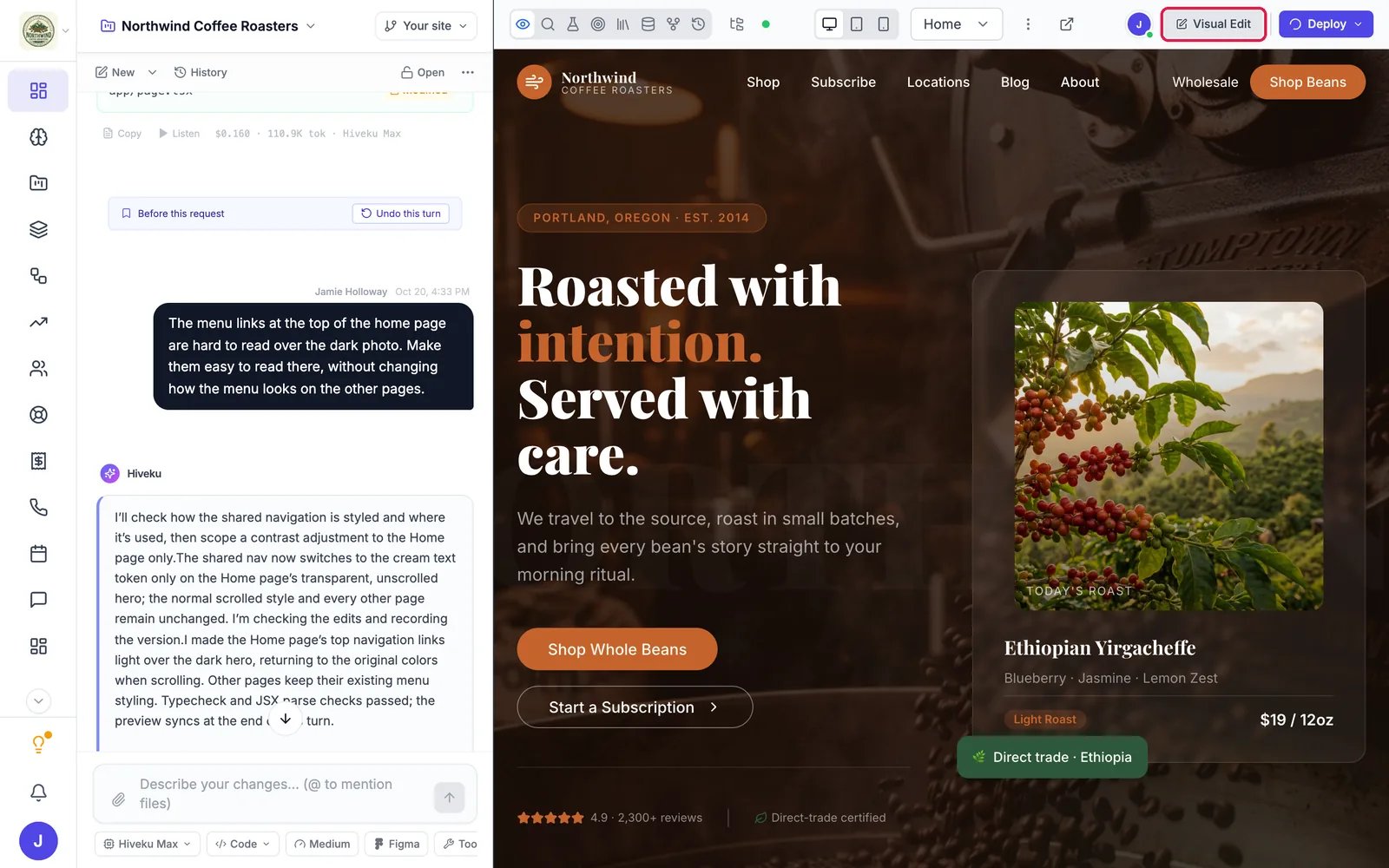
In the toolbar above the preview, click Visual Edit.
The Visual Edit button
Where Visual Edit is in the builder
2
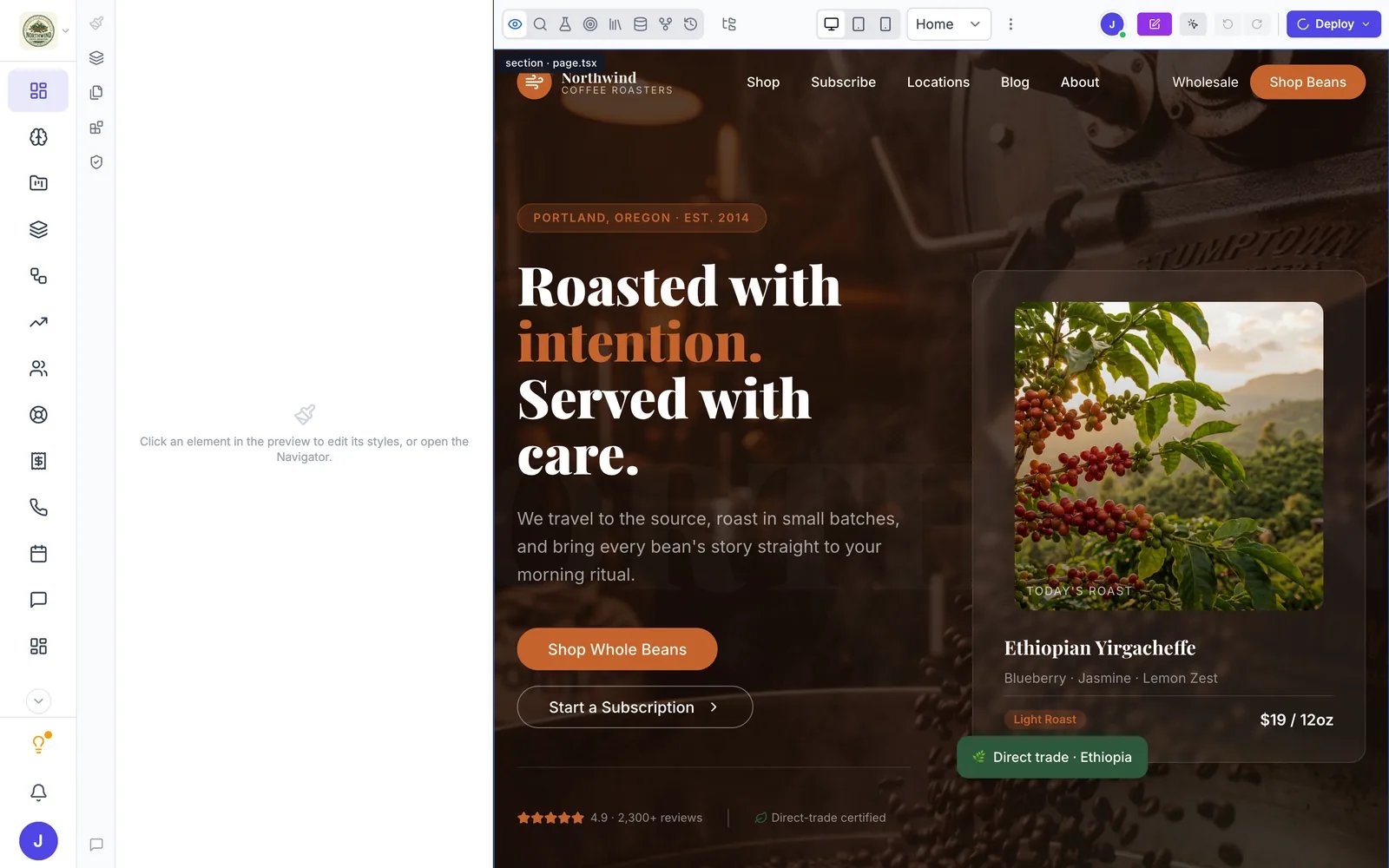
See the editing panel
The chat on the left is replaced by the editing panel. Until you pick something, it says Click an element in the preview to edit its styles, or open the Navigator. As you move the mouse over the page, each part of it is outlined and labeled.
Visual Edit is on
The thin strip of icons on the far left switches the panel between the Style inspector, the Navigator (a list of everything on the page), Pages, Components, a Page audit, and Back to chat.
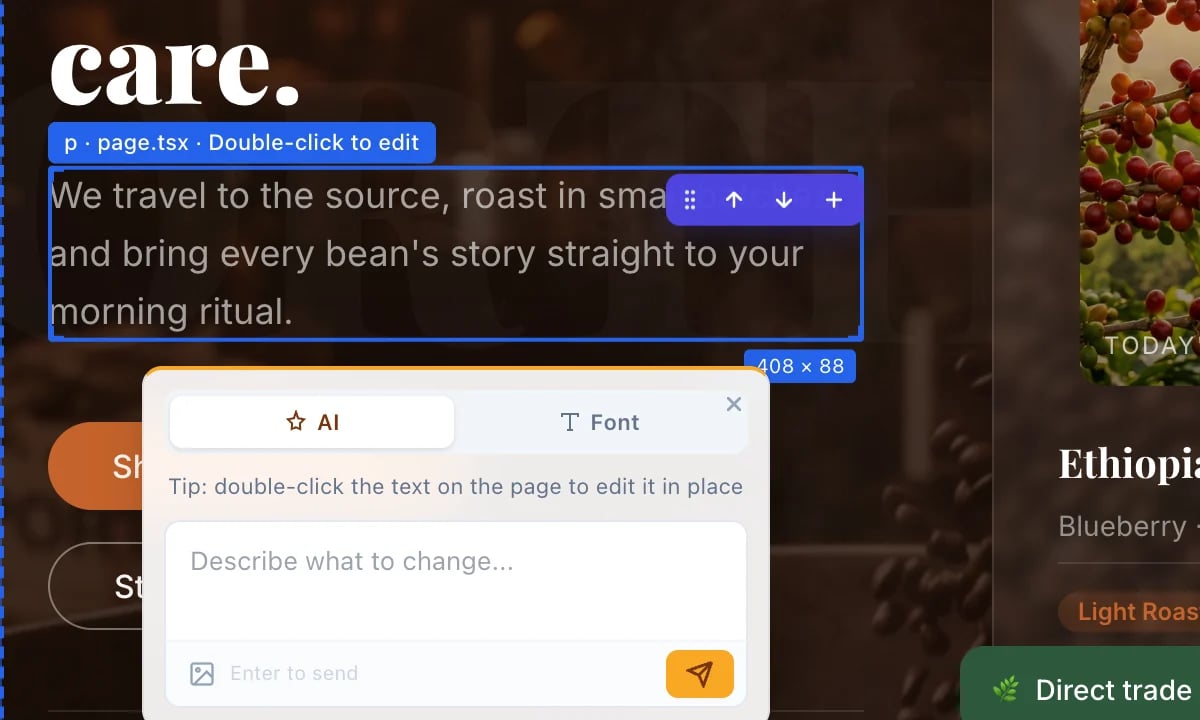
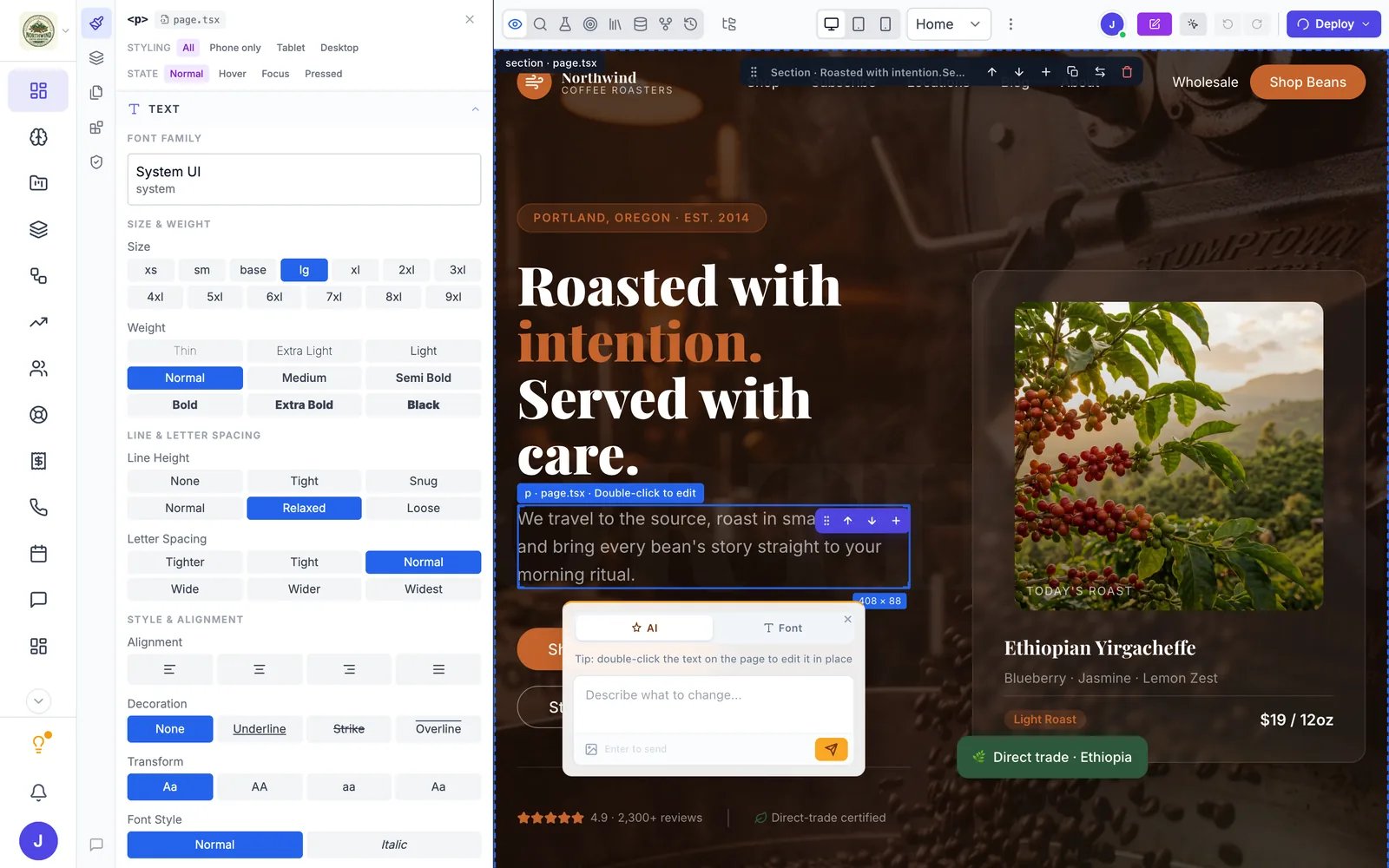
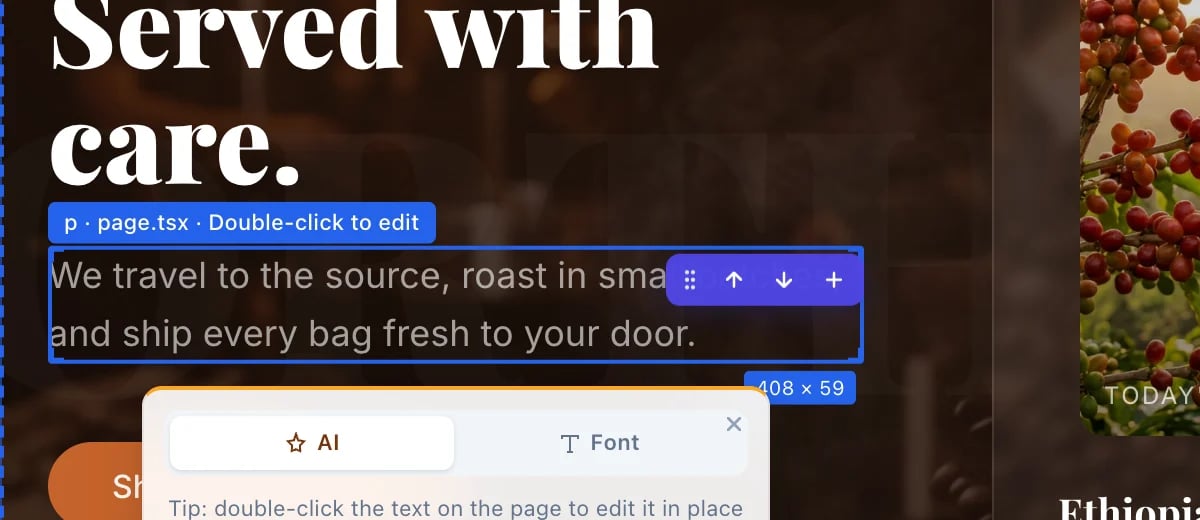
Click once on the text. It gets a blue outline and a label such as p · page.tsx · Double-click to edit, and the panel on the left shows its styles.
The sentence under the headline, selected
The whole builder with the sentence selected and its styles on the left
A small card also opens next to it. Its AI tab sends a request about this part of the page to the AI chat, for example “make this shorter”. That is a normal AI request, and Visual Edit closes so you can watch it work.
2
Double-click to edit it in place
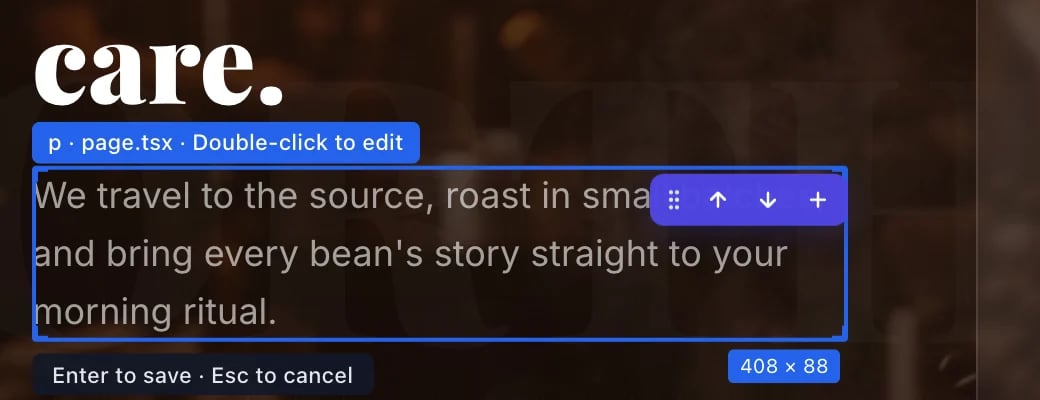
Double-click the text. A hint appears under it: Enter to save · Esc to cancel.
Editing the text in place
3
Type the new text
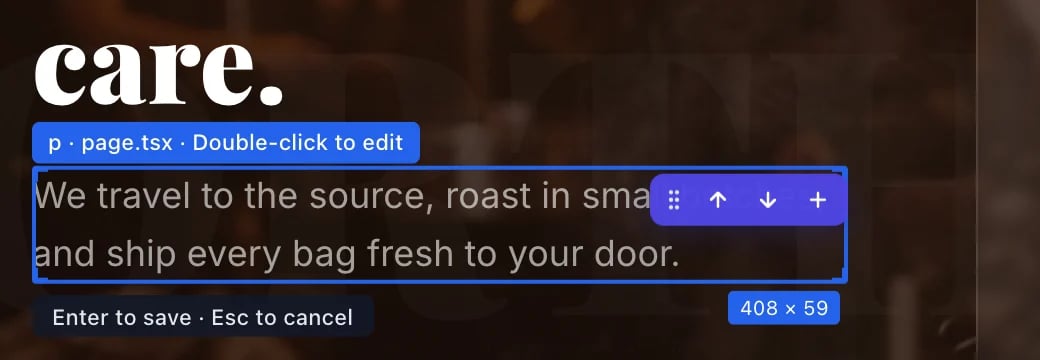
Select the old words and type the new ones. For Northwind we wrote: “We travel to the source, roast in small batches, and ship every bag fresh to your door.”
The new sentence, typed in
4
Press Enter to save
Press Enter (or click anywhere else on the page). The toolbar shows Saving… for a moment. That is all: there is no Save button. Press Esc instead if you want to throw the edit away.
With something selected, the panel on the left shows its styles. The Text section has the font, Size, Weight, line and letter spacing, alignment and more. Further down are Colour & fill, Spacing, and sections for layout, borders, effects and motion.
1
Pick a new value
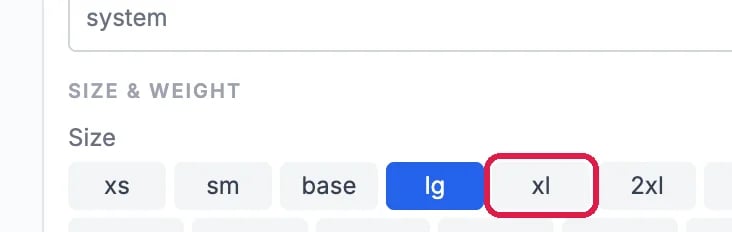
For Northwind we tried a bigger size for the sentence: under Size, we clicked xl (it was lg).
The Size buttons, with xl outlined
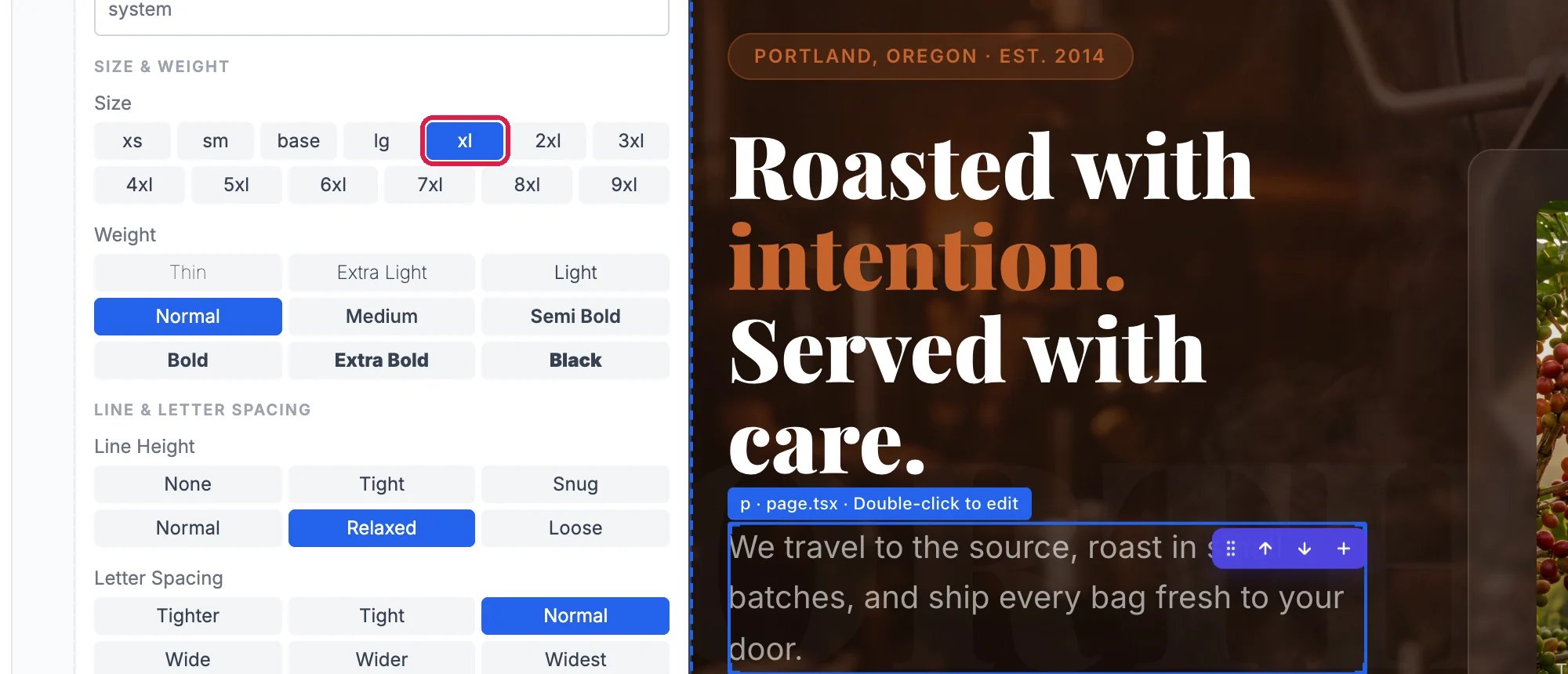
The page changes right away, and the change saves on its own a moment later.
The sentence at the bigger size
At the top of the panel, Styling has All, Phone only, Tablet and Desktop. Choose Phone only to change how something looks on phones without touching the desktop design. State lets you style Hover, Focus and Pressed separately, for example a button’s color when the mouse is over it.
The bigger size made the sentence wrap onto three lines with one word on the last line, so we took it back.
1
Click the undo arrow
While Visual Edit is on, undo and redo arrows appear in the toolbar. Click the undo arrow to take back the last change. Each click undoes one more, text edits included.
Ask the AI for a new FAQ page and link it from the footer.
⌘I
{"docsConfig":{"theme":"maple","$schema":"https://mintlify.com/docs.json","name":"Hiveku Builder","colors":{"primary":"#F9A825","light":"#FBC02D","dark":"#F57F17"},"logo":{"light":"https://mintcdn.com/locusdigital/AodgChCDua_G2sAP/images/hiveku-logo-light.svg?fit=max\u0026auto=format\u0026n=AodgChCDua_G2sAP\u0026q=85\u0026s=5d69f2502059f8269d670b35be741ad2","dark":"https://mintcdn.com/locusdigital/AodgChCDua_G2sAP/images/hiveku-logo-dark.svg?fit=max\u0026auto=format\u0026n=AodgChCDua_G2sAP\u0026q=85\u0026s=a78cef8cf1c9ae13d3dcbe31c3ca498d","href":"https://hiveku.com"},"favicon":"https://mintcdn.com/locusdigital/AodgChCDua_G2sAP/images/favicon.svg?fit=max\u0026auto=format\u0026n=AodgChCDua_G2sAP\u0026q=85\u0026s=1b959fd7abfd376351a1216e201aa8cb","api":{},"appearance":{"default":"system"},"seo":{},"styling":{"latex":true},"navigation":{"global":{"anchors":[{"anchor":"Changelog","icon":"list","href":"/changelog"},{"anchor":"App","icon":"arrow-up-right-from-square","href":"https://app.hiveku.com"}]},"pages":[]}},"deployment":{"deploymentMetadataValue":{"subdomain":"locusdigital","hasAudioNarration":false,"actualSubdomain":"locusdigital","customDomains":["docs.hiveku.com"],"gitSource":{"type":"github","owner":"locus2012","repo":"hiveku_docs","deployBranch":"main","contentDirectory":"","isPrivate":true,"mountPath":"","label":""},"chroma":{"liveDeploymentHistoryId":"6ad7f784dabdb46dd298512d","collectionId":"9007f4c5-160e-4969-aeb2-d52b1862e501","schemaVersion":"v3","latestBuiltDeploymentHistoryId":"6ad7f784dabdb46dd298512d"},"entitlements":{"AI_CHAT":{"status":"DISABLED"}},"buildId":"6ad7f784dabdb46dd298512d","clientVersion":"0.0.3908","searchFilterCounts":[{"language":"default","tag":"Documentation","count":330},{"language":"default","tag":"How-Tos","count":140},{"language":"default","tag":"Growing Your Business","count":62},{"language":"default","tag":"Integrations","count":25},{"language":"default","tag":"Publishing","count":18},{"language":"default","tag":"Integrations \u0026 BYOK","count":16},{"language":"default","tag":"Helpdesk","count":15},{"language":"default","tag":"Workflow Recipes","count":15},{"language":"default","tag":"Marketing Delivery","count":12},{"language":"default","tag":"API Reference","count":11}]},"assistantConfig":{"enableAskAiButton":false,"enableStarterQuestions":false,"enableContextualStarterQuestions":false,"enableAskAiSearchBar":true},"hasChatPermissions":false,"hasWebMcpPermissions":false,"toggles":[{"name":"kill-isr","enabled":true,"variant":{"name":"disabled","enabled":false,"feature_enabled":true},"impressionData":false},{"name":"agent-mintlify-slack","enabled":true,"variant":{"name":"disabled","enabled":false,"feature_enabled":true},"impressionData":false},{"name":"editor-v7-file-tree","enabled":true,"variant":{"name":"disabled","enabled":false,"feature_enabled":true},"impressionData":false},{"name":"agent-integrations-settings","enabled":true,"variant":{"name":"disabled","enabled":false,"feature_enabled":true},"impressionData":false},{"name":"automations-pr-grouping","enabled":true,"variant":{"name":"disabled","enabled":false,"feature_enabled":true},"impressionData":false},{"name":"custom-prefix","enabled":true,"variant":{"name":"disabled","enabled":false,"feature_enabled":true},"impressionData":false},{"name":"analytics-v7","enabled":true,"variant":{"name":"disabled","enabled":false,"feature_enabled":true},"impressionData":false},{"name":"user-flows-analytics","enabled":true,"variant":{"name":"disabled","enabled":false,"feature_enabled":true},"impressionData":false},{"name":"no-publish-flow","enabled":true,"variant":{"name":"disabled","enabled":false,"feature_enabled":true},"impressionData":false},{"name":"workos-onboarding","enabled":true,"variant":{"name":"disabled","enabled":false,"feature_enabled":true},"impressionData":false},{"name":"llms-txt-v2","enabled":true,"variant":{"name":"disabled","enabled":false,"feature_enabled":true},"impressionData":false},{"name":"pause-universal-search-reconcile","enabled":true,"variant":{"name":"disabled","enabled":false,"feature_enabled":true},"impressionData":false},{"name":"snapshot-serving-live","enabled":true,"variant":{"name":"disabled","enabled":false,"feature_enabled":true},"impressionData":false},{"name":"stripTemperatureMiddleware","enabled":true,"variant":{"name":"disabled","enabled":false,"feature_enabled":true},"impressionData":false},{"name":"per-site-search-delta","enabled":true,"variant":{"name":"disabled","enabled":false,"feature_enabled":true},"impressionData":false},{"name":"support-platform-pylon-zendesk","enabled":true,"variant":{"name":"disabled","enabled":false,"feature_enabled":true},"impressionData":false},{"name":"editor-branches-v2-autocommit","enabled":true,"variant":{"name":"disabled","enabled":false,"feature_enabled":true},"impressionData":false},{"name":"editor-branches-v2","enabled":true,"variant":{"name":"disabled","enabled":false,"feature_enabled":true},"impressionData":false},{"name":"snapshot-serving","enabled":true,"variant":{"name":"disabled","enabled":false,"feature_enabled":true},"impressionData":false},{"name":"instant-rollback","enabled":true,"variant":{"name":"disabled","enabled":false,"feature_enabled":true},"impressionData":false},{"name":"granular-notifications-server","enabled":true,"variant":{"name":"disabled","enabled":false,"feature_enabled":true},"impressionData":false},{"name":"granular-notifications","enabled":true,"variant":{"name":"disabled","enabled":false,"feature_enabled":true},"impressionData":false},{"name":"editor-private-page-search","enabled":true,"variant":{"name":"disabled","enabled":false,"feature_enabled":true},"impressionData":false},{"name":"automations-fable","enabled":true,"variant":{"name":"disabled","enabled":false,"feature_enabled":true},"impressionData":false},{"name":"fixed-ai-action-pricing","enabled":true,"variant":{"name":"disabled","enabled":false,"feature_enabled":true},"impressionData":false},{"name":"automation-resolve-merge-conflict","enabled":true,"variant":{"name":"disabled","enabled":false,"feature_enabled":true},"impressionData":false},{"name":"scoped-publishing","enabled":true,"variant":{"name":"disabled","enabled":false,"feature_enabled":true},"impressionData":false},{"name":"mintql","enabled":true,"variant":{"name":"disabled","enabled":false,"feature_enabled":true},"impressionData":false},{"name":"page-level-analytics","enabled":true,"variant":{"name":"disabled","enabled":false,"feature_enabled":true},"impressionData":false},{"name":"teamspace","enabled":true,"variant":{"name":"disabled","enabled":false,"feature_enabled":true},"impressionData":false},{"name":"editor-version-history-v2","enabled":true,"variant":{"name":"disabled","enabled":false,"feature_enabled":true},"impressionData":false},{"name":"vite-origin","enabled":true,"variant":{"name":"disabled","enabled":false,"feature_enabled":true},"impressionData":false},{"name":"editor-nav-generations","enabled":true,"variant":{"name":"disabled","enabled":false,"feature_enabled":true},"impressionData":false},{"name":"billing-page-v2","enabled":true,"variant":{"name":"disabled","enabled":false,"feature_enabled":true},"impressionData":false},{"name":"workspace-projects","enabled":true,"variant":{"name":"disabled","enabled":false,"feature_enabled":true},"impressionData":false},{"name":"assistant-v5","enabled":true,"variant":{"name":"disabled","enabled":false,"feature_enabled":true},"impressionData":false},{"name":"byok-sep-25","enabled":true,"variant":{"name":"disabled","enabled":false,"feature_enabled":true},"impressionData":false},{"name":"fork-pr-previews","enabled":true,"variant":{"name":"disabled","enabled":false,"feature_enabled":true},"impressionData":false},{"name":"revalidation-jwt","enabled":true,"variant":{"name":"disabled","enabled":false,"feature_enabled":true},"impressionData":false},{"name":"editor-agent-model-picker","enabled":true,"variant":{"name":"disabled","enabled":false,"feature_enabled":true},"impressionData":false},{"name":"client-snapshot-docs-config","enabled":true,"variant":{"name":"disabled","enabled":false,"feature_enabled":true},"impressionData":false},{"name":"hobby-abuse-scan","enabled":true,"variant":{"name":"disabled","enabled":false,"feature_enabled":true},"impressionData":false},{"name":"dashboard-inbox","enabled":true,"variant":{"name":"disabled","enabled":false,"feature_enabled":true},"impressionData":false}],"isAtlas":false,"googleFontsInlined":false},"customCss":[],"page":{"pagePath":"how-tos/site-builder/edit-visually","slug":"/how-tos/site-builder/edit-visually","pageMetadata":{"title":"Edit Text and Styles by Clicking","sidebarTitle":"3. Edit Visually","description":"Use Visual Edit to change words and styles right on the page, without the AI","href":"/how-tos/site-builder/edit-visually"},"description":{"compiledSource":"\"use strict\";\nconst {jsx: _jsx} = arguments[0];\nconst {useMDXComponents: _provideComponents} = arguments[0];\nfunction _createMdxContent(props) {\n const _components = {\n p: \"p\",\n ..._provideComponents(),\n ...props.components\n };\n return _jsx(_components.p, {\n children: \"Use Visual Edit to change words and styles right on the page, without the AI\"\n });\n}\nfunction MDXContent(props = {}) {\n const {wrapper: MDXLayout} = {\n ..._provideComponents(),\n ...props.components\n };\n return MDXLayout ? _jsx(MDXLayout, {\n ...props,\n children: _jsx(_createMdxContent, {\n ...props\n })\n }) : _createMdxContent(props);\n}\nreturn {\n default: MDXContent\n};\n","frontmatter":{},"scope":{}},"pageType":"default","mdx":{"mdxSource":{"compiledSource":"\"use strict\";const{Fragment:_Fragment,jsx:_jsx,jsxs:_jsxs}=arguments[0];const{useMDXComponents:_provideComponents}=arguments[0];function _createMdxContent(props){const _components={a:`a`,p:`p`,strong:`strong`,tbody:`tbody`,td:`td`,th:`th`,thead:`thead`,tr:`tr`,..._provideComponents(),...props.components},{Card,Frame,Heading,Note,OptimizedImage,Step,Steps,Table,Tip}=_components;if(!Card)_missingMdxReference(`Card`,true);if(!Frame)_missingMdxReference(`Frame`,true);if(!Heading)_missingMdxReference(`Heading`,true);if(!Note)_missingMdxReference(`Note`,true);if(!OptimizedImage)_missingMdxReference(`OptimizedImage`,true);if(!Step)_missingMdxReference(`Step`,true);if(!Steps)_missingMdxReference(`Steps`,true);if(!Table)_missingMdxReference(`Table`,true);if(!Tip)_missingMdxReference(`Tip`,true);return _jsxs(_Fragment,{children:[_jsxs(_components.p,{children:[_jsx(_components.strong,{children:`Visual Edit`}),` lets you change your site by clicking on it: double-click a sentence to rewrite it, or pick a new size or color from a panel. Changes save on their own, and no AI is involved, so they are instant and use no credits.`]}),`\n`,_jsx(_components.p,{children:`In this example we rewrite the sentence under the Northwind headline, try a bigger text size, and undo it.`}),`\n`,_jsx(Heading,{level:`2`,id:`turn-on-visual-edit`,children:`Turn on Visual Edit`}),`\n`,_jsxs(Steps,{children:[_jsxs(Step,{title:`Click Visual Edit`,children:[_jsxs(_components.p,{children:[`In the toolbar above the preview, click `,_jsx(_components.strong,{children:`Visual Edit`}),`.`]}),_jsx(Frame,{caption:`The Visual Edit button`,children:_jsx(OptimizedImage,{src:`https://mintcdn.com/locusdigital/HHtyEzypiRRWLDpM/images/how-tos/site-builder/ve-01-button-closeup.webp?fit=max\u0026auto=format\u0026n=HHtyEzypiRRWLDpM\u0026q=85\u0026s=d89c8d1788b3d21065513a4421367957`,alt:`The Visual Edit button outlined in the toolbar above the preview`,width:`400`,\"data-og-width\":`572`,\"data-og-height\":`108`,\"data-path\":`images/how-tos/site-builder/ve-01-button-closeup.webp`,\"data-optimize\":`true`,\"data-opv\":`3`,srcset:`https://mintcdn.com/locusdigital/HHtyEzypiRRWLDpM/images/how-tos/site-builder/ve-01-button-closeup.webp?w=280\u0026fit=max\u0026auto=format\u0026n=HHtyEzypiRRWLDpM\u0026q=85\u0026s=d4b906c200ae7b5a0d2d894ab469ace0 280w, https://mintcdn.com/locusdigital/HHtyEzypiRRWLDpM/images/how-tos/site-builder/ve-01-button-closeup.webp?w=560\u0026fit=max\u0026auto=format\u0026n=HHtyEzypiRRWLDpM\u0026q=85\u0026s=68288a6d36fafac74274bc92a356946b 560w, https://mintcdn.com/locusdigital/HHtyEzypiRRWLDpM/images/how-tos/site-builder/ve-01-button-closeup.webp?w=840\u0026fit=max\u0026auto=format\u0026n=HHtyEzypiRRWLDpM\u0026q=85\u0026s=01083e49e385199766a96b96e383abdd 840w, https://mintcdn.com/locusdigital/HHtyEzypiRRWLDpM/images/how-tos/site-builder/ve-01-button-closeup.webp?w=1100\u0026fit=max\u0026auto=format\u0026n=HHtyEzypiRRWLDpM\u0026q=85\u0026s=e790a3bd2de30d563cacbad8a018e94b 1100w, https://mintcdn.com/locusdigital/HHtyEzypiRRWLDpM/images/how-tos/site-builder/ve-01-button-closeup.webp?w=1650\u0026fit=max\u0026auto=format\u0026n=HHtyEzypiRRWLDpM\u0026q=85\u0026s=9b869f720d2130aeb19351de0449480a 1650w, https://mintcdn.com/locusdigital/HHtyEzypiRRWLDpM/images/how-tos/site-builder/ve-01-button-closeup.webp?w=2500\u0026fit=max\u0026auto=format\u0026n=HHtyEzypiRRWLDpM\u0026q=85\u0026s=3dfbe55c0b80928f18922bc1aefc4ee8 2500w`})}),_jsx(Frame,{caption:`Where Visual Edit is in the builder`,children:_jsx(OptimizedImage,{src:`https://mintcdn.com/locusdigital/HHtyEzypiRRWLDpM/images/how-tos/site-builder/ve-01-button.webp?fit=max\u0026auto=format\u0026n=HHtyEzypiRRWLDpM\u0026q=85\u0026s=23293002a39ba0f25651114b5f20b714`,alt:`The builder with the Visual Edit button outlined in the toolbar above the preview`,\"data-og-width\":`1600`,width:`1600`,\"data-og-height\":`1000`,height:`1000`,\"data-path\":`images/how-tos/site-builder/ve-01-button.webp`,\"data-optimize\":`true`,\"data-opv\":`3`,srcset:`https://mintcdn.com/locusdigital/HHtyEzypiRRWLDpM/images/how-tos/site-builder/ve-01-button.webp?w=280\u0026fit=max\u0026auto=format\u0026n=HHtyEzypiRRWLDpM\u0026q=85\u0026s=ef6ecabf35c419109f70efc05f5f8e3c 280w, https://mintcdn.com/locusdigital/HHtyEzypiRRWLDpM/images/how-tos/site-builder/ve-01-button.webp?w=560\u0026fit=max\u0026auto=format\u0026n=HHtyEzypiRRWLDpM\u0026q=85\u0026s=7c3c037be1d57e6a25cc300f50fa176c 560w, https://mintcdn.com/locusdigital/HHtyEzypiRRWLDpM/images/how-tos/site-builder/ve-01-button.webp?w=840\u0026fit=max\u0026auto=format\u0026n=HHtyEzypiRRWLDpM\u0026q=85\u0026s=8a00101bfd7250558774153871d06d26 840w, https://mintcdn.com/locusdigital/HHtyEzypiRRWLDpM/images/how-tos/site-builder/ve-01-button.webp?w=1100\u0026fit=max\u0026auto=format\u0026n=HHtyEzypiRRWLDpM\u0026q=85\u0026s=a404edb92009f1af01ba7d0aafcf5077 1100w, https://mintcdn.com/locusdigital/HHtyEzypiRRWLDpM/images/how-tos/site-builder/ve-01-button.webp?w=1650\u0026fit=max\u0026auto=format\u0026n=HHtyEzypiRRWLDpM\u0026q=85\u0026s=f7ef9d10ba9fba9a7dfe57cd23106215 1650w, https://mintcdn.com/locusdigital/HHtyEzypiRRWLDpM/images/how-tos/site-builder/ve-01-button.webp?w=2500\u0026fit=max\u0026auto=format\u0026n=HHtyEzypiRRWLDpM\u0026q=85\u0026s=c74daa89fad0268507243593df4db678 2500w`})})]}),_jsxs(Step,{title:`See the editing panel`,children:[_jsxs(_components.p,{children:[`The chat on the left is replaced by the editing panel. Until you pick something, it says `,_jsx(_components.strong,{children:`Click an element in the preview to edit its styles, or open the Navigator.`}),` As you move the mouse over the page, each part of it is outlined and labeled.`]}),_jsx(Frame,{caption:`Visual Edit is on`,children:_jsx(OptimizedImage,{src:`https://mintcdn.com/locusdigital/HHtyEzypiRRWLDpM/images/how-tos/site-builder/ve-02-mode-on.webp?fit=max\u0026auto=format\u0026n=HHtyEzypiRRWLDpM\u0026q=85\u0026s=140193217f43c726213c4919e7248c8b`,alt:`The builder in Visual Edit: an empty editing panel on the left and the Northwind home page on the right`,\"data-og-width\":`1600`,width:`1600`,\"data-og-height\":`1000`,height:`1000`,\"data-path\":`images/how-tos/site-builder/ve-02-mode-on.webp`,\"data-optimize\":`true`,\"data-opv\":`3`,srcset:`https://mintcdn.com/locusdigital/HHtyEzypiRRWLDpM/images/how-tos/site-builder/ve-02-mode-on.webp?w=280\u0026fit=max\u0026auto=format\u0026n=HHtyEzypiRRWLDpM\u0026q=85\u0026s=4baa7a046d8a80a89573c149ebf2421d 280w, https://mintcdn.com/locusdigital/HHtyEzypiRRWLDpM/images/how-tos/site-builder/ve-02-mode-on.webp?w=560\u0026fit=max\u0026auto=format\u0026n=HHtyEzypiRRWLDpM\u0026q=85\u0026s=bc8344473614f255ba6923d91e292ba3 560w, https://mintcdn.com/locusdigital/HHtyEzypiRRWLDpM/images/how-tos/site-builder/ve-02-mode-on.webp?w=840\u0026fit=max\u0026auto=format\u0026n=HHtyEzypiRRWLDpM\u0026q=85\u0026s=ea5da7e620c471c40d211bd86d4ea52e 840w, https://mintcdn.com/locusdigital/HHtyEzypiRRWLDpM/images/how-tos/site-builder/ve-02-mode-on.webp?w=1100\u0026fit=max\u0026auto=format\u0026n=HHtyEzypiRRWLDpM\u0026q=85\u0026s=4e502b8cddb91821d41d56b5c0e85047 1100w, https://mintcdn.com/locusdigital/HHtyEzypiRRWLDpM/images/how-tos/site-builder/ve-02-mode-on.webp?w=1650\u0026fit=max\u0026auto=format\u0026n=HHtyEzypiRRWLDpM\u0026q=85\u0026s=4de9d81ea6c7400e22948b4375a836cf 1650w, https://mintcdn.com/locusdigital/HHtyEzypiRRWLDpM/images/how-tos/site-builder/ve-02-mode-on.webp?w=2500\u0026fit=max\u0026auto=format\u0026n=HHtyEzypiRRWLDpM\u0026q=85\u0026s=c2e21157c901a88631795460d1f0ca83 2500w`})}),_jsxs(_components.p,{children:[`The thin strip of icons on the far left switches the panel between the `,_jsx(_components.strong,{children:`Style inspector`}),`, the `,_jsx(_components.strong,{children:`Navigator`}),` (a list of everything on the page), `,_jsx(_components.strong,{children:`Pages`}),`, `,_jsx(_components.strong,{children:`Components`}),`, a `,_jsx(_components.strong,{children:`Page audit`}),`, and `,_jsx(_components.strong,{children:`Back to chat`}),`.`]})]})]}),`\n`,_jsx(Heading,{level:`2`,id:`change-the-words`,children:`Change the words`}),`\n`,_jsxs(Steps,{children:[_jsxs(Step,{title:`Click the text you want to change`,children:[_jsxs(_components.p,{children:[`Click once on the text. It gets a blue outline and a label such as `,_jsx(_components.strong,{children:`p · page.tsx · Double-click to edit`}),`, and the panel on the left shows its styles.`]}),_jsx(Frame,{caption:`The sentence under the headline, selected`,children:_jsx(OptimizedImage,{src:`https://mintcdn.com/locusdigital/HHtyEzypiRRWLDpM/images/how-tos/site-builder/ve-03-selected-closeup.webp?fit=max\u0026auto=format\u0026n=HHtyEzypiRRWLDpM\u0026q=85\u0026s=7dd6eb388c7e816dc360a693fe4ff7e0`,alt:`The sentence under the Northwind headline outlined in blue, with the label Double-click to edit and a small card with AI and Font tabs`,width:`600`,\"data-og-width\":`1200`,\"data-og-height\":`720`,\"data-path\":`images/how-tos/site-builder/ve-03-selected-closeup.webp`,\"data-optimize\":`true`,\"data-opv\":`3`,srcset:`https://mintcdn.com/locusdigital/HHtyEzypiRRWLDpM/images/how-tos/site-builder/ve-03-selected-closeup.webp?w=280\u0026fit=max\u0026auto=format\u0026n=HHtyEzypiRRWLDpM\u0026q=85\u0026s=3ede914e168d567bd06bceea4862e830 280w, https://mintcdn.com/locusdigital/HHtyEzypiRRWLDpM/images/how-tos/site-builder/ve-03-selected-closeup.webp?w=560\u0026fit=max\u0026auto=format\u0026n=HHtyEzypiRRWLDpM\u0026q=85\u0026s=526e1df3966b598e89e14f31ef3274ac 560w, https://mintcdn.com/locusdigital/HHtyEzypiRRWLDpM/images/how-tos/site-builder/ve-03-selected-closeup.webp?w=840\u0026fit=max\u0026auto=format\u0026n=HHtyEzypiRRWLDpM\u0026q=85\u0026s=e9ed233a4682e9f00e18e73106210fd1 840w, https://mintcdn.com/locusdigital/HHtyEzypiRRWLDpM/images/how-tos/site-builder/ve-03-selected-closeup.webp?w=1100\u0026fit=max\u0026auto=format\u0026n=HHtyEzypiRRWLDpM\u0026q=85\u0026s=ca280c7bb65dcc80ae5a70ec56025a33 1100w, https://mintcdn.com/locusdigital/HHtyEzypiRRWLDpM/images/how-tos/site-builder/ve-03-selected-closeup.webp?w=1650\u0026fit=max\u0026auto=format\u0026n=HHtyEzypiRRWLDpM\u0026q=85\u0026s=cd712ca1d7539e2ec85f82fe8c0f83f7 1650w, https://mintcdn.com/locusdigital/HHtyEzypiRRWLDpM/images/how-tos/site-builder/ve-03-selected-closeup.webp?w=2500\u0026fit=max\u0026auto=format\u0026n=HHtyEzypiRRWLDpM\u0026q=85\u0026s=0bcb876761c3b2ed3d05fec23d9dbeaf 2500w`})}),_jsx(Frame,{caption:`The whole builder with the sentence selected and its styles on the left`,children:_jsx(OptimizedImage,{src:`https://mintcdn.com/locusdigital/HHtyEzypiRRWLDpM/images/how-tos/site-builder/ve-03-selected.webp?fit=max\u0026auto=format\u0026n=HHtyEzypiRRWLDpM\u0026q=85\u0026s=82cb0926c68a50e9de8de95d3ac00096`,alt:`The builder in Visual Edit with the sentence selected in the preview and the Style inspector open on the left`,\"data-og-width\":`1600`,width:`1600`,\"data-og-height\":`1000`,height:`1000`,\"data-path\":`images/how-tos/site-builder/ve-03-selected.webp`,\"data-optimize\":`true`,\"data-opv\":`3`,srcset:`https://mintcdn.com/locusdigital/HHtyEzypiRRWLDpM/images/how-tos/site-builder/ve-03-selected.webp?w=280\u0026fit=max\u0026auto=format\u0026n=HHtyEzypiRRWLDpM\u0026q=85\u0026s=45792409b2838a451ca18ac807e9390a 280w, https://mintcdn.com/locusdigital/HHtyEzypiRRWLDpM/images/how-tos/site-builder/ve-03-selected.webp?w=560\u0026fit=max\u0026auto=format\u0026n=HHtyEzypiRRWLDpM\u0026q=85\u0026s=ab0c24abaf9a90fb2e06fb7a76caf7ee 560w, https://mintcdn.com/locusdigital/HHtyEzypiRRWLDpM/images/how-tos/site-builder/ve-03-selected.webp?w=840\u0026fit=max\u0026auto=format\u0026n=HHtyEzypiRRWLDpM\u0026q=85\u0026s=c983f9520b93458e8398b27f35bf7170 840w, https://mintcdn.com/locusdigital/HHtyEzypiRRWLDpM/images/how-tos/site-builder/ve-03-selected.webp?w=1100\u0026fit=max\u0026auto=format\u0026n=HHtyEzypiRRWLDpM\u0026q=85\u0026s=271aa1156ba291a40f90b58540b8480e 1100w, https://mintcdn.com/locusdigital/HHtyEzypiRRWLDpM/images/how-tos/site-builder/ve-03-selected.webp?w=1650\u0026fit=max\u0026auto=format\u0026n=HHtyEzypiRRWLDpM\u0026q=85\u0026s=4d79294f1e243a00a36719009a860cc6 1650w, https://mintcdn.com/locusdigital/HHtyEzypiRRWLDpM/images/how-tos/site-builder/ve-03-selected.webp?w=2500\u0026fit=max\u0026auto=format\u0026n=HHtyEzypiRRWLDpM\u0026q=85\u0026s=91d1866c43c968e4a1b4de2e9196d31c 2500w`})}),_jsxs(_components.p,{children:[`A small card also opens next to it. Its `,_jsx(_components.strong,{children:`AI`}),` tab sends a request about this part of the page to the AI chat, for example “make this shorter”. That is a normal AI request, and Visual Edit closes so you can watch it work.`]})]}),_jsxs(Step,{title:`Double-click to edit it in place`,children:[_jsxs(_components.p,{children:[`Double-click the text. A hint appears under it: `,_jsx(_components.strong,{children:`Enter to save · Esc to cancel`}),`.`]}),_jsx(Frame,{caption:`Editing the text in place`,children:_jsx(OptimizedImage,{src:`https://mintcdn.com/locusdigital/HHtyEzypiRRWLDpM/images/how-tos/site-builder/ve-04-editing-closeup.webp?fit=max\u0026auto=format\u0026n=HHtyEzypiRRWLDpM\u0026q=85\u0026s=f107754a129414d1bf9860a031472578`,alt:`The sentence in edit mode with the hint Enter to save, Esc to cancel`,width:`520`,\"data-og-width\":`1040`,\"data-og-height\":`400`,\"data-path\":`images/how-tos/site-builder/ve-04-editing-closeup.webp`,\"data-optimize\":`true`,\"data-opv\":`3`,srcset:`https://mintcdn.com/locusdigital/HHtyEzypiRRWLDpM/images/how-tos/site-builder/ve-04-editing-closeup.webp?w=280\u0026fit=max\u0026auto=format\u0026n=HHtyEzypiRRWLDpM\u0026q=85\u0026s=08dd83bcaac454d875d7ac66a0d1c911 280w, https://mintcdn.com/locusdigital/HHtyEzypiRRWLDpM/images/how-tos/site-builder/ve-04-editing-closeup.webp?w=560\u0026fit=max\u0026auto=format\u0026n=HHtyEzypiRRWLDpM\u0026q=85\u0026s=2df948a00bd7d58a23e76564e5ea3537 560w, https://mintcdn.com/locusdigital/HHtyEzypiRRWLDpM/images/how-tos/site-builder/ve-04-editing-closeup.webp?w=840\u0026fit=max\u0026auto=format\u0026n=HHtyEzypiRRWLDpM\u0026q=85\u0026s=84ba2a5ee40b4ee8b8ecd37fae3044b4 840w, https://mintcdn.com/locusdigital/HHtyEzypiRRWLDpM/images/how-tos/site-builder/ve-04-editing-closeup.webp?w=1100\u0026fit=max\u0026auto=format\u0026n=HHtyEzypiRRWLDpM\u0026q=85\u0026s=fb194eed7011fedb04bb35f13512828f 1100w, https://mintcdn.com/locusdigital/HHtyEzypiRRWLDpM/images/how-tos/site-builder/ve-04-editing-closeup.webp?w=1650\u0026fit=max\u0026auto=format\u0026n=HHtyEzypiRRWLDpM\u0026q=85\u0026s=ab921596a3fe988502acc38c8e6db799 1650w, https://mintcdn.com/locusdigital/HHtyEzypiRRWLDpM/images/how-tos/site-builder/ve-04-editing-closeup.webp?w=2500\u0026fit=max\u0026auto=format\u0026n=HHtyEzypiRRWLDpM\u0026q=85\u0026s=7ba262137b77a7568f8addeedf55fc82 2500w`})})]}),_jsxs(Step,{title:`Type the new text`,children:[_jsx(_components.p,{children:`Select the old words and type the new ones. For Northwind we wrote: “We travel to the source, roast in small batches, and ship every bag fresh to your door.”`}),_jsx(Frame,{caption:`The new sentence, typed in`,children:_jsx(OptimizedImage,{src:`https://mintcdn.com/locusdigital/HHtyEzypiRRWLDpM/images/how-tos/site-builder/ve-05-typed-closeup.webp?fit=max\u0026auto=format\u0026n=HHtyEzypiRRWLDpM\u0026q=85\u0026s=3c5ffdc50b8b0968429e1dd257f135fb`,alt:`The sentence now reading We travel to the source, roast in small batches, and ship every bag fresh to your door.`,width:`520`,\"data-og-width\":`1040`,\"data-og-height\":`360`,\"data-path\":`images/how-tos/site-builder/ve-05-typed-closeup.webp`,\"data-optimize\":`true`,\"data-opv\":`3`,srcset:`https://mintcdn.com/locusdigital/HHtyEzypiRRWLDpM/images/how-tos/site-builder/ve-05-typed-closeup.webp?w=280\u0026fit=max\u0026auto=format\u0026n=HHtyEzypiRRWLDpM\u0026q=85\u0026s=8aee0de16cdf2aceea29ab2db66eb2a1 280w, https://mintcdn.com/locusdigital/HHtyEzypiRRWLDpM/images/how-tos/site-builder/ve-05-typed-closeup.webp?w=560\u0026fit=max\u0026auto=format\u0026n=HHtyEzypiRRWLDpM\u0026q=85\u0026s=940bcd13b26dfeb791941296df0d8f53 560w, https://mintcdn.com/locusdigital/HHtyEzypiRRWLDpM/images/how-tos/site-builder/ve-05-typed-closeup.webp?w=840\u0026fit=max\u0026auto=format\u0026n=HHtyEzypiRRWLDpM\u0026q=85\u0026s=090dc96b732f0ea90764fa5a3f53cdbd 840w, https://mintcdn.com/locusdigital/HHtyEzypiRRWLDpM/images/how-tos/site-builder/ve-05-typed-closeup.webp?w=1100\u0026fit=max\u0026auto=format\u0026n=HHtyEzypiRRWLDpM\u0026q=85\u0026s=e35de0d62f54f0d26ca29047599a7d24 1100w, https://mintcdn.com/locusdigital/HHtyEzypiRRWLDpM/images/how-tos/site-builder/ve-05-typed-closeup.webp?w=1650\u0026fit=max\u0026auto=format\u0026n=HHtyEzypiRRWLDpM\u0026q=85\u0026s=990d92e46507b525f76e470275523b87 1650w, https://mintcdn.com/locusdigital/HHtyEzypiRRWLDpM/images/how-tos/site-builder/ve-05-typed-closeup.webp?w=2500\u0026fit=max\u0026auto=format\u0026n=HHtyEzypiRRWLDpM\u0026q=85\u0026s=5c219019c471f0e13632c2cec2f1c61a 2500w`})})]}),_jsxs(Step,{title:`Press Enter to save`,children:[_jsxs(_components.p,{children:[`Press `,_jsx(_components.strong,{children:`Enter`}),` (or click anywhere else on the page). The toolbar shows `,_jsx(_components.strong,{children:`Saving…`}),` for a moment. That is all: there is no Save button. Press `,_jsx(_components.strong,{children:`Esc`}),` instead if you want to throw the edit away.`]}),_jsx(Frame,{caption:`The change saving`,children:_jsx(OptimizedImage,{src:`https://mintcdn.com/locusdigital/HHtyEzypiRRWLDpM/images/how-tos/site-builder/ve-06-saved-closeup.webp?fit=max\u0026auto=format\u0026n=HHtyEzypiRRWLDpM\u0026q=85\u0026s=b05920bfb661a4acbe53d7da5dc20cf9`,alt:`The toolbar showing Saving...`,width:`360`,\"data-og-width\":`552`,\"data-og-height\":`108`,\"data-path\":`images/how-tos/site-builder/ve-06-saved-closeup.webp`,\"data-optimize\":`true`,\"data-opv\":`3`,srcset:`https://mintcdn.com/locusdigital/HHtyEzypiRRWLDpM/images/how-tos/site-builder/ve-06-saved-closeup.webp?w=280\u0026fit=max\u0026auto=format\u0026n=HHtyEzypiRRWLDpM\u0026q=85\u0026s=ad7e4d74d1a22c0b53b641c28860efc3 280w, https://mintcdn.com/locusdigital/HHtyEzypiRRWLDpM/images/how-tos/site-builder/ve-06-saved-closeup.webp?w=560\u0026fit=max\u0026auto=format\u0026n=HHtyEzypiRRWLDpM\u0026q=85\u0026s=baba58a7bcb4de27f6e4eebbf3c8b3f4 560w, https://mintcdn.com/locusdigital/HHtyEzypiRRWLDpM/images/how-tos/site-builder/ve-06-saved-closeup.webp?w=840\u0026fit=max\u0026auto=format\u0026n=HHtyEzypiRRWLDpM\u0026q=85\u0026s=e71552e1a7f0f04af2a188ba725d6e85 840w, https://mintcdn.com/locusdigital/HHtyEzypiRRWLDpM/images/how-tos/site-builder/ve-06-saved-closeup.webp?w=1100\u0026fit=max\u0026auto=format\u0026n=HHtyEzypiRRWLDpM\u0026q=85\u0026s=eed6f66ddd3167c83e4433d060cbd9f0 1100w, https://mintcdn.com/locusdigital/HHtyEzypiRRWLDpM/images/how-tos/site-builder/ve-06-saved-closeup.webp?w=1650\u0026fit=max\u0026auto=format\u0026n=HHtyEzypiRRWLDpM\u0026q=85\u0026s=fe3c883f0004bd52e3dfcf1ee6d34040 1650w, https://mintcdn.com/locusdigital/HHtyEzypiRRWLDpM/images/how-tos/site-builder/ve-06-saved-closeup.webp?w=2500\u0026fit=max\u0026auto=format\u0026n=HHtyEzypiRRWLDpM\u0026q=85\u0026s=8009de5bd2d5e421e3af0cb6de62ac4f 2500w`})})]})]}),`\n`,_jsx(Heading,{level:`2`,id:`change-a-style`,children:`Change a style`}),`\n`,_jsxs(_components.p,{children:[`With something selected, the panel on the left shows its styles. The `,_jsx(_components.strong,{children:`Text`}),` section has the font, `,_jsx(_components.strong,{children:`Size`}),`, `,_jsx(_components.strong,{children:`Weight`}),`, line and letter spacing, alignment and more. Further down are `,_jsx(_components.strong,{children:`Colour \u0026 fill`}),`, `,_jsx(_components.strong,{children:`Spacing`}),`, and sections for layout, borders, effects and motion.`]}),`\n`,_jsx(Steps,{children:_jsxs(Step,{title:`Pick a new value`,children:[_jsxs(_components.p,{children:[`For Northwind we tried a bigger size for the sentence: under `,_jsx(_components.strong,{children:`Size`}),`, we clicked `,_jsx(_components.strong,{children:`xl`}),` (it was `,_jsx(_components.strong,{children:`lg`}),`).`]}),_jsx(Frame,{caption:`The Size buttons, with xl outlined`,children:_jsx(OptimizedImage,{src:`https://mintcdn.com/locusdigital/M_JYGUPhEpPH7WWL/images/how-tos/site-builder/ve-07-size-before-closeup.webp?fit=max\u0026auto=format\u0026n=M_JYGUPhEpPH7WWL\u0026q=85\u0026s=582115ef2f9ff8a9ca91916cfa0750e1`,alt:`The Size buttons in the Text section, with lg selected and xl outlined`,width:`440`,\"data-og-width\":`732`,\"data-og-height\":`232`,\"data-path\":`images/how-tos/site-builder/ve-07-size-before-closeup.webp`,\"data-optimize\":`true`,\"data-opv\":`3`,srcset:`https://mintcdn.com/locusdigital/M_JYGUPhEpPH7WWL/images/how-tos/site-builder/ve-07-size-before-closeup.webp?w=280\u0026fit=max\u0026auto=format\u0026n=M_JYGUPhEpPH7WWL\u0026q=85\u0026s=fa6400a1b77ba44596adc781593180a2 280w, https://mintcdn.com/locusdigital/M_JYGUPhEpPH7WWL/images/how-tos/site-builder/ve-07-size-before-closeup.webp?w=560\u0026fit=max\u0026auto=format\u0026n=M_JYGUPhEpPH7WWL\u0026q=85\u0026s=a494048cdcf6f405bee6eec4813883d6 560w, https://mintcdn.com/locusdigital/M_JYGUPhEpPH7WWL/images/how-tos/site-builder/ve-07-size-before-closeup.webp?w=840\u0026fit=max\u0026auto=format\u0026n=M_JYGUPhEpPH7WWL\u0026q=85\u0026s=609c36322e7857af2ef6abb9c74a6096 840w, https://mintcdn.com/locusdigital/M_JYGUPhEpPH7WWL/images/how-tos/site-builder/ve-07-size-before-closeup.webp?w=1100\u0026fit=max\u0026auto=format\u0026n=M_JYGUPhEpPH7WWL\u0026q=85\u0026s=e3fd4d53ef986ad243f2aa1037c6c0ab 1100w, https://mintcdn.com/locusdigital/M_JYGUPhEpPH7WWL/images/how-tos/site-builder/ve-07-size-before-closeup.webp?w=1650\u0026fit=max\u0026auto=format\u0026n=M_JYGUPhEpPH7WWL\u0026q=85\u0026s=858ce9d4edcb510e247d9e5b87ddc49d 1650w, https://mintcdn.com/locusdigital/M_JYGUPhEpPH7WWL/images/how-tos/site-builder/ve-07-size-before-closeup.webp?w=2500\u0026fit=max\u0026auto=format\u0026n=M_JYGUPhEpPH7WWL\u0026q=85\u0026s=fb9473ec38f4cbe87233070f8aeeff18 2500w`})}),_jsx(_components.p,{children:`The page changes right away, and the change saves on its own a moment later.`}),_jsx(Frame,{caption:`The sentence at the bigger size`,children:_jsx(OptimizedImage,{src:`https://mintcdn.com/locusdigital/M_JYGUPhEpPH7WWL/images/how-tos/site-builder/ve-08-size-after-closeup.webp?fit=max\u0026auto=format\u0026n=M_JYGUPhEpPH7WWL\u0026q=85\u0026s=caed880e86a182ea9556d149825902d2`,alt:`The editing panel with xl selected and the sentence on the page now larger, wrapping onto three lines`,\"data-og-width\":`2000`,width:`2000`,\"data-og-height\":`860`,height:`860`,\"data-path\":`images/how-tos/site-builder/ve-08-size-after-closeup.webp`,\"data-optimize\":`true`,\"data-opv\":`3`,srcset:`https://mintcdn.com/locusdigital/M_JYGUPhEpPH7WWL/images/how-tos/site-builder/ve-08-size-after-closeup.webp?w=280\u0026fit=max\u0026auto=format\u0026n=M_JYGUPhEpPH7WWL\u0026q=85\u0026s=a8de048e6c0e086fdbfbc72512ae20fc 280w, https://mintcdn.com/locusdigital/M_JYGUPhEpPH7WWL/images/how-tos/site-builder/ve-08-size-after-closeup.webp?w=560\u0026fit=max\u0026auto=format\u0026n=M_JYGUPhEpPH7WWL\u0026q=85\u0026s=3e2269cca82323e2162bcb7bdbcd8731 560w, https://mintcdn.com/locusdigital/M_JYGUPhEpPH7WWL/images/how-tos/site-builder/ve-08-size-after-closeup.webp?w=840\u0026fit=max\u0026auto=format\u0026n=M_JYGUPhEpPH7WWL\u0026q=85\u0026s=35c2db3f08e99114fb152405e48453c1 840w, https://mintcdn.com/locusdigital/M_JYGUPhEpPH7WWL/images/how-tos/site-builder/ve-08-size-after-closeup.webp?w=1100\u0026fit=max\u0026auto=format\u0026n=M_JYGUPhEpPH7WWL\u0026q=85\u0026s=023b3af7d3ce77edc6dcec1fa0442ab6 1100w, https://mintcdn.com/locusdigital/M_JYGUPhEpPH7WWL/images/how-tos/site-builder/ve-08-size-after-closeup.webp?w=1650\u0026fit=max\u0026auto=format\u0026n=M_JYGUPhEpPH7WWL\u0026q=85\u0026s=7882741fe372d5edc93076023ca9e148 1650w, https://mintcdn.com/locusdigital/M_JYGUPhEpPH7WWL/images/how-tos/site-builder/ve-08-size-after-closeup.webp?w=2500\u0026fit=max\u0026auto=format\u0026n=M_JYGUPhEpPH7WWL\u0026q=85\u0026s=39df8cac85aba5fc44f9919e3ad6c750 2500w`})})]})}),`\n`,_jsx(Tip,{children:_jsxs(_components.p,{children:[`At the top of the panel, `,_jsx(_components.strong,{children:`Styling`}),` has `,_jsx(_components.strong,{children:`All`}),`, `,_jsx(_components.strong,{children:`Phone only`}),`, `,_jsx(_components.strong,{children:`Tablet`}),` and `,_jsx(_components.strong,{children:`Desktop`}),`. Choose `,_jsx(_components.strong,{children:`Phone only`}),` to change how something looks on phones without touching the desktop design. `,_jsx(_components.strong,{children:`State`}),` lets you style `,_jsx(_components.strong,{children:`Hover`}),`, `,_jsx(_components.strong,{children:`Focus`}),` and `,_jsx(_components.strong,{children:`Pressed`}),` separately, for example a button’s color when the mouse is over it.`]})}),`\n`,_jsx(Heading,{level:`2`,id:`undo-a-visual-change`,children:`Undo a visual change`}),`\n`,_jsx(_components.p,{children:`The bigger size made the sentence wrap onto three lines with one word on the last line, so we took it back.`}),`\n`,_jsx(Steps,{children:_jsxs(Step,{title:`Click the undo arrow`,children:[_jsx(_components.p,{children:`While Visual Edit is on, undo and redo arrows appear in the toolbar. Click the undo arrow to take back the last change. Each click undoes one more, text edits included.`}),_jsx(Frame,{caption:`The undo arrow`,children:_jsx(OptimizedImage,{src:`https://mintcdn.com/locusdigital/M_JYGUPhEpPH7WWL/images/how-tos/site-builder/ve-09-undo-button-closeup.webp?fit=max\u0026auto=format\u0026n=M_JYGUPhEpPH7WWL\u0026q=85\u0026s=4e0640a4bb55786beadaa2febd7fc6c0`,alt:`The undo arrow outlined in the Visual Edit toolbar`,width:`400`,\"data-og-width\":`536`,\"data-og-height\":`108`,\"data-path\":`images/how-tos/site-builder/ve-09-undo-button-closeup.webp`,\"data-optimize\":`true`,\"data-opv\":`3`,srcset:`https://mintcdn.com/locusdigital/M_JYGUPhEpPH7WWL/images/how-tos/site-builder/ve-09-undo-button-closeup.webp?w=280\u0026fit=max\u0026auto=format\u0026n=M_JYGUPhEpPH7WWL\u0026q=85\u0026s=f59de12d42de80287d460465432170f7 280w, https://mintcdn.com/locusdigital/M_JYGUPhEpPH7WWL/images/how-tos/site-builder/ve-09-undo-button-closeup.webp?w=560\u0026fit=max\u0026auto=format\u0026n=M_JYGUPhEpPH7WWL\u0026q=85\u0026s=051fdb340287ab7f9cd56ab677c014f7 560w, https://mintcdn.com/locusdigital/M_JYGUPhEpPH7WWL/images/how-tos/site-builder/ve-09-undo-button-closeup.webp?w=840\u0026fit=max\u0026auto=format\u0026n=M_JYGUPhEpPH7WWL\u0026q=85\u0026s=6983a3d04ee1a60d105b3ccbf7cef232 840w, https://mintcdn.com/locusdigital/M_JYGUPhEpPH7WWL/images/how-tos/site-builder/ve-09-undo-button-closeup.webp?w=1100\u0026fit=max\u0026auto=format\u0026n=M_JYGUPhEpPH7WWL\u0026q=85\u0026s=50c19301e9ad3931da3e3a2e76185795 1100w, https://mintcdn.com/locusdigital/M_JYGUPhEpPH7WWL/images/how-tos/site-builder/ve-09-undo-button-closeup.webp?w=1650\u0026fit=max\u0026auto=format\u0026n=M_JYGUPhEpPH7WWL\u0026q=85\u0026s=97a2c62a1d09857f6a32a75f14fa675c 1650w, https://mintcdn.com/locusdigital/M_JYGUPhEpPH7WWL/images/how-tos/site-builder/ve-09-undo-button-closeup.webp?w=2500\u0026fit=max\u0026auto=format\u0026n=M_JYGUPhEpPH7WWL\u0026q=85\u0026s=a20f2901b2f9e8e7472f785897b2fa55 2500w`})}),_jsx(Frame,{caption:`Back to the original size, with the new text kept`,children:_jsx(OptimizedImage,{src:`https://mintcdn.com/locusdigital/M_JYGUPhEpPH7WWL/images/how-tos/site-builder/ve-10-after-undo-closeup.webp?fit=max\u0026auto=format\u0026n=M_JYGUPhEpPH7WWL\u0026q=85\u0026s=e4359cde2b2b25609229c2ea4f40f7ee`,alt:`The sentence back at its original size on two lines, still with the new wording`,width:`600`,\"data-og-width\":`1200`,\"data-og-height\":`520`,\"data-path\":`images/how-tos/site-builder/ve-10-after-undo-closeup.webp`,\"data-optimize\":`true`,\"data-opv\":`3`,srcset:`https://mintcdn.com/locusdigital/M_JYGUPhEpPH7WWL/images/how-tos/site-builder/ve-10-after-undo-closeup.webp?w=280\u0026fit=max\u0026auto=format\u0026n=M_JYGUPhEpPH7WWL\u0026q=85\u0026s=be3647e47a72a67d27238b0fe82ab0df 280w, https://mintcdn.com/locusdigital/M_JYGUPhEpPH7WWL/images/how-tos/site-builder/ve-10-after-undo-closeup.webp?w=560\u0026fit=max\u0026auto=format\u0026n=M_JYGUPhEpPH7WWL\u0026q=85\u0026s=b341f9c6fc3e748ecf9b3d124c844acb 560w, https://mintcdn.com/locusdigital/M_JYGUPhEpPH7WWL/images/how-tos/site-builder/ve-10-after-undo-closeup.webp?w=840\u0026fit=max\u0026auto=format\u0026n=M_JYGUPhEpPH7WWL\u0026q=85\u0026s=36c0bcbde4cf5fc85c76b6f605da9496 840w, https://mintcdn.com/locusdigital/M_JYGUPhEpPH7WWL/images/how-tos/site-builder/ve-10-after-undo-closeup.webp?w=1100\u0026fit=max\u0026auto=format\u0026n=M_JYGUPhEpPH7WWL\u0026q=85\u0026s=ce1217c3d5c4099f901d16fca6b8d37d 1100w, https://mintcdn.com/locusdigital/M_JYGUPhEpPH7WWL/images/how-tos/site-builder/ve-10-after-undo-closeup.webp?w=1650\u0026fit=max\u0026auto=format\u0026n=M_JYGUPhEpPH7WWL\u0026q=85\u0026s=4f16adec9f75f11a2c034507440713a0 1650w, https://mintcdn.com/locusdigital/M_JYGUPhEpPH7WWL/images/how-tos/site-builder/ve-10-after-undo-closeup.webp?w=2500\u0026fit=max\u0026auto=format\u0026n=M_JYGUPhEpPH7WWL\u0026q=85\u0026s=9fc215b14cb0d2c2990120bc1a8c34cb 2500w`})})]})}),`\n`,_jsx(Heading,{level:`2`,id:`turn-off-visual-edit`,children:`Turn off Visual Edit`}),`\n`,_jsxs(_components.p,{children:[`Click the Visual Edit button again (it is purple while Visual Edit is on), click `,_jsx(_components.strong,{children:`Back to chat`}),` at the bottom of the icon strip, or press `,_jsx(_components.strong,{children:`Esc`}),` twice.`]}),`\n`,_jsx(Frame,{caption:`The Visual Edit button while it is on`,children:_jsx(OptimizedImage,{src:`https://mintcdn.com/locusdigital/M_JYGUPhEpPH7WWL/images/how-tos/site-builder/ve-12-exit-closeup.webp?fit=max\u0026auto=format\u0026n=M_JYGUPhEpPH7WWL\u0026q=85\u0026s=72570c832abe6f69061ff79542b7586d`,alt:`The purple Visual Edit button outlined, next to the undo and redo arrows`,width:`440`,\"data-og-width\":`696`,\"data-og-height\":`108`,\"data-path\":`images/how-tos/site-builder/ve-12-exit-closeup.webp`,\"data-optimize\":`true`,\"data-opv\":`3`,srcset:`https://mintcdn.com/locusdigital/M_JYGUPhEpPH7WWL/images/how-tos/site-builder/ve-12-exit-closeup.webp?w=280\u0026fit=max\u0026auto=format\u0026n=M_JYGUPhEpPH7WWL\u0026q=85\u0026s=f45253754c9fa373d222af1879537e32 280w, https://mintcdn.com/locusdigital/M_JYGUPhEpPH7WWL/images/how-tos/site-builder/ve-12-exit-closeup.webp?w=560\u0026fit=max\u0026auto=format\u0026n=M_JYGUPhEpPH7WWL\u0026q=85\u0026s=016eb0e46b3ef6835b984267448542b9 560w, https://mintcdn.com/locusdigital/M_JYGUPhEpPH7WWL/images/how-tos/site-builder/ve-12-exit-closeup.webp?w=840\u0026fit=max\u0026auto=format\u0026n=M_JYGUPhEpPH7WWL\u0026q=85\u0026s=81d5c5bdd8d7d133f401662527f3ee21 840w, https://mintcdn.com/locusdigital/M_JYGUPhEpPH7WWL/images/how-tos/site-builder/ve-12-exit-closeup.webp?w=1100\u0026fit=max\u0026auto=format\u0026n=M_JYGUPhEpPH7WWL\u0026q=85\u0026s=a1549ef0e590782dccef937b7a2ec549 1100w, https://mintcdn.com/locusdigital/M_JYGUPhEpPH7WWL/images/how-tos/site-builder/ve-12-exit-closeup.webp?w=1650\u0026fit=max\u0026auto=format\u0026n=M_JYGUPhEpPH7WWL\u0026q=85\u0026s=b99c9a8553f421e3db42f3b8c62ac199 1650w, https://mintcdn.com/locusdigital/M_JYGUPhEpPH7WWL/images/how-tos/site-builder/ve-12-exit-closeup.webp?w=2500\u0026fit=max\u0026auto=format\u0026n=M_JYGUPhEpPH7WWL\u0026q=85\u0026s=7b9f0cfe107eca95267ef9001931cb52 2500w`})}),`\n`,_jsx(Note,{children:_jsxs(_components.p,{children:[`Like changes from the chat, visual edits are saved to `,_jsx(_components.strong,{children:`Your site`}),` but are not live until you `,_jsx(_components.a,{href:`/how-tos/site-builder/publish`,children:`publish`}),`.`]})}),`\n`,_jsx(Heading,{level:`2`,id:`when-to-use-visual-edit-and-when-to-ask-the-ai`,children:`When to use Visual Edit, and when to ask the AI`}),`\n`,_jsxs(Table,{children:[_jsx(_components.thead,{children:_jsxs(_components.tr,{children:[_jsx(_components.th,{children:`Use Visual Edit for`}),_jsx(_components.th,{children:`Ask the AI for`})]})}),_jsxs(_components.tbody,{children:[_jsxs(_components.tr,{children:[_jsx(_components.td,{children:`Fixing a typo or rewording a sentence`}),_jsx(_components.td,{children:`Adding a new section or page`})]}),_jsxs(_components.tr,{children:[_jsx(_components.td,{children:`Trying a different size, color or spacing`}),_jsx(_components.td,{children:`Changes across many pages at once`})]}),_jsxs(_components.tr,{children:[_jsx(_components.td,{children:`Small changes you want to see instantly`}),_jsx(_components.td,{children:`Anything that needs new features, like a form`})]})]})]}),`\n`,_jsx(Heading,{level:`2`,id:`next`,children:`Next`}),`\n`,_jsx(Card,{title:`4. Add a new page`,icon:`file-circle-plus`,href:`/how-tos/site-builder/add-a-page`,children:_jsx(_components.p,{children:`Ask the AI for a new FAQ page and link it from the footer.`})})]})}function MDXContent(props={}){const{wrapper:MDXLayout}={..._provideComponents(),...props.components};return MDXLayout?_jsx(MDXLayout,{...props,children:_jsx(_createMdxContent,{...props})}):_createMdxContent(props)}return{default:MDXContent};function _missingMdxReference(id,component){throw new Error(`Expected `+(component?`component`:`object`)+\" `\"+id+\"` to be defined: you likely forgot to import, pass, or provide it.\")}","frontmatter":{},"scope":{"config":{},"pageMetadata":{"title":"Edit Text and Styles by Clicking","sidebarTitle":"3. Edit Visually","description":"Use Visual Edit to change words and styles right on the page, without the AI","href":"/how-tos/site-builder/edit-visually"}}},"mdxSourceWithNoJs":null},"mdxExtracts":{"tableOfContents":[{"title":"Turn on Visual Edit","slug":"turn-on-visual-edit","depth":2,"children":[]},{"title":"Change the words","slug":"change-the-words","depth":2,"children":[]},{"title":"Change a style","slug":"change-a-style","depth":2,"children":[]},{"title":"Undo a visual change","slug":"undo-a-visual-change","depth":2,"children":[]},{"title":"Turn off Visual Edit","slug":"turn-off-visual-edit","depth":2,"children":[]},{"title":"When to use Visual Edit, and when to ask the AI","slug":"when-to-use-visual-edit-and-when-to-ask-the-ai","depth":2,"children":[]},{"title":"Next","slug":"next","depth":2,"children":[]}],"codeExamples":{}},"jsLinks":[],"subdomain":"locusdigital","siteName":"Hiveku Builder","title":"Edit Text and Styles by Clicking - Hiveku Builder","navMaps":{"firstHrefInVersion":{},"firstHrefInLanguage":{}},"lastModified":"2026-10-20T23:22:34.239Z","originalFileLocation":"how-tos/site-builder/edit-visually.mdx"},"headHtml":"\u003cscript data-mint-head>(function(){var d=document.documentElement,p=null;if(!p){try{p=localStorage.getItem(\"isDarkMode\")}catch(e){}if(p==='true')p='dark';else if(p==='false')p='light';if(p!=='light'\u0026\u0026p!=='dark'\u0026\u0026p!=='system')p=\"system\"}var r=p==='system'?(matchMedia(\"(prefers-color-scheme: dark)\").matches?'dark':'light'):p;d.classList.remove(r==='dark'?'light':'dark');d.classList.add(r);d.setAttribute(\"data-theme-preference\",p)})();\u003c/script>\u003cmeta data-mint-head name=\"description\" content=\"Use Visual Edit to change words and styles right on the page, without the AI\">\u003cmeta data-mint-head name=\"application-name\" content=\"Hiveku Builder\">\u003cmeta data-mint-head name=\"generator\" content=\"Mintlify\">\u003clink data-mint-head rel=\"icon\" type=\"image/png\" sizes=\"192x192\" href=\"/mintlify-assets/_mintlify/favicons/locusdigital/Q6CcRfou6T0R_uxO/_generated/favicon/android-chrome-192x192.png\" media=\"(prefers-color-scheme: light)\">\u003clink data-mint-head rel=\"apple-touch-icon\" type=\"image/png\" sizes=\"180x180\" href=\"/mintlify-assets/_mintlify/favicons/locusdigital/Q6CcRfou6T0R_uxO/_generated/favicon/apple-touch-icon.png\">\u003clink data-mint-head rel=\"icon\" type=\"image/png\" sizes=\"16x16\" href=\"/mintlify-assets/_mintlify/favicons/locusdigital/Q6CcRfou6T0R_uxO/_generated/favicon/favicon-16x16.png\" media=\"(prefers-color-scheme: light)\">\u003clink data-mint-head rel=\"icon\" type=\"image/png\" sizes=\"32x32\" href=\"/mintlify-assets/_mintlify/favicons/locusdigital/Q6CcRfou6T0R_uxO/_generated/favicon/favicon-32x32.png\" media=\"(prefers-color-scheme: light)\">\u003clink data-mint-head rel=\"shortcut icon\" type=\"image/x-icon\" href=\"/mintlify-assets/_mintlify/favicons/locusdigital/Q6CcRfou6T0R_uxO/_generated/favicon/favicon.ico\" media=\"(prefers-color-scheme: light)\">\u003clink data-mint-head rel=\"icon\" type=\"image/png\" sizes=\"192x192\" href=\"/mintlify-assets/_mintlify/favicons/locusdigital/Q6CcRfou6T0R_uxO/_generated/favicon-dark/android-chrome-192x192.png\" media=\"(prefers-color-scheme: dark)\">\u003clink data-mint-head rel=\"icon\" type=\"image/png\" sizes=\"16x16\" href=\"/mintlify-assets/_mintlify/favicons/locusdigital/Q6CcRfou6T0R_uxO/_generated/favicon-dark/favicon-16x16.png\" media=\"(prefers-color-scheme: dark)\">\u003clink data-mint-head rel=\"icon\" type=\"image/png\" sizes=\"32x32\" href=\"/mintlify-assets/_mintlify/favicons/locusdigital/Q6CcRfou6T0R_uxO/_generated/favicon-dark/favicon-32x32.png\" media=\"(prefers-color-scheme: dark)\">\u003clink data-mint-head rel=\"shortcut icon\" type=\"image/x-icon\" href=\"/mintlify-assets/_mintlify/favicons/locusdigital/Q6CcRfou6T0R_uxO/_generated/favicon-dark/favicon.ico\" media=\"(prefers-color-scheme: dark)\">\u003cmeta data-mint-head property=\"og:title\" content=\"Edit Text and Styles by Clicking - Hiveku Builder\">\u003cmeta data-mint-head property=\"og:description\" content=\"Use Visual Edit to change words and styles right on the page, without the AI\">\u003cmeta data-mint-head property=\"og:site_name\" content=\"Hiveku Builder\">\u003cmeta data-mint-head property=\"og:url\" content=\"https://docs.hiveku.com/how-tos/site-builder/edit-visually\">\u003cmeta data-mint-head property=\"og:type\" content=\"website\">\u003cmeta data-mint-head name=\"twitter:card\" content=\"summary_large_image\">\u003cmeta data-mint-head name=\"twitter:title\" content=\"Edit Text and Styles by Clicking - Hiveku Builder\">\u003cmeta data-mint-head name=\"twitter:description\" content=\"Use Visual Edit to change words and styles right on the page, without the AI\">\u003cmeta data-mint-head name=\"msapplication-config\" content=\"/mintlify-assets/_mintlify/favicons/locusdigital/Q6CcRfou6T0R_uxO/_generated/favicon/browserconfig.xml\">\u003cmeta data-mint-head name=\"apple-mobile-web-app-title\" content=\"Hiveku Builder\">\u003cmeta data-mint-head name=\"msapplication-TileColor\" content=\"#F9A825\">\u003clink data-mint-head rel=\"canonical\" href=\"https://docs.hiveku.com/how-tos/site-builder/edit-visually\">\u003clink data-mint-head rel=\"alternate\" type=\"application/xml\" href=\"/sitemap.xml\">\u003clink data-mint-head rel=\"alternate\" type=\"text/markdown\" href=\"/how-tos/site-builder/edit-visually.md\">\u003cscript data-mint-head type=\"application/ld+json\">{\"@context\":\"https://schema.org\",\"@graph\":[{\"@type\":\"Organization\",\"@id\":\"https://docs.hiveku.com/#organization\",\"name\":\"Hiveku Builder\",\"url\":\"https://docs.hiveku.com\",\"logo\":{\"@type\":\"ImageObject\",\"url\":\"https://mintcdn.com/locusdigital/AodgChCDua_G2sAP/images/hiveku-logo-light.svg?fit=max\u0026auto=format\u0026n=AodgChCDua_G2sAP\u0026q=85\u0026s=5d69f2502059f8269d670b35be741ad2\"}},{\"@type\":\"WebSite\",\"@id\":\"https://docs.hiveku.com#website\",\"name\":\"Hiveku Builder\",\"url\":\"https://docs.hiveku.com\",\"publisher\":{\"@id\":\"https://docs.hiveku.com/#organization\"}},{\"@type\":\"WebPage\",\"@id\":\"https://docs.hiveku.com/how-tos/site-builder/edit-visually#webpage\",\"url\":\"https://docs.hiveku.com/how-tos/site-builder/edit-visually\",\"name\":\"Edit Text and Styles by Clicking\",\"description\":\"Use Visual Edit to change words and styles right on the page, without the AI\",\"dateModified\":\"2026-10-20T23:22:34.239Z\",\"isPartOf\":{\"@id\":\"https://docs.hiveku.com#website\"},\"breadcrumb\":{\"@id\":\"https://docs.hiveku.com/how-tos/site-builder/edit-visually#breadcrumb\"}},{\"@type\":\"BreadcrumbList\",\"@id\":\"https://docs.hiveku.com/how-tos/site-builder/edit-visually#breadcrumb\",\"itemListElement\":[{\"@type\":\"ListItem\",\"position\":1,\"name\":\"How-Tos\",\"item\":\"https://docs.hiveku.com/how-tos/overview\"},{\"@type\":\"ListItem\",\"position\":2,\"name\":\"Site Builder Walkthrough\",\"item\":\"https://docs.hiveku.com/how-tos/site-builder/open-your-site\"},{\"@type\":\"ListItem\",\"position\":3,\"name\":\"Edit Text and Styles by Clicking\",\"item\":\"https://docs.hiveku.com/how-tos/site-builder/edit-visually\"}]},{\"@type\":[\"Article\",\"TechArticle\"],\"@id\":\"https://docs.hiveku.com/how-tos/site-builder/edit-visually#article\",\"headline\":\"Edit Text and Styles by Clicking\",\"name\":\"Edit Text and Styles by Clicking\",\"description\":\"Use Visual Edit to change words and styles right on the page, without the AI\",\"url\":\"https://docs.hiveku.com/how-tos/site-builder/edit-visually\",\"mainEntityOfPage\":{\"@id\":\"https://docs.hiveku.com/how-tos/site-builder/edit-visually#webpage\"},\"dateModified\":\"2026-10-20T23:22:34.239Z\",\"publisher\":{\"@id\":\"https://docs.hiveku.com/#organization\"},\"isPartOf\":{\"@id\":\"https://docs.hiveku.com#website\"}}]}\u003c/script>\u003cscript data-mint-head type=\"application/ld+json\">{\"@context\":\"https://schema.org\",\"@type\":\"WebSite\",\"name\":\"Hiveku Builder\",\"creator\":{\"@type\":\"Organization\",\"name\":\"Mintlify\",\"url\":\"https://mintlify.com\"}}\u003c/script>","siteName":"Hiveku Builder","nav":{"global":{"anchors":[{"anchor":"Changelog","icon":"list","href":"/changelog"},{"anchor":"App","icon":"arrow-up-right-from-square","href":"https://app.hiveku.com"}]},"tabs":[{"tab":"Documentation","groups":[{"group":"Get Started","pages":[{"title":"Hiveku Builder","sidebarTitle":"Introduction","href":"/introduction"},{"title":"Quickstart","href":"/quickstart"},{"title":"Projects","href":"/projects"},{"title":"Hiveku Mobile App","sidebarTitle":"Mobile App","href":"/mobile/hiveku-app"}]},{"group":"Dashboards","pages":[{"title":"Your Dashboard","sidebarTitle":"Overview","href":"/dashboards/overview"},{"title":"Customize a Dashboard","sidebarTitle":"Customize","href":"/dashboards/customize"},{"title":"Widget Types","sidebarTitle":"Widget Types","href":"/dashboards/widgets"},{"title":"Share and Publish Dashboards","sidebarTitle":"Share and Publish","href":"/dashboards/sharing"},{"title":"Your Data","sidebarTitle":"Your Data","href":"/dashboards/your-data"},{"title":"Buttons and Forms on Dashboards","sidebarTitle":"Buttons and Forms","href":"/dashboards/buttons"},{"title":"Team Activity","sidebarTitle":"Team Activity","href":"/dashboards/team-activity"},{"title":"The Workspaces Dashboard","sidebarTitle":"Workspaces","href":"/dashboards/workspaces"},{"title":"Build Dashboards with AI","sidebarTitle":"Build with AI","href":"/dashboards/ai-agents"}]},{"group":"AI Assistant","pages":[{"title":"AI Assistant","href":"/ai/overview"},{"title":"Message Queue","href":"/ai/message-queue"},{"title":"Undo an AI Turn","href":"/ai/undo-turn"},{"title":"AI Modes","href":"/ai/modes"},{"title":"AI Tools","href":"/ai/tools"},{"title":"AI Models","href":"/ai/models"},{"title":"AI Ops Inbox","sidebarTitle":"Ops Inbox","href":"/ai/ops-inbox"},{"title":"Reporting Problems to Hiveku","sidebarTitle":"Reporting Problems","href":"/ai/reporting-problems"}]},{"group":"Code Editor","pages":[{"title":"Code Editor","href":"/editor/overview"},{"title":"File Management","href":"/editor/files"},{"title":"Live Preview","sidebarTitle":"Live Preview","href":"/editor/live-preview"},{"title":"Branches and environments","sidebarTitle":"Branches","href":"/editor/branches"},{"title":"Versions","sidebarTitle":"Versions","href":"/editor/versions"},{"title":"Reviews and merging","sidebarTitle":"Reviews and merging","href":"/editor/reviews"},{"title":"The merge line and branch settings","sidebarTitle":"Merge line","href":"/editor/merge-line"},{"title":"Project history","sidebarTitle":"Project history","href":"/editor/project-history"},{"title":"Branches and AI tools","sidebarTitle":"Branches and AI tools","href":"/editor/branches-and-ai"},{"title":"Git Panel","sidebarTitle":"Git Panel","href":"/editor/github"}]},{"group":"Design Studio","pages":[{"title":"Design Studio Overview","sidebarTitle":"Overview","href":"/design/overview"},{"title":"Motion Graphics","sidebarTitle":"Motion Graphics","href":"/design/motion-graphics"},{"title":"Animation Editor","sidebarTitle":"Animation Editor","href":"/design/animation-editor"},{"title":"Animated Templates","sidebarTitle":"Templates","href":"/design/templates"},{"title":"AI Video Generation","sidebarTitle":"AI Video","href":"/design/ai-video"},{"title":"Exporting Designs","sidebarTitle":"Exporting","href":"/design/exporting"},{"title":"Media Library and AI Images","sidebarTitle":"Media Library","href":"/design/media-library"},{"title":"Section Library","sidebarTitle":"Section Library","href":"/design/section-library"}]},{"group":"CMS","pages":[{"title":"CMS Overview","sidebarTitle":"Overview","href":"/cms/overview"},{"title":"The Manifest (hiveku.cms.json)","sidebarTitle":"Manifest","href":"/cms/manifest"},{"title":"Field Types","sidebarTitle":"Field Types","href":"/cms/field-types"},{"title":"Collections","sidebarTitle":"Collections","href":"/cms/collections"},{"title":"Editing Content in the CMS Panel","sidebarTitle":"Editing Content","href":"/cms/editing-content"},{"title":"Scheduled Publishing","sidebarTitle":"Scheduled Publishing","href":"/cms/scheduled-publishing"},{"title":"Bulk Import Content","sidebarTitle":"Bulk Import","href":"/cms/bulk-import"},{"title":"How AI Agents Use the CMS","sidebarTitle":"AI Integration","href":"/cms/agent-integration"}]},{"group":"Email Marketing","pages":[{"title":"Email Marketing Overview","sidebarTitle":"Overview","href":"/email-marketing/overview"},{"title":"Quickstart","sidebarTitle":"Quickstart","href":"/email-marketing/quickstart"},{"title":"Before you can send","sidebarTitle":"Setup Checklist","href":"/email-marketing/setup-checklist"},{"title":"Audiences","href":"/email-marketing/audiences"},{"title":"Campaigns","href":"/email-marketing/campaigns"},{"title":"Templates","href":"/email-marketing/templates"},{"title":"Sequences (Drip Campaigns)","sidebarTitle":"Sequences","href":"/email-marketing/sequences"},{"title":"Deliverability Dashboard","sidebarTitle":"Deliverability","href":"/email-marketing/deliverability"},{"title":"Using the AI Email Coach","sidebarTitle":"AI Email Coach","href":"/email-marketing/email-coach"}]},{"group":"Social Media","pages":[{"title":"Social Media Overview","sidebarTitle":"Overview","href":"/social/overview"},{"title":"Connecting Social Accounts","sidebarTitle":"Connecting Accounts","href":"/social/connecting-accounts"},{"title":"The Social Composer","sidebarTitle":"Composer","href":"/social/composer"},{"title":"Social AI Assistant","sidebarTitle":"AI Assistant","href":"/social/ai-assistant"},{"title":"Social Analytics","sidebarTitle":"Analytics","href":"/social/analytics"},{"title":"Social Engagement Inbox","sidebarTitle":"Engagement","href":"/social/engagement"}]},{"group":"Advertising","pages":[{"title":"Advertising (PPC) Overview","sidebarTitle":"Overview","href":"/advertising/overview"},{"title":"Connecting Ad Accounts","sidebarTitle":"Connecting Accounts","href":"/advertising/connecting-accounts"},{"title":"Advertising Campaigns","sidebarTitle":"Campaigns","href":"/advertising/campaigns"},{"title":"Streaming TV \u0026 CTV Ads","sidebarTitle":"Streaming TV","href":"/advertising/streaming-tv"},{"title":"AI Advertising Strategist","sidebarTitle":"AI Strategist","href":"/advertising/ai-strategist"},{"title":"Reports Hub \u0026 Client Reports","sidebarTitle":"Reports Hub","href":"/advertising/reports"},{"title":"Listings \u0026 Local Presence","sidebarTitle":"Listings","href":"/advertising/listings"}]},{"group":"Marketing Delivery","pages":[{"title":"How Attribution Works","sidebarTitle":"How Attribution Works","href":"/marketing/attribution"},{"title":"Conversion Uploads","sidebarTitle":"Conversion Uploads","href":"/marketing/conversion-uploads"},{"title":"PPC Depth Tools","sidebarTitle":"PPC Depth Tools","href":"/marketing/ppc-depth-tools"},{"title":"SEO Delivery Tools","sidebarTitle":"SEO Delivery Tools","href":"/marketing/seo-delivery-tools"},{"title":"Client Reporting \u0026 Approvals","sidebarTitle":"Client Reporting \u0026 Approvals","href":"/marketing/client-reporting"},{"title":"Standing Playbooks","sidebarTitle":"Standing Playbooks","href":"/marketing/standing-playbooks"},{"title":"The Content Department","sidebarTitle":"Content Department","href":"/marketing/content-department"},{"title":"Pre-Publish SEO Check","sidebarTitle":"Pre-Publish Check","href":"/marketing/content-seo-check"},{"title":"Scheduling and the Content Calendar","sidebarTitle":"Schedule \u0026 Calendar","href":"/marketing/content-calendar"},{"title":"Distribution, Performance, Proof and Research","sidebarTitle":"Distribution and Proof","href":"/marketing/content-program"},{"title":"Authors, the SERP Brief, Positioning and Titles","sidebarTitle":"Authors, Briefs and Titles","href":"/marketing/content-briefs-and-titles"},{"title":"Site Architecture, Bottom-Funnel Pages, the Decision Loop and Conversion","sidebarTitle":"Architecture, Decisions and Conversion","href":"/marketing/content-architecture"}]},{"group":"Commerce","pages":[{"title":"Commerce Overview","sidebarTitle":"Overview","href":"/commerce/overview"},{"title":"Products \u0026 Services Catalog","sidebarTitle":"Products","href":"/commerce/products"},{"title":"Invoices","sidebarTitle":"Invoices","href":"/commerce/invoices"},{"title":"Estimates (Quotes)","sidebarTitle":"Estimates","href":"/commerce/estimates"},{"title":"Contracts \u0026 E-Signatures","sidebarTitle":"Contracts","href":"/commerce/contracts"},{"title":"Subscriptions","sidebarTitle":"Subscriptions","href":"/commerce/subscriptions"},{"title":"Client Portal","sidebarTitle":"Client Portal","href":"/commerce/client-portal"},{"title":"Payment Processing","sidebarTitle":"Payments","href":"/commerce/payments"},{"title":"Payment Pages","sidebarTitle":"Payment Pages","href":"/commerce/payment-pages"},{"title":"Reports \u0026 Analytics","sidebarTitle":"Reports","href":"/commerce/reports"}]},{"group":"Calendar","pages":[{"title":"Calendar Overview","sidebarTitle":"Overview","href":"/calendar/overview"},{"title":"Meeting Types","href":"/calendar/meeting-types"},{"title":"Availability","href":"/calendar/availability"},{"title":"Manage Bookings","href":"/calendar/bookings"},{"title":"Team Calendars","href":"/calendar/team-calendars"},{"title":"Embed the Booking Widget","href":"/calendar/embed-booking-widget"},{"title":"Calendar Automations","href":"/calendar/automations"}]},{"group":"Communications","pages":[{"title":"Communications Overview","sidebarTitle":"Overview","href":"/communications/overview"},{"title":"Phone Numbers (DIDs)","href":"/communications/phone-numbers"},{"title":"Number Porting","href":"/communications/porting"},{"title":"Extensions and Devices","href":"/communications/extensions"},{"title":"Ring Groups","href":"/communications/ring-groups"},{"title":"IVR Auto-Attendants","href":"/communications/ivr"},{"title":"Call Queues","href":"/communications/queues"},{"title":"SMS Messaging","href":"/communications/sms"},{"title":"Phone Tracking (DNI)","href":"/communications/phone-tracking"},{"title":"AI Voice Agent","href":"/communications/voice-ai-agent"},{"title":"Compliance and Recording","href":"/communications/compliance"}]},{"group":"Helpdesk","pages":[{"title":"Helpdesk Overview","sidebarTitle":"Overview","href":"/helpdesk/overview"},{"title":"The Inbox","sidebarTitle":"Inbox","href":"/helpdesk/inbox"},{"title":"Working a Conversation","sidebarTitle":"Working a conversation","href":"/helpdesk/conversations"},{"title":"Website Chat","sidebarTitle":"Website chat","href":"/helpdesk/chat-widget"},{"title":"Website Assistant","sidebarTitle":"Website assistant","href":"/helpdesk/website-assistant"},{"title":"Help Articles","sidebarTitle":"Help articles","href":"/helpdesk/knowledge-base"},{"title":"Saved Replies and Saved Answers","sidebarTitle":"Saved replies","href":"/helpdesk/saved-replies"},{"title":"Email","sidebarTitle":"Email","href":"/helpdesk/email"},{"title":"Routing and Response Times","sidebarTitle":"Routing and response times","href":"/helpdesk/routing"},{"title":"Alerts","sidebarTitle":"Alerts","href":"/helpdesk/alerts"},{"title":"Helpdesk Settings","sidebarTitle":"Settings","href":"/helpdesk/settings"},{"title":"Satisfaction Surveys","sidebarTitle":"Satisfaction surveys","href":"/helpdesk/satisfaction-surveys"},{"title":"Helpdesk Reports","sidebarTitle":"Reports","href":"/helpdesk/reports"},{"title":"What Customers See","sidebarTitle":"What customers see","href":"/helpdesk/customer-experience"},{"title":"Your Helpdesk Agent","sidebarTitle":"Helpdesk agent","href":"/helpdesk/helpdesk-agent"}]},{"group":"Sales","pages":[{"title":"Sales AI Co-pilot Overview","sidebarTitle":"Overview","href":"/sales/overview"},{"title":"Using the Sales Co-pilot","href":"/sales/using-co-pilot"},{"title":"Pending Actions Queue","href":"/sales/pending-actions"},{"title":"Outbound Lead Pipeline","href":"/sales/outbound-pipeline"}]},{"group":"Publishing","pages":[{"title":"Hosting","href":"/publishing/hosting"},{"title":"Serverless Hosting Guide","sidebarTitle":"Serverless Guide","href":"/publishing/serverless-guide"},{"title":"Custom Domains","href":"/publishing/custom-domains"},{"title":"Deployments","href":"/publishing/deployments"},{"title":"Social Share Cards","sidebarTitle":"Social Share Cards","href":"/design/social-share-cards"}]},{"group":"Native Mobile","pages":[{"title":"Native Mobile Overview","sidebarTitle":"Overview","href":"/mobile/overview"},{"title":"Mobile Quickstart","sidebarTitle":"Quickstart","href":"/mobile/quickstart"},{"title":"Mobile Credentials","sidebarTitle":"Credentials","href":"/mobile/credentials"},{"title":"Phone-Frame Preview","sidebarTitle":"Preview","href":"/mobile/preview"},{"title":"Builds \u0026 Submissions","sidebarTitle":"Builds","href":"/mobile/builds"},{"title":"App Store Assets","sidebarTitle":"App Store Assets","href":"/mobile/app-store-assets"},{"title":"Native Modules","sidebarTitle":"Native Modules","href":"/mobile/native-modules"}]},{"group":"Email","pages":[{"title":"Email Overview","sidebarTitle":"Overview","href":"/email/overview"},{"title":"Quickstart","href":"/email/quickstart"},{"title":"Domains","href":"/email/domains"},{"title":"API Keys","href":"/email/api-keys"},{"title":"Sending Emails","href":"/email/sending"},{"title":"Templates","href":"/email/templates"},{"title":"Webhooks","href":"/email/webhooks"},{"title":"Dedicated IPs","href":"/email/dedicated-ips"},{"title":"Deliverability","href":"/email/deliverability"}]},{"group":"Integrations","pages":[{"title":"GitHub","href":"/integrations/github"},{"title":"Figma Import","href":"/integrations/figma"},{"title":"Workflows","href":"/integrations/workflows"},{"title":"Workflow Node Reference","href":"/integrations/workflow-nodes"},{"title":"Set up Claude Code with Hiveku","sidebarTitle":"Claude Code: Setup","href":"/integrations/claude-code-setup"},{"title":"Hiveku for Claude Code","sidebarTitle":"Claude Code Plugin","href":"/integrations/claude-code-plugin"},{"title":"Hiveku Gateway","sidebarTitle":"Hiveku Gateway","href":"/integrations/hiveku-gateway"},{"title":"Gateway runbook","sidebarTitle":"Runbook","href":"/integrations/gateway-runbook"},{"title":"LLM Connectors (MCP)","sidebarTitle":"LLM Connectors","href":"/integrations/llm-connectors"},{"group":"Webflow","pages":[{"title":"Webflow Overview","sidebarTitle":"Overview","href":"/integrations/webflow/overview"},{"title":"Connecting Webflow","sidebarTitle":"Connecting","href":"/integrations/webflow/connecting"},{"title":"The Webflow Workspace","sidebarTitle":"Workspace","href":"/integrations/webflow/workspace"},{"title":"Webflow as the Content Source","sidebarTitle":"Content Source","href":"/integrations/webflow/content"},{"title":"The Webflow AI Chat","sidebarTitle":"AI Chat","href":"/integrations/webflow/ai-chat"},{"title":"Webflow Automations","sidebarTitle":"Automations","href":"/integrations/webflow/automations"},{"title":"Webflow for Developers","sidebarTitle":"For Developers","href":"/integrations/webflow/developers"}]},{"group":"Shopify","pages":[{"title":"Shopify Overview","sidebarTitle":"Overview","href":"/integrations/shopify/overview"},{"title":"Connecting Shopify","sidebarTitle":"Connecting","href":"/integrations/shopify/connecting"},{"title":"Using Shopify in a Project","sidebarTitle":"Using in a Project","href":"/integrations/shopify/using-in-projects"},{"title":"Storefront Scaffolding","sidebarTitle":"Storefront","href":"/integrations/shopify/storefront"},{"title":"Hiveku Subscriptions","sidebarTitle":"Subscriptions","href":"/integrations/shopify/subscriptions"},{"title":"Hiveku Reviews","sidebarTitle":"Reviews","href":"/integrations/shopify/reviews"},{"title":"CRO Defaults Bundle","sidebarTitle":"CRO Bundle","href":"/integrations/shopify/cro-bundle"},{"title":"Retrofitting an Existing Project","sidebarTitle":"Retrofitting","href":"/integrations/shopify/retrofitting"},{"title":"Shopify for Developers","sidebarTitle":"For Developers","href":"/integrations/shopify/developers"}]}]},{"group":"How-Tos","pages":[{"title":"How-Tos","sidebarTitle":"Overview","href":"/how-tos/overview"},{"group":"Getting Started","pages":[{"title":"Sign Up \u0026 Create Your First Project","sidebarTitle":"Sign Up","href":"/how-tos/sign-up"},{"title":"Invite Team Members","sidebarTitle":"Invite Team","href":"/how-tos/invite-team"}]},{"group":"Site Builder Walkthrough","pages":[{"title":"Open Your Site in the Builder","sidebarTitle":"1. Open Your Site","href":"/how-tos/site-builder/open-your-site"},{"title":"Make a Change with the AI Chat","sidebarTitle":"2. Change with AI","description":"Start a new chat, describe a change in plain words, watch the AI make it, and keep refining it","href":"/how-tos/site-builder/change-with-ai"},{"title":"Edit Text and Styles by Clicking","sidebarTitle":"3. Edit Visually","href":"/how-tos/site-builder/edit-visually"},{"title":"Add a New Page","sidebarTitle":"4. Add a Page","description":"Ask the AI for a new page that matches your site, link it from the menu or footer, and open it in the preview","href":"/how-tos/site-builder/add-a-page"},{"title":"Check Your Site on Phone and Tablet","sidebarTitle":"5. Phone and Tablet","href":"/how-tos/site-builder/phone-and-tablet"},{"title":"Undo a Change","sidebarTitle":"6. Undo a Change","href":"/how-tos/site-builder/undo-a-change"},{"title":"Publish Your Changes","sidebarTitle":"7. Publish","href":"/how-tos/site-builder/publish"}]},{"group":"Building Your Site","pages":[{"title":"How to Post a Blog","sidebarTitle":"Post a Blog","href":"/how-tos/post-a-blog"},{"title":"Manage Website Pages","sidebarTitle":"Manage Pages","href":"/how-tos/manage-pages"},{"title":"Import a Figma Design","sidebarTitle":"Import from Figma","href":"/how-tos/import-figma"},{"title":"Set Up User Authentication","sidebarTitle":"Set Up Auth","href":"/how-tos/setup-auth"},{"title":"Create Database Tables","sidebarTitle":"Create Tables","href":"/how-tos/create-tables"},{"title":"Customize Authentication Email Templates","sidebarTitle":"Auth Email Templates","href":"/how-tos/auth-email-templates"},{"title":"Initialize Your CMS","sidebarTitle":"Initialize CMS","href":"/how-tos/initialize-cms"},{"title":"Migrate an Existing Site to the CMS","sidebarTitle":"Migrate to CMS","href":"/how-tos/migrate-site-to-cms"},{"title":"Add a New Collection to Your CMS","sidebarTitle":"Add a Collection","href":"/how-tos/add-collection"},{"title":"Link Collections with References","sidebarTitle":"CMS References","href":"/how-tos/cms-references"}]},{"group":"Publishing","pages":[{"title":"Deploy Your Site","sidebarTitle":"Deploy","href":"/how-tos/deploy-site"},{"title":"Set Up a Custom Domain","sidebarTitle":"Custom Domain","href":"/how-tos/custom-domain"},{"title":"Set Up a Database for Your Site","sidebarTitle":"Set Up Database","href":"/how-tos/setup-database"},{"title":"Configure Environment Variables","sidebarTitle":"Env Vars","href":"/how-tos/env-vars"},{"title":"Share Variables Across Sites","sidebarTitle":"Environment Groups","href":"/how-tos/environment-groups"},{"title":"Schedule Recurring Tasks with Cron Jobs","sidebarTitle":"Cron Jobs","href":"/how-tos/cron-jobs"},{"title":"Manage URL Redirects","sidebarTitle":"Redirects","href":"/how-tos/manage-redirects"},{"title":"Enable Site Enhancements","sidebarTitle":"Site Enhancements","href":"/how-tos/site-enhancements"},{"title":"Allow a Monitor Through the Firewall","sidebarTitle":"Firewall","href":"/how-tos/site-firewall"},{"title":"Organize Your Sitemap","sidebarTitle":"Organize Sitemap","href":"/how-tos/organize-sitemap"},{"title":"View Deployment \u0026 Runtime Logs","sidebarTitle":"View Logs","href":"/how-tos/view-logs"},{"title":"Back Up Your Database","sidebarTitle":"Back Up Database","href":"/how-tos/backup-database"},{"title":"Use the Terminal in Your Dev Container","sidebarTitle":"Use the Terminal","href":"/how-tos/use-terminal"}]},{"group":"Growing Your Business","pages":[{"title":"Send Transactional Emails","sidebarTitle":"Send Emails","href":"/how-tos/send-emails"},{"title":"Track Site Analytics","sidebarTitle":"Track Analytics","href":"/how-tos/track-analytics"},{"title":"Manage Form Submissions","sidebarTitle":"Form Submissions","href":"/how-tos/manage-form-submissions"},{"title":"Optimize Your Site for SEO","sidebarTitle":"SEO","href":"/how-tos/seo"},{"title":"Connect Social Media Accounts","sidebarTitle":"Connect Social Accounts","href":"/how-tos/connect-social-accounts"},{"title":"Schedule Social Media Posts","sidebarTitle":"Social Posts","href":"/how-tos/social-posts"},{"title":"Run a Cold Email Campaign","sidebarTitle":"Cold Email","href":"/how-tos/cold-email"},{"title":"Add and Manage CRM Contacts","sidebarTitle":"CRM Contacts","href":"/how-tos/crm-contacts"},{"title":"Run Sales Sequences from Your Own Inbox","sidebarTitle":"Sales Sequences","href":"/how-tos/crm-sales-sequences"},{"title":"Work with the AI SDR","sidebarTitle":"AI SDR","href":"/how-tos/ai-sdr"},{"title":"AI SDR Reminders","sidebarTitle":"AI SDR Reminders","href":"/how-tos/ai-sdr-reminders"},{"title":"Set Up Email Webhooks","sidebarTitle":"Email Webhooks","href":"/how-tos/email-webhooks"},{"title":"Request a Dedicated Email IP","sidebarTitle":"Dedicated Email IP","href":"/how-tos/dedicated-email-ip"},{"title":"Manage Email Suppressions","sidebarTitle":"Email Suppressions","href":"/how-tos/email-suppressions"},{"title":"Run an AI SEO Site Audit","sidebarTitle":"SEO Site Audit","href":"/how-tos/seo-audit"},{"title":"Run SEO from Claude Code","sidebarTitle":"SEO from Claude Code","href":"/how-tos/seo-from-claude-code"},{"title":"Add Google Analytics to Your Site","sidebarTitle":"Add Google Analytics","href":"/how-tos/add-google-analytics"},{"title":"Add Stripe Payments","sidebarTitle":"Add Stripe","href":"/how-tos/add-stripe"},{"title":"Add a Chat Widget","sidebarTitle":"Add Chat Widget","href":"/how-tos/add-chat-widget"},{"title":"Set Up Content Pillars for Social Strategy","sidebarTitle":"Content Pillars","href":"/how-tos/content-pillars"},{"title":"Add LinkedIn Organization Pages","sidebarTitle":"LinkedIn Org Pages","href":"/how-tos/linkedin-org-pages"},{"title":"Build a Customer Journey Map","sidebarTitle":"Customer Journey","href":"/how-tos/customer-journey"},{"title":"Set Up a Brand Guide","sidebarTitle":"Brand Guide","href":"/how-tos/brand-guide"},{"title":"Research SEO Keywords","sidebarTitle":"Keyword Research","href":"/how-tos/keyword-research"},{"title":"Track Keyword Rankings","sidebarTitle":"Track Rankings","href":"/how-tos/track-rankings"},{"title":"Monitor Your Backlinks","sidebarTitle":"Backlinks","href":"/how-tos/backlinks-tracker"},{"title":"Create Before/After Comparison Grids","sidebarTitle":"Before/After Grids","href":"/how-tos/before-after-grid"},{"title":"Use the Marketing Content Review Workflow","sidebarTitle":"Content Reviews","href":"/how-tos/content-review-workflow"},{"title":"Connect Hiveku to Zapier","sidebarTitle":"Connect Zapier","href":"/how-tos/connect-zapier"},{"title":"Connect External Services with Webhooks","sidebarTitle":"Webhook Patterns","href":"/how-tos/webhook-patterns"},{"title":"Connect HubSpot","sidebarTitle":"Connect HubSpot","href":"/how-tos/connect-hubspot"},{"title":"Connect Mailchimp","sidebarTitle":"Connect Mailchimp","href":"/how-tos/connect-mailchimp"},{"title":"Manage PPC Campaigns","sidebarTitle":"Manage PPC","href":"/how-tos/manage-ppc-campaigns"},{"title":"Add a Newsletter Signup Form","sidebarTitle":"Newsletter Signup","href":"/how-tos/add-newsletter-signup"},{"title":"Add Customer Reviews \u0026 Testimonials","sidebarTitle":"Testimonials","href":"/how-tos/add-testimonials"},{"title":"Optimize Core Web Vitals","sidebarTitle":"Optimize Performance","href":"/how-tos/optimize-performance"},{"title":"Connect Notion","sidebarTitle":"Connect Notion","href":"/how-tos/connect-notion"},{"title":"Send SMS with Twilio","sidebarTitle":"Connect Twilio","href":"/how-tos/connect-twilio"},{"title":"Build Product Pages with Checkout","sidebarTitle":"Product Pages","href":"/how-tos/add-product-pages"},{"title":"Set up your Shopify store on Hiveku","sidebarTitle":"Set up Shopify store","href":"/how-tos/setup-shopify-store"},{"title":"Add Structured Data (Schema.org)","sidebarTitle":"Structured Data","href":"/how-tos/add-structured-data"},{"title":"Track UTM Campaigns \u0026 Attribution","sidebarTitle":"UTM Tracking","href":"/how-tos/track-utm-campaigns"},{"title":"Add Rate Limiting to Your API","sidebarTitle":"Rate Limiting","href":"/how-tos/rate-limit-api"},{"title":"Add Search to Your Site","sidebarTitle":"Site Search","href":"/how-tos/add-search"},{"title":"Send Your First Email Marketing Campaign","sidebarTitle":"First Email Campaign","href":"/how-tos/send-first-email-campaign"},{"title":"Build a Dynamic Audience","sidebarTitle":"Dynamic Audience","href":"/how-tos/build-dynamic-audience"},{"title":"Set Up a Drip Email Sequence","sidebarTitle":"Drip Sequence","href":"/how-tos/setup-drip-sequence"},{"title":"A/B Test Subject Lines","sidebarTitle":"A/B Test Subjects","href":"/how-tos/ab-test-subject-lines"},{"title":"Diagnose Email Deliverability Issues","sidebarTitle":"Diagnose Deliverability","href":"/how-tos/diagnose-deliverability"},{"title":"Send Your First Invoice","sidebarTitle":"Send First Invoice","href":"/how-tos/send-first-invoice"},{"title":"Create and Send an Estimate","sidebarTitle":"Create Estimate","href":"/how-tos/create-estimate"},{"title":"Set Up Recurring Subscriptions","sidebarTitle":"Setup Subscription","href":"/how-tos/setup-recurring-subscription"},{"title":"Send a Contract for E-Signature","sidebarTitle":"Send Contract","href":"/how-tos/send-contract-for-signing"},{"title":"Set Up the Client Portal","sidebarTitle":"Setup Client Portal","href":"/how-tos/setup-client-portal"},{"title":"Use Your Own Domain for Billing","sidebarTitle":"Billing Custom Domain","href":"/how-tos/portal-custom-domain"},{"title":"Track Accounts Receivable (AR Aging)","sidebarTitle":"Track AR Aging","href":"/how-tos/track-ar-aging"},{"title":"Set Up Your Booking Page","href":"/how-tos/setup-booking-page"},{"title":"Embed Bookings on Your Hiveku Site","href":"/how-tos/embed-booking-on-site"},{"title":"Buy and Configure a Phone Number","href":"/how-tos/buy-phone-number"},{"title":"Set Up an IVR Auto-Attendant","href":"/how-tos/setup-ivr"},{"title":"Set Up the AI Voice Receptionist","href":"/how-tos/setup-ai-receptionist"},{"title":"Enable the Sales AI Co-pilot","href":"/how-tos/enable-sales-copilot"}]},{"group":"Workflow Recipes","pages":[{"title":"Workflow Recipe: Slack Notifications for Form Submissions","sidebarTitle":"Slack Notifications","href":"/how-tos/workflow-slack-notifications"},{"title":"Workflow Recipe: Auto-Sync Leads to Your CRM","sidebarTitle":"Leads to CRM","href":"/how-tos/workflow-leads-to-crm"},{"title":"Workflow Recipe: Auto-Post New Blog Articles to LinkedIn","sidebarTitle":"Blog to LinkedIn","href":"/how-tos/workflow-blog-to-linkedin"},{"title":"Workflow Recipe: Alert on SEO Ranking Drops","sidebarTitle":"SEO Rank Alerts","href":"/how-tos/workflow-seo-rank-alert"},{"title":"Workflow Recipe: Send a Weekly Team Digest","sidebarTitle":"Weekly Digest","href":"/how-tos/workflow-weekly-digest"},{"title":"Workflow Recipe: Welcome Email Sequence for New Signups","sidebarTitle":"Welcome Sequence","href":"/how-tos/workflow-welcome-sequence"},{"title":"Workflow Recipe: AI-Generated Form Responses","sidebarTitle":"AI Form Responses","href":"/how-tos/workflow-ai-form-response"},{"title":"Workflow Recipe: Automated Daily Database Backup","sidebarTitle":"Database Backup","href":"/how-tos/workflow-database-backup"},{"title":"Workflow Recipe: Abandoned Cart Recovery","sidebarTitle":"Abandoned Cart","href":"/how-tos/workflow-abandoned-cart"},{"title":"Workflow Recipe: Re-engagement Campaign for Inactive Users","sidebarTitle":"Re-engagement","href":"/how-tos/workflow-re-engagement"},{"title":"Workflow Recipe: Auto-Request Reviews After Purchase","sidebarTitle":"Request Reviews","href":"/how-tos/workflow-request-reviews"},{"title":"Workflow Recipe: Lead Scoring Based on Behavior","sidebarTitle":"Lead Scoring","href":"/how-tos/workflow-lead-scoring"},{"title":"Workflow Recipe: Subscription Renewal Reminders","sidebarTitle":"Renewal Reminders","href":"/how-tos/workflow-subscription-renewal"},{"title":"Workflow Recipe: Low-Stock Inventory Alerts","sidebarTitle":"Low-Stock Alerts","href":"/how-tos/workflow-low-stock"},{"title":"Workflow Recipe: Auto-Route Support Tickets","sidebarTitle":"Ticket Routing","href":"/how-tos/workflow-support-routing"}]},{"group":"Integrations \u0026 BYOK","pages":[{"title":"Set Up a Google Cloud OAuth App","sidebarTitle":"Google OAuth App","href":"/how-tos/google-oauth-app"},{"title":"Set Up a Microsoft Azure OAuth App","sidebarTitle":"Microsoft OAuth App","href":"/how-tos/microsoft-oauth-app"},{"title":"Connect Gmail","sidebarTitle":"Connect Gmail","href":"/how-tos/connect-gmail"},{"title":"Connect Google Calendar","sidebarTitle":"Connect Google Calendar","href":"/how-tos/connect-google-calendar"},{"title":"Connect Google Search Console","sidebarTitle":"Connect Search Console","href":"/how-tos/connect-gsc"},{"title":"Connect Google Business Profile","sidebarTitle":"Connect Business Profile","href":"/how-tos/connect-gbp"},{"title":"Connect Facebook \u0026 Instagram for Social Posting","sidebarTitle":"Facebook \u0026 Instagram","href":"/how-tos/connect-meta-social"},{"title":"Connect LinkedIn for Social Posting","sidebarTitle":"LinkedIn","href":"/how-tos/connect-linkedin-social"},{"title":"Connect X (Twitter) for Social Posting","sidebarTitle":"X (Twitter)","href":"/how-tos/connect-x"},{"title":"Connect TikTok for Social Posting","sidebarTitle":"TikTok","href":"/how-tos/connect-tiktok"},{"title":"Post to Google Business Profile","sidebarTitle":"Google Business Posts","href":"/how-tos/connect-gbp-social"},{"title":"Connect Google Ads","sidebarTitle":"Connect Google Ads","href":"/how-tos/connect-google-ads"},{"title":"Connect Outlook","sidebarTitle":"Connect Outlook","href":"/how-tos/connect-outlook"},{"title":"Connect Meta Ads (Facebook \u0026 Instagram)","sidebarTitle":"Connect Meta Ads","href":"/how-tos/connect-meta-ads"},{"title":"Connect TikTok Ads","sidebarTitle":"Connect TikTok Ads","href":"/how-tos/connect-tiktok-ads"},{"title":"Connect GoHighLevel (GHL)","sidebarTitle":"Connect GHL","href":"/how-tos/connect-ghl"}]},{"group":"Collaborating","pages":[{"title":"Set Up Site Review \u0026 Feedback","sidebarTitle":"Site Review","href":"/how-tos/site-review"},{"title":"Automate Tasks with Workflows","sidebarTitle":"Workflows","href":"/how-tos/workflows"},{"title":"Connect GitHub","sidebarTitle":"Connect GitHub","href":"/how-tos/connect-github"},{"title":"Use Project Discussions","sidebarTitle":"Discussions","href":"/how-tos/project-discussions"},{"title":"Project Management","sidebarTitle":"Project Management","href":"/how-tos/pm-projects"},{"title":"Manage Project Tasks","sidebarTitle":"Project Tasks","href":"/how-tos/manage-tasks"}]},{"group":"Account","pages":[{"title":"Manage Team Members \u0026 Roles","sidebarTitle":"Team Roles","href":"/how-tos/team-roles"},{"title":"Build a Custom Role","sidebarTitle":"Custom Roles","href":"/how-tos/manage-permissions"},{"title":"Bring Your Own AI API Key (BYOK)","sidebarTitle":"BYOK","href":"/how-tos/byok-ai"},{"title":"Clone a Project","sidebarTitle":"Clone Project","href":"/how-tos/clone-project"},{"title":"Monitor Usage \u0026 Costs","sidebarTitle":"Monitor Usage","href":"/how-tos/monitor-usage"},{"title":"Switch Between Accounts","sidebarTitle":"Switch Accounts","href":"/how-tos/switch-accounts"},{"title":"Rename or Delete a Project","sidebarTitle":"Rename / Delete","href":"/how-tos/rename-delete-project"}]},{"title":"Migrate from CallRail","href":"/how-tos/migrate-from-callrail"}]},{"group":"Account \u0026 Settings","pages":[{"title":"Team Members","href":"/settings/team"},{"title":"Your Home Account","sidebarTitle":"Home Account","href":"/settings/home-account"},{"title":"Roles \u0026 Permissions","sidebarTitle":"Permissions","href":"/settings/permissions"},{"title":"AI Credits","href":"/settings/ai-credits"},{"title":"Domains","href":"/settings/domains"},{"title":"Buying a Domain","href":"/settings/buying-domains"},{"title":"Transferring a Domain In","href":"/settings/transferring-domains"},{"title":"Billing","href":"/settings/billing"},{"title":"Data Retention \u0026 Storage","sidebarTitle":"Data Retention","href":"/settings/data-retention"},{"title":"Export Your Data","sidebarTitle":"Export Your Data","href":"/settings/export-your-data"}]},{"group":"Partners","pages":[{"title":"Partner Program","sidebarTitle":"Overview","href":"/partners/overview"},{"title":"Commissions \u0026 Tiers","sidebarTitle":"Commissions","href":"/partners/commissions"},{"title":"Referral Links","sidebarTitle":"Referrals","href":"/partners/referrals"},{"title":"Managing Clients","sidebarTitle":"Managing clients","href":"/partners/managing-clients"},{"title":"Whitelabel","sidebarTitle":"Whitelabel","href":"/partners/whitelabel"},{"title":"Partner Badges","sidebarTitle":"Badges","href":"/partners/badges"}]}]},{"tab":"API Reference","pages":[{"title":"API Reference","href":"/api-reference/overview"}]},{"tab":"Help Center","pages":[{"title":"Help Center","href":"/help-center/faq"}]}]},"title":"Edit Text and Styles by Clicking - Hiveku Builder","buildId":"dpl_CUnGQP1HgFUzoxatVC37y4zP83Vx","deploymentId":"dpl_CUnGQP1HgFUzoxatVC37y4zP83Vx","dynamics":["07c022d89b","a74be98ba7"],"chunks":["Frame-BCFzRGe_.js","DynamicMarkdown-BUuAYxJE.js","zoom-image-lightbox-DQ5W4Q2v.js","PlusIcon-jZ8vgk6R.js","lightbox-handle-r17bVUz3.js"]}