

Choose where notices reach you
Click Settings at the bottom of the left rail, then Notifications. Under Delivery Channels, switch each place on or off. Every change is saved as soon as you make it.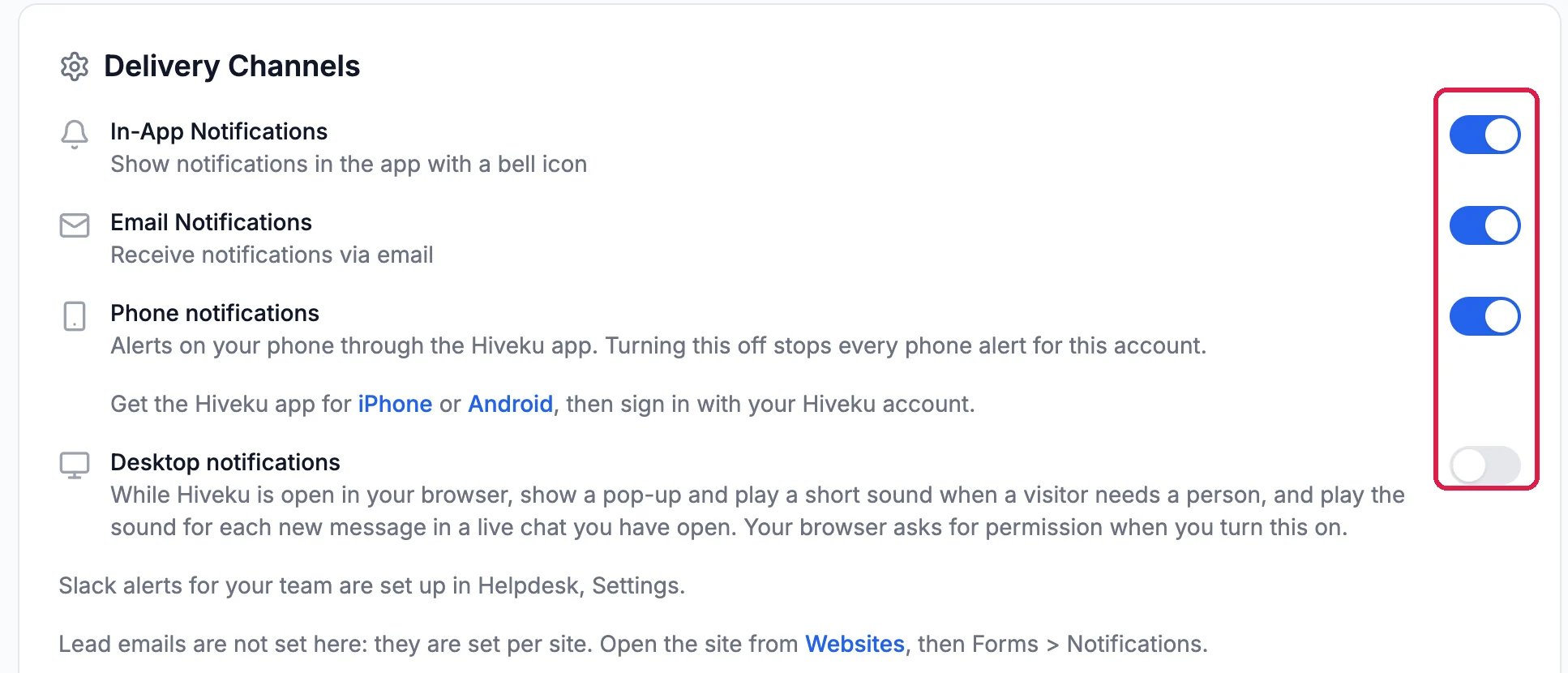
Where notices reach you
- In-App Notifications: the bell at the bottom of the left rail.
- Email Notifications: an email to your sign-in address.
- Phone notifications: alerts in the Hiveku app for iPhone or Android, once you sign in there.
- Desktop notifications: a pop-up and a short sound while Hiveku is open in your browser, when a visitor needs a person. Your browser asks for permission the first time.
Switch off the kinds you don’t need
Under Notification Types, each kind has its own switch: deployments, mentions and replies, messages, tasks, alerts, live chats and calls that need a person, call recaps and contracts. Northwind’s owner switched off Deployments, to stop hearing each time a site is published.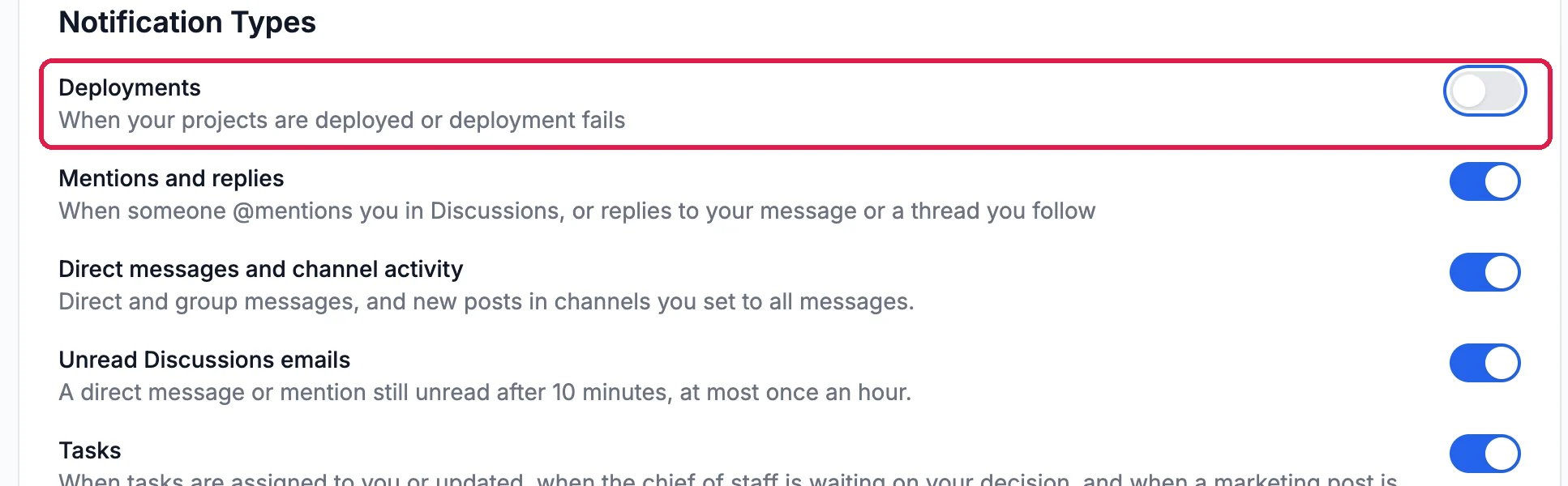
Deployments, switched off
Set quiet hours
Under Quiet Hours, switch on Enable Quiet Hours, pick a Start Time and an End Time, and choose your Timezone. In those hours Hiveku doesn’t send notice emails or phone alerts, except urgent ones. They aren’t sent later, but you still find them under the bell.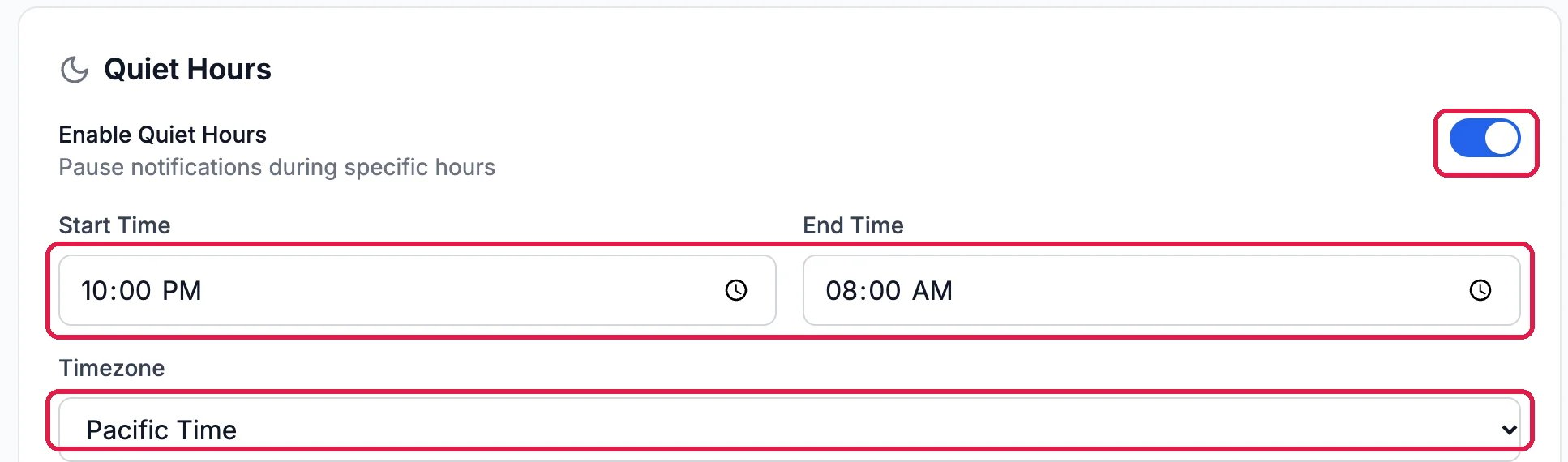
Quiet from 10 PM to 8 AM, Pacific Time
Good to know
- New leads are set per site. Who gets an email about a new form submission is chosen on each site’s Forms page: see Choose who gets an email about new submissions.
- Slack alerts for your team are set up in Helpdesk, Settings.
- Requests you sent to the Hiveku team have their own switch, and By email chooses whether you get an email about them right away, once a day, once a week or not at all.
- Tell your team about other things. To email the team or post in Slack when something specific happens, see Tell Your Team When Something Happens.