When a conversation needs a particular person, give it to them. When it matters more than the rest, raise its priority. Tag it with a word your team uses, such as “wholesale”, and you can list every conversation like it in one click. This guide hands a café’s wholesale question to Jamie, Northwind’s owner, at high priority.

Open the conversation

In Helpdesk > Inbox, click the conversation, then the … button at its top right, then Open full page. Its settings are on the right, under This chat.

Assign it

Click Assign next to Assigned to and pick the teammate. Assign to me takes it yourself.
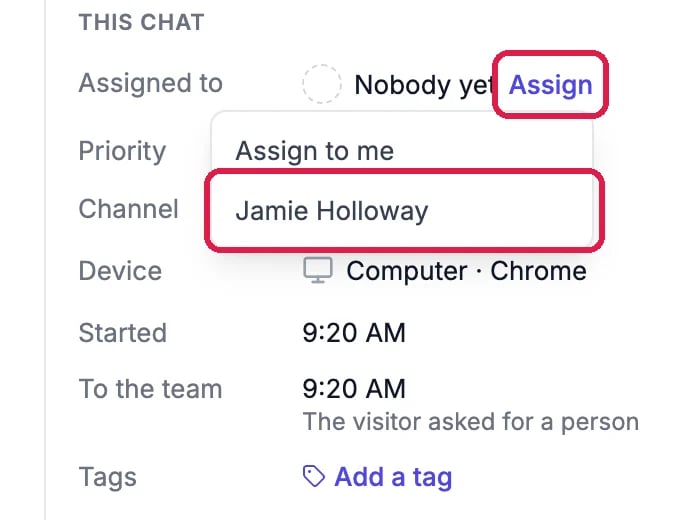
This chat: Assigned to Nobody yet with Assign, outlined, and the list Assign to me and Jamie Holloway, with Jamie Holloway outlined

Assign it to a teammate

The teammate gets a notification that the conversation is theirs, and it shows in their Mine tab. To change it later, click the name.

Set the priority

Click the priority, Normal to begin with, and pick Low, Normal, High or Urgent.
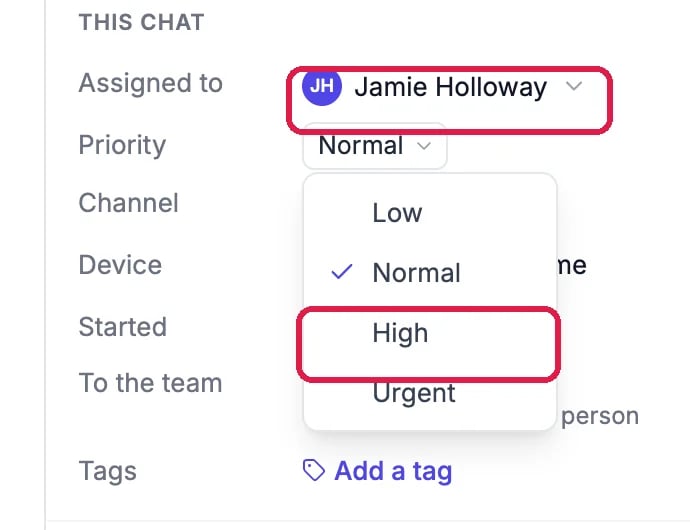
Assigned to Jamie Holloway, outlined, and the Priority menu open with Low, Normal ticked, High, outlined, and Urgent

The priority choices

Priority sets how fast your team should answer and finish it: each one has its own response and resolution deadline under Setup > Settings.

Tag it

Click Add a tag, type the tag and press Enter. Add as many as you like; click a tag’s x to remove it.
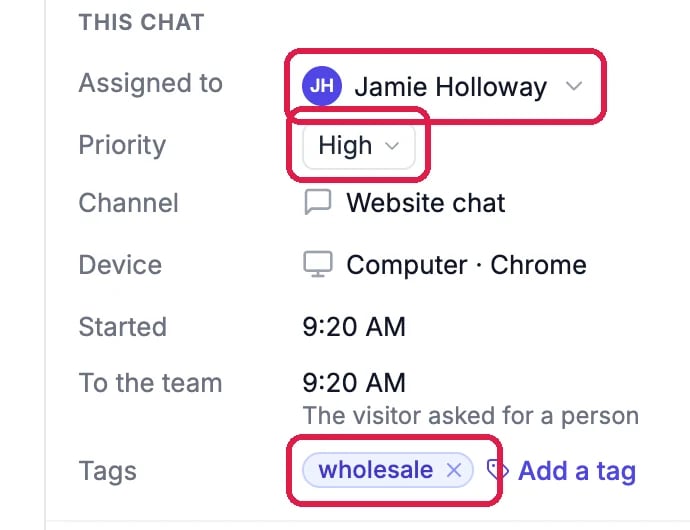
This chat: Assigned to Jamie Holloway, Priority High and the tag wholesale, each outlined, with Add a tag next to the tag

Assigned, high priority, tagged

Find them again

In the inbox, click Filter and pick the tag under Tag to list every conversation with it. The tag shows as a chip next to Filter.
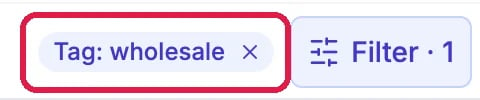
The Tag: wholesale chip with its x, outlined, next to Filter 1

Filtered by the wholesale tag

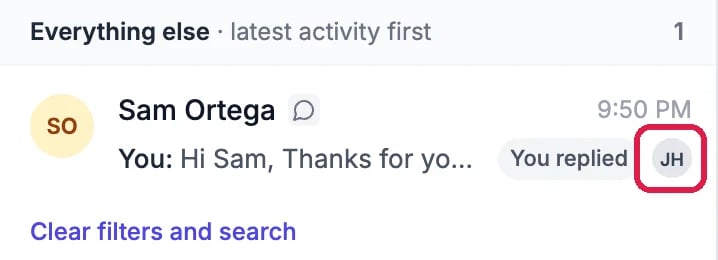
Each conversation in the list shows the initials of the teammate it is assigned to.
Everything else: Sam Ortega's conversation with You replied and the initials JH, outlined

Sam's chat, with Jamie's initials

Good to know

  • Combine filters: pick a tag together with a Priority or Assigned filter to find, for example, every urgent wholesale conversation nobody has yet.
  • Give new conversations to someone automatically: Auto-assign tickets under Setup > Settings shares new conversations among your team.
  • More: Find Any Conversation and Clear Out Finished Ones covers the tabs, search and Done.