Two things help when you change a workflow. A copy lets you try an idea without touching the workflow you rely on. Versions let you go back to how a workflow was before a change. This guide copies Northwind’s “Thank new wholesale leads” workflow, removes a step from the copy, then brings the step back from an earlier version. The copy stays switched off, and the original isn’t changed.

Make a copy

Click Workflows in the left rail, then Manage on the All Workflows card. Find the workflow, click … at the end of its row, then Clone.

The Thank new wholesale leads row, Disabled, with its menu open: Open editor, View executions, Clone outlined, and Delete

Clone, in the workflow's menu

A message confirms it, and the copy appears in the list with (Copy) after its name. A copy always starts switched off, so it can’t run until you turn it on.
The new row, outlined: Thank new wholesale leads (Copy), Disabled, 5 nodes, created just now, never run

The copy, switched off

Click the copy’s name to open it. Change it as much as you like: the original isn’t affected.

Save versions as you go

Every time you click Save Workflow, Hiveku keeps a version of the workflow as it was. To see them, click the gear at the top right of the editor, then Show Versions.
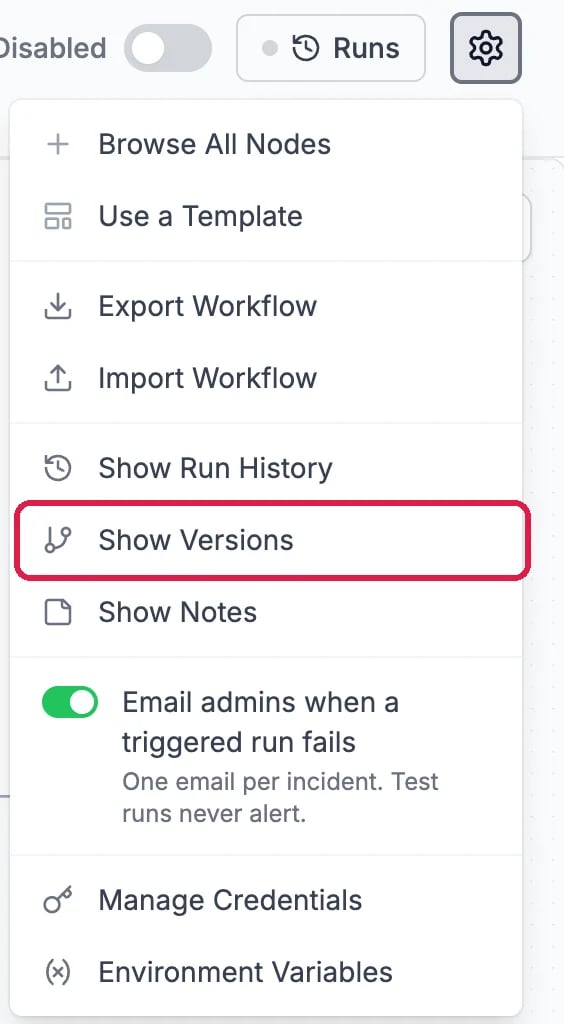
The editor's gear menu: Browse All Nodes, Use a Template, Export Workflow, Import Workflow, Show Run History, Show Versions outlined, Show Notes, and more

Show Versions, in the editor's menu

A brand-new copy has no versions until you save it once. Northwind saved the copy (version 1, five steps), then deleted its Log Activity step and saved again (version 2, four steps).

Go back to an earlier version

In Version History, each version shows how many steps (nodes) it has. Click the eye to look at a version, or the round arrow to go back to it.
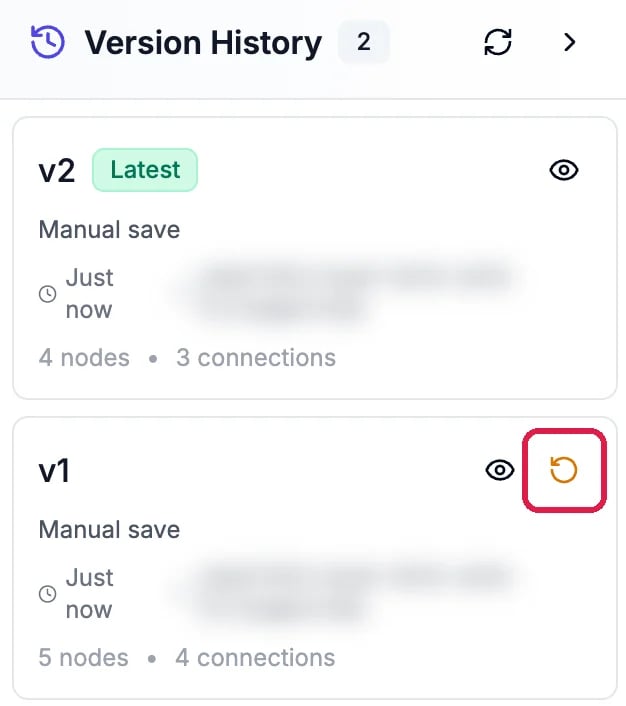
Version History, 2 versions: v2, Latest, Manual save, 4 nodes and 3 connections; v1, Manual save, 5 nodes and 4 connections, with its round arrow outlined

Version History, with the arrow to go back to version 1 outlined
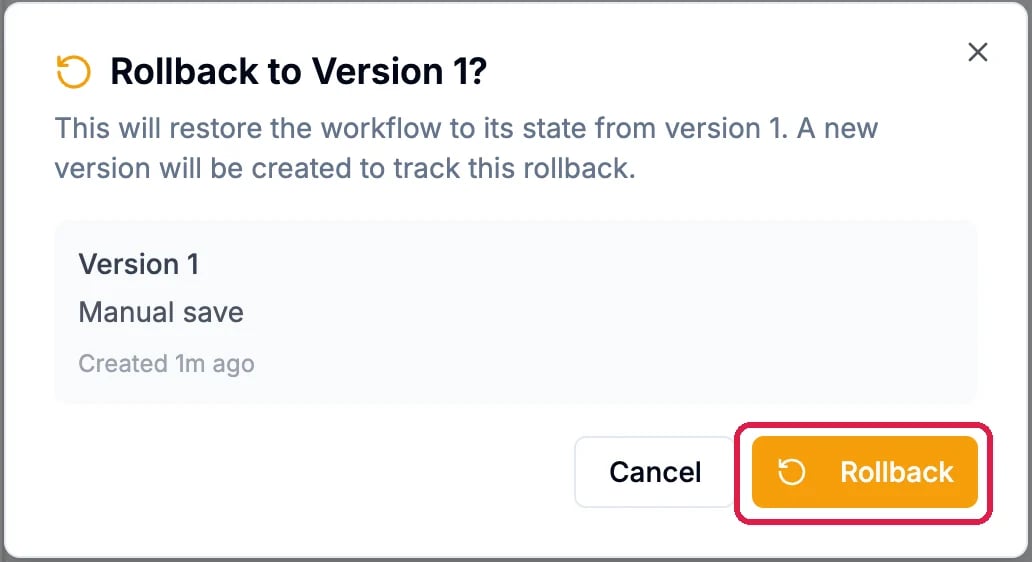
Northwind clicked the arrow on v1. A box asks you to confirm and explains that the workflow returns to that version’s state, saved as a new version. Click Rollback.
Rollback to Version 1? This will restore the workflow to its state from version 1; a new version will be created to track this. Version 1, Manual save. Cancel, and Rollback outlined

Confirm going back to version 1
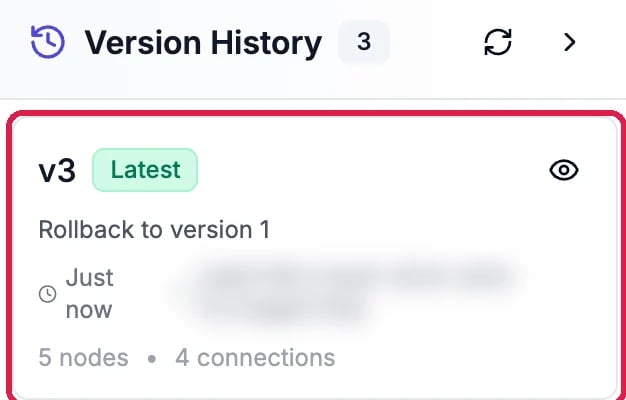
The list now starts with v3, which holds version 1’s five steps. Version 2 is still there, so you can change your mind again.
Version History, 3 versions: v3, Latest, Rollback to version 1, 5 nodes and 4 connections, outlined

The new version 3

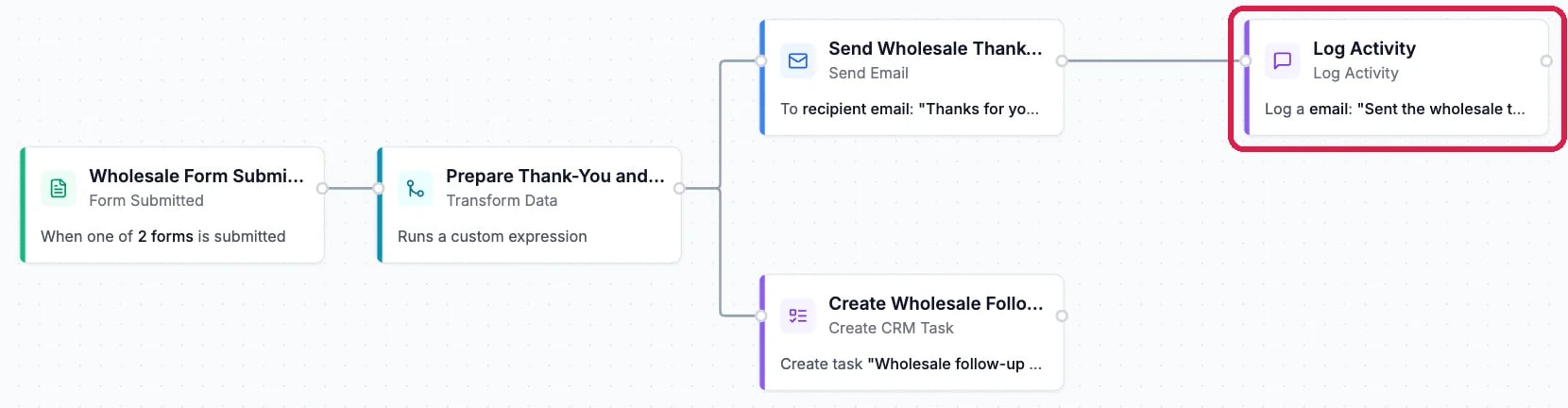
Close the panel with the arrow at its top right. The Log Activity step is back on the canvas.
The workflow canvas: Wholesale Form Submitted, Prepare Thank-You, Send Wholesale Thank-You email and Create Wholesale Follow-up task, with the Log Activity step after the email, outlined

The step is back

Northwind deleted the practice copy afterwards: … on its row, Delete, then Delete workflow.

Good to know

  • A copy keeps the steps and their settings. If the workflow starts from a webhook, the copy doesn’t share the original’s address: open its first step and click Create Webhook URL to give it its own.
  • Going back doesn’t switch anything on or off. A workflow that was off stays off.
  • Changes that aren’t saved don’t make a version. Click Save Workflow when you’re happy with a change.
  • More: Add and Connect Workflow Steps Yourself.