

Open the variables
Open the workflow (click Workflows in the left rail, then the workflow’s name). Click the gear at the top right, then Environment Variables.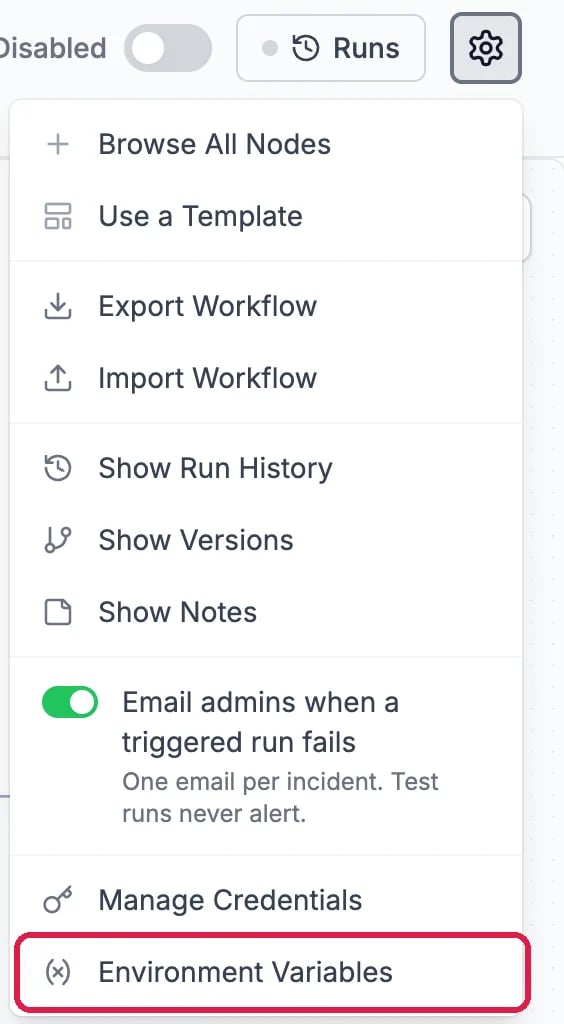
Environment Variables, in the editor's menu
Add a variable
- Variable Name: capital letters, numbers and underscores, starting with a letter, for example
PRICE_LIST_API_KEY. - Value: the key or setting itself.
- Mark as secret: tick it for a key or password. The value is then hidden behind dots in the list.
- Description: what it’s for, so your team knows.
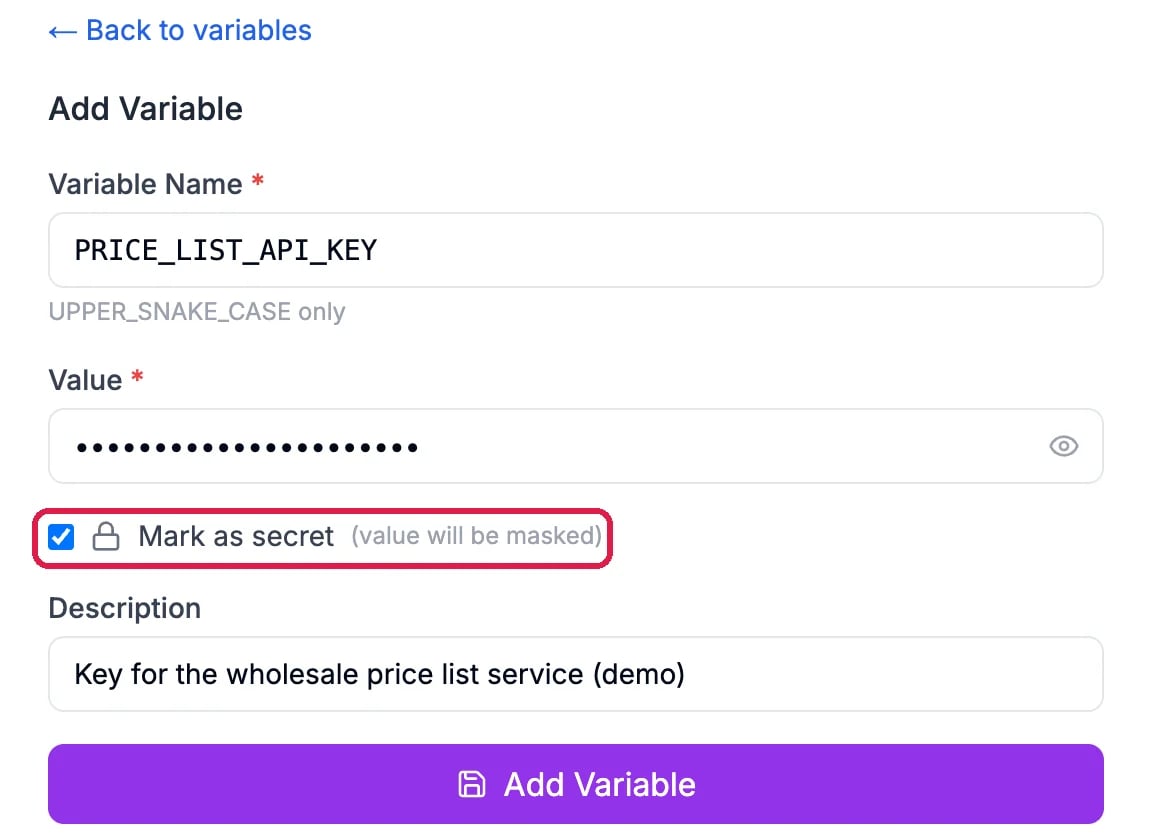
A made-up key, marked as secret
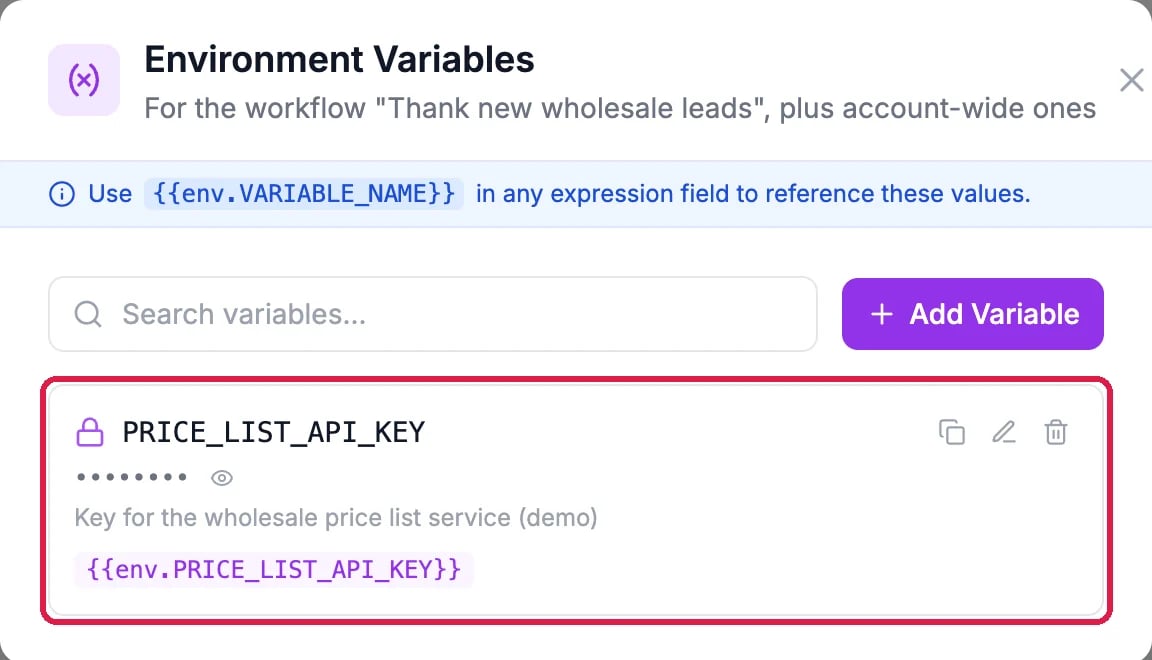
The variable, ready to use
Use it in a step
In any step field that takes variables, type the name shown under the variable, for example{{env.PRICE_LIST_API_KEY}}. When the workflow runs, the step uses the saved value. The copy icon on the variable’s row copies it for you.
To change a value later, click the pencil on its row. For a secret, type the new value; the old one isn’t shown. Every step that uses the name picks up the new value.
Delete a variable
Click the trash icon on its row, then Delete variable. Steps that still use it will fail, so take it out of them first. Northwind deleted its made-up key right after this guide.Good to know
- A variable you add here belongs to this workflow. Variables shared across your account show in every workflow’s list.
- For your website’s code use the site’s own keys instead. See Store an API Key or Setting for Your Site.
- More: Add and Connect Workflow Steps Yourself.