

In the website builder
Open a website in the builder. Under the chat box, click the model name (here Hiveku Max) and pick one:- Hiveku Mini (Free): fast edits and simple tasks, such as fixing a word or changing a color.
- Hiveku Max ($): building a section, a new page, or a change across several files.
- Hiveku Ultra ($$): large changes that need careful thinking, such as reworking how a whole site is put together.
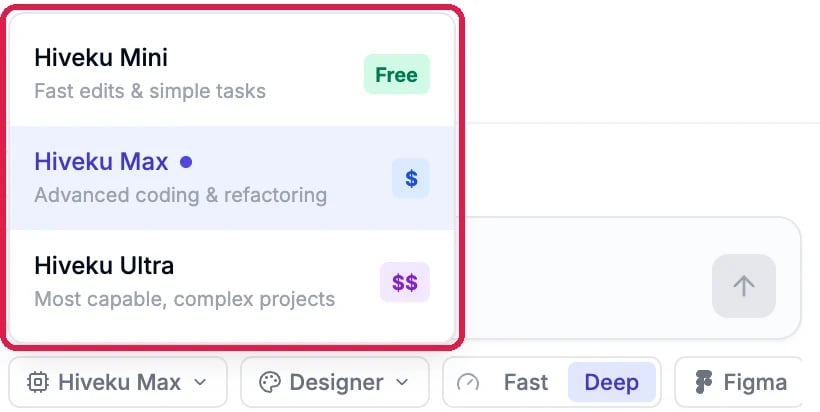
The model menu under the builder chat
In a workflow’s AI step
Workflows can include an AI Agent step that writes or decides something as the workflow runs. Click the step to open its settings, then choose under Model. The Model setting shows when Agent is set to None (direct model call). If the step runs as one of your agents, that agent uses its own model.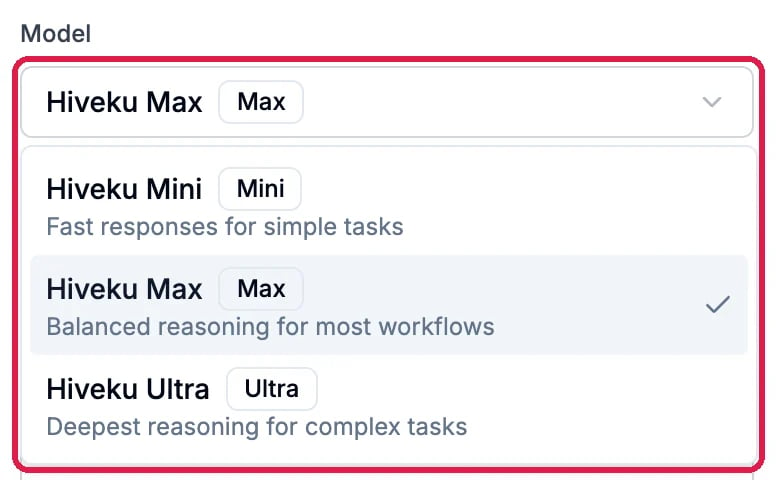
The Model setting of a workflow's AI Agent step
Which one to pick
- Start small. Try Mini for a small change. If the answer misses, ask again with Max.
- Max is the everyday choice for most building and most workflow steps.
- Save Ultra for jobs where a better first answer saves you several rounds.
Good to know
- In the builder chat, your plan decides which sizes you can pick. See AI Models. In a workflow’s AI step every size uses credits each time it runs, Mini included.
- Credits: see how many you’ve used, and what happens when you run out, in AI Credits.
- More: Make a Change with the AI Chat and Add and Connect Workflow Steps Yourself.