Describe a picture and have the AI make it, try another version, save the one you like, and change a photo you already have
Create with AI makes a new picture from a few sentences, or changes a picture you already have, for example turning a photo black and white. It uses your brand guide on its own, so the pictures match your colors and style.This guide makes a photo of fresh coffee beans for Northwind’s website, then a black and white copy of it.
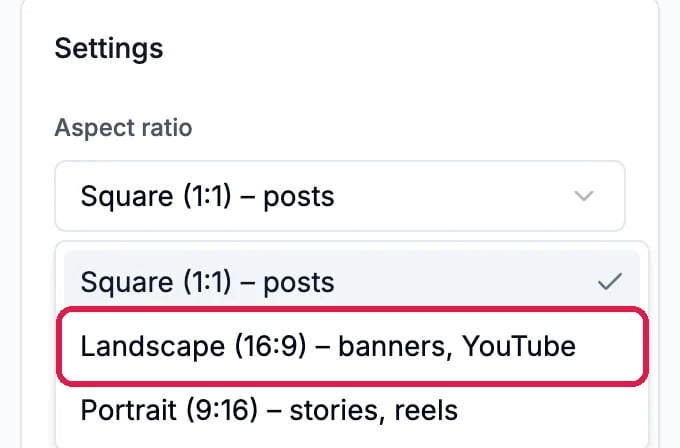
Under Settings, choose the Aspect ratio: Square (1:1) for social posts, Landscape (16:9) for banners and website headers, or Portrait (9:16) for stories. Here, Landscape (16:9).
The Aspect ratio list
2
Describe the picture and click Generate
In the box at the bottom, describe the picture the way you would brief a photographer: the subject, the light, what is in the background. Click Generate (or press Cmd+Enter, Ctrl+Enter on Windows). Examples above the box gives you ideas.
Northwind's description
3
Look at the result
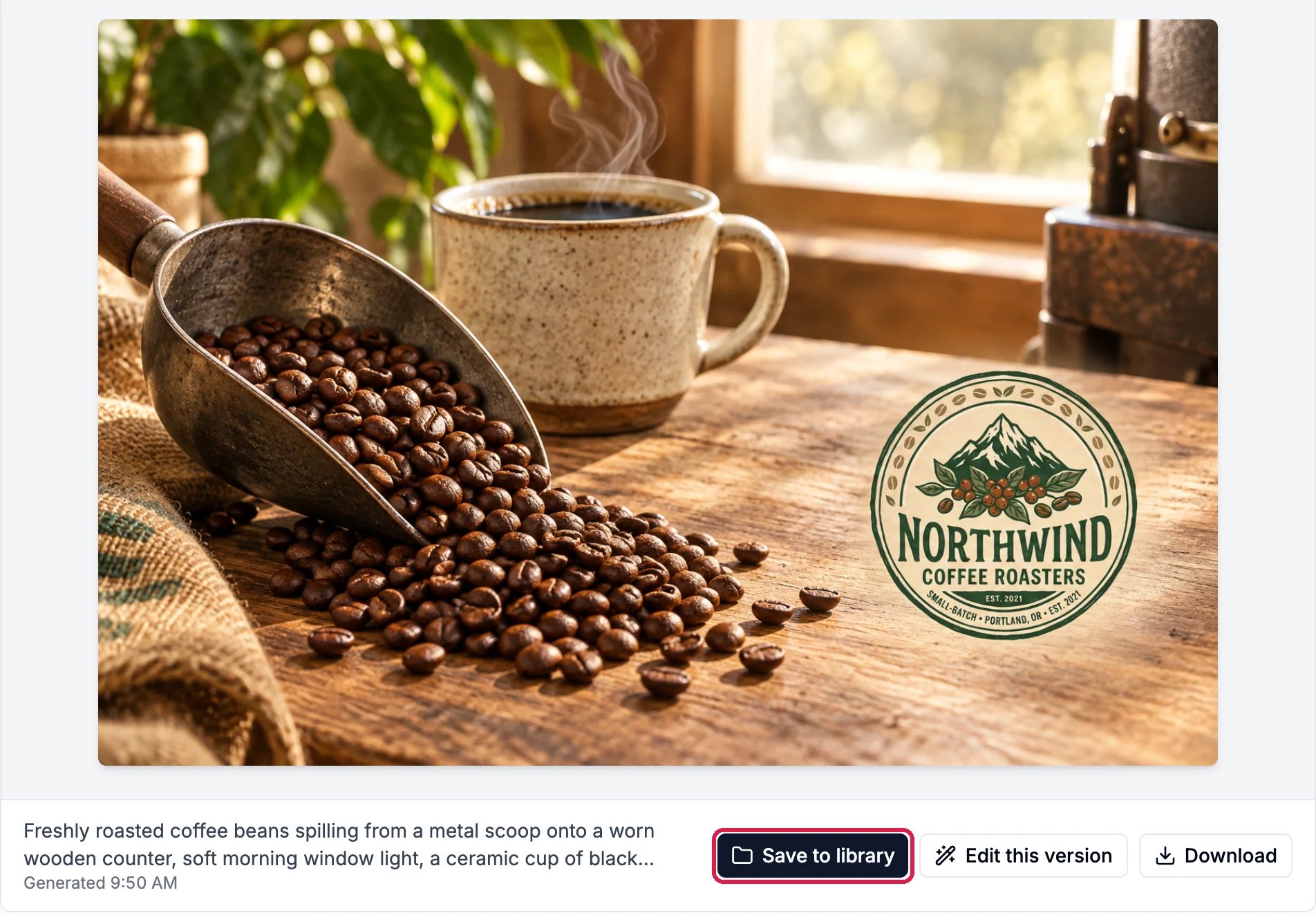
After a short wait the picture appears, with Save to library, Edit this version and Download under it.
The first version
Here the AI put the Northwind logo on the counter, which nobody asked for.
4
Try another version
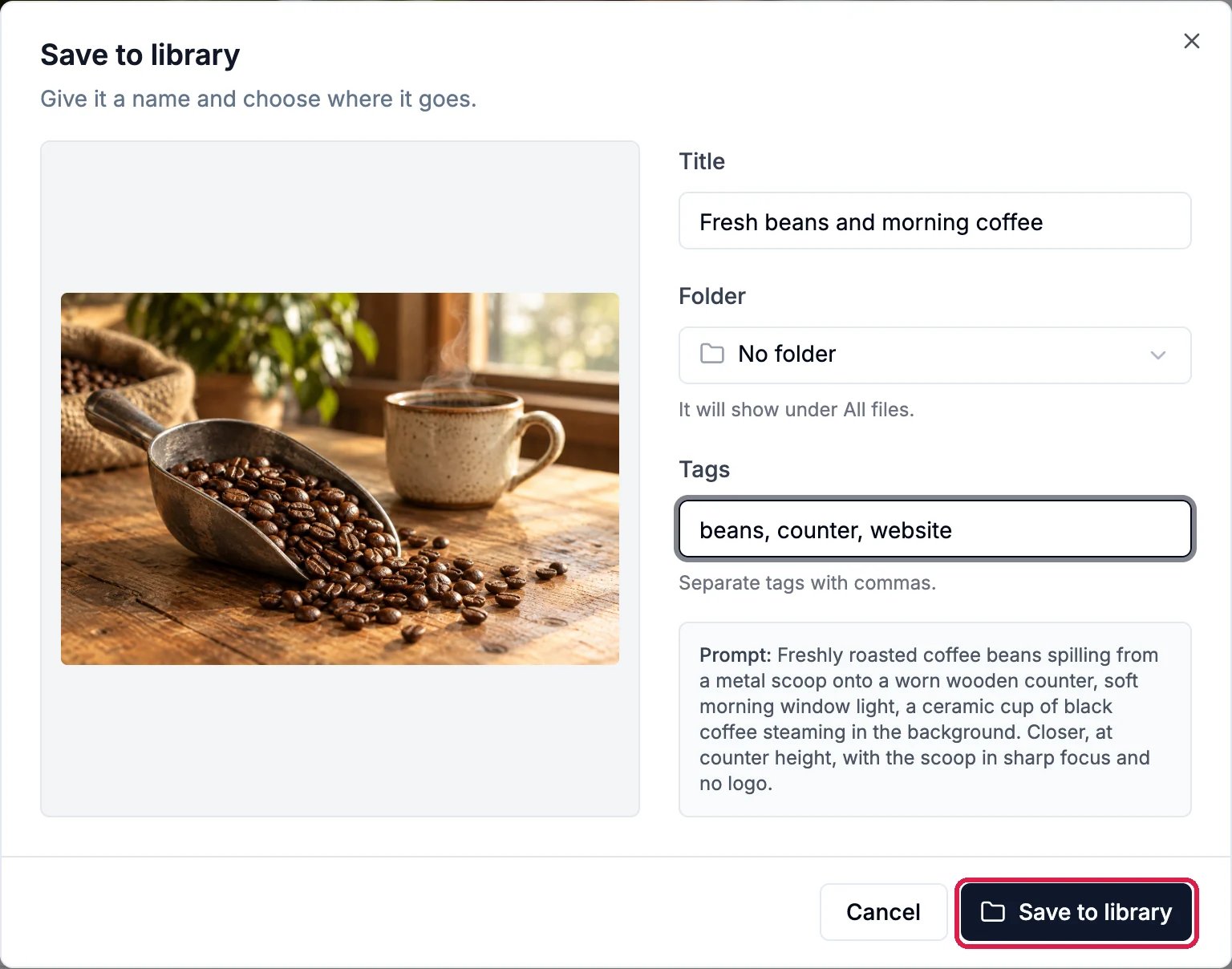
Change the description and generate again. Every version is kept under Versions, so you can click between them and compare. Northwind added “Closer, at counter height, with the scoop in sharp focus and no logo” and got the second version.
Two versions to compare
Versions are not kept until you save them, so save the ones you want before you leave the page.
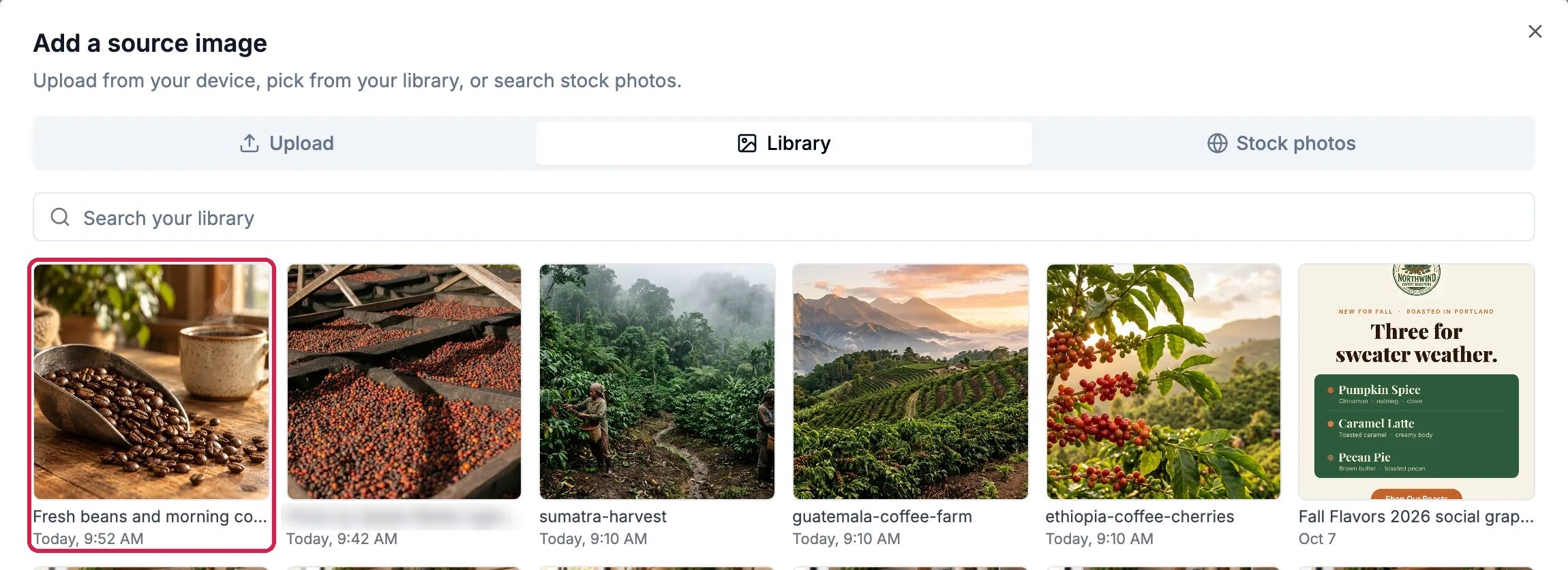
At the top of the page, switch from Generate to Modify, then click Add an image. Choose a picture to Upload from your computer, one from your Library, or one of the Stock photos.
Picking the beans photo from the library
2
Pick a quick edit or describe the change
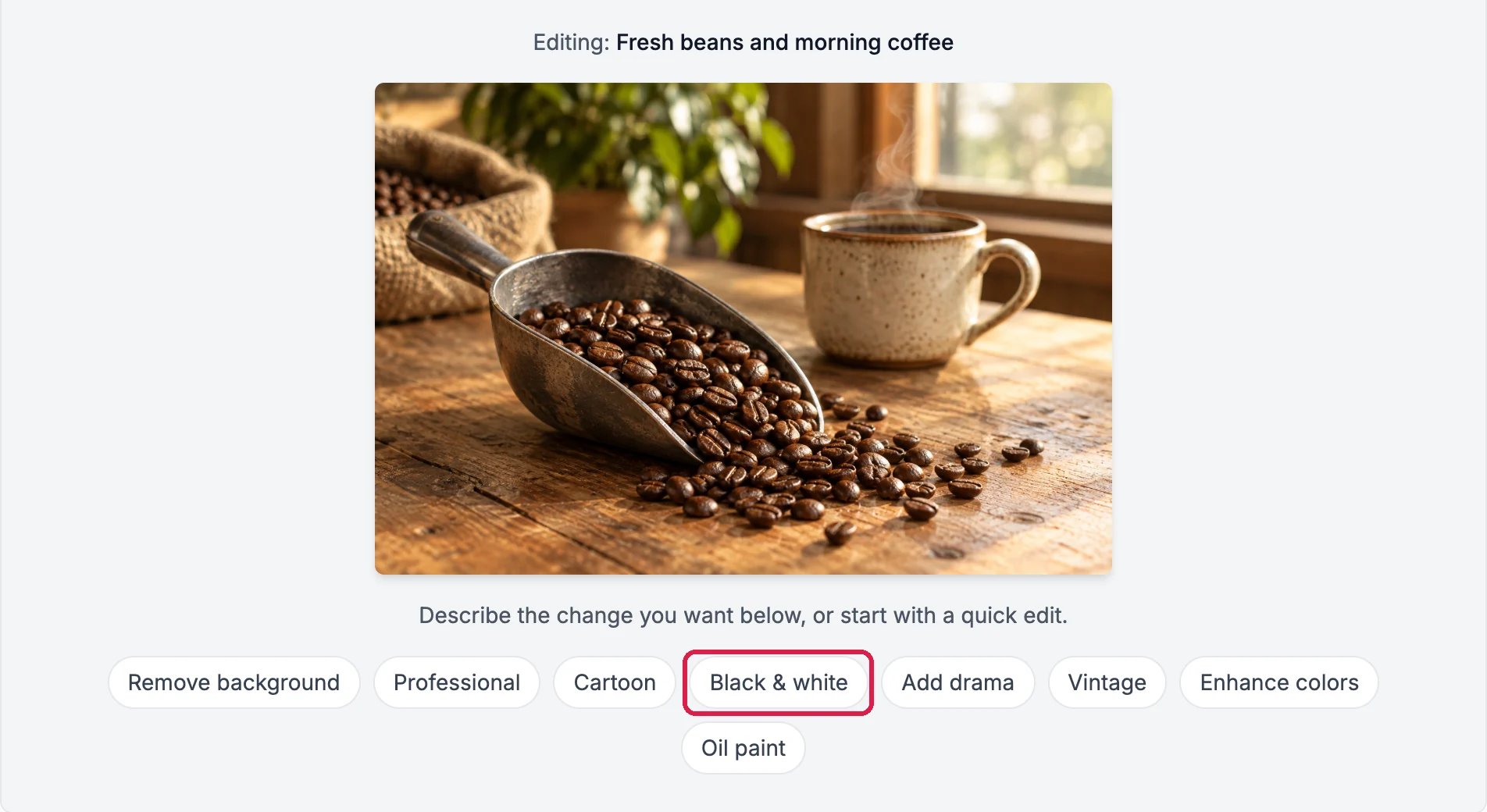
Click a quick edit, such as Black & white, Vintage or Enhance colors, or type the change you want in the box at the bottom. A quick edit writes its description into the box, and you can add to it before you go.
The quick edits
3
Click Modify
Check the description and click Modify. Northwind added “Keep the photo as it is and add no logo.” to the Black & white description.
The change, ready to make
4
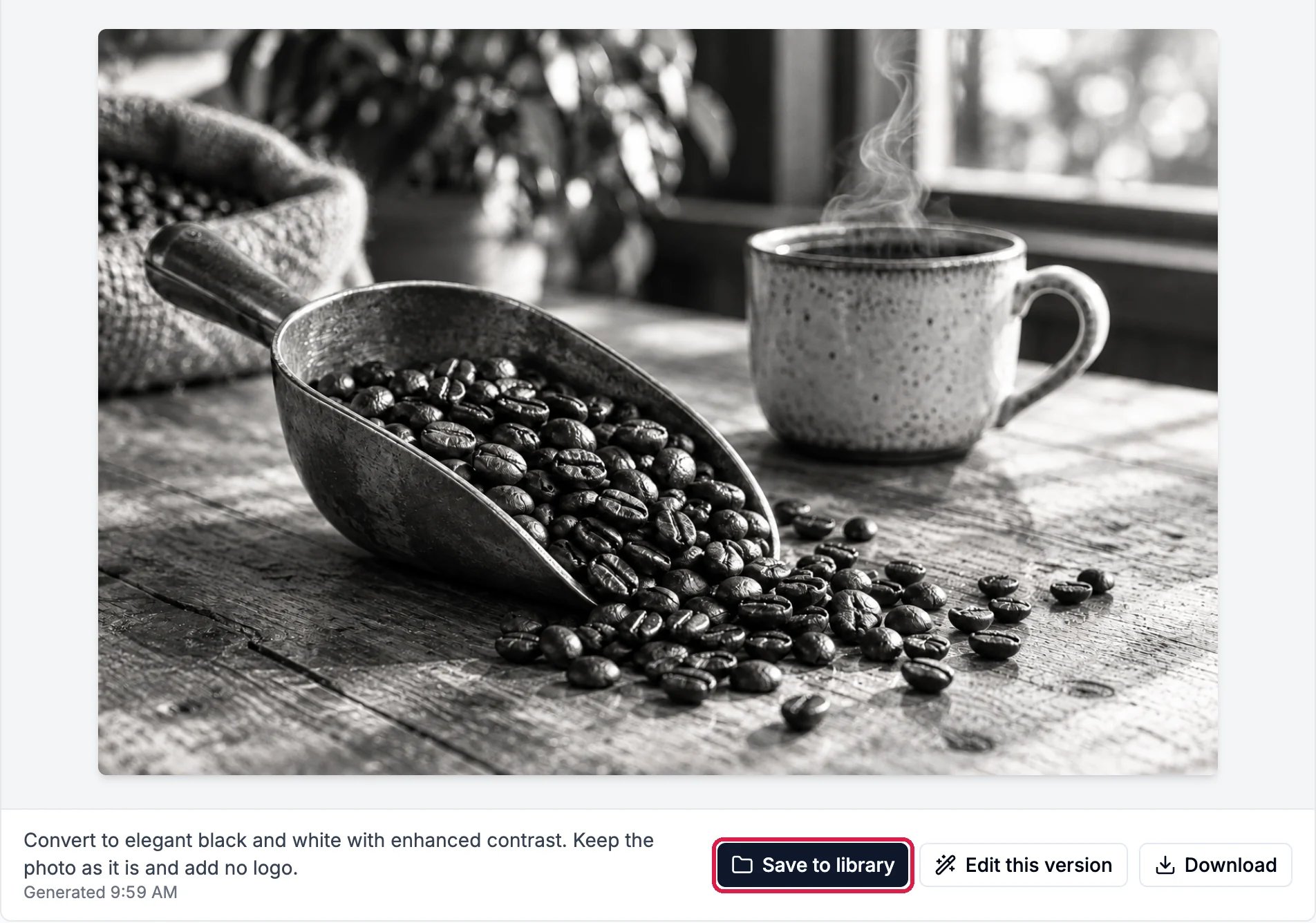
Save the new picture
The result is a new picture; the one you started from stays as it was. Click Save to library to keep it.
The black and white version
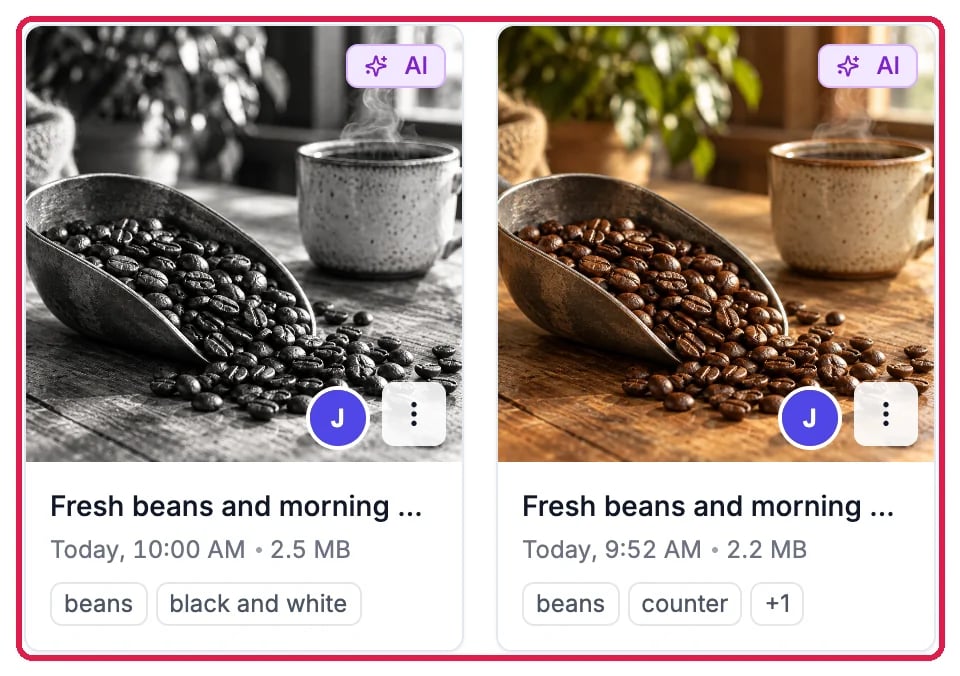
Both pictures are now in your Media Library, marked AI.
Your logo may show up uninvited. The AI gets your brand guide’s logo along with its colors and style, and sometimes paints the logo into a picture. If a picture should not have it, add “no logo” to the description.
Two pictures at once. In Modify, add a second picture to get quick edits such as Add logo and Apply branding, for example to put your real logo on a photo of a coffee bag.
Your monthly allowance. Each new picture, including each change made in Modify, counts toward your plan’s monthly image allowance. On Free and Starter, once it is used up the page says This month’s AI images are used, and new pictures wait until next month. On Standard and Premium you can keep going, and each picture past the allowance costs $0.20. See Your monthly image allowance.
{"docsConfig":{"theme":"maple","$schema":"https://mintlify.com/docs.json","name":"Hiveku Builder","colors":{"primary":"#F9A825","light":"#FBC02D","dark":"#F57F17"},"logo":{"light":"https://mintcdn.com/locusdigital/AodgChCDua_G2sAP/images/hiveku-logo-light.svg?fit=max\u0026auto=format\u0026n=AodgChCDua_G2sAP\u0026q=85\u0026s=5d69f2502059f8269d670b35be741ad2","dark":"https://mintcdn.com/locusdigital/AodgChCDua_G2sAP/images/hiveku-logo-dark.svg?fit=max\u0026auto=format\u0026n=AodgChCDua_G2sAP\u0026q=85\u0026s=a78cef8cf1c9ae13d3dcbe31c3ca498d","href":"https://hiveku.com"},"favicon":"https://mintcdn.com/locusdigital/AodgChCDua_G2sAP/images/favicon.svg?fit=max\u0026auto=format\u0026n=AodgChCDua_G2sAP\u0026q=85\u0026s=1b959fd7abfd376351a1216e201aa8cb","api":{},"appearance":{"default":"system"},"seo":{},"styling":{"latex":true},"navigation":{"global":{"anchors":[{"anchor":"Changelog","icon":"list","href":"/changelog"},{"anchor":"App","icon":"arrow-up-right-from-square","href":"https://app.hiveku.com"}]},"pages":[]}},"deployment":{"deploymentMetadataValue":{"subdomain":"locusdigital","hasAudioNarration":false,"actualSubdomain":"locusdigital","customDomains":["docs.hiveku.com"],"gitSource":{"type":"github","owner":"locus2012","repo":"hiveku_docs","deployBranch":"main","contentDirectory":"","isPrivate":true,"mountPath":"","label":""},"chroma":{"liveDeploymentHistoryId":"6ad91686376cd1b0b022d773","collectionId":"05ca33a5-f7c6-4816-b3fc-29e6f999676a","schemaVersion":"v3","latestBuiltDeploymentHistoryId":"6ad91686376cd1b0b022d773"},"entitlements":{"AI_CHAT":{"status":"DISABLED"}},"buildId":"6ad91686376cd1b0b022d773","clientVersion":"0.0.3918","searchFilterCounts":[{"language":"default","tag":"Documentation","count":383},{"language":"default","tag":"How-Tos","count":193},{"language":"default","tag":"Growing Your Business","count":61},{"language":"default","tag":"Integrations","count":25},{"language":"default","tag":"Publishing","count":18},{"language":"default","tag":"Integrations \u0026 BYOK","count":16},{"language":"default","tag":"Helpdesk","count":15},{"language":"default","tag":"Workflow Recipes","count":15},{"language":"default","tag":"Marketing Delivery","count":12},{"language":"default","tag":"API Reference","count":11}]},"assistantConfig":{"enableAskAiButton":false,"enableStarterQuestions":false,"enableContextualStarterQuestions":false,"enableAskAiSearchBar":true},"hasChatPermissions":false,"hasWebMcpPermissions":false,"toggles":[{"name":"kill-isr","enabled":true,"variant":{"name":"disabled","enabled":false,"feature_enabled":true},"impressionData":false},{"name":"agent-mintlify-slack","enabled":true,"variant":{"name":"disabled","enabled":false,"feature_enabled":true},"impressionData":false},{"name":"editor-v7-file-tree","enabled":true,"variant":{"name":"disabled","enabled":false,"feature_enabled":true},"impressionData":false},{"name":"agent-integrations-settings","enabled":true,"variant":{"name":"disabled","enabled":false,"feature_enabled":true},"impressionData":false},{"name":"automations-pr-grouping","enabled":true,"variant":{"name":"disabled","enabled":false,"feature_enabled":true},"impressionData":false},{"name":"custom-prefix","enabled":true,"variant":{"name":"disabled","enabled":false,"feature_enabled":true},"impressionData":false},{"name":"analytics-v7","enabled":true,"variant":{"name":"disabled","enabled":false,"feature_enabled":true},"impressionData":false},{"name":"user-flows-analytics","enabled":true,"variant":{"name":"disabled","enabled":false,"feature_enabled":true},"impressionData":false},{"name":"no-publish-flow","enabled":true,"variant":{"name":"disabled","enabled":false,"feature_enabled":true},"impressionData":false},{"name":"workos-onboarding","enabled":true,"variant":{"name":"disabled","enabled":false,"feature_enabled":true},"impressionData":false},{"name":"llms-txt-v2","enabled":true,"variant":{"name":"disabled","enabled":false,"feature_enabled":true},"impressionData":false},{"name":"pause-universal-search-reconcile","enabled":true,"variant":{"name":"disabled","enabled":false,"feature_enabled":true},"impressionData":false},{"name":"snapshot-serving-live","enabled":true,"variant":{"name":"disabled","enabled":false,"feature_enabled":true},"impressionData":false},{"name":"stripTemperatureMiddleware","enabled":true,"variant":{"name":"disabled","enabled":false,"feature_enabled":true},"impressionData":false},{"name":"per-site-search-delta","enabled":true,"variant":{"name":"disabled","enabled":false,"feature_enabled":true},"impressionData":false},{"name":"support-platform-pylon-zendesk","enabled":true,"variant":{"name":"disabled","enabled":false,"feature_enabled":true},"impressionData":false},{"name":"editor-branches-v2-autocommit","enabled":true,"variant":{"name":"disabled","enabled":false,"feature_enabled":true},"impressionData":false},{"name":"editor-branches-v2","enabled":true,"variant":{"name":"disabled","enabled":false,"feature_enabled":true},"impressionData":false},{"name":"snapshot-serving","enabled":true,"variant":{"name":"disabled","enabled":false,"feature_enabled":true},"impressionData":false},{"name":"instant-rollback","enabled":true,"variant":{"name":"disabled","enabled":false,"feature_enabled":true},"impressionData":false},{"name":"granular-notifications-server","enabled":true,"variant":{"name":"disabled","enabled":false,"feature_enabled":true},"impressionData":false},{"name":"granular-notifications","enabled":true,"variant":{"name":"disabled","enabled":false,"feature_enabled":true},"impressionData":false},{"name":"editor-private-page-search","enabled":true,"variant":{"name":"disabled","enabled":false,"feature_enabled":true},"impressionData":false},{"name":"automations-fable","enabled":true,"variant":{"name":"disabled","enabled":false,"feature_enabled":true},"impressionData":false},{"name":"fixed-ai-action-pricing","enabled":true,"variant":{"name":"disabled","enabled":false,"feature_enabled":true},"impressionData":false},{"name":"automation-resolve-merge-conflict","enabled":true,"variant":{"name":"disabled","enabled":false,"feature_enabled":true},"impressionData":false},{"name":"scoped-publishing","enabled":true,"variant":{"name":"disabled","enabled":false,"feature_enabled":true},"impressionData":false},{"name":"mintql","enabled":true,"variant":{"name":"disabled","enabled":false,"feature_enabled":true},"impressionData":false},{"name":"page-level-analytics","enabled":true,"variant":{"name":"disabled","enabled":false,"feature_enabled":true},"impressionData":false},{"name":"teamspace","enabled":true,"variant":{"name":"disabled","enabled":false,"feature_enabled":true},"impressionData":false},{"name":"editor-version-history-v2","enabled":true,"variant":{"name":"disabled","enabled":false,"feature_enabled":true},"impressionData":false},{"name":"editor-nav-generations","enabled":true,"variant":{"name":"disabled","enabled":false,"feature_enabled":true},"impressionData":false},{"name":"billing-page-v2","enabled":true,"variant":{"name":"disabled","enabled":false,"feature_enabled":true},"impressionData":false},{"name":"vite-origin","enabled":true,"variant":{"name":"disabled","enabled":false,"feature_enabled":true},"impressionData":false},{"name":"workspace-projects","enabled":true,"variant":{"name":"disabled","enabled":false,"feature_enabled":true},"impressionData":false},{"name":"assistant-v5","enabled":true,"variant":{"name":"disabled","enabled":false,"feature_enabled":true},"impressionData":false},{"name":"byok-sep-25","enabled":true,"variant":{"name":"disabled","enabled":false,"feature_enabled":true},"impressionData":false},{"name":"fork-pr-previews","enabled":true,"variant":{"name":"disabled","enabled":false,"feature_enabled":true},"impressionData":false},{"name":"revalidation-jwt","enabled":true,"variant":{"name":"disabled","enabled":false,"feature_enabled":true},"impressionData":false},{"name":"editor-agent-model-picker","enabled":true,"variant":{"name":"disabled","enabled":false,"feature_enabled":true},"impressionData":false},{"name":"client-snapshot-docs-config","enabled":true,"variant":{"name":"disabled","enabled":false,"feature_enabled":true},"impressionData":false},{"name":"hobby-abuse-scan","enabled":true,"variant":{"name":"disabled","enabled":false,"feature_enabled":true},"impressionData":false},{"name":"dashboard-inbox","enabled":true,"variant":{"name":"disabled","enabled":false,"feature_enabled":true},"impressionData":false}],"isAtlas":false,"googleFontsInlined":false},"customCss":[],"page":{"pagePath":"how-tos/content/ai-images","slug":"/how-tos/content/ai-images","pageMetadata":{"title":"Create or Edit a Picture with AI","sidebarTitle":"Create a Picture with AI","description":"Describe a picture and have the AI make it, try another version, save the one you like, and change a photo you already have","href":"/how-tos/content/ai-images"},"description":{"compiledSource":"\"use strict\";\nconst {jsx: _jsx} = arguments[0];\nconst {useMDXComponents: _provideComponents} = arguments[0];\nfunction _createMdxContent(props) {\n const _components = {\n p: \"p\",\n ..._provideComponents(),\n ...props.components\n };\n return _jsx(_components.p, {\n children: \"Describe a picture and have the AI make it, try another version, save the one you like, and change a photo you already have\"\n });\n}\nfunction MDXContent(props = {}) {\n const {wrapper: MDXLayout} = {\n ..._provideComponents(),\n ...props.components\n };\n return MDXLayout ? _jsx(MDXLayout, {\n ...props,\n children: _jsx(_createMdxContent, {\n ...props\n })\n }) : _createMdxContent(props);\n}\nreturn {\n default: MDXContent\n};\n","frontmatter":{},"scope":{}},"pageType":"default","mdx":{"mdxSource":{"compiledSource":"\"use strict\";const{Fragment:_Fragment,jsx:_jsx,jsxs:_jsxs}=arguments[0];const{useMDXComponents:_provideComponents}=arguments[0];function _createMdxContent(props){const _components={a:`a`,li:`li`,p:`p`,strong:`strong`,ul:`ul`,..._provideComponents(),...props.components},{Frame,Heading,OptimizedImage,Step,Steps}=_components;if(!Frame)_missingMdxReference(`Frame`,true);if(!Heading)_missingMdxReference(`Heading`,true);if(!OptimizedImage)_missingMdxReference(`OptimizedImage`,true);if(!Step)_missingMdxReference(`Step`,true);if(!Steps)_missingMdxReference(`Steps`,true);return _jsxs(_Fragment,{children:[_jsxs(_components.p,{children:[_jsx(_components.strong,{children:`Create with AI`}),` makes a new picture from a few sentences, or changes a picture you already have, for example turning a photo black and white. It uses your brand guide on its own, so the pictures match your colors and style.`]}),`\n`,_jsx(_components.p,{children:`This guide makes a photo of fresh coffee beans for Northwind’s website, then a black and white copy of it.`}),`\n`,_jsx(Heading,{level:`2`,id:`open-create-with-ai`,children:`Open Create with AI`}),`\n`,_jsxs(_components.p,{children:[`Click `,_jsx(_components.strong,{children:`Marketing`}),` in the left rail, then the `,_jsx(_components.strong,{children:`Media Library`}),` card, then `,_jsx(_components.strong,{children:`Create with AI`}),` at the top of the page.`]}),`\n`,_jsx(Frame,{caption:`Create with AI, in the Media Library`,children:_jsx(OptimizedImage,{src:`https://mintcdn.com/locusdigital/ySIXV0mU_PFKnBAx/images/how-tos/content/ai-image-01-open-closeup.webp?fit=max\u0026auto=format\u0026n=ySIXV0mU_PFKnBAx\u0026q=85\u0026s=6bc7671145dee0a3e54d66059c216031`,alt:`The Media Library buttons New folder, Browse stock, Create with AI and Upload files, with Create with AI outlined`,width:`700`,\"data-og-width\":`1400`,\"data-og-height\":`168`,\"data-path\":`images/how-tos/content/ai-image-01-open-closeup.webp`,\"data-optimize\":`true`,\"data-opv\":`3`,srcset:`https://mintcdn.com/locusdigital/ySIXV0mU_PFKnBAx/images/how-tos/content/ai-image-01-open-closeup.webp?w=280\u0026fit=max\u0026auto=format\u0026n=ySIXV0mU_PFKnBAx\u0026q=85\u0026s=2527432426dd3700e32dffdb27df3494 280w, https://mintcdn.com/locusdigital/ySIXV0mU_PFKnBAx/images/how-tos/content/ai-image-01-open-closeup.webp?w=560\u0026fit=max\u0026auto=format\u0026n=ySIXV0mU_PFKnBAx\u0026q=85\u0026s=2ca9c4fbebef232eb1f14070f2d8c1a0 560w, https://mintcdn.com/locusdigital/ySIXV0mU_PFKnBAx/images/how-tos/content/ai-image-01-open-closeup.webp?w=840\u0026fit=max\u0026auto=format\u0026n=ySIXV0mU_PFKnBAx\u0026q=85\u0026s=a183d2c0344ba2d9be1418f71c731499 840w, https://mintcdn.com/locusdigital/ySIXV0mU_PFKnBAx/images/how-tos/content/ai-image-01-open-closeup.webp?w=1100\u0026fit=max\u0026auto=format\u0026n=ySIXV0mU_PFKnBAx\u0026q=85\u0026s=59c382bb20951e6da9bef9cbc3f44147 1100w, https://mintcdn.com/locusdigital/ySIXV0mU_PFKnBAx/images/how-tos/content/ai-image-01-open-closeup.webp?w=1650\u0026fit=max\u0026auto=format\u0026n=ySIXV0mU_PFKnBAx\u0026q=85\u0026s=b9dfe8c9f47e54315e5a2e25d98c1675 1650w, https://mintcdn.com/locusdigital/ySIXV0mU_PFKnBAx/images/how-tos/content/ai-image-01-open-closeup.webp?w=2500\u0026fit=max\u0026auto=format\u0026n=ySIXV0mU_PFKnBAx\u0026q=85\u0026s=7789eda1cc28187910a51d8eabbc6119 2500w`})}),`\n`,_jsx(Heading,{level:`2`,id:`make-a-new-picture`,children:`Make a new picture`}),`\n`,_jsxs(Steps,{children:[_jsxs(Step,{title:`Pick the shape`,children:[_jsxs(_components.p,{children:[`Under `,_jsx(_components.strong,{children:`Settings`}),`, choose the `,_jsx(_components.strong,{children:`Aspect ratio`}),`: `,_jsx(_components.strong,{children:`Square (1:1)`}),` for social posts, `,_jsx(_components.strong,{children:`Landscape (16:9)`}),` for banners and website headers, or `,_jsx(_components.strong,{children:`Portrait (9:16)`}),` for stories. Here, `,_jsx(_components.strong,{children:`Landscape (16:9)`}),`.`]}),_jsx(Frame,{caption:`The Aspect ratio list`,children:_jsx(OptimizedImage,{src:`https://mintcdn.com/locusdigital/ySIXV0mU_PFKnBAx/images/how-tos/content/ai-image-02-aspect-closeup.webp?fit=max\u0026auto=format\u0026n=ySIXV0mU_PFKnBAx\u0026q=85\u0026s=2f49d27554ca51619923a9f89a48fdd9`,alt:`The Aspect ratio list open under Settings, with Landscape (16:9) banners, YouTube outlined`,width:`340`,\"data-og-width\":`680`,\"data-og-height\":`448`,\"data-path\":`images/how-tos/content/ai-image-02-aspect-closeup.webp`,\"data-optimize\":`true`,\"data-opv\":`3`,srcset:`https://mintcdn.com/locusdigital/ySIXV0mU_PFKnBAx/images/how-tos/content/ai-image-02-aspect-closeup.webp?w=280\u0026fit=max\u0026auto=format\u0026n=ySIXV0mU_PFKnBAx\u0026q=85\u0026s=1487bc0f72556e501d14afacec355315 280w, https://mintcdn.com/locusdigital/ySIXV0mU_PFKnBAx/images/how-tos/content/ai-image-02-aspect-closeup.webp?w=560\u0026fit=max\u0026auto=format\u0026n=ySIXV0mU_PFKnBAx\u0026q=85\u0026s=35cc4d71a250e3a9dea87996dcacd65b 560w, https://mintcdn.com/locusdigital/ySIXV0mU_PFKnBAx/images/how-tos/content/ai-image-02-aspect-closeup.webp?w=840\u0026fit=max\u0026auto=format\u0026n=ySIXV0mU_PFKnBAx\u0026q=85\u0026s=d07bc4b1dc1bfebf2d62575881a24fbb 840w, https://mintcdn.com/locusdigital/ySIXV0mU_PFKnBAx/images/how-tos/content/ai-image-02-aspect-closeup.webp?w=1100\u0026fit=max\u0026auto=format\u0026n=ySIXV0mU_PFKnBAx\u0026q=85\u0026s=b253f8c1fbcfcbbb19dee6452a8949fa 1100w, https://mintcdn.com/locusdigital/ySIXV0mU_PFKnBAx/images/how-tos/content/ai-image-02-aspect-closeup.webp?w=1650\u0026fit=max\u0026auto=format\u0026n=ySIXV0mU_PFKnBAx\u0026q=85\u0026s=36f4006cc751717229e8dca24d5fca1a 1650w, https://mintcdn.com/locusdigital/ySIXV0mU_PFKnBAx/images/how-tos/content/ai-image-02-aspect-closeup.webp?w=2500\u0026fit=max\u0026auto=format\u0026n=ySIXV0mU_PFKnBAx\u0026q=85\u0026s=184804f33ce99723258b3dd025117b48 2500w`})})]}),_jsxs(Step,{title:`Describe the picture and click Generate`,children:[_jsxs(_components.p,{children:[`In the box at the bottom, describe the picture the way you would brief a photographer: the subject, the light, what is in the background. Click `,_jsx(_components.strong,{children:`Generate`}),` (or press Cmd+Enter, Ctrl+Enter on Windows). `,_jsx(_components.strong,{children:`Examples`}),` above the box gives you ideas.`]}),_jsx(Frame,{caption:`Northwind's description`,children:_jsx(OptimizedImage,{src:`https://mintcdn.com/locusdigital/ySIXV0mU_PFKnBAx/images/how-tos/content/ai-image-03-describe-closeup.webp?fit=max\u0026auto=format\u0026n=ySIXV0mU_PFKnBAx\u0026q=85\u0026s=c6456a4c5cc4e935819e872aed5176b9`,alt:`The description box reading Freshly roasted coffee beans spilling from a metal scoop onto a worn wooden counter, soft morning window light, a ceramic cup of black coffee steaming in the background, with the Generate button outlined`,width:`1320`,\"data-og-width\":`2640`,\"data-og-height\":`272`,\"data-path\":`images/how-tos/content/ai-image-03-describe-closeup.webp`,\"data-optimize\":`true`,\"data-opv\":`3`,srcset:`https://mintcdn.com/locusdigital/ySIXV0mU_PFKnBAx/images/how-tos/content/ai-image-03-describe-closeup.webp?w=280\u0026fit=max\u0026auto=format\u0026n=ySIXV0mU_PFKnBAx\u0026q=85\u0026s=376fe2787389b67dc1704453fd7b778f 280w, https://mintcdn.com/locusdigital/ySIXV0mU_PFKnBAx/images/how-tos/content/ai-image-03-describe-closeup.webp?w=560\u0026fit=max\u0026auto=format\u0026n=ySIXV0mU_PFKnBAx\u0026q=85\u0026s=4202d1e5362183bd0a09aa914e76887b 560w, https://mintcdn.com/locusdigital/ySIXV0mU_PFKnBAx/images/how-tos/content/ai-image-03-describe-closeup.webp?w=840\u0026fit=max\u0026auto=format\u0026n=ySIXV0mU_PFKnBAx\u0026q=85\u0026s=003b84264bbf4375915a78c99a761499 840w, https://mintcdn.com/locusdigital/ySIXV0mU_PFKnBAx/images/how-tos/content/ai-image-03-describe-closeup.webp?w=1100\u0026fit=max\u0026auto=format\u0026n=ySIXV0mU_PFKnBAx\u0026q=85\u0026s=5022a95b66347ca095a9dc2cb489fd72 1100w, https://mintcdn.com/locusdigital/ySIXV0mU_PFKnBAx/images/how-tos/content/ai-image-03-describe-closeup.webp?w=1650\u0026fit=max\u0026auto=format\u0026n=ySIXV0mU_PFKnBAx\u0026q=85\u0026s=d1edcde20c22a049cbc65df6fff25604 1650w, https://mintcdn.com/locusdigital/ySIXV0mU_PFKnBAx/images/how-tos/content/ai-image-03-describe-closeup.webp?w=2500\u0026fit=max\u0026auto=format\u0026n=ySIXV0mU_PFKnBAx\u0026q=85\u0026s=f09e69d7540c6eb761066e0b47d131f5 2500w`})})]}),_jsxs(Step,{title:`Look at the result`,children:[_jsxs(_components.p,{children:[`After a short wait the picture appears, with `,_jsx(_components.strong,{children:`Save to library`}),`, `,_jsx(_components.strong,{children:`Edit this version`}),` and `,_jsx(_components.strong,{children:`Download`}),` under it.`]}),_jsx(Frame,{caption:`The first version`,children:_jsx(OptimizedImage,{src:`https://mintcdn.com/locusdigital/ySIXV0mU_PFKnBAx/images/how-tos/content/ai-image-04-first-version-closeup.webp?fit=max\u0026auto=format\u0026n=ySIXV0mU_PFKnBAx\u0026q=85\u0026s=2764fa712e8e8a8caee84acacc1e145f`,alt:`The first picture: coffee beans spilling from a metal scoop next to a steaming cup, with a large Northwind Coffee Roasters logo badge on the counter, and Save to library outlined`,width:`952`,\"data-og-width\":`1904`,\"data-og-height\":`1324`,\"data-path\":`images/how-tos/content/ai-image-04-first-version-closeup.webp`,\"data-optimize\":`true`,\"data-opv\":`3`,srcset:`https://mintcdn.com/locusdigital/ySIXV0mU_PFKnBAx/images/how-tos/content/ai-image-04-first-version-closeup.webp?w=280\u0026fit=max\u0026auto=format\u0026n=ySIXV0mU_PFKnBAx\u0026q=85\u0026s=516d4791c0cddee74da5eb9ab247514d 280w, https://mintcdn.com/locusdigital/ySIXV0mU_PFKnBAx/images/how-tos/content/ai-image-04-first-version-closeup.webp?w=560\u0026fit=max\u0026auto=format\u0026n=ySIXV0mU_PFKnBAx\u0026q=85\u0026s=69813068dc4c849e5369ad3b4a35efb8 560w, https://mintcdn.com/locusdigital/ySIXV0mU_PFKnBAx/images/how-tos/content/ai-image-04-first-version-closeup.webp?w=840\u0026fit=max\u0026auto=format\u0026n=ySIXV0mU_PFKnBAx\u0026q=85\u0026s=e2459124712927181053b26086d6b3f1 840w, https://mintcdn.com/locusdigital/ySIXV0mU_PFKnBAx/images/how-tos/content/ai-image-04-first-version-closeup.webp?w=1100\u0026fit=max\u0026auto=format\u0026n=ySIXV0mU_PFKnBAx\u0026q=85\u0026s=a8760198b85382a1f621a8892b89b725 1100w, https://mintcdn.com/locusdigital/ySIXV0mU_PFKnBAx/images/how-tos/content/ai-image-04-first-version-closeup.webp?w=1650\u0026fit=max\u0026auto=format\u0026n=ySIXV0mU_PFKnBAx\u0026q=85\u0026s=e6a1477ba53d455705dade57b9fd27e0 1650w, https://mintcdn.com/locusdigital/ySIXV0mU_PFKnBAx/images/how-tos/content/ai-image-04-first-version-closeup.webp?w=2500\u0026fit=max\u0026auto=format\u0026n=ySIXV0mU_PFKnBAx\u0026q=85\u0026s=4e78b7e2f884e83ac7ba010d340e85c4 2500w`})}),_jsx(_components.p,{children:`Here the AI put the Northwind logo on the counter, which nobody asked for.`})]}),_jsxs(Step,{title:`Try another version`,children:[_jsxs(_components.p,{children:[`Change the description and generate again. Every version is kept under `,_jsx(_components.strong,{children:`Versions`}),`, so you can click between them and compare. Northwind added “Closer, at counter height, with the scoop in sharp focus and no logo” and got the second version.`]}),_jsx(Frame,{caption:`Two versions to compare`,children:_jsx(OptimizedImage,{src:`https://mintcdn.com/locusdigital/ySIXV0mU_PFKnBAx/images/how-tos/content/ai-image-05-versions-closeup.webp?fit=max\u0026auto=format\u0026n=ySIXV0mU_PFKnBAx\u0026q=85\u0026s=d41daf148f36f5f40754152e78b0f18c`,alt:`Versions (2), with both versions marked Not saved outlined, the second one selected, and the note Images aren't kept until you save them to your library`,width:`952`,\"data-og-width\":`1904`,\"data-og-height\":`304`,\"data-path\":`images/how-tos/content/ai-image-05-versions-closeup.webp`,\"data-optimize\":`true`,\"data-opv\":`3`,srcset:`https://mintcdn.com/locusdigital/ySIXV0mU_PFKnBAx/images/how-tos/content/ai-image-05-versions-closeup.webp?w=280\u0026fit=max\u0026auto=format\u0026n=ySIXV0mU_PFKnBAx\u0026q=85\u0026s=cf6304d795841b6286136e293484f9e9 280w, https://mintcdn.com/locusdigital/ySIXV0mU_PFKnBAx/images/how-tos/content/ai-image-05-versions-closeup.webp?w=560\u0026fit=max\u0026auto=format\u0026n=ySIXV0mU_PFKnBAx\u0026q=85\u0026s=88b9537d155618463ffce821301184ae 560w, https://mintcdn.com/locusdigital/ySIXV0mU_PFKnBAx/images/how-tos/content/ai-image-05-versions-closeup.webp?w=840\u0026fit=max\u0026auto=format\u0026n=ySIXV0mU_PFKnBAx\u0026q=85\u0026s=10d8fa5d844d58d5a5d0168a520735fc 840w, https://mintcdn.com/locusdigital/ySIXV0mU_PFKnBAx/images/how-tos/content/ai-image-05-versions-closeup.webp?w=1100\u0026fit=max\u0026auto=format\u0026n=ySIXV0mU_PFKnBAx\u0026q=85\u0026s=8f01148f905d8d8493efd5c7d32b1ae0 1100w, https://mintcdn.com/locusdigital/ySIXV0mU_PFKnBAx/images/how-tos/content/ai-image-05-versions-closeup.webp?w=1650\u0026fit=max\u0026auto=format\u0026n=ySIXV0mU_PFKnBAx\u0026q=85\u0026s=52b468d69c6c18f0a798fb07e2c6f7a4 1650w, https://mintcdn.com/locusdigital/ySIXV0mU_PFKnBAx/images/how-tos/content/ai-image-05-versions-closeup.webp?w=2500\u0026fit=max\u0026auto=format\u0026n=ySIXV0mU_PFKnBAx\u0026q=85\u0026s=5357d9921207e355434436798442344a 2500w`})}),_jsx(_components.p,{children:`Versions are not kept until you save them, so save the ones you want before you leave the page.`})]})]}),`\n`,_jsx(Heading,{level:`2`,id:`save-it-to-your-library`,children:`Save it to your library`}),`\n`,_jsxs(Steps,{children:[_jsxs(Step,{title:`Click Save to library`,children:[_jsxs(_components.p,{children:[`With the version you like selected, click `,_jsx(_components.strong,{children:`Save to library`}),`. Give it a `,_jsx(_components.strong,{children:`Title`}),`, pick a `,_jsx(_components.strong,{children:`Folder`}),` (or leave `,_jsx(_components.strong,{children:`No folder`}),`), add `,_jsx(_components.strong,{children:`Tags`}),`, and click `,_jsx(_components.strong,{children:`Save to library`}),`.`]}),_jsx(Frame,{caption:`Naming the picture`,children:_jsx(OptimizedImage,{src:`https://mintcdn.com/locusdigital/ySIXV0mU_PFKnBAx/images/how-tos/content/ai-image-06-save-closeup.webp?fit=max\u0026auto=format\u0026n=ySIXV0mU_PFKnBAx\u0026q=85\u0026s=7b82d99946f7d005d2a2dc4fa5ccb342`,alt:`The Save to library box with the title Fresh beans and morning coffee, No folder, the tags beans, counter, website, the description it was made from, and the Save to library button outlined`,width:`768`,\"data-og-width\":`1536`,\"data-og-height\":`1208`,\"data-path\":`images/how-tos/content/ai-image-06-save-closeup.webp`,\"data-optimize\":`true`,\"data-opv\":`3`,srcset:`https://mintcdn.com/locusdigital/ySIXV0mU_PFKnBAx/images/how-tos/content/ai-image-06-save-closeup.webp?w=280\u0026fit=max\u0026auto=format\u0026n=ySIXV0mU_PFKnBAx\u0026q=85\u0026s=8f223ca46d804a9047a37ca342dc218d 280w, https://mintcdn.com/locusdigital/ySIXV0mU_PFKnBAx/images/how-tos/content/ai-image-06-save-closeup.webp?w=560\u0026fit=max\u0026auto=format\u0026n=ySIXV0mU_PFKnBAx\u0026q=85\u0026s=c24ba7c5a5bce1885d9a9ebe41922647 560w, https://mintcdn.com/locusdigital/ySIXV0mU_PFKnBAx/images/how-tos/content/ai-image-06-save-closeup.webp?w=840\u0026fit=max\u0026auto=format\u0026n=ySIXV0mU_PFKnBAx\u0026q=85\u0026s=ca026ecbb65927ab50b14665e1a2a0f7 840w, https://mintcdn.com/locusdigital/ySIXV0mU_PFKnBAx/images/how-tos/content/ai-image-06-save-closeup.webp?w=1100\u0026fit=max\u0026auto=format\u0026n=ySIXV0mU_PFKnBAx\u0026q=85\u0026s=ae93ab4aa479e3b36c6c090a2b43efa9 1100w, https://mintcdn.com/locusdigital/ySIXV0mU_PFKnBAx/images/how-tos/content/ai-image-06-save-closeup.webp?w=1650\u0026fit=max\u0026auto=format\u0026n=ySIXV0mU_PFKnBAx\u0026q=85\u0026s=1fb13e8e01249327df4817c228fa7e01 1650w, https://mintcdn.com/locusdigital/ySIXV0mU_PFKnBAx/images/how-tos/content/ai-image-06-save-closeup.webp?w=2500\u0026fit=max\u0026auto=format\u0026n=ySIXV0mU_PFKnBAx\u0026q=85\u0026s=36615fa4271f51fbcf06ca8c57b5c32c 2500w`})})]}),_jsxs(Step,{title:`Find it in the library`,children:[_jsxs(_components.p,{children:[`The picture now says `,_jsx(_components.strong,{children:`Saved to library`}),`. `,_jsx(_components.strong,{children:`View in library`}),` opens it in your Media Library.`]}),_jsx(Frame,{caption:`Saved`,children:_jsx(OptimizedImage,{src:`https://mintcdn.com/locusdigital/ySIXV0mU_PFKnBAx/images/how-tos/content/ai-image-07-saved-closeup.webp?fit=max\u0026auto=format\u0026n=ySIXV0mU_PFKnBAx\u0026q=85\u0026s=22fcd3219bd661d2f896ef268e50d20e`,alt:`The picture's bar showing Saved to library, with the View in library button outlined`,width:`952`,\"data-og-width\":`1904`,\"data-og-height\":`168`,\"data-path\":`images/how-tos/content/ai-image-07-saved-closeup.webp`,\"data-optimize\":`true`,\"data-opv\":`3`,srcset:`https://mintcdn.com/locusdigital/ySIXV0mU_PFKnBAx/images/how-tos/content/ai-image-07-saved-closeup.webp?w=280\u0026fit=max\u0026auto=format\u0026n=ySIXV0mU_PFKnBAx\u0026q=85\u0026s=508c6c48ce36a62fed03a71a2c2646f1 280w, https://mintcdn.com/locusdigital/ySIXV0mU_PFKnBAx/images/how-tos/content/ai-image-07-saved-closeup.webp?w=560\u0026fit=max\u0026auto=format\u0026n=ySIXV0mU_PFKnBAx\u0026q=85\u0026s=f9e3aba1fbff0fbb6a98fb46c2695b0b 560w, https://mintcdn.com/locusdigital/ySIXV0mU_PFKnBAx/images/how-tos/content/ai-image-07-saved-closeup.webp?w=840\u0026fit=max\u0026auto=format\u0026n=ySIXV0mU_PFKnBAx\u0026q=85\u0026s=b0e99b57c76661493b2b7167dd23bf34 840w, https://mintcdn.com/locusdigital/ySIXV0mU_PFKnBAx/images/how-tos/content/ai-image-07-saved-closeup.webp?w=1100\u0026fit=max\u0026auto=format\u0026n=ySIXV0mU_PFKnBAx\u0026q=85\u0026s=31e7dc42d8b1aaaa486616a6474d21ed 1100w, https://mintcdn.com/locusdigital/ySIXV0mU_PFKnBAx/images/how-tos/content/ai-image-07-saved-closeup.webp?w=1650\u0026fit=max\u0026auto=format\u0026n=ySIXV0mU_PFKnBAx\u0026q=85\u0026s=ab5f6093fb3c3ab9010de72885ce174b 1650w, https://mintcdn.com/locusdigital/ySIXV0mU_PFKnBAx/images/how-tos/content/ai-image-07-saved-closeup.webp?w=2500\u0026fit=max\u0026auto=format\u0026n=ySIXV0mU_PFKnBAx\u0026q=85\u0026s=12d7b3c849041d48f934b2847d5e07c9 2500w`})})]})]}),`\n`,_jsx(Heading,{level:`2`,id:`change-a-picture-you-already-have`,children:`Change a picture you already have`}),`\n`,_jsxs(Steps,{children:[_jsxs(Step,{title:`Click Modify and add the picture`,children:[_jsxs(_components.p,{children:[`At the top of the page, switch from `,_jsx(_components.strong,{children:`Generate`}),` to `,_jsx(_components.strong,{children:`Modify`}),`, then click `,_jsx(_components.strong,{children:`Add an image`}),`. Choose a picture to `,_jsx(_components.strong,{children:`Upload`}),` from your computer, one from your `,_jsx(_components.strong,{children:`Library`}),`, or one of the `,_jsx(_components.strong,{children:`Stock photos`}),`.`]}),_jsx(Frame,{caption:`Picking the beans photo from the library`,children:_jsx(OptimizedImage,{src:`https://mintcdn.com/locusdigital/ySIXV0mU_PFKnBAx/images/how-tos/content/ai-image-08-add-image-closeup.webp?fit=max\u0026auto=format\u0026n=ySIXV0mU_PFKnBAx\u0026q=85\u0026s=7db14d491a006ac7efcd74104c1918f9`,alt:`The Add a source image box on the Library tab, with the Fresh beans and morning coffee picture outlined`,width:`1150`,\"data-og-width\":`2300`,\"data-og-height\":`836`,\"data-path\":`images/how-tos/content/ai-image-08-add-image-closeup.webp`,\"data-optimize\":`true`,\"data-opv\":`3`,srcset:`https://mintcdn.com/locusdigital/ySIXV0mU_PFKnBAx/images/how-tos/content/ai-image-08-add-image-closeup.webp?w=280\u0026fit=max\u0026auto=format\u0026n=ySIXV0mU_PFKnBAx\u0026q=85\u0026s=3a4a946f9b5d7ae092d1ede41c202673 280w, https://mintcdn.com/locusdigital/ySIXV0mU_PFKnBAx/images/how-tos/content/ai-image-08-add-image-closeup.webp?w=560\u0026fit=max\u0026auto=format\u0026n=ySIXV0mU_PFKnBAx\u0026q=85\u0026s=91e4fee61da0a9edeab7a3a21de127a9 560w, https://mintcdn.com/locusdigital/ySIXV0mU_PFKnBAx/images/how-tos/content/ai-image-08-add-image-closeup.webp?w=840\u0026fit=max\u0026auto=format\u0026n=ySIXV0mU_PFKnBAx\u0026q=85\u0026s=4f3c4b1431be9683166f2a9dcf9e2a77 840w, https://mintcdn.com/locusdigital/ySIXV0mU_PFKnBAx/images/how-tos/content/ai-image-08-add-image-closeup.webp?w=1100\u0026fit=max\u0026auto=format\u0026n=ySIXV0mU_PFKnBAx\u0026q=85\u0026s=49dc9e65efe9aaf6ca14f9c5c9c43d46 1100w, https://mintcdn.com/locusdigital/ySIXV0mU_PFKnBAx/images/how-tos/content/ai-image-08-add-image-closeup.webp?w=1650\u0026fit=max\u0026auto=format\u0026n=ySIXV0mU_PFKnBAx\u0026q=85\u0026s=e80efcbea2d1d8352e3eb161e83a47c4 1650w, https://mintcdn.com/locusdigital/ySIXV0mU_PFKnBAx/images/how-tos/content/ai-image-08-add-image-closeup.webp?w=2500\u0026fit=max\u0026auto=format\u0026n=ySIXV0mU_PFKnBAx\u0026q=85\u0026s=2a11092d3895dd228d4199074f786fee 2500w`})})]}),_jsxs(Step,{title:`Pick a quick edit or describe the change`,children:[_jsxs(_components.p,{children:[`Click a quick edit, such as `,_jsx(_components.strong,{children:`Black \u0026 white`}),`, `,_jsx(_components.strong,{children:`Vintage`}),` or `,_jsx(_components.strong,{children:`Enhance colors`}),`, or type the change you want in the box at the bottom. A quick edit writes its description into the box, and you can add to it before you go.`]}),_jsx(Frame,{caption:`The quick edits`,children:_jsx(OptimizedImage,{src:`https://mintcdn.com/locusdigital/ySIXV0mU_PFKnBAx/images/how-tos/content/ai-image-09-quick-edits-closeup.webp?fit=max\u0026auto=format\u0026n=ySIXV0mU_PFKnBAx\u0026q=85\u0026s=b2ee801c91ff3d97049007a84a6d7b52`,alt:`Editing: Fresh beans and morning coffee, with the quick edits Remove background, Professional, Cartoon, Black \u0026 white, Add drama, Vintage, Enhance colors and Oil paint, and Black \u0026 white outlined`,width:`952`,\"data-og-width\":`1904`,\"data-og-height\":`1040`,\"data-path\":`images/how-tos/content/ai-image-09-quick-edits-closeup.webp`,\"data-optimize\":`true`,\"data-opv\":`3`,srcset:`https://mintcdn.com/locusdigital/ySIXV0mU_PFKnBAx/images/how-tos/content/ai-image-09-quick-edits-closeup.webp?w=280\u0026fit=max\u0026auto=format\u0026n=ySIXV0mU_PFKnBAx\u0026q=85\u0026s=7bd37bffacc8c90403fd805fdf3b860e 280w, https://mintcdn.com/locusdigital/ySIXV0mU_PFKnBAx/images/how-tos/content/ai-image-09-quick-edits-closeup.webp?w=560\u0026fit=max\u0026auto=format\u0026n=ySIXV0mU_PFKnBAx\u0026q=85\u0026s=9360d0cdba55aa85ee3df2f13bd9d68e 560w, https://mintcdn.com/locusdigital/ySIXV0mU_PFKnBAx/images/how-tos/content/ai-image-09-quick-edits-closeup.webp?w=840\u0026fit=max\u0026auto=format\u0026n=ySIXV0mU_PFKnBAx\u0026q=85\u0026s=5cda75c57544969a2b79fa75dd97076d 840w, https://mintcdn.com/locusdigital/ySIXV0mU_PFKnBAx/images/how-tos/content/ai-image-09-quick-edits-closeup.webp?w=1100\u0026fit=max\u0026auto=format\u0026n=ySIXV0mU_PFKnBAx\u0026q=85\u0026s=3435108107dc75960075817cd55f6157 1100w, https://mintcdn.com/locusdigital/ySIXV0mU_PFKnBAx/images/how-tos/content/ai-image-09-quick-edits-closeup.webp?w=1650\u0026fit=max\u0026auto=format\u0026n=ySIXV0mU_PFKnBAx\u0026q=85\u0026s=57b5fe4757c6647e7d58170031154e3a 1650w, https://mintcdn.com/locusdigital/ySIXV0mU_PFKnBAx/images/how-tos/content/ai-image-09-quick-edits-closeup.webp?w=2500\u0026fit=max\u0026auto=format\u0026n=ySIXV0mU_PFKnBAx\u0026q=85\u0026s=ddd4c57e9e2063867f092baea77982a9 2500w`})})]}),_jsxs(Step,{title:`Click Modify`,children:[_jsxs(_components.p,{children:[`Check the description and click `,_jsx(_components.strong,{children:`Modify`}),`. Northwind added “Keep the photo as it is and add no logo.” to the `,_jsx(_components.strong,{children:`Black \u0026 white`}),` description.`]}),_jsx(Frame,{caption:`The change, ready to make`,children:_jsx(OptimizedImage,{src:`https://mintcdn.com/locusdigital/ySIXV0mU_PFKnBAx/images/how-tos/content/ai-image-10-modify-closeup.webp?fit=max\u0026auto=format\u0026n=ySIXV0mU_PFKnBAx\u0026q=85\u0026s=55491d12c683ce24844878cfe5e895d6`,alt:`Sources (1) with the beans photo, and the description Convert to elegant black and white with enhanced contrast. Keep the photo as it is and add no logo., with the Modify button outlined`,width:`1320`,\"data-og-width\":`2640`,\"data-og-height\":`368`,\"data-path\":`images/how-tos/content/ai-image-10-modify-closeup.webp`,\"data-optimize\":`true`,\"data-opv\":`3`,srcset:`https://mintcdn.com/locusdigital/ySIXV0mU_PFKnBAx/images/how-tos/content/ai-image-10-modify-closeup.webp?w=280\u0026fit=max\u0026auto=format\u0026n=ySIXV0mU_PFKnBAx\u0026q=85\u0026s=18a42ef5ab19d062a4bcac8a7c680982 280w, https://mintcdn.com/locusdigital/ySIXV0mU_PFKnBAx/images/how-tos/content/ai-image-10-modify-closeup.webp?w=560\u0026fit=max\u0026auto=format\u0026n=ySIXV0mU_PFKnBAx\u0026q=85\u0026s=334e9dcaa46b3cbe2963914defb21537 560w, https://mintcdn.com/locusdigital/ySIXV0mU_PFKnBAx/images/how-tos/content/ai-image-10-modify-closeup.webp?w=840\u0026fit=max\u0026auto=format\u0026n=ySIXV0mU_PFKnBAx\u0026q=85\u0026s=64dc55309d9bf31db2dc03b2144458a3 840w, https://mintcdn.com/locusdigital/ySIXV0mU_PFKnBAx/images/how-tos/content/ai-image-10-modify-closeup.webp?w=1100\u0026fit=max\u0026auto=format\u0026n=ySIXV0mU_PFKnBAx\u0026q=85\u0026s=525e5ed61102202c187a052a1204527e 1100w, https://mintcdn.com/locusdigital/ySIXV0mU_PFKnBAx/images/how-tos/content/ai-image-10-modify-closeup.webp?w=1650\u0026fit=max\u0026auto=format\u0026n=ySIXV0mU_PFKnBAx\u0026q=85\u0026s=6ee307d55df15a0be24b0368bbb5646b 1650w, https://mintcdn.com/locusdigital/ySIXV0mU_PFKnBAx/images/how-tos/content/ai-image-10-modify-closeup.webp?w=2500\u0026fit=max\u0026auto=format\u0026n=ySIXV0mU_PFKnBAx\u0026q=85\u0026s=faccd3fc32d87ac9924de036e1669c5d 2500w`})})]}),_jsxs(Step,{title:`Save the new picture`,children:[_jsxs(_components.p,{children:[`The result is a new picture; the one you started from stays as it was. Click `,_jsx(_components.strong,{children:`Save to library`}),` to keep it.`]}),_jsx(Frame,{caption:`The black and white version`,children:_jsx(OptimizedImage,{src:`https://mintcdn.com/locusdigital/ySIXV0mU_PFKnBAx/images/how-tos/content/ai-image-11-result-closeup.webp?fit=max\u0026auto=format\u0026n=ySIXV0mU_PFKnBAx\u0026q=85\u0026s=85becc23fe64b1f902943ff9dd5f2c78`,alt:`The black and white version of the beans photo, with Save to library outlined`,width:`952`,\"data-og-width\":`1904`,\"data-og-height\":`1336`,\"data-path\":`images/how-tos/content/ai-image-11-result-closeup.webp`,\"data-optimize\":`true`,\"data-opv\":`3`,srcset:`https://mintcdn.com/locusdigital/ySIXV0mU_PFKnBAx/images/how-tos/content/ai-image-11-result-closeup.webp?w=280\u0026fit=max\u0026auto=format\u0026n=ySIXV0mU_PFKnBAx\u0026q=85\u0026s=dfb93c810220b6e6cdd5edfb496a2bb7 280w, https://mintcdn.com/locusdigital/ySIXV0mU_PFKnBAx/images/how-tos/content/ai-image-11-result-closeup.webp?w=560\u0026fit=max\u0026auto=format\u0026n=ySIXV0mU_PFKnBAx\u0026q=85\u0026s=6559f523d065be9fd994bbfab251f167 560w, https://mintcdn.com/locusdigital/ySIXV0mU_PFKnBAx/images/how-tos/content/ai-image-11-result-closeup.webp?w=840\u0026fit=max\u0026auto=format\u0026n=ySIXV0mU_PFKnBAx\u0026q=85\u0026s=bc9f749ba38e31d4672a47ff5840dffc 840w, https://mintcdn.com/locusdigital/ySIXV0mU_PFKnBAx/images/how-tos/content/ai-image-11-result-closeup.webp?w=1100\u0026fit=max\u0026auto=format\u0026n=ySIXV0mU_PFKnBAx\u0026q=85\u0026s=0946bdb92fd52a95360fd1e64f6589fe 1100w, https://mintcdn.com/locusdigital/ySIXV0mU_PFKnBAx/images/how-tos/content/ai-image-11-result-closeup.webp?w=1650\u0026fit=max\u0026auto=format\u0026n=ySIXV0mU_PFKnBAx\u0026q=85\u0026s=38a2fdeea29313af1713d6ffcb3abb1d 1650w, https://mintcdn.com/locusdigital/ySIXV0mU_PFKnBAx/images/how-tos/content/ai-image-11-result-closeup.webp?w=2500\u0026fit=max\u0026auto=format\u0026n=ySIXV0mU_PFKnBAx\u0026q=85\u0026s=543136c1892d8629aac4a38243499745 2500w`})})]})]}),`\n`,_jsxs(_components.p,{children:[`Both pictures are now in your Media Library, marked `,_jsx(_components.strong,{children:`AI`}),`.`]}),`\n`,_jsx(Frame,{caption:`The two AI pictures in the library`,children:_jsx(OptimizedImage,{src:`https://mintcdn.com/locusdigital/ySIXV0mU_PFKnBAx/images/how-tos/content/ai-image-12-in-library-closeup.webp?fit=max\u0026auto=format\u0026n=ySIXV0mU_PFKnBAx\u0026q=85\u0026s=824f661e5f7614facb11e42e6246bbd4`,alt:`Two Media Library cards marked AI, Fresh beans and morning coffee in black and white and in color, outlined`,width:`480`,\"data-og-width\":`960`,\"data-og-height\":`676`,\"data-path\":`images/how-tos/content/ai-image-12-in-library-closeup.webp`,\"data-optimize\":`true`,\"data-opv\":`3`,srcset:`https://mintcdn.com/locusdigital/ySIXV0mU_PFKnBAx/images/how-tos/content/ai-image-12-in-library-closeup.webp?w=280\u0026fit=max\u0026auto=format\u0026n=ySIXV0mU_PFKnBAx\u0026q=85\u0026s=4f12d23eb2bbc81e58f8a4cda416e8f8 280w, https://mintcdn.com/locusdigital/ySIXV0mU_PFKnBAx/images/how-tos/content/ai-image-12-in-library-closeup.webp?w=560\u0026fit=max\u0026auto=format\u0026n=ySIXV0mU_PFKnBAx\u0026q=85\u0026s=2a0e9caca89f5f5513f20e6c58f55f02 560w, https://mintcdn.com/locusdigital/ySIXV0mU_PFKnBAx/images/how-tos/content/ai-image-12-in-library-closeup.webp?w=840\u0026fit=max\u0026auto=format\u0026n=ySIXV0mU_PFKnBAx\u0026q=85\u0026s=7351dc1ce25c525238da3859e1dba797 840w, https://mintcdn.com/locusdigital/ySIXV0mU_PFKnBAx/images/how-tos/content/ai-image-12-in-library-closeup.webp?w=1100\u0026fit=max\u0026auto=format\u0026n=ySIXV0mU_PFKnBAx\u0026q=85\u0026s=1616ed731a0fdb5e0a477e792cc1f573 1100w, https://mintcdn.com/locusdigital/ySIXV0mU_PFKnBAx/images/how-tos/content/ai-image-12-in-library-closeup.webp?w=1650\u0026fit=max\u0026auto=format\u0026n=ySIXV0mU_PFKnBAx\u0026q=85\u0026s=94cd384a91978f932ea2bf1d5d7d4c3d 1650w, https://mintcdn.com/locusdigital/ySIXV0mU_PFKnBAx/images/how-tos/content/ai-image-12-in-library-closeup.webp?w=2500\u0026fit=max\u0026auto=format\u0026n=ySIXV0mU_PFKnBAx\u0026q=85\u0026s=65682aac1e4b42f89c7de30f417c4b24 2500w`})}),`\n`,_jsx(Heading,{level:`2`,id:`good-to-know`,children:`Good to know`}),`\n`,_jsxs(_components.ul,{children:[`\n`,_jsxs(_components.li,{children:[_jsx(_components.strong,{children:`Your logo may show up uninvited.`}),` The AI gets your brand guide’s logo along with its colors and style, and sometimes paints the logo into a picture. If a picture should not have it, add “no logo” to the description.`]}),`\n`,_jsxs(_components.li,{children:[_jsx(_components.strong,{children:`Two pictures at once.`}),` In `,_jsx(_components.strong,{children:`Modify`}),`, add a second picture to get quick edits such as `,_jsx(_components.strong,{children:`Add logo`}),` and `,_jsx(_components.strong,{children:`Apply branding`}),`, for example to put your real logo on a photo of a coffee bag.`]}),`\n`,_jsxs(_components.li,{children:[_jsx(_components.strong,{children:`Your monthly allowance.`}),` Each new picture, including each change made in `,_jsx(_components.strong,{children:`Modify`}),`, counts toward your plan’s monthly image allowance. On Free and Starter, once it is used up the page says `,_jsx(_components.strong,{children:`This month’s AI images are used`}),`, and new pictures wait until next month. On Standard and Premium you can keep going, and each picture past the allowance costs $0.20. See `,_jsx(_components.a,{href:`/design/media-library#your-monthly-image-allowance`,children:`Your monthly image allowance`}),`.`]}),`\n`,_jsxs(_components.li,{children:[_jsx(_components.strong,{children:`More:`}),` `,_jsx(_components.a,{href:`/how-tos/content/upload-and-organize-media`,children:`Upload and Organize Your Photos`}),` and `,_jsx(_components.a,{href:`/design/media-library`,children:`Media Library and AI Images`}),`.`]}),`\n`]})]})}function MDXContent(props={}){const{wrapper:MDXLayout}={..._provideComponents(),...props.components};return MDXLayout?_jsx(MDXLayout,{...props,children:_jsx(_createMdxContent,{...props})}):_createMdxContent(props)}return{default:MDXContent};function _missingMdxReference(id,component){throw new Error(`Expected `+(component?`component`:`object`)+\" `\"+id+\"` to be defined: you likely forgot to import, pass, or provide it.\")}","frontmatter":{},"scope":{"config":{},"pageMetadata":{"title":"Create or Edit a Picture with AI","sidebarTitle":"Create a Picture with AI","description":"Describe a picture and have the AI make it, try another version, save the one you like, and change a photo you already have","href":"/how-tos/content/ai-images"}}},"mdxSourceWithNoJs":null},"mdxExtracts":{"tableOfContents":[{"title":"Open Create with AI","slug":"open-create-with-ai","depth":2,"children":[]},{"title":"Make a new picture","slug":"make-a-new-picture","depth":2,"children":[]},{"title":"Save it to your library","slug":"save-it-to-your-library","depth":2,"children":[]},{"title":"Change a picture you already have","slug":"change-a-picture-you-already-have","depth":2,"children":[]},{"title":"Good to know","slug":"good-to-know","depth":2,"children":[]}],"codeExamples":{}},"jsLinks":[],"subdomain":"locusdigital","siteName":"Hiveku Builder","title":"Create or Edit a Picture with AI - Hiveku Builder","navMaps":{"firstHrefInVersion":{},"firstHrefInLanguage":{}},"lastModified":"2026-10-21T19:46:57.434Z","originalFileLocation":"how-tos/content/ai-images.mdx"},"headHtml":"\u003cscript data-mint-head>(function(){var d=document.documentElement,p=null;if(!p){try{p=localStorage.getItem(\"isDarkMode\")}catch(e){}if(p==='true')p='dark';else if(p==='false')p='light';if(p!=='light'\u0026\u0026p!=='dark'\u0026\u0026p!=='system')p=\"system\"}var r=p==='system'?(matchMedia(\"(prefers-color-scheme: dark)\").matches?'dark':'light'):p;d.classList.remove(r==='dark'?'light':'dark');d.classList.add(r);d.setAttribute(\"data-theme-preference\",p)})();\u003c/script>\u003cmeta data-mint-head name=\"description\" content=\"Describe a picture and have the AI make it, try another version, save the one you like, and change a photo you already have\">\u003cmeta data-mint-head name=\"application-name\" content=\"Hiveku Builder\">\u003cmeta data-mint-head name=\"generator\" content=\"Mintlify\">\u003clink data-mint-head rel=\"icon\" type=\"image/png\" sizes=\"192x192\" href=\"/mintlify-assets/_mintlify/favicons/locusdigital/Q6CcRfou6T0R_uxO/_generated/favicon/android-chrome-192x192.png\" media=\"(prefers-color-scheme: light)\">\u003clink data-mint-head rel=\"apple-touch-icon\" type=\"image/png\" sizes=\"180x180\" href=\"/mintlify-assets/_mintlify/favicons/locusdigital/Q6CcRfou6T0R_uxO/_generated/favicon/apple-touch-icon.png\">\u003clink data-mint-head rel=\"icon\" type=\"image/png\" sizes=\"16x16\" href=\"/mintlify-assets/_mintlify/favicons/locusdigital/Q6CcRfou6T0R_uxO/_generated/favicon/favicon-16x16.png\" media=\"(prefers-color-scheme: light)\">\u003clink data-mint-head rel=\"icon\" type=\"image/png\" sizes=\"32x32\" href=\"/mintlify-assets/_mintlify/favicons/locusdigital/Q6CcRfou6T0R_uxO/_generated/favicon/favicon-32x32.png\" media=\"(prefers-color-scheme: light)\">\u003clink data-mint-head rel=\"shortcut icon\" type=\"image/x-icon\" href=\"/mintlify-assets/_mintlify/favicons/locusdigital/Q6CcRfou6T0R_uxO/_generated/favicon/favicon.ico\" media=\"(prefers-color-scheme: light)\">\u003clink data-mint-head rel=\"icon\" type=\"image/png\" sizes=\"192x192\" href=\"/mintlify-assets/_mintlify/favicons/locusdigital/Q6CcRfou6T0R_uxO/_generated/favicon-dark/android-chrome-192x192.png\" media=\"(prefers-color-scheme: dark)\">\u003clink data-mint-head rel=\"icon\" type=\"image/png\" sizes=\"16x16\" href=\"/mintlify-assets/_mintlify/favicons/locusdigital/Q6CcRfou6T0R_uxO/_generated/favicon-dark/favicon-16x16.png\" media=\"(prefers-color-scheme: dark)\">\u003clink data-mint-head rel=\"icon\" type=\"image/png\" sizes=\"32x32\" href=\"/mintlify-assets/_mintlify/favicons/locusdigital/Q6CcRfou6T0R_uxO/_generated/favicon-dark/favicon-32x32.png\" media=\"(prefers-color-scheme: dark)\">\u003clink data-mint-head rel=\"shortcut icon\" type=\"image/x-icon\" href=\"/mintlify-assets/_mintlify/favicons/locusdigital/Q6CcRfou6T0R_uxO/_generated/favicon-dark/favicon.ico\" media=\"(prefers-color-scheme: dark)\">\u003cmeta data-mint-head property=\"og:title\" content=\"Create or Edit a Picture with AI - Hiveku Builder\">\u003cmeta data-mint-head property=\"og:description\" content=\"Describe a picture and have the AI make it, try another version, save the one you like, and change a photo you already have\">\u003cmeta data-mint-head property=\"og:site_name\" content=\"Hiveku Builder\">\u003cmeta data-mint-head property=\"og:url\" content=\"https://docs.hiveku.com/how-tos/content/ai-images\">\u003cmeta data-mint-head property=\"og:type\" content=\"website\">\u003cmeta data-mint-head property=\"og:image\" content=\"https://locusdigital.mintlify.app/_mintlify/api/og/v2?division=Content+and+Brand%3A+Step+by+Step\u0026amp;title=Create+or+Edit+a+Picture+with+AI\u0026amp;description=Describe+a+picture+and+have+the+AI+make+it%2C+try+another+version%2C+save+the+one+you+like%2C+and+change+a+photo+you+already+have\u0026amp;theme=ab0fc0903825abd87eea7ee5\u0026amp;signature=1b415f0c63f73fe33ba5e07f55b6bcb524e4e34c2c8c7d7d1e1320b6d28ddcf1\">\u003cmeta data-mint-head property=\"og:image:width\" content=\"1200\">\u003cmeta data-mint-head property=\"og:image:height\" content=\"630\">\u003cmeta data-mint-head name=\"twitter:card\" content=\"summary_large_image\">\u003cmeta data-mint-head name=\"twitter:title\" content=\"Create or Edit a Picture with AI - Hiveku Builder\">\u003cmeta data-mint-head name=\"twitter:description\" content=\"Describe a picture and have the AI make it, try another version, save the one you like, and change a photo you already have\">\u003cmeta data-mint-head name=\"twitter:image\" content=\"https://locusdigital.mintlify.app/_mintlify/api/og/v2?division=Content+and+Brand%3A+Step+by+Step\u0026amp;title=Create+or+Edit+a+Picture+with+AI\u0026amp;description=Describe+a+picture+and+have+the+AI+make+it%2C+try+another+version%2C+save+the+one+you+like%2C+and+change+a+photo+you+already+have\u0026amp;theme=ab0fc0903825abd87eea7ee5\u0026amp;signature=1b415f0c63f73fe33ba5e07f55b6bcb524e4e34c2c8c7d7d1e1320b6d28ddcf1\">\u003cmeta data-mint-head name=\"twitter:image:width\" content=\"1200\">\u003cmeta data-mint-head name=\"twitter:image:height\" content=\"630\">\u003cmeta data-mint-head name=\"msapplication-config\" content=\"/mintlify-assets/_mintlify/favicons/locusdigital/Q6CcRfou6T0R_uxO/_generated/favicon/browserconfig.xml\">\u003cmeta data-mint-head name=\"apple-mobile-web-app-title\" content=\"Hiveku Builder\">\u003cmeta data-mint-head name=\"msapplication-TileColor\" content=\"#F9A825\">\u003clink data-mint-head rel=\"canonical\" href=\"https://docs.hiveku.com/how-tos/content/ai-images\">\u003clink data-mint-head rel=\"alternate\" type=\"application/xml\" href=\"/sitemap.xml\">\u003clink data-mint-head rel=\"alternate\" type=\"text/markdown\" href=\"/how-tos/content/ai-images.md\">\u003cscript data-mint-head type=\"application/ld+json\">{\"@context\":\"https://schema.org\",\"@graph\":[{\"@type\":\"Organization\",\"@id\":\"https://docs.hiveku.com/#organization\",\"name\":\"Hiveku Builder\",\"url\":\"https://docs.hiveku.com\",\"logo\":{\"@type\":\"ImageObject\",\"url\":\"https://mintcdn.com/locusdigital/AodgChCDua_G2sAP/images/hiveku-logo-light.svg?fit=max\u0026auto=format\u0026n=AodgChCDua_G2sAP\u0026q=85\u0026s=5d69f2502059f8269d670b35be741ad2\"}},{\"@type\":\"WebSite\",\"@id\":\"https://docs.hiveku.com#website\",\"name\":\"Hiveku Builder\",\"url\":\"https://docs.hiveku.com\",\"publisher\":{\"@id\":\"https://docs.hiveku.com/#organization\"}},{\"@type\":\"WebPage\",\"@id\":\"https://docs.hiveku.com/how-tos/content/ai-images#webpage\",\"url\":\"https://docs.hiveku.com/how-tos/content/ai-images\",\"name\":\"Create or Edit a Picture with AI\",\"description\":\"Describe a picture and have the AI make it, try another version, save the one you like, and change a photo you already have\",\"dateModified\":\"2026-10-21T19:46:57.434Z\",\"isPartOf\":{\"@id\":\"https://docs.hiveku.com#website\"},\"breadcrumb\":{\"@id\":\"https://docs.hiveku.com/how-tos/content/ai-images#breadcrumb\"}},{\"@type\":\"BreadcrumbList\",\"@id\":\"https://docs.hiveku.com/how-tos/content/ai-images#breadcrumb\",\"itemListElement\":[{\"@type\":\"ListItem\",\"position\":1,\"name\":\"How-Tos\",\"item\":\"https://docs.hiveku.com/how-tos/overview\"},{\"@type\":\"ListItem\",\"position\":2,\"name\":\"Content and Brand: Step by Step\",\"item\":\"https://docs.hiveku.com/how-tos/content/logo-colors-and-fonts\"},{\"@type\":\"ListItem\",\"position\":3,\"name\":\"Create or Edit a Picture with AI\",\"item\":\"https://docs.hiveku.com/how-tos/content/ai-images\"}]},{\"@type\":[\"Article\",\"TechArticle\"],\"@id\":\"https://docs.hiveku.com/how-tos/content/ai-images#article\",\"headline\":\"Create or Edit a Picture with AI\",\"name\":\"Create or Edit a Picture with AI\",\"description\":\"Describe a picture and have the AI make it, try another version, save the one you like, and change a photo you already have\",\"url\":\"https://docs.hiveku.com/how-tos/content/ai-images\",\"mainEntityOfPage\":{\"@id\":\"https://docs.hiveku.com/how-tos/content/ai-images#webpage\"},\"dateModified\":\"2026-10-21T19:46:57.434Z\",\"publisher\":{\"@id\":\"https://docs.hiveku.com/#organization\"},\"isPartOf\":{\"@id\":\"https://docs.hiveku.com#website\"}}]}\u003c/script>\u003cscript data-mint-head type=\"application/ld+json\">{\"@context\":\"https://schema.org\",\"@type\":\"WebSite\",\"name\":\"Hiveku Builder\",\"creator\":{\"@type\":\"Organization\",\"name\":\"Mintlify\",\"url\":\"https://mintlify.com\"}}\u003c/script>","siteName":"Hiveku Builder","nav":{"global":{"anchors":[{"anchor":"Changelog","icon":"list","href":"/changelog"},{"anchor":"App","icon":"arrow-up-right-from-square","href":"https://app.hiveku.com"}]},"tabs":[{"tab":"Documentation","groups":[{"group":"Get Started","pages":[{"title":"Hiveku Builder","sidebarTitle":"Introduction","href":"/introduction"},{"title":"Quickstart","href":"/quickstart"},{"title":"Projects","href":"/projects"},{"title":"Hiveku Mobile App","sidebarTitle":"Mobile App","href":"/mobile/hiveku-app"}]},{"group":"Dashboards","pages":[{"title":"Your Dashboard","sidebarTitle":"Overview","href":"/dashboards/overview"},{"title":"Customize a Dashboard","sidebarTitle":"Customize","href":"/dashboards/customize"},{"title":"Widget Types","sidebarTitle":"Widget Types","href":"/dashboards/widgets"},{"title":"Share and Publish Dashboards","sidebarTitle":"Share and Publish","href":"/dashboards/sharing"},{"title":"Your Data","sidebarTitle":"Your Data","href":"/dashboards/your-data"},{"title":"Buttons and Forms on Dashboards","sidebarTitle":"Buttons and Forms","href":"/dashboards/buttons"},{"title":"Team Activity","sidebarTitle":"Team Activity","href":"/dashboards/team-activity"},{"title":"The Workspaces Dashboard","sidebarTitle":"Workspaces","href":"/dashboards/workspaces"},{"title":"Build Dashboards with AI","sidebarTitle":"Build with AI","href":"/dashboards/ai-agents"}]},{"group":"AI Assistant","pages":[{"title":"AI Assistant","href":"/ai/overview"},{"title":"Message Queue","href":"/ai/message-queue"},{"title":"Undo an AI Turn","href":"/ai/undo-turn"},{"title":"AI Modes","href":"/ai/modes"},{"title":"AI Tools","href":"/ai/tools"},{"title":"AI Models","href":"/ai/models"},{"title":"AI Ops Inbox","sidebarTitle":"Ops Inbox","href":"/ai/ops-inbox"},{"title":"Reporting Problems to Hiveku","sidebarTitle":"Reporting Problems","href":"/ai/reporting-problems"}]},{"group":"Code Editor","pages":[{"title":"Code Editor","href":"/editor/overview"},{"title":"File Management","href":"/editor/files"},{"title":"Live Preview","sidebarTitle":"Live Preview","href":"/editor/live-preview"},{"title":"Branches and environments","sidebarTitle":"Branches","href":"/editor/branches"},{"title":"Versions","sidebarTitle":"Versions","href":"/editor/versions"},{"title":"Reviews and merging","sidebarTitle":"Reviews and merging","href":"/editor/reviews"},{"title":"The merge line and branch settings","sidebarTitle":"Merge line","href":"/editor/merge-line"},{"title":"Project history","sidebarTitle":"Project history","href":"/editor/project-history"},{"title":"Branches and AI tools","sidebarTitle":"Branches and AI tools","href":"/editor/branches-and-ai"},{"title":"Git Panel","sidebarTitle":"Git Panel","href":"/editor/github"}]},{"group":"Design Studio","pages":[{"title":"Design Studio Overview","sidebarTitle":"Overview","href":"/design/overview"},{"title":"Motion Graphics","sidebarTitle":"Motion Graphics","href":"/design/motion-graphics"},{"title":"Animation Editor","sidebarTitle":"Animation Editor","href":"/design/animation-editor"},{"title":"Animated Templates","sidebarTitle":"Templates","href":"/design/templates"},{"title":"AI Video Generation","sidebarTitle":"AI Video","href":"/design/ai-video"},{"title":"Exporting Designs","sidebarTitle":"Exporting","href":"/design/exporting"},{"title":"Media Library and AI Images","sidebarTitle":"Media Library","href":"/design/media-library"},{"title":"Section Library","sidebarTitle":"Section Library","href":"/design/section-library"}]},{"group":"CMS","pages":[{"title":"CMS Overview","sidebarTitle":"Overview","href":"/cms/overview"},{"title":"The Manifest (hiveku.cms.json)","sidebarTitle":"Manifest","href":"/cms/manifest"},{"title":"Field Types","sidebarTitle":"Field Types","href":"/cms/field-types"},{"title":"Collections","sidebarTitle":"Collections","href":"/cms/collections"},{"title":"Editing Content in the CMS Panel","sidebarTitle":"Editing Content","href":"/cms/editing-content"},{"title":"Scheduled Publishing","sidebarTitle":"Scheduled Publishing","href":"/cms/scheduled-publishing"},{"title":"Bulk Import Content","sidebarTitle":"Bulk Import","href":"/cms/bulk-import"},{"title":"How AI Agents Use the CMS","sidebarTitle":"AI Integration","href":"/cms/agent-integration"}]},{"group":"Email Marketing","pages":[{"title":"Email Marketing Overview","sidebarTitle":"Overview","href":"/email-marketing/overview"},{"title":"Quickstart","sidebarTitle":"Quickstart","href":"/email-marketing/quickstart"},{"title":"Before you can send","sidebarTitle":"Setup Checklist","href":"/email-marketing/setup-checklist"},{"title":"Audiences","href":"/email-marketing/audiences"},{"title":"Campaigns","href":"/email-marketing/campaigns"},{"title":"Templates","href":"/email-marketing/templates"},{"title":"Sequences (Drip Campaigns)","sidebarTitle":"Sequences","href":"/email-marketing/sequences"},{"title":"Deliverability Dashboard","sidebarTitle":"Deliverability","href":"/email-marketing/deliverability"},{"title":"Using the AI Email Coach","sidebarTitle":"AI Email Coach","href":"/email-marketing/email-coach"}]},{"group":"Social Media","pages":[{"title":"Social Media Overview","sidebarTitle":"Overview","href":"/social/overview"},{"title":"Connecting Social Accounts","sidebarTitle":"Connecting Accounts","href":"/social/connecting-accounts"},{"title":"The Social Composer","sidebarTitle":"Composer","href":"/social/composer"},{"title":"Social AI Assistant","sidebarTitle":"AI Assistant","href":"/social/ai-assistant"},{"title":"Social Analytics","sidebarTitle":"Analytics","href":"/social/analytics"},{"title":"Social Engagement Inbox","sidebarTitle":"Engagement","href":"/social/engagement"}]},{"group":"Advertising","pages":[{"title":"Advertising (PPC) Overview","sidebarTitle":"Overview","href":"/advertising/overview"},{"title":"Connecting Ad Accounts","sidebarTitle":"Connecting Accounts","href":"/advertising/connecting-accounts"},{"title":"Advertising Campaigns","sidebarTitle":"Campaigns","href":"/advertising/campaigns"},{"title":"Streaming TV \u0026 CTV Ads","sidebarTitle":"Streaming TV","href":"/advertising/streaming-tv"},{"title":"AI Advertising Strategist","sidebarTitle":"AI Strategist","href":"/advertising/ai-strategist"},{"title":"Reports Hub \u0026 Client Reports","sidebarTitle":"Reports Hub","href":"/advertising/reports"},{"title":"Listings \u0026 Local Presence","sidebarTitle":"Listings","href":"/advertising/listings"}]},{"group":"Marketing Delivery","pages":[{"title":"How Attribution Works","sidebarTitle":"How Attribution Works","href":"/marketing/attribution"},{"title":"Conversion Uploads","sidebarTitle":"Conversion Uploads","href":"/marketing/conversion-uploads"},{"title":"PPC Depth Tools","sidebarTitle":"PPC Depth Tools","href":"/marketing/ppc-depth-tools"},{"title":"SEO Delivery Tools","sidebarTitle":"SEO Delivery Tools","href":"/marketing/seo-delivery-tools"},{"title":"Client Reporting \u0026 Approvals","sidebarTitle":"Client Reporting \u0026 Approvals","href":"/marketing/client-reporting"},{"title":"Standing Playbooks","sidebarTitle":"Standing Playbooks","href":"/marketing/standing-playbooks"},{"title":"The Content Department","sidebarTitle":"Content Department","href":"/marketing/content-department"},{"title":"Pre-Publish SEO Check","sidebarTitle":"Pre-Publish Check","href":"/marketing/content-seo-check"},{"title":"Scheduling and the Content Calendar","sidebarTitle":"Schedule \u0026 Calendar","href":"/marketing/content-calendar"},{"title":"Distribution, Performance, Proof and Research","sidebarTitle":"Distribution and Proof","href":"/marketing/content-program"},{"title":"Authors, the SERP Brief, Positioning and Titles","sidebarTitle":"Authors, Briefs and Titles","href":"/marketing/content-briefs-and-titles"},{"title":"Site Architecture, Bottom-Funnel Pages, the Decision Loop and Conversion","sidebarTitle":"Architecture, Decisions and Conversion","href":"/marketing/content-architecture"}]},{"group":"Commerce","pages":[{"title":"Commerce Overview","sidebarTitle":"Overview","href":"/commerce/overview"},{"title":"Products \u0026 Services Catalog","sidebarTitle":"Products","href":"/commerce/products"},{"title":"Invoices","sidebarTitle":"Invoices","href":"/commerce/invoices"},{"title":"Estimates (Quotes)","sidebarTitle":"Estimates","href":"/commerce/estimates"},{"title":"Contracts \u0026 E-Signatures","sidebarTitle":"Contracts","href":"/commerce/contracts"},{"title":"Subscriptions","sidebarTitle":"Subscriptions","href":"/commerce/subscriptions"},{"title":"Client Portal","sidebarTitle":"Client Portal","href":"/commerce/client-portal"},{"title":"Payment Processing","sidebarTitle":"Payments","href":"/commerce/payments"},{"title":"Payment Pages","sidebarTitle":"Payment Pages","href":"/commerce/payment-pages"},{"title":"Reports \u0026 Analytics","sidebarTitle":"Reports","href":"/commerce/reports"}]},{"group":"Calendar","pages":[{"title":"Calendar Overview","sidebarTitle":"Overview","href":"/calendar/overview"},{"title":"Meeting Types","href":"/calendar/meeting-types"},{"title":"Availability","href":"/calendar/availability"},{"title":"Manage Bookings","href":"/calendar/bookings"},{"title":"Team Calendars","href":"/calendar/team-calendars"},{"title":"Embed the Booking Widget","href":"/calendar/embed-booking-widget"},{"title":"Calendar Automations","href":"/calendar/automations"}]},{"group":"Communications","pages":[{"title":"Communications Overview","sidebarTitle":"Overview","href":"/communications/overview"},{"title":"Phone Numbers (DIDs)","href":"/communications/phone-numbers"},{"title":"Number Porting","href":"/communications/porting"},{"title":"Extensions and Devices","href":"/communications/extensions"},{"title":"Ring Groups","href":"/communications/ring-groups"},{"title":"IVR Auto-Attendants","href":"/communications/ivr"},{"title":"Call Queues","href":"/communications/queues"},{"title":"SMS Messaging","href":"/communications/sms"},{"title":"Phone Tracking (DNI)","href":"/communications/phone-tracking"},{"title":"AI Voice Agent","href":"/communications/voice-ai-agent"},{"title":"Compliance and Recording","href":"/communications/compliance"}]},{"group":"Helpdesk","pages":[{"title":"Helpdesk Overview","sidebarTitle":"Overview","href":"/helpdesk/overview"},{"title":"The Inbox","sidebarTitle":"Inbox","href":"/helpdesk/inbox"},{"title":"Working a Conversation","sidebarTitle":"Working a conversation","href":"/helpdesk/conversations"},{"title":"Website Chat","sidebarTitle":"Website chat","href":"/helpdesk/chat-widget"},{"title":"Website Assistant","sidebarTitle":"Website assistant","href":"/helpdesk/website-assistant"},{"title":"Help Articles","sidebarTitle":"Help articles","href":"/helpdesk/knowledge-base"},{"title":"Saved Replies and Saved Answers","sidebarTitle":"Saved replies","href":"/helpdesk/saved-replies"},{"title":"Email","sidebarTitle":"Email","href":"/helpdesk/email"},{"title":"Routing and Response Times","sidebarTitle":"Routing and response times","href":"/helpdesk/routing"},{"title":"Alerts","sidebarTitle":"Alerts","href":"/helpdesk/alerts"},{"title":"Helpdesk Settings","sidebarTitle":"Settings","href":"/helpdesk/settings"},{"title":"Satisfaction Surveys","sidebarTitle":"Satisfaction surveys","href":"/helpdesk/satisfaction-surveys"},{"title":"Helpdesk Reports","sidebarTitle":"Reports","href":"/helpdesk/reports"},{"title":"What Customers See","sidebarTitle":"What customers see","href":"/helpdesk/customer-experience"},{"title":"Your Helpdesk Agent","sidebarTitle":"Helpdesk agent","href":"/helpdesk/helpdesk-agent"}]},{"group":"Sales","pages":[{"title":"Sales AI Co-pilot Overview","sidebarTitle":"Overview","href":"/sales/overview"},{"title":"Using the Sales Co-pilot","href":"/sales/using-co-pilot"},{"title":"Pending Actions Queue","href":"/sales/pending-actions"},{"title":"Outbound Lead Pipeline","href":"/sales/outbound-pipeline"}]},{"group":"Publishing","pages":[{"title":"Hosting","href":"/publishing/hosting"},{"title":"Serverless Hosting Guide","sidebarTitle":"Serverless Guide","href":"/publishing/serverless-guide"},{"title":"Custom Domains","href":"/publishing/custom-domains"},{"title":"Deployments","href":"/publishing/deployments"},{"title":"Social Share Cards","sidebarTitle":"Social Share Cards","href":"/design/social-share-cards"}]},{"group":"Native Mobile","pages":[{"title":"Native Mobile Overview","sidebarTitle":"Overview","href":"/mobile/overview"},{"title":"Mobile Quickstart","sidebarTitle":"Quickstart","href":"/mobile/quickstart"},{"title":"Mobile Credentials","sidebarTitle":"Credentials","href":"/mobile/credentials"},{"title":"Phone-Frame Preview","sidebarTitle":"Preview","href":"/mobile/preview"},{"title":"Builds \u0026 Submissions","sidebarTitle":"Builds","href":"/mobile/builds"},{"title":"App Store Assets","sidebarTitle":"App Store Assets","href":"/mobile/app-store-assets"},{"title":"Native Modules","sidebarTitle":"Native Modules","href":"/mobile/native-modules"}]},{"group":"Email","pages":[{"title":"Email Overview","sidebarTitle":"Overview","href":"/email/overview"},{"title":"Quickstart","href":"/email/quickstart"},{"title":"Domains","href":"/email/domains"},{"title":"API Keys","href":"/email/api-keys"},{"title":"Sending Emails","href":"/email/sending"},{"title":"Templates","href":"/email/templates"},{"title":"Webhooks","href":"/email/webhooks"},{"title":"Dedicated IPs","href":"/email/dedicated-ips"},{"title":"Deliverability","href":"/email/deliverability"}]},{"group":"Integrations","pages":[{"title":"GitHub","href":"/integrations/github"},{"title":"Figma Import","href":"/integrations/figma"},{"title":"Workflows","href":"/integrations/workflows"},{"title":"Workflow Node Reference","href":"/integrations/workflow-nodes"},{"title":"Set up Claude Code with Hiveku","sidebarTitle":"Claude Code: Setup","href":"/integrations/claude-code-setup"},{"title":"Hiveku for Claude Code","sidebarTitle":"Claude Code Plugin","href":"/integrations/claude-code-plugin"},{"title":"Hiveku Gateway","sidebarTitle":"Hiveku Gateway","href":"/integrations/hiveku-gateway"},{"title":"Gateway runbook","sidebarTitle":"Runbook","href":"/integrations/gateway-runbook"},{"title":"LLM Connectors (MCP)","sidebarTitle":"LLM Connectors","href":"/integrations/llm-connectors"},{"group":"Webflow","pages":[{"title":"Webflow Overview","sidebarTitle":"Overview","href":"/integrations/webflow/overview"},{"title":"Connecting Webflow","sidebarTitle":"Connecting","href":"/integrations/webflow/connecting"},{"title":"The Webflow Workspace","sidebarTitle":"Workspace","href":"/integrations/webflow/workspace"},{"title":"Webflow as the Content Source","sidebarTitle":"Content Source","href":"/integrations/webflow/content"},{"title":"The Webflow AI Chat","sidebarTitle":"AI Chat","href":"/integrations/webflow/ai-chat"},{"title":"Webflow Automations","sidebarTitle":"Automations","href":"/integrations/webflow/automations"},{"title":"Webflow for Developers","sidebarTitle":"For Developers","href":"/integrations/webflow/developers"}]},{"group":"Shopify","pages":[{"title":"Shopify Overview","sidebarTitle":"Overview","href":"/integrations/shopify/overview"},{"title":"Connecting Shopify","sidebarTitle":"Connecting","href":"/integrations/shopify/connecting"},{"title":"Using Shopify in a Project","sidebarTitle":"Using in a Project","href":"/integrations/shopify/using-in-projects"},{"title":"Storefront Scaffolding","sidebarTitle":"Storefront","href":"/integrations/shopify/storefront"},{"title":"Hiveku Subscriptions","sidebarTitle":"Subscriptions","href":"/integrations/shopify/subscriptions"},{"title":"Hiveku Reviews","sidebarTitle":"Reviews","href":"/integrations/shopify/reviews"},{"title":"CRO Defaults Bundle","sidebarTitle":"CRO Bundle","href":"/integrations/shopify/cro-bundle"},{"title":"Retrofitting an Existing Project","sidebarTitle":"Retrofitting","href":"/integrations/shopify/retrofitting"},{"title":"Shopify for Developers","sidebarTitle":"For Developers","href":"/integrations/shopify/developers"}]}]},{"group":"How-Tos","pages":[{"title":"How-Tos","sidebarTitle":"Overview","href":"/how-tos/overview"},{"group":"Getting Started","pages":[{"title":"Sign Up \u0026 Create Your First Project","sidebarTitle":"Sign Up","href":"/how-tos/sign-up"},{"title":"Invite Team Members","sidebarTitle":"Invite Team","href":"/how-tos/invite-team"}]},{"group":"Site Builder Walkthrough","pages":[{"title":"Open Your Site in the Builder","sidebarTitle":"1. Open Your Site","href":"/how-tos/site-builder/open-your-site"},{"title":"Make a Change with the AI Chat","sidebarTitle":"2. Change with AI","href":"/how-tos/site-builder/change-with-ai"},{"title":"Edit Text and Styles by Clicking","sidebarTitle":"3. Edit Visually","href":"/how-tos/site-builder/edit-visually"},{"title":"Add a New Page","sidebarTitle":"4. Add a Page","href":"/how-tos/site-builder/add-a-page"},{"title":"Check Your Site on Phone and Tablet","sidebarTitle":"5. Phone and Tablet","href":"/how-tos/site-builder/phone-and-tablet"},{"title":"Undo a Change","sidebarTitle":"6. Undo a Change","href":"/how-tos/site-builder/undo-a-change"},{"title":"Publish Your Changes","sidebarTitle":"7. Publish","href":"/how-tos/site-builder/publish"}]},{"group":"Site Builder: Next Steps","pages":[{"title":"Edit Your Content in the CMS","sidebarTitle":"Edit CMS Content","href":"/how-tos/site-builder/edit-cms-content"},{"title":"Write and Publish a Blog Post","sidebarTitle":"Write a Blog Post","href":"/how-tos/site-builder/write-a-blog-post"},{"title":"Try a Change on a Branch First","sidebarTitle":"Try It on a Branch","href":"/how-tos/site-builder/try-on-a-branch"},{"title":"Improve How a Page Shows in Google","sidebarTitle":"Titles for Google","href":"/how-tos/site-builder/page-titles-for-google"},{"title":"Check a Page for Problems","sidebarTitle":"Check a Page for Problems","href":"/how-tos/site-builder/check-a-page-for-problems"},{"title":"Replace a Photo on Your Site","sidebarTitle":"Replace a Photo","href":"/how-tos/site-builder/replace-a-photo"},{"title":"See Who Filled In Your Forms","sidebarTitle":"Form Submissions","href":"/how-tos/site-builder/form-submissions"},{"title":"Follow Up a Lead from Your Website","sidebarTitle":"Follow Up a Lead","href":"/how-tos/site-builder/follow-up-a-lead"},{"title":"Teach Your Website Assistant","sidebarTitle":"Teach Your Website Assistant","href":"/how-tos/site-builder/teach-your-website-assistant"},{"title":"Add a Chat to Your Website","sidebarTitle":"Add a Website Chat","href":"/how-tos/site-builder/add-website-chat"},{"title":"Reply to New Leads Automatically","sidebarTitle":"Reply to New Leads","href":"/how-tos/site-builder/reply-to-new-leads"}]},{"group":"Helpdesk: Step by Step","pages":[{"title":"Write a Help Article","sidebarTitle":"Write a Help Article","href":"/how-tos/helpdesk/write-a-help-article"},{"title":"Turn Your Website Pages into Help Articles","sidebarTitle":"Help Articles from Your Website","href":"/how-tos/helpdesk/help-articles-from-your-website"},{"title":"Save Replies You Send Often","sidebarTitle":"Save Replies You Send Often","href":"/how-tos/helpdesk/save-replies"},{"title":"Answer a Visitor Who Asked for a Person","sidebarTitle":"Answer a Waiting Visitor","href":"/how-tos/helpdesk/answer-a-waiting-visitor"},{"title":"Get Alerted When a Visitor Is Waiting","sidebarTitle":"Get Alerted When a Visitor Waits","href":"/how-tos/helpdesk/get-alerted-when-a-visitor-waits"}]},{"group":"Workflows: Step by Step","pages":[{"title":"Start a Workflow from a Template","sidebarTitle":"Start from a Template","href":"/how-tos/workflows/start-from-a-template"},{"title":"Add and Connect Workflow Steps Yourself","sidebarTitle":"Add Steps Yourself","href":"/how-tos/workflows/build-a-workflow-by-hand"},{"title":"Run a Workflow on a Schedule","sidebarTitle":"Run on a Schedule","href":"/how-tos/workflows/run-on-a-schedule"},{"title":"See What a Workflow Did","sidebarTitle":"See What a Workflow Did","href":"/how-tos/workflows/see-what-a-workflow-did"}]},{"group":"Calendar: Step by Step","pages":[{"title":"Set Up Your Booking Page","sidebarTitle":"Set Up Your Booking Page","href":"/how-tos/calendar/booking-page"},{"title":"Create a Meeting Type People Can Book","sidebarTitle":"Create a Meeting Type","href":"/how-tos/calendar/meeting-type"},{"title":"Set Your Weekly Hours and Days Off","sidebarTitle":"Set Your Hours and Days Off","href":"/how-tos/calendar/availability"},{"title":"Share Your Booking Link and QR Code","sidebarTitle":"Share Your Booking Link","href":"/how-tos/calendar/share-booking-link"}]},{"group":"CRM and Sales: Step by Step","pages":[{"title":"Bring Your Contacts In from a Spreadsheet","sidebarTitle":"Import Contacts","href":"/how-tos/crm/import-contacts"},{"title":"Add a Business and Link Its People and Deals","sidebarTitle":"Add a Business","href":"/how-tos/crm/add-a-company"},{"title":"Set Up Your Sales Pipeline and Its Stages","sidebarTitle":"Pipeline and Stages","href":"/how-tos/crm/pipeline-stages"},{"title":"Plan Your Follow-Ups with Tasks","sidebarTitle":"Follow-Up Tasks","href":"/how-tos/crm/follow-up-tasks"},{"title":"Add Your Own Fields to Contacts, Companies and Deals","sidebarTitle":"Add Your Own Fields","href":"/how-tos/crm/custom-fields"},{"title":"Stop Contacting Someone Who Asked You To","sidebarTitle":"Stop Contacting Someone","href":"/how-tos/crm/do-not-contact"},{"title":"Ask Your Sales Agent About Your Pipeline","sidebarTitle":"Ask Your Sales Agent","href":"/how-tos/crm/ask-your-sales-agent"}]},{"group":"Commerce: Step by Step","pages":[{"title":"Set Up Invoicing: Your Name, Colors, Tax and Numbers","sidebarTitle":"Set Up Invoicing","href":"/how-tos/commerce/set-up-invoicing"}]},{"group":"AI Team: Step by Step","pages":[{"title":"Tell Your AI Team About Your Business","sidebarTitle":"Tell Your AI Team About Your Business","href":"/how-tos/ai-team/tell-your-ai-team-about-your-business"},{"title":"Give an Agent a Rule or a Skill","sidebarTitle":"Give an Agent a Rule or a Skill","href":"/how-tos/ai-team/give-an-agent-a-rule-or-skill"},{"title":"Ask Your Chief of Staff to Get Something Done","sidebarTitle":"Ask Your Chief of Staff","href":"/how-tos/ai-team/ask-your-chief-of-staff"},{"title":"Steer a Room: Pace, Decisions and Spending","sidebarTitle":"Steer a Room","href":"/how-tos/ai-team/steer-a-room"}]},{"group":"Phone: Step by Step","pages":[{"title":"Get a Local or Toll-Free Number","sidebarTitle":"Get a Phone Number","href":"/how-tos/phone/get-a-phone-number"}]},{"group":"Websites: Step by Step","pages":[{"title":"Create a New Website","sidebarTitle":"Create a New Website","href":"/how-tos/websites/create-a-new-site"},{"title":"Copy a Site to Start a New One","sidebarTitle":"Copy a Site","href":"/how-tos/websites/copy-a-site"},{"title":"Rename or Delete a Site","sidebarTitle":"Rename or Delete a Site","href":"/how-tos/websites/rename-or-delete-a-site"},{"title":"Connect Your Own Domain","sidebarTitle":"Connect Your Domain","href":"/how-tos/websites/connect-your-domain"},{"title":"Check Your Domain's DNS and Email Records","sidebarTitle":"Check Your Domain","href":"/how-tos/websites/check-your-domain"},{"title":"Download a Backup of Your Whole Site","sidebarTitle":"Back Up Your Site","href":"/how-tos/websites/back-up-your-site"},{"title":"Send an Old Page Address to a New One","sidebarTitle":"Redirect an Old Address","href":"/how-tos/websites/redirect-an-old-address"}]},{"group":"Content and Brand: Step by Step","pages":[{"title":"Set Up Your Logo, Colors and Fonts","sidebarTitle":"Logo, Colors and Fonts","href":"/how-tos/content/logo-colors-and-fonts"},{"title":"Tell the AI How Your Brand Sounds","sidebarTitle":"Brand Voice","href":"/how-tos/content/brand-voice"},{"title":"Upload and Organize Your Photos","sidebarTitle":"Upload and Organize Photos","description":"Upload photos to your Media Library, sort them into folders, add free stock photos, and describe each one so your site and the AI can find it","href":"/how-tos/content/upload-and-organize-media"},{"title":"Create or Edit a Picture with AI","sidebarTitle":"Create a Picture with AI","href":"/how-tos/content/ai-images"},{"title":"Have the AI Write a Blog Post","sidebarTitle":"Have the AI Write a Post","description":"Start a post, ask the AI Content Assistant to write it in your brand voice, add pictures in one step, and check it before it goes out","href":"/how-tos/content/ai-write-a-post"},{"title":"Schedule a Post and See It on the Calendar","sidebarTitle":"Schedule a Post","href":"/how-tos/content/schedule-a-post"}]},{"group":"Marketing: Step by Step","pages":[{"title":"Collect Reviews and Testimonials","sidebarTitle":"Collect Testimonials","href":"/how-tos/marketing/collect-testimonials"},{"title":"Find Keywords Worth Targeting","sidebarTitle":"Find Keywords Worth Targeting","href":"/how-tos/marketing/keyword-research"},{"title":"Track Where You Rank on Google","sidebarTitle":"Track Where You Rank","href":"/how-tos/marketing/track-rankings"},{"title":"Run a Site Audit and Fix What It Finds","sidebarTitle":"Run a Site Audit","href":"/how-tos/marketing/site-audit"}]},{"group":"Teamwork: Step by Step","pages":[{"title":"Plan a Project and Add Its Tasks","sidebarTitle":"Plan a Project","href":"/how-tos/teamwork/plan-a-project"}]},{"group":"Building Your Site","pages":[{"title":"Manage Website Pages","sidebarTitle":"Manage Pages","href":"/how-tos/manage-pages"},{"title":"Import a Figma Design","sidebarTitle":"Import from Figma","href":"/how-tos/import-figma"},{"title":"Set Up User Authentication","sidebarTitle":"Set Up Auth","href":"/how-tos/setup-auth"},{"title":"Create Database Tables","sidebarTitle":"Create Tables","href":"/how-tos/create-tables"},{"title":"Customize Authentication Email Templates","sidebarTitle":"Auth Email Templates","href":"/how-tos/auth-email-templates"},{"title":"Initialize Your CMS","sidebarTitle":"Initialize CMS","href":"/how-tos/initialize-cms"},{"title":"Migrate an Existing Site to the CMS","sidebarTitle":"Migrate to CMS","href":"/how-tos/migrate-site-to-cms"},{"title":"Add a New Collection to Your CMS","sidebarTitle":"Add a Collection","href":"/how-tos/add-collection"},{"title":"Link Collections with References","sidebarTitle":"CMS References","href":"/how-tos/cms-references"}]},{"group":"Publishing","pages":[{"title":"Deploy Your Site","sidebarTitle":"Deploy","href":"/how-tos/deploy-site"},{"title":"Set Up a Custom Domain","sidebarTitle":"Custom Domain","href":"/how-tos/custom-domain"},{"title":"Set Up a Database for Your Site","sidebarTitle":"Set Up Database","href":"/how-tos/setup-database"},{"title":"Configure Environment Variables","sidebarTitle":"Env Vars","href":"/how-tos/env-vars"},{"title":"Share Variables Across Sites","sidebarTitle":"Environment Groups","href":"/how-tos/environment-groups"},{"title":"Schedule Recurring Tasks with Cron Jobs","sidebarTitle":"Cron Jobs","href":"/how-tos/cron-jobs"},{"title":"Manage URL Redirects","sidebarTitle":"Redirects","href":"/how-tos/manage-redirects"},{"title":"Enable Site Enhancements","sidebarTitle":"Site Enhancements","href":"/how-tos/site-enhancements"},{"title":"Allow a Monitor Through the Firewall","sidebarTitle":"Firewall","href":"/how-tos/site-firewall"},{"title":"Organize Your Sitemap","sidebarTitle":"Organize Sitemap","href":"/how-tos/organize-sitemap"},{"title":"View Deployment \u0026 Runtime Logs","sidebarTitle":"View Logs","href":"/how-tos/view-logs"},{"title":"Back Up Your Database","sidebarTitle":"Back Up Database","href":"/how-tos/backup-database"},{"title":"Use the Terminal in Your Dev Container","sidebarTitle":"Use the Terminal","href":"/how-tos/use-terminal"}]},{"group":"Growing Your Business","pages":[{"title":"Send Transactional Emails","sidebarTitle":"Send Emails","href":"/how-tos/send-emails"},{"title":"Track Site Analytics","sidebarTitle":"Track Analytics","href":"/how-tos/track-analytics"},{"title":"Manage Form Submissions","sidebarTitle":"Form Submissions","href":"/how-tos/manage-form-submissions"},{"title":"Optimize Your Site for SEO","sidebarTitle":"SEO","href":"/how-tos/seo"},{"title":"Connect Social Media Accounts","sidebarTitle":"Connect Social Accounts","href":"/how-tos/connect-social-accounts"},{"title":"Schedule Social Media Posts","sidebarTitle":"Social Posts","href":"/how-tos/social-posts"},{"title":"Run a Cold Email Campaign","sidebarTitle":"Cold Email","href":"/how-tos/cold-email"},{"title":"Add and Manage CRM Contacts","sidebarTitle":"CRM Contacts","href":"/how-tos/crm-contacts"},{"title":"Run Sales Sequences from Your Own Inbox","sidebarTitle":"Sales Sequences","href":"/how-tos/crm-sales-sequences"},{"title":"Work with the AI SDR","sidebarTitle":"AI SDR","href":"/how-tos/ai-sdr"},{"title":"AI SDR Reminders","sidebarTitle":"AI SDR Reminders","href":"/how-tos/ai-sdr-reminders"},{"title":"Set Up Email Webhooks","sidebarTitle":"Email Webhooks","href":"/how-tos/email-webhooks"},{"title":"Request a Dedicated Email IP","sidebarTitle":"Dedicated Email IP","href":"/how-tos/dedicated-email-ip"},{"title":"Manage Email Suppressions","sidebarTitle":"Email Suppressions","href":"/how-tos/email-suppressions"},{"title":"Run an AI SEO Site Audit","sidebarTitle":"SEO Site Audit","href":"/how-tos/seo-audit"},{"title":"Run SEO from Claude Code","sidebarTitle":"SEO from Claude Code","href":"/how-tos/seo-from-claude-code"},{"title":"Add Google Analytics to Your Site","sidebarTitle":"Add Google Analytics","href":"/how-tos/add-google-analytics"},{"title":"Add Stripe Payments","sidebarTitle":"Add Stripe","href":"/how-tos/add-stripe"},{"title":"Add a Chat Widget","sidebarTitle":"Add Chat Widget","href":"/how-tos/add-chat-widget"},{"title":"Set Up Content Pillars for Social Strategy","sidebarTitle":"Content Pillars","href":"/how-tos/content-pillars"},{"title":"Add LinkedIn Organization Pages","sidebarTitle":"LinkedIn Org Pages","href":"/how-tos/linkedin-org-pages"},{"title":"Build a Customer Journey Map","sidebarTitle":"Customer Journey","href":"/how-tos/customer-journey"},{"title":"Set Up a Brand Guide","sidebarTitle":"Brand Guide","href":"/how-tos/brand-guide"},{"title":"Research SEO Keywords","sidebarTitle":"Keyword Research","href":"/how-tos/keyword-research"},{"title":"Track Keyword Rankings","sidebarTitle":"Track Rankings","href":"/how-tos/track-rankings"},{"title":"Monitor Your Backlinks","sidebarTitle":"Backlinks","href":"/how-tos/backlinks-tracker"},{"title":"Create Before/After Comparison Grids","sidebarTitle":"Before/After Grids","href":"/how-tos/before-after-grid"},{"title":"Use the Marketing Content Review Workflow","sidebarTitle":"Content Reviews","href":"/how-tos/content-review-workflow"},{"title":"Connect Hiveku to Zapier","sidebarTitle":"Connect Zapier","href":"/how-tos/connect-zapier"},{"title":"Connect External Services with Webhooks","sidebarTitle":"Webhook Patterns","href":"/how-tos/webhook-patterns"},{"title":"Connect HubSpot","sidebarTitle":"Connect HubSpot","href":"/how-tos/connect-hubspot"},{"title":"Connect Mailchimp","sidebarTitle":"Connect Mailchimp","href":"/how-tos/connect-mailchimp"},{"title":"Manage PPC Campaigns","sidebarTitle":"Manage PPC","href":"/how-tos/manage-ppc-campaigns"},{"title":"Add a Newsletter Signup Form","sidebarTitle":"Newsletter Signup","href":"/how-tos/add-newsletter-signup"},{"title":"Add Customer Reviews \u0026 Testimonials","sidebarTitle":"Testimonials","href":"/how-tos/add-testimonials"},{"title":"Optimize Core Web Vitals","sidebarTitle":"Optimize Performance","href":"/how-tos/optimize-performance"},{"title":"Connect Notion","sidebarTitle":"Connect Notion","href":"/how-tos/connect-notion"},{"title":"Send SMS with Twilio","sidebarTitle":"Connect Twilio","href":"/how-tos/connect-twilio"},{"title":"Build Product Pages with Checkout","sidebarTitle":"Product Pages","href":"/how-tos/add-product-pages"},{"title":"Set up your Shopify store on Hiveku","sidebarTitle":"Set up Shopify store","href":"/how-tos/setup-shopify-store"},{"title":"Add Structured Data (Schema.org)","sidebarTitle":"Structured Data","href":"/how-tos/add-structured-data"},{"title":"Track UTM Campaigns \u0026 Attribution","sidebarTitle":"UTM Tracking","href":"/how-tos/track-utm-campaigns"},{"title":"Add Rate Limiting to Your API","sidebarTitle":"Rate Limiting","href":"/how-tos/rate-limit-api"},{"title":"Add Search to Your Site","sidebarTitle":"Site Search","href":"/how-tos/add-search"},{"title":"Send Your First Email Marketing Campaign","sidebarTitle":"First Email Campaign","href":"/how-tos/send-first-email-campaign"},{"title":"Build a Dynamic Audience","sidebarTitle":"Dynamic Audience","href":"/how-tos/build-dynamic-audience"},{"title":"Set Up a Drip Email Sequence","sidebarTitle":"Drip Sequence","href":"/how-tos/setup-drip-sequence"},{"title":"A/B Test Subject Lines","sidebarTitle":"A/B Test Subjects","href":"/how-tos/ab-test-subject-lines"},{"title":"Diagnose Email Deliverability Issues","sidebarTitle":"Diagnose Deliverability","href":"/how-tos/diagnose-deliverability"},{"title":"Send Your First Invoice","sidebarTitle":"Send First Invoice","href":"/how-tos/send-first-invoice"},{"title":"Create and Send an Estimate","sidebarTitle":"Create Estimate","href":"/how-tos/create-estimate"},{"title":"Set Up Recurring Subscriptions","sidebarTitle":"Setup Subscription","href":"/how-tos/setup-recurring-subscription"},{"title":"Send a Contract for E-Signature","sidebarTitle":"Send Contract","href":"/how-tos/send-contract-for-signing"},{"title":"Set Up the Client Portal","sidebarTitle":"Setup Client Portal","href":"/how-tos/setup-client-portal"},{"title":"Use Your Own Domain for Billing","sidebarTitle":"Billing Custom Domain","href":"/how-tos/portal-custom-domain"},{"title":"Track Accounts Receivable (AR Aging)","sidebarTitle":"Track AR Aging","href":"/how-tos/track-ar-aging"},{"title":"Embed Bookings on Your Hiveku Site","href":"/how-tos/embed-booking-on-site"},{"title":"Buy and Configure a Phone Number","href":"/how-tos/buy-phone-number"},{"title":"Set Up an IVR Auto-Attendant","href":"/how-tos/setup-ivr"},{"title":"Set Up the AI Voice Receptionist","href":"/how-tos/setup-ai-receptionist"},{"title":"Enable the Sales AI Co-pilot","href":"/how-tos/enable-sales-copilot"}]},{"group":"Workflow Recipes","pages":[{"title":"Workflow Recipe: Slack Notifications for Form Submissions","sidebarTitle":"Slack Notifications","href":"/how-tos/workflow-slack-notifications"},{"title":"Workflow Recipe: Auto-Sync Leads to Your CRM","sidebarTitle":"Leads to CRM","href":"/how-tos/workflow-leads-to-crm"},{"title":"Workflow Recipe: Auto-Post New Blog Articles to LinkedIn","sidebarTitle":"Blog to LinkedIn","href":"/how-tos/workflow-blog-to-linkedin"},{"title":"Workflow Recipe: Alert on SEO Ranking Drops","sidebarTitle":"SEO Rank Alerts","href":"/how-tos/workflow-seo-rank-alert"},{"title":"Workflow Recipe: Send a Weekly Team Digest","sidebarTitle":"Weekly Digest","href":"/how-tos/workflow-weekly-digest"},{"title":"Workflow Recipe: Welcome Email Sequence for New Signups","sidebarTitle":"Welcome Sequence","href":"/how-tos/workflow-welcome-sequence"},{"title":"Workflow Recipe: AI-Generated Form Responses","sidebarTitle":"AI Form Responses","href":"/how-tos/workflow-ai-form-response"},{"title":"Workflow Recipe: Automated Daily Database Backup","sidebarTitle":"Database Backup","href":"/how-tos/workflow-database-backup"},{"title":"Workflow Recipe: Abandoned Cart Recovery","sidebarTitle":"Abandoned Cart","href":"/how-tos/workflow-abandoned-cart"},{"title":"Workflow Recipe: Re-engagement Campaign for Inactive Users","sidebarTitle":"Re-engagement","href":"/how-tos/workflow-re-engagement"},{"title":"Workflow Recipe: Auto-Request Reviews After Purchase","sidebarTitle":"Request Reviews","href":"/how-tos/workflow-request-reviews"},{"title":"Workflow Recipe: Lead Scoring Based on Behavior","sidebarTitle":"Lead Scoring","href":"/how-tos/workflow-lead-scoring"},{"title":"Workflow Recipe: Subscription Renewal Reminders","sidebarTitle":"Renewal Reminders","href":"/how-tos/workflow-subscription-renewal"},{"title":"Workflow Recipe: Low-Stock Inventory Alerts","sidebarTitle":"Low-Stock Alerts","href":"/how-tos/workflow-low-stock"},{"title":"Workflow Recipe: Auto-Route Support Tickets","sidebarTitle":"Ticket Routing","href":"/how-tos/workflow-support-routing"}]},{"group":"Integrations \u0026 BYOK","pages":[{"title":"Set Up a Google Cloud OAuth App","sidebarTitle":"Google OAuth App","href":"/how-tos/google-oauth-app"},{"title":"Set Up a Microsoft Azure OAuth App","sidebarTitle":"Microsoft OAuth App","href":"/how-tos/microsoft-oauth-app"},{"title":"Connect Gmail","sidebarTitle":"Connect Gmail","href":"/how-tos/connect-gmail"},{"title":"Connect Google Calendar","sidebarTitle":"Connect Google Calendar","href":"/how-tos/connect-google-calendar"},{"title":"Connect Google Search Console","sidebarTitle":"Connect Search Console","href":"/how-tos/connect-gsc"},{"title":"Connect Google Business Profile","sidebarTitle":"Connect Business Profile","href":"/how-tos/connect-gbp"},{"title":"Connect Facebook \u0026 Instagram for Social Posting","sidebarTitle":"Facebook \u0026 Instagram","href":"/how-tos/connect-meta-social"},{"title":"Connect LinkedIn for Social Posting","sidebarTitle":"LinkedIn","href":"/how-tos/connect-linkedin-social"},{"title":"Connect X (Twitter) for Social Posting","sidebarTitle":"X (Twitter)","href":"/how-tos/connect-x"},{"title":"Connect TikTok for Social Posting","sidebarTitle":"TikTok","href":"/how-tos/connect-tiktok"},{"title":"Post to Google Business Profile","sidebarTitle":"Google Business Posts","href":"/how-tos/connect-gbp-social"},{"title":"Connect Google Ads","sidebarTitle":"Connect Google Ads","href":"/how-tos/connect-google-ads"},{"title":"Connect Outlook","sidebarTitle":"Connect Outlook","href":"/how-tos/connect-outlook"},{"title":"Connect Meta Ads (Facebook \u0026 Instagram)","sidebarTitle":"Connect Meta Ads","href":"/how-tos/connect-meta-ads"},{"title":"Connect TikTok Ads","sidebarTitle":"Connect TikTok Ads","href":"/how-tos/connect-tiktok-ads"},{"title":"Connect GoHighLevel (GHL)","sidebarTitle":"Connect GHL","href":"/how-tos/connect-ghl"}]},{"group":"Collaborating","pages":[{"title":"Set Up Site Review \u0026 Feedback","sidebarTitle":"Site Review","href":"/how-tos/site-review"},{"title":"Automate Tasks with Workflows","sidebarTitle":"Workflows","href":"/how-tos/workflows"},{"title":"Connect GitHub","sidebarTitle":"Connect GitHub","href":"/how-tos/connect-github"},{"title":"Use Project Discussions","sidebarTitle":"Discussions","href":"/how-tos/project-discussions"},{"title":"Project Management","sidebarTitle":"Project Management","href":"/how-tos/pm-projects"},{"title":"Manage Project Tasks","sidebarTitle":"Project Tasks","href":"/how-tos/manage-tasks"}]},{"group":"Account","pages":[{"title":"Manage Team Members \u0026 Roles","sidebarTitle":"Team Roles","href":"/how-tos/team-roles"},{"title":"Build a Custom Role","sidebarTitle":"Custom Roles","href":"/how-tos/manage-permissions"},{"title":"Bring Your Own AI API Key (BYOK)","sidebarTitle":"BYOK","href":"/how-tos/byok-ai"},{"title":"Clone a Project","sidebarTitle":"Clone Project","href":"/how-tos/clone-project"},{"title":"Monitor Usage \u0026 Costs","sidebarTitle":"Monitor Usage","href":"/how-tos/monitor-usage"},{"title":"Switch Between Accounts","sidebarTitle":"Switch Accounts","href":"/how-tos/switch-accounts"},{"title":"Rename or Delete a Project","sidebarTitle":"Rename / Delete","href":"/how-tos/rename-delete-project"}]},{"title":"Migrate from CallRail","href":"/how-tos/migrate-from-callrail"}]},{"group":"Account \u0026 Settings","pages":[{"title":"Team Members","href":"/settings/team"},{"title":"Your Home Account","sidebarTitle":"Home Account","href":"/settings/home-account"},{"title":"Roles \u0026 Permissions","sidebarTitle":"Permissions","href":"/settings/permissions"},{"title":"AI Credits","href":"/settings/ai-credits"},{"title":"Domains","href":"/settings/domains"},{"title":"Buying a Domain","href":"/settings/buying-domains"},{"title":"Transferring a Domain In","href":"/settings/transferring-domains"},{"title":"Billing","href":"/settings/billing"},{"title":"Data Retention \u0026 Storage","sidebarTitle":"Data Retention","href":"/settings/data-retention"},{"title":"Export Your Data","sidebarTitle":"Export Your Data","href":"/settings/export-your-data"}]},{"group":"Partners","pages":[{"title":"Partner Program","sidebarTitle":"Overview","href":"/partners/overview"},{"title":"Commissions \u0026 Tiers","sidebarTitle":"Commissions","href":"/partners/commissions"},{"title":"Referral Links","sidebarTitle":"Referrals","href":"/partners/referrals"},{"title":"Managing Clients","sidebarTitle":"Managing clients","href":"/partners/managing-clients"},{"title":"Whitelabel","sidebarTitle":"Whitelabel","href":"/partners/whitelabel"},{"title":"Partner Badges","sidebarTitle":"Badges","href":"/partners/badges"}]}]},{"tab":"API Reference","pages":[{"title":"API Reference","href":"/api-reference/overview"}]},{"tab":"Help Center","pages":[{"title":"Help Center","href":"/help-center/faq"}]}]},"title":"Create or Edit a Picture with AI - Hiveku Builder","buildId":"dpl_22zLaHtK6fmmSqApXTTP5tC7UBZn","deploymentId":"dpl_22zLaHtK6fmmSqApXTTP5tC7UBZn","dynamics":["07c022d89b","a74be98ba7"],"chunks":["Frame-Qhh4ynaL.js","DynamicMarkdown-UgxZIUya.js","zoom-image-lightbox-BxIiCHya.js","PlusIcon-Br4qdG7I.js","lightbox-handle-r17bVUz3.js"]}