Start a post, ask the AI Content Assistant to write it in your brand voice, add pictures in one step, and check it before it goes out
The AI Content Assistant writes a whole post for you, straight into the editor: the title, the text and the short summary, in your brand voice. You read it, fix what the check points out, and publish it when you are ready.This guide has the AI write a 600-word origin story about Northwind’s Huehuetenango, Guatemala coffee, adds pictures, and leaves the post as a draft.
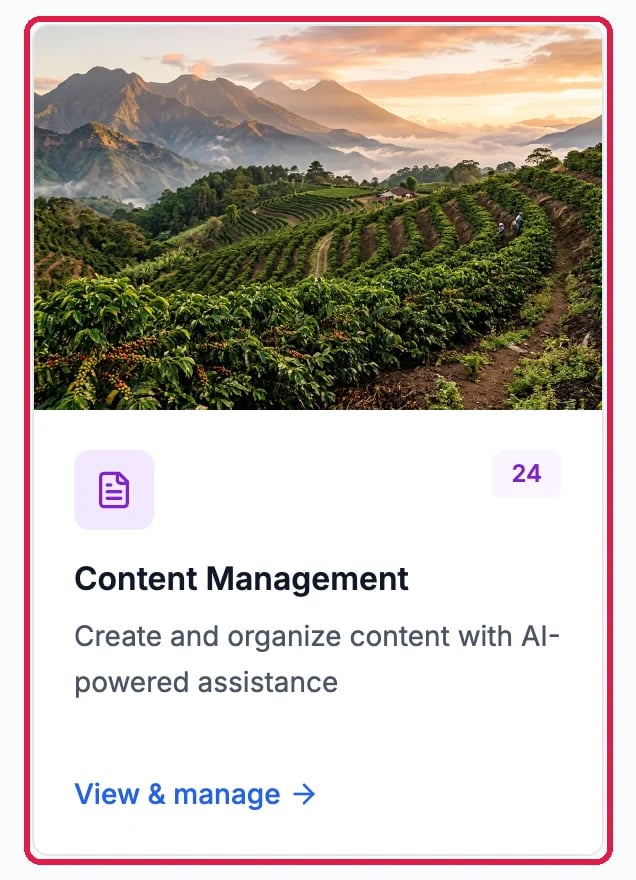
In the left rail, click Marketing, then the Content Management card.
The Content Management card
2
Click New post
Click New post at the top right.
New post
3
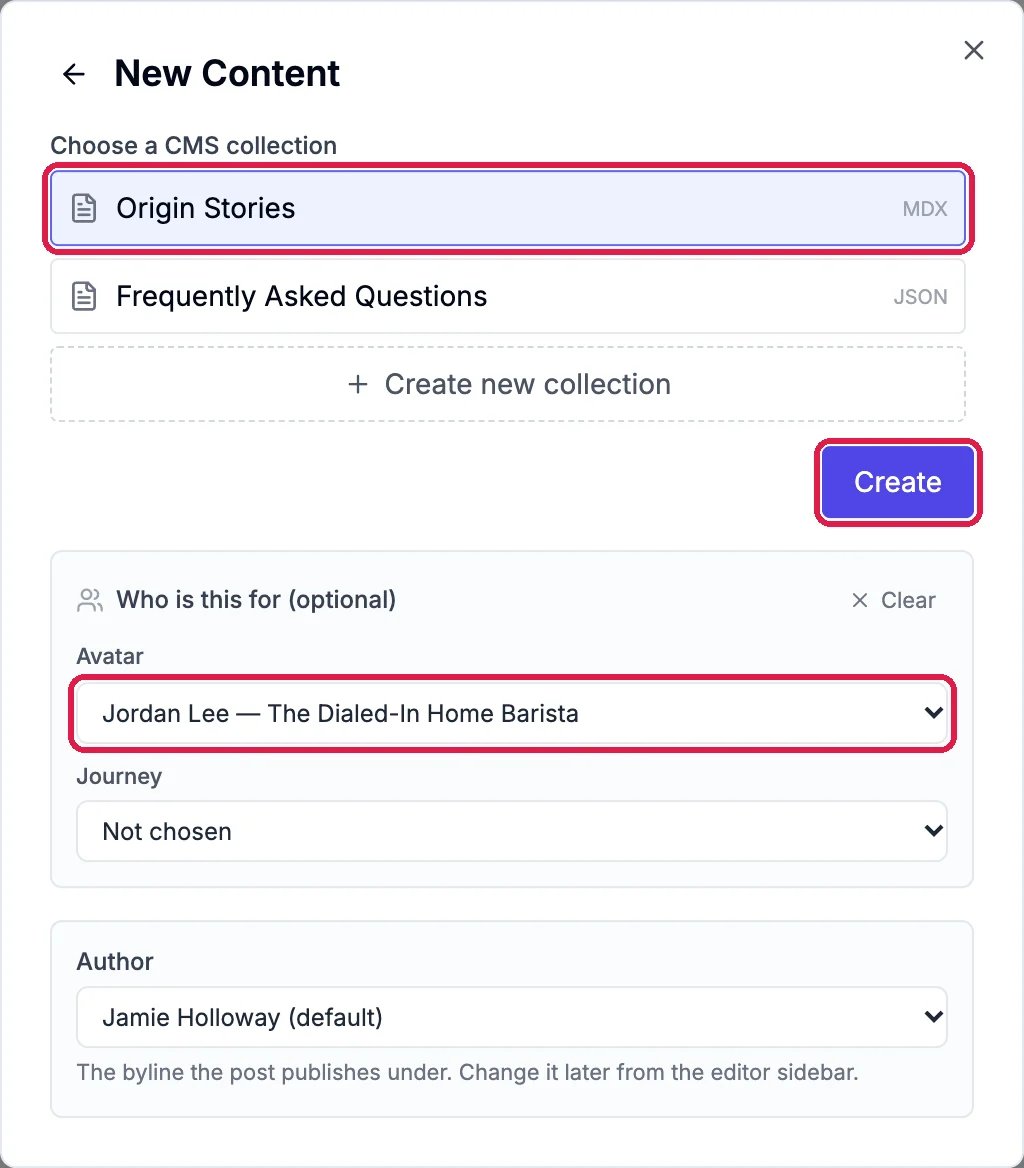
Choose the collection and who it is for
Choose Site Content and your website, as in Write and Publish a Blog Post. Then pick your blog’s collection (Northwind’s is Origin Stories). Under Who is this for (optional), you can pick the customer the post is written for. Click Create.
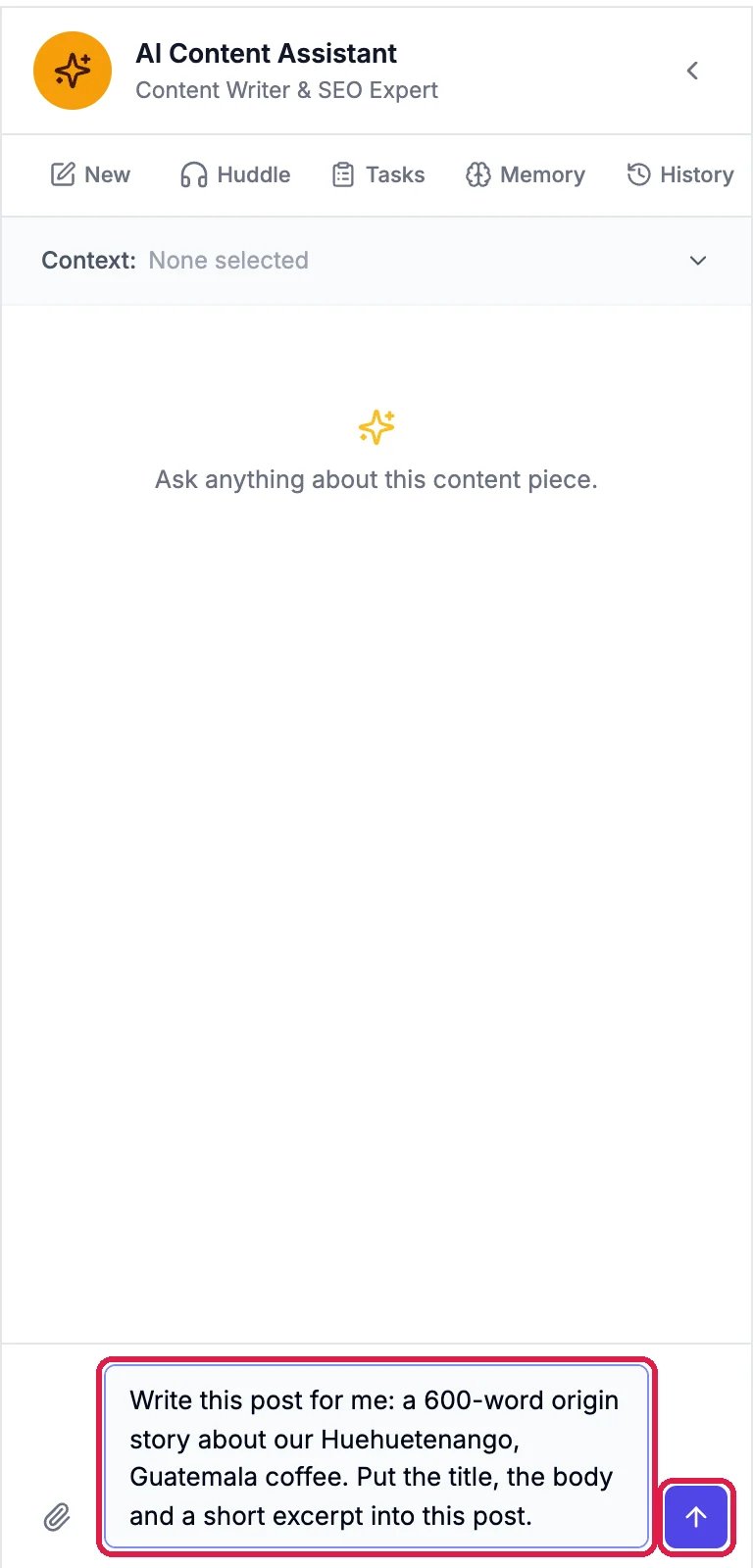
The editor opens with the AI Content Assistant on the left. (If it is closed, click AI at the left of the editor.) Say what the post is about, how long it should be, and that it goes into this post, then click the send arrow.
Northwind's request
2
Wait while it works
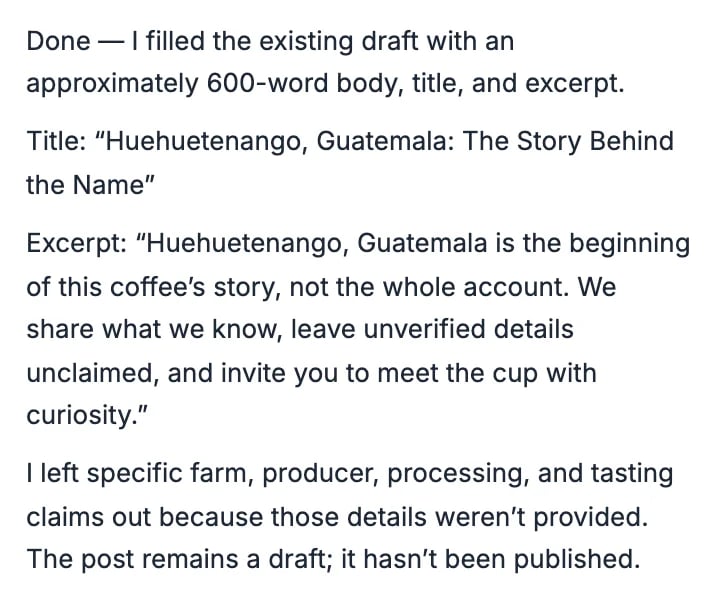
The panel shows each step, such as Reading notes and Searching notes, while it looks up what it knows about your business. A long post can take several minutes; this one took about nine. When it is done, it says what it changed.
The AI's note when it finished
3
Read the post
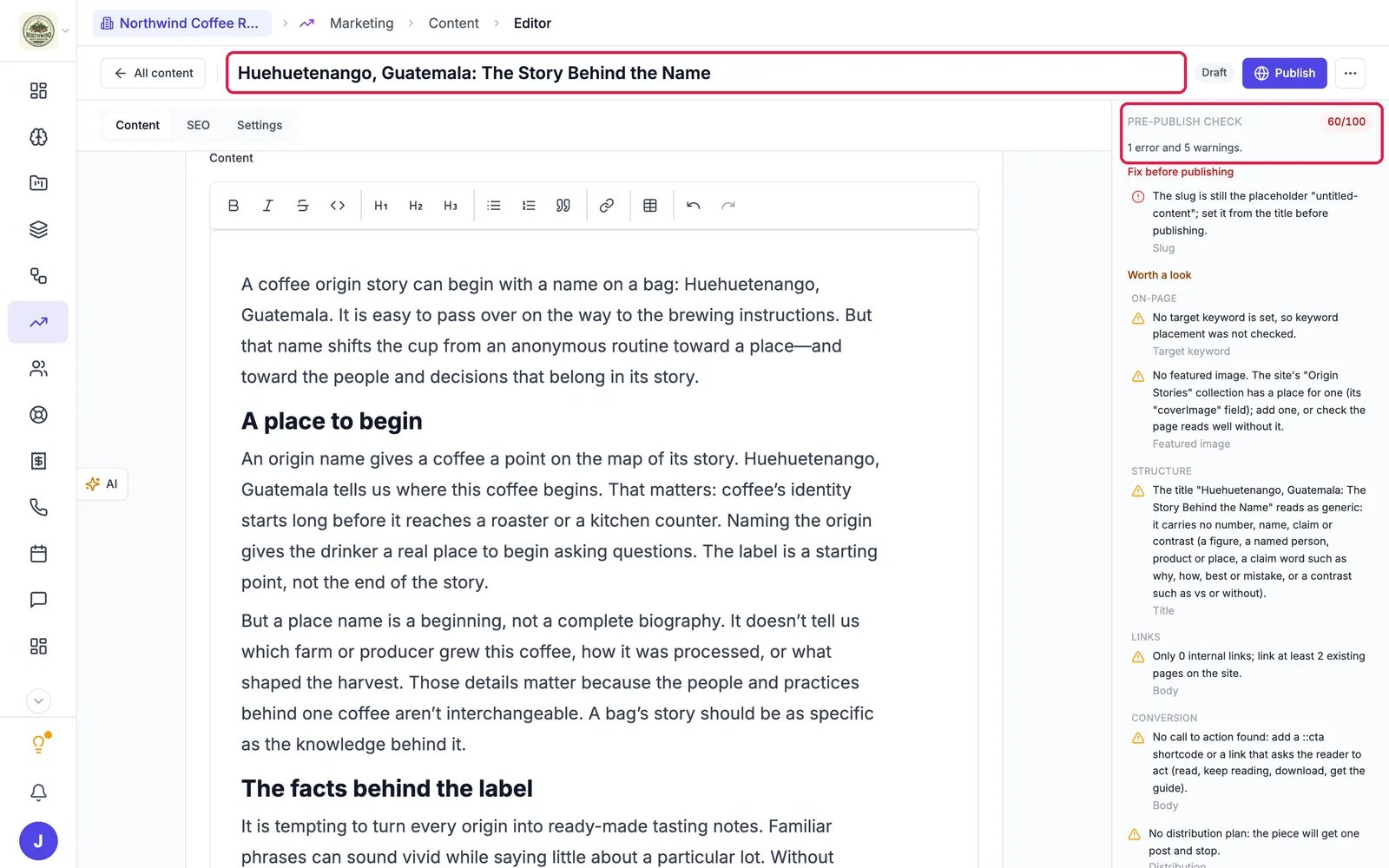
The title, the text in Content and the Excerpt under it are filled in. On the right, the Pre-publish check gives the post a score and lists what to fix.
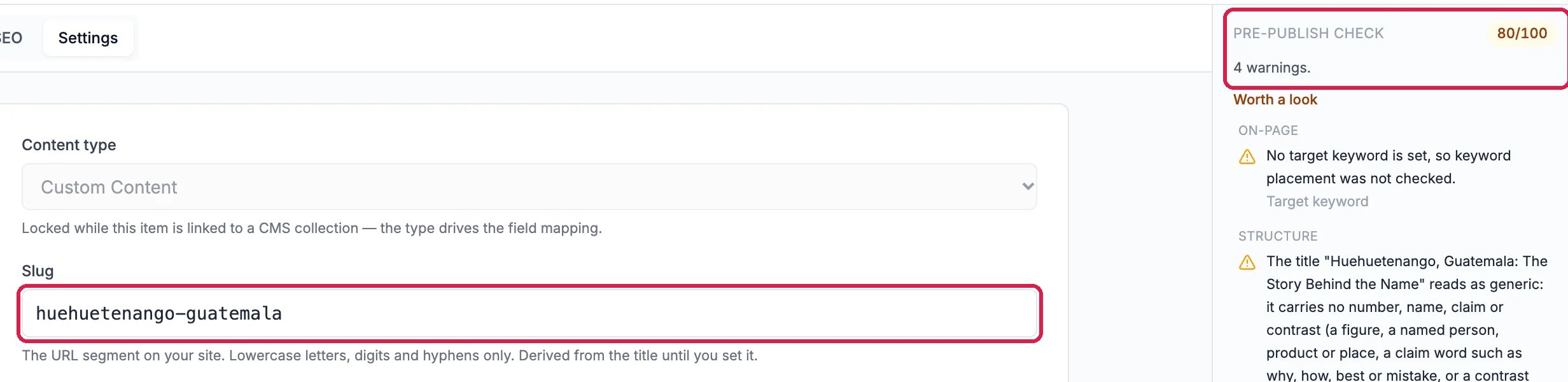
Items under Fix before publishing need fixing; items under Worth a look are suggestions. Here the one error was the post’s web address: the slug was still “untitled-content”. Click the Settings tab and type a short slug made from the title in Slug (lowercase letters, digits and hyphens).
The placeholder slug and the error it causes
With the slug “huehuetenango-guatemala”, the error is gone and the score goes from 60 to 80.
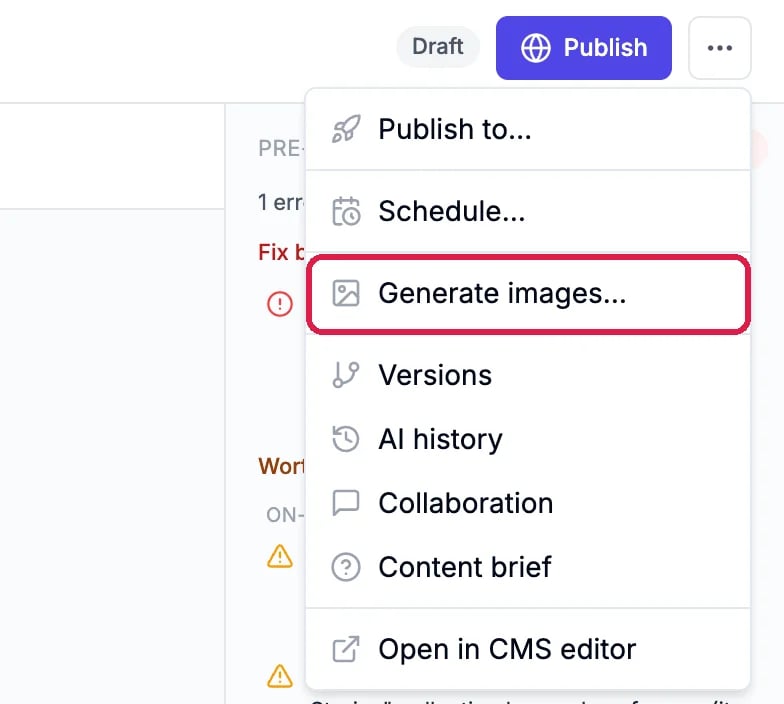
Click the … menu at the top right, then Generate images….
Generate images, in the menu
2
Click Generate
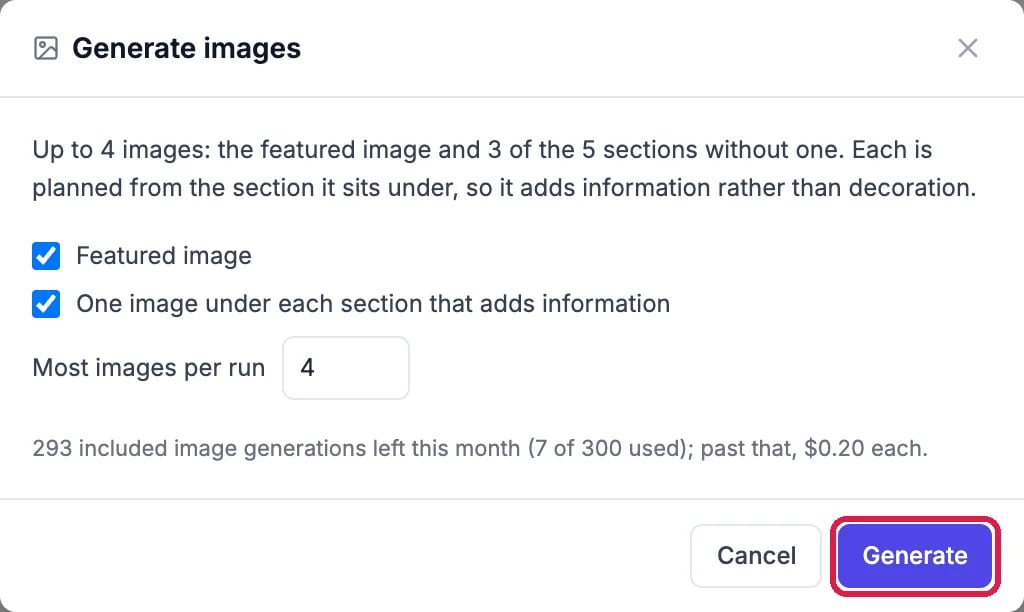
Leave Featured image and One image under each section that adds information ticked, and set Most images per run. The box shows how many image generations your plan has left this month. Each picture it makes counts toward that number, and on Standard and Premium each one past it costs $0.20. Click Generate.
The picture options
3
Check the pictures
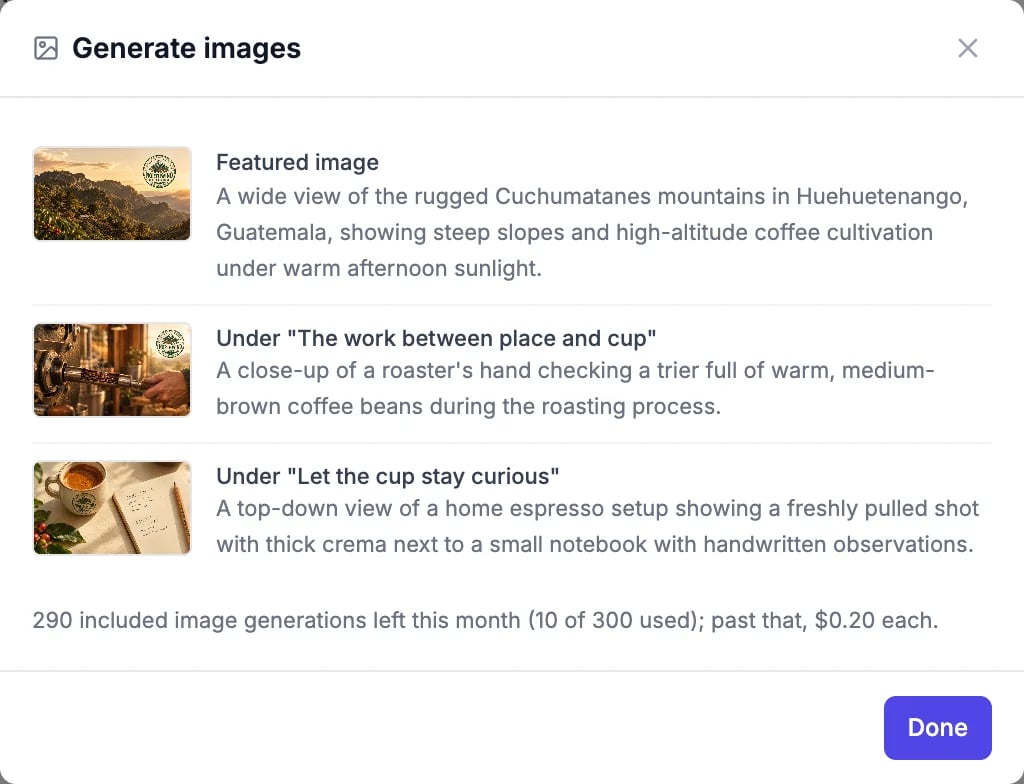
When it is done, the box lists each picture and what it shows. Click Done; the pictures are in the post.
Three pictures for the post
4
Swap a picture you don't want
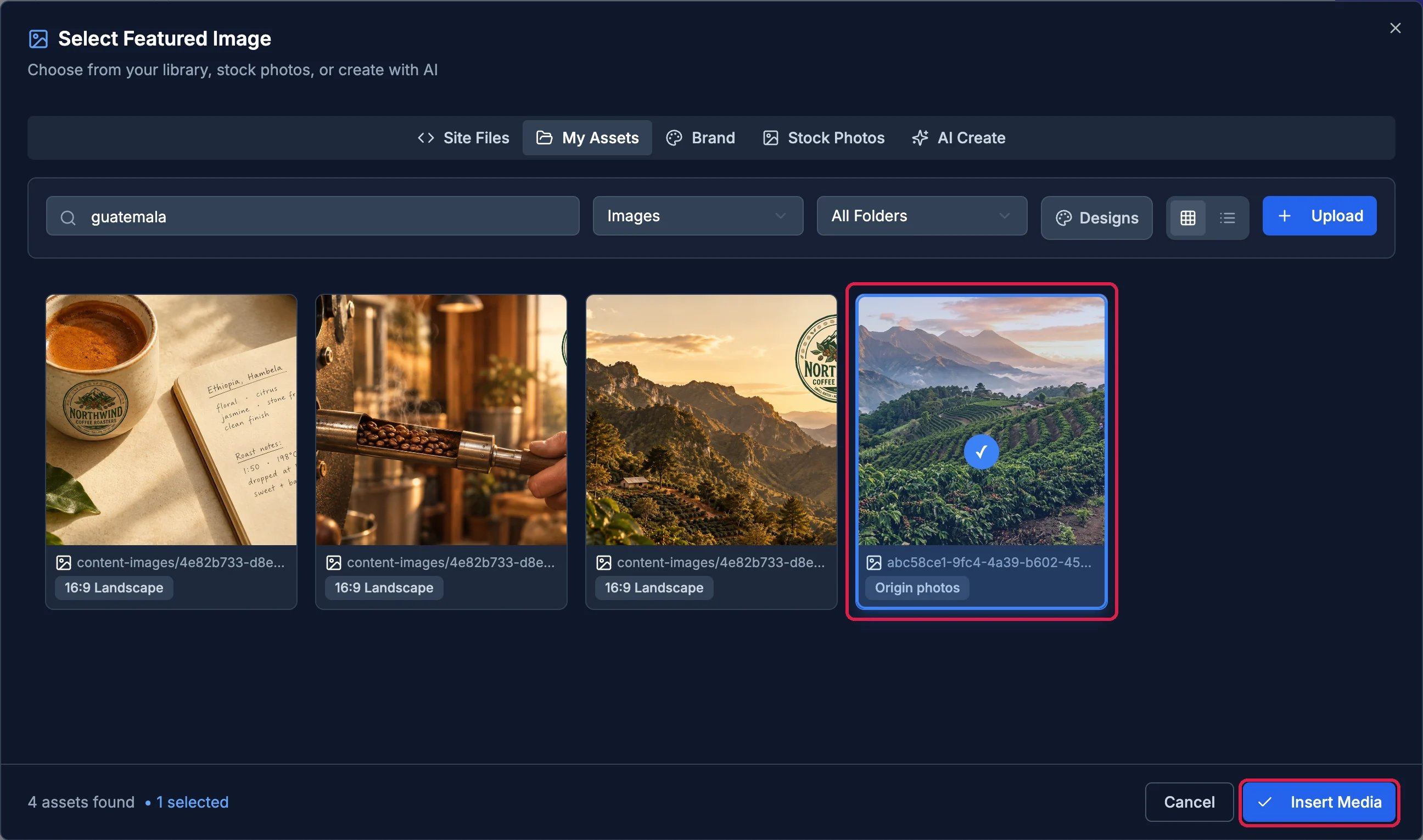
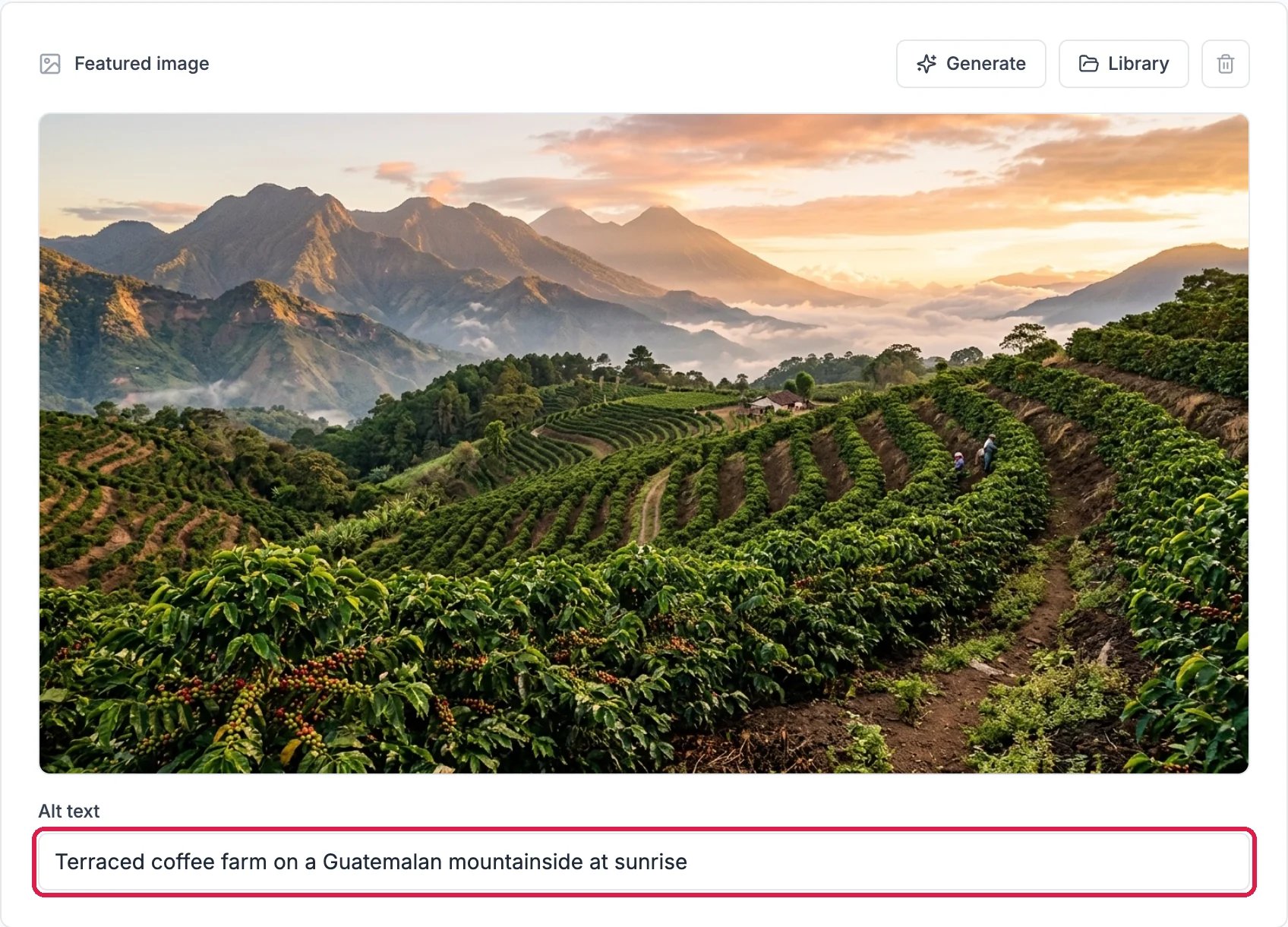
Look at each picture. Here the featured image had the Northwind logo painted into the sky, so it was swapped for a photo from the library: under Featured image, click Library, pick a photo on My Assets, and click Insert Media.
Picking a farm photo instead
The photo’s Alt text comes with it from your Media Library.
Give it the facts. Here the AI left out the farm, the processing and the tasting notes because nobody had given them to it, rather than making them up. Put the details you want in your request.
Pictures with your logo. Generated pictures sometimes include your logo where it doesn’t belong. Swap them as shown above, or make your own with Create or Edit a Picture with AI.
{"docsConfig":{"theme":"maple","$schema":"https://mintlify.com/docs.json","name":"Hiveku Builder","colors":{"primary":"#F9A825","light":"#FBC02D","dark":"#F57F17"},"logo":{"light":"https://mintcdn.com/locusdigital/AodgChCDua_G2sAP/images/hiveku-logo-light.svg?fit=max\u0026auto=format\u0026n=AodgChCDua_G2sAP\u0026q=85\u0026s=5d69f2502059f8269d670b35be741ad2","dark":"https://mintcdn.com/locusdigital/AodgChCDua_G2sAP/images/hiveku-logo-dark.svg?fit=max\u0026auto=format\u0026n=AodgChCDua_G2sAP\u0026q=85\u0026s=a78cef8cf1c9ae13d3dcbe31c3ca498d","href":"https://hiveku.com"},"favicon":"https://mintcdn.com/locusdigital/AodgChCDua_G2sAP/images/favicon.svg?fit=max\u0026auto=format\u0026n=AodgChCDua_G2sAP\u0026q=85\u0026s=1b959fd7abfd376351a1216e201aa8cb","api":{},"appearance":{"default":"system"},"seo":{},"styling":{"latex":true},"navigation":{"global":{"anchors":[{"anchor":"Changelog","icon":"list","href":"/changelog"},{"anchor":"App","icon":"arrow-up-right-from-square","href":"https://app.hiveku.com"}]},"pages":[]}},"deployment":{"deploymentMetadataValue":{"subdomain":"locusdigital","hasAudioNarration":false,"actualSubdomain":"locusdigital","customDomains":["docs.hiveku.com"],"gitSource":{"type":"github","owner":"locus2012","repo":"hiveku_docs","deployBranch":"main","contentDirectory":"","isPrivate":true,"mountPath":"","label":""},"chroma":{"liveDeploymentHistoryId":"6ad91686376cd1b0b022d773","collectionId":"05ca33a5-f7c6-4816-b3fc-29e6f999676a","schemaVersion":"v3","latestBuiltDeploymentHistoryId":"6ad91686376cd1b0b022d773"},"entitlements":{"AI_CHAT":{"status":"DISABLED"}},"buildId":"6ad91686376cd1b0b022d773","clientVersion":"0.0.3918","searchFilterCounts":[{"language":"default","tag":"Documentation","count":383},{"language":"default","tag":"How-Tos","count":193},{"language":"default","tag":"Growing Your Business","count":61},{"language":"default","tag":"Integrations","count":25},{"language":"default","tag":"Publishing","count":18},{"language":"default","tag":"Integrations \u0026 BYOK","count":16},{"language":"default","tag":"Helpdesk","count":15},{"language":"default","tag":"Workflow Recipes","count":15},{"language":"default","tag":"Marketing Delivery","count":12},{"language":"default","tag":"API Reference","count":11}]},"assistantConfig":{"enableAskAiButton":false,"enableStarterQuestions":false,"enableContextualStarterQuestions":false,"enableAskAiSearchBar":true},"hasChatPermissions":false,"hasWebMcpPermissions":false,"toggles":[{"name":"kill-isr","enabled":true,"variant":{"name":"disabled","enabled":false,"feature_enabled":true},"impressionData":false},{"name":"agent-mintlify-slack","enabled":true,"variant":{"name":"disabled","enabled":false,"feature_enabled":true},"impressionData":false},{"name":"editor-v7-file-tree","enabled":true,"variant":{"name":"disabled","enabled":false,"feature_enabled":true},"impressionData":false},{"name":"agent-integrations-settings","enabled":true,"variant":{"name":"disabled","enabled":false,"feature_enabled":true},"impressionData":false},{"name":"automations-pr-grouping","enabled":true,"variant":{"name":"disabled","enabled":false,"feature_enabled":true},"impressionData":false},{"name":"custom-prefix","enabled":true,"variant":{"name":"disabled","enabled":false,"feature_enabled":true},"impressionData":false},{"name":"analytics-v7","enabled":true,"variant":{"name":"disabled","enabled":false,"feature_enabled":true},"impressionData":false},{"name":"user-flows-analytics","enabled":true,"variant":{"name":"disabled","enabled":false,"feature_enabled":true},"impressionData":false},{"name":"no-publish-flow","enabled":true,"variant":{"name":"disabled","enabled":false,"feature_enabled":true},"impressionData":false},{"name":"workos-onboarding","enabled":true,"variant":{"name":"disabled","enabled":false,"feature_enabled":true},"impressionData":false},{"name":"llms-txt-v2","enabled":true,"variant":{"name":"disabled","enabled":false,"feature_enabled":true},"impressionData":false},{"name":"pause-universal-search-reconcile","enabled":true,"variant":{"name":"disabled","enabled":false,"feature_enabled":true},"impressionData":false},{"name":"snapshot-serving-live","enabled":true,"variant":{"name":"disabled","enabled":false,"feature_enabled":true},"impressionData":false},{"name":"stripTemperatureMiddleware","enabled":true,"variant":{"name":"disabled","enabled":false,"feature_enabled":true},"impressionData":false},{"name":"per-site-search-delta","enabled":true,"variant":{"name":"disabled","enabled":false,"feature_enabled":true},"impressionData":false},{"name":"support-platform-pylon-zendesk","enabled":true,"variant":{"name":"disabled","enabled":false,"feature_enabled":true},"impressionData":false},{"name":"editor-branches-v2-autocommit","enabled":true,"variant":{"name":"disabled","enabled":false,"feature_enabled":true},"impressionData":false},{"name":"editor-branches-v2","enabled":true,"variant":{"name":"disabled","enabled":false,"feature_enabled":true},"impressionData":false},{"name":"snapshot-serving","enabled":true,"variant":{"name":"disabled","enabled":false,"feature_enabled":true},"impressionData":false},{"name":"instant-rollback","enabled":true,"variant":{"name":"disabled","enabled":false,"feature_enabled":true},"impressionData":false},{"name":"granular-notifications-server","enabled":true,"variant":{"name":"disabled","enabled":false,"feature_enabled":true},"impressionData":false},{"name":"granular-notifications","enabled":true,"variant":{"name":"disabled","enabled":false,"feature_enabled":true},"impressionData":false},{"name":"editor-private-page-search","enabled":true,"variant":{"name":"disabled","enabled":false,"feature_enabled":true},"impressionData":false},{"name":"automations-fable","enabled":true,"variant":{"name":"disabled","enabled":false,"feature_enabled":true},"impressionData":false},{"name":"fixed-ai-action-pricing","enabled":true,"variant":{"name":"disabled","enabled":false,"feature_enabled":true},"impressionData":false},{"name":"automation-resolve-merge-conflict","enabled":true,"variant":{"name":"disabled","enabled":false,"feature_enabled":true},"impressionData":false},{"name":"scoped-publishing","enabled":true,"variant":{"name":"disabled","enabled":false,"feature_enabled":true},"impressionData":false},{"name":"mintql","enabled":true,"variant":{"name":"disabled","enabled":false,"feature_enabled":true},"impressionData":false},{"name":"page-level-analytics","enabled":true,"variant":{"name":"disabled","enabled":false,"feature_enabled":true},"impressionData":false},{"name":"teamspace","enabled":true,"variant":{"name":"disabled","enabled":false,"feature_enabled":true},"impressionData":false},{"name":"editor-version-history-v2","enabled":true,"variant":{"name":"disabled","enabled":false,"feature_enabled":true},"impressionData":false},{"name":"editor-nav-generations","enabled":true,"variant":{"name":"disabled","enabled":false,"feature_enabled":true},"impressionData":false},{"name":"billing-page-v2","enabled":true,"variant":{"name":"disabled","enabled":false,"feature_enabled":true},"impressionData":false},{"name":"vite-origin","enabled":true,"variant":{"name":"disabled","enabled":false,"feature_enabled":true},"impressionData":false},{"name":"workspace-projects","enabled":true,"variant":{"name":"disabled","enabled":false,"feature_enabled":true},"impressionData":false},{"name":"assistant-v5","enabled":true,"variant":{"name":"disabled","enabled":false,"feature_enabled":true},"impressionData":false},{"name":"byok-sep-25","enabled":true,"variant":{"name":"disabled","enabled":false,"feature_enabled":true},"impressionData":false},{"name":"fork-pr-previews","enabled":true,"variant":{"name":"disabled","enabled":false,"feature_enabled":true},"impressionData":false},{"name":"revalidation-jwt","enabled":true,"variant":{"name":"disabled","enabled":false,"feature_enabled":true},"impressionData":false},{"name":"editor-agent-model-picker","enabled":true,"variant":{"name":"disabled","enabled":false,"feature_enabled":true},"impressionData":false},{"name":"client-snapshot-docs-config","enabled":true,"variant":{"name":"disabled","enabled":false,"feature_enabled":true},"impressionData":false},{"name":"hobby-abuse-scan","enabled":true,"variant":{"name":"disabled","enabled":false,"feature_enabled":true},"impressionData":false},{"name":"dashboard-inbox","enabled":true,"variant":{"name":"disabled","enabled":false,"feature_enabled":true},"impressionData":false}],"isAtlas":false,"googleFontsInlined":false},"customCss":[],"page":{"pagePath":"how-tos/content/ai-write-a-post","slug":"/how-tos/content/ai-write-a-post","pageMetadata":{"title":"Have the AI Write a Blog Post","sidebarTitle":"Have the AI Write a Post","description":"Start a post, ask the AI Content Assistant to write it in your brand voice, add pictures in one step, and check it before it goes out","href":"/how-tos/content/ai-write-a-post"},"description":{"compiledSource":"\"use strict\";\nconst {jsx: _jsx} = arguments[0];\nconst {useMDXComponents: _provideComponents} = arguments[0];\nfunction _createMdxContent(props) {\n const _components = {\n p: \"p\",\n ..._provideComponents(),\n ...props.components\n };\n return _jsx(_components.p, {\n children: \"Start a post, ask the AI Content Assistant to write it in your brand voice, add pictures in one step, and check it before it goes out\"\n });\n}\nfunction MDXContent(props = {}) {\n const {wrapper: MDXLayout} = {\n ..._provideComponents(),\n ...props.components\n };\n return MDXLayout ? _jsx(MDXLayout, {\n ...props,\n children: _jsx(_createMdxContent, {\n ...props\n })\n }) : _createMdxContent(props);\n}\nreturn {\n default: MDXContent\n};\n","frontmatter":{},"scope":{}},"pageType":"default","mdx":{"mdxSource":{"compiledSource":"\"use strict\";const{Fragment:_Fragment,jsx:_jsx,jsxs:_jsxs}=arguments[0];const{useMDXComponents:_provideComponents}=arguments[0];function _createMdxContent(props){const _components={a:`a`,li:`li`,p:`p`,strong:`strong`,ul:`ul`,..._provideComponents(),...props.components},{Frame,Heading,OptimizedImage,Step,Steps}=_components;if(!Frame)_missingMdxReference(`Frame`,true);if(!Heading)_missingMdxReference(`Heading`,true);if(!OptimizedImage)_missingMdxReference(`OptimizedImage`,true);if(!Step)_missingMdxReference(`Step`,true);if(!Steps)_missingMdxReference(`Steps`,true);return _jsxs(_Fragment,{children:[_jsxs(_components.p,{children:[`The `,_jsx(_components.strong,{children:`AI Content Assistant`}),` writes a whole post for you, straight into the editor: the title, the text and the short summary, in your brand voice. You read it, fix what the check points out, and publish it when you are ready.`]}),`\n`,_jsx(_components.p,{children:`This guide has the AI write a 600-word origin story about Northwind’s Huehuetenango, Guatemala coffee, adds pictures, and leaves the post as a draft.`}),`\n`,_jsx(Heading,{level:`2`,id:`start-the-post`,children:`Start the post`}),`\n`,_jsxs(Steps,{children:[_jsxs(Step,{title:`Open Content Management`,children:[_jsxs(_components.p,{children:[`In the left rail, click `,_jsx(_components.strong,{children:`Marketing`}),`, then the `,_jsx(_components.strong,{children:`Content Management`}),` card.`]}),_jsx(Frame,{caption:`The Content Management card`,children:_jsx(OptimizedImage,{src:`https://mintcdn.com/locusdigital/ySIXV0mU_PFKnBAx/images/how-tos/content/ai-post-01-open-closeup.webp?fit=max\u0026auto=format\u0026n=ySIXV0mU_PFKnBAx\u0026q=85\u0026s=87c389d8eee1daacad898fe1b32cd659`,alt:`The Content Management card in Marketing, outlined`,width:`318`,\"data-og-width\":`636`,\"data-og-height\":`880`,\"data-path\":`images/how-tos/content/ai-post-01-open-closeup.webp`,\"data-optimize\":`true`,\"data-opv\":`3`,srcset:`https://mintcdn.com/locusdigital/ySIXV0mU_PFKnBAx/images/how-tos/content/ai-post-01-open-closeup.webp?w=280\u0026fit=max\u0026auto=format\u0026n=ySIXV0mU_PFKnBAx\u0026q=85\u0026s=0dae6b6ea40a12e5da73b8e0949a5711 280w, https://mintcdn.com/locusdigital/ySIXV0mU_PFKnBAx/images/how-tos/content/ai-post-01-open-closeup.webp?w=560\u0026fit=max\u0026auto=format\u0026n=ySIXV0mU_PFKnBAx\u0026q=85\u0026s=76218f67a3f34ebec5a164ddacacd1ea 560w, https://mintcdn.com/locusdigital/ySIXV0mU_PFKnBAx/images/how-tos/content/ai-post-01-open-closeup.webp?w=840\u0026fit=max\u0026auto=format\u0026n=ySIXV0mU_PFKnBAx\u0026q=85\u0026s=552aa14d40b208e8dc384142f0151f7e 840w, https://mintcdn.com/locusdigital/ySIXV0mU_PFKnBAx/images/how-tos/content/ai-post-01-open-closeup.webp?w=1100\u0026fit=max\u0026auto=format\u0026n=ySIXV0mU_PFKnBAx\u0026q=85\u0026s=cfe222a15c9f44cdc48b3441c9e68982 1100w, https://mintcdn.com/locusdigital/ySIXV0mU_PFKnBAx/images/how-tos/content/ai-post-01-open-closeup.webp?w=1650\u0026fit=max\u0026auto=format\u0026n=ySIXV0mU_PFKnBAx\u0026q=85\u0026s=ec14d9449242ab87e59b37cd42e7d0fe 1650w, https://mintcdn.com/locusdigital/ySIXV0mU_PFKnBAx/images/how-tos/content/ai-post-01-open-closeup.webp?w=2500\u0026fit=max\u0026auto=format\u0026n=ySIXV0mU_PFKnBAx\u0026q=85\u0026s=0a179fed2fd7a193b752b4fbfe809101 2500w`})})]}),_jsxs(Step,{title:`Click New post`,children:[_jsxs(_components.p,{children:[`Click `,_jsx(_components.strong,{children:`New post`}),` at the top right.`]}),_jsx(Frame,{caption:`New post`,children:_jsx(OptimizedImage,{src:`https://mintcdn.com/locusdigital/ySIXV0mU_PFKnBAx/images/how-tos/content/ai-post-02-new-post-closeup.webp?fit=max\u0026auto=format\u0026n=ySIXV0mU_PFKnBAx\u0026q=85\u0026s=a66b829b00251b6357c323a6c3b13409`,alt:`The Posts, Calendar, SEO plan, Authors and Tasks tabs, with the New post button outlined`,width:`1260`,\"data-og-width\":`2520`,\"data-og-height\":`128`,\"data-path\":`images/how-tos/content/ai-post-02-new-post-closeup.webp`,\"data-optimize\":`true`,\"data-opv\":`3`,srcset:`https://mintcdn.com/locusdigital/ySIXV0mU_PFKnBAx/images/how-tos/content/ai-post-02-new-post-closeup.webp?w=280\u0026fit=max\u0026auto=format\u0026n=ySIXV0mU_PFKnBAx\u0026q=85\u0026s=5fcac6bf35518f59f7982bf202aa754a 280w, https://mintcdn.com/locusdigital/ySIXV0mU_PFKnBAx/images/how-tos/content/ai-post-02-new-post-closeup.webp?w=560\u0026fit=max\u0026auto=format\u0026n=ySIXV0mU_PFKnBAx\u0026q=85\u0026s=a35845e654d5f191dc1804d8e0a87360 560w, https://mintcdn.com/locusdigital/ySIXV0mU_PFKnBAx/images/how-tos/content/ai-post-02-new-post-closeup.webp?w=840\u0026fit=max\u0026auto=format\u0026n=ySIXV0mU_PFKnBAx\u0026q=85\u0026s=5ecaaab563cad005137de24529ffdc1a 840w, https://mintcdn.com/locusdigital/ySIXV0mU_PFKnBAx/images/how-tos/content/ai-post-02-new-post-closeup.webp?w=1100\u0026fit=max\u0026auto=format\u0026n=ySIXV0mU_PFKnBAx\u0026q=85\u0026s=13539f4c9ecf2245715ff0c64dbb9730 1100w, https://mintcdn.com/locusdigital/ySIXV0mU_PFKnBAx/images/how-tos/content/ai-post-02-new-post-closeup.webp?w=1650\u0026fit=max\u0026auto=format\u0026n=ySIXV0mU_PFKnBAx\u0026q=85\u0026s=8efca029ccf90a10cada3b6065a21b11 1650w, https://mintcdn.com/locusdigital/ySIXV0mU_PFKnBAx/images/how-tos/content/ai-post-02-new-post-closeup.webp?w=2500\u0026fit=max\u0026auto=format\u0026n=ySIXV0mU_PFKnBAx\u0026q=85\u0026s=e20f4909a8ef9682637f3eeb2c53e058 2500w`})})]}),_jsxs(Step,{title:`Choose the collection and who it is for`,children:[_jsxs(_components.p,{children:[`Choose `,_jsx(_components.strong,{children:`Site Content`}),` and your website, as in `,_jsx(_components.a,{href:`/how-tos/site-builder/write-a-blog-post`,children:`Write and Publish a Blog Post`}),`. Then pick your blog’s collection (Northwind’s is `,_jsx(_components.strong,{children:`Origin Stories`}),`). Under `,_jsx(_components.strong,{children:`Who is this for (optional)`}),`, you can pick the customer the post is written for. Click `,_jsx(_components.strong,{children:`Create`}),`.`]}),_jsx(Frame,{caption:`The collection and the reader`,children:_jsx(OptimizedImage,{src:`https://mintcdn.com/locusdigital/ySIXV0mU_PFKnBAx/images/how-tos/content/ai-post-03-collection-closeup.webp?fit=max\u0026auto=format\u0026n=ySIXV0mU_PFKnBAx\u0026q=85\u0026s=3b1f828b7bcdce9877c1c019d41788eb`,alt:`The New Content box with the Origin Stories collection, the Create button and the Avatar Jordan Lee, The Dialed-In Home Barista, outlined, and the Author Jamie Holloway (default)`,width:`512`,\"data-og-width\":`1024`,\"data-og-height\":`1168`,\"data-path\":`images/how-tos/content/ai-post-03-collection-closeup.webp`,\"data-optimize\":`true`,\"data-opv\":`3`,srcset:`https://mintcdn.com/locusdigital/ySIXV0mU_PFKnBAx/images/how-tos/content/ai-post-03-collection-closeup.webp?w=280\u0026fit=max\u0026auto=format\u0026n=ySIXV0mU_PFKnBAx\u0026q=85\u0026s=4629b7e0d52a0a3b6797a5018cc6cc2e 280w, https://mintcdn.com/locusdigital/ySIXV0mU_PFKnBAx/images/how-tos/content/ai-post-03-collection-closeup.webp?w=560\u0026fit=max\u0026auto=format\u0026n=ySIXV0mU_PFKnBAx\u0026q=85\u0026s=7d20c90a0bd0db37a485d695fe4d3cda 560w, https://mintcdn.com/locusdigital/ySIXV0mU_PFKnBAx/images/how-tos/content/ai-post-03-collection-closeup.webp?w=840\u0026fit=max\u0026auto=format\u0026n=ySIXV0mU_PFKnBAx\u0026q=85\u0026s=209a644c28050820be6a3a32c34d16af 840w, https://mintcdn.com/locusdigital/ySIXV0mU_PFKnBAx/images/how-tos/content/ai-post-03-collection-closeup.webp?w=1100\u0026fit=max\u0026auto=format\u0026n=ySIXV0mU_PFKnBAx\u0026q=85\u0026s=9af14ba9af5637849dfbae79dfedf201 1100w, https://mintcdn.com/locusdigital/ySIXV0mU_PFKnBAx/images/how-tos/content/ai-post-03-collection-closeup.webp?w=1650\u0026fit=max\u0026auto=format\u0026n=ySIXV0mU_PFKnBAx\u0026q=85\u0026s=80cc4abf8c380121639e84cf442c4846 1650w, https://mintcdn.com/locusdigital/ySIXV0mU_PFKnBAx/images/how-tos/content/ai-post-03-collection-closeup.webp?w=2500\u0026fit=max\u0026auto=format\u0026n=ySIXV0mU_PFKnBAx\u0026q=85\u0026s=99798562015c22358e41469e8dbc0640 2500w`})})]})]}),`\n`,_jsx(Heading,{level:`2`,id:`ask-the-ai-to-write-it`,children:`Ask the AI to write it`}),`\n`,_jsxs(Steps,{children:[_jsxs(Step,{title:`Tell it what to write`,children:[_jsxs(_components.p,{children:[`The editor opens with the `,_jsx(_components.strong,{children:`AI Content Assistant`}),` on the left. (If it is closed, click `,_jsx(_components.strong,{children:`AI`}),` at the left of the editor.) Say what the post is about, how long it should be, and that it goes into this post, then click the send arrow.`]}),_jsx(Frame,{caption:`Northwind's request`,children:_jsx(OptimizedImage,{src:`https://mintcdn.com/locusdigital/ySIXV0mU_PFKnBAx/images/how-tos/content/ai-post-04-ask-closeup.webp?fit=max\u0026auto=format\u0026n=ySIXV0mU_PFKnBAx\u0026q=85\u0026s=26af4e8b39be71f520d211240d52329c`,alt:`The AI Content Assistant panel with the request Write this post for me: a 600-word origin story about our Huehuetenango, Guatemala coffee. Put the title, the body and a short excerpt into this post., and the send button, outlined`,width:`384`,\"data-og-width\":`768`,\"data-og-height\":`1600`,\"data-path\":`images/how-tos/content/ai-post-04-ask-closeup.webp`,\"data-optimize\":`true`,\"data-opv\":`3`,srcset:`https://mintcdn.com/locusdigital/ySIXV0mU_PFKnBAx/images/how-tos/content/ai-post-04-ask-closeup.webp?w=280\u0026fit=max\u0026auto=format\u0026n=ySIXV0mU_PFKnBAx\u0026q=85\u0026s=591e69d512a1ddd00e05a1d4643ee8dd 280w, https://mintcdn.com/locusdigital/ySIXV0mU_PFKnBAx/images/how-tos/content/ai-post-04-ask-closeup.webp?w=560\u0026fit=max\u0026auto=format\u0026n=ySIXV0mU_PFKnBAx\u0026q=85\u0026s=3b70661171b72c18c6070267d53cd257 560w, https://mintcdn.com/locusdigital/ySIXV0mU_PFKnBAx/images/how-tos/content/ai-post-04-ask-closeup.webp?w=840\u0026fit=max\u0026auto=format\u0026n=ySIXV0mU_PFKnBAx\u0026q=85\u0026s=cc708a3ccb44794d1216bb08c5a3ef04 840w, https://mintcdn.com/locusdigital/ySIXV0mU_PFKnBAx/images/how-tos/content/ai-post-04-ask-closeup.webp?w=1100\u0026fit=max\u0026auto=format\u0026n=ySIXV0mU_PFKnBAx\u0026q=85\u0026s=c08097d652c00060eb1e7afd791c9c71 1100w, https://mintcdn.com/locusdigital/ySIXV0mU_PFKnBAx/images/how-tos/content/ai-post-04-ask-closeup.webp?w=1650\u0026fit=max\u0026auto=format\u0026n=ySIXV0mU_PFKnBAx\u0026q=85\u0026s=21f3469c54ee124408a703c5711b72e3 1650w, https://mintcdn.com/locusdigital/ySIXV0mU_PFKnBAx/images/how-tos/content/ai-post-04-ask-closeup.webp?w=2500\u0026fit=max\u0026auto=format\u0026n=ySIXV0mU_PFKnBAx\u0026q=85\u0026s=d420122d1a6e3df48bd5864bf3dedd45 2500w`})})]}),_jsxs(Step,{title:`Wait while it works`,children:[_jsxs(_components.p,{children:[`The panel shows each step, such as `,_jsx(_components.strong,{children:`Reading notes`}),` and `,_jsx(_components.strong,{children:`Searching notes`}),`, while it looks up what it knows about your business. A long post can take several minutes; this one took about nine. When it is done, it says what it changed.`]}),_jsx(Frame,{caption:`The AI's note when it finished`,children:_jsx(OptimizedImage,{src:`https://mintcdn.com/locusdigital/ySIXV0mU_PFKnBAx/images/how-tos/content/ai-post-05-reply-closeup.webp?fit=max\u0026auto=format\u0026n=ySIXV0mU_PFKnBAx\u0026q=85\u0026s=dd0f098a7c8362ffdc850bf0ca0fe7ca`,alt:`The reply: it filled the draft with a body of about 600 words, the title Huehuetenango, Guatemala: The Story Behind the Name and an excerpt, left out farm and tasting details it wasn't given, and kept the post a draft`,width:`360`,\"data-og-width\":`720`,\"data-og-height\":`592`,\"data-path\":`images/how-tos/content/ai-post-05-reply-closeup.webp`,\"data-optimize\":`true`,\"data-opv\":`3`,srcset:`https://mintcdn.com/locusdigital/ySIXV0mU_PFKnBAx/images/how-tos/content/ai-post-05-reply-closeup.webp?w=280\u0026fit=max\u0026auto=format\u0026n=ySIXV0mU_PFKnBAx\u0026q=85\u0026s=99e9d287e621ec525df2bbf6ffe7c910 280w, https://mintcdn.com/locusdigital/ySIXV0mU_PFKnBAx/images/how-tos/content/ai-post-05-reply-closeup.webp?w=560\u0026fit=max\u0026auto=format\u0026n=ySIXV0mU_PFKnBAx\u0026q=85\u0026s=86d383825f3cb59f17639b569b58cb60 560w, https://mintcdn.com/locusdigital/ySIXV0mU_PFKnBAx/images/how-tos/content/ai-post-05-reply-closeup.webp?w=840\u0026fit=max\u0026auto=format\u0026n=ySIXV0mU_PFKnBAx\u0026q=85\u0026s=8c861fe324fde26a5a8d342cbdfd071d 840w, https://mintcdn.com/locusdigital/ySIXV0mU_PFKnBAx/images/how-tos/content/ai-post-05-reply-closeup.webp?w=1100\u0026fit=max\u0026auto=format\u0026n=ySIXV0mU_PFKnBAx\u0026q=85\u0026s=174127f215296c5c6325a12fa7a81707 1100w, https://mintcdn.com/locusdigital/ySIXV0mU_PFKnBAx/images/how-tos/content/ai-post-05-reply-closeup.webp?w=1650\u0026fit=max\u0026auto=format\u0026n=ySIXV0mU_PFKnBAx\u0026q=85\u0026s=f2123a9a67d884ebb03a97ccf21f0bc7 1650w, https://mintcdn.com/locusdigital/ySIXV0mU_PFKnBAx/images/how-tos/content/ai-post-05-reply-closeup.webp?w=2500\u0026fit=max\u0026auto=format\u0026n=ySIXV0mU_PFKnBAx\u0026q=85\u0026s=c94ba1d95014cef187f678593a6960a2 2500w`})})]}),_jsxs(Step,{title:`Read the post`,children:[_jsxs(_components.p,{children:[`The title, the text in `,_jsx(_components.strong,{children:`Content`}),` and the `,_jsx(_components.strong,{children:`Excerpt`}),` under it are filled in. On the right, the `,_jsx(_components.strong,{children:`Pre-publish check`}),` gives the post a score and lists what to fix.`]}),_jsx(Frame,{caption:`The post the AI wrote`,children:_jsx(OptimizedImage,{src:`https://mintcdn.com/locusdigital/ySIXV0mU_PFKnBAx/images/how-tos/content/ai-post-06-filled.webp?fit=max\u0026auto=format\u0026n=ySIXV0mU_PFKnBAx\u0026q=85\u0026s=e1f32711706def676c92404571f6fbc3`,alt:`The post editor with the title Huehuetenango, Guatemala: The Story Behind the Name outlined, the first sections of the post, and the Pre-publish check at 60/100 with 1 error and 5 warnings outlined`,\"data-og-width\":`1600`,width:`1600`,\"data-og-height\":`1000`,height:`1000`,\"data-path\":`images/how-tos/content/ai-post-06-filled.webp`,\"data-optimize\":`true`,\"data-opv\":`3`,srcset:`https://mintcdn.com/locusdigital/ySIXV0mU_PFKnBAx/images/how-tos/content/ai-post-06-filled.webp?w=280\u0026fit=max\u0026auto=format\u0026n=ySIXV0mU_PFKnBAx\u0026q=85\u0026s=9be5f2cdce8370c5d0b08656b664516b 280w, https://mintcdn.com/locusdigital/ySIXV0mU_PFKnBAx/images/how-tos/content/ai-post-06-filled.webp?w=560\u0026fit=max\u0026auto=format\u0026n=ySIXV0mU_PFKnBAx\u0026q=85\u0026s=e8808b39c790a1513355921e7f9ee2de 560w, https://mintcdn.com/locusdigital/ySIXV0mU_PFKnBAx/images/how-tos/content/ai-post-06-filled.webp?w=840\u0026fit=max\u0026auto=format\u0026n=ySIXV0mU_PFKnBAx\u0026q=85\u0026s=7e8deea0b235f4eacc6e7245da943362 840w, https://mintcdn.com/locusdigital/ySIXV0mU_PFKnBAx/images/how-tos/content/ai-post-06-filled.webp?w=1100\u0026fit=max\u0026auto=format\u0026n=ySIXV0mU_PFKnBAx\u0026q=85\u0026s=4dcbff554f2849ec93d33856f9e8c3fa 1100w, https://mintcdn.com/locusdigital/ySIXV0mU_PFKnBAx/images/how-tos/content/ai-post-06-filled.webp?w=1650\u0026fit=max\u0026auto=format\u0026n=ySIXV0mU_PFKnBAx\u0026q=85\u0026s=937b1a7efb23d39943086265a449700d 1650w, https://mintcdn.com/locusdigital/ySIXV0mU_PFKnBAx/images/how-tos/content/ai-post-06-filled.webp?w=2500\u0026fit=max\u0026auto=format\u0026n=ySIXV0mU_PFKnBAx\u0026q=85\u0026s=4ae92e479eb21649249ec8675bf9c775 2500w`})}),_jsx(Frame,{caption:`The excerpt`,children:_jsx(OptimizedImage,{src:`https://mintcdn.com/locusdigital/ySIXV0mU_PFKnBAx/images/how-tos/content/ai-post-07-excerpt-closeup.webp?fit=max\u0026auto=format\u0026n=ySIXV0mU_PFKnBAx\u0026q=85\u0026s=41dac9afae959f0d638ae582e171f826`,alt:`The Excerpt box with a two-sentence summary of the post, outlined`,width:`832`,\"data-og-width\":`1664`,\"data-og-height\":`248`,\"data-path\":`images/how-tos/content/ai-post-07-excerpt-closeup.webp`,\"data-optimize\":`true`,\"data-opv\":`3`,srcset:`https://mintcdn.com/locusdigital/ySIXV0mU_PFKnBAx/images/how-tos/content/ai-post-07-excerpt-closeup.webp?w=280\u0026fit=max\u0026auto=format\u0026n=ySIXV0mU_PFKnBAx\u0026q=85\u0026s=35df5b29490ed51498abefc387fb52f9 280w, https://mintcdn.com/locusdigital/ySIXV0mU_PFKnBAx/images/how-tos/content/ai-post-07-excerpt-closeup.webp?w=560\u0026fit=max\u0026auto=format\u0026n=ySIXV0mU_PFKnBAx\u0026q=85\u0026s=8fbed87c0a08da8c91ef0733b205035b 560w, https://mintcdn.com/locusdigital/ySIXV0mU_PFKnBAx/images/how-tos/content/ai-post-07-excerpt-closeup.webp?w=840\u0026fit=max\u0026auto=format\u0026n=ySIXV0mU_PFKnBAx\u0026q=85\u0026s=2671adca7ef54801c4a9d11b8bba6686 840w, https://mintcdn.com/locusdigital/ySIXV0mU_PFKnBAx/images/how-tos/content/ai-post-07-excerpt-closeup.webp?w=1100\u0026fit=max\u0026auto=format\u0026n=ySIXV0mU_PFKnBAx\u0026q=85\u0026s=456a823a319cd4223b9546130b1696ca 1100w, https://mintcdn.com/locusdigital/ySIXV0mU_PFKnBAx/images/how-tos/content/ai-post-07-excerpt-closeup.webp?w=1650\u0026fit=max\u0026auto=format\u0026n=ySIXV0mU_PFKnBAx\u0026q=85\u0026s=51245353fcef682094eed3576f4b8c50 1650w, https://mintcdn.com/locusdigital/ySIXV0mU_PFKnBAx/images/how-tos/content/ai-post-07-excerpt-closeup.webp?w=2500\u0026fit=max\u0026auto=format\u0026n=ySIXV0mU_PFKnBAx\u0026q=85\u0026s=b9b92a8f505e39a1cf1f68cf9c2e9269 2500w`})})]})]}),`\n`,_jsx(Heading,{level:`2`,id:`fix-what-the-check-finds`,children:`Fix what the check finds`}),`\n`,_jsxs(_components.p,{children:[`Items under `,_jsx(_components.strong,{children:`Fix before publishing`}),` need fixing; items under `,_jsx(_components.strong,{children:`Worth a look`}),` are suggestions. Here the one error was the post’s web address: the slug was still “untitled-content”. Click the `,_jsx(_components.strong,{children:`Settings`}),` tab and type a short slug made from the title in `,_jsx(_components.strong,{children:`Slug`}),` (lowercase letters, digits and hyphens).`]}),`\n`,_jsx(Frame,{caption:`The placeholder slug and the error it causes`,children:_jsx(OptimizedImage,{src:`https://mintcdn.com/locusdigital/ySIXV0mU_PFKnBAx/images/how-tos/content/ai-post-08-slug-closeup.webp?fit=max\u0026auto=format\u0026n=ySIXV0mU_PFKnBAx\u0026q=85\u0026s=d7dc071eb1b4ca12ac828a4d51816cdd`,alt:`The Settings tab with the Slug untitled-content outlined, and the Pre-publish check error The slug is still the placeholder untitled-content outlined`,width:`1232`,\"data-og-width\":`2464`,\"data-og-height\":`480`,\"data-path\":`images/how-tos/content/ai-post-08-slug-closeup.webp`,\"data-optimize\":`true`,\"data-opv\":`3`,srcset:`https://mintcdn.com/locusdigital/ySIXV0mU_PFKnBAx/images/how-tos/content/ai-post-08-slug-closeup.webp?w=280\u0026fit=max\u0026auto=format\u0026n=ySIXV0mU_PFKnBAx\u0026q=85\u0026s=b4a1bb6af8fd72cbada1e3093930b1ac 280w, https://mintcdn.com/locusdigital/ySIXV0mU_PFKnBAx/images/how-tos/content/ai-post-08-slug-closeup.webp?w=560\u0026fit=max\u0026auto=format\u0026n=ySIXV0mU_PFKnBAx\u0026q=85\u0026s=2818ea8b13d84fafbe4a415c50f79872 560w, https://mintcdn.com/locusdigital/ySIXV0mU_PFKnBAx/images/how-tos/content/ai-post-08-slug-closeup.webp?w=840\u0026fit=max\u0026auto=format\u0026n=ySIXV0mU_PFKnBAx\u0026q=85\u0026s=255fb3d6c10bbfbda45298d735c13591 840w, https://mintcdn.com/locusdigital/ySIXV0mU_PFKnBAx/images/how-tos/content/ai-post-08-slug-closeup.webp?w=1100\u0026fit=max\u0026auto=format\u0026n=ySIXV0mU_PFKnBAx\u0026q=85\u0026s=a0af78ebfd9650e7a6cea6390884a569 1100w, https://mintcdn.com/locusdigital/ySIXV0mU_PFKnBAx/images/how-tos/content/ai-post-08-slug-closeup.webp?w=1650\u0026fit=max\u0026auto=format\u0026n=ySIXV0mU_PFKnBAx\u0026q=85\u0026s=a0832399a0eb89657f8678b6d4b5ffe6 1650w, https://mintcdn.com/locusdigital/ySIXV0mU_PFKnBAx/images/how-tos/content/ai-post-08-slug-closeup.webp?w=2500\u0026fit=max\u0026auto=format\u0026n=ySIXV0mU_PFKnBAx\u0026q=85\u0026s=0bc9d827b71ae4550209d5fc6d96bb06 2500w`})}),`\n`,_jsx(_components.p,{children:`With the slug “huehuetenango-guatemala”, the error is gone and the score goes from 60 to 80.`}),`\n`,_jsx(Frame,{caption:`The slug fixed`,children:_jsx(OptimizedImage,{src:`https://mintcdn.com/locusdigital/ySIXV0mU_PFKnBAx/images/how-tos/content/ai-post-09-slug-fixed-closeup.webp?fit=max\u0026auto=format\u0026n=ySIXV0mU_PFKnBAx\u0026q=85\u0026s=cf4f59c35c2b027b34069a7546daa843`,alt:`The Slug huehuetenango-guatemala outlined, and the Pre-publish check at 80/100 with 4 warnings outlined`,width:`1232`,\"data-og-width\":`2464`,\"data-og-height\":`600`,\"data-path\":`images/how-tos/content/ai-post-09-slug-fixed-closeup.webp`,\"data-optimize\":`true`,\"data-opv\":`3`,srcset:`https://mintcdn.com/locusdigital/ySIXV0mU_PFKnBAx/images/how-tos/content/ai-post-09-slug-fixed-closeup.webp?w=280\u0026fit=max\u0026auto=format\u0026n=ySIXV0mU_PFKnBAx\u0026q=85\u0026s=e98fe7138b6601f1c8fe14d76e537c0d 280w, https://mintcdn.com/locusdigital/ySIXV0mU_PFKnBAx/images/how-tos/content/ai-post-09-slug-fixed-closeup.webp?w=560\u0026fit=max\u0026auto=format\u0026n=ySIXV0mU_PFKnBAx\u0026q=85\u0026s=a1b6697165520b995c197d8bcaeb9f84 560w, https://mintcdn.com/locusdigital/ySIXV0mU_PFKnBAx/images/how-tos/content/ai-post-09-slug-fixed-closeup.webp?w=840\u0026fit=max\u0026auto=format\u0026n=ySIXV0mU_PFKnBAx\u0026q=85\u0026s=a8bba1c9c3f4b99192ad829eceff4539 840w, https://mintcdn.com/locusdigital/ySIXV0mU_PFKnBAx/images/how-tos/content/ai-post-09-slug-fixed-closeup.webp?w=1100\u0026fit=max\u0026auto=format\u0026n=ySIXV0mU_PFKnBAx\u0026q=85\u0026s=bea6d7c229ddb70c8fb51cb08cd72e40 1100w, https://mintcdn.com/locusdigital/ySIXV0mU_PFKnBAx/images/how-tos/content/ai-post-09-slug-fixed-closeup.webp?w=1650\u0026fit=max\u0026auto=format\u0026n=ySIXV0mU_PFKnBAx\u0026q=85\u0026s=e438227e66584a0f0c5d63631390fc7e 1650w, https://mintcdn.com/locusdigital/ySIXV0mU_PFKnBAx/images/how-tos/content/ai-post-09-slug-fixed-closeup.webp?w=2500\u0026fit=max\u0026auto=format\u0026n=ySIXV0mU_PFKnBAx\u0026q=85\u0026s=2d9a44144adafd78e2b479612d74d5ba 2500w`})}),`\n`,_jsx(Heading,{level:`2`,id:`add-pictures`,children:`Add pictures`}),`\n`,_jsxs(Steps,{children:[_jsxs(Step,{title:`Open Generate images`,children:[_jsxs(_components.p,{children:[`Click the `,_jsx(_components.strong,{children:`…`}),` menu at the top right, then `,_jsx(_components.strong,{children:`Generate images…`}),`.`]}),_jsx(Frame,{caption:`Generate images, in the menu`,children:_jsx(OptimizedImage,{src:`https://mintcdn.com/locusdigital/ySIXV0mU_PFKnBAx/images/how-tos/content/ai-post-10-menu-closeup.webp?fit=max\u0026auto=format\u0026n=ySIXV0mU_PFKnBAx\u0026q=85\u0026s=811544c5022a30289e6305cc3a10618c`,alt:`The menu next to Publish, with Publish to, Schedule, Generate images, Versions, AI history, Collaboration, Content brief and Open in CMS editor, and Generate images outlined`,width:`392`,\"data-og-width\":`784`,\"data-og-height\":`704`,\"data-path\":`images/how-tos/content/ai-post-10-menu-closeup.webp`,\"data-optimize\":`true`,\"data-opv\":`3`,srcset:`https://mintcdn.com/locusdigital/ySIXV0mU_PFKnBAx/images/how-tos/content/ai-post-10-menu-closeup.webp?w=280\u0026fit=max\u0026auto=format\u0026n=ySIXV0mU_PFKnBAx\u0026q=85\u0026s=a54b7464b74cad096ca00741ab652380 280w, https://mintcdn.com/locusdigital/ySIXV0mU_PFKnBAx/images/how-tos/content/ai-post-10-menu-closeup.webp?w=560\u0026fit=max\u0026auto=format\u0026n=ySIXV0mU_PFKnBAx\u0026q=85\u0026s=5e8e66dde34a7a90e3263785dc531a46 560w, https://mintcdn.com/locusdigital/ySIXV0mU_PFKnBAx/images/how-tos/content/ai-post-10-menu-closeup.webp?w=840\u0026fit=max\u0026auto=format\u0026n=ySIXV0mU_PFKnBAx\u0026q=85\u0026s=0648dddb0489113045e52d0fbe81817b 840w, https://mintcdn.com/locusdigital/ySIXV0mU_PFKnBAx/images/how-tos/content/ai-post-10-menu-closeup.webp?w=1100\u0026fit=max\u0026auto=format\u0026n=ySIXV0mU_PFKnBAx\u0026q=85\u0026s=3460ad923e329f55983f6a90c5c1362a 1100w, https://mintcdn.com/locusdigital/ySIXV0mU_PFKnBAx/images/how-tos/content/ai-post-10-menu-closeup.webp?w=1650\u0026fit=max\u0026auto=format\u0026n=ySIXV0mU_PFKnBAx\u0026q=85\u0026s=be28075ff912a410b48f053dd020a317 1650w, https://mintcdn.com/locusdigital/ySIXV0mU_PFKnBAx/images/how-tos/content/ai-post-10-menu-closeup.webp?w=2500\u0026fit=max\u0026auto=format\u0026n=ySIXV0mU_PFKnBAx\u0026q=85\u0026s=ccde27b6ab387abd283c1b2b308f01f2 2500w`})})]}),_jsxs(Step,{title:`Click Generate`,children:[_jsxs(_components.p,{children:[`Leave `,_jsx(_components.strong,{children:`Featured image`}),` and `,_jsx(_components.strong,{children:`One image under each section that adds information`}),` ticked, and set `,_jsx(_components.strong,{children:`Most images per run`}),`. The box shows how many image generations your plan has left this month. Each picture it makes counts toward that number, and on Standard and Premium each one past it costs $0.20. Click `,_jsx(_components.strong,{children:`Generate`}),`.`]}),_jsx(Frame,{caption:`The picture options`,children:_jsx(OptimizedImage,{src:`https://mintcdn.com/locusdigital/ySIXV0mU_PFKnBAx/images/how-tos/content/ai-post-11-generate-images-closeup.webp?fit=max\u0026auto=format\u0026n=ySIXV0mU_PFKnBAx\u0026q=85\u0026s=529cc54ef3980552863d64d1b0123476`,alt:`The Generate images box with Featured image and One image under each section that adds information ticked, Most images per run 4, the monthly count, and the Generate button outlined`,width:`512`,\"data-og-width\":`1024`,\"data-og-height\":`612`,\"data-path\":`images/how-tos/content/ai-post-11-generate-images-closeup.webp`,\"data-optimize\":`true`,\"data-opv\":`3`,srcset:`https://mintcdn.com/locusdigital/ySIXV0mU_PFKnBAx/images/how-tos/content/ai-post-11-generate-images-closeup.webp?w=280\u0026fit=max\u0026auto=format\u0026n=ySIXV0mU_PFKnBAx\u0026q=85\u0026s=54b2f8955ef951e7ee0a2923741538aa 280w, https://mintcdn.com/locusdigital/ySIXV0mU_PFKnBAx/images/how-tos/content/ai-post-11-generate-images-closeup.webp?w=560\u0026fit=max\u0026auto=format\u0026n=ySIXV0mU_PFKnBAx\u0026q=85\u0026s=011d3372fa28efd30ccfe2bef8352cca 560w, https://mintcdn.com/locusdigital/ySIXV0mU_PFKnBAx/images/how-tos/content/ai-post-11-generate-images-closeup.webp?w=840\u0026fit=max\u0026auto=format\u0026n=ySIXV0mU_PFKnBAx\u0026q=85\u0026s=cbd12bd34e3ff6a0a385d9985142bf6f 840w, https://mintcdn.com/locusdigital/ySIXV0mU_PFKnBAx/images/how-tos/content/ai-post-11-generate-images-closeup.webp?w=1100\u0026fit=max\u0026auto=format\u0026n=ySIXV0mU_PFKnBAx\u0026q=85\u0026s=970305bc66b61e221ada1f976e21c71a 1100w, https://mintcdn.com/locusdigital/ySIXV0mU_PFKnBAx/images/how-tos/content/ai-post-11-generate-images-closeup.webp?w=1650\u0026fit=max\u0026auto=format\u0026n=ySIXV0mU_PFKnBAx\u0026q=85\u0026s=00217844438a7bbc6a1f6c2d1dd64112 1650w, https://mintcdn.com/locusdigital/ySIXV0mU_PFKnBAx/images/how-tos/content/ai-post-11-generate-images-closeup.webp?w=2500\u0026fit=max\u0026auto=format\u0026n=ySIXV0mU_PFKnBAx\u0026q=85\u0026s=659ef502f1eed856d9417f4e939dbcfc 2500w`})})]}),_jsxs(Step,{title:`Check the pictures`,children:[_jsxs(_components.p,{children:[`When it is done, the box lists each picture and what it shows. Click `,_jsx(_components.strong,{children:`Done`}),`; the pictures are in the post.`]}),_jsx(Frame,{caption:`Three pictures for the post`,children:_jsx(OptimizedImage,{src:`https://mintcdn.com/locusdigital/ySIXV0mU_PFKnBAx/images/how-tos/content/ai-post-12-images-done-closeup.webp?fit=max\u0026auto=format\u0026n=ySIXV0mU_PFKnBAx\u0026q=85\u0026s=b36551c11a56f51500cf73bc2de73380`,alt:`The Generate images box listing a featured image of the Cuchumatanes mountains and two pictures for sections of the post, with the Done button`,width:`512`,\"data-og-width\":`1024`,\"data-og-height\":`784`,\"data-path\":`images/how-tos/content/ai-post-12-images-done-closeup.webp`,\"data-optimize\":`true`,\"data-opv\":`3`,srcset:`https://mintcdn.com/locusdigital/ySIXV0mU_PFKnBAx/images/how-tos/content/ai-post-12-images-done-closeup.webp?w=280\u0026fit=max\u0026auto=format\u0026n=ySIXV0mU_PFKnBAx\u0026q=85\u0026s=07ea39861325c20177695afe70f6747e 280w, https://mintcdn.com/locusdigital/ySIXV0mU_PFKnBAx/images/how-tos/content/ai-post-12-images-done-closeup.webp?w=560\u0026fit=max\u0026auto=format\u0026n=ySIXV0mU_PFKnBAx\u0026q=85\u0026s=78a690a4f8fc7a28c912e57a97881499 560w, https://mintcdn.com/locusdigital/ySIXV0mU_PFKnBAx/images/how-tos/content/ai-post-12-images-done-closeup.webp?w=840\u0026fit=max\u0026auto=format\u0026n=ySIXV0mU_PFKnBAx\u0026q=85\u0026s=a6e32207454f7cbe470e3698c212d4ab 840w, https://mintcdn.com/locusdigital/ySIXV0mU_PFKnBAx/images/how-tos/content/ai-post-12-images-done-closeup.webp?w=1100\u0026fit=max\u0026auto=format\u0026n=ySIXV0mU_PFKnBAx\u0026q=85\u0026s=6d4f020104c59deeff653da04795b6fd 1100w, https://mintcdn.com/locusdigital/ySIXV0mU_PFKnBAx/images/how-tos/content/ai-post-12-images-done-closeup.webp?w=1650\u0026fit=max\u0026auto=format\u0026n=ySIXV0mU_PFKnBAx\u0026q=85\u0026s=6860bef0cf8259649d5b4380bd8ef795 1650w, https://mintcdn.com/locusdigital/ySIXV0mU_PFKnBAx/images/how-tos/content/ai-post-12-images-done-closeup.webp?w=2500\u0026fit=max\u0026auto=format\u0026n=ySIXV0mU_PFKnBAx\u0026q=85\u0026s=0070604f97dc9e0796ba9713ff496ffd 2500w`})})]}),_jsxs(Step,{title:`Swap a picture you don't want`,children:[_jsxs(_components.p,{children:[`Look at each picture. Here the featured image had the Northwind logo painted into the sky, so it was swapped for a photo from the library: under `,_jsx(_components.strong,{children:`Featured image`}),`, click `,_jsx(_components.strong,{children:`Library`}),`, pick a photo on `,_jsx(_components.strong,{children:`My Assets`}),`, and click `,_jsx(_components.strong,{children:`Insert Media`}),`.`]}),_jsx(Frame,{caption:`Picking a farm photo instead`,children:_jsx(OptimizedImage,{src:`https://mintcdn.com/locusdigital/ySIXV0mU_PFKnBAx/images/how-tos/content/ai-post-13-pick-photo-closeup.webp?fit=max\u0026auto=format\u0026n=ySIXV0mU_PFKnBAx\u0026q=85\u0026s=af88b9ef8c3fb32f135ed83f4a61c177`,alt:`The Select Featured Image box on My Assets with the search guatemala, the terraced coffee farm photo selected and outlined, and Insert Media outlined`,width:`1296`,\"data-og-width\":`2592`,\"data-og-height\":`1530`,\"data-path\":`images/how-tos/content/ai-post-13-pick-photo-closeup.webp`,\"data-optimize\":`true`,\"data-opv\":`3`,srcset:`https://mintcdn.com/locusdigital/ySIXV0mU_PFKnBAx/images/how-tos/content/ai-post-13-pick-photo-closeup.webp?w=280\u0026fit=max\u0026auto=format\u0026n=ySIXV0mU_PFKnBAx\u0026q=85\u0026s=6340b9064f8f422406d1a8f702f999dc 280w, https://mintcdn.com/locusdigital/ySIXV0mU_PFKnBAx/images/how-tos/content/ai-post-13-pick-photo-closeup.webp?w=560\u0026fit=max\u0026auto=format\u0026n=ySIXV0mU_PFKnBAx\u0026q=85\u0026s=e76dbc9b3b216cad2c9e1ec26ccc01d5 560w, https://mintcdn.com/locusdigital/ySIXV0mU_PFKnBAx/images/how-tos/content/ai-post-13-pick-photo-closeup.webp?w=840\u0026fit=max\u0026auto=format\u0026n=ySIXV0mU_PFKnBAx\u0026q=85\u0026s=25a5ee59966360ba0b9e2f989dba2e0c 840w, https://mintcdn.com/locusdigital/ySIXV0mU_PFKnBAx/images/how-tos/content/ai-post-13-pick-photo-closeup.webp?w=1100\u0026fit=max\u0026auto=format\u0026n=ySIXV0mU_PFKnBAx\u0026q=85\u0026s=68ab89db8acb97656086cdc1855e9084 1100w, https://mintcdn.com/locusdigital/ySIXV0mU_PFKnBAx/images/how-tos/content/ai-post-13-pick-photo-closeup.webp?w=1650\u0026fit=max\u0026auto=format\u0026n=ySIXV0mU_PFKnBAx\u0026q=85\u0026s=b6a79d26b416a94db13c0fd31e2750b2 1650w, https://mintcdn.com/locusdigital/ySIXV0mU_PFKnBAx/images/how-tos/content/ai-post-13-pick-photo-closeup.webp?w=2500\u0026fit=max\u0026auto=format\u0026n=ySIXV0mU_PFKnBAx\u0026q=85\u0026s=efeed7e7f5057e6713f7ce92ce199543 2500w`})}),_jsxs(_components.p,{children:[`The photo’s `,_jsx(_components.strong,{children:`Alt text`}),` comes with it from your Media Library.`]}),_jsx(Frame,{caption:`The new featured image`,children:_jsx(OptimizedImage,{src:`https://mintcdn.com/locusdigital/ySIXV0mU_PFKnBAx/images/how-tos/content/ai-post-14-featured-closeup.webp?fit=max\u0026auto=format\u0026n=ySIXV0mU_PFKnBAx\u0026q=85\u0026s=b03f8a7b23e21dd5947fa6c9c500a26b`,alt:`The Featured image section with the terraced coffee farm photo and the Alt text Terraced coffee farm on a Guatemalan mountainside at sunrise outlined`,width:`848`,\"data-og-width\":`1696`,\"data-og-height\":`1220`,\"data-path\":`images/how-tos/content/ai-post-14-featured-closeup.webp`,\"data-optimize\":`true`,\"data-opv\":`3`,srcset:`https://mintcdn.com/locusdigital/ySIXV0mU_PFKnBAx/images/how-tos/content/ai-post-14-featured-closeup.webp?w=280\u0026fit=max\u0026auto=format\u0026n=ySIXV0mU_PFKnBAx\u0026q=85\u0026s=52152ff28f6383c9021293f67a41b8a4 280w, https://mintcdn.com/locusdigital/ySIXV0mU_PFKnBAx/images/how-tos/content/ai-post-14-featured-closeup.webp?w=560\u0026fit=max\u0026auto=format\u0026n=ySIXV0mU_PFKnBAx\u0026q=85\u0026s=96da4c7cefc80e1e3fc3efefd5a4f292 560w, https://mintcdn.com/locusdigital/ySIXV0mU_PFKnBAx/images/how-tos/content/ai-post-14-featured-closeup.webp?w=840\u0026fit=max\u0026auto=format\u0026n=ySIXV0mU_PFKnBAx\u0026q=85\u0026s=07bf299de29b6c1b8ece072eb5f596ed 840w, https://mintcdn.com/locusdigital/ySIXV0mU_PFKnBAx/images/how-tos/content/ai-post-14-featured-closeup.webp?w=1100\u0026fit=max\u0026auto=format\u0026n=ySIXV0mU_PFKnBAx\u0026q=85\u0026s=04c62851541e78c32b8515dbcacb5831 1100w, https://mintcdn.com/locusdigital/ySIXV0mU_PFKnBAx/images/how-tos/content/ai-post-14-featured-closeup.webp?w=1650\u0026fit=max\u0026auto=format\u0026n=ySIXV0mU_PFKnBAx\u0026q=85\u0026s=df84bdb04efdb274eaa9f8f4a945e6c6 1650w, https://mintcdn.com/locusdigital/ySIXV0mU_PFKnBAx/images/how-tos/content/ai-post-14-featured-closeup.webp?w=2500\u0026fit=max\u0026auto=format\u0026n=ySIXV0mU_PFKnBAx\u0026q=85\u0026s=3804b79136b90451979e55be87faa9f5 2500w`})})]})]}),`\n`,_jsx(Heading,{level:`2`,id:`leave-it-as-a-draft-or-publish-it`,children:`Leave it as a draft, or publish it`}),`\n`,_jsxs(_components.p,{children:[`The post stays a `,_jsx(_components.strong,{children:`Draft`}),`: it is only in your content library until you publish it. To put it on your site now, click `,_jsx(_components.strong,{children:`Publish`}),` (see `,_jsx(_components.a,{href:`/how-tos/site-builder/write-a-blog-post`,children:`Write and Publish a Blog Post`}),`). To have it go live later, see `,_jsx(_components.a,{href:`/how-tos/content/schedule-a-post`,children:`Schedule a Post and See It on the Calendar`}),`.`]}),`\n`,_jsx(Heading,{level:`2`,id:`good-to-know`,children:`Good to know`}),`\n`,_jsxs(_components.ul,{children:[`\n`,_jsxs(_components.li,{children:[_jsx(_components.strong,{children:`Give it the facts.`}),` Here the AI left out the farm, the processing and the tasting notes because nobody had given them to it, rather than making them up. Put the details you want in your request.`]}),`\n`,_jsxs(_components.li,{children:[_jsx(_components.strong,{children:`It writes in your voice.`}),` The rules on your brand guide’s `,_jsx(_components.strong,{children:`Brand Voice`}),` tab shape every post. See `,_jsx(_components.a,{href:`/how-tos/content/brand-voice`,children:`Tell the AI How Your Brand Sounds`}),`.`]}),`\n`,_jsxs(_components.li,{children:[_jsx(_components.strong,{children:`Pictures with your logo.`}),` Generated pictures sometimes include your logo where it doesn’t belong. Swap them as shown above, or make your own with `,_jsx(_components.a,{href:`/how-tos/content/ai-images`,children:`Create or Edit a Picture with AI`}),`.`]}),`\n`,_jsxs(_components.li,{children:[_jsx(_components.strong,{children:`More:`}),` `,_jsx(_components.a,{href:`/marketing/content-department`,children:`The Content Department`}),` explains what the AI does before, during and after a draft.`]}),`\n`]})]})}function MDXContent(props={}){const{wrapper:MDXLayout}={..._provideComponents(),...props.components};return MDXLayout?_jsx(MDXLayout,{...props,children:_jsx(_createMdxContent,{...props})}):_createMdxContent(props)}return{default:MDXContent};function _missingMdxReference(id,component){throw new Error(`Expected `+(component?`component`:`object`)+\" `\"+id+\"` to be defined: you likely forgot to import, pass, or provide it.\")}","frontmatter":{},"scope":{"config":{},"pageMetadata":{"title":"Have the AI Write a Blog Post","sidebarTitle":"Have the AI Write a Post","description":"Start a post, ask the AI Content Assistant to write it in your brand voice, add pictures in one step, and check it before it goes out","href":"/how-tos/content/ai-write-a-post"}}},"mdxSourceWithNoJs":null},"mdxExtracts":{"tableOfContents":[{"title":"Start the post","slug":"start-the-post","depth":2,"children":[]},{"title":"Ask the AI to write it","slug":"ask-the-ai-to-write-it","depth":2,"children":[]},{"title":"Fix what the check finds","slug":"fix-what-the-check-finds","depth":2,"children":[]},{"title":"Add pictures","slug":"add-pictures","depth":2,"children":[]},{"title":"Leave it as a draft, or publish it","slug":"leave-it-as-a-draft-or-publish-it","depth":2,"children":[]},{"title":"Good to know","slug":"good-to-know","depth":2,"children":[]}],"codeExamples":{}},"jsLinks":[],"subdomain":"locusdigital","siteName":"Hiveku Builder","title":"Have the AI Write a Blog Post - Hiveku Builder","navMaps":{"firstHrefInVersion":{},"firstHrefInLanguage":{}},"lastModified":"2026-10-21T19:46:57.436Z","originalFileLocation":"how-tos/content/ai-write-a-post.mdx"},"headHtml":"\u003cscript data-mint-head>(function(){var d=document.documentElement,p=null;if(!p){try{p=localStorage.getItem(\"isDarkMode\")}catch(e){}if(p==='true')p='dark';else if(p==='false')p='light';if(p!=='light'\u0026\u0026p!=='dark'\u0026\u0026p!=='system')p=\"system\"}var r=p==='system'?(matchMedia(\"(prefers-color-scheme: dark)\").matches?'dark':'light'):p;d.classList.remove(r==='dark'?'light':'dark');d.classList.add(r);d.setAttribute(\"data-theme-preference\",p)})();\u003c/script>\u003cmeta data-mint-head name=\"description\" content=\"Start a post, ask the AI Content Assistant to write it in your brand voice, add pictures in one step, and check it before it goes out\">\u003cmeta data-mint-head name=\"application-name\" content=\"Hiveku Builder\">\u003cmeta data-mint-head name=\"generator\" content=\"Mintlify\">\u003clink data-mint-head rel=\"icon\" type=\"image/png\" sizes=\"192x192\" href=\"/mintlify-assets/_mintlify/favicons/locusdigital/Q6CcRfou6T0R_uxO/_generated/favicon/android-chrome-192x192.png\" media=\"(prefers-color-scheme: light)\">\u003clink data-mint-head rel=\"apple-touch-icon\" type=\"image/png\" sizes=\"180x180\" href=\"/mintlify-assets/_mintlify/favicons/locusdigital/Q6CcRfou6T0R_uxO/_generated/favicon/apple-touch-icon.png\">\u003clink data-mint-head rel=\"icon\" type=\"image/png\" sizes=\"16x16\" href=\"/mintlify-assets/_mintlify/favicons/locusdigital/Q6CcRfou6T0R_uxO/_generated/favicon/favicon-16x16.png\" media=\"(prefers-color-scheme: light)\">\u003clink data-mint-head rel=\"icon\" type=\"image/png\" sizes=\"32x32\" href=\"/mintlify-assets/_mintlify/favicons/locusdigital/Q6CcRfou6T0R_uxO/_generated/favicon/favicon-32x32.png\" media=\"(prefers-color-scheme: light)\">\u003clink data-mint-head rel=\"shortcut icon\" type=\"image/x-icon\" href=\"/mintlify-assets/_mintlify/favicons/locusdigital/Q6CcRfou6T0R_uxO/_generated/favicon/favicon.ico\" media=\"(prefers-color-scheme: light)\">\u003clink data-mint-head rel=\"icon\" type=\"image/png\" sizes=\"192x192\" href=\"/mintlify-assets/_mintlify/favicons/locusdigital/Q6CcRfou6T0R_uxO/_generated/favicon-dark/android-chrome-192x192.png\" media=\"(prefers-color-scheme: dark)\">\u003clink data-mint-head rel=\"icon\" type=\"image/png\" sizes=\"16x16\" href=\"/mintlify-assets/_mintlify/favicons/locusdigital/Q6CcRfou6T0R_uxO/_generated/favicon-dark/favicon-16x16.png\" media=\"(prefers-color-scheme: dark)\">\u003clink data-mint-head rel=\"icon\" type=\"image/png\" sizes=\"32x32\" href=\"/mintlify-assets/_mintlify/favicons/locusdigital/Q6CcRfou6T0R_uxO/_generated/favicon-dark/favicon-32x32.png\" media=\"(prefers-color-scheme: dark)\">\u003clink data-mint-head rel=\"shortcut icon\" type=\"image/x-icon\" href=\"/mintlify-assets/_mintlify/favicons/locusdigital/Q6CcRfou6T0R_uxO/_generated/favicon-dark/favicon.ico\" media=\"(prefers-color-scheme: dark)\">\u003cmeta data-mint-head property=\"og:title\" content=\"Have the AI Write a Blog Post - Hiveku Builder\">\u003cmeta data-mint-head property=\"og:description\" content=\"Start a post, ask the AI Content Assistant to write it in your brand voice, add pictures in one step, and check it before it goes out\">\u003cmeta data-mint-head property=\"og:site_name\" content=\"Hiveku Builder\">\u003cmeta data-mint-head property=\"og:url\" content=\"https://docs.hiveku.com/how-tos/content/ai-write-a-post\">\u003cmeta data-mint-head property=\"og:type\" content=\"website\">\u003cmeta data-mint-head property=\"og:image\" content=\"https://locusdigital.mintlify.app/_mintlify/api/og/v2?division=Content+and+Brand%3A+Step+by+Step\u0026amp;title=Have+the+AI+Write+a+Blog+Post\u0026amp;description=Start+a+post%2C+ask+the+AI+Content+Assistant+to+write+it+in+your+brand+voice%2C+add+pictures+in+one+step%2C+and+check+it+before+it+goes+out\u0026amp;theme=ab0fc0903825abd87eea7ee5\u0026amp;signature=c9aceaf9142bc9a3f08ddf10b9aef20cdf385a38dbfc68212f72b7292f1cbcc1\">\u003cmeta data-mint-head property=\"og:image:width\" content=\"1200\">\u003cmeta data-mint-head property=\"og:image:height\" content=\"630\">\u003cmeta data-mint-head name=\"twitter:card\" content=\"summary_large_image\">\u003cmeta data-mint-head name=\"twitter:title\" content=\"Have the AI Write a Blog Post - Hiveku Builder\">\u003cmeta data-mint-head name=\"twitter:description\" content=\"Start a post, ask the AI Content Assistant to write it in your brand voice, add pictures in one step, and check it before it goes out\">\u003cmeta data-mint-head name=\"twitter:image\" content=\"https://locusdigital.mintlify.app/_mintlify/api/og/v2?division=Content+and+Brand%3A+Step+by+Step\u0026amp;title=Have+the+AI+Write+a+Blog+Post\u0026amp;description=Start+a+post%2C+ask+the+AI+Content+Assistant+to+write+it+in+your+brand+voice%2C+add+pictures+in+one+step%2C+and+check+it+before+it+goes+out\u0026amp;theme=ab0fc0903825abd87eea7ee5\u0026amp;signature=c9aceaf9142bc9a3f08ddf10b9aef20cdf385a38dbfc68212f72b7292f1cbcc1\">\u003cmeta data-mint-head name=\"twitter:image:width\" content=\"1200\">\u003cmeta data-mint-head name=\"twitter:image:height\" content=\"630\">\u003cmeta data-mint-head name=\"msapplication-config\" content=\"/mintlify-assets/_mintlify/favicons/locusdigital/Q6CcRfou6T0R_uxO/_generated/favicon/browserconfig.xml\">\u003cmeta data-mint-head name=\"apple-mobile-web-app-title\" content=\"Hiveku Builder\">\u003cmeta data-mint-head name=\"msapplication-TileColor\" content=\"#F9A825\">\u003clink data-mint-head rel=\"canonical\" href=\"https://docs.hiveku.com/how-tos/content/ai-write-a-post\">\u003clink data-mint-head rel=\"alternate\" type=\"application/xml\" href=\"/sitemap.xml\">\u003clink data-mint-head rel=\"alternate\" type=\"text/markdown\" href=\"/how-tos/content/ai-write-a-post.md\">\u003cscript data-mint-head type=\"application/ld+json\">{\"@context\":\"https://schema.org\",\"@graph\":[{\"@type\":\"Organization\",\"@id\":\"https://docs.hiveku.com/#organization\",\"name\":\"Hiveku Builder\",\"url\":\"https://docs.hiveku.com\",\"logo\":{\"@type\":\"ImageObject\",\"url\":\"https://mintcdn.com/locusdigital/AodgChCDua_G2sAP/images/hiveku-logo-light.svg?fit=max\u0026auto=format\u0026n=AodgChCDua_G2sAP\u0026q=85\u0026s=5d69f2502059f8269d670b35be741ad2\"}},{\"@type\":\"WebSite\",\"@id\":\"https://docs.hiveku.com#website\",\"name\":\"Hiveku Builder\",\"url\":\"https://docs.hiveku.com\",\"publisher\":{\"@id\":\"https://docs.hiveku.com/#organization\"}},{\"@type\":\"WebPage\",\"@id\":\"https://docs.hiveku.com/how-tos/content/ai-write-a-post#webpage\",\"url\":\"https://docs.hiveku.com/how-tos/content/ai-write-a-post\",\"name\":\"Have the AI Write a Blog Post\",\"description\":\"Start a post, ask the AI Content Assistant to write it in your brand voice, add pictures in one step, and check it before it goes out\",\"dateModified\":\"2026-10-21T19:46:57.436Z\",\"isPartOf\":{\"@id\":\"https://docs.hiveku.com#website\"},\"breadcrumb\":{\"@id\":\"https://docs.hiveku.com/how-tos/content/ai-write-a-post#breadcrumb\"}},{\"@type\":\"BreadcrumbList\",\"@id\":\"https://docs.hiveku.com/how-tos/content/ai-write-a-post#breadcrumb\",\"itemListElement\":[{\"@type\":\"ListItem\",\"position\":1,\"name\":\"How-Tos\",\"item\":\"https://docs.hiveku.com/how-tos/overview\"},{\"@type\":\"ListItem\",\"position\":2,\"name\":\"Content and Brand: Step by Step\",\"item\":\"https://docs.hiveku.com/how-tos/content/logo-colors-and-fonts\"},{\"@type\":\"ListItem\",\"position\":3,\"name\":\"Have the AI Write a Blog Post\",\"item\":\"https://docs.hiveku.com/how-tos/content/ai-write-a-post\"}]},{\"@type\":[\"Article\",\"TechArticle\"],\"@id\":\"https://docs.hiveku.com/how-tos/content/ai-write-a-post#article\",\"headline\":\"Have the AI Write a Blog Post\",\"name\":\"Have the AI Write a Blog Post\",\"description\":\"Start a post, ask the AI Content Assistant to write it in your brand voice, add pictures in one step, and check it before it goes out\",\"url\":\"https://docs.hiveku.com/how-tos/content/ai-write-a-post\",\"mainEntityOfPage\":{\"@id\":\"https://docs.hiveku.com/how-tos/content/ai-write-a-post#webpage\"},\"dateModified\":\"2026-10-21T19:46:57.436Z\",\"publisher\":{\"@id\":\"https://docs.hiveku.com/#organization\"},\"isPartOf\":{\"@id\":\"https://docs.hiveku.com#website\"}}]}\u003c/script>\u003cscript data-mint-head type=\"application/ld+json\">{\"@context\":\"https://schema.org\",\"@type\":\"WebSite\",\"name\":\"Hiveku Builder\",\"creator\":{\"@type\":\"Organization\",\"name\":\"Mintlify\",\"url\":\"https://mintlify.com\"}}\u003c/script>","siteName":"Hiveku Builder","nav":{"global":{"anchors":[{"anchor":"Changelog","icon":"list","href":"/changelog"},{"anchor":"App","icon":"arrow-up-right-from-square","href":"https://app.hiveku.com"}]},"tabs":[{"tab":"Documentation","groups":[{"group":"Get Started","pages":[{"title":"Hiveku Builder","sidebarTitle":"Introduction","href":"/introduction"},{"title":"Quickstart","href":"/quickstart"},{"title":"Projects","href":"/projects"},{"title":"Hiveku Mobile App","sidebarTitle":"Mobile App","href":"/mobile/hiveku-app"}]},{"group":"Dashboards","pages":[{"title":"Your Dashboard","sidebarTitle":"Overview","href":"/dashboards/overview"},{"title":"Customize a Dashboard","sidebarTitle":"Customize","href":"/dashboards/customize"},{"title":"Widget Types","sidebarTitle":"Widget Types","href":"/dashboards/widgets"},{"title":"Share and Publish Dashboards","sidebarTitle":"Share and Publish","href":"/dashboards/sharing"},{"title":"Your Data","sidebarTitle":"Your Data","href":"/dashboards/your-data"},{"title":"Buttons and Forms on Dashboards","sidebarTitle":"Buttons and Forms","href":"/dashboards/buttons"},{"title":"Team Activity","sidebarTitle":"Team Activity","href":"/dashboards/team-activity"},{"title":"The Workspaces Dashboard","sidebarTitle":"Workspaces","href":"/dashboards/workspaces"},{"title":"Build Dashboards with AI","sidebarTitle":"Build with AI","href":"/dashboards/ai-agents"}]},{"group":"AI Assistant","pages":[{"title":"AI Assistant","href":"/ai/overview"},{"title":"Message Queue","href":"/ai/message-queue"},{"title":"Undo an AI Turn","href":"/ai/undo-turn"},{"title":"AI Modes","href":"/ai/modes"},{"title":"AI Tools","href":"/ai/tools"},{"title":"AI Models","href":"/ai/models"},{"title":"AI Ops Inbox","sidebarTitle":"Ops Inbox","href":"/ai/ops-inbox"},{"title":"Reporting Problems to Hiveku","sidebarTitle":"Reporting Problems","href":"/ai/reporting-problems"}]},{"group":"Code Editor","pages":[{"title":"Code Editor","href":"/editor/overview"},{"title":"File Management","href":"/editor/files"},{"title":"Live Preview","sidebarTitle":"Live Preview","href":"/editor/live-preview"},{"title":"Branches and environments","sidebarTitle":"Branches","href":"/editor/branches"},{"title":"Versions","sidebarTitle":"Versions","href":"/editor/versions"},{"title":"Reviews and merging","sidebarTitle":"Reviews and merging","href":"/editor/reviews"},{"title":"The merge line and branch settings","sidebarTitle":"Merge line","href":"/editor/merge-line"},{"title":"Project history","sidebarTitle":"Project history","href":"/editor/project-history"},{"title":"Branches and AI tools","sidebarTitle":"Branches and AI tools","href":"/editor/branches-and-ai"},{"title":"Git Panel","sidebarTitle":"Git Panel","href":"/editor/github"}]},{"group":"Design Studio","pages":[{"title":"Design Studio Overview","sidebarTitle":"Overview","href":"/design/overview"},{"title":"Motion Graphics","sidebarTitle":"Motion Graphics","href":"/design/motion-graphics"},{"title":"Animation Editor","sidebarTitle":"Animation Editor","href":"/design/animation-editor"},{"title":"Animated Templates","sidebarTitle":"Templates","href":"/design/templates"},{"title":"AI Video Generation","sidebarTitle":"AI Video","href":"/design/ai-video"},{"title":"Exporting Designs","sidebarTitle":"Exporting","href":"/design/exporting"},{"title":"Media Library and AI Images","sidebarTitle":"Media Library","href":"/design/media-library"},{"title":"Section Library","sidebarTitle":"Section Library","href":"/design/section-library"}]},{"group":"CMS","pages":[{"title":"CMS Overview","sidebarTitle":"Overview","href":"/cms/overview"},{"title":"The Manifest (hiveku.cms.json)","sidebarTitle":"Manifest","href":"/cms/manifest"},{"title":"Field Types","sidebarTitle":"Field Types","href":"/cms/field-types"},{"title":"Collections","sidebarTitle":"Collections","href":"/cms/collections"},{"title":"Editing Content in the CMS Panel","sidebarTitle":"Editing Content","href":"/cms/editing-content"},{"title":"Scheduled Publishing","sidebarTitle":"Scheduled Publishing","href":"/cms/scheduled-publishing"},{"title":"Bulk Import Content","sidebarTitle":"Bulk Import","href":"/cms/bulk-import"},{"title":"How AI Agents Use the CMS","sidebarTitle":"AI Integration","href":"/cms/agent-integration"}]},{"group":"Email Marketing","pages":[{"title":"Email Marketing Overview","sidebarTitle":"Overview","href":"/email-marketing/overview"},{"title":"Quickstart","sidebarTitle":"Quickstart","href":"/email-marketing/quickstart"},{"title":"Before you can send","sidebarTitle":"Setup Checklist","href":"/email-marketing/setup-checklist"},{"title":"Audiences","href":"/email-marketing/audiences"},{"title":"Campaigns","href":"/email-marketing/campaigns"},{"title":"Templates","href":"/email-marketing/templates"},{"title":"Sequences (Drip Campaigns)","sidebarTitle":"Sequences","href":"/email-marketing/sequences"},{"title":"Deliverability Dashboard","sidebarTitle":"Deliverability","href":"/email-marketing/deliverability"},{"title":"Using the AI Email Coach","sidebarTitle":"AI Email Coach","href":"/email-marketing/email-coach"}]},{"group":"Social Media","pages":[{"title":"Social Media Overview","sidebarTitle":"Overview","href":"/social/overview"},{"title":"Connecting Social Accounts","sidebarTitle":"Connecting Accounts","href":"/social/connecting-accounts"},{"title":"The Social Composer","sidebarTitle":"Composer","href":"/social/composer"},{"title":"Social AI Assistant","sidebarTitle":"AI Assistant","href":"/social/ai-assistant"},{"title":"Social Analytics","sidebarTitle":"Analytics","href":"/social/analytics"},{"title":"Social Engagement Inbox","sidebarTitle":"Engagement","href":"/social/engagement"}]},{"group":"Advertising","pages":[{"title":"Advertising (PPC) Overview","sidebarTitle":"Overview","href":"/advertising/overview"},{"title":"Connecting Ad Accounts","sidebarTitle":"Connecting Accounts","href":"/advertising/connecting-accounts"},{"title":"Advertising Campaigns","sidebarTitle":"Campaigns","href":"/advertising/campaigns"},{"title":"Streaming TV \u0026 CTV Ads","sidebarTitle":"Streaming TV","href":"/advertising/streaming-tv"},{"title":"AI Advertising Strategist","sidebarTitle":"AI Strategist","href":"/advertising/ai-strategist"},{"title":"Reports Hub \u0026 Client Reports","sidebarTitle":"Reports Hub","href":"/advertising/reports"},{"title":"Listings \u0026 Local Presence","sidebarTitle":"Listings","href":"/advertising/listings"}]},{"group":"Marketing Delivery","pages":[{"title":"How Attribution Works","sidebarTitle":"How Attribution Works","href":"/marketing/attribution"},{"title":"Conversion Uploads","sidebarTitle":"Conversion Uploads","href":"/marketing/conversion-uploads"},{"title":"PPC Depth Tools","sidebarTitle":"PPC Depth Tools","href":"/marketing/ppc-depth-tools"},{"title":"SEO Delivery Tools","sidebarTitle":"SEO Delivery Tools","href":"/marketing/seo-delivery-tools"},{"title":"Client Reporting \u0026 Approvals","sidebarTitle":"Client Reporting \u0026 Approvals","href":"/marketing/client-reporting"},{"title":"Standing Playbooks","sidebarTitle":"Standing Playbooks","href":"/marketing/standing-playbooks"},{"title":"The Content Department","sidebarTitle":"Content Department","href":"/marketing/content-department"},{"title":"Pre-Publish SEO Check","sidebarTitle":"Pre-Publish Check","href":"/marketing/content-seo-check"},{"title":"Scheduling and the Content Calendar","sidebarTitle":"Schedule \u0026 Calendar","href":"/marketing/content-calendar"},{"title":"Distribution, Performance, Proof and Research","sidebarTitle":"Distribution and Proof","href":"/marketing/content-program"},{"title":"Authors, the SERP Brief, Positioning and Titles","sidebarTitle":"Authors, Briefs and Titles","href":"/marketing/content-briefs-and-titles"},{"title":"Site Architecture, Bottom-Funnel Pages, the Decision Loop and Conversion","sidebarTitle":"Architecture, Decisions and Conversion","href":"/marketing/content-architecture"}]},{"group":"Commerce","pages":[{"title":"Commerce Overview","sidebarTitle":"Overview","href":"/commerce/overview"},{"title":"Products \u0026 Services Catalog","sidebarTitle":"Products","href":"/commerce/products"},{"title":"Invoices","sidebarTitle":"Invoices","href":"/commerce/invoices"},{"title":"Estimates (Quotes)","sidebarTitle":"Estimates","href":"/commerce/estimates"},{"title":"Contracts \u0026 E-Signatures","sidebarTitle":"Contracts","href":"/commerce/contracts"},{"title":"Subscriptions","sidebarTitle":"Subscriptions","href":"/commerce/subscriptions"},{"title":"Client Portal","sidebarTitle":"Client Portal","href":"/commerce/client-portal"},{"title":"Payment Processing","sidebarTitle":"Payments","href":"/commerce/payments"},{"title":"Payment Pages","sidebarTitle":"Payment Pages","href":"/commerce/payment-pages"},{"title":"Reports \u0026 Analytics","sidebarTitle":"Reports","href":"/commerce/reports"}]},{"group":"Calendar","pages":[{"title":"Calendar Overview","sidebarTitle":"Overview","href":"/calendar/overview"},{"title":"Meeting Types","href":"/calendar/meeting-types"},{"title":"Availability","href":"/calendar/availability"},{"title":"Manage Bookings","href":"/calendar/bookings"},{"title":"Team Calendars","href":"/calendar/team-calendars"},{"title":"Embed the Booking Widget","href":"/calendar/embed-booking-widget"},{"title":"Calendar Automations","href":"/calendar/automations"}]},{"group":"Communications","pages":[{"title":"Communications Overview","sidebarTitle":"Overview","href":"/communications/overview"},{"title":"Phone Numbers (DIDs)","href":"/communications/phone-numbers"},{"title":"Number Porting","href":"/communications/porting"},{"title":"Extensions and Devices","href":"/communications/extensions"},{"title":"Ring Groups","href":"/communications/ring-groups"},{"title":"IVR Auto-Attendants","href":"/communications/ivr"},{"title":"Call Queues","href":"/communications/queues"},{"title":"SMS Messaging","href":"/communications/sms"},{"title":"Phone Tracking (DNI)","href":"/communications/phone-tracking"},{"title":"AI Voice Agent","href":"/communications/voice-ai-agent"},{"title":"Compliance and Recording","href":"/communications/compliance"}]},{"group":"Helpdesk","pages":[{"title":"Helpdesk Overview","sidebarTitle":"Overview","href":"/helpdesk/overview"},{"title":"The Inbox","sidebarTitle":"Inbox","href":"/helpdesk/inbox"},{"title":"Working a Conversation","sidebarTitle":"Working a conversation","href":"/helpdesk/conversations"},{"title":"Website Chat","sidebarTitle":"Website chat","href":"/helpdesk/chat-widget"},{"title":"Website Assistant","sidebarTitle":"Website assistant","href":"/helpdesk/website-assistant"},{"title":"Help Articles","sidebarTitle":"Help articles","href":"/helpdesk/knowledge-base"},{"title":"Saved Replies and Saved Answers","sidebarTitle":"Saved replies","href":"/helpdesk/saved-replies"},{"title":"Email","sidebarTitle":"Email","href":"/helpdesk/email"},{"title":"Routing and Response Times","sidebarTitle":"Routing and response times","href":"/helpdesk/routing"},{"title":"Alerts","sidebarTitle":"Alerts","href":"/helpdesk/alerts"},{"title":"Helpdesk Settings","sidebarTitle":"Settings","href":"/helpdesk/settings"},{"title":"Satisfaction Surveys","sidebarTitle":"Satisfaction surveys","href":"/helpdesk/satisfaction-surveys"},{"title":"Helpdesk Reports","sidebarTitle":"Reports","href":"/helpdesk/reports"},{"title":"What Customers See","sidebarTitle":"What customers see","href":"/helpdesk/customer-experience"},{"title":"Your Helpdesk Agent","sidebarTitle":"Helpdesk agent","href":"/helpdesk/helpdesk-agent"}]},{"group":"Sales","pages":[{"title":"Sales AI Co-pilot Overview","sidebarTitle":"Overview","href":"/sales/overview"},{"title":"Using the Sales Co-pilot","href":"/sales/using-co-pilot"},{"title":"Pending Actions Queue","href":"/sales/pending-actions"},{"title":"Outbound Lead Pipeline","href":"/sales/outbound-pipeline"}]},{"group":"Publishing","pages":[{"title":"Hosting","href":"/publishing/hosting"},{"title":"Serverless Hosting Guide","sidebarTitle":"Serverless Guide","href":"/publishing/serverless-guide"},{"title":"Custom Domains","href":"/publishing/custom-domains"},{"title":"Deployments","href":"/publishing/deployments"},{"title":"Social Share Cards","sidebarTitle":"Social Share Cards","href":"/design/social-share-cards"}]},{"group":"Native Mobile","pages":[{"title":"Native Mobile Overview","sidebarTitle":"Overview","href":"/mobile/overview"},{"title":"Mobile Quickstart","sidebarTitle":"Quickstart","href":"/mobile/quickstart"},{"title":"Mobile Credentials","sidebarTitle":"Credentials","href":"/mobile/credentials"},{"title":"Phone-Frame Preview","sidebarTitle":"Preview","href":"/mobile/preview"},{"title":"Builds \u0026 Submissions","sidebarTitle":"Builds","href":"/mobile/builds"},{"title":"App Store Assets","sidebarTitle":"App Store Assets","href":"/mobile/app-store-assets"},{"title":"Native Modules","sidebarTitle":"Native Modules","href":"/mobile/native-modules"}]},{"group":"Email","pages":[{"title":"Email Overview","sidebarTitle":"Overview","href":"/email/overview"},{"title":"Quickstart","href":"/email/quickstart"},{"title":"Domains","href":"/email/domains"},{"title":"API Keys","href":"/email/api-keys"},{"title":"Sending Emails","href":"/email/sending"},{"title":"Templates","href":"/email/templates"},{"title":"Webhooks","href":"/email/webhooks"},{"title":"Dedicated IPs","href":"/email/dedicated-ips"},{"title":"Deliverability","href":"/email/deliverability"}]},{"group":"Integrations","pages":[{"title":"GitHub","href":"/integrations/github"},{"title":"Figma Import","href":"/integrations/figma"},{"title":"Workflows","href":"/integrations/workflows"},{"title":"Workflow Node Reference","href":"/integrations/workflow-nodes"},{"title":"Set up Claude Code with Hiveku","sidebarTitle":"Claude Code: Setup","href":"/integrations/claude-code-setup"},{"title":"Hiveku for Claude Code","sidebarTitle":"Claude Code Plugin","href":"/integrations/claude-code-plugin"},{"title":"Hiveku Gateway","sidebarTitle":"Hiveku Gateway","href":"/integrations/hiveku-gateway"},{"title":"Gateway runbook","sidebarTitle":"Runbook","href":"/integrations/gateway-runbook"},{"title":"LLM Connectors (MCP)","sidebarTitle":"LLM Connectors","href":"/integrations/llm-connectors"},{"group":"Webflow","pages":[{"title":"Webflow Overview","sidebarTitle":"Overview","href":"/integrations/webflow/overview"},{"title":"Connecting Webflow","sidebarTitle":"Connecting","href":"/integrations/webflow/connecting"},{"title":"The Webflow Workspace","sidebarTitle":"Workspace","href":"/integrations/webflow/workspace"},{"title":"Webflow as the Content Source","sidebarTitle":"Content Source","href":"/integrations/webflow/content"},{"title":"The Webflow AI Chat","sidebarTitle":"AI Chat","href":"/integrations/webflow/ai-chat"},{"title":"Webflow Automations","sidebarTitle":"Automations","href":"/integrations/webflow/automations"},{"title":"Webflow for Developers","sidebarTitle":"For Developers","href":"/integrations/webflow/developers"}]},{"group":"Shopify","pages":[{"title":"Shopify Overview","sidebarTitle":"Overview","href":"/integrations/shopify/overview"},{"title":"Connecting Shopify","sidebarTitle":"Connecting","href":"/integrations/shopify/connecting"},{"title":"Using Shopify in a Project","sidebarTitle":"Using in a Project","href":"/integrations/shopify/using-in-projects"},{"title":"Storefront Scaffolding","sidebarTitle":"Storefront","href":"/integrations/shopify/storefront"},{"title":"Hiveku Subscriptions","sidebarTitle":"Subscriptions","href":"/integrations/shopify/subscriptions"},{"title":"Hiveku Reviews","sidebarTitle":"Reviews","href":"/integrations/shopify/reviews"},{"title":"CRO Defaults Bundle","sidebarTitle":"CRO Bundle","href":"/integrations/shopify/cro-bundle"},{"title":"Retrofitting an Existing Project","sidebarTitle":"Retrofitting","href":"/integrations/shopify/retrofitting"},{"title":"Shopify for Developers","sidebarTitle":"For Developers","href":"/integrations/shopify/developers"}]}]},{"group":"How-Tos","pages":[{"title":"How-Tos","sidebarTitle":"Overview","href":"/how-tos/overview"},{"group":"Getting Started","pages":[{"title":"Sign Up \u0026 Create Your First Project","sidebarTitle":"Sign Up","href":"/how-tos/sign-up"},{"title":"Invite Team Members","sidebarTitle":"Invite Team","href":"/how-tos/invite-team"}]},{"group":"Site Builder Walkthrough","pages":[{"title":"Open Your Site in the Builder","sidebarTitle":"1. Open Your Site","href":"/how-tos/site-builder/open-your-site"},{"title":"Make a Change with the AI Chat","sidebarTitle":"2. Change with AI","href":"/how-tos/site-builder/change-with-ai"},{"title":"Edit Text and Styles by Clicking","sidebarTitle":"3. Edit Visually","href":"/how-tos/site-builder/edit-visually"},{"title":"Add a New Page","sidebarTitle":"4. Add a Page","href":"/how-tos/site-builder/add-a-page"},{"title":"Check Your Site on Phone and Tablet","sidebarTitle":"5. Phone and Tablet","href":"/how-tos/site-builder/phone-and-tablet"},{"title":"Undo a Change","sidebarTitle":"6. Undo a Change","href":"/how-tos/site-builder/undo-a-change"},{"title":"Publish Your Changes","sidebarTitle":"7. Publish","href":"/how-tos/site-builder/publish"}]},{"group":"Site Builder: Next Steps","pages":[{"title":"Edit Your Content in the CMS","sidebarTitle":"Edit CMS Content","href":"/how-tos/site-builder/edit-cms-content"},{"title":"Write and Publish a Blog Post","sidebarTitle":"Write a Blog Post","href":"/how-tos/site-builder/write-a-blog-post"},{"title":"Try a Change on a Branch First","sidebarTitle":"Try It on a Branch","href":"/how-tos/site-builder/try-on-a-branch"},{"title":"Improve How a Page Shows in Google","sidebarTitle":"Titles for Google","href":"/how-tos/site-builder/page-titles-for-google"},{"title":"Check a Page for Problems","sidebarTitle":"Check a Page for Problems","href":"/how-tos/site-builder/check-a-page-for-problems"},{"title":"Replace a Photo on Your Site","sidebarTitle":"Replace a Photo","href":"/how-tos/site-builder/replace-a-photo"},{"title":"See Who Filled In Your Forms","sidebarTitle":"Form Submissions","href":"/how-tos/site-builder/form-submissions"},{"title":"Follow Up a Lead from Your Website","sidebarTitle":"Follow Up a Lead","href":"/how-tos/site-builder/follow-up-a-lead"},{"title":"Teach Your Website Assistant","sidebarTitle":"Teach Your Website Assistant","href":"/how-tos/site-builder/teach-your-website-assistant"},{"title":"Add a Chat to Your Website","sidebarTitle":"Add a Website Chat","href":"/how-tos/site-builder/add-website-chat"},{"title":"Reply to New Leads Automatically","sidebarTitle":"Reply to New Leads","href":"/how-tos/site-builder/reply-to-new-leads"}]},{"group":"Helpdesk: Step by Step","pages":[{"title":"Write a Help Article","sidebarTitle":"Write a Help Article","href":"/how-tos/helpdesk/write-a-help-article"},{"title":"Turn Your Website Pages into Help Articles","sidebarTitle":"Help Articles from Your Website","href":"/how-tos/helpdesk/help-articles-from-your-website"},{"title":"Save Replies You Send Often","sidebarTitle":"Save Replies You Send Often","href":"/how-tos/helpdesk/save-replies"},{"title":"Answer a Visitor Who Asked for a Person","sidebarTitle":"Answer a Waiting Visitor","href":"/how-tos/helpdesk/answer-a-waiting-visitor"},{"title":"Get Alerted When a Visitor Is Waiting","sidebarTitle":"Get Alerted When a Visitor Waits","href":"/how-tos/helpdesk/get-alerted-when-a-visitor-waits"}]},{"group":"Workflows: Step by Step","pages":[{"title":"Start a Workflow from a Template","sidebarTitle":"Start from a Template","href":"/how-tos/workflows/start-from-a-template"},{"title":"Add and Connect Workflow Steps Yourself","sidebarTitle":"Add Steps Yourself","href":"/how-tos/workflows/build-a-workflow-by-hand"},{"title":"Run a Workflow on a Schedule","sidebarTitle":"Run on a Schedule","href":"/how-tos/workflows/run-on-a-schedule"},{"title":"See What a Workflow Did","sidebarTitle":"See What a Workflow Did","href":"/how-tos/workflows/see-what-a-workflow-did"}]},{"group":"Calendar: Step by Step","pages":[{"title":"Set Up Your Booking Page","sidebarTitle":"Set Up Your Booking Page","href":"/how-tos/calendar/booking-page"},{"title":"Create a Meeting Type People Can Book","sidebarTitle":"Create a Meeting Type","href":"/how-tos/calendar/meeting-type"},{"title":"Set Your Weekly Hours and Days Off","sidebarTitle":"Set Your Hours and Days Off","href":"/how-tos/calendar/availability"},{"title":"Share Your Booking Link and QR Code","sidebarTitle":"Share Your Booking Link","href":"/how-tos/calendar/share-booking-link"}]},{"group":"CRM and Sales: Step by Step","pages":[{"title":"Bring Your Contacts In from a Spreadsheet","sidebarTitle":"Import Contacts","href":"/how-tos/crm/import-contacts"},{"title":"Add a Business and Link Its People and Deals","sidebarTitle":"Add a Business","href":"/how-tos/crm/add-a-company"},{"title":"Set Up Your Sales Pipeline and Its Stages","sidebarTitle":"Pipeline and Stages","href":"/how-tos/crm/pipeline-stages"},{"title":"Plan Your Follow-Ups with Tasks","sidebarTitle":"Follow-Up Tasks","href":"/how-tos/crm/follow-up-tasks"},{"title":"Add Your Own Fields to Contacts, Companies and Deals","sidebarTitle":"Add Your Own Fields","href":"/how-tos/crm/custom-fields"},{"title":"Stop Contacting Someone Who Asked You To","sidebarTitle":"Stop Contacting Someone","href":"/how-tos/crm/do-not-contact"},{"title":"Ask Your Sales Agent About Your Pipeline","sidebarTitle":"Ask Your Sales Agent","href":"/how-tos/crm/ask-your-sales-agent"}]},{"group":"Commerce: Step by Step","pages":[{"title":"Set Up Invoicing: Your Name, Colors, Tax and Numbers","sidebarTitle":"Set Up Invoicing","href":"/how-tos/commerce/set-up-invoicing"}]},{"group":"AI Team: Step by Step","pages":[{"title":"Tell Your AI Team About Your Business","sidebarTitle":"Tell Your AI Team About Your Business","href":"/how-tos/ai-team/tell-your-ai-team-about-your-business"},{"title":"Give an Agent a Rule or a Skill","sidebarTitle":"Give an Agent a Rule or a Skill","href":"/how-tos/ai-team/give-an-agent-a-rule-or-skill"},{"title":"Ask Your Chief of Staff to Get Something Done","sidebarTitle":"Ask Your Chief of Staff","href":"/how-tos/ai-team/ask-your-chief-of-staff"},{"title":"Steer a Room: Pace, Decisions and Spending","sidebarTitle":"Steer a Room","href":"/how-tos/ai-team/steer-a-room"}]},{"group":"Phone: Step by Step","pages":[{"title":"Get a Local or Toll-Free Number","sidebarTitle":"Get a Phone Number","href":"/how-tos/phone/get-a-phone-number"}]},{"group":"Websites: Step by Step","pages":[{"title":"Create a New Website","sidebarTitle":"Create a New Website","href":"/how-tos/websites/create-a-new-site"},{"title":"Copy a Site to Start a New One","sidebarTitle":"Copy a Site","href":"/how-tos/websites/copy-a-site"},{"title":"Rename or Delete a Site","sidebarTitle":"Rename or Delete a Site","href":"/how-tos/websites/rename-or-delete-a-site"},{"title":"Connect Your Own Domain","sidebarTitle":"Connect Your Domain","href":"/how-tos/websites/connect-your-domain"},{"title":"Check Your Domain's DNS and Email Records","sidebarTitle":"Check Your Domain","href":"/how-tos/websites/check-your-domain"},{"title":"Download a Backup of Your Whole Site","sidebarTitle":"Back Up Your Site","href":"/how-tos/websites/back-up-your-site"},{"title":"Send an Old Page Address to a New One","sidebarTitle":"Redirect an Old Address","href":"/how-tos/websites/redirect-an-old-address"}]},{"group":"Content and Brand: Step by Step","pages":[{"title":"Set Up Your Logo, Colors and Fonts","sidebarTitle":"Logo, Colors and Fonts","href":"/how-tos/content/logo-colors-and-fonts"},{"title":"Tell the AI How Your Brand Sounds","sidebarTitle":"Brand Voice","href":"/how-tos/content/brand-voice"},{"title":"Upload and Organize Your Photos","sidebarTitle":"Upload and Organize Photos","href":"/how-tos/content/upload-and-organize-media"},{"title":"Create or Edit a Picture with AI","sidebarTitle":"Create a Picture with AI","description":"Describe a picture and have the AI make it, try another version, save the one you like, and change a photo you already have","href":"/how-tos/content/ai-images"},{"title":"Have the AI Write a Blog Post","sidebarTitle":"Have the AI Write a Post","href":"/how-tos/content/ai-write-a-post"},{"title":"Schedule a Post and See It on the Calendar","sidebarTitle":"Schedule a Post","description":"Pick the day and time a post goes live, choose what your site does then, find it on the content calendar, and change or cancel it","href":"/how-tos/content/schedule-a-post"}]},{"group":"Marketing: Step by Step","pages":[{"title":"Collect Reviews and Testimonials","sidebarTitle":"Collect Testimonials","href":"/how-tos/marketing/collect-testimonials"},{"title":"Find Keywords Worth Targeting","sidebarTitle":"Find Keywords Worth Targeting","href":"/how-tos/marketing/keyword-research"},{"title":"Track Where You Rank on Google","sidebarTitle":"Track Where You Rank","href":"/how-tos/marketing/track-rankings"},{"title":"Run a Site Audit and Fix What It Finds","sidebarTitle":"Run a Site Audit","href":"/how-tos/marketing/site-audit"}]},{"group":"Teamwork: Step by Step","pages":[{"title":"Plan a Project and Add Its Tasks","sidebarTitle":"Plan a Project","href":"/how-tos/teamwork/plan-a-project"}]},{"group":"Building Your Site","pages":[{"title":"Manage Website Pages","sidebarTitle":"Manage Pages","href":"/how-tos/manage-pages"},{"title":"Import a Figma Design","sidebarTitle":"Import from Figma","href":"/how-tos/import-figma"},{"title":"Set Up User Authentication","sidebarTitle":"Set Up Auth","href":"/how-tos/setup-auth"},{"title":"Create Database Tables","sidebarTitle":"Create Tables","href":"/how-tos/create-tables"},{"title":"Customize Authentication Email Templates","sidebarTitle":"Auth Email Templates","href":"/how-tos/auth-email-templates"},{"title":"Initialize Your CMS","sidebarTitle":"Initialize CMS","href":"/how-tos/initialize-cms"},{"title":"Migrate an Existing Site to the CMS","sidebarTitle":"Migrate to CMS","href":"/how-tos/migrate-site-to-cms"},{"title":"Add a New Collection to Your CMS","sidebarTitle":"Add a Collection","href":"/how-tos/add-collection"},{"title":"Link Collections with References","sidebarTitle":"CMS References","href":"/how-tos/cms-references"}]},{"group":"Publishing","pages":[{"title":"Deploy Your Site","sidebarTitle":"Deploy","href":"/how-tos/deploy-site"},{"title":"Set Up a Custom Domain","sidebarTitle":"Custom Domain","href":"/how-tos/custom-domain"},{"title":"Set Up a Database for Your Site","sidebarTitle":"Set Up Database","href":"/how-tos/setup-database"},{"title":"Configure Environment Variables","sidebarTitle":"Env Vars","href":"/how-tos/env-vars"},{"title":"Share Variables Across Sites","sidebarTitle":"Environment Groups","href":"/how-tos/environment-groups"},{"title":"Schedule Recurring Tasks with Cron Jobs","sidebarTitle":"Cron Jobs","href":"/how-tos/cron-jobs"},{"title":"Manage URL Redirects","sidebarTitle":"Redirects","href":"/how-tos/manage-redirects"},{"title":"Enable Site Enhancements","sidebarTitle":"Site Enhancements","href":"/how-tos/site-enhancements"},{"title":"Allow a Monitor Through the Firewall","sidebarTitle":"Firewall","href":"/how-tos/site-firewall"},{"title":"Organize Your Sitemap","sidebarTitle":"Organize Sitemap","href":"/how-tos/organize-sitemap"},{"title":"View Deployment \u0026 Runtime Logs","sidebarTitle":"View Logs","href":"/how-tos/view-logs"},{"title":"Back Up Your Database","sidebarTitle":"Back Up Database","href":"/how-tos/backup-database"},{"title":"Use the Terminal in Your Dev Container","sidebarTitle":"Use the Terminal","href":"/how-tos/use-terminal"}]},{"group":"Growing Your Business","pages":[{"title":"Send Transactional Emails","sidebarTitle":"Send Emails","href":"/how-tos/send-emails"},{"title":"Track Site Analytics","sidebarTitle":"Track Analytics","href":"/how-tos/track-analytics"},{"title":"Manage Form Submissions","sidebarTitle":"Form Submissions","href":"/how-tos/manage-form-submissions"},{"title":"Optimize Your Site for SEO","sidebarTitle":"SEO","href":"/how-tos/seo"},{"title":"Connect Social Media Accounts","sidebarTitle":"Connect Social Accounts","href":"/how-tos/connect-social-accounts"},{"title":"Schedule Social Media Posts","sidebarTitle":"Social Posts","href":"/how-tos/social-posts"},{"title":"Run a Cold Email Campaign","sidebarTitle":"Cold Email","href":"/how-tos/cold-email"},{"title":"Add and Manage CRM Contacts","sidebarTitle":"CRM Contacts","href":"/how-tos/crm-contacts"},{"title":"Run Sales Sequences from Your Own Inbox","sidebarTitle":"Sales Sequences","href":"/how-tos/crm-sales-sequences"},{"title":"Work with the AI SDR","sidebarTitle":"AI SDR","href":"/how-tos/ai-sdr"},{"title":"AI SDR Reminders","sidebarTitle":"AI SDR Reminders","href":"/how-tos/ai-sdr-reminders"},{"title":"Set Up Email Webhooks","sidebarTitle":"Email Webhooks","href":"/how-tos/email-webhooks"},{"title":"Request a Dedicated Email IP","sidebarTitle":"Dedicated Email IP","href":"/how-tos/dedicated-email-ip"},{"title":"Manage Email Suppressions","sidebarTitle":"Email Suppressions","href":"/how-tos/email-suppressions"},{"title":"Run an AI SEO Site Audit","sidebarTitle":"SEO Site Audit","href":"/how-tos/seo-audit"},{"title":"Run SEO from Claude Code","sidebarTitle":"SEO from Claude Code","href":"/how-tos/seo-from-claude-code"},{"title":"Add Google Analytics to Your Site","sidebarTitle":"Add Google Analytics","href":"/how-tos/add-google-analytics"},{"title":"Add Stripe Payments","sidebarTitle":"Add Stripe","href":"/how-tos/add-stripe"},{"title":"Add a Chat Widget","sidebarTitle":"Add Chat Widget","href":"/how-tos/add-chat-widget"},{"title":"Set Up Content Pillars for Social Strategy","sidebarTitle":"Content Pillars","href":"/how-tos/content-pillars"},{"title":"Add LinkedIn Organization Pages","sidebarTitle":"LinkedIn Org Pages","href":"/how-tos/linkedin-org-pages"},{"title":"Build a Customer Journey Map","sidebarTitle":"Customer Journey","href":"/how-tos/customer-journey"},{"title":"Set Up a Brand Guide","sidebarTitle":"Brand Guide","href":"/how-tos/brand-guide"},{"title":"Research SEO Keywords","sidebarTitle":"Keyword Research","href":"/how-tos/keyword-research"},{"title":"Track Keyword Rankings","sidebarTitle":"Track Rankings","href":"/how-tos/track-rankings"},{"title":"Monitor Your Backlinks","sidebarTitle":"Backlinks","href":"/how-tos/backlinks-tracker"},{"title":"Create Before/After Comparison Grids","sidebarTitle":"Before/After Grids","href":"/how-tos/before-after-grid"},{"title":"Use the Marketing Content Review Workflow","sidebarTitle":"Content Reviews","href":"/how-tos/content-review-workflow"},{"title":"Connect Hiveku to Zapier","sidebarTitle":"Connect Zapier","href":"/how-tos/connect-zapier"},{"title":"Connect External Services with Webhooks","sidebarTitle":"Webhook Patterns","href":"/how-tos/webhook-patterns"},{"title":"Connect HubSpot","sidebarTitle":"Connect HubSpot","href":"/how-tos/connect-hubspot"},{"title":"Connect Mailchimp","sidebarTitle":"Connect Mailchimp","href":"/how-tos/connect-mailchimp"},{"title":"Manage PPC Campaigns","sidebarTitle":"Manage PPC","href":"/how-tos/manage-ppc-campaigns"},{"title":"Add a Newsletter Signup Form","sidebarTitle":"Newsletter Signup","href":"/how-tos/add-newsletter-signup"},{"title":"Add Customer Reviews \u0026 Testimonials","sidebarTitle":"Testimonials","href":"/how-tos/add-testimonials"},{"title":"Optimize Core Web Vitals","sidebarTitle":"Optimize Performance","href":"/how-tos/optimize-performance"},{"title":"Connect Notion","sidebarTitle":"Connect Notion","href":"/how-tos/connect-notion"},{"title":"Send SMS with Twilio","sidebarTitle":"Connect Twilio","href":"/how-tos/connect-twilio"},{"title":"Build Product Pages with Checkout","sidebarTitle":"Product Pages","href":"/how-tos/add-product-pages"},{"title":"Set up your Shopify store on Hiveku","sidebarTitle":"Set up Shopify store","href":"/how-tos/setup-shopify-store"},{"title":"Add Structured Data (Schema.org)","sidebarTitle":"Structured Data","href":"/how-tos/add-structured-data"},{"title":"Track UTM Campaigns \u0026 Attribution","sidebarTitle":"UTM Tracking","href":"/how-tos/track-utm-campaigns"},{"title":"Add Rate Limiting to Your API","sidebarTitle":"Rate Limiting","href":"/how-tos/rate-limit-api"},{"title":"Add Search to Your Site","sidebarTitle":"Site Search","href":"/how-tos/add-search"},{"title":"Send Your First Email Marketing Campaign","sidebarTitle":"First Email Campaign","href":"/how-tos/send-first-email-campaign"},{"title":"Build a Dynamic Audience","sidebarTitle":"Dynamic Audience","href":"/how-tos/build-dynamic-audience"},{"title":"Set Up a Drip Email Sequence","sidebarTitle":"Drip Sequence","href":"/how-tos/setup-drip-sequence"},{"title":"A/B Test Subject Lines","sidebarTitle":"A/B Test Subjects","href":"/how-tos/ab-test-subject-lines"},{"title":"Diagnose Email Deliverability Issues","sidebarTitle":"Diagnose Deliverability","href":"/how-tos/diagnose-deliverability"},{"title":"Send Your First Invoice","sidebarTitle":"Send First Invoice","href":"/how-tos/send-first-invoice"},{"title":"Create and Send an Estimate","sidebarTitle":"Create Estimate","href":"/how-tos/create-estimate"},{"title":"Set Up Recurring Subscriptions","sidebarTitle":"Setup Subscription","href":"/how-tos/setup-recurring-subscription"},{"title":"Send a Contract for E-Signature","sidebarTitle":"Send Contract","href":"/how-tos/send-contract-for-signing"},{"title":"Set Up the Client Portal","sidebarTitle":"Setup Client Portal","href":"/how-tos/setup-client-portal"},{"title":"Use Your Own Domain for Billing","sidebarTitle":"Billing Custom Domain","href":"/how-tos/portal-custom-domain"},{"title":"Track Accounts Receivable (AR Aging)","sidebarTitle":"Track AR Aging","href":"/how-tos/track-ar-aging"},{"title":"Embed Bookings on Your Hiveku Site","href":"/how-tos/embed-booking-on-site"},{"title":"Buy and Configure a Phone Number","href":"/how-tos/buy-phone-number"},{"title":"Set Up an IVR Auto-Attendant","href":"/how-tos/setup-ivr"},{"title":"Set Up the AI Voice Receptionist","href":"/how-tos/setup-ai-receptionist"},{"title":"Enable the Sales AI Co-pilot","href":"/how-tos/enable-sales-copilot"}]},{"group":"Workflow Recipes","pages":[{"title":"Workflow Recipe: Slack Notifications for Form Submissions","sidebarTitle":"Slack Notifications","href":"/how-tos/workflow-slack-notifications"},{"title":"Workflow Recipe: Auto-Sync Leads to Your CRM","sidebarTitle":"Leads to CRM","href":"/how-tos/workflow-leads-to-crm"},{"title":"Workflow Recipe: Auto-Post New Blog Articles to LinkedIn","sidebarTitle":"Blog to LinkedIn","href":"/how-tos/workflow-blog-to-linkedin"},{"title":"Workflow Recipe: Alert on SEO Ranking Drops","sidebarTitle":"SEO Rank Alerts","href":"/how-tos/workflow-seo-rank-alert"},{"title":"Workflow Recipe: Send a Weekly Team Digest","sidebarTitle":"Weekly Digest","href":"/how-tos/workflow-weekly-digest"},{"title":"Workflow Recipe: Welcome Email Sequence for New Signups","sidebarTitle":"Welcome Sequence","href":"/how-tos/workflow-welcome-sequence"},{"title":"Workflow Recipe: AI-Generated Form Responses","sidebarTitle":"AI Form Responses","href":"/how-tos/workflow-ai-form-response"},{"title":"Workflow Recipe: Automated Daily Database Backup","sidebarTitle":"Database Backup","href":"/how-tos/workflow-database-backup"},{"title":"Workflow Recipe: Abandoned Cart Recovery","sidebarTitle":"Abandoned Cart","href":"/how-tos/workflow-abandoned-cart"},{"title":"Workflow Recipe: Re-engagement Campaign for Inactive Users","sidebarTitle":"Re-engagement","href":"/how-tos/workflow-re-engagement"},{"title":"Workflow Recipe: Auto-Request Reviews After Purchase","sidebarTitle":"Request Reviews","href":"/how-tos/workflow-request-reviews"},{"title":"Workflow Recipe: Lead Scoring Based on Behavior","sidebarTitle":"Lead Scoring","href":"/how-tos/workflow-lead-scoring"},{"title":"Workflow Recipe: Subscription Renewal Reminders","sidebarTitle":"Renewal Reminders","href":"/how-tos/workflow-subscription-renewal"},{"title":"Workflow Recipe: Low-Stock Inventory Alerts","sidebarTitle":"Low-Stock Alerts","href":"/how-tos/workflow-low-stock"},{"title":"Workflow Recipe: Auto-Route Support Tickets","sidebarTitle":"Ticket Routing","href":"/how-tos/workflow-support-routing"}]},{"group":"Integrations \u0026 BYOK","pages":[{"title":"Set Up a Google Cloud OAuth App","sidebarTitle":"Google OAuth App","href":"/how-tos/google-oauth-app"},{"title":"Set Up a Microsoft Azure OAuth App","sidebarTitle":"Microsoft OAuth App","href":"/how-tos/microsoft-oauth-app"},{"title":"Connect Gmail","sidebarTitle":"Connect Gmail","href":"/how-tos/connect-gmail"},{"title":"Connect Google Calendar","sidebarTitle":"Connect Google Calendar","href":"/how-tos/connect-google-calendar"},{"title":"Connect Google Search Console","sidebarTitle":"Connect Search Console","href":"/how-tos/connect-gsc"},{"title":"Connect Google Business Profile","sidebarTitle":"Connect Business Profile","href":"/how-tos/connect-gbp"},{"title":"Connect Facebook \u0026 Instagram for Social Posting","sidebarTitle":"Facebook \u0026 Instagram","href":"/how-tos/connect-meta-social"},{"title":"Connect LinkedIn for Social Posting","sidebarTitle":"LinkedIn","href":"/how-tos/connect-linkedin-social"},{"title":"Connect X (Twitter) for Social Posting","sidebarTitle":"X (Twitter)","href":"/how-tos/connect-x"},{"title":"Connect TikTok for Social Posting","sidebarTitle":"TikTok","href":"/how-tos/connect-tiktok"},{"title":"Post to Google Business Profile","sidebarTitle":"Google Business Posts","href":"/how-tos/connect-gbp-social"},{"title":"Connect Google Ads","sidebarTitle":"Connect Google Ads","href":"/how-tos/connect-google-ads"},{"title":"Connect Outlook","sidebarTitle":"Connect Outlook","href":"/how-tos/connect-outlook"},{"title":"Connect Meta Ads (Facebook \u0026 Instagram)","sidebarTitle":"Connect Meta Ads","href":"/how-tos/connect-meta-ads"},{"title":"Connect TikTok Ads","sidebarTitle":"Connect TikTok Ads","href":"/how-tos/connect-tiktok-ads"},{"title":"Connect GoHighLevel (GHL)","sidebarTitle":"Connect GHL","href":"/how-tos/connect-ghl"}]},{"group":"Collaborating","pages":[{"title":"Set Up Site Review \u0026 Feedback","sidebarTitle":"Site Review","href":"/how-tos/site-review"},{"title":"Automate Tasks with Workflows","sidebarTitle":"Workflows","href":"/how-tos/workflows"},{"title":"Connect GitHub","sidebarTitle":"Connect GitHub","href":"/how-tos/connect-github"},{"title":"Use Project Discussions","sidebarTitle":"Discussions","href":"/how-tos/project-discussions"},{"title":"Project Management","sidebarTitle":"Project Management","href":"/how-tos/pm-projects"},{"title":"Manage Project Tasks","sidebarTitle":"Project Tasks","href":"/how-tos/manage-tasks"}]},{"group":"Account","pages":[{"title":"Manage Team Members \u0026 Roles","sidebarTitle":"Team Roles","href":"/how-tos/team-roles"},{"title":"Build a Custom Role","sidebarTitle":"Custom Roles","href":"/how-tos/manage-permissions"},{"title":"Bring Your Own AI API Key (BYOK)","sidebarTitle":"BYOK","href":"/how-tos/byok-ai"},{"title":"Clone a Project","sidebarTitle":"Clone Project","href":"/how-tos/clone-project"},{"title":"Monitor Usage \u0026 Costs","sidebarTitle":"Monitor Usage","href":"/how-tos/monitor-usage"},{"title":"Switch Between Accounts","sidebarTitle":"Switch Accounts","href":"/how-tos/switch-accounts"},{"title":"Rename or Delete a Project","sidebarTitle":"Rename / Delete","href":"/how-tos/rename-delete-project"}]},{"title":"Migrate from CallRail","href":"/how-tos/migrate-from-callrail"}]},{"group":"Account \u0026 Settings","pages":[{"title":"Team Members","href":"/settings/team"},{"title":"Your Home Account","sidebarTitle":"Home Account","href":"/settings/home-account"},{"title":"Roles \u0026 Permissions","sidebarTitle":"Permissions","href":"/settings/permissions"},{"title":"AI Credits","href":"/settings/ai-credits"},{"title":"Domains","href":"/settings/domains"},{"title":"Buying a Domain","href":"/settings/buying-domains"},{"title":"Transferring a Domain In","href":"/settings/transferring-domains"},{"title":"Billing","href":"/settings/billing"},{"title":"Data Retention \u0026 Storage","sidebarTitle":"Data Retention","href":"/settings/data-retention"},{"title":"Export Your Data","sidebarTitle":"Export Your Data","href":"/settings/export-your-data"}]},{"group":"Partners","pages":[{"title":"Partner Program","sidebarTitle":"Overview","href":"/partners/overview"},{"title":"Commissions \u0026 Tiers","sidebarTitle":"Commissions","href":"/partners/commissions"},{"title":"Referral Links","sidebarTitle":"Referrals","href":"/partners/referrals"},{"title":"Managing Clients","sidebarTitle":"Managing clients","href":"/partners/managing-clients"},{"title":"Whitelabel","sidebarTitle":"Whitelabel","href":"/partners/whitelabel"},{"title":"Partner Badges","sidebarTitle":"Badges","href":"/partners/badges"}]}]},{"tab":"API Reference","pages":[{"title":"API Reference","href":"/api-reference/overview"}]},{"tab":"Help Center","pages":[{"title":"Help Center","href":"/help-center/faq"}]}]},"title":"Have the AI Write a Blog Post - Hiveku Builder","buildId":"dpl_22zLaHtK6fmmSqApXTTP5tC7UBZn","deploymentId":"dpl_22zLaHtK6fmmSqApXTTP5tC7UBZn","dynamics":["07c022d89b","a74be98ba7"],"chunks":["Frame-Qhh4ynaL.js","DynamicMarkdown-UgxZIUya.js","zoom-image-lightbox-BxIiCHya.js","PlusIcon-Br4qdG7I.js","lightbox-handle-r17bVUz3.js"]}