

Open CRM Insights
Click CRM in the left rail, then Reports at the top, then Insights.Choose what to look at
The bar along the top sets what every number on the page covers:- The date range: Today, Last 7 days, Last 30 days, Last 90 days, Quarter to date, Year to date, or your own dates.
- Compare to prior shows each number’s change against the period before, such as the 30 days before these 30.
- All pipeline narrows to one pipeline, All owners to one or more people, and All lead sources to where leads came from.

The filters, and the numbers at a glance
- New leads: contacts added in the period.
- Open pipeline: the value of every deal still open.
- Won this period: the value of deals won, and how many. A red arrow means less than the period before.
- Win rate: of the deals won or lost in the period, the share that were won.
- Avg cycle: the average number of days from creating a deal to closing it, won or lost. It shows a dash when the period has none to measure.
- Activities logged: calls, emails, meetings and notes your team recorded.
Watch the trend
The two charts show the period day by day: Deals created vs won, and Revenue won + activities. With Compare to prior on, a dashed line shows the period before.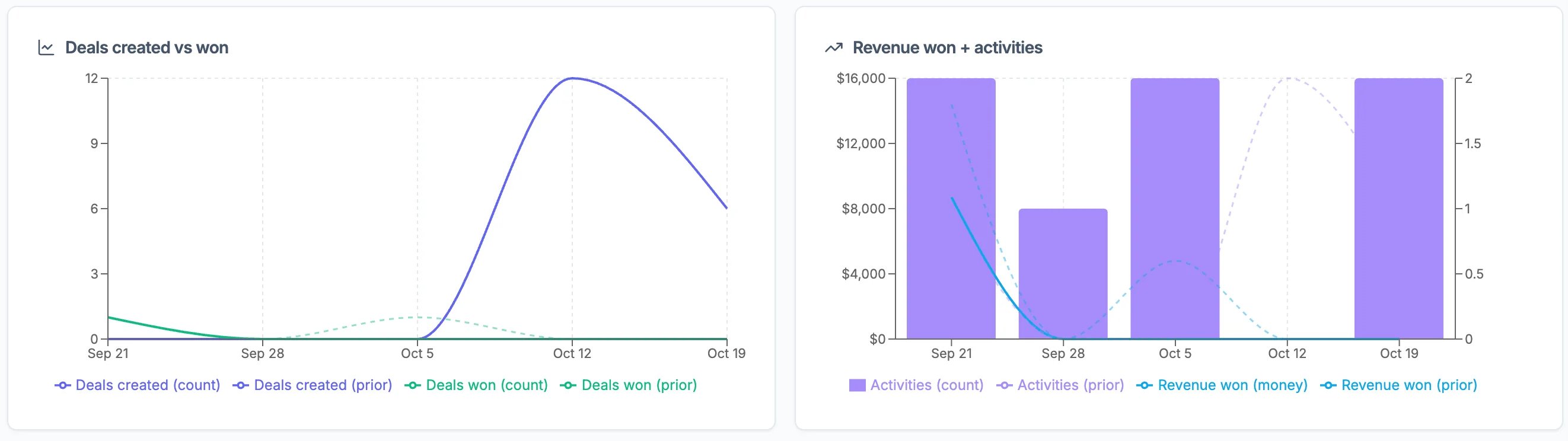
The last 30 days, with the period before dashed
See where leads come from and where deals stall
Lead sources lists each source with its leads, how many it won, its conversion rate and the money won. Pipeline funnel shows how many deals sit at each stage and what share moves on to the next one, so you can see where deals stall.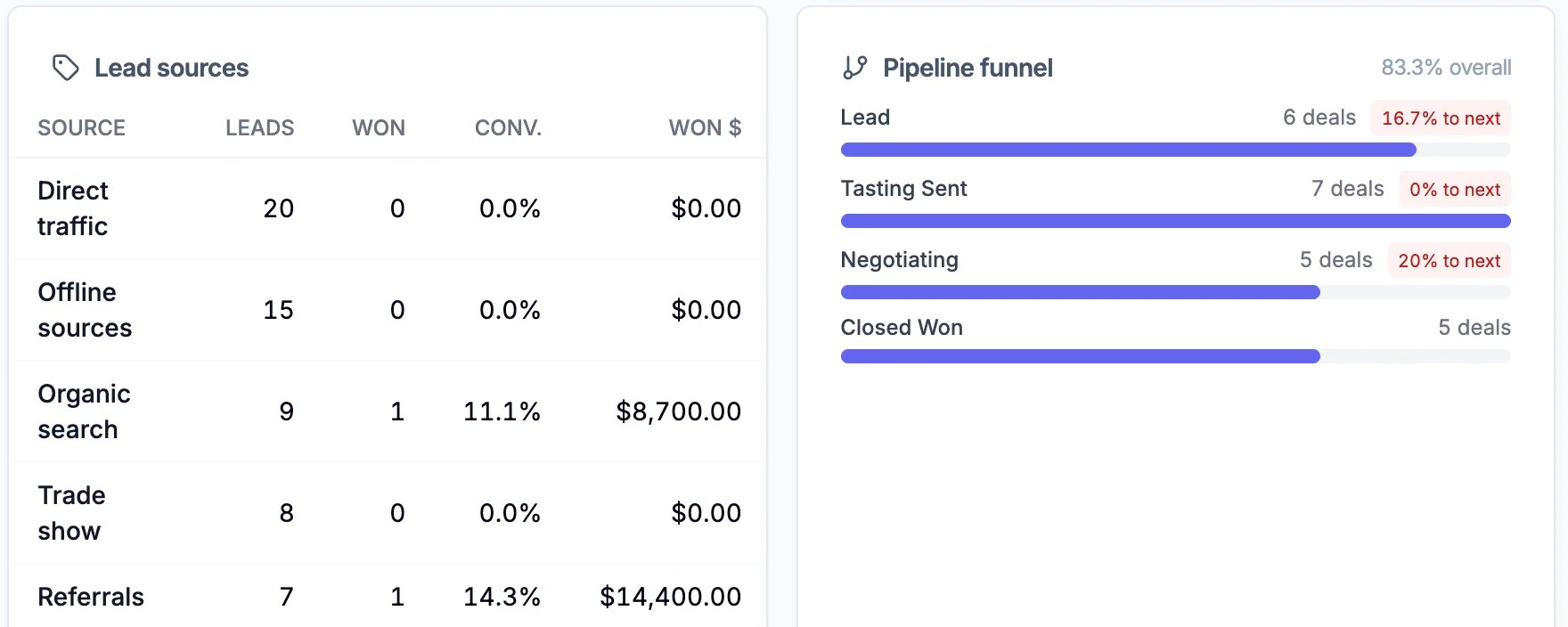
Lead sources and the pipeline funnel
See how each person is doing
Team performance lists each person’s open deals, pipeline, money won, win rate, activities, calls and texts, and how fast they reply. Click a column name to sort by it.
Team performance
Good to know
- Keep a copy: Export at the top right downloads Lead sources, Team performance, Revenue won or New leads as a spreadsheet.
- Calls and texts: the Voice and SMS sections fill in once you have a Hiveku phone number.
- Ask about it: the button at the top right sends this view to your sales agent and asks what is working, what isn’t, and what to fix this week. See Ask Your Sales Agent About Your Pipeline.