

Open the report
Click Marketing in the left rail, then ROI Reports. Overview opens on this month.Pick the dates
Click a period such as This month or Last 30 days, or Custom and type the first and last day. The whole page follows the dates you pick.
October 1 to 18, with each lead's credit split evenly
Read the summary
The summary says how many leads you got, what you put into marketing, what each lead cost and what the leads brought in.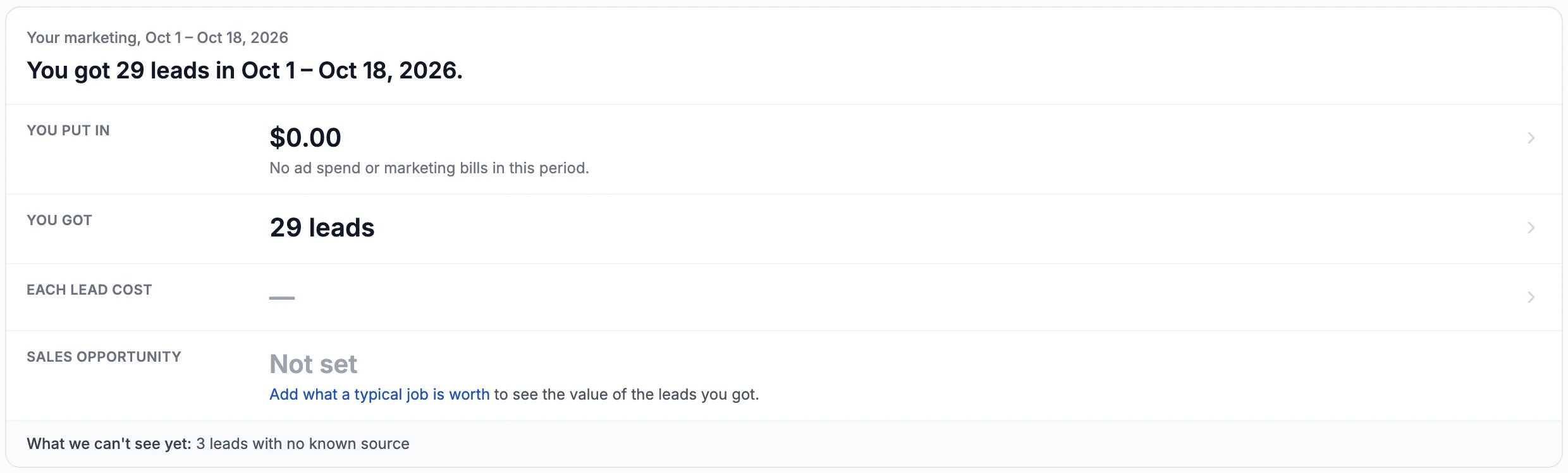
Northwind's leads for October 1 to 18
- You put in counts your ad spend and the marketing bills you record. Northwind spent nothing in this stretch, so there is no cost per lead.
- Sales opportunity: click Add what a typical job is worth to see what the leads could be worth.
- What we can’t see yet counts leads whose form or record carried no visit, so no channel can take credit for them. Make sure your site’s tracking code is on every page and form.
See each channel
Under the summary, each channel has its leads, cost per lead, the revenue from its leads and what each dollar returned.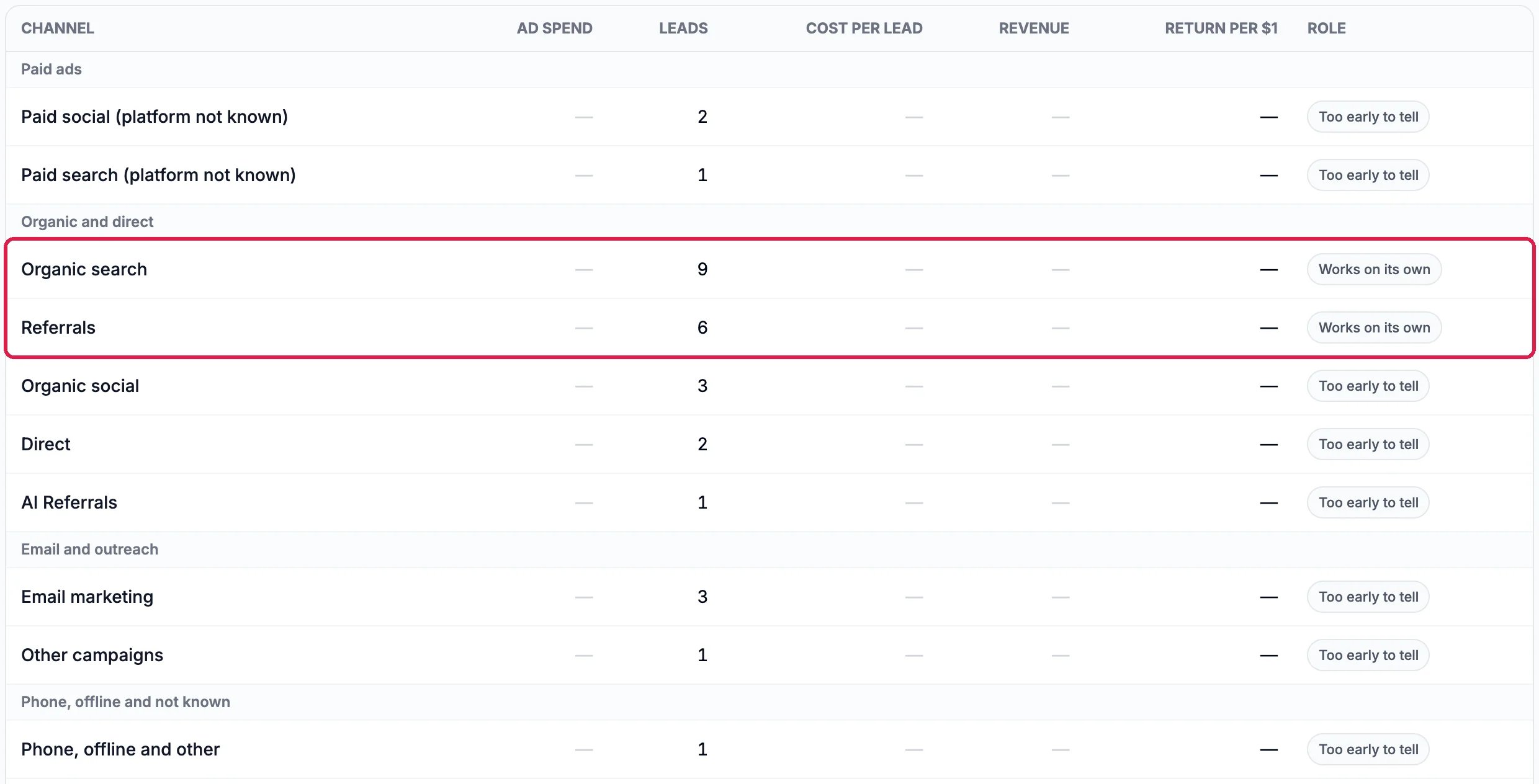
Where Northwind's 29 leads came from
Good to know
- The leads column adds up to your real total. A lead shared between channels is counted in parts, never twice.
- Each campaign, email and content piece is listed under Campaign detail, further down the same page.
- Tag your links so ads and emails get their credit: see See Which Ad or Email Brought Each Lead.
- Report settings holds your goals, what an average job is worth, which forms count as sales enquiries (untick newsletter sign-ups), and your other marketing costs. Your marketing agents use the same settings when they report on results.