Make a change on a separate copy of your site, check it, ask for a review, then merge it into Your site
A branch is a separate copy of your site where you can try a change without touching Your site (the version that goes live when you publish). When the change looks right, you ask for a review and merge it into Your site.Use a branch for bigger changes, or when someone else should approve the change first.In this example the menu on the Northwind Blog page was hard to read over its dark photo. We fixed it on a branch, checked it, and merged it.
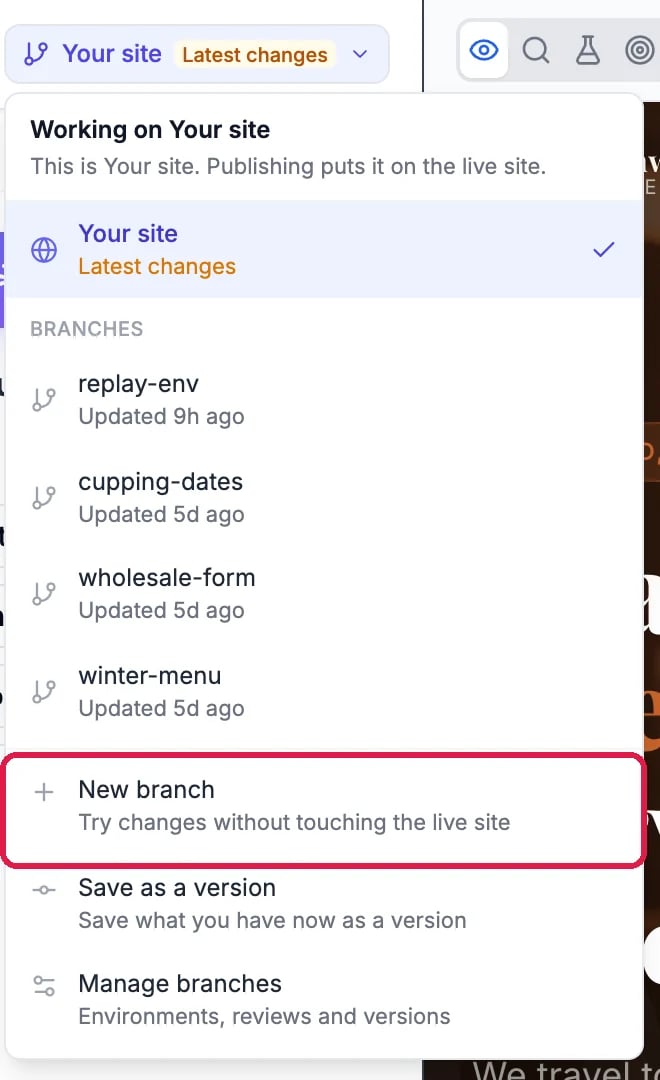
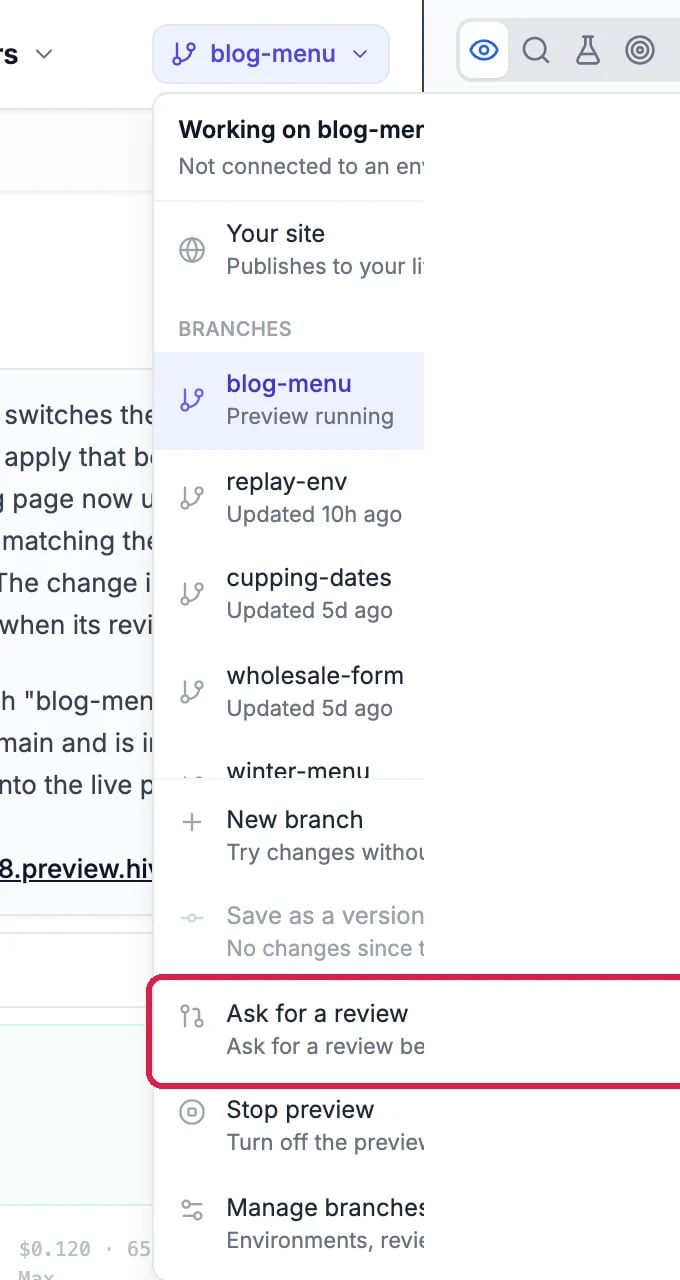
At the top of the chat, click Your site. The menu shows what you are working on, your branches, and New branch.
The branch menu, with New branch outlined
2
Name the branch and create it
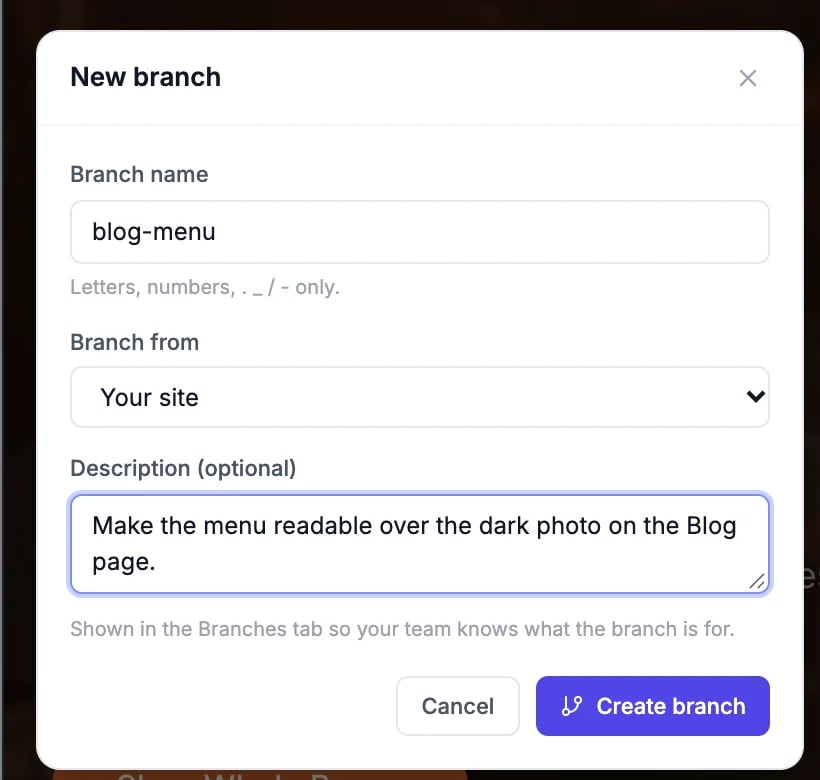
Click New branch. Give it a short name (letters, numbers, and . _ / - only), keep Branch from set to Your site, and say what it is for. Click Create branch.
The New branch box
3
Wait for the branch preview
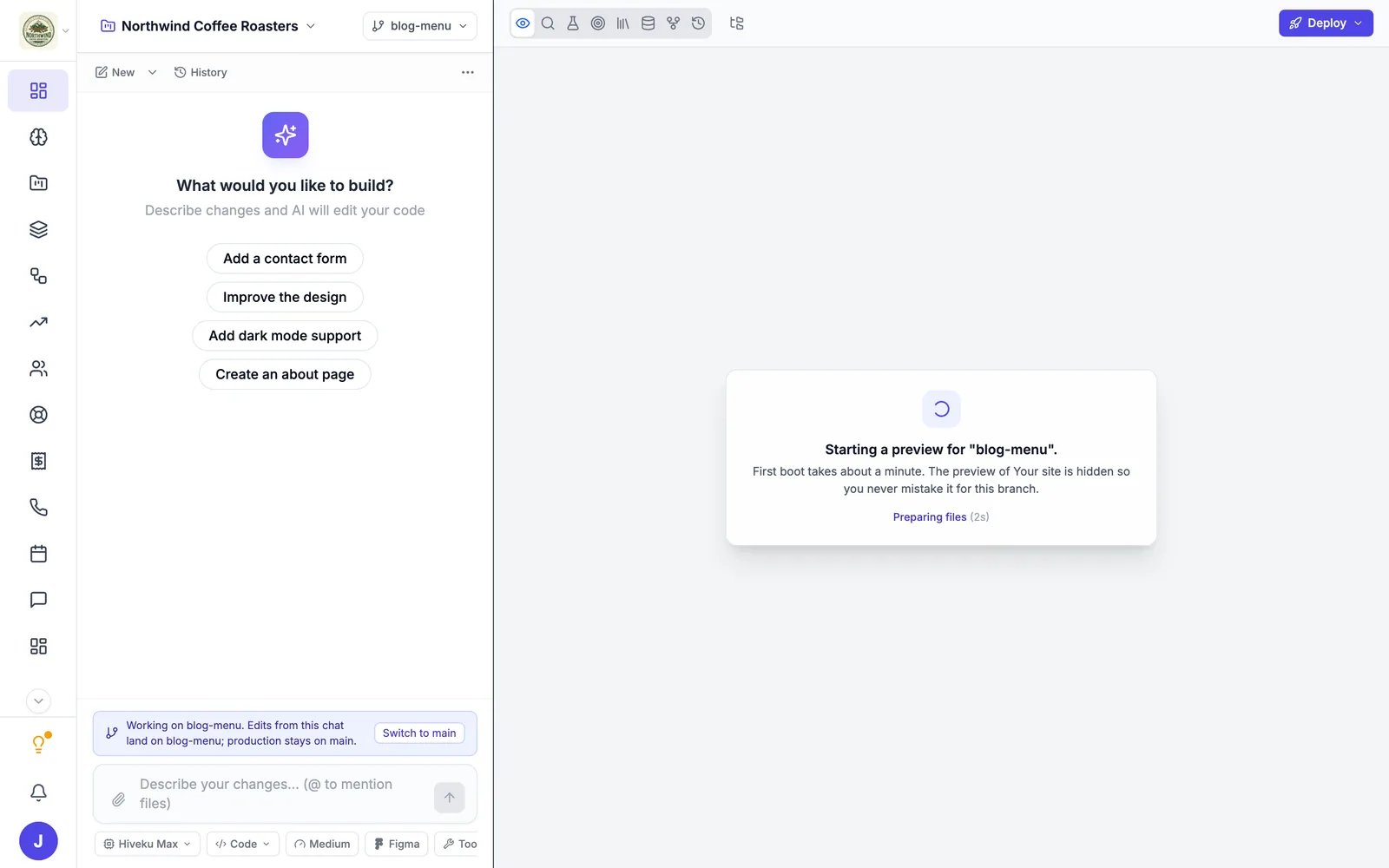
The builder switches to the branch: the menu at the top now shows its name, and a bar above the chat box says Working on blog-menu. The branch gets its own preview, which takes about a minute to start the first time.
Working on the new branch
The bar’s Switch to main button takes you back to Your site (“main” is another name for Your site).
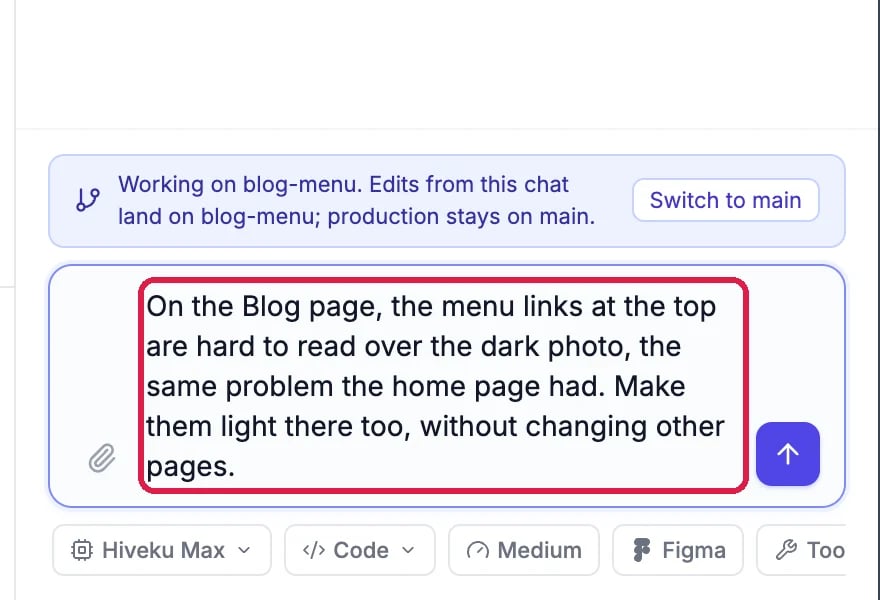
Chat as usual. Everything the AI changes now lands on the branch, not on Your site.
A request on the branch
2
Check it in the branch preview
Open the page you changed with the page picker. To see it at full size, click Open this page in a new tab (the square with an arrow) above the preview.
The page picker on /blog and the open-in-a-new-tab button
Open the branch menu again (it now shows your branch’s name) and click Ask for a review.
Ask for a review in the branch menu
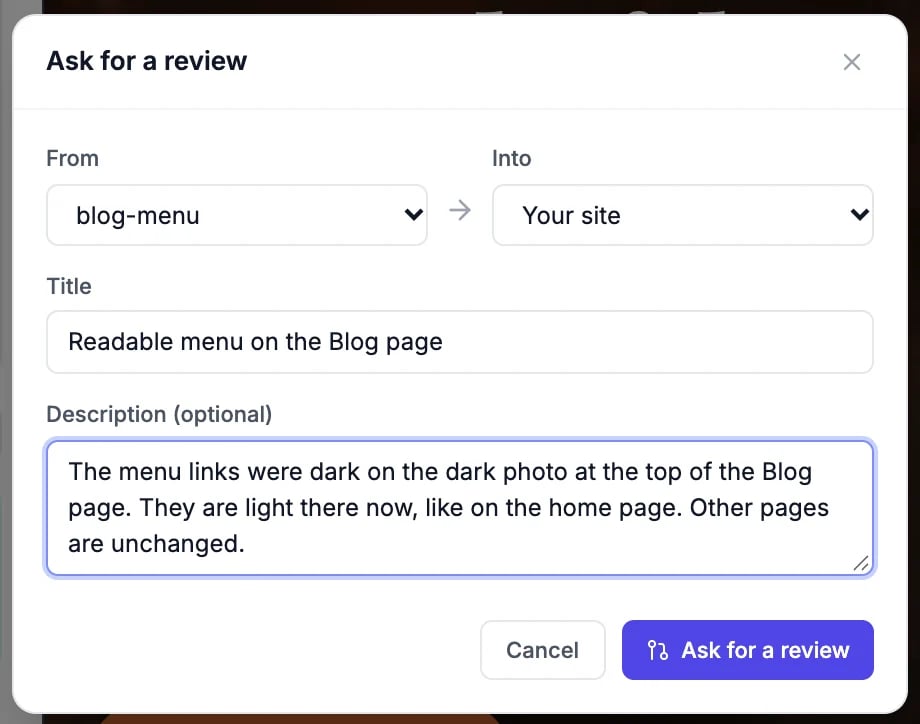
Check that From is your branch and Into is Your site, give the review a title and a short description, and click Ask for a review.
The Ask for a review box
2
Look over the review
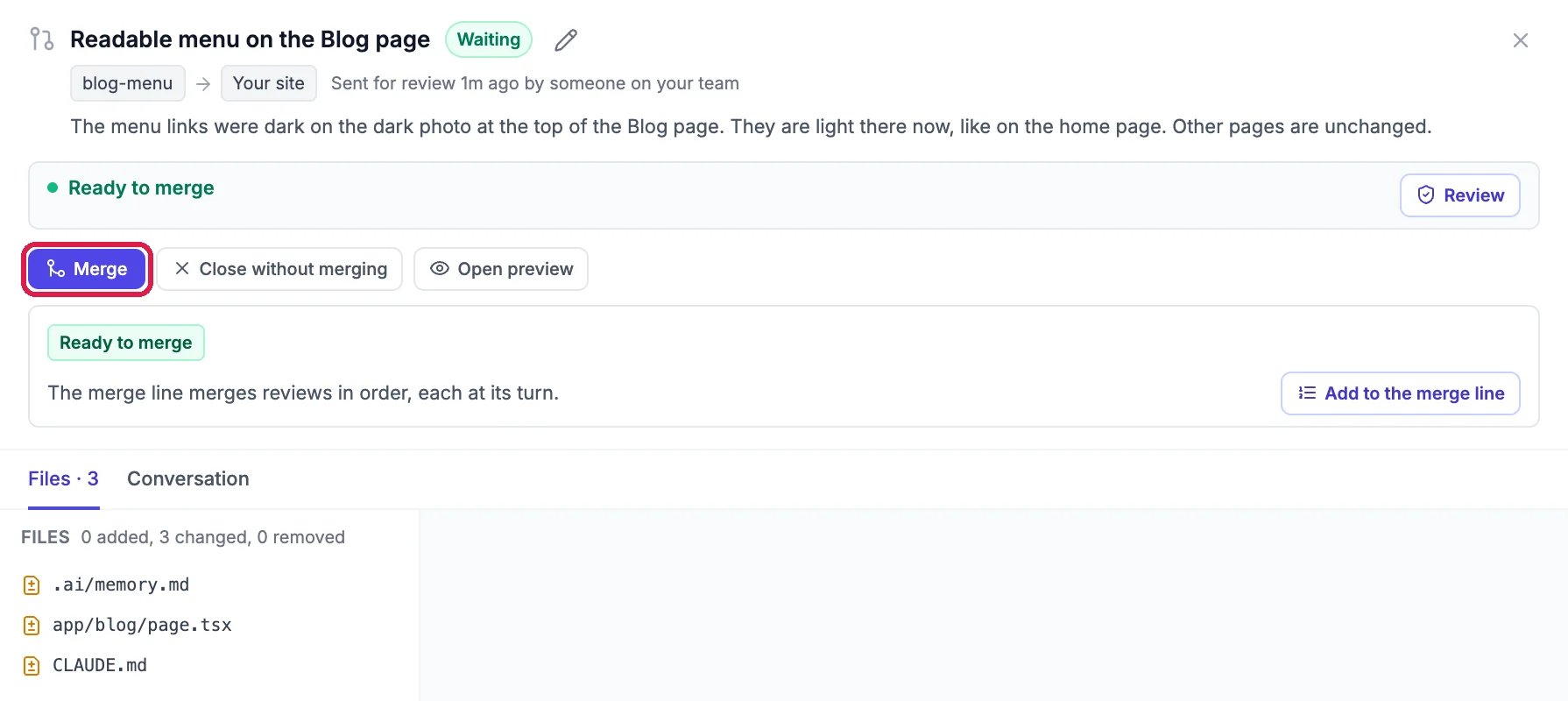
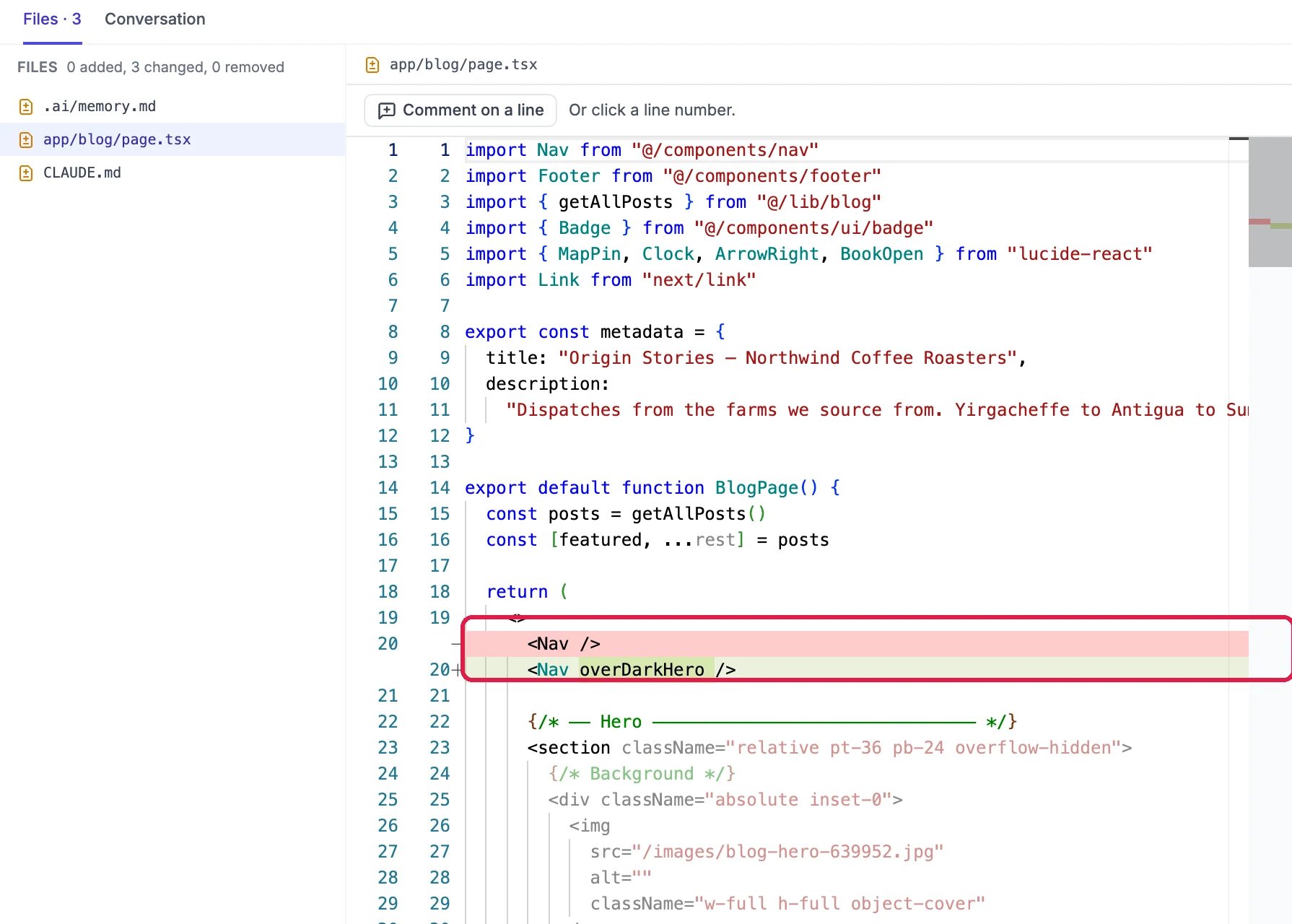
The review opens. It shows whether it is Ready to merge, the buttons Merge, Close without merging and Open preview, and the files that changed. Click a file to see exactly what changed, line by line.
The review, with Merge outlined
What changed in one file
The changed files can include the AI assistant’s own notes files. That is normal.Teammates who can publish the site can comment on lines and approve it. You cannot approve your own review. An owner or admin can require an approval before merging.
3
Merge it into Your site
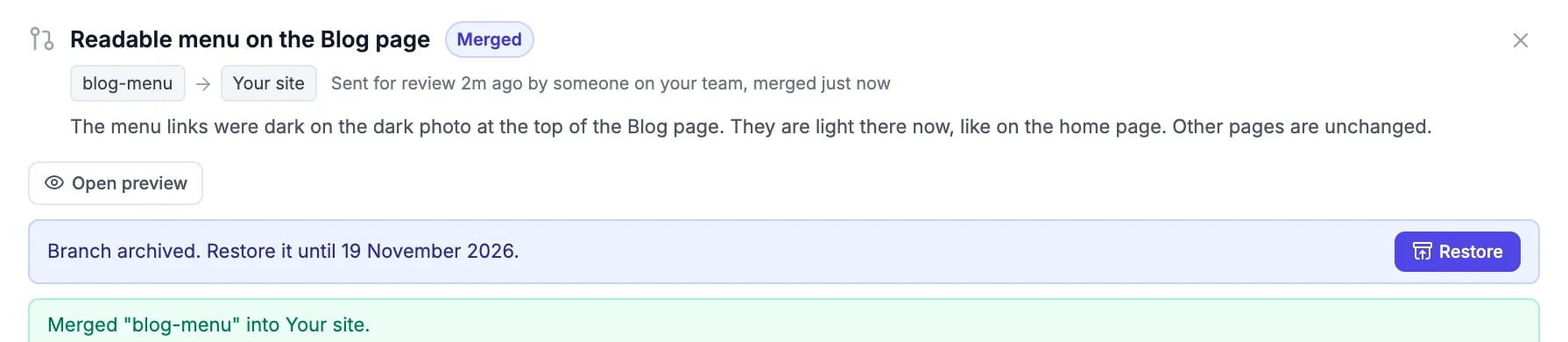
Click Merge. When it finishes, the review says Merged and Merged “blog-menu” into Your site. The branch is archived; you can restore it until the date shown.
Merged
4
Publish
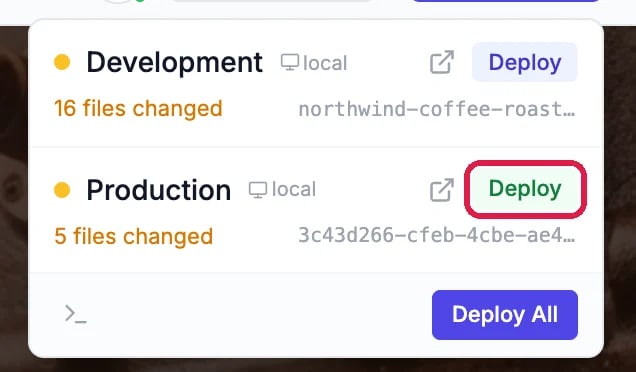
Merging changes Your site, not the live site. To put it live, click Deploy and then Deploy on the Production row, as in Publish Your Changes.
{"docsConfig":{"theme":"maple","$schema":"https://mintlify.com/docs.json","name":"Hiveku Builder","colors":{"primary":"#F9A825","light":"#FBC02D","dark":"#F57F17"},"logo":{"light":"https://mintcdn.com/locusdigital/AodgChCDua_G2sAP/images/hiveku-logo-light.svg?fit=max\u0026auto=format\u0026n=AodgChCDua_G2sAP\u0026q=85\u0026s=5d69f2502059f8269d670b35be741ad2","dark":"https://mintcdn.com/locusdigital/AodgChCDua_G2sAP/images/hiveku-logo-dark.svg?fit=max\u0026auto=format\u0026n=AodgChCDua_G2sAP\u0026q=85\u0026s=a78cef8cf1c9ae13d3dcbe31c3ca498d","href":"https://hiveku.com"},"favicon":"https://mintcdn.com/locusdigital/AodgChCDua_G2sAP/images/favicon.svg?fit=max\u0026auto=format\u0026n=AodgChCDua_G2sAP\u0026q=85\u0026s=1b959fd7abfd376351a1216e201aa8cb","api":{},"appearance":{"default":"system"},"seo":{},"styling":{"latex":true},"navigation":{"global":{"anchors":[{"anchor":"Changelog","icon":"list","href":"/changelog"},{"anchor":"App","icon":"arrow-up-right-from-square","href":"https://app.hiveku.com"}]},"pages":[]}},"deployment":{"deploymentMetadataValue":{"subdomain":"locusdigital","hasAudioNarration":false,"actualSubdomain":"locusdigital","customDomains":["docs.hiveku.com"],"gitSource":{"type":"github","owner":"locus2012","repo":"hiveku_docs","deployBranch":"main","contentDirectory":"","isPrivate":true,"mountPath":"","label":""},"chroma":{"liveDeploymentHistoryId":"6ad82446bad8d9755c205c13","collectionId":"e6053612-b3ab-4009-bfa2-610204b64d89","schemaVersion":"v3","latestBuiltDeploymentHistoryId":"6ad82446bad8d9755c205c13"},"entitlements":{"AI_CHAT":{"status":"DISABLED"}},"buildId":"6ad836f518e61eec9e7041ba","clientVersion":"0.0.3908","searchFilterCounts":[{"language":"default","tag":"Documentation","count":335},{"language":"default","tag":"How-Tos","count":145},{"language":"default","tag":"Growing Your Business","count":62},{"language":"default","tag":"Integrations","count":25},{"language":"default","tag":"Publishing","count":18},{"language":"default","tag":"Integrations \u0026 BYOK","count":16},{"language":"default","tag":"Helpdesk","count":15},{"language":"default","tag":"Workflow Recipes","count":15},{"language":"default","tag":"Marketing Delivery","count":12},{"language":"default","tag":"API Reference","count":11}]},"assistantConfig":{"enableAskAiButton":false,"enableStarterQuestions":false,"enableContextualStarterQuestions":false,"enableAskAiSearchBar":true},"hasChatPermissions":false,"hasWebMcpPermissions":false,"toggles":[{"name":"kill-isr","enabled":true,"variant":{"name":"disabled","enabled":false,"feature_enabled":true},"impressionData":false},{"name":"agent-mintlify-slack","enabled":true,"variant":{"name":"disabled","enabled":false,"feature_enabled":true},"impressionData":false},{"name":"editor-v7-file-tree","enabled":true,"variant":{"name":"disabled","enabled":false,"feature_enabled":true},"impressionData":false},{"name":"agent-integrations-settings","enabled":true,"variant":{"name":"disabled","enabled":false,"feature_enabled":true},"impressionData":false},{"name":"automations-pr-grouping","enabled":true,"variant":{"name":"disabled","enabled":false,"feature_enabled":true},"impressionData":false},{"name":"custom-prefix","enabled":true,"variant":{"name":"disabled","enabled":false,"feature_enabled":true},"impressionData":false},{"name":"analytics-v7","enabled":true,"variant":{"name":"disabled","enabled":false,"feature_enabled":true},"impressionData":false},{"name":"user-flows-analytics","enabled":true,"variant":{"name":"disabled","enabled":false,"feature_enabled":true},"impressionData":false},{"name":"no-publish-flow","enabled":true,"variant":{"name":"disabled","enabled":false,"feature_enabled":true},"impressionData":false},{"name":"workos-onboarding","enabled":true,"variant":{"name":"disabled","enabled":false,"feature_enabled":true},"impressionData":false},{"name":"llms-txt-v2","enabled":true,"variant":{"name":"disabled","enabled":false,"feature_enabled":true},"impressionData":false},{"name":"pause-universal-search-reconcile","enabled":true,"variant":{"name":"disabled","enabled":false,"feature_enabled":true},"impressionData":false},{"name":"snapshot-serving-live","enabled":true,"variant":{"name":"disabled","enabled":false,"feature_enabled":true},"impressionData":false},{"name":"stripTemperatureMiddleware","enabled":true,"variant":{"name":"disabled","enabled":false,"feature_enabled":true},"impressionData":false},{"name":"per-site-search-delta","enabled":true,"variant":{"name":"disabled","enabled":false,"feature_enabled":true},"impressionData":false},{"name":"support-platform-pylon-zendesk","enabled":true,"variant":{"name":"disabled","enabled":false,"feature_enabled":true},"impressionData":false},{"name":"editor-branches-v2-autocommit","enabled":true,"variant":{"name":"disabled","enabled":false,"feature_enabled":true},"impressionData":false},{"name":"editor-branches-v2","enabled":true,"variant":{"name":"disabled","enabled":false,"feature_enabled":true},"impressionData":false},{"name":"snapshot-serving","enabled":true,"variant":{"name":"disabled","enabled":false,"feature_enabled":true},"impressionData":false},{"name":"instant-rollback","enabled":true,"variant":{"name":"disabled","enabled":false,"feature_enabled":true},"impressionData":false},{"name":"granular-notifications-server","enabled":true,"variant":{"name":"disabled","enabled":false,"feature_enabled":true},"impressionData":false},{"name":"granular-notifications","enabled":true,"variant":{"name":"disabled","enabled":false,"feature_enabled":true},"impressionData":false},{"name":"editor-private-page-search","enabled":true,"variant":{"name":"disabled","enabled":false,"feature_enabled":true},"impressionData":false},{"name":"automations-fable","enabled":true,"variant":{"name":"disabled","enabled":false,"feature_enabled":true},"impressionData":false},{"name":"fixed-ai-action-pricing","enabled":true,"variant":{"name":"disabled","enabled":false,"feature_enabled":true},"impressionData":false},{"name":"automation-resolve-merge-conflict","enabled":true,"variant":{"name":"disabled","enabled":false,"feature_enabled":true},"impressionData":false},{"name":"scoped-publishing","enabled":true,"variant":{"name":"disabled","enabled":false,"feature_enabled":true},"impressionData":false},{"name":"mintql","enabled":true,"variant":{"name":"disabled","enabled":false,"feature_enabled":true},"impressionData":false},{"name":"page-level-analytics","enabled":true,"variant":{"name":"disabled","enabled":false,"feature_enabled":true},"impressionData":false},{"name":"teamspace","enabled":true,"variant":{"name":"disabled","enabled":false,"feature_enabled":true},"impressionData":false},{"name":"editor-version-history-v2","enabled":true,"variant":{"name":"disabled","enabled":false,"feature_enabled":true},"impressionData":false},{"name":"vite-origin","enabled":true,"variant":{"name":"disabled","enabled":false,"feature_enabled":true},"impressionData":false},{"name":"editor-nav-generations","enabled":true,"variant":{"name":"disabled","enabled":false,"feature_enabled":true},"impressionData":false},{"name":"billing-page-v2","enabled":true,"variant":{"name":"disabled","enabled":false,"feature_enabled":true},"impressionData":false},{"name":"workspace-projects","enabled":true,"variant":{"name":"disabled","enabled":false,"feature_enabled":true},"impressionData":false},{"name":"assistant-v5","enabled":true,"variant":{"name":"disabled","enabled":false,"feature_enabled":true},"impressionData":false},{"name":"byok-sep-25","enabled":true,"variant":{"name":"disabled","enabled":false,"feature_enabled":true},"impressionData":false},{"name":"fork-pr-previews","enabled":true,"variant":{"name":"disabled","enabled":false,"feature_enabled":true},"impressionData":false},{"name":"revalidation-jwt","enabled":true,"variant":{"name":"disabled","enabled":false,"feature_enabled":true},"impressionData":false},{"name":"editor-agent-model-picker","enabled":true,"variant":{"name":"disabled","enabled":false,"feature_enabled":true},"impressionData":false},{"name":"client-snapshot-docs-config","enabled":true,"variant":{"name":"disabled","enabled":false,"feature_enabled":true},"impressionData":false},{"name":"hobby-abuse-scan","enabled":true,"variant":{"name":"disabled","enabled":false,"feature_enabled":true},"impressionData":false},{"name":"dashboard-inbox","enabled":true,"variant":{"name":"disabled","enabled":false,"feature_enabled":true},"impressionData":false}],"isAtlas":false,"googleFontsInlined":false},"customCss":[],"page":{"pagePath":"how-tos/site-builder/try-on-a-branch","slug":"/how-tos/site-builder/try-on-a-branch","pageMetadata":{"title":"Try a Change on a Branch First","sidebarTitle":"Try It on a Branch","description":"Make a change on a separate copy of your site, check it, ask for a review, then merge it into Your site","href":"/how-tos/site-builder/try-on-a-branch"},"description":{"compiledSource":"\"use strict\";\nconst {jsx: _jsx} = arguments[0];\nconst {useMDXComponents: _provideComponents} = arguments[0];\nfunction _createMdxContent(props) {\n const _components = {\n p: \"p\",\n ..._provideComponents(),\n ...props.components\n };\n return _jsx(_components.p, {\n children: \"Make a change on a separate copy of your site, check it, ask for a review, then merge it into Your site\"\n });\n}\nfunction MDXContent(props = {}) {\n const {wrapper: MDXLayout} = {\n ..._provideComponents(),\n ...props.components\n };\n return MDXLayout ? _jsx(MDXLayout, {\n ...props,\n children: _jsx(_createMdxContent, {\n ...props\n })\n }) : _createMdxContent(props);\n}\nreturn {\n default: MDXContent\n};\n","frontmatter":{},"scope":{}},"pageType":"default","mdx":{"mdxSource":{"compiledSource":"\"use strict\";const{Fragment:_Fragment,jsx:_jsx,jsxs:_jsxs}=arguments[0];const{useMDXComponents:_provideComponents}=arguments[0];function _createMdxContent(props){const _components={a:`a`,code:`code`,li:`li`,p:`p`,strong:`strong`,ul:`ul`,..._provideComponents(),...props.components},{Frame,Heading,Info,OptimizedImage,Step,Steps}=_components;if(!Frame)_missingMdxReference(`Frame`,true);if(!Heading)_missingMdxReference(`Heading`,true);if(!Info)_missingMdxReference(`Info`,true);if(!OptimizedImage)_missingMdxReference(`OptimizedImage`,true);if(!Step)_missingMdxReference(`Step`,true);if(!Steps)_missingMdxReference(`Steps`,true);return _jsxs(_Fragment,{children:[_jsxs(_components.p,{children:[`A `,_jsx(_components.strong,{children:`branch`}),` is a separate copy of your site where you can try a change without touching `,_jsx(_components.strong,{children:`Your site`}),` (the version that goes live when you publish). When the change looks right, you ask for a review and `,_jsx(_components.strong,{children:`merge`}),` it into Your site.`]}),`\n`,_jsx(_components.p,{children:`Use a branch for bigger changes, or when someone else should approve the change first.`}),`\n`,_jsx(_components.p,{children:`In this example the menu on the Northwind Blog page was hard to read over its dark photo. We fixed it on a branch, checked it, and merged it.`}),`\n`,_jsx(Frame,{caption:`Before: the Blog page menu is hard to read`,children:_jsx(OptimizedImage,{src:`https://mintcdn.com/locusdigital/FVlEfoFyGPs7ebKP/images/how-tos/site-builder/br-00-live-before-closeup.webp?fit=max\u0026auto=format\u0026n=FVlEfoFyGPs7ebKP\u0026q=85\u0026s=61a413df499ce069f4e7c2d7b5158ad0`,alt:`The Northwind Blog page menu bar with dark, barely visible links over a dark photo`,\"data-og-width\":`2880`,width:`2880`,\"data-og-height\":`220`,height:`220`,\"data-path\":`images/how-tos/site-builder/br-00-live-before-closeup.webp`,\"data-optimize\":`true`,\"data-opv\":`3`,srcset:`https://mintcdn.com/locusdigital/FVlEfoFyGPs7ebKP/images/how-tos/site-builder/br-00-live-before-closeup.webp?w=280\u0026fit=max\u0026auto=format\u0026n=FVlEfoFyGPs7ebKP\u0026q=85\u0026s=41f49ffc1e064ebc2e3ad1be063c6569 280w, https://mintcdn.com/locusdigital/FVlEfoFyGPs7ebKP/images/how-tos/site-builder/br-00-live-before-closeup.webp?w=560\u0026fit=max\u0026auto=format\u0026n=FVlEfoFyGPs7ebKP\u0026q=85\u0026s=9c5edd96e48e2b9482788ba33d524b6a 560w, https://mintcdn.com/locusdigital/FVlEfoFyGPs7ebKP/images/how-tos/site-builder/br-00-live-before-closeup.webp?w=840\u0026fit=max\u0026auto=format\u0026n=FVlEfoFyGPs7ebKP\u0026q=85\u0026s=dceee7cda77dc0dee85dbaccc5cd7249 840w, https://mintcdn.com/locusdigital/FVlEfoFyGPs7ebKP/images/how-tos/site-builder/br-00-live-before-closeup.webp?w=1100\u0026fit=max\u0026auto=format\u0026n=FVlEfoFyGPs7ebKP\u0026q=85\u0026s=359f854b4d932e7a48afa56788fb5df7 1100w, https://mintcdn.com/locusdigital/FVlEfoFyGPs7ebKP/images/how-tos/site-builder/br-00-live-before-closeup.webp?w=1650\u0026fit=max\u0026auto=format\u0026n=FVlEfoFyGPs7ebKP\u0026q=85\u0026s=20ee62c307679ff408aa157b1b7d1ddf 1650w, https://mintcdn.com/locusdigital/FVlEfoFyGPs7ebKP/images/how-tos/site-builder/br-00-live-before-closeup.webp?w=2500\u0026fit=max\u0026auto=format\u0026n=FVlEfoFyGPs7ebKP\u0026q=85\u0026s=00da0664cb092a330a23969f1cbfd233 2500w`})}),`\n`,_jsx(Heading,{level:`2`,id:`start-a-branch`,children:`Start a branch`}),`\n`,_jsxs(Steps,{children:[_jsxs(Step,{title:`Open the branch menu`,children:[_jsxs(_components.p,{children:[`At the top of the chat, click `,_jsx(_components.strong,{children:`Your site`}),`. The menu shows what you are working on, your branches, and `,_jsx(_components.strong,{children:`New branch`}),`.`]}),_jsx(Frame,{caption:`The branch menu, with New branch outlined`,children:_jsx(OptimizedImage,{src:`https://mintcdn.com/locusdigital/FVlEfoFyGPs7ebKP/images/how-tos/site-builder/br-01-menu-closeup.webp?fit=max\u0026auto=format\u0026n=FVlEfoFyGPs7ebKP\u0026q=85\u0026s=407f682c0610c78a5bddfbac5a67f042`,alt:`The branch menu: Working on Your site, a list of branches, and New branch outlined`,width:`330`,\"data-og-width\":`660`,\"data-og-height\":`1080`,\"data-path\":`images/how-tos/site-builder/br-01-menu-closeup.webp`,\"data-optimize\":`true`,\"data-opv\":`3`,srcset:`https://mintcdn.com/locusdigital/FVlEfoFyGPs7ebKP/images/how-tos/site-builder/br-01-menu-closeup.webp?w=280\u0026fit=max\u0026auto=format\u0026n=FVlEfoFyGPs7ebKP\u0026q=85\u0026s=b13b7900ae4a309e76bf70d12794694c 280w, https://mintcdn.com/locusdigital/FVlEfoFyGPs7ebKP/images/how-tos/site-builder/br-01-menu-closeup.webp?w=560\u0026fit=max\u0026auto=format\u0026n=FVlEfoFyGPs7ebKP\u0026q=85\u0026s=4c95a63cb44cd7eba01b0b36ed9ffdc0 560w, https://mintcdn.com/locusdigital/FVlEfoFyGPs7ebKP/images/how-tos/site-builder/br-01-menu-closeup.webp?w=840\u0026fit=max\u0026auto=format\u0026n=FVlEfoFyGPs7ebKP\u0026q=85\u0026s=08b2bc79cc4929d3c2a327f2e1a52e62 840w, https://mintcdn.com/locusdigital/FVlEfoFyGPs7ebKP/images/how-tos/site-builder/br-01-menu-closeup.webp?w=1100\u0026fit=max\u0026auto=format\u0026n=FVlEfoFyGPs7ebKP\u0026q=85\u0026s=4ae57b2c1436b719d170777d31327808 1100w, https://mintcdn.com/locusdigital/FVlEfoFyGPs7ebKP/images/how-tos/site-builder/br-01-menu-closeup.webp?w=1650\u0026fit=max\u0026auto=format\u0026n=FVlEfoFyGPs7ebKP\u0026q=85\u0026s=2e830951122f8d9c61ead1ac45c13021 1650w, https://mintcdn.com/locusdigital/FVlEfoFyGPs7ebKP/images/how-tos/site-builder/br-01-menu-closeup.webp?w=2500\u0026fit=max\u0026auto=format\u0026n=FVlEfoFyGPs7ebKP\u0026q=85\u0026s=d1002ce49e87d8fa0cc3c64490fbb625 2500w`})})]}),_jsxs(Step,{title:`Name the branch and create it`,children:[_jsxs(_components.p,{children:[`Click `,_jsx(_components.strong,{children:`New branch`}),`. Give it a short name (letters, numbers, and `,_jsx(_components.code,{children:`. _ / -`}),` only), keep `,_jsx(_components.strong,{children:`Branch from`}),` set to `,_jsx(_components.strong,{children:`Your site`}),`, and say what it is for. Click `,_jsx(_components.strong,{children:`Create branch`}),`.`]}),_jsx(Frame,{caption:`The New branch box`,children:_jsx(OptimizedImage,{src:`https://mintcdn.com/locusdigital/FVlEfoFyGPs7ebKP/images/how-tos/site-builder/br-02-dialog-closeup.webp?fit=max\u0026auto=format\u0026n=FVlEfoFyGPs7ebKP\u0026q=85\u0026s=e369b2d72e456866bcc0e9720bc94ea3`,alt:`The New branch box with the name blog-menu, Branch from Your site, a description, and the Create branch button`,width:`410`,\"data-og-width\":`820`,\"data-og-height\":`780`,\"data-path\":`images/how-tos/site-builder/br-02-dialog-closeup.webp`,\"data-optimize\":`true`,\"data-opv\":`3`,srcset:`https://mintcdn.com/locusdigital/FVlEfoFyGPs7ebKP/images/how-tos/site-builder/br-02-dialog-closeup.webp?w=280\u0026fit=max\u0026auto=format\u0026n=FVlEfoFyGPs7ebKP\u0026q=85\u0026s=66503e9680bd53b81c3ca411e06ee1ee 280w, https://mintcdn.com/locusdigital/FVlEfoFyGPs7ebKP/images/how-tos/site-builder/br-02-dialog-closeup.webp?w=560\u0026fit=max\u0026auto=format\u0026n=FVlEfoFyGPs7ebKP\u0026q=85\u0026s=c310e5a1a766fa3e59c4277007dca9b5 560w, https://mintcdn.com/locusdigital/FVlEfoFyGPs7ebKP/images/how-tos/site-builder/br-02-dialog-closeup.webp?w=840\u0026fit=max\u0026auto=format\u0026n=FVlEfoFyGPs7ebKP\u0026q=85\u0026s=34a0597f57075aaf7ead2f5793592c8c 840w, https://mintcdn.com/locusdigital/FVlEfoFyGPs7ebKP/images/how-tos/site-builder/br-02-dialog-closeup.webp?w=1100\u0026fit=max\u0026auto=format\u0026n=FVlEfoFyGPs7ebKP\u0026q=85\u0026s=c4b8cbe80f61e36864ef086fda0a3db6 1100w, https://mintcdn.com/locusdigital/FVlEfoFyGPs7ebKP/images/how-tos/site-builder/br-02-dialog-closeup.webp?w=1650\u0026fit=max\u0026auto=format\u0026n=FVlEfoFyGPs7ebKP\u0026q=85\u0026s=67d84de2baee125c2ab8bb970f2fc9cd 1650w, https://mintcdn.com/locusdigital/FVlEfoFyGPs7ebKP/images/how-tos/site-builder/br-02-dialog-closeup.webp?w=2500\u0026fit=max\u0026auto=format\u0026n=FVlEfoFyGPs7ebKP\u0026q=85\u0026s=9c2da5b93ee2c6097eac2b68293a3c9c 2500w`})})]}),_jsxs(Step,{title:`Wait for the branch preview`,children:[_jsxs(_components.p,{children:[`The builder switches to the branch: the menu at the top now shows its name, and a bar above the chat box says `,_jsx(_components.strong,{children:`Working on blog-menu`}),`. The branch gets its own preview, which takes about a minute to start the first time.`]}),_jsx(Frame,{caption:`Working on the new branch`,children:_jsx(OptimizedImage,{src:`https://mintcdn.com/locusdigital/FVlEfoFyGPs7ebKP/images/how-tos/site-builder/br-03-created.webp?fit=max\u0026auto=format\u0026n=FVlEfoFyGPs7ebKP\u0026q=85\u0026s=c609a0997fd12385c557f09ae8066f0e`,alt:`The builder on the blog-menu branch, with the Working on blog-menu bar above the chat box and the preview starting`,\"data-og-width\":`1600`,width:`1600`,\"data-og-height\":`1000`,height:`1000`,\"data-path\":`images/how-tos/site-builder/br-03-created.webp`,\"data-optimize\":`true`,\"data-opv\":`3`,srcset:`https://mintcdn.com/locusdigital/FVlEfoFyGPs7ebKP/images/how-tos/site-builder/br-03-created.webp?w=280\u0026fit=max\u0026auto=format\u0026n=FVlEfoFyGPs7ebKP\u0026q=85\u0026s=15367b31da966f62a9d5f5edb5006594 280w, https://mintcdn.com/locusdigital/FVlEfoFyGPs7ebKP/images/how-tos/site-builder/br-03-created.webp?w=560\u0026fit=max\u0026auto=format\u0026n=FVlEfoFyGPs7ebKP\u0026q=85\u0026s=31373cfbad92ee9134f887255f5fb159 560w, https://mintcdn.com/locusdigital/FVlEfoFyGPs7ebKP/images/how-tos/site-builder/br-03-created.webp?w=840\u0026fit=max\u0026auto=format\u0026n=FVlEfoFyGPs7ebKP\u0026q=85\u0026s=2b4c25fd812dd7dea76553af060003f4 840w, https://mintcdn.com/locusdigital/FVlEfoFyGPs7ebKP/images/how-tos/site-builder/br-03-created.webp?w=1100\u0026fit=max\u0026auto=format\u0026n=FVlEfoFyGPs7ebKP\u0026q=85\u0026s=b93df748d313bbaff6bdb56c72cf9d60 1100w, https://mintcdn.com/locusdigital/FVlEfoFyGPs7ebKP/images/how-tos/site-builder/br-03-created.webp?w=1650\u0026fit=max\u0026auto=format\u0026n=FVlEfoFyGPs7ebKP\u0026q=85\u0026s=fda1cac6133fff93eb1a9408987d86e7 1650w, https://mintcdn.com/locusdigital/FVlEfoFyGPs7ebKP/images/how-tos/site-builder/br-03-created.webp?w=2500\u0026fit=max\u0026auto=format\u0026n=FVlEfoFyGPs7ebKP\u0026q=85\u0026s=a41aa87988337b7054f58703e0174c1d 2500w`})}),_jsx(Info,{children:_jsxs(_components.p,{children:[`The bar’s `,_jsx(_components.strong,{children:`Switch to main`}),` button takes you back to Your site (“main” is another name for Your site).`]})})]})]}),`\n`,_jsx(Heading,{level:`2`,id:`make-and-check-the-change`,children:`Make and check the change`}),`\n`,_jsxs(Steps,{children:[_jsxs(Step,{title:`Ask for the change`,children:[_jsx(_components.p,{children:`Chat as usual. Everything the AI changes now lands on the branch, not on Your site.`}),_jsx(Frame,{caption:`A request on the branch`,children:_jsx(OptimizedImage,{src:`https://mintcdn.com/locusdigital/FVlEfoFyGPs7ebKP/images/how-tos/site-builder/br-04-request-closeup.webp?fit=max\u0026auto=format\u0026n=FVlEfoFyGPs7ebKP\u0026q=85\u0026s=d5cb24ccf02fd56204b02e1d32f801db`,alt:`The chat box on the blog-menu branch with the request to make the Blog page menu light`,width:`440`,\"data-og-width\":`880`,\"data-og-height\":`600`,\"data-path\":`images/how-tos/site-builder/br-04-request-closeup.webp`,\"data-optimize\":`true`,\"data-opv\":`3`,srcset:`https://mintcdn.com/locusdigital/FVlEfoFyGPs7ebKP/images/how-tos/site-builder/br-04-request-closeup.webp?w=280\u0026fit=max\u0026auto=format\u0026n=FVlEfoFyGPs7ebKP\u0026q=85\u0026s=fb7829179b80fab7020ac7179a713b9b 280w, https://mintcdn.com/locusdigital/FVlEfoFyGPs7ebKP/images/how-tos/site-builder/br-04-request-closeup.webp?w=560\u0026fit=max\u0026auto=format\u0026n=FVlEfoFyGPs7ebKP\u0026q=85\u0026s=d669e31fcbfd7e7689d15b00256a7800 560w, https://mintcdn.com/locusdigital/FVlEfoFyGPs7ebKP/images/how-tos/site-builder/br-04-request-closeup.webp?w=840\u0026fit=max\u0026auto=format\u0026n=FVlEfoFyGPs7ebKP\u0026q=85\u0026s=c58108ba0581d0e6871fe7b04f03da5c 840w, https://mintcdn.com/locusdigital/FVlEfoFyGPs7ebKP/images/how-tos/site-builder/br-04-request-closeup.webp?w=1100\u0026fit=max\u0026auto=format\u0026n=FVlEfoFyGPs7ebKP\u0026q=85\u0026s=29467a8f6e949b4ce5a9bdd4f618e7d9 1100w, https://mintcdn.com/locusdigital/FVlEfoFyGPs7ebKP/images/how-tos/site-builder/br-04-request-closeup.webp?w=1650\u0026fit=max\u0026auto=format\u0026n=FVlEfoFyGPs7ebKP\u0026q=85\u0026s=1368ac82311026381c52883dc2f94dd8 1650w, https://mintcdn.com/locusdigital/FVlEfoFyGPs7ebKP/images/how-tos/site-builder/br-04-request-closeup.webp?w=2500\u0026fit=max\u0026auto=format\u0026n=FVlEfoFyGPs7ebKP\u0026q=85\u0026s=7eb5d35371bc76def78680686fa18c1c 2500w`})})]}),_jsxs(Step,{title:`Check it in the branch preview`,children:[_jsxs(_components.p,{children:[`Open the page you changed with the page picker. To see it at full size, click `,_jsx(_components.strong,{children:`Open this page in a new tab`}),` (the square with an arrow) above the preview.`]}),_jsx(Frame,{caption:`The page picker on /blog and the open-in-a-new-tab button`,children:_jsx(OptimizedImage,{src:`https://mintcdn.com/locusdigital/FVlEfoFyGPs7ebKP/images/how-tos/site-builder/br-05-branch-preview-closeup.webp?fit=max\u0026auto=format\u0026n=FVlEfoFyGPs7ebKP\u0026q=85\u0026s=9a4b6573d7188b7f1c2489e8f1382e4a`,alt:`The toolbar above the branch preview showing /blog and the Open this page in a new tab button outlined`,\"data-og-width\":`1856`,width:`1856`,\"data-og-height\":`92`,height:`92`,\"data-path\":`images/how-tos/site-builder/br-05-branch-preview-closeup.webp`,\"data-optimize\":`true`,\"data-opv\":`3`,srcset:`https://mintcdn.com/locusdigital/FVlEfoFyGPs7ebKP/images/how-tos/site-builder/br-05-branch-preview-closeup.webp?w=280\u0026fit=max\u0026auto=format\u0026n=FVlEfoFyGPs7ebKP\u0026q=85\u0026s=4d37a9862d6c21995abba17899dee2be 280w, https://mintcdn.com/locusdigital/FVlEfoFyGPs7ebKP/images/how-tos/site-builder/br-05-branch-preview-closeup.webp?w=560\u0026fit=max\u0026auto=format\u0026n=FVlEfoFyGPs7ebKP\u0026q=85\u0026s=e6472d7316cd7f73387cc6cebe88e375 560w, https://mintcdn.com/locusdigital/FVlEfoFyGPs7ebKP/images/how-tos/site-builder/br-05-branch-preview-closeup.webp?w=840\u0026fit=max\u0026auto=format\u0026n=FVlEfoFyGPs7ebKP\u0026q=85\u0026s=5f05a10f13c8d631e1c615be81a8edcb 840w, https://mintcdn.com/locusdigital/FVlEfoFyGPs7ebKP/images/how-tos/site-builder/br-05-branch-preview-closeup.webp?w=1100\u0026fit=max\u0026auto=format\u0026n=FVlEfoFyGPs7ebKP\u0026q=85\u0026s=cfe0520b3060709762c48770dc813577 1100w, https://mintcdn.com/locusdigital/FVlEfoFyGPs7ebKP/images/how-tos/site-builder/br-05-branch-preview-closeup.webp?w=1650\u0026fit=max\u0026auto=format\u0026n=FVlEfoFyGPs7ebKP\u0026q=85\u0026s=33549f9b1b5e76484d777d9017a235e4 1650w, https://mintcdn.com/locusdigital/FVlEfoFyGPs7ebKP/images/how-tos/site-builder/br-05-branch-preview-closeup.webp?w=2500\u0026fit=max\u0026auto=format\u0026n=FVlEfoFyGPs7ebKP\u0026q=85\u0026s=2bba7d864cbf59b1b68400f64f618794 2500w`})}),_jsx(Frame,{caption:`After: the menu on the branch is easy to read`,children:_jsx(OptimizedImage,{src:`https://mintcdn.com/locusdigital/FVlEfoFyGPs7ebKP/images/how-tos/site-builder/br-06-branch-full-closeup.webp?fit=max\u0026auto=format\u0026n=FVlEfoFyGPs7ebKP\u0026q=85\u0026s=2c5f702f979d17a3817c2fd2b47142b5`,alt:`The Blog page menu bar on the branch, with light, readable links`,\"data-og-width\":`2880`,width:`2880`,\"data-og-height\":`220`,height:`220`,\"data-path\":`images/how-tos/site-builder/br-06-branch-full-closeup.webp`,\"data-optimize\":`true`,\"data-opv\":`3`,srcset:`https://mintcdn.com/locusdigital/FVlEfoFyGPs7ebKP/images/how-tos/site-builder/br-06-branch-full-closeup.webp?w=280\u0026fit=max\u0026auto=format\u0026n=FVlEfoFyGPs7ebKP\u0026q=85\u0026s=f0b5ad3cb89d7171ebc1f0d2d72449d5 280w, https://mintcdn.com/locusdigital/FVlEfoFyGPs7ebKP/images/how-tos/site-builder/br-06-branch-full-closeup.webp?w=560\u0026fit=max\u0026auto=format\u0026n=FVlEfoFyGPs7ebKP\u0026q=85\u0026s=f3aa826fdc93987dd5dbec2e7099de42 560w, https://mintcdn.com/locusdigital/FVlEfoFyGPs7ebKP/images/how-tos/site-builder/br-06-branch-full-closeup.webp?w=840\u0026fit=max\u0026auto=format\u0026n=FVlEfoFyGPs7ebKP\u0026q=85\u0026s=4595658df30bcf90a419434be51a31fc 840w, https://mintcdn.com/locusdigital/FVlEfoFyGPs7ebKP/images/how-tos/site-builder/br-06-branch-full-closeup.webp?w=1100\u0026fit=max\u0026auto=format\u0026n=FVlEfoFyGPs7ebKP\u0026q=85\u0026s=c3b97f2fce16d6aa862d84dee321494c 1100w, https://mintcdn.com/locusdigital/FVlEfoFyGPs7ebKP/images/how-tos/site-builder/br-06-branch-full-closeup.webp?w=1650\u0026fit=max\u0026auto=format\u0026n=FVlEfoFyGPs7ebKP\u0026q=85\u0026s=2a90307204130bb5b00bfcfda90be4f2 1650w, https://mintcdn.com/locusdigital/FVlEfoFyGPs7ebKP/images/how-tos/site-builder/br-06-branch-full-closeup.webp?w=2500\u0026fit=max\u0026auto=format\u0026n=FVlEfoFyGPs7ebKP\u0026q=85\u0026s=f0c512ad125acfa4bef8c1321a888eaa 2500w`})})]})]}),`\n`,_jsx(Heading,{level:`2`,id:`review-and-merge`,children:`Review and merge`}),`\n`,_jsxs(Steps,{children:[_jsxs(Step,{title:`Ask for a review`,children:[_jsxs(_components.p,{children:[`Open the branch menu again (it now shows your branch’s name) and click `,_jsx(_components.strong,{children:`Ask for a review`}),`.`]}),_jsx(Frame,{caption:`Ask for a review in the branch menu`,children:_jsx(OptimizedImage,{src:`https://mintcdn.com/locusdigital/FVlEfoFyGPs7ebKP/images/how-tos/site-builder/br-07-ask-review-closeup.webp?fit=max\u0026auto=format\u0026n=FVlEfoFyGPs7ebKP\u0026q=85\u0026s=354482745fefbd021091daeab629e87a`,alt:`The branch menu for blog-menu with Ask for a review outlined`,width:`340`,\"data-og-width\":`680`,\"data-og-height\":`1280`,\"data-path\":`images/how-tos/site-builder/br-07-ask-review-closeup.webp`,\"data-optimize\":`true`,\"data-opv\":`3`,srcset:`https://mintcdn.com/locusdigital/FVlEfoFyGPs7ebKP/images/how-tos/site-builder/br-07-ask-review-closeup.webp?w=280\u0026fit=max\u0026auto=format\u0026n=FVlEfoFyGPs7ebKP\u0026q=85\u0026s=79e62fa246530ed07838a1bdcf9f57d1 280w, https://mintcdn.com/locusdigital/FVlEfoFyGPs7ebKP/images/how-tos/site-builder/br-07-ask-review-closeup.webp?w=560\u0026fit=max\u0026auto=format\u0026n=FVlEfoFyGPs7ebKP\u0026q=85\u0026s=2417f63885fd6e8966f92354ab993654 560w, https://mintcdn.com/locusdigital/FVlEfoFyGPs7ebKP/images/how-tos/site-builder/br-07-ask-review-closeup.webp?w=840\u0026fit=max\u0026auto=format\u0026n=FVlEfoFyGPs7ebKP\u0026q=85\u0026s=4c985bdbc9ccf3c726e96788f3046296 840w, https://mintcdn.com/locusdigital/FVlEfoFyGPs7ebKP/images/how-tos/site-builder/br-07-ask-review-closeup.webp?w=1100\u0026fit=max\u0026auto=format\u0026n=FVlEfoFyGPs7ebKP\u0026q=85\u0026s=bcda2d3c2e74bfe1a7c89e51bb465beb 1100w, https://mintcdn.com/locusdigital/FVlEfoFyGPs7ebKP/images/how-tos/site-builder/br-07-ask-review-closeup.webp?w=1650\u0026fit=max\u0026auto=format\u0026n=FVlEfoFyGPs7ebKP\u0026q=85\u0026s=a93796be7cab2a3b1f80c714ea281d2f 1650w, https://mintcdn.com/locusdigital/FVlEfoFyGPs7ebKP/images/how-tos/site-builder/br-07-ask-review-closeup.webp?w=2500\u0026fit=max\u0026auto=format\u0026n=FVlEfoFyGPs7ebKP\u0026q=85\u0026s=3c9ec72eb7540a09530ae9a4a29ac634 2500w`})}),_jsxs(_components.p,{children:[`Check that `,_jsx(_components.strong,{children:`From`}),` is your branch and `,_jsx(_components.strong,{children:`Into`}),` is `,_jsx(_components.strong,{children:`Your site`}),`, give the review a title and a short description, and click `,_jsx(_components.strong,{children:`Ask for a review`}),`.`]}),_jsx(Frame,{caption:`The Ask for a review box`,children:_jsx(OptimizedImage,{src:`https://mintcdn.com/locusdigital/FVlEfoFyGPs7ebKP/images/how-tos/site-builder/br-08-review-dialog-closeup.webp?fit=max\u0026auto=format\u0026n=FVlEfoFyGPs7ebKP\u0026q=85\u0026s=a79c65ecb31dad4c0a92abebd8e245c5`,alt:`The Ask for a review box: from blog-menu into Your site, the title Readable menu on the Blog page, and a description`,width:`460`,\"data-og-width\":`920`,\"data-og-height\":`724`,\"data-path\":`images/how-tos/site-builder/br-08-review-dialog-closeup.webp`,\"data-optimize\":`true`,\"data-opv\":`3`,srcset:`https://mintcdn.com/locusdigital/FVlEfoFyGPs7ebKP/images/how-tos/site-builder/br-08-review-dialog-closeup.webp?w=280\u0026fit=max\u0026auto=format\u0026n=FVlEfoFyGPs7ebKP\u0026q=85\u0026s=d888af767e1465d5a3752a14f73c3842 280w, https://mintcdn.com/locusdigital/FVlEfoFyGPs7ebKP/images/how-tos/site-builder/br-08-review-dialog-closeup.webp?w=560\u0026fit=max\u0026auto=format\u0026n=FVlEfoFyGPs7ebKP\u0026q=85\u0026s=b8bd1b2084e0bcf7f06a85f1e6f592ef 560w, https://mintcdn.com/locusdigital/FVlEfoFyGPs7ebKP/images/how-tos/site-builder/br-08-review-dialog-closeup.webp?w=840\u0026fit=max\u0026auto=format\u0026n=FVlEfoFyGPs7ebKP\u0026q=85\u0026s=6cbbb4c223a5ae8377008803c6742f88 840w, https://mintcdn.com/locusdigital/FVlEfoFyGPs7ebKP/images/how-tos/site-builder/br-08-review-dialog-closeup.webp?w=1100\u0026fit=max\u0026auto=format\u0026n=FVlEfoFyGPs7ebKP\u0026q=85\u0026s=ed6efa5da8f5d4a6523417f81c511e68 1100w, https://mintcdn.com/locusdigital/FVlEfoFyGPs7ebKP/images/how-tos/site-builder/br-08-review-dialog-closeup.webp?w=1650\u0026fit=max\u0026auto=format\u0026n=FVlEfoFyGPs7ebKP\u0026q=85\u0026s=73faf68dbd9112c8d95f336ea2fa1e6e 1650w, https://mintcdn.com/locusdigital/FVlEfoFyGPs7ebKP/images/how-tos/site-builder/br-08-review-dialog-closeup.webp?w=2500\u0026fit=max\u0026auto=format\u0026n=FVlEfoFyGPs7ebKP\u0026q=85\u0026s=b9de5323e1ed87bb4c8e9fe0844f662c 2500w`})})]}),_jsxs(Step,{title:`Look over the review`,children:[_jsxs(_components.p,{children:[`The review opens. It shows whether it is `,_jsx(_components.strong,{children:`Ready to merge`}),`, the buttons `,_jsx(_components.strong,{children:`Merge`}),`, `,_jsx(_components.strong,{children:`Close without merging`}),` and `,_jsx(_components.strong,{children:`Open preview`}),`, and the files that changed. Click a file to see exactly what changed, line by line.`]}),_jsx(Frame,{caption:`The review, with Merge outlined`,children:_jsx(OptimizedImage,{src:`https://mintcdn.com/locusdigital/FVlEfoFyGPs7ebKP/images/how-tos/site-builder/br-10-review-closeup.webp?fit=max\u0026auto=format\u0026n=FVlEfoFyGPs7ebKP\u0026q=85\u0026s=e3fadd06ed05474b8bb6ea526090d8db`,alt:`The review Readable menu on the Blog page, marked Ready to merge, with the Merge button outlined and three changed files`,\"data-og-width\":`1790`,width:`1790`,\"data-og-height\":`800`,height:`800`,\"data-path\":`images/how-tos/site-builder/br-10-review-closeup.webp`,\"data-optimize\":`true`,\"data-opv\":`3`,srcset:`https://mintcdn.com/locusdigital/FVlEfoFyGPs7ebKP/images/how-tos/site-builder/br-10-review-closeup.webp?w=280\u0026fit=max\u0026auto=format\u0026n=FVlEfoFyGPs7ebKP\u0026q=85\u0026s=7a05ab68cb018dbf0b416e13ff9f5507 280w, https://mintcdn.com/locusdigital/FVlEfoFyGPs7ebKP/images/how-tos/site-builder/br-10-review-closeup.webp?w=560\u0026fit=max\u0026auto=format\u0026n=FVlEfoFyGPs7ebKP\u0026q=85\u0026s=f2148454357745dc89709e2eda1d88b2 560w, https://mintcdn.com/locusdigital/FVlEfoFyGPs7ebKP/images/how-tos/site-builder/br-10-review-closeup.webp?w=840\u0026fit=max\u0026auto=format\u0026n=FVlEfoFyGPs7ebKP\u0026q=85\u0026s=10d5f8fc1564db60da48cca5b167567b 840w, https://mintcdn.com/locusdigital/FVlEfoFyGPs7ebKP/images/how-tos/site-builder/br-10-review-closeup.webp?w=1100\u0026fit=max\u0026auto=format\u0026n=FVlEfoFyGPs7ebKP\u0026q=85\u0026s=8b60fdb13c3de8fce376a93a72a17a54 1100w, https://mintcdn.com/locusdigital/FVlEfoFyGPs7ebKP/images/how-tos/site-builder/br-10-review-closeup.webp?w=1650\u0026fit=max\u0026auto=format\u0026n=FVlEfoFyGPs7ebKP\u0026q=85\u0026s=68eadf21a7f414b7d2cd378a515f69d9 1650w, https://mintcdn.com/locusdigital/FVlEfoFyGPs7ebKP/images/how-tos/site-builder/br-10-review-closeup.webp?w=2500\u0026fit=max\u0026auto=format\u0026n=FVlEfoFyGPs7ebKP\u0026q=85\u0026s=89afed7526256e428f6c7a8e2ecca5bf 2500w`})}),_jsx(Frame,{caption:`What changed in one file`,children:_jsx(OptimizedImage,{src:`https://mintcdn.com/locusdigital/FVlEfoFyGPs7ebKP/images/how-tos/site-builder/br-11-diff-closeup.webp?fit=max\u0026auto=format\u0026n=FVlEfoFyGPs7ebKP\u0026q=85\u0026s=ec1160b77a974119fe4c97894dea3640`,alt:`A line-by-line view of app/blog/page.tsx with one line changed, outlined`,\"data-og-width\":`1790`,width:`1790`,\"data-og-height\":`1280`,height:`1280`,\"data-path\":`images/how-tos/site-builder/br-11-diff-closeup.webp`,\"data-optimize\":`true`,\"data-opv\":`3`,srcset:`https://mintcdn.com/locusdigital/FVlEfoFyGPs7ebKP/images/how-tos/site-builder/br-11-diff-closeup.webp?w=280\u0026fit=max\u0026auto=format\u0026n=FVlEfoFyGPs7ebKP\u0026q=85\u0026s=62c56f76ddd657748ab5b84b6a2dfa7a 280w, https://mintcdn.com/locusdigital/FVlEfoFyGPs7ebKP/images/how-tos/site-builder/br-11-diff-closeup.webp?w=560\u0026fit=max\u0026auto=format\u0026n=FVlEfoFyGPs7ebKP\u0026q=85\u0026s=70a0d80161e6d2d0095a215f6b6cf7f4 560w, https://mintcdn.com/locusdigital/FVlEfoFyGPs7ebKP/images/how-tos/site-builder/br-11-diff-closeup.webp?w=840\u0026fit=max\u0026auto=format\u0026n=FVlEfoFyGPs7ebKP\u0026q=85\u0026s=f84960dbb1e34cec78aaae398d600696 840w, https://mintcdn.com/locusdigital/FVlEfoFyGPs7ebKP/images/how-tos/site-builder/br-11-diff-closeup.webp?w=1100\u0026fit=max\u0026auto=format\u0026n=FVlEfoFyGPs7ebKP\u0026q=85\u0026s=2bb72023e55e4ce06c4dbb4ca513acf6 1100w, https://mintcdn.com/locusdigital/FVlEfoFyGPs7ebKP/images/how-tos/site-builder/br-11-diff-closeup.webp?w=1650\u0026fit=max\u0026auto=format\u0026n=FVlEfoFyGPs7ebKP\u0026q=85\u0026s=1aa9fa723fbc2080ef74b1ede817513e 1650w, https://mintcdn.com/locusdigital/FVlEfoFyGPs7ebKP/images/how-tos/site-builder/br-11-diff-closeup.webp?w=2500\u0026fit=max\u0026auto=format\u0026n=FVlEfoFyGPs7ebKP\u0026q=85\u0026s=efd617bfb7bfac3e1dd10edacb0873a9 2500w`})}),_jsx(_components.p,{children:`The changed files can include the AI assistant’s own notes files. That is normal.`}),_jsx(_components.p,{children:`Teammates who can publish the site can comment on lines and approve it. You cannot approve your own review. An owner or admin can require an approval before merging.`})]}),_jsxs(Step,{title:`Merge it into Your site`,children:[_jsxs(_components.p,{children:[`Click `,_jsx(_components.strong,{children:`Merge`}),`. When it finishes, the review says `,_jsx(_components.strong,{children:`Merged`}),` and `,_jsx(_components.strong,{children:`Merged “blog-menu” into Your site.`}),` The branch is archived; you can restore it until the date shown.`]}),_jsx(Frame,{caption:`Merged`,children:_jsx(OptimizedImage,{src:`https://mintcdn.com/locusdigital/FVlEfoFyGPs7ebKP/images/how-tos/site-builder/br-12-merged-closeup.webp?fit=max\u0026auto=format\u0026n=FVlEfoFyGPs7ebKP\u0026q=85\u0026s=0025881d07bc85eab47c1a48928317a5`,alt:`The review marked Merged, with Branch archived. Restore it until 19 November 2026. and Merged blog-menu into Your site.`,\"data-og-width\":`1790`,width:`1790`,\"data-og-height\":`390`,height:`390`,\"data-path\":`images/how-tos/site-builder/br-12-merged-closeup.webp`,\"data-optimize\":`true`,\"data-opv\":`3`,srcset:`https://mintcdn.com/locusdigital/FVlEfoFyGPs7ebKP/images/how-tos/site-builder/br-12-merged-closeup.webp?w=280\u0026fit=max\u0026auto=format\u0026n=FVlEfoFyGPs7ebKP\u0026q=85\u0026s=1e5a5abae8f9468da69466d2f009cf71 280w, https://mintcdn.com/locusdigital/FVlEfoFyGPs7ebKP/images/how-tos/site-builder/br-12-merged-closeup.webp?w=560\u0026fit=max\u0026auto=format\u0026n=FVlEfoFyGPs7ebKP\u0026q=85\u0026s=6eb5d9a13b9d6b4bfdc086e872075d3f 560w, https://mintcdn.com/locusdigital/FVlEfoFyGPs7ebKP/images/how-tos/site-builder/br-12-merged-closeup.webp?w=840\u0026fit=max\u0026auto=format\u0026n=FVlEfoFyGPs7ebKP\u0026q=85\u0026s=57cc50f56137d008015e14fa03ff5f0a 840w, https://mintcdn.com/locusdigital/FVlEfoFyGPs7ebKP/images/how-tos/site-builder/br-12-merged-closeup.webp?w=1100\u0026fit=max\u0026auto=format\u0026n=FVlEfoFyGPs7ebKP\u0026q=85\u0026s=39c6317b80159f5a53746de2638750a7 1100w, https://mintcdn.com/locusdigital/FVlEfoFyGPs7ebKP/images/how-tos/site-builder/br-12-merged-closeup.webp?w=1650\u0026fit=max\u0026auto=format\u0026n=FVlEfoFyGPs7ebKP\u0026q=85\u0026s=3bfc1e3fccc33e7eaf3e3015fe08fc71 1650w, https://mintcdn.com/locusdigital/FVlEfoFyGPs7ebKP/images/how-tos/site-builder/br-12-merged-closeup.webp?w=2500\u0026fit=max\u0026auto=format\u0026n=FVlEfoFyGPs7ebKP\u0026q=85\u0026s=63efe2ab0ff399bceec33bd508e49451 2500w`})})]}),_jsxs(Step,{title:`Publish`,children:[_jsxs(_components.p,{children:[`Merging changes `,_jsx(_components.strong,{children:`Your site`}),`, not the live site. To put it live, click `,_jsx(_components.strong,{children:`Deploy`}),` and then `,_jsx(_components.strong,{children:`Deploy`}),` on the `,_jsx(_components.strong,{children:`Production`}),` row, as in `,_jsx(_components.a,{href:`/how-tos/site-builder/publish`,children:`Publish Your Changes`}),`.`]}),_jsx(Frame,{caption:`Publishing after the merge`,children:_jsx(OptimizedImage,{src:`https://mintcdn.com/locusdigital/FVlEfoFyGPs7ebKP/images/how-tos/site-builder/br-13-deploy-closeup.webp?fit=max\u0026auto=format\u0026n=FVlEfoFyGPs7ebKP\u0026q=85\u0026s=29fc08a13135321ecdc61da841518cb1`,alt:`The Deploy menu with the Production row's Deploy button outlined`,width:`420`,\"data-og-width\":`636`,\"data-og-height\":`372`,\"data-path\":`images/how-tos/site-builder/br-13-deploy-closeup.webp`,\"data-optimize\":`true`,\"data-opv\":`3`,srcset:`https://mintcdn.com/locusdigital/FVlEfoFyGPs7ebKP/images/how-tos/site-builder/br-13-deploy-closeup.webp?w=280\u0026fit=max\u0026auto=format\u0026n=FVlEfoFyGPs7ebKP\u0026q=85\u0026s=a3318ededac87dd8598abee05dded2ed 280w, https://mintcdn.com/locusdigital/FVlEfoFyGPs7ebKP/images/how-tos/site-builder/br-13-deploy-closeup.webp?w=560\u0026fit=max\u0026auto=format\u0026n=FVlEfoFyGPs7ebKP\u0026q=85\u0026s=e139e884d6ad1b0f9767fb322c7b1ca3 560w, https://mintcdn.com/locusdigital/FVlEfoFyGPs7ebKP/images/how-tos/site-builder/br-13-deploy-closeup.webp?w=840\u0026fit=max\u0026auto=format\u0026n=FVlEfoFyGPs7ebKP\u0026q=85\u0026s=022157f6fed893bc1ea34cc83d2ee5e4 840w, https://mintcdn.com/locusdigital/FVlEfoFyGPs7ebKP/images/how-tos/site-builder/br-13-deploy-closeup.webp?w=1100\u0026fit=max\u0026auto=format\u0026n=FVlEfoFyGPs7ebKP\u0026q=85\u0026s=8741feac09c0c8b579ef51eb6748ecce 1100w, https://mintcdn.com/locusdigital/FVlEfoFyGPs7ebKP/images/how-tos/site-builder/br-13-deploy-closeup.webp?w=1650\u0026fit=max\u0026auto=format\u0026n=FVlEfoFyGPs7ebKP\u0026q=85\u0026s=fef4e89ced8f9733f1c7e3f195a122a1 1650w, https://mintcdn.com/locusdigital/FVlEfoFyGPs7ebKP/images/how-tos/site-builder/br-13-deploy-closeup.webp?w=2500\u0026fit=max\u0026auto=format\u0026n=FVlEfoFyGPs7ebKP\u0026q=85\u0026s=1efa02c9c4e3f552e1ee4d60a67e34ea 2500w`})}),_jsx(Frame,{caption:`Live: the Blog page menu is readable`,children:_jsx(OptimizedImage,{src:`https://mintcdn.com/locusdigital/FVlEfoFyGPs7ebKP/images/how-tos/site-builder/br-14-live-after-closeup.webp?fit=max\u0026auto=format\u0026n=FVlEfoFyGPs7ebKP\u0026q=85\u0026s=63c8443ab31e113e9abd30050fc19513`,alt:`The live Northwind Blog page menu bar with light, readable links`,\"data-og-width\":`2880`,width:`2880`,\"data-og-height\":`220`,height:`220`,\"data-path\":`images/how-tos/site-builder/br-14-live-after-closeup.webp`,\"data-optimize\":`true`,\"data-opv\":`3`,srcset:`https://mintcdn.com/locusdigital/FVlEfoFyGPs7ebKP/images/how-tos/site-builder/br-14-live-after-closeup.webp?w=280\u0026fit=max\u0026auto=format\u0026n=FVlEfoFyGPs7ebKP\u0026q=85\u0026s=435e000a7cf677fec5813ae4d3ea728d 280w, https://mintcdn.com/locusdigital/FVlEfoFyGPs7ebKP/images/how-tos/site-builder/br-14-live-after-closeup.webp?w=560\u0026fit=max\u0026auto=format\u0026n=FVlEfoFyGPs7ebKP\u0026q=85\u0026s=ca87ff37168c41a4f744c5311f963450 560w, https://mintcdn.com/locusdigital/FVlEfoFyGPs7ebKP/images/how-tos/site-builder/br-14-live-after-closeup.webp?w=840\u0026fit=max\u0026auto=format\u0026n=FVlEfoFyGPs7ebKP\u0026q=85\u0026s=33b933b5ff8c219f53677131c03ea9c9 840w, https://mintcdn.com/locusdigital/FVlEfoFyGPs7ebKP/images/how-tos/site-builder/br-14-live-after-closeup.webp?w=1100\u0026fit=max\u0026auto=format\u0026n=FVlEfoFyGPs7ebKP\u0026q=85\u0026s=381b24813abfbef2df86c0ba62c90356 1100w, https://mintcdn.com/locusdigital/FVlEfoFyGPs7ebKP/images/how-tos/site-builder/br-14-live-after-closeup.webp?w=1650\u0026fit=max\u0026auto=format\u0026n=FVlEfoFyGPs7ebKP\u0026q=85\u0026s=9c520a1eed922060f622b86e91362317 1650w, https://mintcdn.com/locusdigital/FVlEfoFyGPs7ebKP/images/how-tos/site-builder/br-14-live-after-closeup.webp?w=2500\u0026fit=max\u0026auto=format\u0026n=FVlEfoFyGPs7ebKP\u0026q=85\u0026s=79a3a18f67a2296f6ca30ef90a57c0be 2500w`})})]})]}),`\n`,_jsx(Heading,{level:`2`,id:`good-to-know`,children:`Good to know`}),`\n`,_jsxs(_components.ul,{children:[`\n`,_jsxs(_components.li,{children:[_jsx(_components.strong,{children:`Nothing on a branch goes live by itself.`}),` Visitors only see a change after it is merged into Your site and published.`]}),`\n`,_jsxs(_components.li,{children:[_jsx(_components.strong,{children:`Anyone who can publish the site`}),` can create, merge and delete branches. Only an owner or admin can turn `,_jsx(_components.strong,{children:`Require an approval`}),` on or off.`]}),`\n`,_jsxs(_components.li,{children:[_jsx(_components.strong,{children:`Content in the CMS`}),` can only be edited on Your site, not on a branch.`]}),`\n`,_jsxs(_components.li,{children:[_jsx(_components.strong,{children:`More about branches:`}),` `,_jsx(_components.a,{href:`/editor/branches`,children:`Branches`}),` and `,_jsx(_components.a,{href:`/editor/reviews`,children:`Reviews`}),`.`]}),`\n`]})]})}function MDXContent(props={}){const{wrapper:MDXLayout}={..._provideComponents(),...props.components};return MDXLayout?_jsx(MDXLayout,{...props,children:_jsx(_createMdxContent,{...props})}):_createMdxContent(props)}return{default:MDXContent};function _missingMdxReference(id,component){throw new Error(`Expected `+(component?`component`:`object`)+\" `\"+id+\"` to be defined: you likely forgot to import, pass, or provide it.\")}","frontmatter":{},"scope":{"config":{},"pageMetadata":{"title":"Try a Change on a Branch First","sidebarTitle":"Try It on a Branch","description":"Make a change on a separate copy of your site, check it, ask for a review, then merge it into Your site","href":"/how-tos/site-builder/try-on-a-branch"}}},"mdxSourceWithNoJs":null},"mdxExtracts":{"tableOfContents":[{"title":"Start a branch","slug":"start-a-branch","depth":2,"children":[]},{"title":"Make and check the change","slug":"make-and-check-the-change","depth":2,"children":[]},{"title":"Review and merge","slug":"review-and-merge","depth":2,"children":[]},{"title":"Good to know","slug":"good-to-know","depth":2,"children":[]}],"codeExamples":{}},"jsLinks":[],"subdomain":"locusdigital","siteName":"Hiveku Builder","title":"Try a Change on a Branch First - Hiveku Builder","navMaps":{"firstHrefInVersion":{},"firstHrefInLanguage":{}},"lastModified":"2026-10-21T02:32:55.304Z","originalFileLocation":"how-tos/site-builder/try-on-a-branch.mdx"},"headHtml":"\u003cscript data-mint-head>(function(){var d=document.documentElement,p=null;if(!p){try{p=localStorage.getItem(\"isDarkMode\")}catch(e){}if(p==='true')p='dark';else if(p==='false')p='light';if(p!=='light'\u0026\u0026p!=='dark'\u0026\u0026p!=='system')p=\"system\"}var r=p==='system'?(matchMedia(\"(prefers-color-scheme: dark)\").matches?'dark':'light'):p;d.classList.remove(r==='dark'?'light':'dark');d.classList.add(r);d.setAttribute(\"data-theme-preference\",p)})();\u003c/script>\u003cmeta data-mint-head name=\"description\" content=\"Make a change on a separate copy of your site, check it, ask for a review, then merge it into Your site\">\u003cmeta data-mint-head name=\"application-name\" content=\"Hiveku Builder\">\u003cmeta data-mint-head name=\"generator\" content=\"Mintlify\">\u003clink data-mint-head rel=\"icon\" type=\"image/png\" sizes=\"192x192\" href=\"/mintlify-assets/_mintlify/favicons/locusdigital/Q6CcRfou6T0R_uxO/_generated/favicon/android-chrome-192x192.png\" media=\"(prefers-color-scheme: light)\">\u003clink data-mint-head rel=\"apple-touch-icon\" type=\"image/png\" sizes=\"180x180\" href=\"/mintlify-assets/_mintlify/favicons/locusdigital/Q6CcRfou6T0R_uxO/_generated/favicon/apple-touch-icon.png\">\u003clink data-mint-head rel=\"icon\" type=\"image/png\" sizes=\"16x16\" href=\"/mintlify-assets/_mintlify/favicons/locusdigital/Q6CcRfou6T0R_uxO/_generated/favicon/favicon-16x16.png\" media=\"(prefers-color-scheme: light)\">\u003clink data-mint-head rel=\"icon\" type=\"image/png\" sizes=\"32x32\" href=\"/mintlify-assets/_mintlify/favicons/locusdigital/Q6CcRfou6T0R_uxO/_generated/favicon/favicon-32x32.png\" media=\"(prefers-color-scheme: light)\">\u003clink data-mint-head rel=\"shortcut icon\" type=\"image/x-icon\" href=\"/mintlify-assets/_mintlify/favicons/locusdigital/Q6CcRfou6T0R_uxO/_generated/favicon/favicon.ico\" media=\"(prefers-color-scheme: light)\">\u003clink data-mint-head rel=\"icon\" type=\"image/png\" sizes=\"192x192\" href=\"/mintlify-assets/_mintlify/favicons/locusdigital/Q6CcRfou6T0R_uxO/_generated/favicon-dark/android-chrome-192x192.png\" media=\"(prefers-color-scheme: dark)\">\u003clink data-mint-head rel=\"icon\" type=\"image/png\" sizes=\"16x16\" href=\"/mintlify-assets/_mintlify/favicons/locusdigital/Q6CcRfou6T0R_uxO/_generated/favicon-dark/favicon-16x16.png\" media=\"(prefers-color-scheme: dark)\">\u003clink data-mint-head rel=\"icon\" type=\"image/png\" sizes=\"32x32\" href=\"/mintlify-assets/_mintlify/favicons/locusdigital/Q6CcRfou6T0R_uxO/_generated/favicon-dark/favicon-32x32.png\" media=\"(prefers-color-scheme: dark)\">\u003clink data-mint-head rel=\"shortcut icon\" type=\"image/x-icon\" href=\"/mintlify-assets/_mintlify/favicons/locusdigital/Q6CcRfou6T0R_uxO/_generated/favicon-dark/favicon.ico\" media=\"(prefers-color-scheme: dark)\">\u003cmeta data-mint-head property=\"og:title\" content=\"Try a Change on a Branch First - Hiveku Builder\">\u003cmeta data-mint-head property=\"og:description\" content=\"Make a change on a separate copy of your site, check it, ask for a review, then merge it into Your site\">\u003cmeta data-mint-head property=\"og:site_name\" content=\"Hiveku Builder\">\u003cmeta data-mint-head property=\"og:url\" content=\"https://docs.hiveku.com/how-tos/site-builder/try-on-a-branch\">\u003cmeta data-mint-head property=\"og:type\" content=\"website\">\u003cmeta data-mint-head name=\"twitter:card\" content=\"summary_large_image\">\u003cmeta data-mint-head name=\"twitter:title\" content=\"Try a Change on a Branch First - Hiveku Builder\">\u003cmeta data-mint-head name=\"twitter:description\" content=\"Make a change on a separate copy of your site, check it, ask for a review, then merge it into Your site\">\u003cmeta data-mint-head name=\"msapplication-config\" content=\"/mintlify-assets/_mintlify/favicons/locusdigital/Q6CcRfou6T0R_uxO/_generated/favicon/browserconfig.xml\">\u003cmeta data-mint-head name=\"apple-mobile-web-app-title\" content=\"Hiveku Builder\">\u003cmeta data-mint-head name=\"msapplication-TileColor\" content=\"#F9A825\">\u003clink data-mint-head rel=\"canonical\" href=\"https://docs.hiveku.com/how-tos/site-builder/try-on-a-branch\">\u003clink data-mint-head rel=\"alternate\" type=\"application/xml\" href=\"/sitemap.xml\">\u003clink data-mint-head rel=\"alternate\" type=\"text/markdown\" href=\"/how-tos/site-builder/try-on-a-branch.md\">\u003cscript data-mint-head type=\"application/ld+json\">{\"@context\":\"https://schema.org\",\"@graph\":[{\"@type\":\"Organization\",\"@id\":\"https://docs.hiveku.com/#organization\",\"name\":\"Hiveku Builder\",\"url\":\"https://docs.hiveku.com\",\"logo\":{\"@type\":\"ImageObject\",\"url\":\"https://mintcdn.com/locusdigital/AodgChCDua_G2sAP/images/hiveku-logo-light.svg?fit=max\u0026auto=format\u0026n=AodgChCDua_G2sAP\u0026q=85\u0026s=5d69f2502059f8269d670b35be741ad2\"}},{\"@type\":\"WebSite\",\"@id\":\"https://docs.hiveku.com#website\",\"name\":\"Hiveku Builder\",\"url\":\"https://docs.hiveku.com\",\"publisher\":{\"@id\":\"https://docs.hiveku.com/#organization\"}},{\"@type\":\"WebPage\",\"@id\":\"https://docs.hiveku.com/how-tos/site-builder/try-on-a-branch#webpage\",\"url\":\"https://docs.hiveku.com/how-tos/site-builder/try-on-a-branch\",\"name\":\"Try a Change on a Branch First\",\"description\":\"Make a change on a separate copy of your site, check it, ask for a review, then merge it into Your site\",\"dateModified\":\"2026-10-21T02:32:55.304Z\",\"isPartOf\":{\"@id\":\"https://docs.hiveku.com#website\"},\"breadcrumb\":{\"@id\":\"https://docs.hiveku.com/how-tos/site-builder/try-on-a-branch#breadcrumb\"}},{\"@type\":\"BreadcrumbList\",\"@id\":\"https://docs.hiveku.com/how-tos/site-builder/try-on-a-branch#breadcrumb\",\"itemListElement\":[{\"@type\":\"ListItem\",\"position\":1,\"name\":\"How-Tos\",\"item\":\"https://docs.hiveku.com/how-tos/overview\"},{\"@type\":\"ListItem\",\"position\":2,\"name\":\"Site Builder: Next Steps\",\"item\":\"https://docs.hiveku.com/how-tos/site-builder/edit-cms-content\"},{\"@type\":\"ListItem\",\"position\":3,\"name\":\"Try a Change on a Branch First\",\"item\":\"https://docs.hiveku.com/how-tos/site-builder/try-on-a-branch\"}]},{\"@type\":[\"Article\",\"TechArticle\"],\"@id\":\"https://docs.hiveku.com/how-tos/site-builder/try-on-a-branch#article\",\"headline\":\"Try a Change on a Branch First\",\"name\":\"Try a Change on a Branch First\",\"description\":\"Make a change on a separate copy of your site, check it, ask for a review, then merge it into Your site\",\"url\":\"https://docs.hiveku.com/how-tos/site-builder/try-on-a-branch\",\"mainEntityOfPage\":{\"@id\":\"https://docs.hiveku.com/how-tos/site-builder/try-on-a-branch#webpage\"},\"dateModified\":\"2026-10-21T02:32:55.304Z\",\"publisher\":{\"@id\":\"https://docs.hiveku.com/#organization\"},\"isPartOf\":{\"@id\":\"https://docs.hiveku.com#website\"}}]}\u003c/script>\u003cscript data-mint-head type=\"application/ld+json\">{\"@context\":\"https://schema.org\",\"@type\":\"WebSite\",\"name\":\"Hiveku Builder\",\"creator\":{\"@type\":\"Organization\",\"name\":\"Mintlify\",\"url\":\"https://mintlify.com\"}}\u003c/script>","siteName":"Hiveku Builder","nav":{"global":{"anchors":[{"anchor":"Changelog","icon":"list","href":"/changelog"},{"anchor":"App","icon":"arrow-up-right-from-square","href":"https://app.hiveku.com"}]},"tabs":[{"tab":"Documentation","groups":[{"group":"Get Started","pages":[{"title":"Hiveku Builder","sidebarTitle":"Introduction","href":"/introduction"},{"title":"Quickstart","href":"/quickstart"},{"title":"Projects","href":"/projects"},{"title":"Hiveku Mobile App","sidebarTitle":"Mobile App","href":"/mobile/hiveku-app"}]},{"group":"Dashboards","pages":[{"title":"Your Dashboard","sidebarTitle":"Overview","href":"/dashboards/overview"},{"title":"Customize a Dashboard","sidebarTitle":"Customize","href":"/dashboards/customize"},{"title":"Widget Types","sidebarTitle":"Widget Types","href":"/dashboards/widgets"},{"title":"Share and Publish Dashboards","sidebarTitle":"Share and Publish","href":"/dashboards/sharing"},{"title":"Your Data","sidebarTitle":"Your Data","href":"/dashboards/your-data"},{"title":"Buttons and Forms on Dashboards","sidebarTitle":"Buttons and Forms","href":"/dashboards/buttons"},{"title":"Team Activity","sidebarTitle":"Team Activity","href":"/dashboards/team-activity"},{"title":"The Workspaces Dashboard","sidebarTitle":"Workspaces","href":"/dashboards/workspaces"},{"title":"Build Dashboards with AI","sidebarTitle":"Build with AI","href":"/dashboards/ai-agents"}]},{"group":"AI Assistant","pages":[{"title":"AI Assistant","href":"/ai/overview"},{"title":"Message Queue","href":"/ai/message-queue"},{"title":"Undo an AI Turn","href":"/ai/undo-turn"},{"title":"AI Modes","href":"/ai/modes"},{"title":"AI Tools","href":"/ai/tools"},{"title":"AI Models","href":"/ai/models"},{"title":"AI Ops Inbox","sidebarTitle":"Ops Inbox","href":"/ai/ops-inbox"},{"title":"Reporting Problems to Hiveku","sidebarTitle":"Reporting Problems","href":"/ai/reporting-problems"}]},{"group":"Code Editor","pages":[{"title":"Code Editor","href":"/editor/overview"},{"title":"File Management","href":"/editor/files"},{"title":"Live Preview","sidebarTitle":"Live Preview","href":"/editor/live-preview"},{"title":"Branches and environments","sidebarTitle":"Branches","href":"/editor/branches"},{"title":"Versions","sidebarTitle":"Versions","href":"/editor/versions"},{"title":"Reviews and merging","sidebarTitle":"Reviews and merging","href":"/editor/reviews"},{"title":"The merge line and branch settings","sidebarTitle":"Merge line","href":"/editor/merge-line"},{"title":"Project history","sidebarTitle":"Project history","href":"/editor/project-history"},{"title":"Branches and AI tools","sidebarTitle":"Branches and AI tools","href":"/editor/branches-and-ai"},{"title":"Git Panel","sidebarTitle":"Git Panel","href":"/editor/github"}]},{"group":"Design Studio","pages":[{"title":"Design Studio Overview","sidebarTitle":"Overview","href":"/design/overview"},{"title":"Motion Graphics","sidebarTitle":"Motion Graphics","href":"/design/motion-graphics"},{"title":"Animation Editor","sidebarTitle":"Animation Editor","href":"/design/animation-editor"},{"title":"Animated Templates","sidebarTitle":"Templates","href":"/design/templates"},{"title":"AI Video Generation","sidebarTitle":"AI Video","href":"/design/ai-video"},{"title":"Exporting Designs","sidebarTitle":"Exporting","href":"/design/exporting"},{"title":"Media Library and AI Images","sidebarTitle":"Media Library","href":"/design/media-library"},{"title":"Section Library","sidebarTitle":"Section Library","href":"/design/section-library"}]},{"group":"CMS","pages":[{"title":"CMS Overview","sidebarTitle":"Overview","href":"/cms/overview"},{"title":"The Manifest (hiveku.cms.json)","sidebarTitle":"Manifest","href":"/cms/manifest"},{"title":"Field Types","sidebarTitle":"Field Types","href":"/cms/field-types"},{"title":"Collections","sidebarTitle":"Collections","href":"/cms/collections"},{"title":"Editing Content in the CMS Panel","sidebarTitle":"Editing Content","href":"/cms/editing-content"},{"title":"Scheduled Publishing","sidebarTitle":"Scheduled Publishing","href":"/cms/scheduled-publishing"},{"title":"Bulk Import Content","sidebarTitle":"Bulk Import","href":"/cms/bulk-import"},{"title":"How AI Agents Use the CMS","sidebarTitle":"AI Integration","href":"/cms/agent-integration"}]},{"group":"Email Marketing","pages":[{"title":"Email Marketing Overview","sidebarTitle":"Overview","href":"/email-marketing/overview"},{"title":"Quickstart","sidebarTitle":"Quickstart","href":"/email-marketing/quickstart"},{"title":"Before you can send","sidebarTitle":"Setup Checklist","href":"/email-marketing/setup-checklist"},{"title":"Audiences","href":"/email-marketing/audiences"},{"title":"Campaigns","href":"/email-marketing/campaigns"},{"title":"Templates","href":"/email-marketing/templates"},{"title":"Sequences (Drip Campaigns)","sidebarTitle":"Sequences","href":"/email-marketing/sequences"},{"title":"Deliverability Dashboard","sidebarTitle":"Deliverability","href":"/email-marketing/deliverability"},{"title":"Using the AI Email Coach","sidebarTitle":"AI Email Coach","href":"/email-marketing/email-coach"}]},{"group":"Social Media","pages":[{"title":"Social Media Overview","sidebarTitle":"Overview","href":"/social/overview"},{"title":"Connecting Social Accounts","sidebarTitle":"Connecting Accounts","href":"/social/connecting-accounts"},{"title":"The Social Composer","sidebarTitle":"Composer","href":"/social/composer"},{"title":"Social AI Assistant","sidebarTitle":"AI Assistant","href":"/social/ai-assistant"},{"title":"Social Analytics","sidebarTitle":"Analytics","href":"/social/analytics"},{"title":"Social Engagement Inbox","sidebarTitle":"Engagement","href":"/social/engagement"}]},{"group":"Advertising","pages":[{"title":"Advertising (PPC) Overview","sidebarTitle":"Overview","href":"/advertising/overview"},{"title":"Connecting Ad Accounts","sidebarTitle":"Connecting Accounts","href":"/advertising/connecting-accounts"},{"title":"Advertising Campaigns","sidebarTitle":"Campaigns","href":"/advertising/campaigns"},{"title":"Streaming TV \u0026 CTV Ads","sidebarTitle":"Streaming TV","href":"/advertising/streaming-tv"},{"title":"AI Advertising Strategist","sidebarTitle":"AI Strategist","href":"/advertising/ai-strategist"},{"title":"Reports Hub \u0026 Client Reports","sidebarTitle":"Reports Hub","href":"/advertising/reports"},{"title":"Listings \u0026 Local Presence","sidebarTitle":"Listings","href":"/advertising/listings"}]},{"group":"Marketing Delivery","pages":[{"title":"How Attribution Works","sidebarTitle":"How Attribution Works","href":"/marketing/attribution"},{"title":"Conversion Uploads","sidebarTitle":"Conversion Uploads","href":"/marketing/conversion-uploads"},{"title":"PPC Depth Tools","sidebarTitle":"PPC Depth Tools","href":"/marketing/ppc-depth-tools"},{"title":"SEO Delivery Tools","sidebarTitle":"SEO Delivery Tools","href":"/marketing/seo-delivery-tools"},{"title":"Client Reporting \u0026 Approvals","sidebarTitle":"Client Reporting \u0026 Approvals","href":"/marketing/client-reporting"},{"title":"Standing Playbooks","sidebarTitle":"Standing Playbooks","href":"/marketing/standing-playbooks"},{"title":"The Content Department","sidebarTitle":"Content Department","href":"/marketing/content-department"},{"title":"Pre-Publish SEO Check","sidebarTitle":"Pre-Publish Check","href":"/marketing/content-seo-check"},{"title":"Scheduling and the Content Calendar","sidebarTitle":"Schedule \u0026 Calendar","href":"/marketing/content-calendar"},{"title":"Distribution, Performance, Proof and Research","sidebarTitle":"Distribution and Proof","href":"/marketing/content-program"},{"title":"Authors, the SERP Brief, Positioning and Titles","sidebarTitle":"Authors, Briefs and Titles","href":"/marketing/content-briefs-and-titles"},{"title":"Site Architecture, Bottom-Funnel Pages, the Decision Loop and Conversion","sidebarTitle":"Architecture, Decisions and Conversion","href":"/marketing/content-architecture"}]},{"group":"Commerce","pages":[{"title":"Commerce Overview","sidebarTitle":"Overview","href":"/commerce/overview"},{"title":"Products \u0026 Services Catalog","sidebarTitle":"Products","href":"/commerce/products"},{"title":"Invoices","sidebarTitle":"Invoices","href":"/commerce/invoices"},{"title":"Estimates (Quotes)","sidebarTitle":"Estimates","href":"/commerce/estimates"},{"title":"Contracts \u0026 E-Signatures","sidebarTitle":"Contracts","href":"/commerce/contracts"},{"title":"Subscriptions","sidebarTitle":"Subscriptions","href":"/commerce/subscriptions"},{"title":"Client Portal","sidebarTitle":"Client Portal","href":"/commerce/client-portal"},{"title":"Payment Processing","sidebarTitle":"Payments","href":"/commerce/payments"},{"title":"Payment Pages","sidebarTitle":"Payment Pages","href":"/commerce/payment-pages"},{"title":"Reports \u0026 Analytics","sidebarTitle":"Reports","href":"/commerce/reports"}]},{"group":"Calendar","pages":[{"title":"Calendar Overview","sidebarTitle":"Overview","href":"/calendar/overview"},{"title":"Meeting Types","href":"/calendar/meeting-types"},{"title":"Availability","href":"/calendar/availability"},{"title":"Manage Bookings","href":"/calendar/bookings"},{"title":"Team Calendars","href":"/calendar/team-calendars"},{"title":"Embed the Booking Widget","href":"/calendar/embed-booking-widget"},{"title":"Calendar Automations","href":"/calendar/automations"}]},{"group":"Communications","pages":[{"title":"Communications Overview","sidebarTitle":"Overview","href":"/communications/overview"},{"title":"Phone Numbers (DIDs)","href":"/communications/phone-numbers"},{"title":"Number Porting","href":"/communications/porting"},{"title":"Extensions and Devices","href":"/communications/extensions"},{"title":"Ring Groups","href":"/communications/ring-groups"},{"title":"IVR Auto-Attendants","href":"/communications/ivr"},{"title":"Call Queues","href":"/communications/queues"},{"title":"SMS Messaging","href":"/communications/sms"},{"title":"Phone Tracking (DNI)","href":"/communications/phone-tracking"},{"title":"AI Voice Agent","href":"/communications/voice-ai-agent"},{"title":"Compliance and Recording","href":"/communications/compliance"}]},{"group":"Helpdesk","pages":[{"title":"Helpdesk Overview","sidebarTitle":"Overview","href":"/helpdesk/overview"},{"title":"The Inbox","sidebarTitle":"Inbox","href":"/helpdesk/inbox"},{"title":"Working a Conversation","sidebarTitle":"Working a conversation","href":"/helpdesk/conversations"},{"title":"Website Chat","sidebarTitle":"Website chat","href":"/helpdesk/chat-widget"},{"title":"Website Assistant","sidebarTitle":"Website assistant","href":"/helpdesk/website-assistant"},{"title":"Help Articles","sidebarTitle":"Help articles","href":"/helpdesk/knowledge-base"},{"title":"Saved Replies and Saved Answers","sidebarTitle":"Saved replies","href":"/helpdesk/saved-replies"},{"title":"Email","sidebarTitle":"Email","href":"/helpdesk/email"},{"title":"Routing and Response Times","sidebarTitle":"Routing and response times","href":"/helpdesk/routing"},{"title":"Alerts","sidebarTitle":"Alerts","href":"/helpdesk/alerts"},{"title":"Helpdesk Settings","sidebarTitle":"Settings","href":"/helpdesk/settings"},{"title":"Satisfaction Surveys","sidebarTitle":"Satisfaction surveys","href":"/helpdesk/satisfaction-surveys"},{"title":"Helpdesk Reports","sidebarTitle":"Reports","href":"/helpdesk/reports"},{"title":"What Customers See","sidebarTitle":"What customers see","href":"/helpdesk/customer-experience"},{"title":"Your Helpdesk Agent","sidebarTitle":"Helpdesk agent","href":"/helpdesk/helpdesk-agent"}]},{"group":"Sales","pages":[{"title":"Sales AI Co-pilot Overview","sidebarTitle":"Overview","href":"/sales/overview"},{"title":"Using the Sales Co-pilot","href":"/sales/using-co-pilot"},{"title":"Pending Actions Queue","href":"/sales/pending-actions"},{"title":"Outbound Lead Pipeline","href":"/sales/outbound-pipeline"}]},{"group":"Publishing","pages":[{"title":"Hosting","href":"/publishing/hosting"},{"title":"Serverless Hosting Guide","sidebarTitle":"Serverless Guide","href":"/publishing/serverless-guide"},{"title":"Custom Domains","href":"/publishing/custom-domains"},{"title":"Deployments","href":"/publishing/deployments"},{"title":"Social Share Cards","sidebarTitle":"Social Share Cards","href":"/design/social-share-cards"}]},{"group":"Native Mobile","pages":[{"title":"Native Mobile Overview","sidebarTitle":"Overview","href":"/mobile/overview"},{"title":"Mobile Quickstart","sidebarTitle":"Quickstart","href":"/mobile/quickstart"},{"title":"Mobile Credentials","sidebarTitle":"Credentials","href":"/mobile/credentials"},{"title":"Phone-Frame Preview","sidebarTitle":"Preview","href":"/mobile/preview"},{"title":"Builds \u0026 Submissions","sidebarTitle":"Builds","href":"/mobile/builds"},{"title":"App Store Assets","sidebarTitle":"App Store Assets","href":"/mobile/app-store-assets"},{"title":"Native Modules","sidebarTitle":"Native Modules","href":"/mobile/native-modules"}]},{"group":"Email","pages":[{"title":"Email Overview","sidebarTitle":"Overview","href":"/email/overview"},{"title":"Quickstart","href":"/email/quickstart"},{"title":"Domains","href":"/email/domains"},{"title":"API Keys","href":"/email/api-keys"},{"title":"Sending Emails","href":"/email/sending"},{"title":"Templates","href":"/email/templates"},{"title":"Webhooks","href":"/email/webhooks"},{"title":"Dedicated IPs","href":"/email/dedicated-ips"},{"title":"Deliverability","href":"/email/deliverability"}]},{"group":"Integrations","pages":[{"title":"GitHub","href":"/integrations/github"},{"title":"Figma Import","href":"/integrations/figma"},{"title":"Workflows","href":"/integrations/workflows"},{"title":"Workflow Node Reference","href":"/integrations/workflow-nodes"},{"title":"Set up Claude Code with Hiveku","sidebarTitle":"Claude Code: Setup","href":"/integrations/claude-code-setup"},{"title":"Hiveku for Claude Code","sidebarTitle":"Claude Code Plugin","href":"/integrations/claude-code-plugin"},{"title":"Hiveku Gateway","sidebarTitle":"Hiveku Gateway","href":"/integrations/hiveku-gateway"},{"title":"Gateway runbook","sidebarTitle":"Runbook","href":"/integrations/gateway-runbook"},{"title":"LLM Connectors (MCP)","sidebarTitle":"LLM Connectors","href":"/integrations/llm-connectors"},{"group":"Webflow","pages":[{"title":"Webflow Overview","sidebarTitle":"Overview","href":"/integrations/webflow/overview"},{"title":"Connecting Webflow","sidebarTitle":"Connecting","href":"/integrations/webflow/connecting"},{"title":"The Webflow Workspace","sidebarTitle":"Workspace","href":"/integrations/webflow/workspace"},{"title":"Webflow as the Content Source","sidebarTitle":"Content Source","href":"/integrations/webflow/content"},{"title":"The Webflow AI Chat","sidebarTitle":"AI Chat","href":"/integrations/webflow/ai-chat"},{"title":"Webflow Automations","sidebarTitle":"Automations","href":"/integrations/webflow/automations"},{"title":"Webflow for Developers","sidebarTitle":"For Developers","href":"/integrations/webflow/developers"}]},{"group":"Shopify","pages":[{"title":"Shopify Overview","sidebarTitle":"Overview","href":"/integrations/shopify/overview"},{"title":"Connecting Shopify","sidebarTitle":"Connecting","href":"/integrations/shopify/connecting"},{"title":"Using Shopify in a Project","sidebarTitle":"Using in a Project","href":"/integrations/shopify/using-in-projects"},{"title":"Storefront Scaffolding","sidebarTitle":"Storefront","href":"/integrations/shopify/storefront"},{"title":"Hiveku Subscriptions","sidebarTitle":"Subscriptions","href":"/integrations/shopify/subscriptions"},{"title":"Hiveku Reviews","sidebarTitle":"Reviews","href":"/integrations/shopify/reviews"},{"title":"CRO Defaults Bundle","sidebarTitle":"CRO Bundle","href":"/integrations/shopify/cro-bundle"},{"title":"Retrofitting an Existing Project","sidebarTitle":"Retrofitting","href":"/integrations/shopify/retrofitting"},{"title":"Shopify for Developers","sidebarTitle":"For Developers","href":"/integrations/shopify/developers"}]}]},{"group":"How-Tos","pages":[{"title":"How-Tos","sidebarTitle":"Overview","href":"/how-tos/overview"},{"group":"Getting Started","pages":[{"title":"Sign Up \u0026 Create Your First Project","sidebarTitle":"Sign Up","href":"/how-tos/sign-up"},{"title":"Invite Team Members","sidebarTitle":"Invite Team","href":"/how-tos/invite-team"}]},{"group":"Site Builder Walkthrough","pages":[{"title":"Open Your Site in the Builder","sidebarTitle":"1. Open Your Site","href":"/how-tos/site-builder/open-your-site"},{"title":"Make a Change with the AI Chat","sidebarTitle":"2. Change with AI","href":"/how-tos/site-builder/change-with-ai"},{"title":"Edit Text and Styles by Clicking","sidebarTitle":"3. Edit Visually","href":"/how-tos/site-builder/edit-visually"},{"title":"Add a New Page","sidebarTitle":"4. Add a Page","href":"/how-tos/site-builder/add-a-page"},{"title":"Check Your Site on Phone and Tablet","sidebarTitle":"5. Phone and Tablet","href":"/how-tos/site-builder/phone-and-tablet"},{"title":"Undo a Change","sidebarTitle":"6. Undo a Change","href":"/how-tos/site-builder/undo-a-change"},{"title":"Publish Your Changes","sidebarTitle":"7. Publish","href":"/how-tos/site-builder/publish"}]},{"group":"Site Builder: Next Steps","pages":[{"title":"Edit Your Content in the CMS","sidebarTitle":"Edit CMS Content","href":"/how-tos/site-builder/edit-cms-content"},{"title":"Write and Publish a Blog Post","sidebarTitle":"Write a Blog Post","description":"Write a post in Marketing, add a picture, check it before publishing, and put it on your site's blog","href":"/how-tos/site-builder/write-a-blog-post"},{"title":"Try a Change on a Branch First","sidebarTitle":"Try It on a Branch","href":"/how-tos/site-builder/try-on-a-branch"},{"title":"Improve How a Page Shows in Google","sidebarTitle":"Titles for Google","description":"Use the SEO tab to find pages with weak titles and descriptions, fix them, and preview how they look in search results","href":"/how-tos/site-builder/page-titles-for-google"},{"title":"See Who Filled In Your Forms","sidebarTitle":"Form Submissions","href":"/how-tos/site-builder/form-submissions"}]},{"group":"Building Your Site","pages":[{"title":"How to Post a Blog","sidebarTitle":"Post a Blog","href":"/how-tos/post-a-blog"},{"title":"Manage Website Pages","sidebarTitle":"Manage Pages","href":"/how-tos/manage-pages"},{"title":"Import a Figma Design","sidebarTitle":"Import from Figma","href":"/how-tos/import-figma"},{"title":"Set Up User Authentication","sidebarTitle":"Set Up Auth","href":"/how-tos/setup-auth"},{"title":"Create Database Tables","sidebarTitle":"Create Tables","href":"/how-tos/create-tables"},{"title":"Customize Authentication Email Templates","sidebarTitle":"Auth Email Templates","href":"/how-tos/auth-email-templates"},{"title":"Initialize Your CMS","sidebarTitle":"Initialize CMS","href":"/how-tos/initialize-cms"},{"title":"Migrate an Existing Site to the CMS","sidebarTitle":"Migrate to CMS","href":"/how-tos/migrate-site-to-cms"},{"title":"Add a New Collection to Your CMS","sidebarTitle":"Add a Collection","href":"/how-tos/add-collection"},{"title":"Link Collections with References","sidebarTitle":"CMS References","href":"/how-tos/cms-references"}]},{"group":"Publishing","pages":[{"title":"Deploy Your Site","sidebarTitle":"Deploy","href":"/how-tos/deploy-site"},{"title":"Set Up a Custom Domain","sidebarTitle":"Custom Domain","href":"/how-tos/custom-domain"},{"title":"Set Up a Database for Your Site","sidebarTitle":"Set Up Database","href":"/how-tos/setup-database"},{"title":"Configure Environment Variables","sidebarTitle":"Env Vars","href":"/how-tos/env-vars"},{"title":"Share Variables Across Sites","sidebarTitle":"Environment Groups","href":"/how-tos/environment-groups"},{"title":"Schedule Recurring Tasks with Cron Jobs","sidebarTitle":"Cron Jobs","href":"/how-tos/cron-jobs"},{"title":"Manage URL Redirects","sidebarTitle":"Redirects","href":"/how-tos/manage-redirects"},{"title":"Enable Site Enhancements","sidebarTitle":"Site Enhancements","href":"/how-tos/site-enhancements"},{"title":"Allow a Monitor Through the Firewall","sidebarTitle":"Firewall","href":"/how-tos/site-firewall"},{"title":"Organize Your Sitemap","sidebarTitle":"Organize Sitemap","href":"/how-tos/organize-sitemap"},{"title":"View Deployment \u0026 Runtime Logs","sidebarTitle":"View Logs","href":"/how-tos/view-logs"},{"title":"Back Up Your Database","sidebarTitle":"Back Up Database","href":"/how-tos/backup-database"},{"title":"Use the Terminal in Your Dev Container","sidebarTitle":"Use the Terminal","href":"/how-tos/use-terminal"}]},{"group":"Growing Your Business","pages":[{"title":"Send Transactional Emails","sidebarTitle":"Send Emails","href":"/how-tos/send-emails"},{"title":"Track Site Analytics","sidebarTitle":"Track Analytics","href":"/how-tos/track-analytics"},{"title":"Manage Form Submissions","sidebarTitle":"Form Submissions","href":"/how-tos/manage-form-submissions"},{"title":"Optimize Your Site for SEO","sidebarTitle":"SEO","href":"/how-tos/seo"},{"title":"Connect Social Media Accounts","sidebarTitle":"Connect Social Accounts","href":"/how-tos/connect-social-accounts"},{"title":"Schedule Social Media Posts","sidebarTitle":"Social Posts","href":"/how-tos/social-posts"},{"title":"Run a Cold Email Campaign","sidebarTitle":"Cold Email","href":"/how-tos/cold-email"},{"title":"Add and Manage CRM Contacts","sidebarTitle":"CRM Contacts","href":"/how-tos/crm-contacts"},{"title":"Run Sales Sequences from Your Own Inbox","sidebarTitle":"Sales Sequences","href":"/how-tos/crm-sales-sequences"},{"title":"Work with the AI SDR","sidebarTitle":"AI SDR","href":"/how-tos/ai-sdr"},{"title":"AI SDR Reminders","sidebarTitle":"AI SDR Reminders","href":"/how-tos/ai-sdr-reminders"},{"title":"Set Up Email Webhooks","sidebarTitle":"Email Webhooks","href":"/how-tos/email-webhooks"},{"title":"Request a Dedicated Email IP","sidebarTitle":"Dedicated Email IP","href":"/how-tos/dedicated-email-ip"},{"title":"Manage Email Suppressions","sidebarTitle":"Email Suppressions","href":"/how-tos/email-suppressions"},{"title":"Run an AI SEO Site Audit","sidebarTitle":"SEO Site Audit","href":"/how-tos/seo-audit"},{"title":"Run SEO from Claude Code","sidebarTitle":"SEO from Claude Code","href":"/how-tos/seo-from-claude-code"},{"title":"Add Google Analytics to Your Site","sidebarTitle":"Add Google Analytics","href":"/how-tos/add-google-analytics"},{"title":"Add Stripe Payments","sidebarTitle":"Add Stripe","href":"/how-tos/add-stripe"},{"title":"Add a Chat Widget","sidebarTitle":"Add Chat Widget","href":"/how-tos/add-chat-widget"},{"title":"Set Up Content Pillars for Social Strategy","sidebarTitle":"Content Pillars","href":"/how-tos/content-pillars"},{"title":"Add LinkedIn Organization Pages","sidebarTitle":"LinkedIn Org Pages","href":"/how-tos/linkedin-org-pages"},{"title":"Build a Customer Journey Map","sidebarTitle":"Customer Journey","href":"/how-tos/customer-journey"},{"title":"Set Up a Brand Guide","sidebarTitle":"Brand Guide","href":"/how-tos/brand-guide"},{"title":"Research SEO Keywords","sidebarTitle":"Keyword Research","href":"/how-tos/keyword-research"},{"title":"Track Keyword Rankings","sidebarTitle":"Track Rankings","href":"/how-tos/track-rankings"},{"title":"Monitor Your Backlinks","sidebarTitle":"Backlinks","href":"/how-tos/backlinks-tracker"},{"title":"Create Before/After Comparison Grids","sidebarTitle":"Before/After Grids","href":"/how-tos/before-after-grid"},{"title":"Use the Marketing Content Review Workflow","sidebarTitle":"Content Reviews","href":"/how-tos/content-review-workflow"},{"title":"Connect Hiveku to Zapier","sidebarTitle":"Connect Zapier","href":"/how-tos/connect-zapier"},{"title":"Connect External Services with Webhooks","sidebarTitle":"Webhook Patterns","href":"/how-tos/webhook-patterns"},{"title":"Connect HubSpot","sidebarTitle":"Connect HubSpot","href":"/how-tos/connect-hubspot"},{"title":"Connect Mailchimp","sidebarTitle":"Connect Mailchimp","href":"/how-tos/connect-mailchimp"},{"title":"Manage PPC Campaigns","sidebarTitle":"Manage PPC","href":"/how-tos/manage-ppc-campaigns"},{"title":"Add a Newsletter Signup Form","sidebarTitle":"Newsletter Signup","href":"/how-tos/add-newsletter-signup"},{"title":"Add Customer Reviews \u0026 Testimonials","sidebarTitle":"Testimonials","href":"/how-tos/add-testimonials"},{"title":"Optimize Core Web Vitals","sidebarTitle":"Optimize Performance","href":"/how-tos/optimize-performance"},{"title":"Connect Notion","sidebarTitle":"Connect Notion","href":"/how-tos/connect-notion"},{"title":"Send SMS with Twilio","sidebarTitle":"Connect Twilio","href":"/how-tos/connect-twilio"},{"title":"Build Product Pages with Checkout","sidebarTitle":"Product Pages","href":"/how-tos/add-product-pages"},{"title":"Set up your Shopify store on Hiveku","sidebarTitle":"Set up Shopify store","href":"/how-tos/setup-shopify-store"},{"title":"Add Structured Data (Schema.org)","sidebarTitle":"Structured Data","href":"/how-tos/add-structured-data"},{"title":"Track UTM Campaigns \u0026 Attribution","sidebarTitle":"UTM Tracking","href":"/how-tos/track-utm-campaigns"},{"title":"Add Rate Limiting to Your API","sidebarTitle":"Rate Limiting","href":"/how-tos/rate-limit-api"},{"title":"Add Search to Your Site","sidebarTitle":"Site Search","href":"/how-tos/add-search"},{"title":"Send Your First Email Marketing Campaign","sidebarTitle":"First Email Campaign","href":"/how-tos/send-first-email-campaign"},{"title":"Build a Dynamic Audience","sidebarTitle":"Dynamic Audience","href":"/how-tos/build-dynamic-audience"},{"title":"Set Up a Drip Email Sequence","sidebarTitle":"Drip Sequence","href":"/how-tos/setup-drip-sequence"},{"title":"A/B Test Subject Lines","sidebarTitle":"A/B Test Subjects","href":"/how-tos/ab-test-subject-lines"},{"title":"Diagnose Email Deliverability Issues","sidebarTitle":"Diagnose Deliverability","href":"/how-tos/diagnose-deliverability"},{"title":"Send Your First Invoice","sidebarTitle":"Send First Invoice","href":"/how-tos/send-first-invoice"},{"title":"Create and Send an Estimate","sidebarTitle":"Create Estimate","href":"/how-tos/create-estimate"},{"title":"Set Up Recurring Subscriptions","sidebarTitle":"Setup Subscription","href":"/how-tos/setup-recurring-subscription"},{"title":"Send a Contract for E-Signature","sidebarTitle":"Send Contract","href":"/how-tos/send-contract-for-signing"},{"title":"Set Up the Client Portal","sidebarTitle":"Setup Client Portal","href":"/how-tos/setup-client-portal"},{"title":"Use Your Own Domain for Billing","sidebarTitle":"Billing Custom Domain","href":"/how-tos/portal-custom-domain"},{"title":"Track Accounts Receivable (AR Aging)","sidebarTitle":"Track AR Aging","href":"/how-tos/track-ar-aging"},{"title":"Set Up Your Booking Page","href":"/how-tos/setup-booking-page"},{"title":"Embed Bookings on Your Hiveku Site","href":"/how-tos/embed-booking-on-site"},{"title":"Buy and Configure a Phone Number","href":"/how-tos/buy-phone-number"},{"title":"Set Up an IVR Auto-Attendant","href":"/how-tos/setup-ivr"},{"title":"Set Up the AI Voice Receptionist","href":"/how-tos/setup-ai-receptionist"},{"title":"Enable the Sales AI Co-pilot","href":"/how-tos/enable-sales-copilot"}]},{"group":"Workflow Recipes","pages":[{"title":"Workflow Recipe: Slack Notifications for Form Submissions","sidebarTitle":"Slack Notifications","href":"/how-tos/workflow-slack-notifications"},{"title":"Workflow Recipe: Auto-Sync Leads to Your CRM","sidebarTitle":"Leads to CRM","href":"/how-tos/workflow-leads-to-crm"},{"title":"Workflow Recipe: Auto-Post New Blog Articles to LinkedIn","sidebarTitle":"Blog to LinkedIn","href":"/how-tos/workflow-blog-to-linkedin"},{"title":"Workflow Recipe: Alert on SEO Ranking Drops","sidebarTitle":"SEO Rank Alerts","href":"/how-tos/workflow-seo-rank-alert"},{"title":"Workflow Recipe: Send a Weekly Team Digest","sidebarTitle":"Weekly Digest","href":"/how-tos/workflow-weekly-digest"},{"title":"Workflow Recipe: Welcome Email Sequence for New Signups","sidebarTitle":"Welcome Sequence","href":"/how-tos/workflow-welcome-sequence"},{"title":"Workflow Recipe: AI-Generated Form Responses","sidebarTitle":"AI Form Responses","href":"/how-tos/workflow-ai-form-response"},{"title":"Workflow Recipe: Automated Daily Database Backup","sidebarTitle":"Database Backup","href":"/how-tos/workflow-database-backup"},{"title":"Workflow Recipe: Abandoned Cart Recovery","sidebarTitle":"Abandoned Cart","href":"/how-tos/workflow-abandoned-cart"},{"title":"Workflow Recipe: Re-engagement Campaign for Inactive Users","sidebarTitle":"Re-engagement","href":"/how-tos/workflow-re-engagement"},{"title":"Workflow Recipe: Auto-Request Reviews After Purchase","sidebarTitle":"Request Reviews","href":"/how-tos/workflow-request-reviews"},{"title":"Workflow Recipe: Lead Scoring Based on Behavior","sidebarTitle":"Lead Scoring","href":"/how-tos/workflow-lead-scoring"},{"title":"Workflow Recipe: Subscription Renewal Reminders","sidebarTitle":"Renewal Reminders","href":"/how-tos/workflow-subscription-renewal"},{"title":"Workflow Recipe: Low-Stock Inventory Alerts","sidebarTitle":"Low-Stock Alerts","href":"/how-tos/workflow-low-stock"},{"title":"Workflow Recipe: Auto-Route Support Tickets","sidebarTitle":"Ticket Routing","href":"/how-tos/workflow-support-routing"}]},{"group":"Integrations \u0026 BYOK","pages":[{"title":"Set Up a Google Cloud OAuth App","sidebarTitle":"Google OAuth App","href":"/how-tos/google-oauth-app"},{"title":"Set Up a Microsoft Azure OAuth App","sidebarTitle":"Microsoft OAuth App","href":"/how-tos/microsoft-oauth-app"},{"title":"Connect Gmail","sidebarTitle":"Connect Gmail","href":"/how-tos/connect-gmail"},{"title":"Connect Google Calendar","sidebarTitle":"Connect Google Calendar","href":"/how-tos/connect-google-calendar"},{"title":"Connect Google Search Console","sidebarTitle":"Connect Search Console","href":"/how-tos/connect-gsc"},{"title":"Connect Google Business Profile","sidebarTitle":"Connect Business Profile","href":"/how-tos/connect-gbp"},{"title":"Connect Facebook \u0026 Instagram for Social Posting","sidebarTitle":"Facebook \u0026 Instagram","href":"/how-tos/connect-meta-social"},{"title":"Connect LinkedIn for Social Posting","sidebarTitle":"LinkedIn","href":"/how-tos/connect-linkedin-social"},{"title":"Connect X (Twitter) for Social Posting","sidebarTitle":"X (Twitter)","href":"/how-tos/connect-x"},{"title":"Connect TikTok for Social Posting","sidebarTitle":"TikTok","href":"/how-tos/connect-tiktok"},{"title":"Post to Google Business Profile","sidebarTitle":"Google Business Posts","href":"/how-tos/connect-gbp-social"},{"title":"Connect Google Ads","sidebarTitle":"Connect Google Ads","href":"/how-tos/connect-google-ads"},{"title":"Connect Outlook","sidebarTitle":"Connect Outlook","href":"/how-tos/connect-outlook"},{"title":"Connect Meta Ads (Facebook \u0026 Instagram)","sidebarTitle":"Connect Meta Ads","href":"/how-tos/connect-meta-ads"},{"title":"Connect TikTok Ads","sidebarTitle":"Connect TikTok Ads","href":"/how-tos/connect-tiktok-ads"},{"title":"Connect GoHighLevel (GHL)","sidebarTitle":"Connect GHL","href":"/how-tos/connect-ghl"}]},{"group":"Collaborating","pages":[{"title":"Set Up Site Review \u0026 Feedback","sidebarTitle":"Site Review","href":"/how-tos/site-review"},{"title":"Automate Tasks with Workflows","sidebarTitle":"Workflows","href":"/how-tos/workflows"},{"title":"Connect GitHub","sidebarTitle":"Connect GitHub","href":"/how-tos/connect-github"},{"title":"Use Project Discussions","sidebarTitle":"Discussions","href":"/how-tos/project-discussions"},{"title":"Project Management","sidebarTitle":"Project Management","href":"/how-tos/pm-projects"},{"title":"Manage Project Tasks","sidebarTitle":"Project Tasks","href":"/how-tos/manage-tasks"}]},{"group":"Account","pages":[{"title":"Manage Team Members \u0026 Roles","sidebarTitle":"Team Roles","href":"/how-tos/team-roles"},{"title":"Build a Custom Role","sidebarTitle":"Custom Roles","href":"/how-tos/manage-permissions"},{"title":"Bring Your Own AI API Key (BYOK)","sidebarTitle":"BYOK","href":"/how-tos/byok-ai"},{"title":"Clone a Project","sidebarTitle":"Clone Project","href":"/how-tos/clone-project"},{"title":"Monitor Usage \u0026 Costs","sidebarTitle":"Monitor Usage","href":"/how-tos/monitor-usage"},{"title":"Switch Between Accounts","sidebarTitle":"Switch Accounts","href":"/how-tos/switch-accounts"},{"title":"Rename or Delete a Project","sidebarTitle":"Rename / Delete","href":"/how-tos/rename-delete-project"}]},{"title":"Migrate from CallRail","href":"/how-tos/migrate-from-callrail"}]},{"group":"Account \u0026 Settings","pages":[{"title":"Team Members","href":"/settings/team"},{"title":"Your Home Account","sidebarTitle":"Home Account","href":"/settings/home-account"},{"title":"Roles \u0026 Permissions","sidebarTitle":"Permissions","href":"/settings/permissions"},{"title":"AI Credits","href":"/settings/ai-credits"},{"title":"Domains","href":"/settings/domains"},{"title":"Buying a Domain","href":"/settings/buying-domains"},{"title":"Transferring a Domain In","href":"/settings/transferring-domains"},{"title":"Billing","href":"/settings/billing"},{"title":"Data Retention \u0026 Storage","sidebarTitle":"Data Retention","href":"/settings/data-retention"},{"title":"Export Your Data","sidebarTitle":"Export Your Data","href":"/settings/export-your-data"}]},{"group":"Partners","pages":[{"title":"Partner Program","sidebarTitle":"Overview","href":"/partners/overview"},{"title":"Commissions \u0026 Tiers","sidebarTitle":"Commissions","href":"/partners/commissions"},{"title":"Referral Links","sidebarTitle":"Referrals","href":"/partners/referrals"},{"title":"Managing Clients","sidebarTitle":"Managing clients","href":"/partners/managing-clients"},{"title":"Whitelabel","sidebarTitle":"Whitelabel","href":"/partners/whitelabel"},{"title":"Partner Badges","sidebarTitle":"Badges","href":"/partners/badges"}]}]},{"tab":"API Reference","pages":[{"title":"API Reference","href":"/api-reference/overview"}]},{"tab":"Help Center","pages":[{"title":"Help Center","href":"/help-center/faq"}]}]},"title":"Try a Change on a Branch First - Hiveku Builder","buildId":"dpl_CUnGQP1HgFUzoxatVC37y4zP83Vx","deploymentId":"dpl_CUnGQP1HgFUzoxatVC37y4zP83Vx","dynamics":["07c022d89b","a74be98ba7"],"chunks":["Frame-BCFzRGe_.js","DynamicMarkdown-BUuAYxJE.js","zoom-image-lightbox-DQ5W4Q2v.js","PlusIcon-jZ8vgk6R.js","lightbox-handle-r17bVUz3.js"]}