

Open your site’s settings
Open your website, click its name at the top of the page, then Settings. Custom domains is on that page.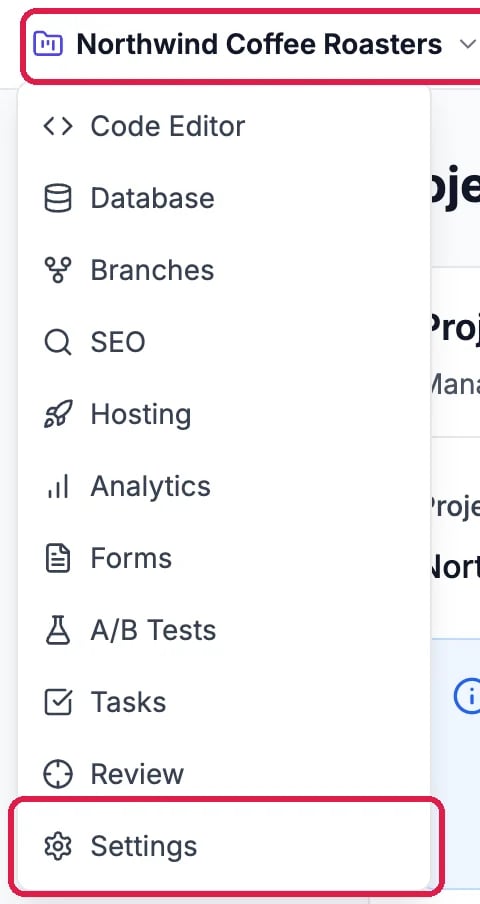
Settings, in the site's menu
Connect the domain
1
Type it
Click Connect a domain and type the domain under Your domain. The line under the box says what Hiveku will set up. Type yourbusiness.com and Hiveku sets up both: www.yourbusiness.com becomes the address, and yourbusiness.com sends visitors there. Type www.yourbusiness.com and the same happens while Also send yourbusiness.com to www.yourbusiness.com stays ticked. Any other name, such as order.yourbusiness.com, is set up exactly as you type it.
2
Choose where it points
More options shows Environment. Leave it on Live site for the site your visitors see. Development gives that version of your site its own address, and so does Staging when your site has a staging version.
3
Click Connect
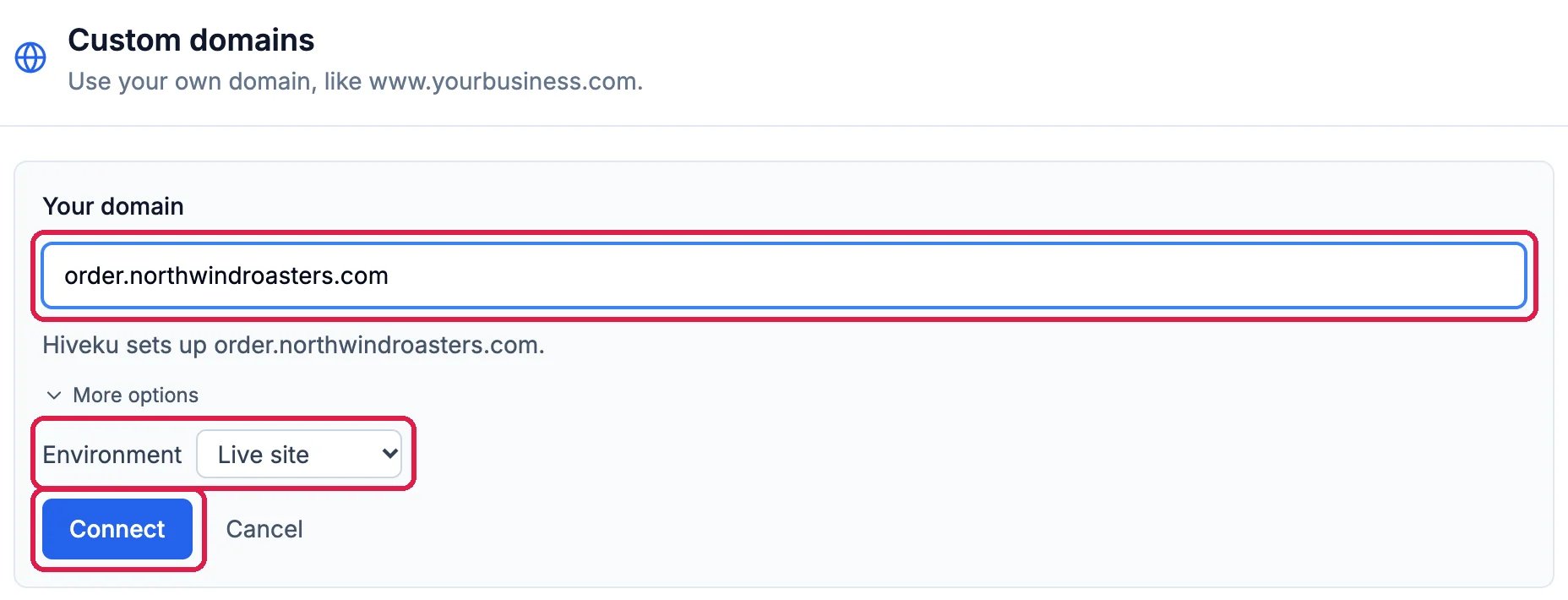
order.northwindroasters.com, for the live site
Add the DNS record
The domain appears on the card with Add this DNS record and the record to add: its type, then its Name and Value, each with a copy button.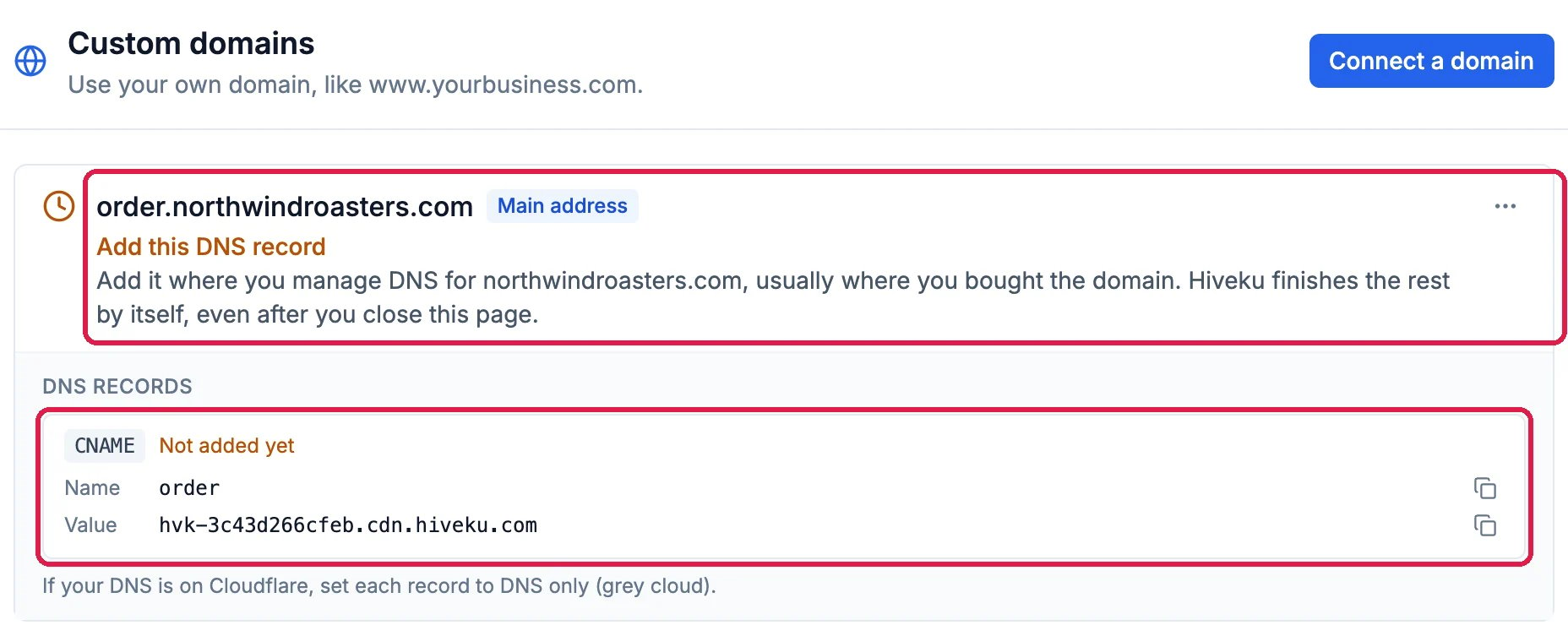
The record to add where you manage DNS
1
Open your DNS settings
Sign in where you manage DNS for your domain, usually where you bought it.
2
Add the record
Add a record with the same type, name and value. If your DNS is on Cloudflare, set it to DNS only (gray cloud).
3
Let Hiveku finish
Hiveku checks for the record by itself, even after you close the page. Once it finds the record, the card reads Setting up the secure connection, which usually takes a few minutes, and then Live. Some domains show Going live for a moment in between. If the site has never been published, the card reads Publish your site until you publish it.
See it live
A live domain shows Live and a green tick. Main address marks the address your site uses, and a second domain, such as the one without www, says it sends visitors there. Show DNS records shows the records to keep in place.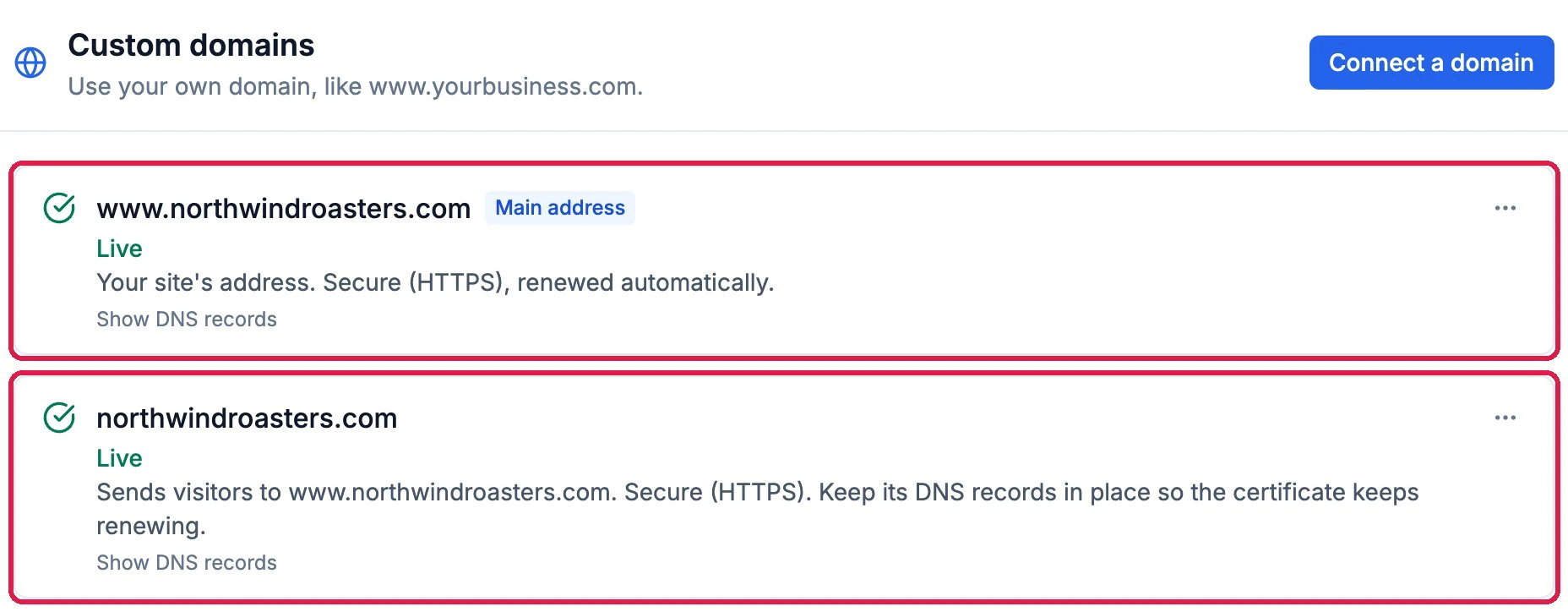
Northwind's own domain, live
Change or remove a domain
The … menu on a live domain has Remove, and on a live domain that isn’t the main address, Make this the main address too. While a domain is still being set up, it has Stop setting up instead. Then delete its DNS records where you manage DNS.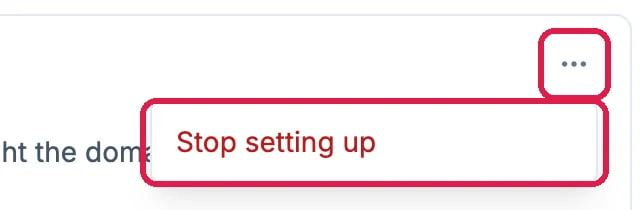
Stop setting up, while the domain is not live yet
Good to know
- Paid plans. Custom domains come with paid plans. On the Free plan, the card says so and links to the plans.
- Something wrong? A domain that needs you reads Needs your attention and says what to fix, with Check again or Try again.
- More: Publish Your Changes and Custom domains for every setting.