The home page is what you see when you sign in. From top to bottom it lets you hand work to your AI team, shows how the business is doing, and shows what your AI team knows about you. The rail on the left takes you to everything else. This guide tours Northwind Coffee Roasters’ home page.

Ask for something to be done

At the top, Get something done sends a request to your chief of staff. It makes a plan, hands the work to the right agents and checks with you before anything goes out. Pick one of the starters, or Something else to write your own.

Get something done: Tell your chief of staff what you want done, with the starters Get this week's content out the door, See what moved this week, Plan a launch, start to finish and Something else, outlined, and the note Most requests take 5 to 20 minutes

Four ways to start

Most requests take 5 to 20 minutes, and the work keeps going if you leave the page. The Chief of staff button at the bottom right of the page opens the same chat.

Read your numbers

Under it is your home dashboard. The first row shows four numbers: Website form leads, Open pipeline, Collected and Overdue receivables. Point at the i next to a name to see what it counts.
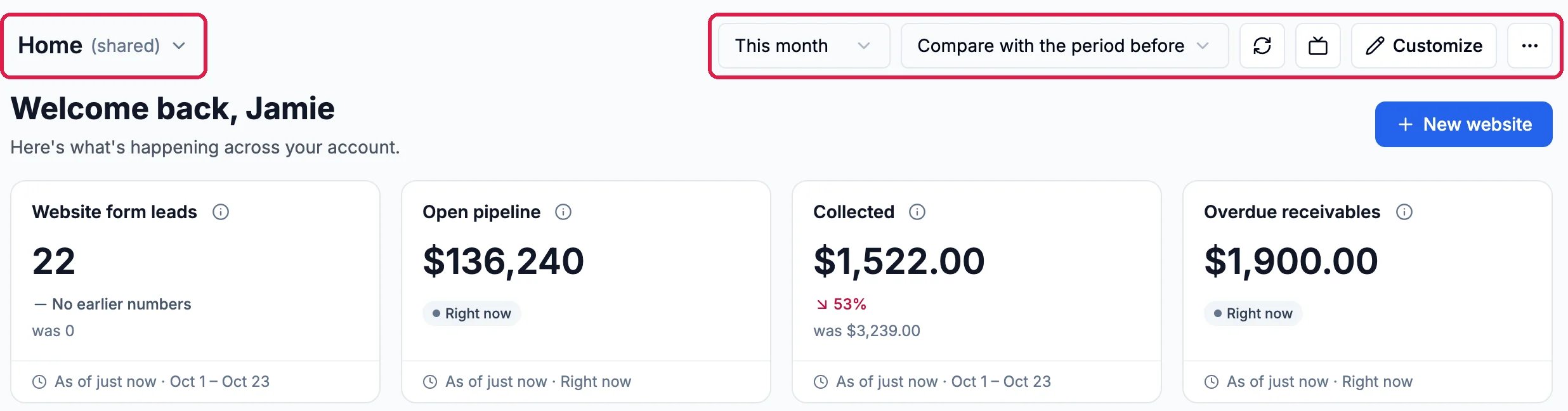
Home (shared), outlined; the controls This month, Compare with the period before, refresh, Customize and more, outlined; Welcome back, Jamie; and the numbers Website form leads 22, Open pipeline $136,240, Collected $1,522.00 down 53% from $3,239.00, and Overdue receivables $1,900.00

The dashboard's controls and its first numbers

  • This month sets the dates the numbers cover: pick a period such as Last 7 days or This quarter, or Custom range.
  • Compare with the period before shows how each number moved, such as Collected down 53%.
  • The circular arrow refreshes the numbers. As of just now under each card says how fresh it is.
  • Customize changes which cards the dashboard shows. The … menu has Copy link and Duplicate.
  • Home (shared) is the home everyone on your team sees. Click it to switch to your own home or to other dashboards you have made.
Further down are charts of website visitors and where your leads come from, a summary of your websites and your recent projects.

See what your AI team knows

Near the bottom, About your business shows the start of the page every agent reads in every chat. Click Edit to change it, and suggestions to review to accept or remove what your agents have proposed adding.
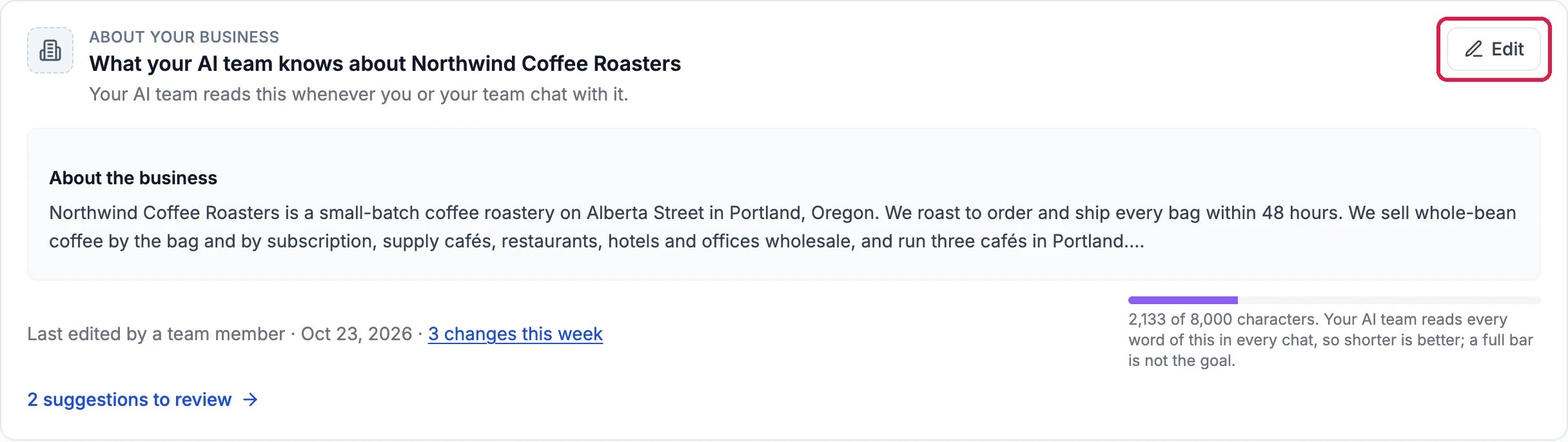
About your business: What your AI team knows about Northwind Coffee Roasters, with Edit outlined, the start of About the business, Last edited Oct 23, 2026, 3 changes this week, 2,133 of 8,000 characters, and 2 suggestions to review

What your AI team knows

To write it, see Tell Your AI Team About Your Business.

Get around with the left rail

Each icon in the rail on the left opens one part of Hiveku. Point at an icon to see its name.
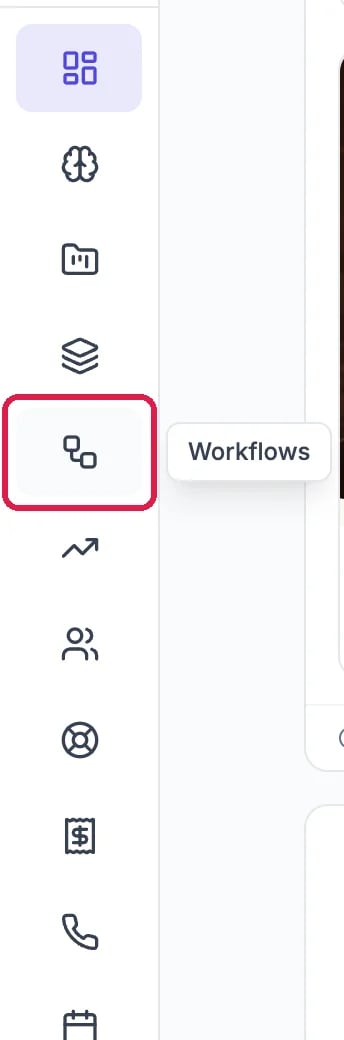
The left rail with the Workflows icon outlined and its name, Workflows, showing next to it

Point at an icon for its name

From the top: Dashboard (this home page), Memory, Websites, PM Projects, Workflows, Marketing, CRM, Helpdesk, Commerce, Communications, Calendar, Discussions and Hiveboards. At the bottom are your notifications and your profile, with Settings, Billing and Help. A number on an icon says how many things are waiting for you there.

Good to know

  • The logo at the top left switches between accounts if you belong to more than one.
  • More about dashboards: Dashboards.