

See the total at a glance
Click Commerce in the left rail. On the Overview, Outstanding AR is what clients owe you on open invoices, and Owed to you · A/R aging splits it by how late it is: Current, 1–30, 31–60, 61–90 and 90+ days.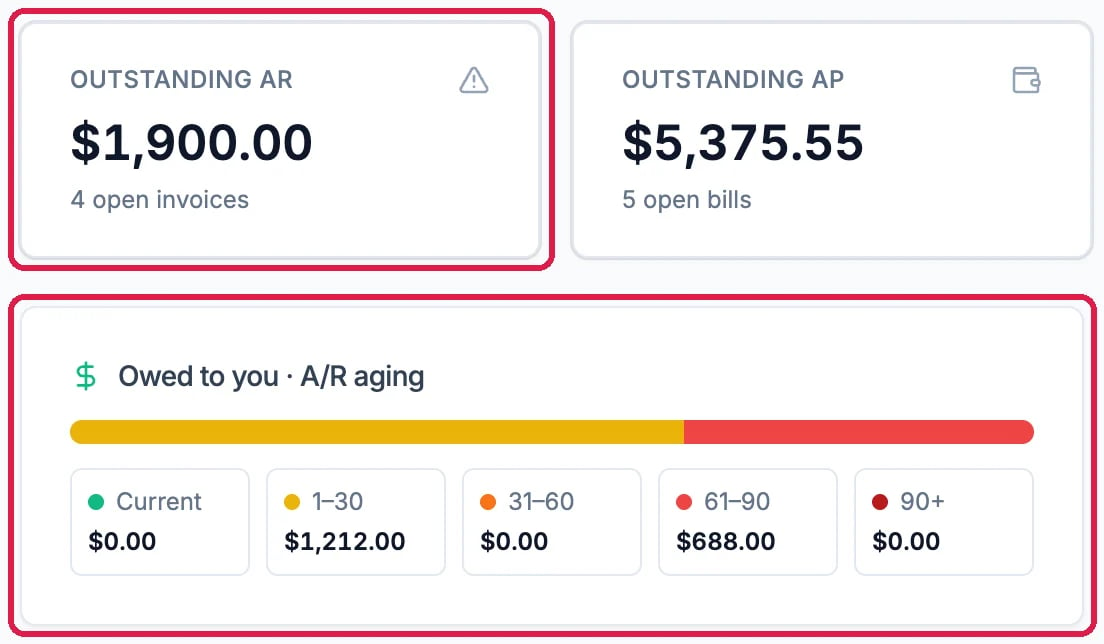
What Northwind is owed
Open the aging report
In the Commerce menu, under Reports, click Accounts aging. The cards at the top give the totals: Outstanding, Overdue, Over 90 days and Clients owing, with how late the oldest invoice is. Outstanding by age lists each age group with its share.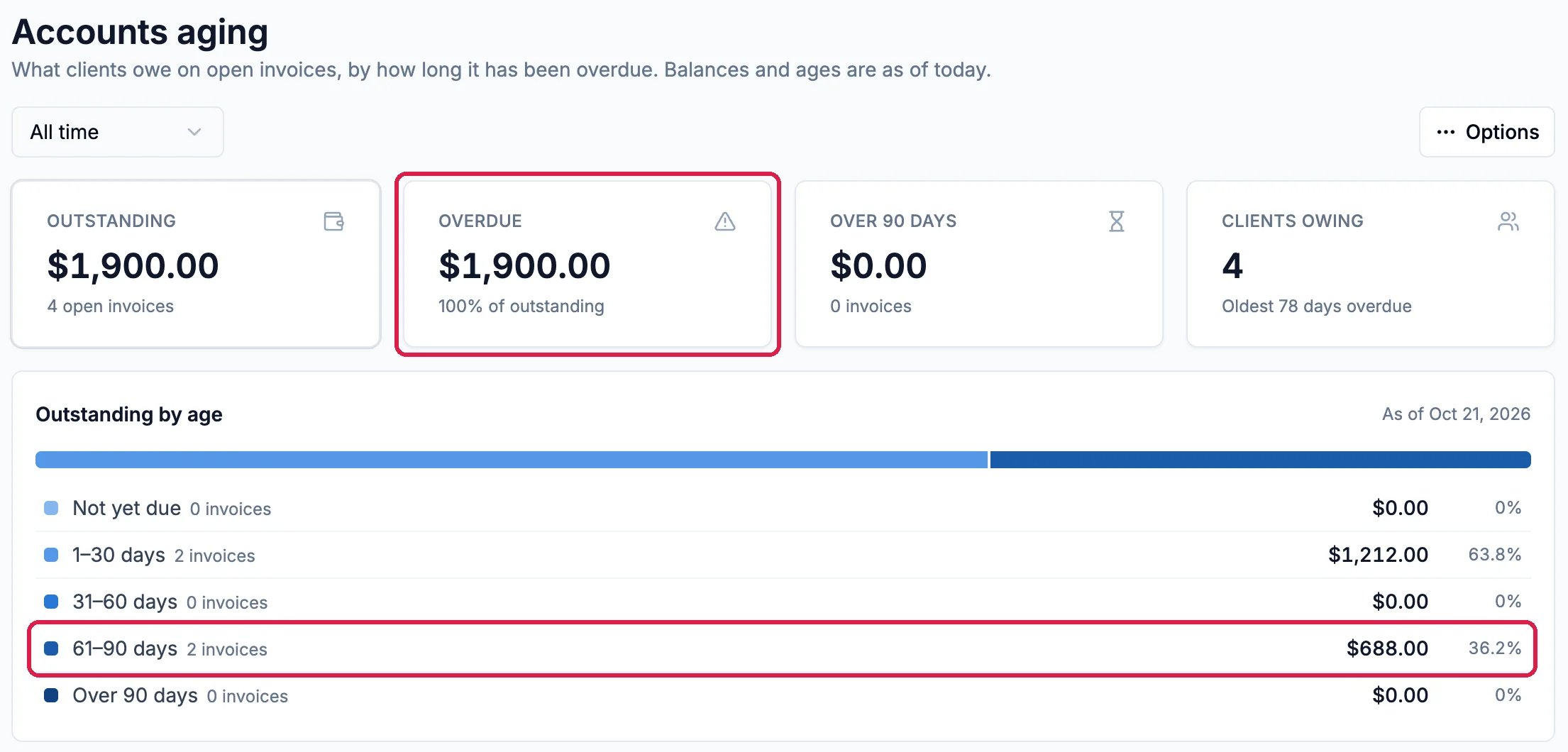
Accounts aging
Find each overdue invoice
Under By client, each client shows what they owe in each age column. Click the arrow next to a client to list their open invoices, with how many days each is overdue.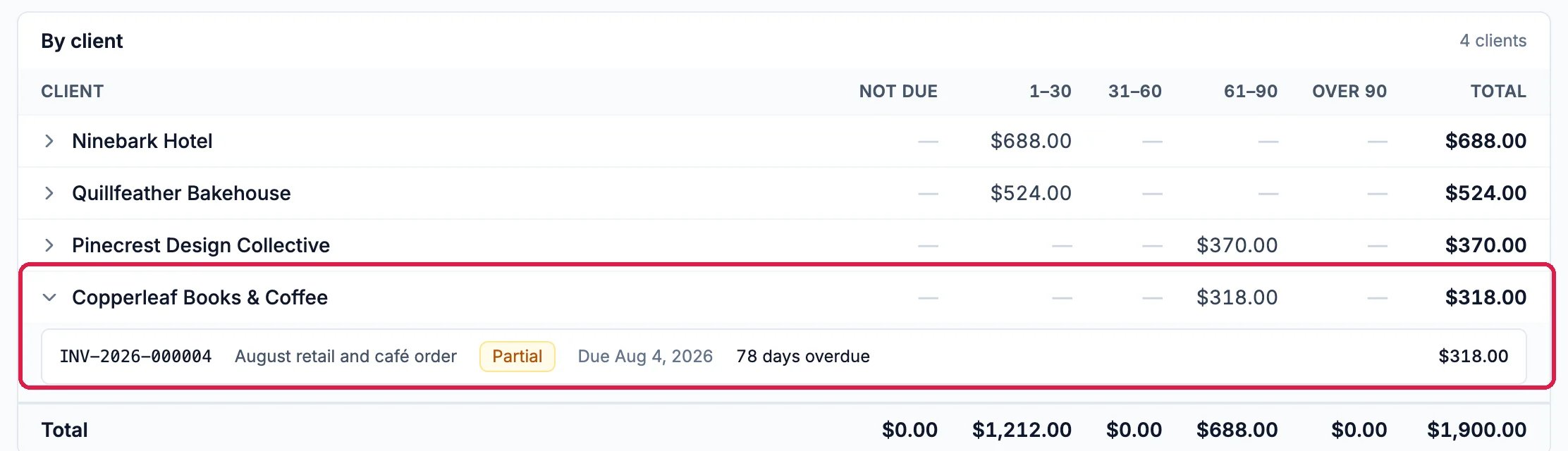
Copperleaf's overdue invoice
Look at the invoice
The invoice shows the Amount due, the due date marked overdue in red, what has been paid, and whether payment reminders are still going out.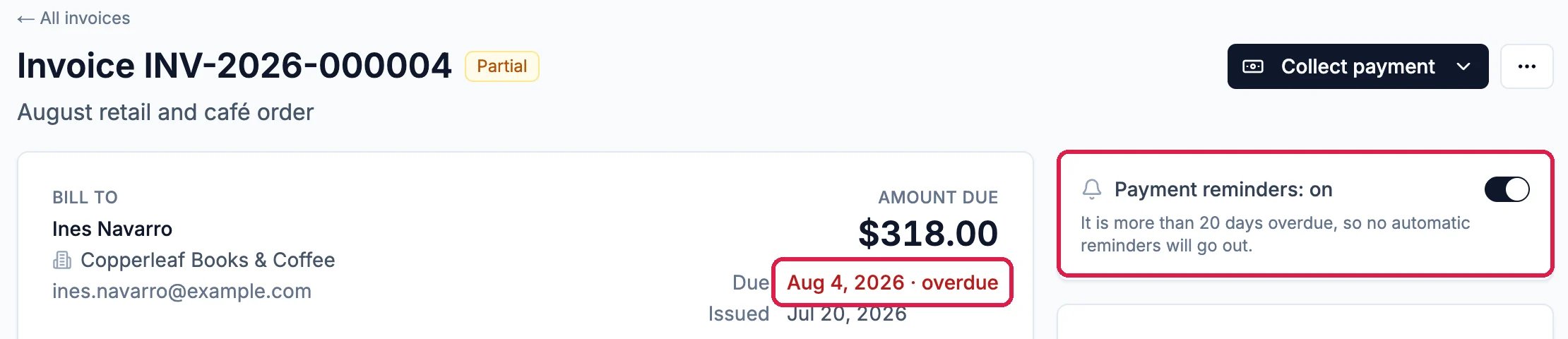
78 days overdue, and no more reminders
At the moment an overdue invoice that has been partly paid has no Send button to email it again. Download the PDF and send it yourself.
Record the payment when it comes
When the client pays, click Collect payment > Record a payment on the invoice, as in Record a Payment by Check, Cash or Transfer. The invoice leaves the aging report once it is paid in full.Good to know
- Keep a copy: Options at the top right of the report has Export CSV and Print.
- Let reminders do the early chasing: keep Payment reminders on when you send an invoice. See Create and Send an Invoice.
- Bills you owe: the What you owe · A/P aging card on the Overview does the same for your own bills.