

Open the reports
Click Commerce in the left rail. Under Reports in the menu are Sales, Recurring revenue, Accounts aging, Revenue by client, Invoice details and Tax summary, among others. Start with Sales.The Sales overview
Sales gives you this month at a glance: what you collected and how many payments, what you invoiced, recurring income, how many days clients take to pay on average, the share of sent invoices that are paid, and the share of subscribers who canceled in the last 90 days.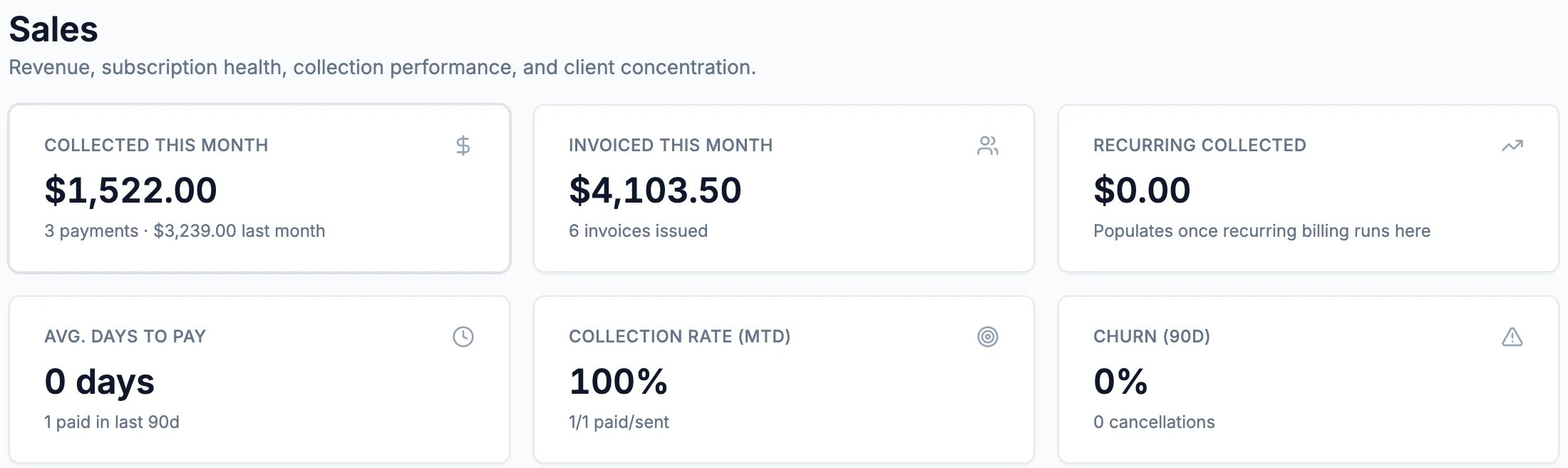
Sales: this month at a glance
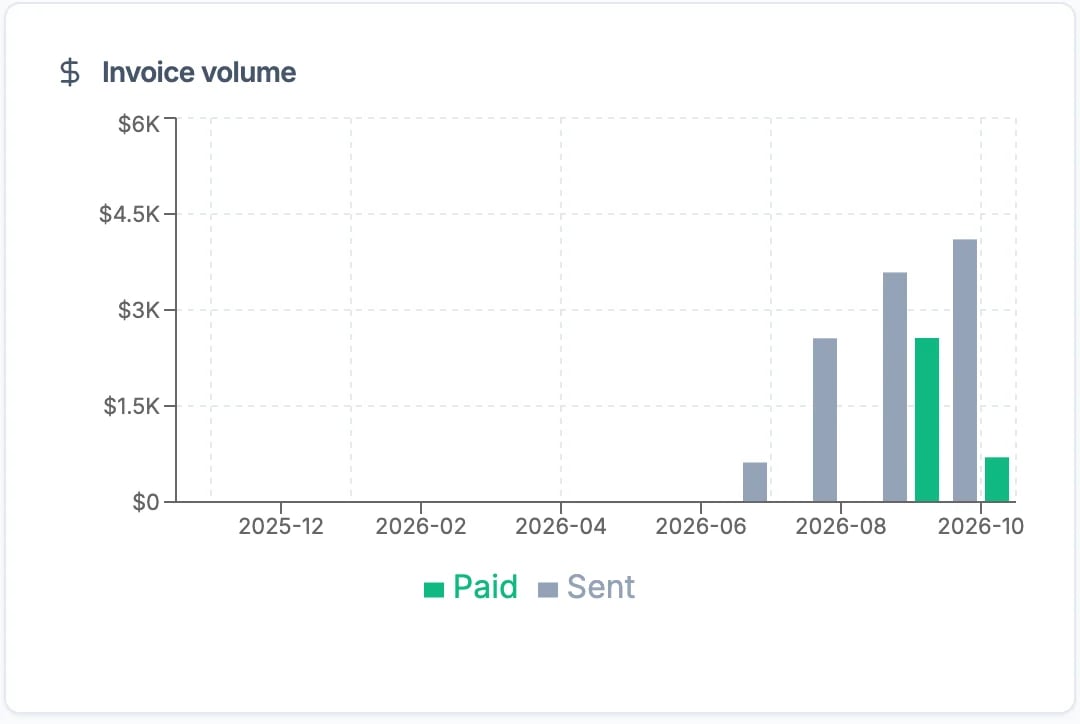
Invoice volume, month by month
See revenue by client
Click Revenue by client. Pick the period at the top (Northwind used Year to date), then choose Invoiced for what you billed or Collected for what was paid.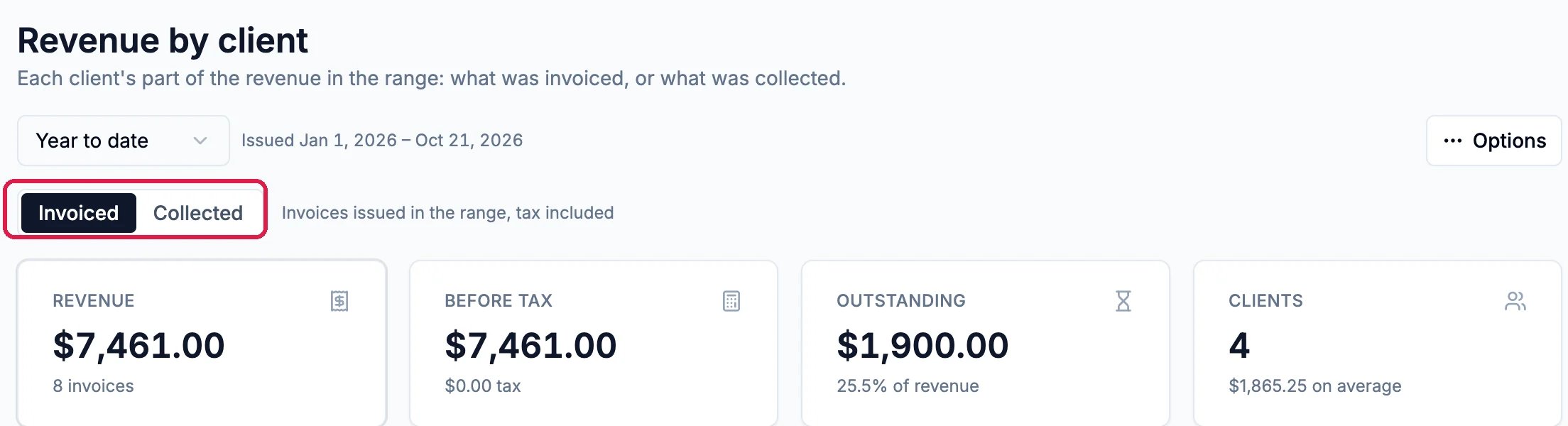
Revenue by client: the period, Invoiced or Collected, and the totals
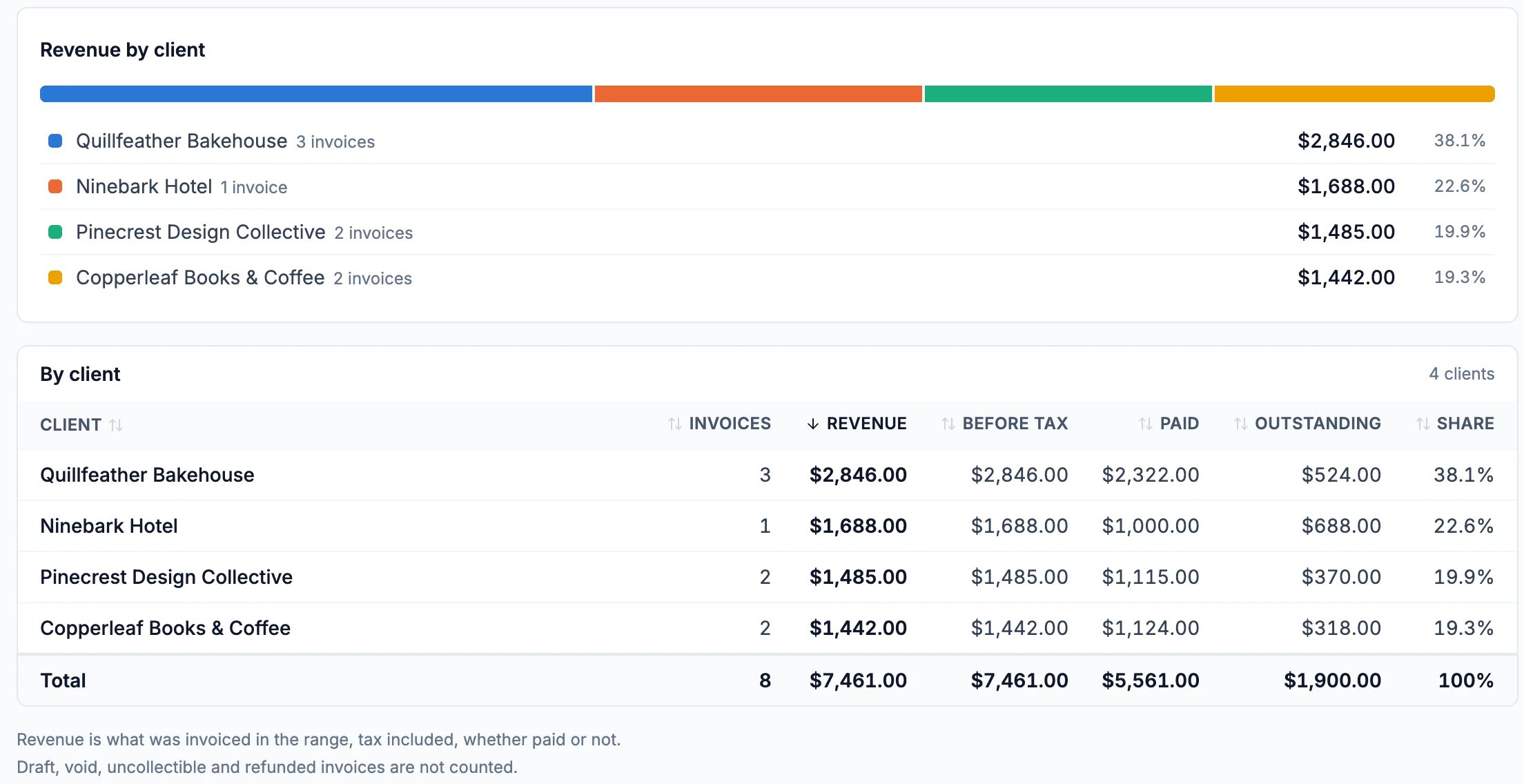
Each client's share, and what they've paid and still owe
Check the tax you collected
Click Tax summary. Cash shows the tax on payments you received in the period, and Accrual shows the tax on invoices you issued in it, paid or not. Use the one your accountant asks for.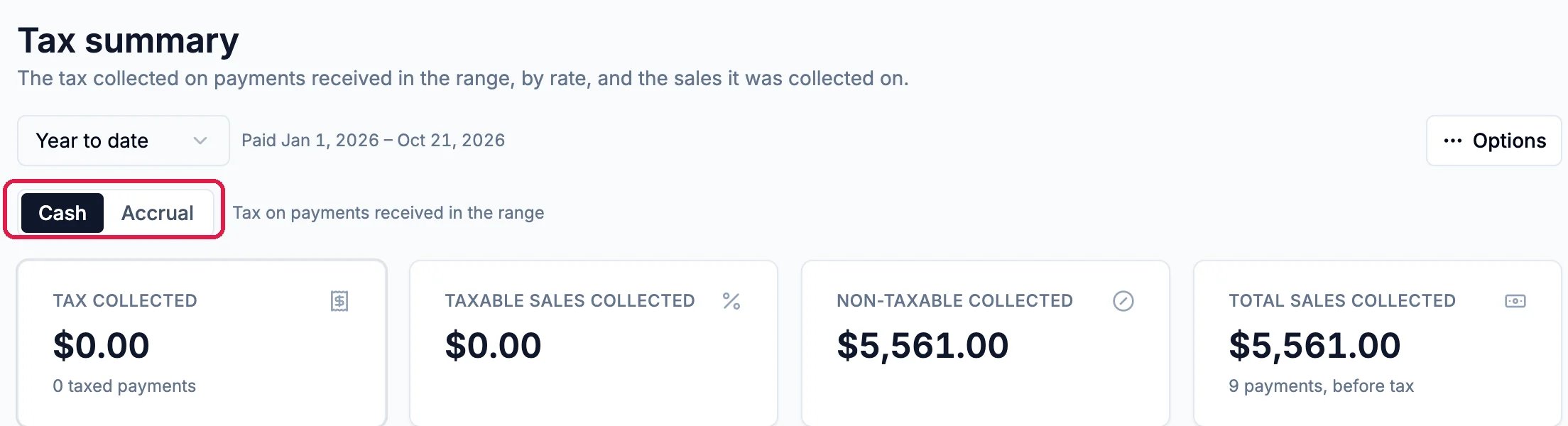
Tax summary, with Cash or Accrual
See every invoice by status
Click Invoice details. It shows every invoice issued in the period, grouped by status (draft, sent, paid, partly paid and others), then lists them one by one with what is still due.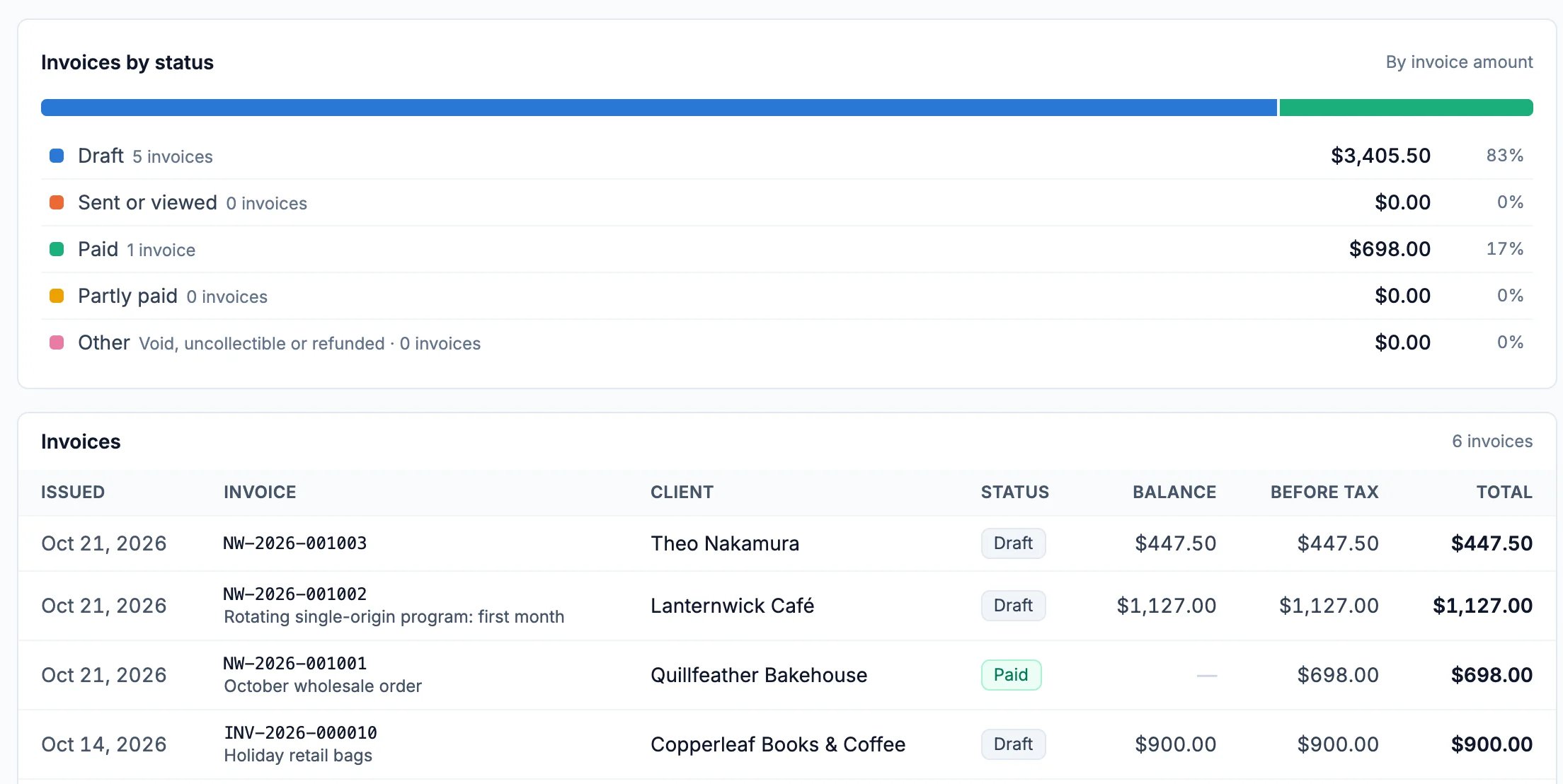
Invoice details for this month
Export a report
Each report after Sales has Options at the top right, with Export CSV for a spreadsheet and Print.Good to know
- Accounts aging shows who owes you and how late. See Find and Chase Overdue Invoices.
- Ask in plain words: click Ask accounting on any report. See Ask the Accounting Assistant About Your Money.
- Online payments: the yellow note at the top of Commerce is a reminder that clients can’t pay online until you connect a payment processor. It doesn’t change the reports.