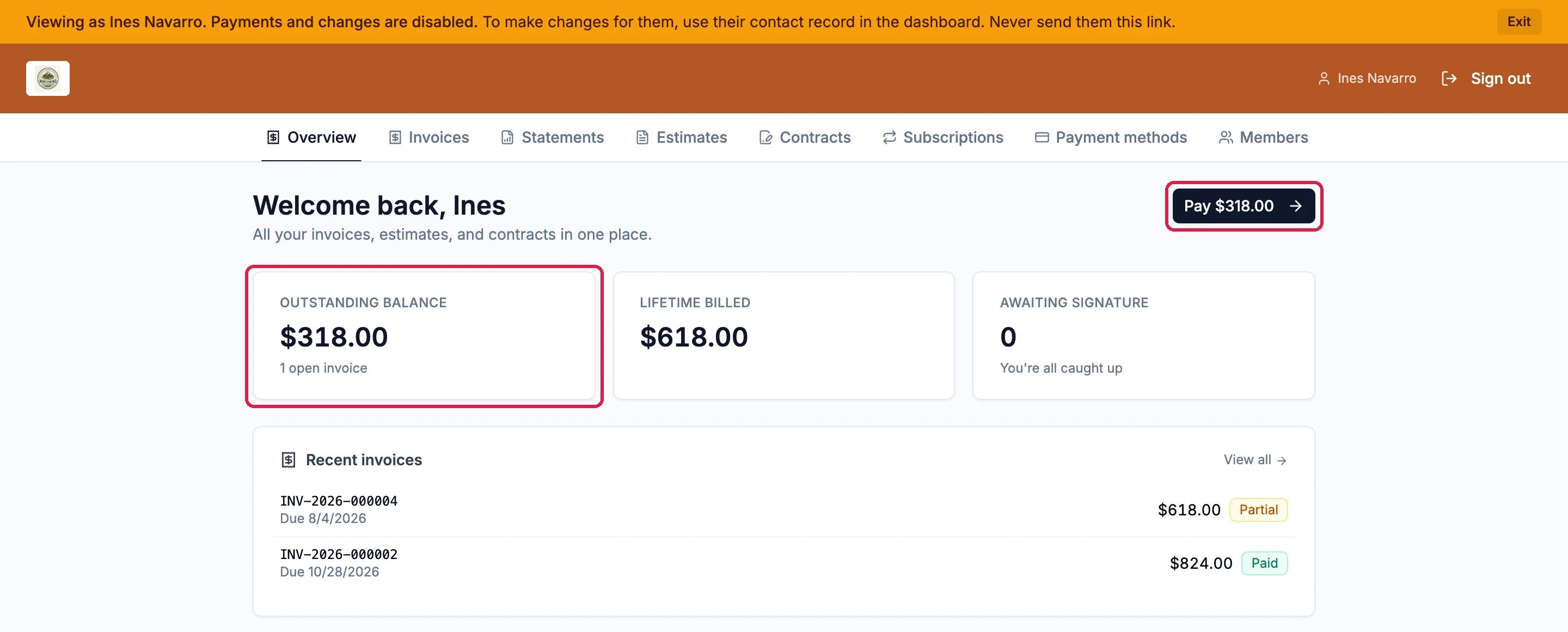
The client portal is a private page where each client sees everything they have with you: their invoices and what they still owe, their quotes, contracts and subscriptions. They sign in with a link you email them, with no password to remember. This guide opens the portal for Ines Navarro of Copperleaf Books & Coffee, one of Northwind’s wholesale clients.

Open the client portal settings

Click Commerce in the left rail, then Client portal. Contacts & activity lists who can use the portal and what they have done. Under Client contacts, search for the client.
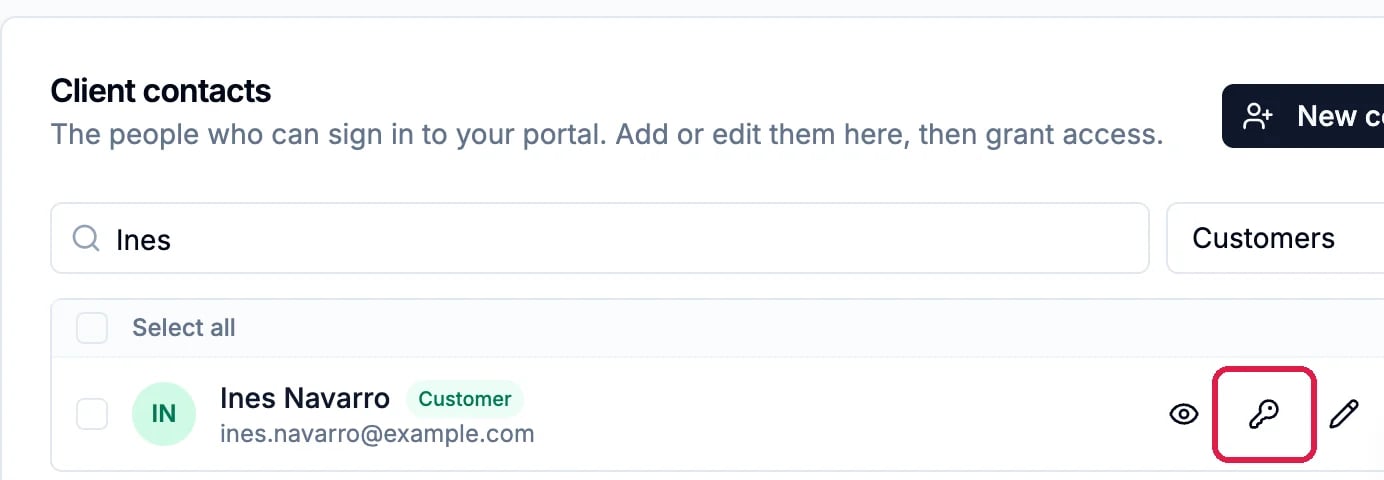
Client contacts: The people who can sign in to your portal, with New contact, a search for Ines, and Ines Navarro, Customer, ines.navarro@example.com, with the portal access key icon outlined

The client, with the portal access key

Invite the client

Click the key next to the client. The portal access window opens.
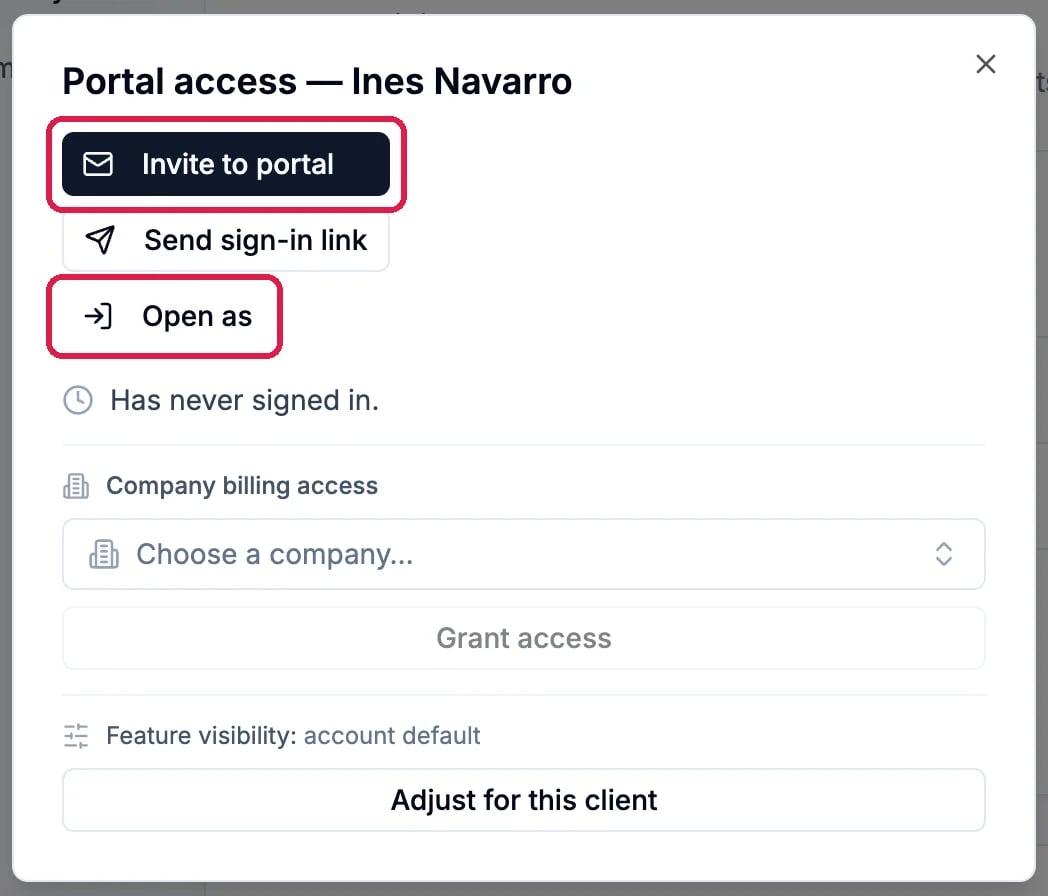
Portal access for Ines Navarro: Invite to portal, outlined, Send sign-in link, Open as, outlined, Has never signed in, Company billing access with Choose a company and Grant access, and Feature visibility account default with Adjust for this client

Portal access

  • Invite to portal emails the client an invitation. Its link works for 7 days.
  • Send sign-in link emails a fresh link to someone who already has access. It works for 24 hours.
  • Company billing access lets the client see every invoice for their company, not only the ones in their own name: pick the company and click Grant access.
  • Adjust for this client changes what this one client can see, if it should differ from the rest.
Northwind’s demo clients have example addresses that receive no email, so this guide doesn’t send an invitation.

See what your client sees

Open as opens the portal as that client, without emailing them. Click it, then Sign in on the page that opens.
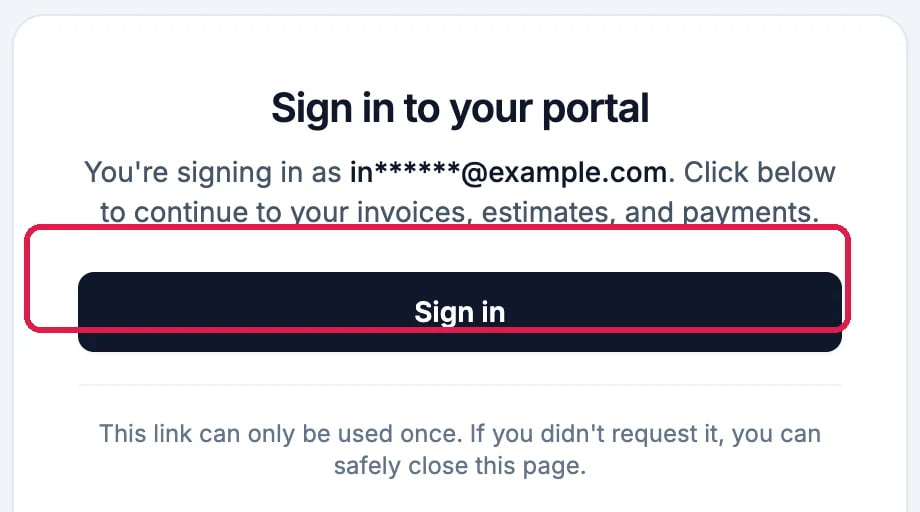
Sign in to your portal: You're signing in as in******@example.com. Click below to continue to your invoices, estimates, and payments, with Sign in, outlined, and This link can only be used once

The sign-in page your client sees

The portal opens on the client’s Overview: what they owe, what they have been billed, anything waiting for their signature, and their recent invoices. Pay at the top takes them to pay their balance. The tabs along the top lead to their Invoices, Statements, Estimates, Contracts, Subscriptions, saved Payment methods and Members.
The client portal in Northwind's colors with the bar Viewing as Ines Navarro. Payments and changes are disabled, the tabs Overview, Invoices, Statements, Estimates, Contracts, Subscriptions, Payment methods and Members, Welcome back, Ines, Pay $318.00, outlined, Outstanding balance $318.00, 1 open invoice, outlined, Lifetime billed $618.00, Awaiting signature 0, and Recent invoices

Ines's portal

While you view as a client, the orange bar says so, payments and changes are switched off, and Exit ends it. Never send that link to the client: it is for you.
Northwind has no payment processor connected, so Pay can’t take a card yet. Clients can still see what they owe and pay you by check or transfer.

Choose what clients can do

Click Access & permissions to choose what every client can see and do: their invoices, payment history, estimates (and whether they can accept and sign them), contracts and subscriptions, and under Payments, whether they can pay invoices and manage their cards.
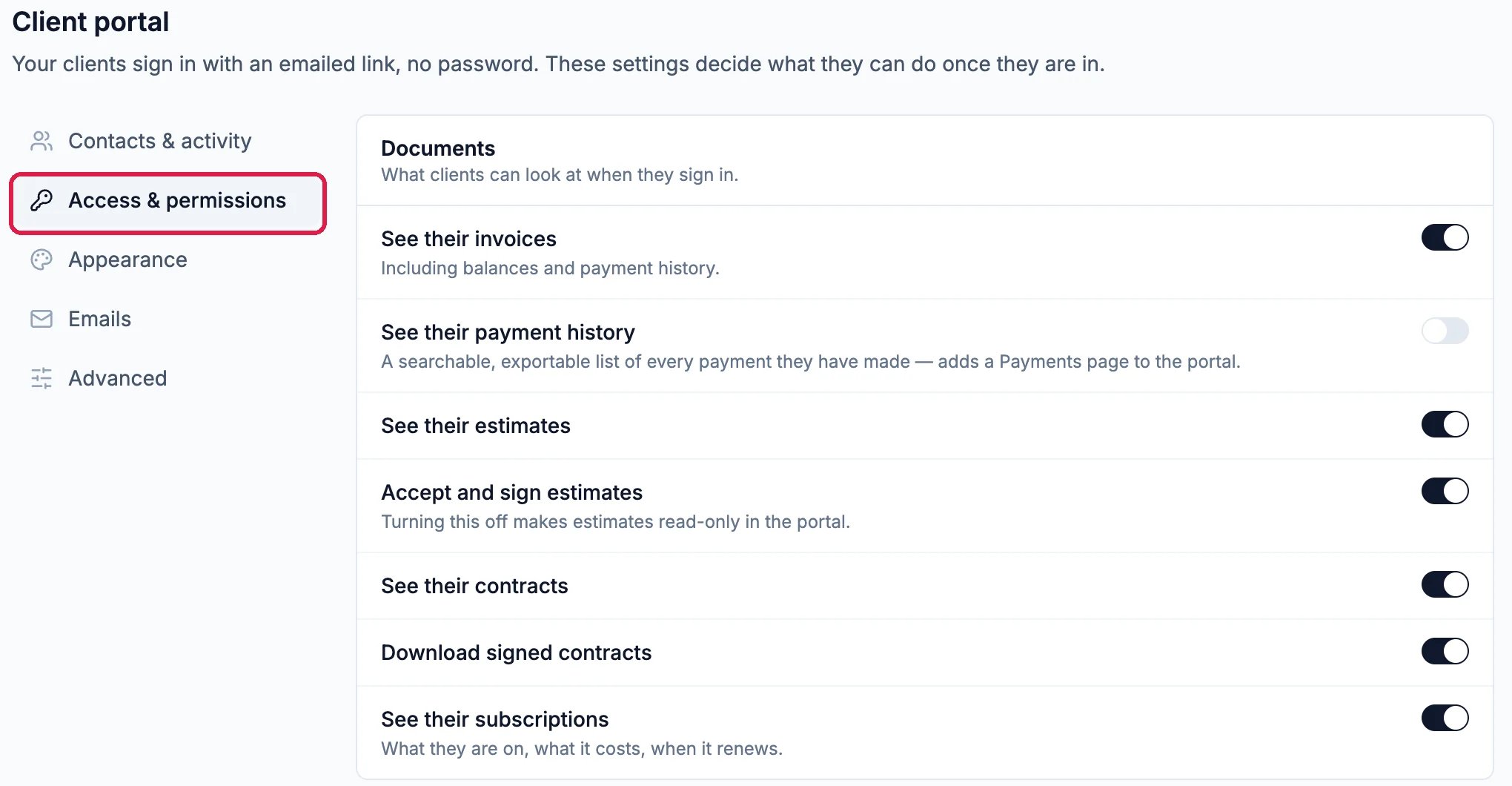
Client portal settings with Access & permissions outlined, and Documents: See their invoices on, See their payment history off, See their estimates on, Accept and sign estimates on, See their contracts on, Download signed contracts on, See their subscriptions on

Access & permissions

Appearance sets the portal’s colors and logo, and Emails the wording of the invitation and sign-in emails.

Good to know

  • Who has signed in: Contacts & activity shows how many clients have access, who signed in in the last 30 days, and recent sign-ins and invitations.
  • Take access away: the key’s window has Revoke for a client who has access. It ends their sessions and any unused links.
  • More: Create and Send an Invoice and Send a Quote and Turn It into an Invoice.