

Open the call log
Click Communications in the left rail, then the Calls tab. The cards at the top count every call: how many were answered, how many were missed, how many your AI handled, the total talk time and how many were recorded. Below them, narrow the list with the search box (a number, a contact or words from a summary), the All, Inbound, Outbound, Missed, Answered and AI handled buttons, or the two dates. Export CSV downloads the calls that match.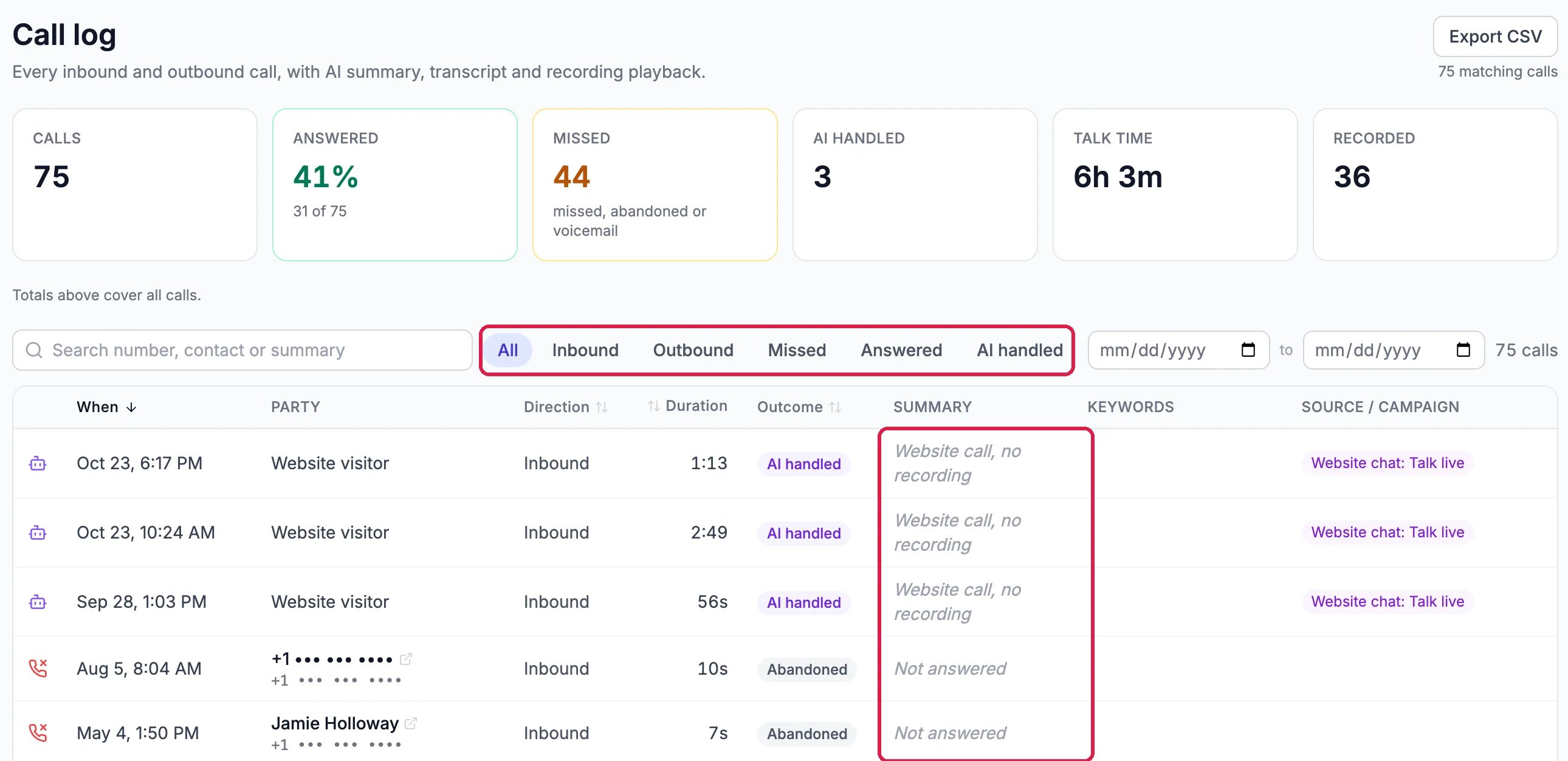
Northwind's call log
Read the Summary column
A recorded call gets an AI summary of what was said, usually within a minute or two of the call ending. When a call has none, the Summary column says why:Open a call
Click any row. The panel on the right shows who the call was with, the direction, the outcome and the length, with Call back and Text for a phone caller and a CRM link when the caller is one of your contacts. The Summary tab shows the AI summary, or the reason there isn’t one, and the numbers the call went from and to. A call from your website chat says what happened to it: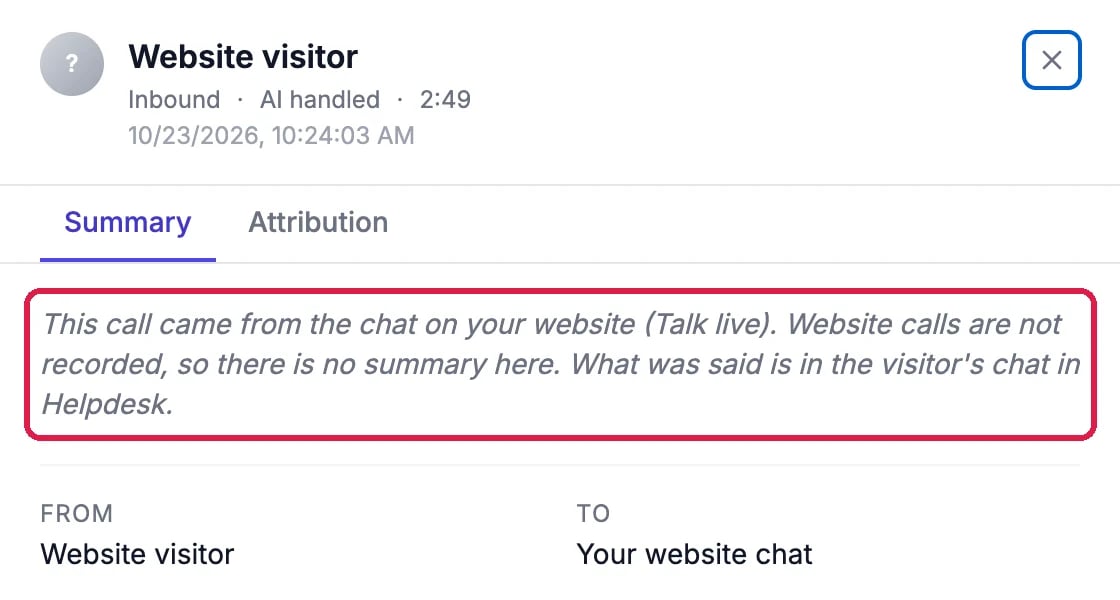
A call from the website chat
Play or download a recording
When a call was recorded, open its Recording tab. Play it in the page, or click Download MP3 to keep a copy.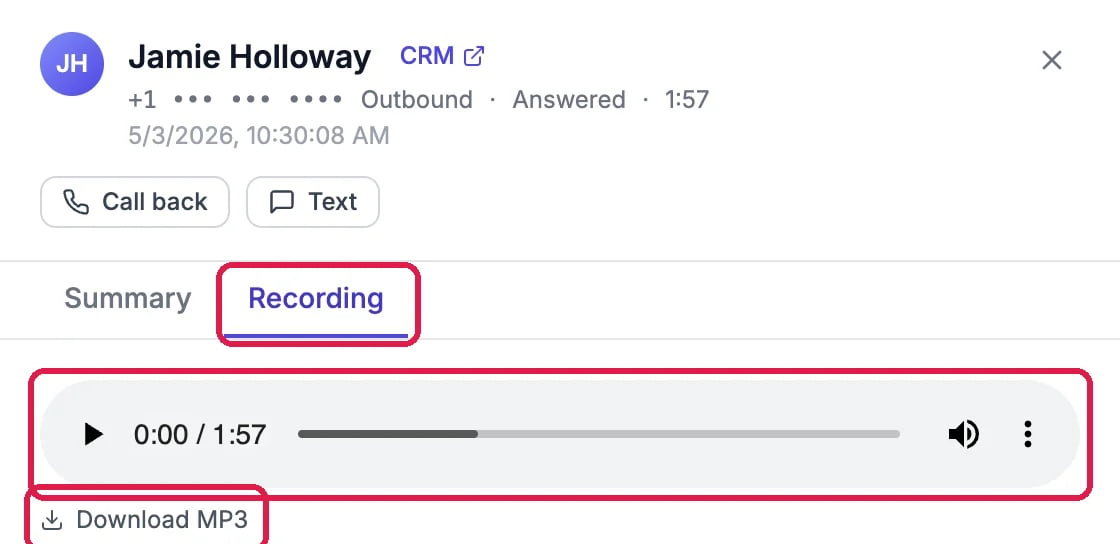
A recorded call
Good to know
- Recording is a setting. It is switched on or off for your whole phone system, and each number can follow that or have recording on or off for itself, in the number’s settings. A call that wasn’t recorded has no recording, summary or transcript.
- Calls your AI receptionist took show AI handled. See Let the AI Receptionist Answer Your Phone.
- Patterns over time, such as your busiest hours and where calls come from: See When Calls Come In and Who Answers Them.