

Change your picture and details
Click Settings at the bottom of the left rail, then Profile.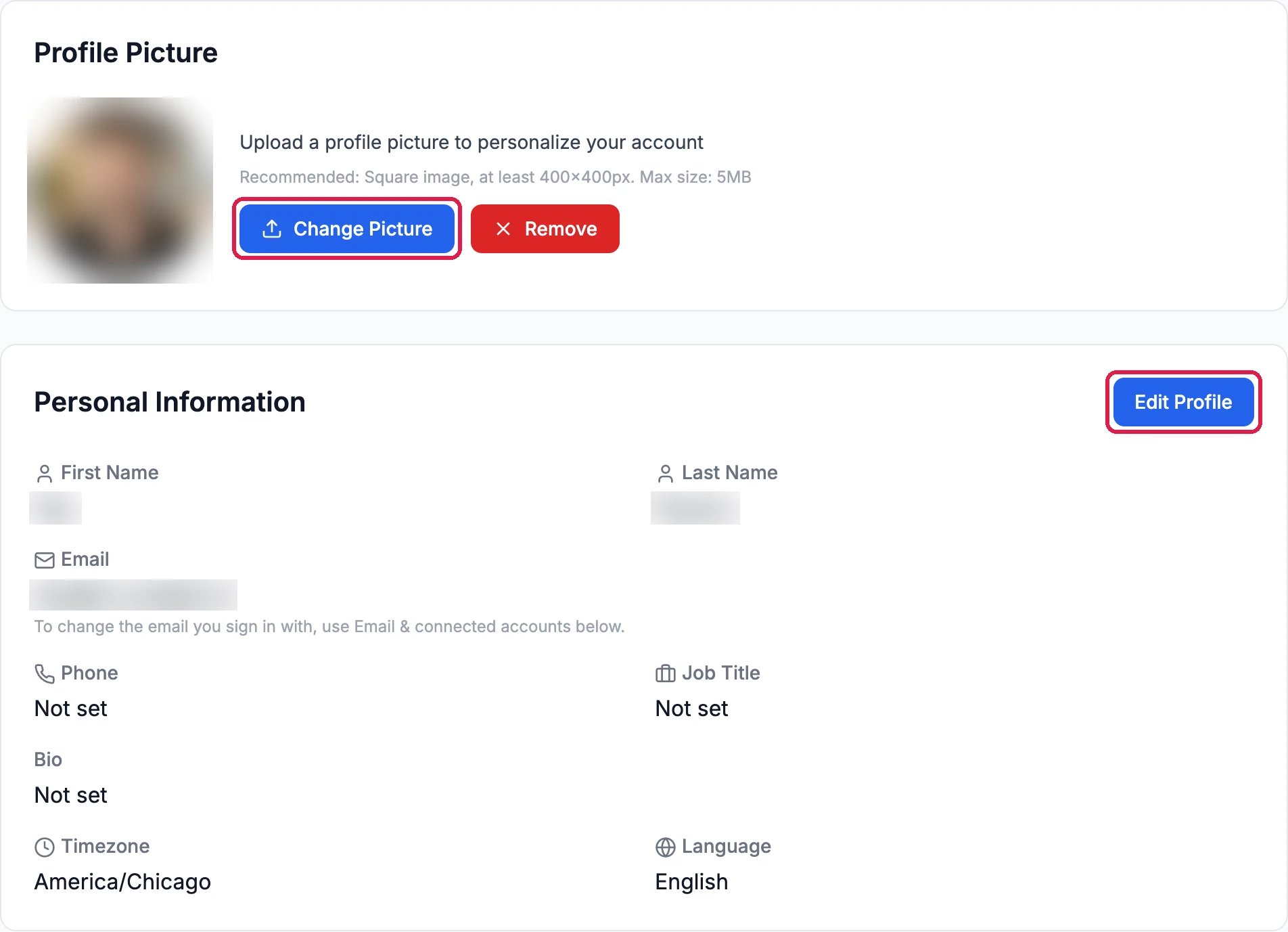
Your picture and details
- Change Picture uploads a square photo, at least 400 by 400 pixels and up to 5 MB. Remove takes it off.
- Edit Profile opens your name, phone, job title, a short bio, your Timezone and Language. Change what you need and click Save Changes, or Cancel to leave them as they were.
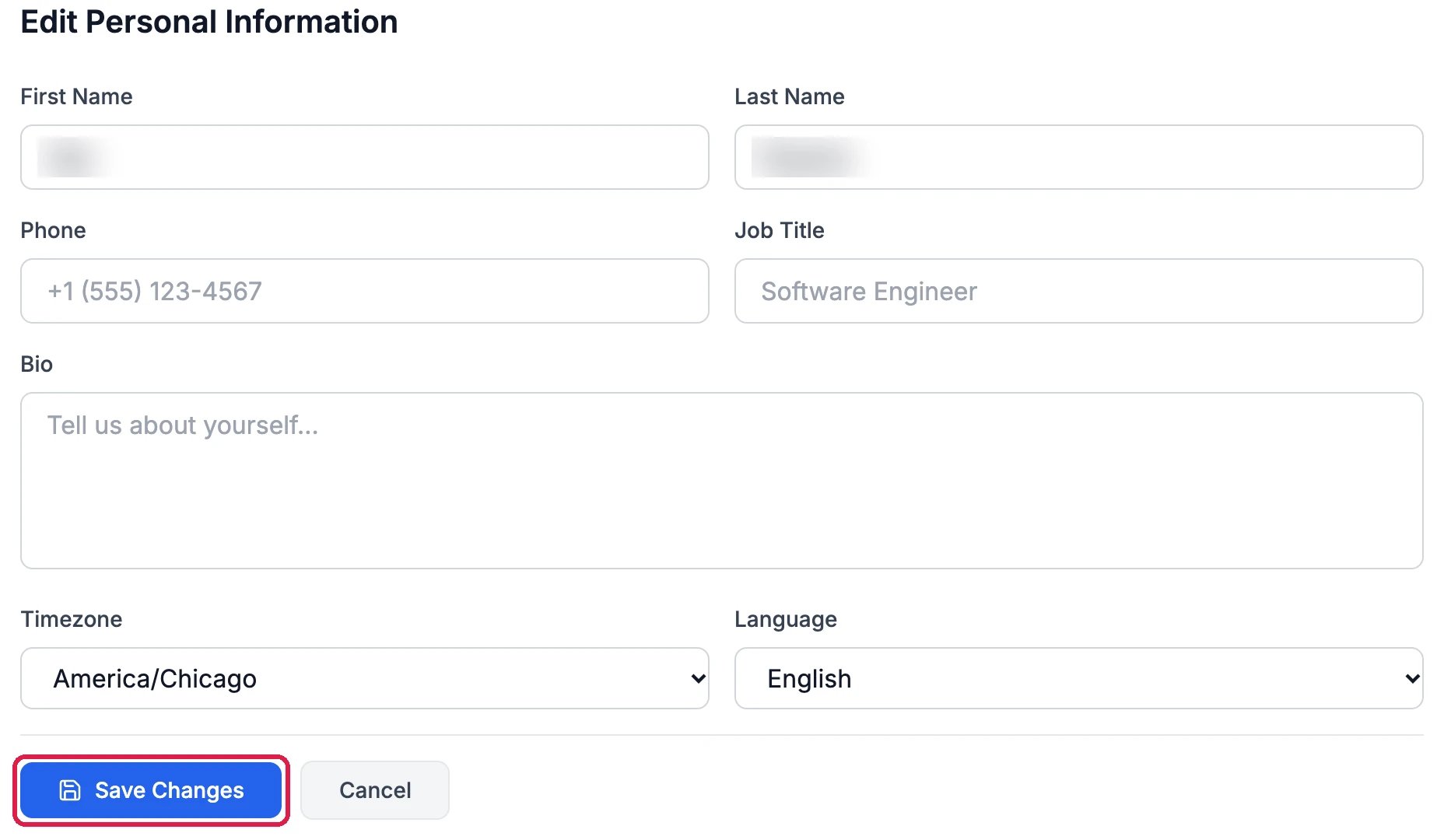
Editing your details
Set your email signature
Under Email signature, set what goes at the end of the emails you send from the CRM, and of the ones your sales agent and your sequences send for you.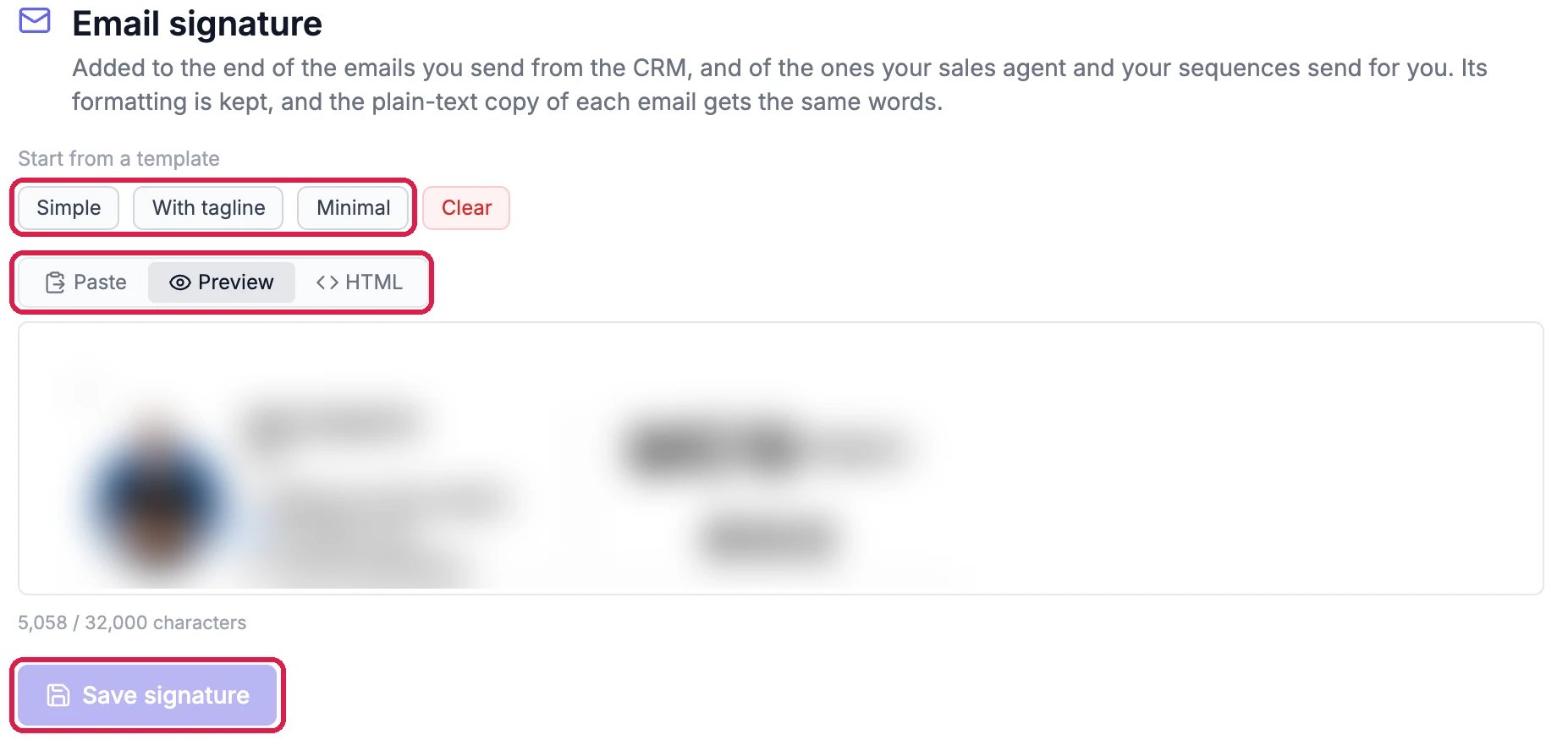
Your email signature
- Start from a template: Simple, With tagline or Minimal puts in a ready-made signature for you to edit. Clear empties it.
- Paste takes a signature you copied from your email app, with its formatting. Preview shows how it looks, and HTML shows its code.
- Click Save signature. Its formatting is kept, and the plain-text copy of each email gets the same words.
Manage how you sign in
Further down, Email & connected accounts holds your sign-in settings.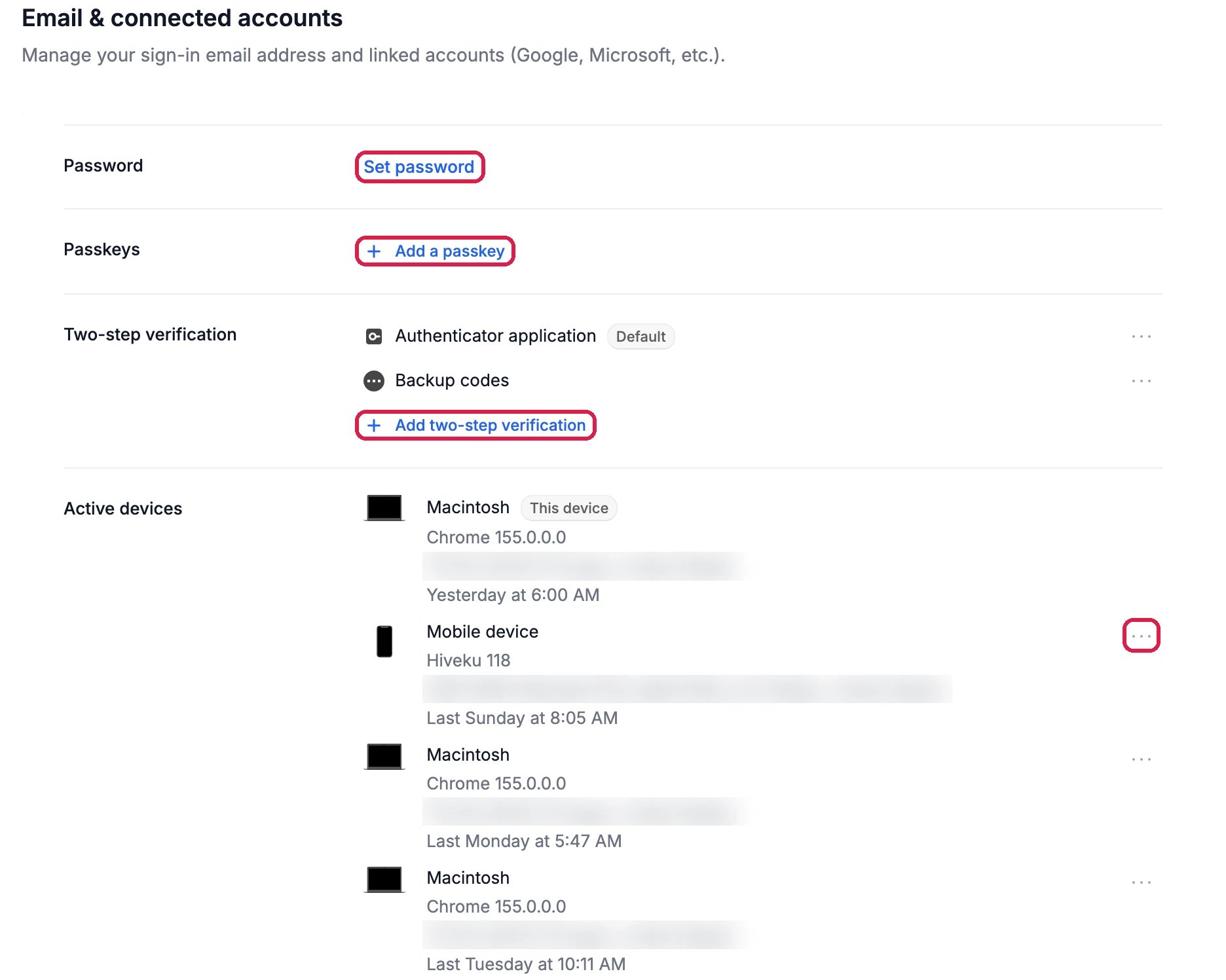
Password, passkeys, two-step verification and devices
- Password: Set password adds one, or changes it.
- Passkeys: Add a passkey lets you sign in with your fingerprint, face or device PIN instead of a password.
- Two-step verification: Add two-step verification asks for a code from an authenticator app when you sign in. Keep the Backup codes somewhere safe in case you lose your phone.
- Active devices lists where you’re signed in. If you don’t recognise one, or you’ve lost it, click … next to it, then Sign out of device.
Good to know
- Which emails you get is set on Settings, Notifications: see Choose Which Notifications You Get.
- Changing the email you sign in with isn’t shown on this page yet. Ask Hiveku support if you need to change it.