A before-and-after grid tells your customer’s story in pairs: life before your business, and life after. Each pair has a headline, a short story, a few points and a picture for each side. This guide opens Northwind’s grid, adds a benefit to one pair, saves it, and then takes the benefit out again.

Open the grid

Click Marketing in the left rail, then Transforms (Before/After Grids). Each grid shows its pictures, how many pairs and images it has, and when it last changed. Click Edit.
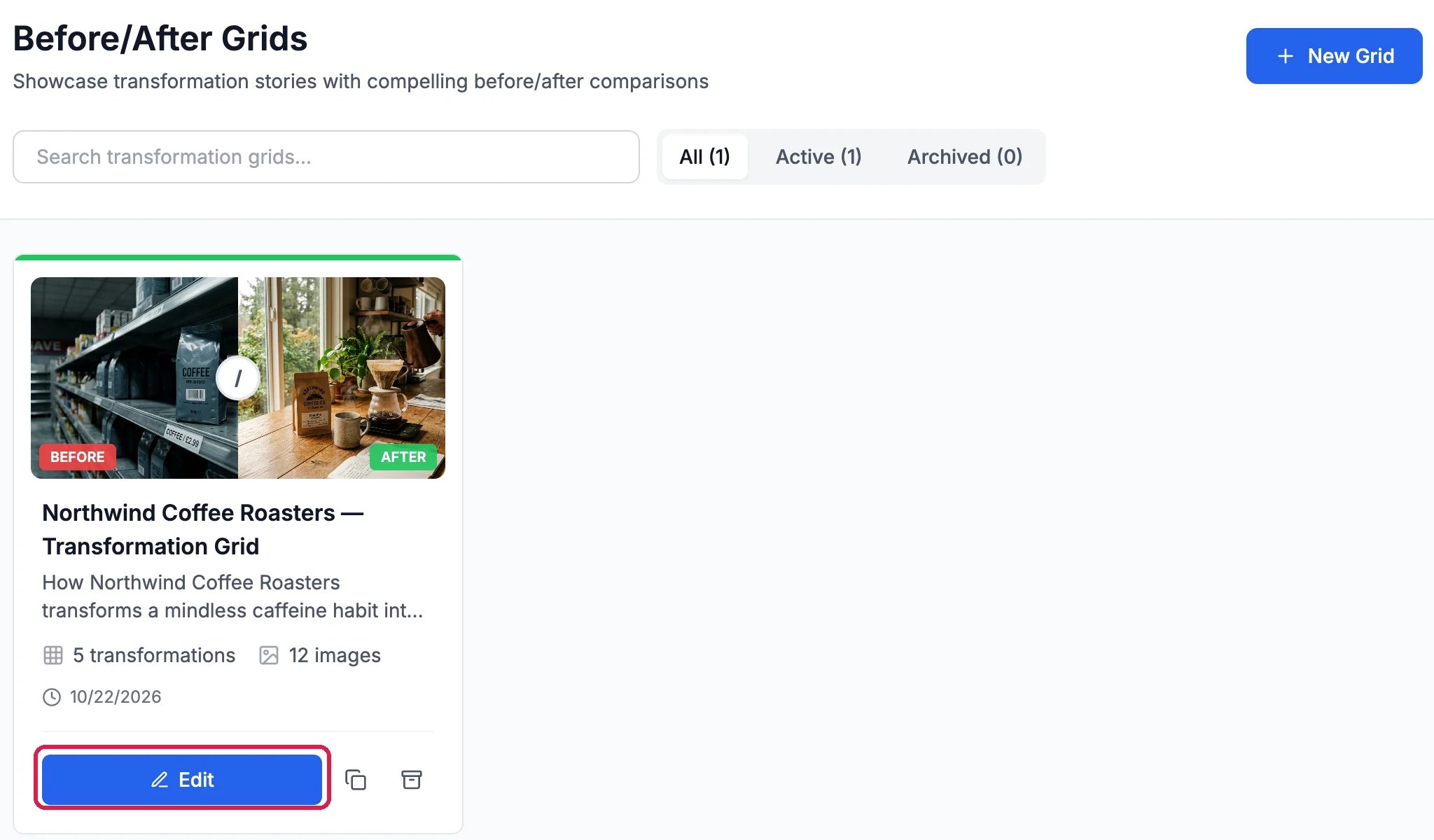
Before/After Grids, with New Grid; the Northwind Coffee Roasters Transformation Grid card with a before picture of supermarket coffee and an after picture of a pour-over at home, 5 transformations, 12 images, and Edit, outlined

Northwind's grid

Read a pair

Under Transformations, each pair has a Before side and an After side: a headline, a short story, Pain Points or Benefits, and Images.
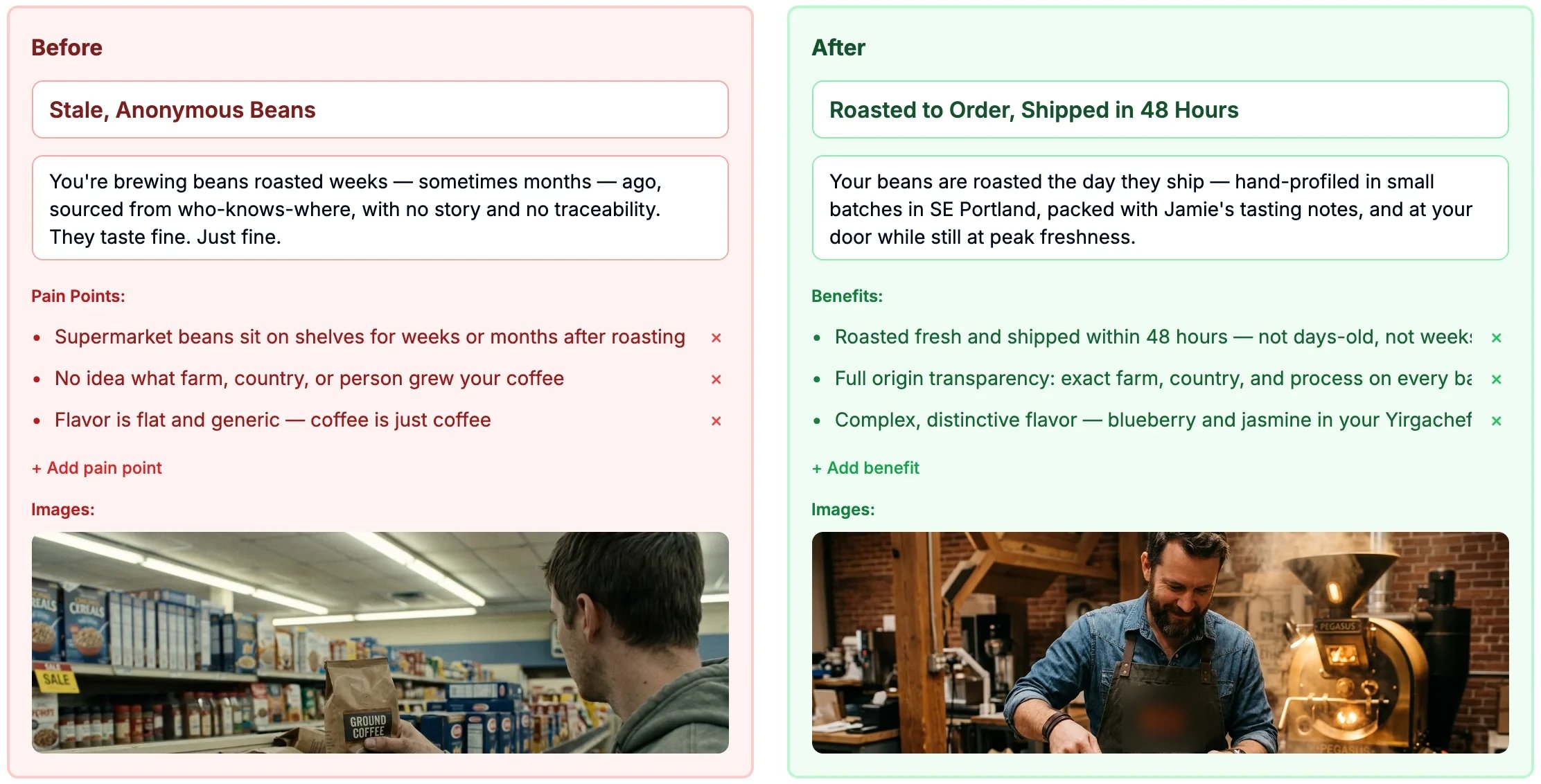
Before: Stale, Anonymous Beans, with its story, three pain points, Add pain point, and a picture of a shopper holding a bag of ground coffee in a supermarket. After: Roasted to Order, Shipped in 48 Hours, with its story, three benefits, Add benefit, and a picture of a roaster at work

Northwind's first pair

Click any text to change it. + Add pain point and + Add benefit add a line, and the × beside a line removes it.

Add a benefit and save

Northwind clicked + Add benefit on the After side and typed a new line.
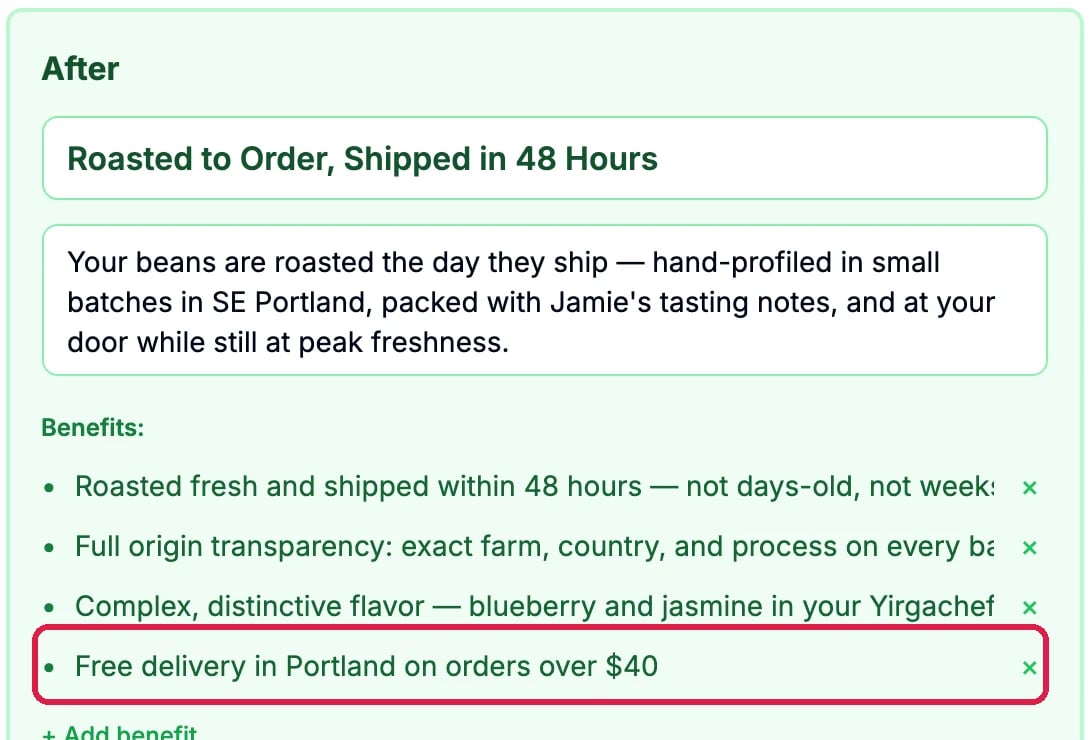
The After side's Benefits with a new fourth line, outlined: Free delivery in Portland on orders over $40

A new benefit

Click Save at the top right. A message says Grid saved.
The grid's buttons: Public URL, Chat history, Archive, and Save, outlined

Save, at the top of the grid

Northwind’s new benefit was only for this guide, so it clicked the × beside it and saved again.

Good to know

  • Where the grid shows: a grid appears on a customer journey page once it’s active and aimed at one of your customer avatars. The note at the top of the grid says whether it is, and the AI writer can aim it for you.
  • Change the order of pairs with the arrows on each pair, or remove one with its trash icon, then Delete. Click Save to keep either change.
  • Public URL gives a link for AI tools to read the grid’s content, not a page for people. Anyone with the link can read it.
  • Make a new grid with New Grid, or ask the AI writer (the orange tab at the left edge) to write one for you.
  • More: Create Before/After Comparison Grids.
