

Give it a moment
When you open a site, or after a big change, the preview shows Loading Preview with what it is doing, such as Compiling your project…, and how long it has been going. This usually takes under a minute. Click Show startup details to see each step.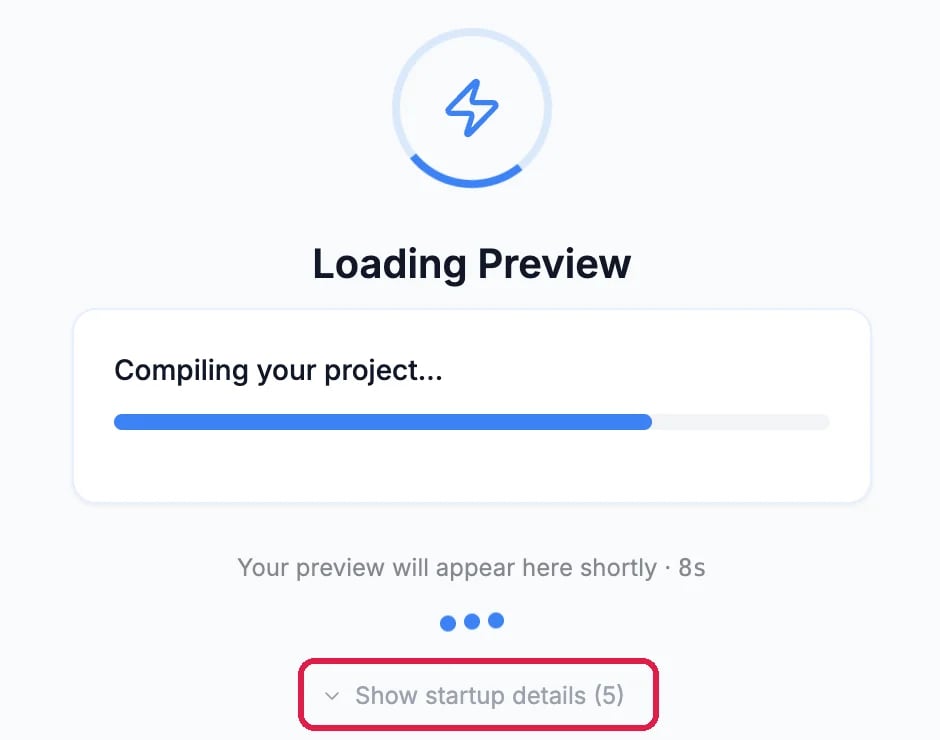
The preview starting up
Use the preview menu
Click the three dots in the preview’s toolbar. Try them in this order: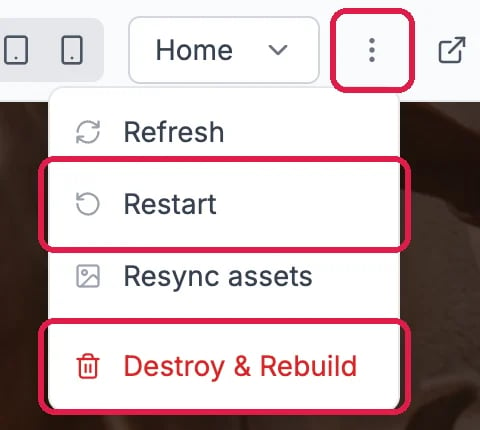
The preview menu
- Refresh reloads the preview in your browser. Use it when the preview looks out of date.
- Resync assets copies your images and files to the preview again. Use it when pictures show as broken.
- Restart restarts the preview and keeps what it has already installed, so it is much quicker than a rebuild. It fixes most blank or frozen previews.
- Destroy & Rebuild throws the preview away and builds a new one from your project. Use it when nothing else works.
Rebuild from scratch
Destroy & Rebuild asks first. Click Destroy & Rebuild in the window to go ahead; it typically takes 2 to 5 minutes, and the preview shows its progress while it starts.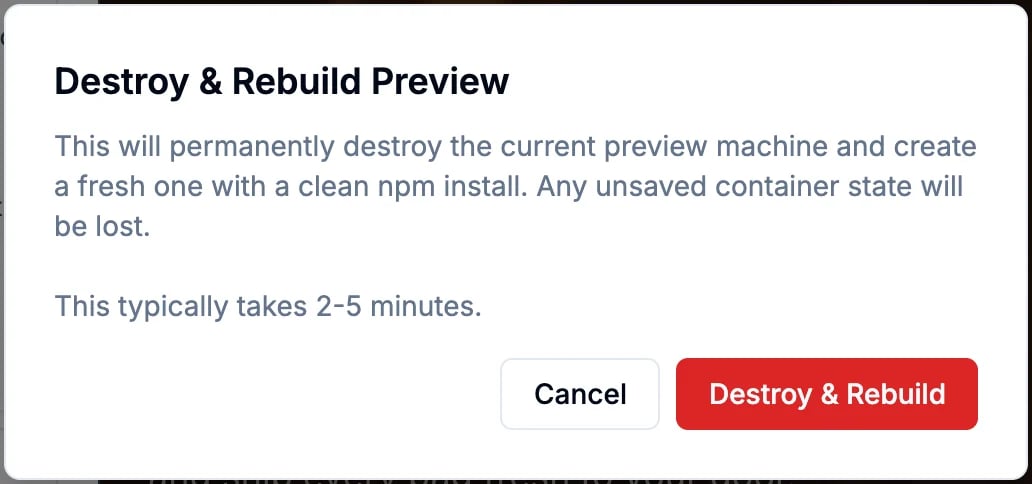
Rebuilding asks first
Good to know
- Someone else is fixing it: if a teammate is already restarting or rebuilding the preview, the menu says so and its buttons wait until they finish. Refresh still works.
- On a branch: each branch has its own preview. Restart gives the branch a fresh one, and Resync assets and Destroy & Rebuild aren’t offered there.
- Still stuck? Ask in the chat on the left, for example “The preview won’t load, can you check what’s wrong?”. It can look at the preview’s error messages and fix the code that causes them.