Search engines find your pages through two small files on your site. The sitemap lists the pages you want found. robots.txt tells search engines which parts of the site they may visit. A third setting, Search engine indexing, decides whether your live site can appear in search results at all. This guide checks all three on Northwind’s Pearl District site.

Open the SEO tools

Open the website in the builder. In the row of icons above the preview, click SEO (the magnifying glass).

The row of icons above the preview with the magnifying glass, SEO, outlined

SEO, above the preview

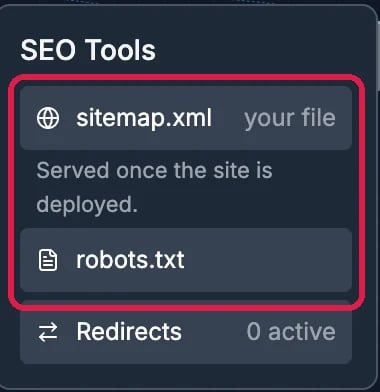
Your pages appear as a map. The SEO Tools card at the right has sitemap.xml, robots.txt and Redirects.
The SEO Tools card with sitemap.xml (your file, served once the site is deployed) and robots.txt outlined, and Redirects, 0 active

SEO Tools

See which pages your sitemap lists

Click sitemap.xml. The panel counts the pages included and the ones left out.
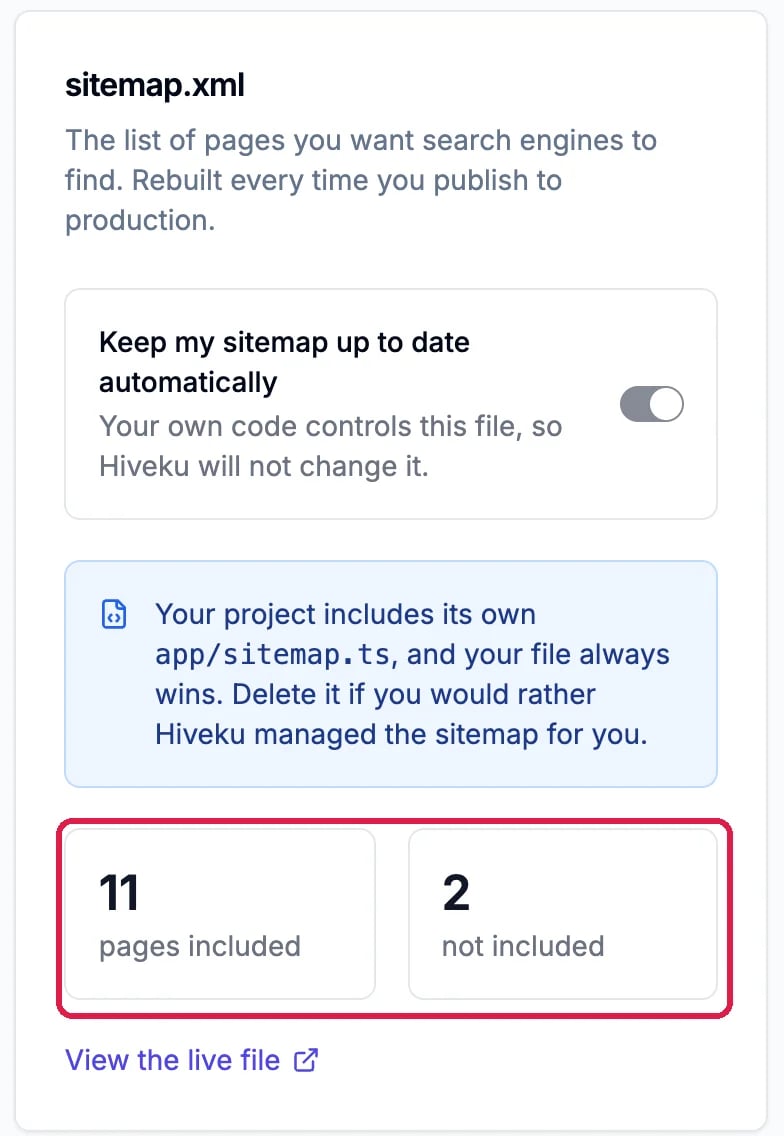
The sitemap.xml panel: Keep my sitemap up to date automatically, a note that the project includes its own sitemap file, and the counts 11 pages included and 2 not included, outlined, with View the live file

The sitemap panel: 11 pages included, 2 not included

Scroll down for both lists. Pages not in your sitemap gives the reason for each one. Northwind’s two are template pages for single coffees and brew guides, which only become real addresses once there are entries to fill them. Pages in your sitemap lists every address that is included. Keep my sitemap up to date automatically lets Hiveku rebuild the sitemap every time you publish to Production. Northwind’s site came from a template with its own sitemap file, so the panel says the site’s file is in charge, and the switch can’t be changed. To have Hiveku manage the sitemap instead, ask the AI in the builder chat to remove the site’s own sitemap file.

See your robots.txt

Click robots.txt. When the site has no robots file of its own, type the rules in the box, or click Use a starter, then click Save: they’re written to the site on your next deploy.
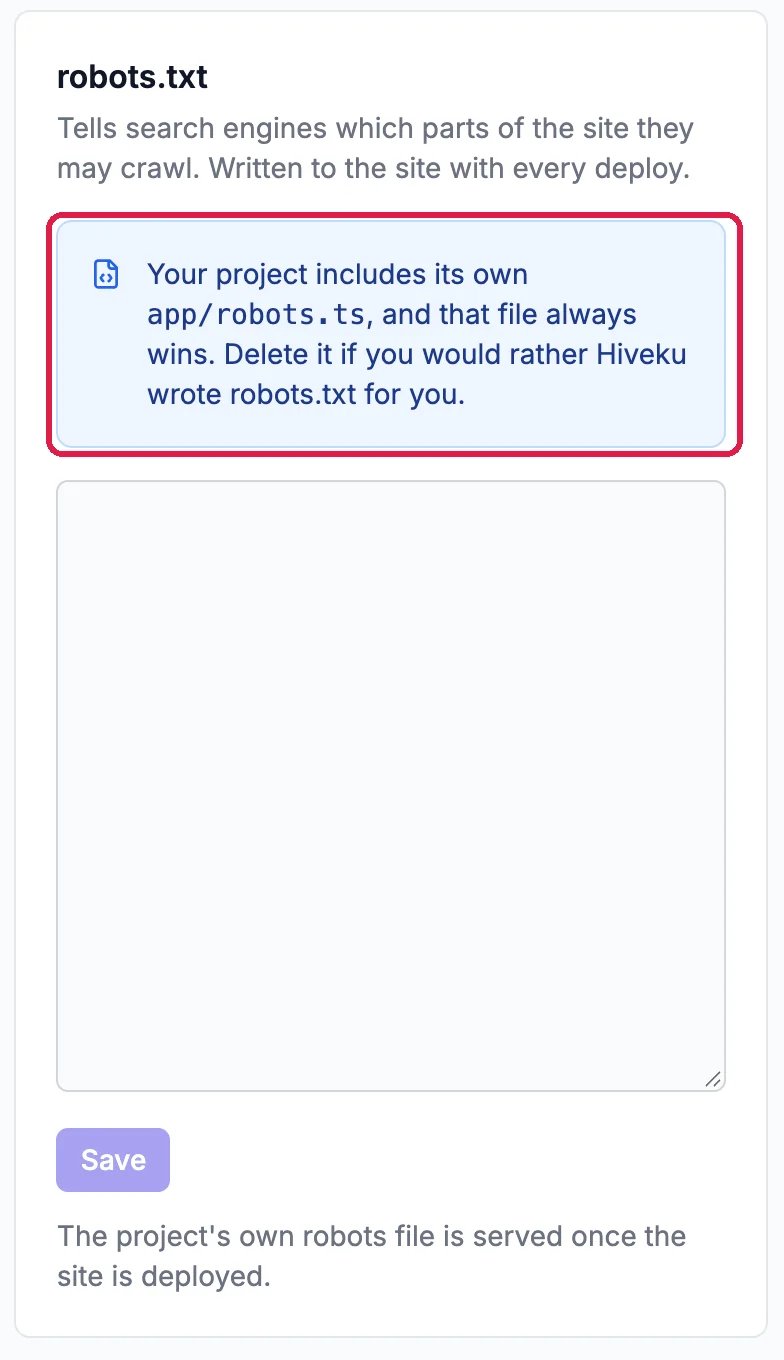
The robots.txt panel: Tells search engines which parts of the site they may crawl, written to the site with every deploy; a note, outlined, that the project includes its own robots file and that file always wins; an empty box and Save

The robots.txt panel

Northwind’s template has its own robots file too. The note says that file wins, so Northwind leaves the box empty.

Switch indexing off or on

Search engine indexing lives on the Hosting page. Click the site’s name at the top of the page, then Hosting, then Production. Under Hiveku Integrations, find Search engine indexing. It’s on by default.
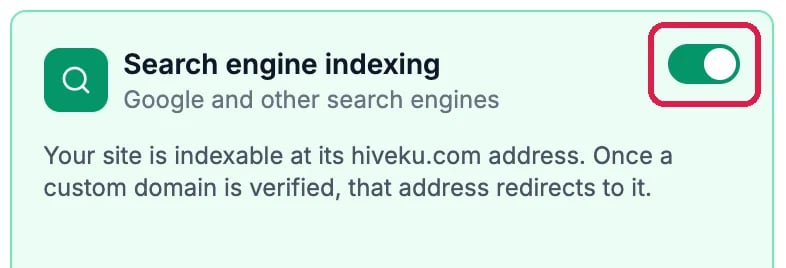
The Search engine indexing card, Google and other search engines, with its switch on and outlined: Your site is indexable at its hiveku.com address; once a custom domain is verified, that address redirects to it

Search engine indexing, on

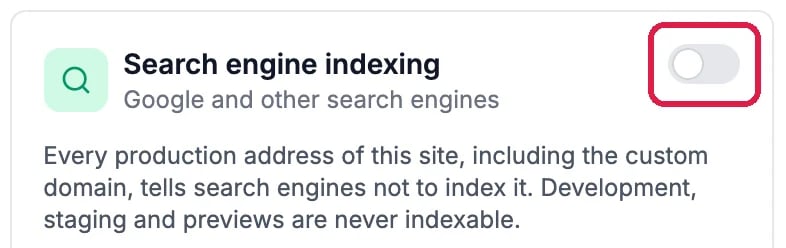
Click the switch to turn it off. Every address of your live site, your own domain included, then tells search engines not to list it. Use this while a site isn’t ready to be found.
The Search engine indexing card with its switch off, outlined: Every production address of this site, including the custom domain, tells search engines not to index it; development, staging and previews are never indexable

Search engine indexing, off

This switch doesn’t need a deploy: it takes effect within a minute. Northwind switched it back on right away.

Good to know

  • Development, Staging and previews are never indexed, so only Production has this switch.
  • Sitemap and robots.txt changes reach your live site with your next deploy. See Publish Your Changes.
  • Page titles and descriptions are covered in Improve How a Page Shows in Google.