

Ask the AI
Open the website in the builder. In the chat, say which page should carry the details and give them in full: the business name, street address, city, state and ZIP code, phone number and opening hours. End with Don’t change how the page looks, so the AI only adds the hidden details. A small change like this works well in Fast mode.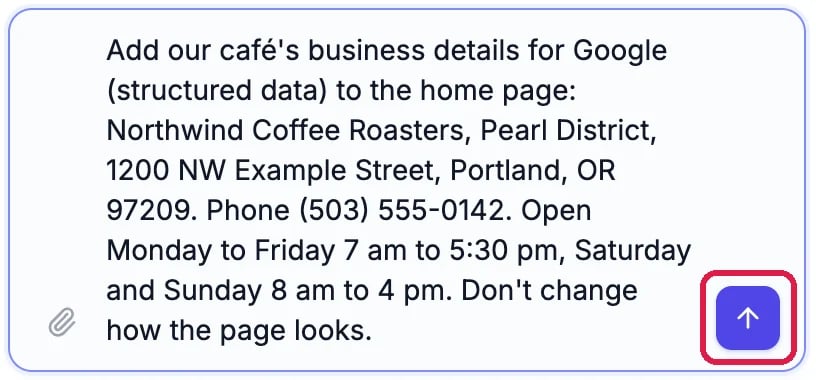
The request, in the builder chat
Read what the AI did
The AI says what it changed and which file. Northwind’s home page already listed the café’s opening hours for search engines, so the AI added the address and phone number to the same block. The page looks exactly as before.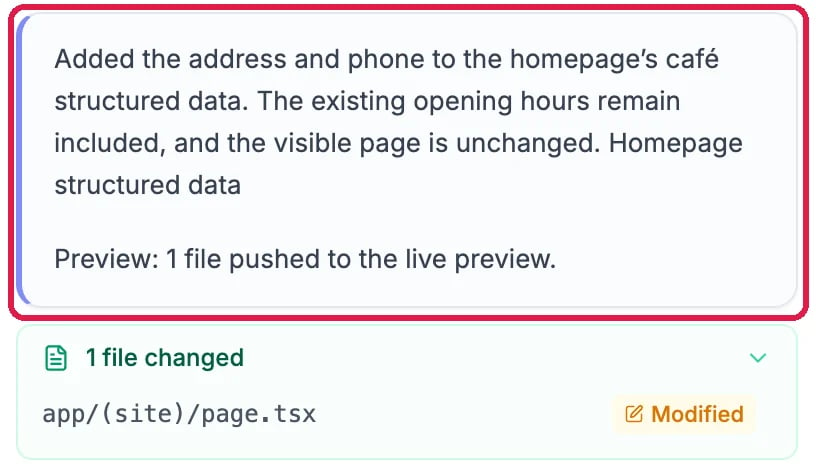
The AI's answer
Publish, then check it with Google
The details reach search engines once the page is live. Publish the site as in Publish Your Changes. Then open Google’s Rich Results Test, paste your page’s address and run it. It lists the business details it found. Northwind’s Pearl District site isn’t published, so this guide stops before that step.Good to know
- Use the same details everywhere. The name, address and phone number should match your Google Business Profile and the rest of your site.
- Changed your hours? Ask the AI to update them the same way, then publish.
- The SEO tab has a Schema tab too, with templates such as Location. On sites made in the builder, use the chat for now: details saved in the Schema tab don’t reach the page yet, and the SEO audit may still say No structured data for a page that has it.