

See how you’re doing
Click Marketing in the left rail, then the Reviews & Reputation card. Overview shows how many reviews you have, your average rating, how many you’ve replied to and how many review requests you’ve sent.
19 reviews, all answered
Read your reviews
Click Reviews. Every review is listed, newest first, with its stars, where it came from and your reply. Click Needs reply to see only the ones you haven’t answered, or 3 stars and below to deal with unhappy customers first.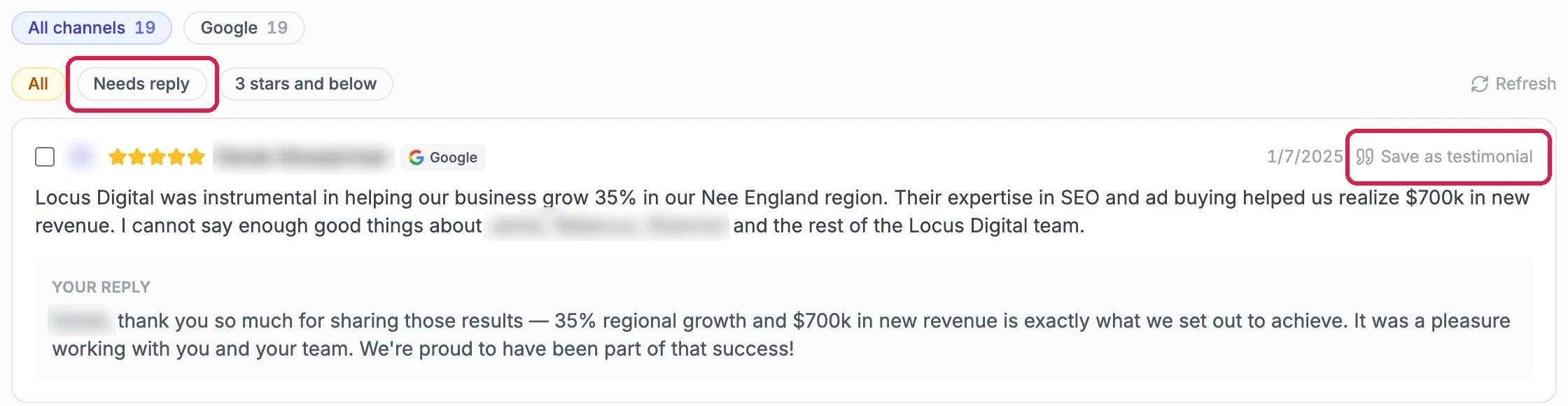
A review and its reply
Reply to a review
On a review without a reply:- Click Draft with AI. The AI writes a reply in your voice, mentioning what the customer said.
- Read it, and change anything you’d say differently.
- Click Post reply. The reply appears under the review on Google straight away.
Save the best ones as testimonials
Click Save as testimonial on a review you’d like to show on your website. It’s added to Testimonials, where you choose where it appears. See Collect Reviews and Testimonials.Have a reply drafted for every new review
Click Settings and scroll to Auto-response rules. Click Add rule, choose the star range, such as 4★ to 5★, and what should happen:- AI draft for approval: a reply is drafted and waits for you to check and post it.
- Auto-post: the reply is posted straight away (Google only).
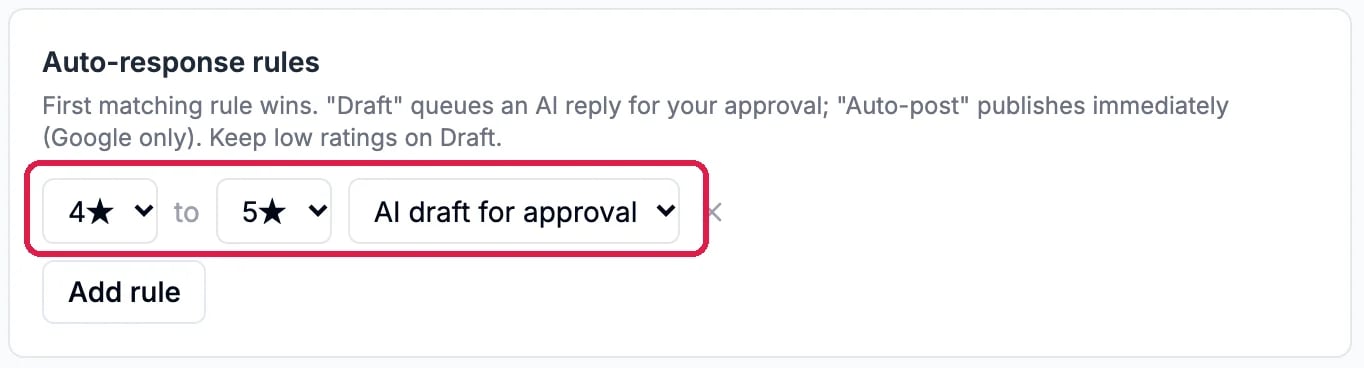
Draft a reply for 4 and 5 star reviews
Good to know
- Urgent reviews: under Settings, Alerts sets which star rating counts as urgent and rings the bell for your admins.
- Get more reviews: Requests sends review requests by text or email. See Collect Reviews and Testimonials.
- Google not connected yet? See Connect Google Business Profile.