

Pick the section
Open the website in the builder and click Visual Edit at the top right. In the narrow bar on the left, click Components (the squares icon). Click the section you want to change in the preview. A bar names the section, and the library shows designs that fit it.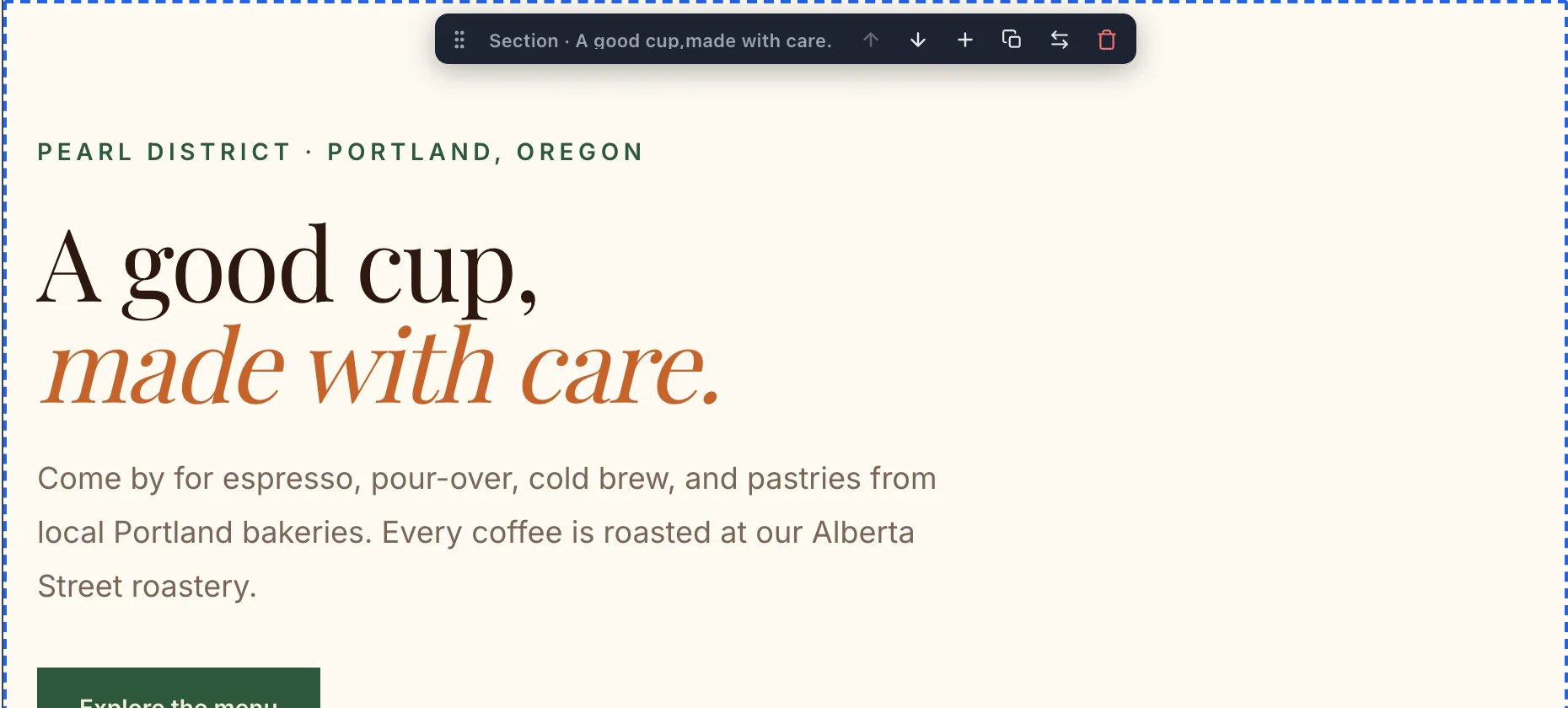
The top section, picked
Find a design
Search the library, or click a category. Northwind wanted a big photo behind its words, so it searched for full bleed image. Each design has two buttons:- Use in chat writes a request for the AI and keeps your words. Use this one.
- Replace section now swaps the layout at once, and may put the design’s sample text in place of yours.
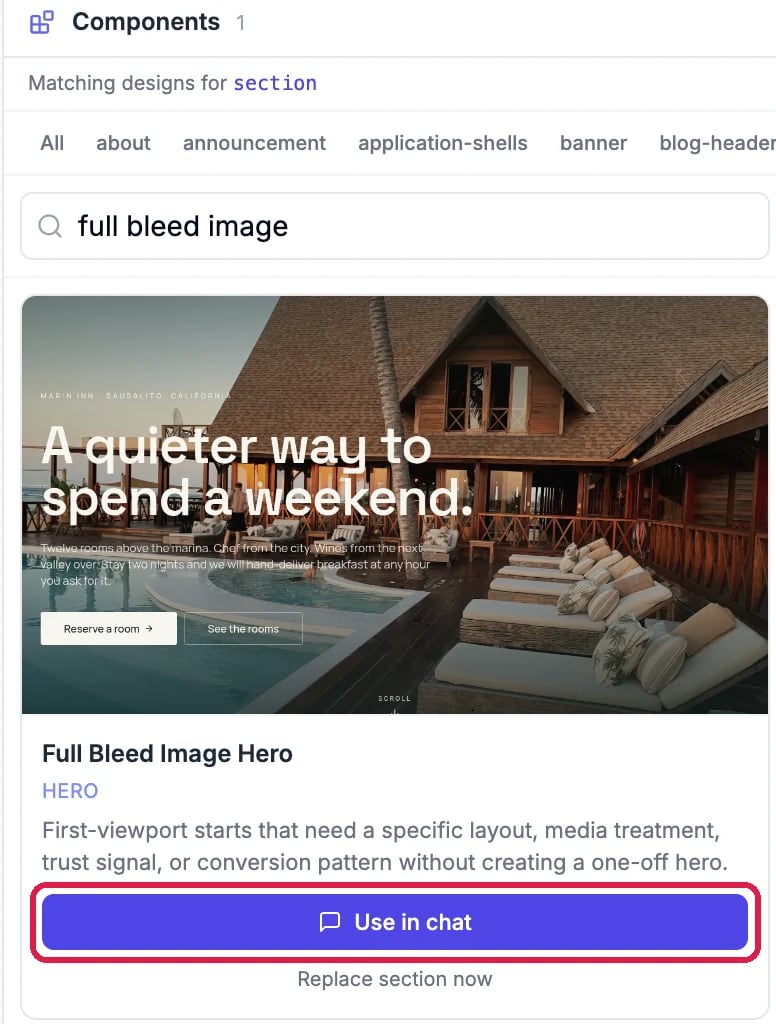
A design, with Use in chat outlined
Send the request
Click Open chat in the note, or the chat bubble at the bottom of the left bar. The request names the section and the design, and asks the AI to keep your words, links and images. Add anything you want, then click the arrow.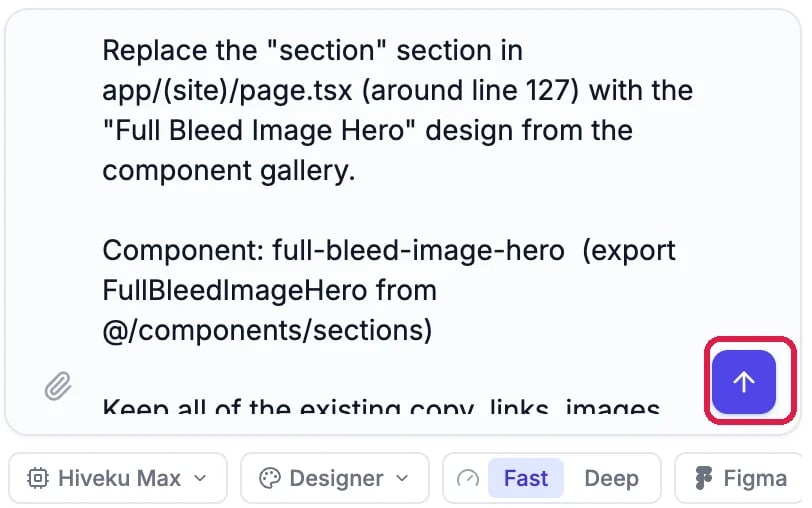
The request in the chat box
Check it, and undo if it doesn’t suit
Look at the preview. The new design kept Northwind’s words and button, but it was made for a large photo, and Northwind’s top section had no photo, so the AI used the site’s logo. Stretched behind the text, the logo makes the words hard to read.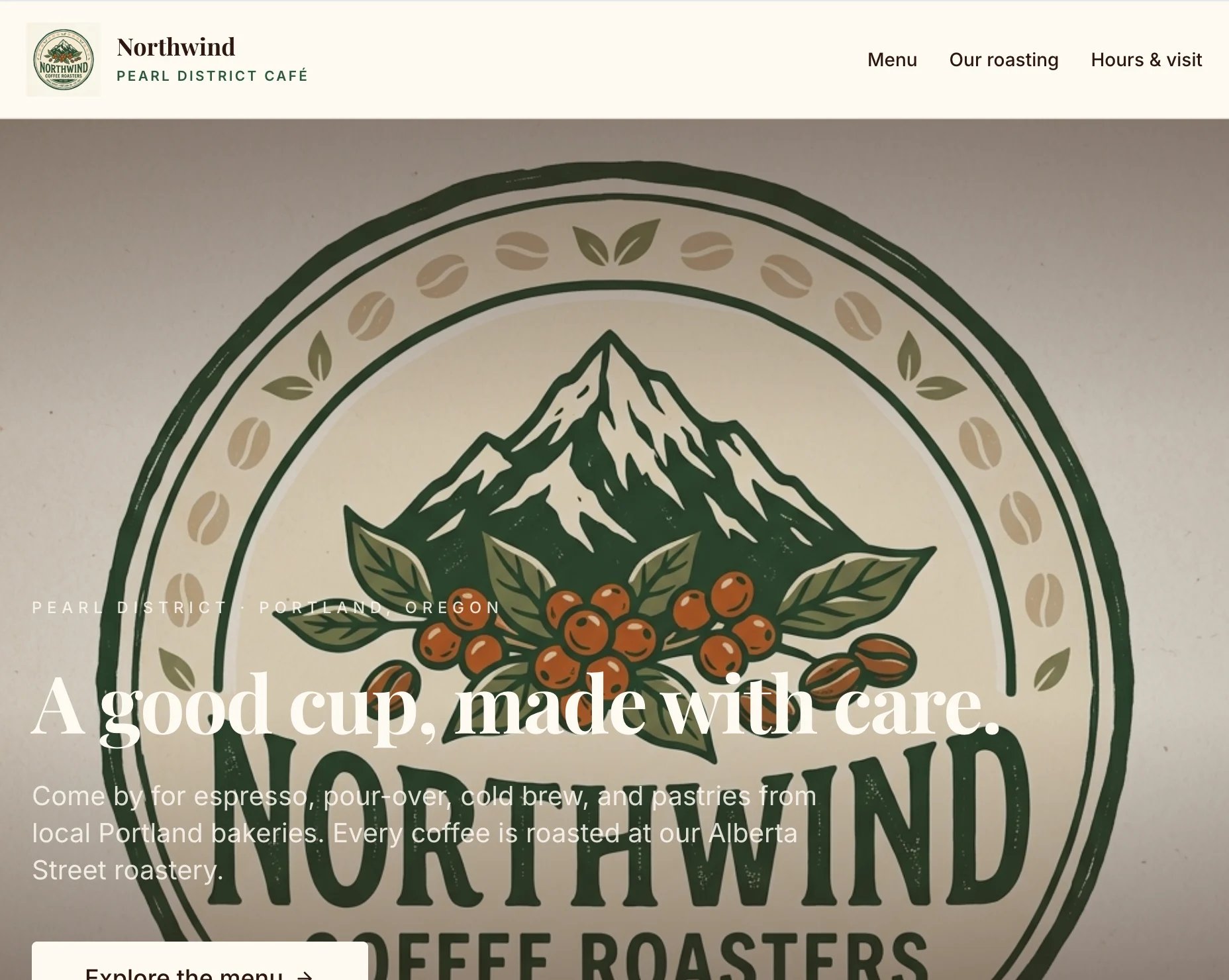
The new design, with the logo behind the words

Undo this turn, above the request
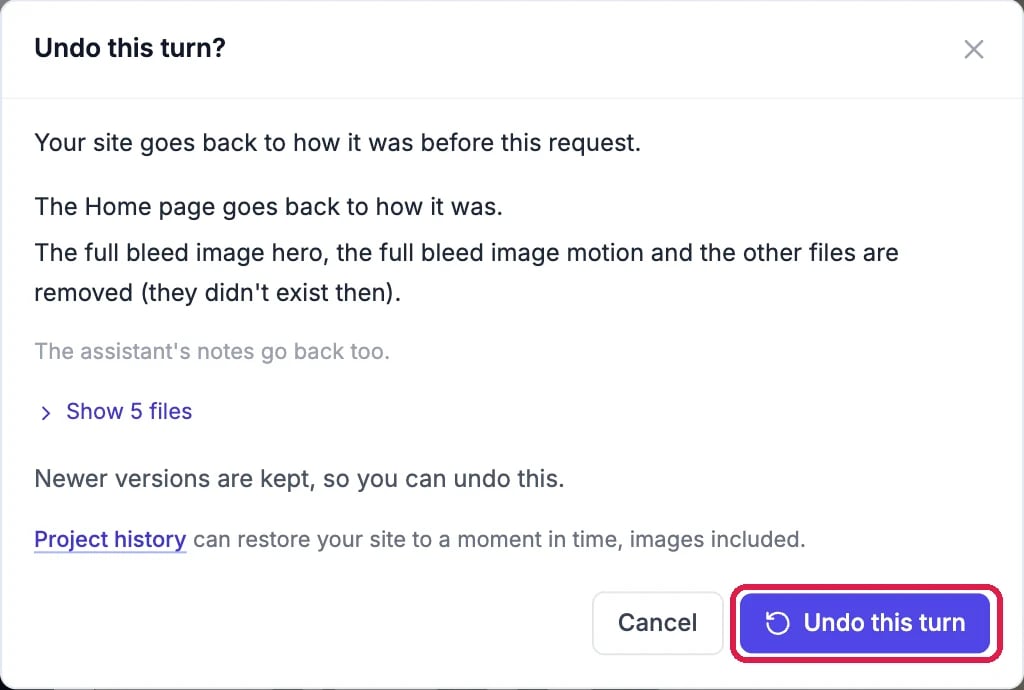
What the undo takes back
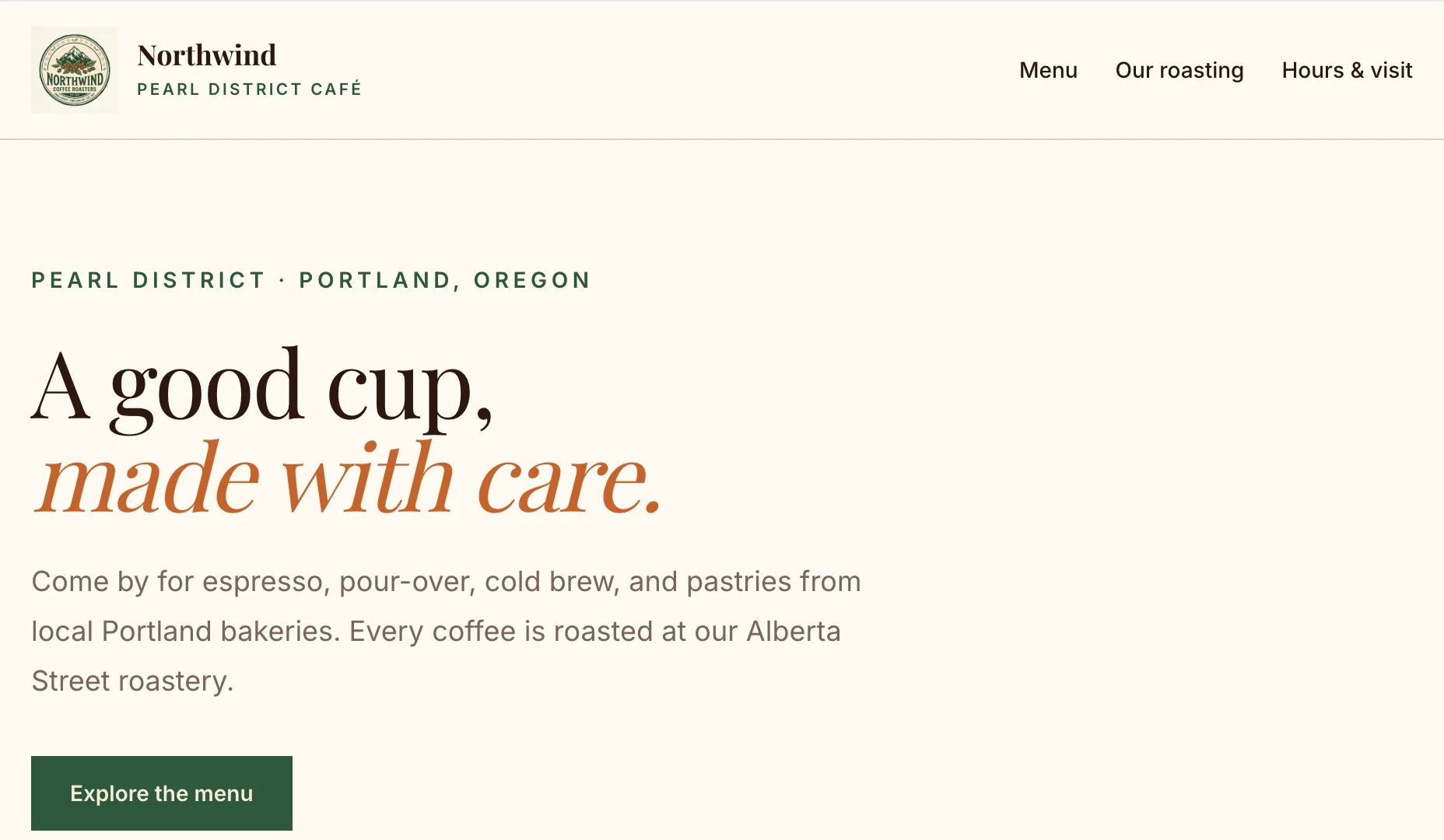
Back as it was
Good to know
- Pick a design that fits what you have. A photo-led design needs a good wide photo. Add one first, or ask the AI to use one of your photos.
- Undo takes back later requests too. Undoing a request also undoes any changes you made after it; the box tells you before you confirm.
- Nothing goes live until you publish. Try as many designs as you like in the preview. See Publish Your Changes.
- More on undoing: Undo a Change.