

Open Custom Code
Open the website, click its name at the top of the page, then Hosting. At the top right of the Hosting page, click Custom Code. Pick the environment at the top: Production is your live site. Each environment keeps its own code (Preview, Development, Production, and Staging if you use it), so you can try a snippet on Development first.Paste the snippet
The service that gave you the snippet says where it goes:- Head code is added at the end of the page’s head. Most tracking codes go here.
- Footer code is added just before the end of the page. Some chat widgets ask for this spot.
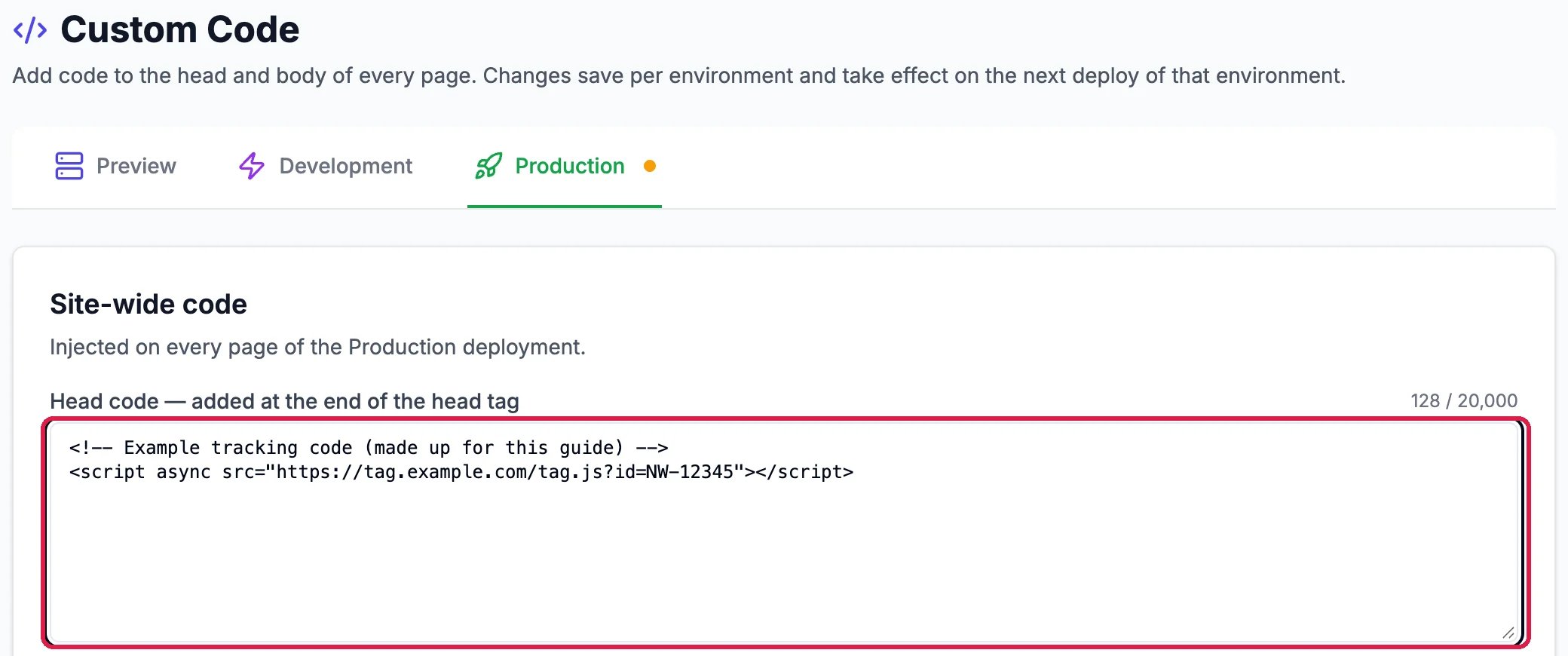
An example snippet in Head code, on Production
Use the snippet exactly as the service gave it to you. Northwind’s points at
example.com, so it does nothing.Add code to one page only
Some codes belong on a single page, such as a conversion tag on a thank-you page. Under Per-page code, type the page’s address (for example/thank-you) and click Add page, then paste the code for that page. It’s added after the site-wide code, on that page only.
Save, then deploy
Click Save Production at the bottom of the page.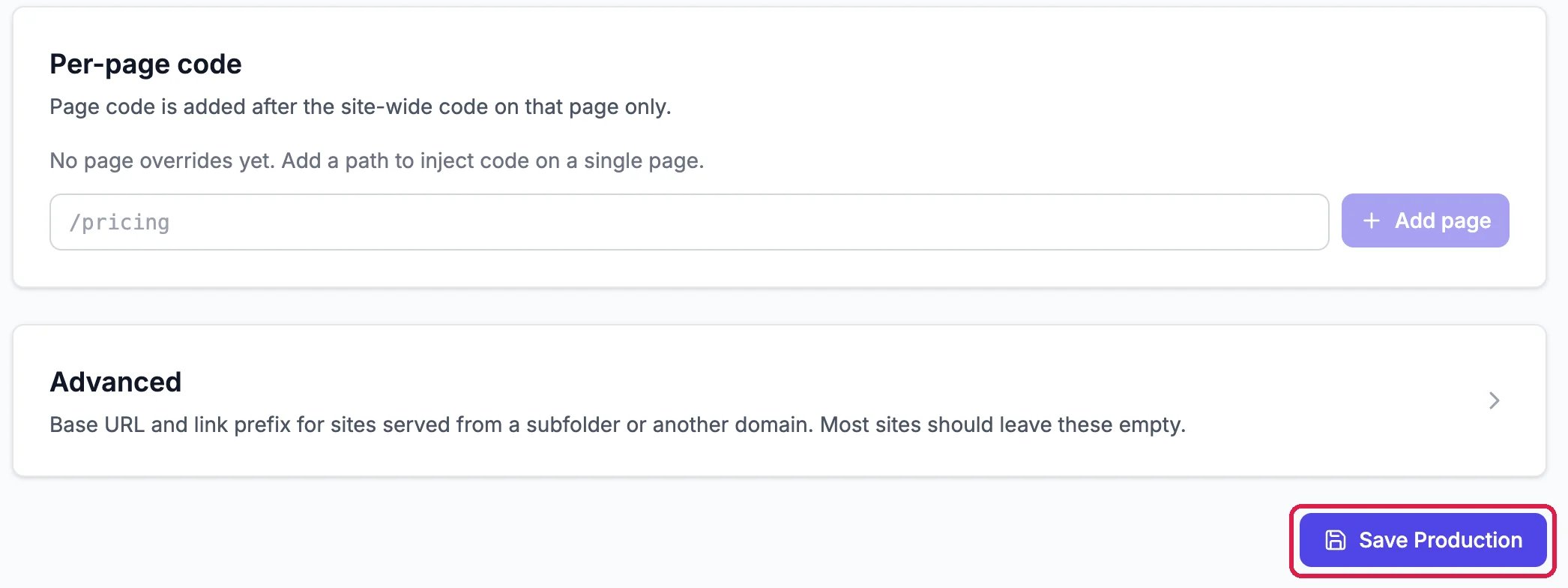
Per-page code and Save Production

Saved
Good to know
- To remove a snippet, delete it from the box, save, and deploy.
- Leave Advanced alone unless your site is served from a folder of another site. Most sites leave it empty.
- Tags that social sites read when someone shares your link go in the SEO settings instead. Improve How a Page Shows in Google shows the SEO tab.
- Google Analytics has its own guide: Add Google Analytics.