Time off keeps track of vacation and other leave: who asked for which days, what you approved, and how many hours each person has left. Hours build up by themselves through the year from the policies you set. This guide books a day of vacation for Priya, one of Northwind’s baristas, and approves it.

Open Time off

Click Commerce in the left rail. In the list on the left, under Payroll, click Time off.

Record a request

Under Request time off, pick the Member and the Policy, such as Vacation, the Start and End days, and the number of Hours. Click Request.

Request time off: Member Priya Desai, Policy Vacation, Start 12/24/2026, End 12/24/2026, Hours 8, outlined, and Request

A day off for Priya

Team members who sign in to Hiveku ask for their own time off from My pay, and their requests land here the same way.

Approve or deny it

The request appears under Requests, marked Pending. Click Approve or Deny.
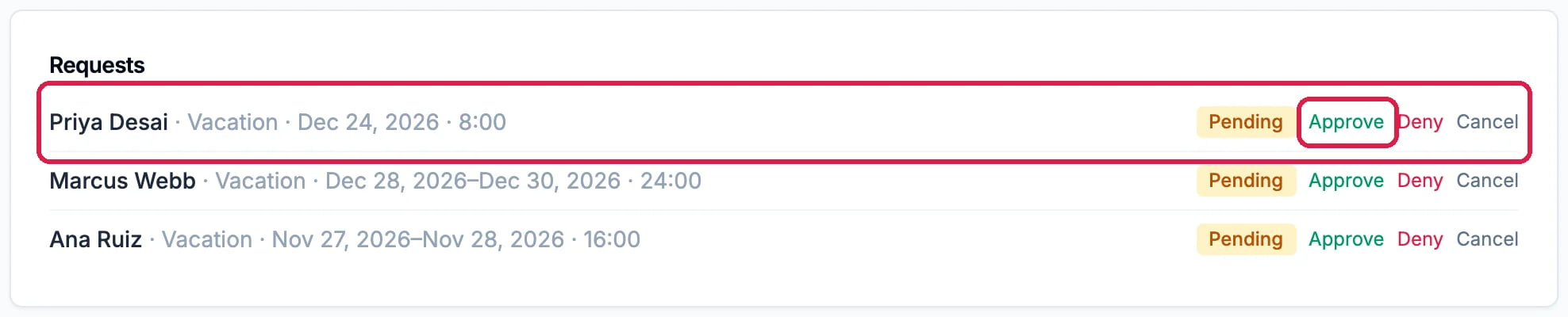
Requests: Priya Desai, Vacation, Dec 24, 2026, 8:00, Pending, with Approve outlined, Deny and Cancel; and pending requests from Marcus Webb and Ana Ruiz

Pending, with Approve

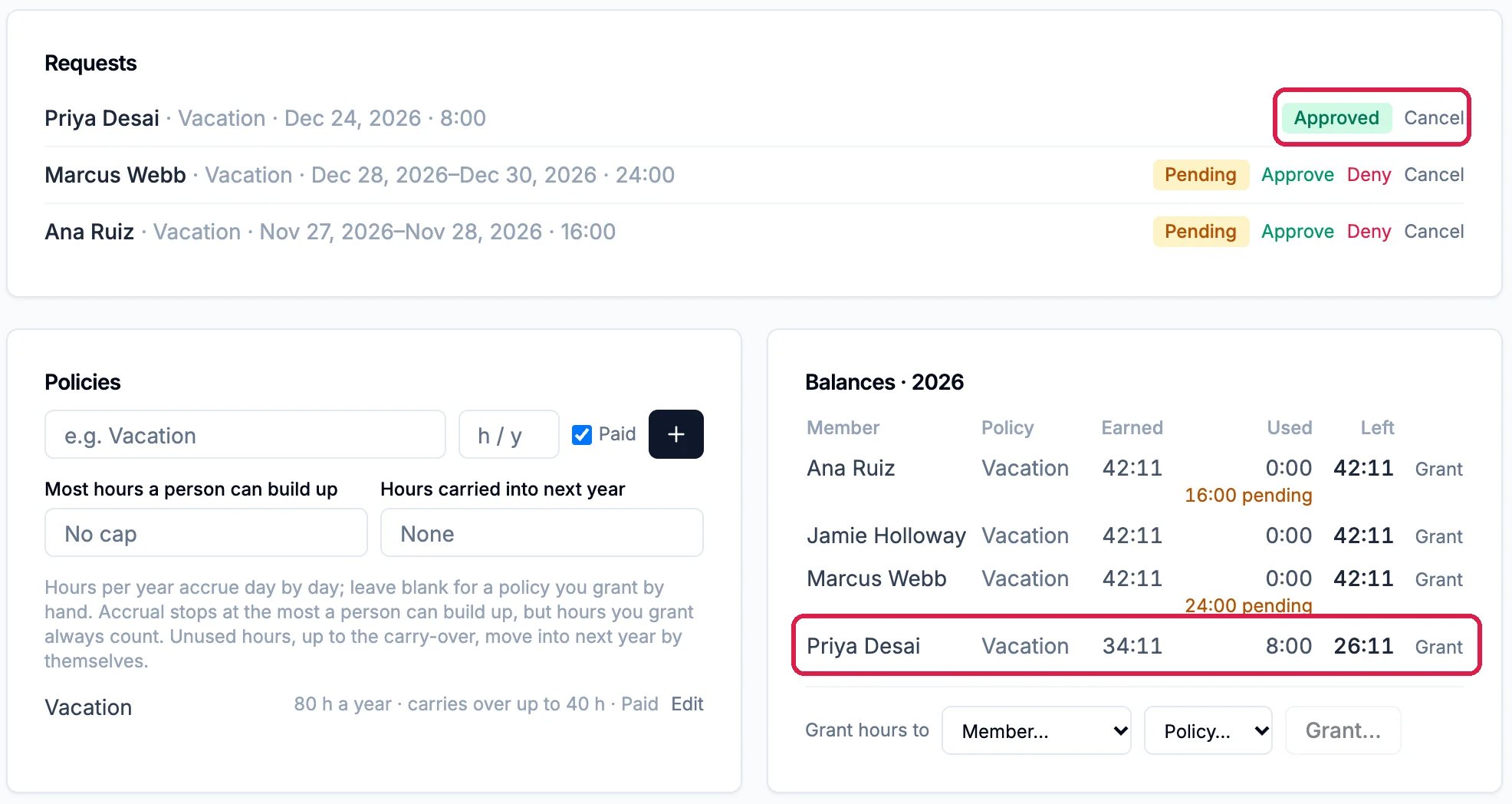
Once approved, the hours come off the person’s balance. Balances shows, for each person and policy, the hours Earned so far this year, Used and Left. Hours waiting on a decision show as pending.
Priya Desai's request now Approved, outlined; and Balances 2026 with Priya Desai, Vacation, Earned 34:11, Used 8:00, Left 26:11, outlined

Approved, and Priya's balance

Good to know

  • Change of plans? Cancel on an approved request gives the hours back.
  • Set up a policy under Policies: a name, the hours a person earns each year, the most they can build up, and how many carry into next year. Leave the yearly hours blank for leave you grant by hand.
  • Give someone extra hours with Grant hours to under Balances.
  • Paid time off in payroll: see Run Payroll for Your Team.