

Open the site tools
Open the website, click its name at the top of the page, then Hosting. Click Production in the row of environments, and scroll to Site tools for Production. Each environment has its own switches, so you can try an extra on Development first.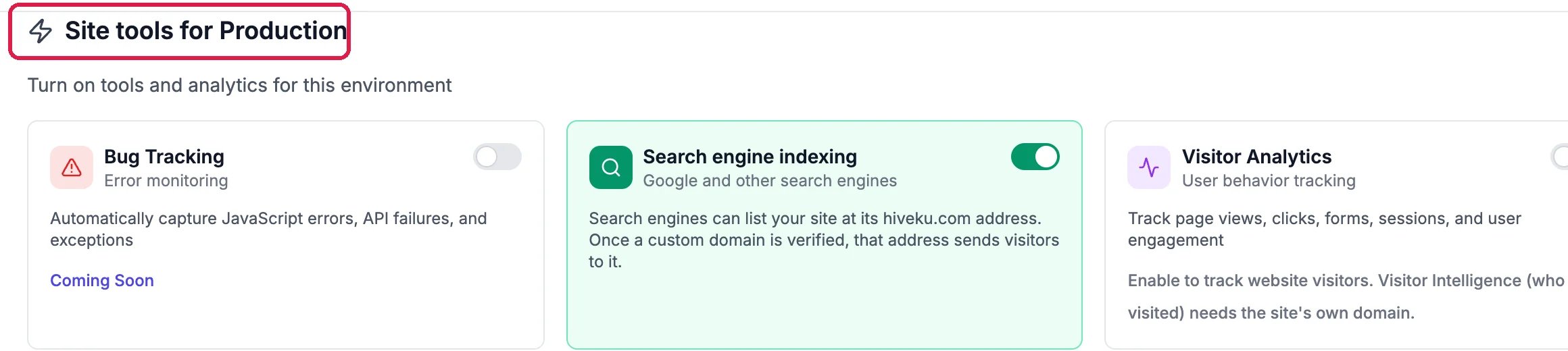
Site tools for Production
Accessibility helpers
Click the switch on Accessibility. It adds a skip-to-main-content link for keyboard users, clear outlines on whatever has focus, page landmarks for screen readers, less motion for visitors who ask their device for it, and underlined links for visitors who ask for high contrast.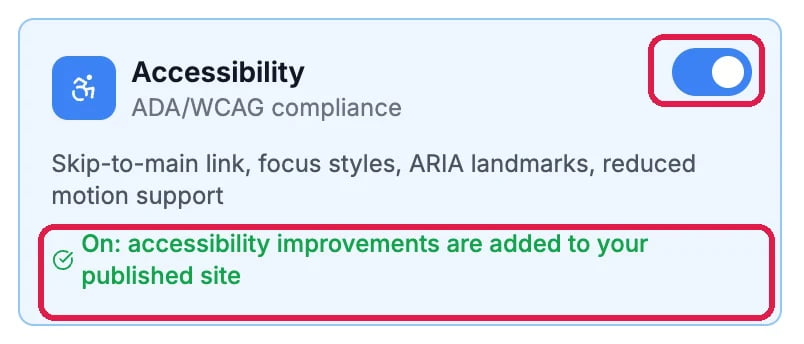
Accessibility, switched on
Sharing, security and Add to Home Screen
The same way:- SEO Enhancements writes the tags that give each page a title, description and picture when someone shares it, and structured data for search engines.
- PWA Ready lets visitors add your site to their phone’s home screen like an app.
- Security Headers adds a referrer policy and an HTTPS upgrade to plain HTML pages. As the card says, it changes nothing on a site built with Next.js, such as Northwind’s.

SEO Enhancements and PWA Ready, switched on
Choose how much the code is compressed
Minification makes your pages smaller, so they load faster. Full compresses the most, Minor is safer for pages with embedded videos, widgets or other content that carries its own code, and Off leaves the code as it is. If something embedded stops working after you publish, try Minor.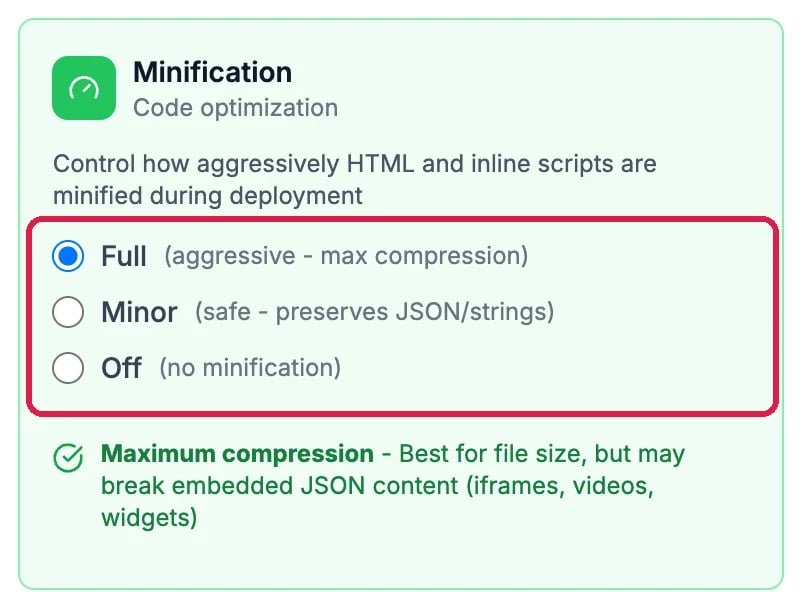
Full, Minor or Off
Publish to apply them
The extras are added when your site is published. After you switch one on or off, a message says so: publish the environment again to apply it. See Publish Your Changes.Good to know
- Other switches here have their own guides: Add a Cookie Consent Banner to Your Site, Stop Spam from Your Website Forms and Remove the Made in Hiveku Badge.
- Cards marked Coming Soon, such as Bug Tracking and RUM Monitoring, cannot be switched on yet.
- Switching off takes the extra out the next time you publish.