

Open the site map
Open your site in the builder and click the SEO icon (the magnifier) in the row of icons above the preview. Pages opens first, with a count of your pages.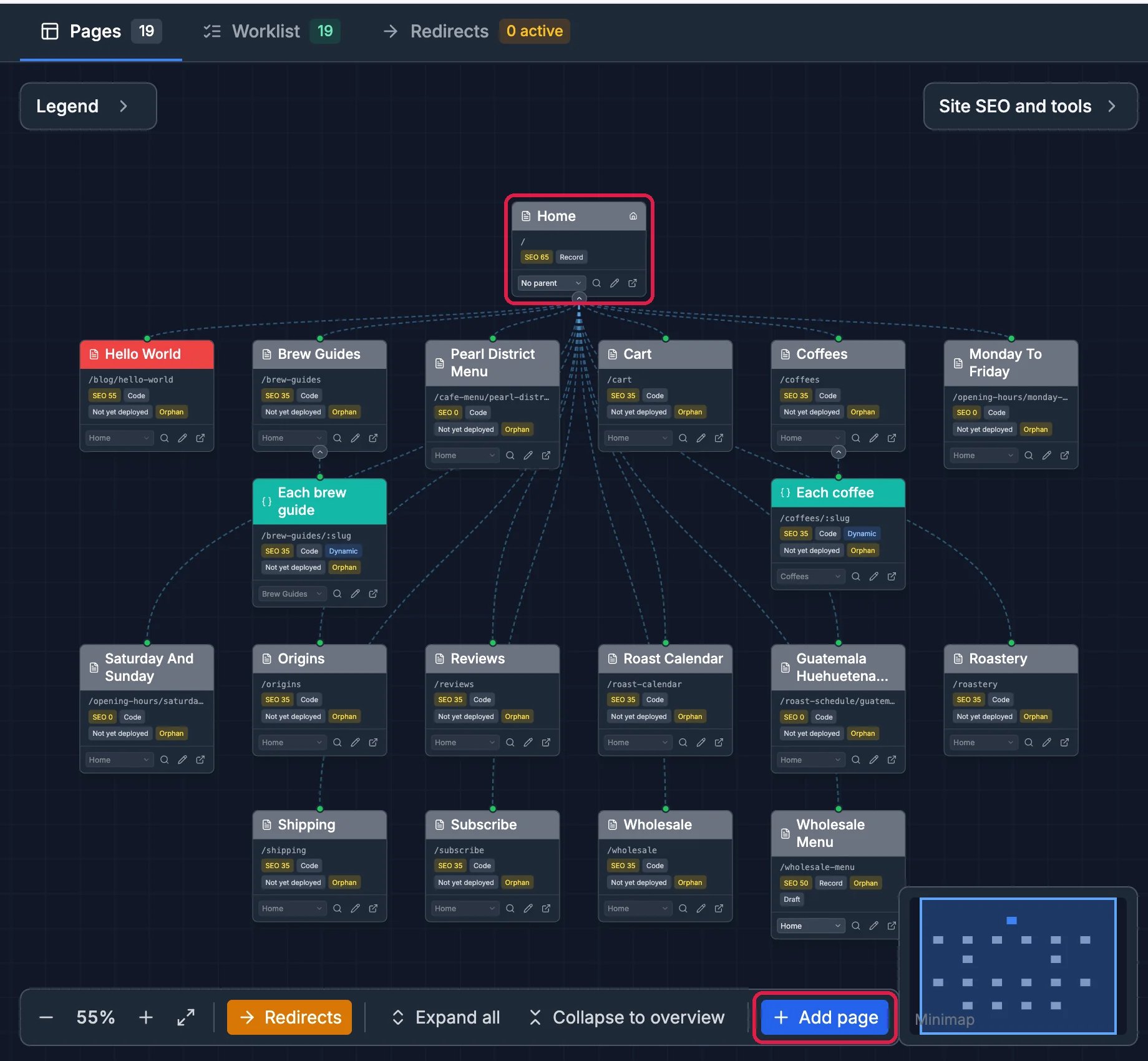
Pearl District's 19 pages
Read a page’s card
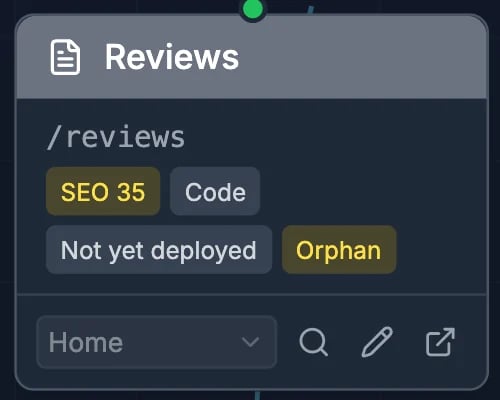
One page
- SEO is the page’s score out of 100: the higher, the better its title, description and headings are set up for search engines.
- Not yet deployed means the page isn’t on your live site yet.
- Orphan means no other page links to it, so visitors can only reach it by its address.
- The list at the bottom sets the page’s Parent page. The magnifier opens Page details, the pencil opens it in the editor, and the arrow opens the page.
See what needs work
Click Legend for what the colors mean, and for the issues found across your pages, with how many pages have each one, such as No H1 heading or Duplicate title.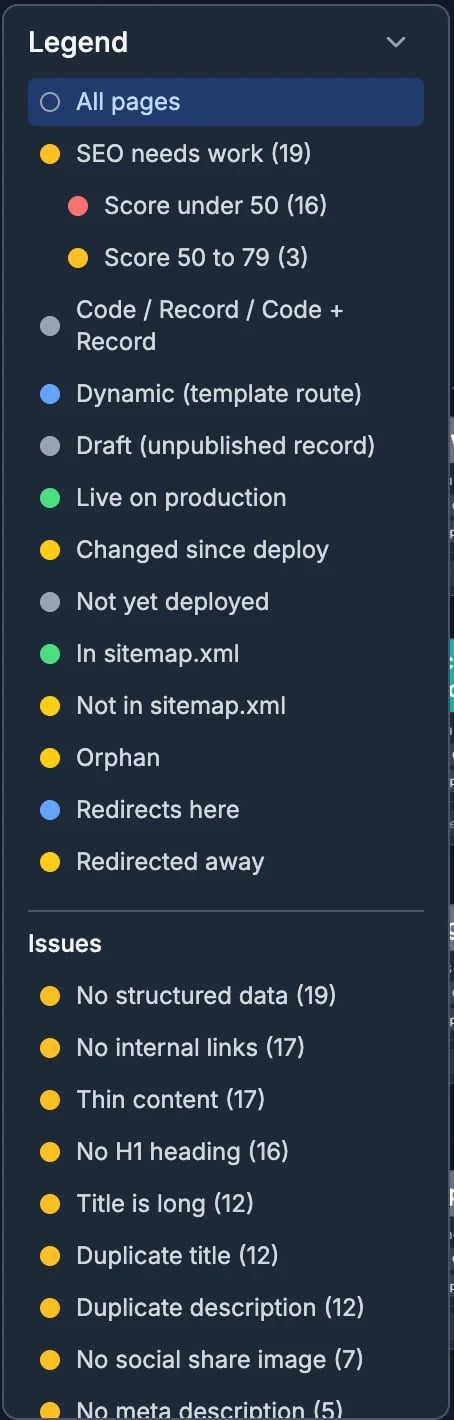
The Legend
Plan a new page
Click Add page at the bottom. Type the Page name, pick its Parent page if it sits under another page, and check the URL slug, the end of its address. Then click Add page.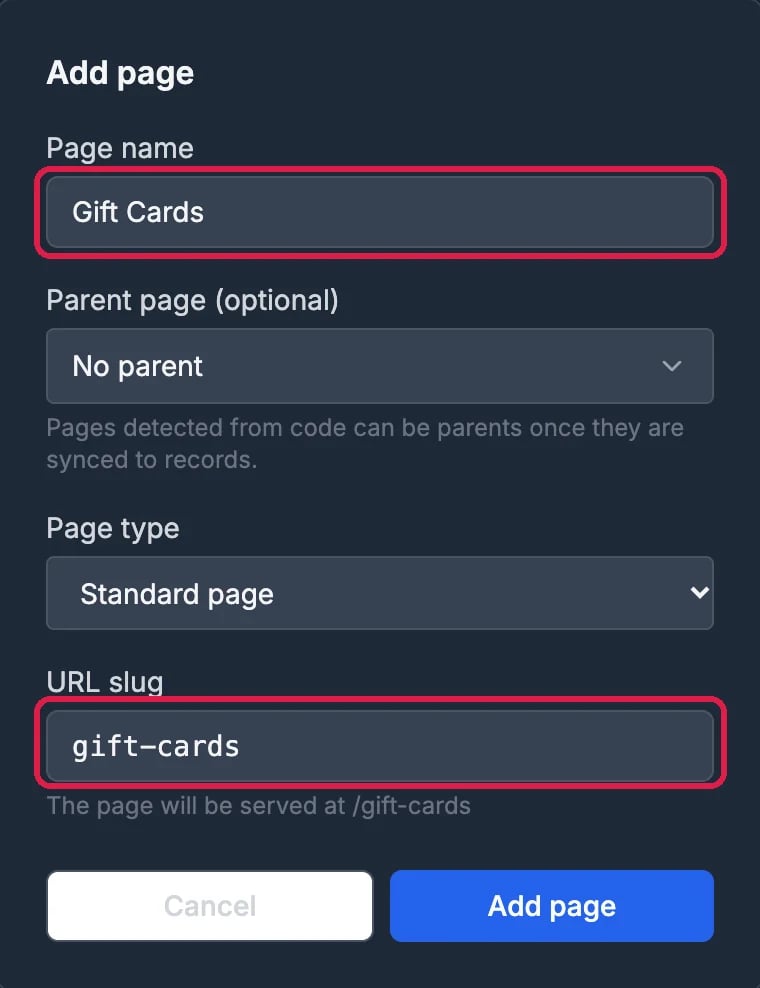
A Gift Cards page, ready to add
Good to know
- A planned page can’t be removed from the map yet. Add only pages you mean to build.
- Redirects at the top lists old addresses you send to new pages: see Send an Old Page Address to a New One.